
01Who this is for
- Operations managers can automate task distribution so team members receive clear assignments.
- Project leads benefit from built in due date calculations that reflect business timelines.
02Add task actions, explained
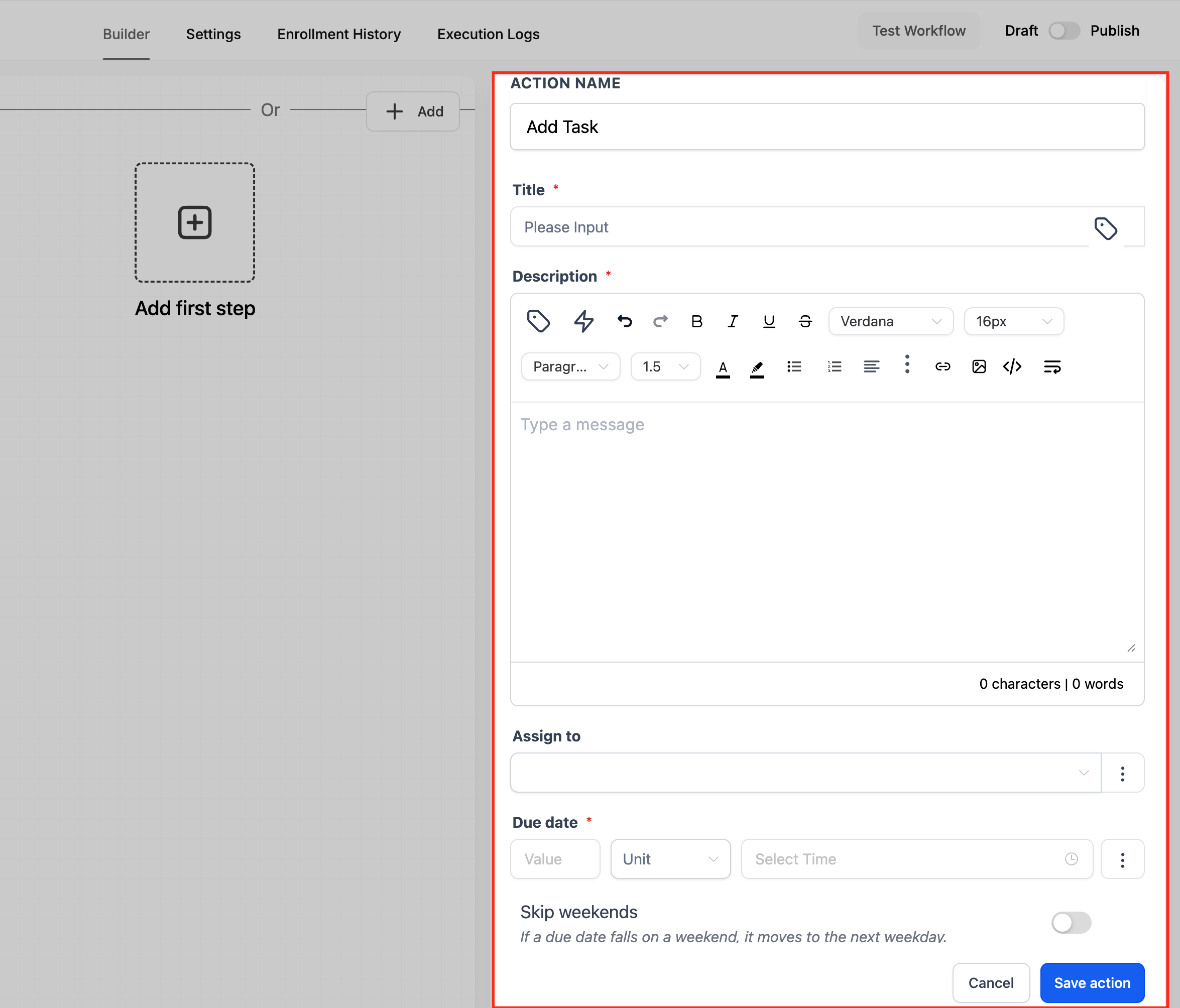
The Add Task action is a workflow step that generates a new task record in HighLevel. You specify a title, optional description, the user who will own the task, and a deadline expressed as a number plus a time unit. Optional settings let you set an exact time of day for the deadline and choose to skip weekends during the calculation.
This action lives inside the workflow builder. When the workflow runs, the platform evaluates the fields, creates the task, assigns it to the selected user, and shows a preview of the resulting due date and time before the workflow saves the record.
03How businesses use add task
- Marketing agency. The agency creates a workflow that adds a task for the copywriter when a new client brief is received. The task title, description and due date are set so the writer knows exactly when the draft is needed.
- Real estate brokerage. Agents use a workflow that adds a follow up task for a showing coordinator after a property inquiry. The due date is set to two days, with weekends excluded, ensuring the coordinator contacts the lead on a business day.
- SaaS startup. When a trial user signs up, a workflow adds a task for the customer success manager to check in. The task includes a description of the user's plan and a due time of 10:00 AM on the third day.
04How to set up and use add task in HighLevel
Configure Add Task action
- Open the workflow editor and add a new action, selecting Add Task from the list.
- Enter a clear Action Name, such as “Add Task, Follow Up”.
- Fill in the Title field with the task headline.
- Provide any extra information in the Description field using the rich text editor.
- Choose the team member who should receive the task in the Assign To dropdown.
- Enter a number in the Due In field that represents the time until the task is due.
- Select the appropriate time unit, days, weeks, months, or years, for the Due In value.
- Optionally pick a specific time of day in the Due Time field.
- Optionally enable Exclude Weekends to prevent weekends from counting toward the deadline.
- Check the Due Date Preview to verify the calculated due date and time before saving.
05What it looks like in HighLevel
06Settings that matter
- Title. Specifies the name of the task so the assignee can quickly identify it.
- Description. Provides additional details or instructions for the task; this field is optional.
- Assign To. Selects the user who will own the task from the list of available users.
- Due In. Sets how far in the future the task is due, using a number and a chosen time unit.
- Due Time. Allows a specific clock time to be added to the due date; this field is optional.
- Exclude Weekends. When enabled, weekends are ignored while calculating the final due date.
07Things to know before you rely on it
- Title, Assign To and Due In are required fields; the other fields are optional.
- Due Time and Exclude Weekends only affect the calculated deadline when they are set.
08How it connects to the rest of HighLevel
- Learn basic workflow setup steps Workflow basics
- Read how to create triggers, filters, and actions for workflows Workflow creation guide
- Check plan requirements for using workflow actions Pricing and plans
Michael's take

Remember to enable Skip Weekends when you need the calculated due date to avoid weekends; otherwise the deadline may fall on a Saturday or Sunday.
When the task lands in a teammate’s list they see exactly what needs to be done, a description with any formatting you added, and a due date you set. That clarity makes it easier to stay on schedule and keep the team aligned.