
01Who this is for
- Affiliate managers, they can automate crediting leads to the right affiliate without manual entry.
- Marketing teams, they can ensure form submissions are tied to the correct affiliate campaign for accurate attribution.
02Add leads under an affiliate, explained
The action sits inside the workflow builder under the Affiliate section. After a trigger fires, the block assigns the contact to a campaign and an affiliate based on the mapping method you choose. It works for manual selections, attribution links, or custom field mapping.
The action can be placed in any workflow that already has a trigger, such as a form submission or tag addition. Once configured, the workflow runs in real time, adding the lead to the affiliate manager system and recording the association for later reporting.
03How businesses use add leads under an affiliate
- Fitness studio. When a new client fills out the membership sign up form, the studio's workflow uses Manual Assignment to place the lead under a specific promotional affiliate, guaranteeing the affiliate receives credit for the referral.
- SaaS startup. The startup embeds affiliate tracking links in its ads. Leads arriving via those links trigger the Auto Track via Attribution method, which reads the am_id in the URL and automatically assigns the lead to the corresponding affiliate.
- Ecommerce store. The store receives affiliate IDs through an API and stores them in a custom contact field. The workflow uses Custom Mapping to read that field and assign the lead to the correct affiliate without extra manual steps.
04The numbers and rules that matter
- A lead can be assigned to only one affiliate per campaign.
05Before you start
- A workflow trigger must be defined before adding the Add Leads Under an Affiliate action.
06How to set up and use add leads under an affiliate in HighLevel
Access the Workflow Builder
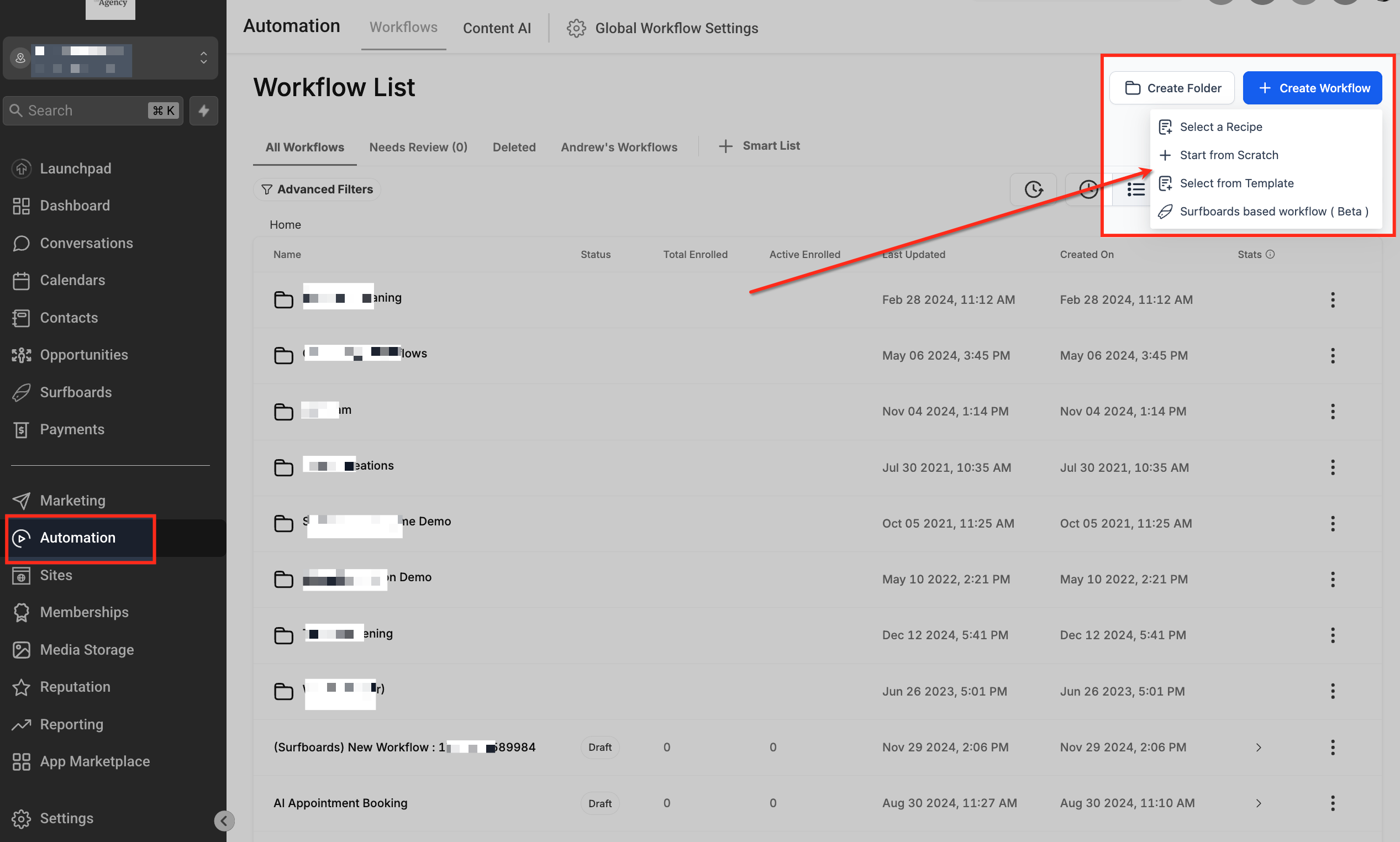
- Open Automation > Workflows in the left hand menu.
- Click Create Workflow in the upper right corner.
- Choose a recipe, template, or start from scratch to open the builder.
Add a Workflow Trigger
- Add a trigger block such as Form Submitted or Tag Added.
- Save the trigger; without a trigger no leads enter the workflow and the action will not run.
Add the Affiliate Action
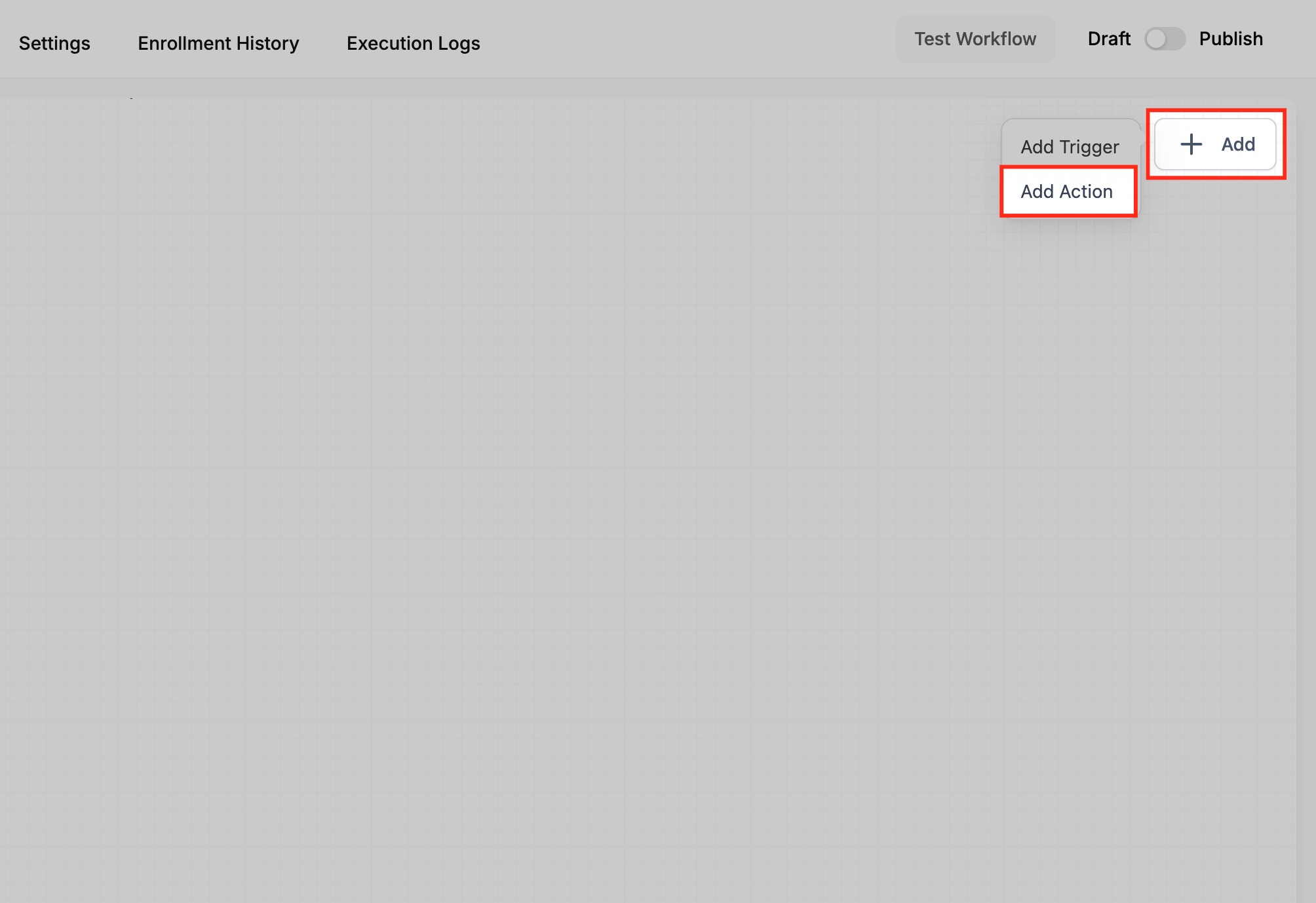
- Click the + Add button inside the builder and select Add Action.
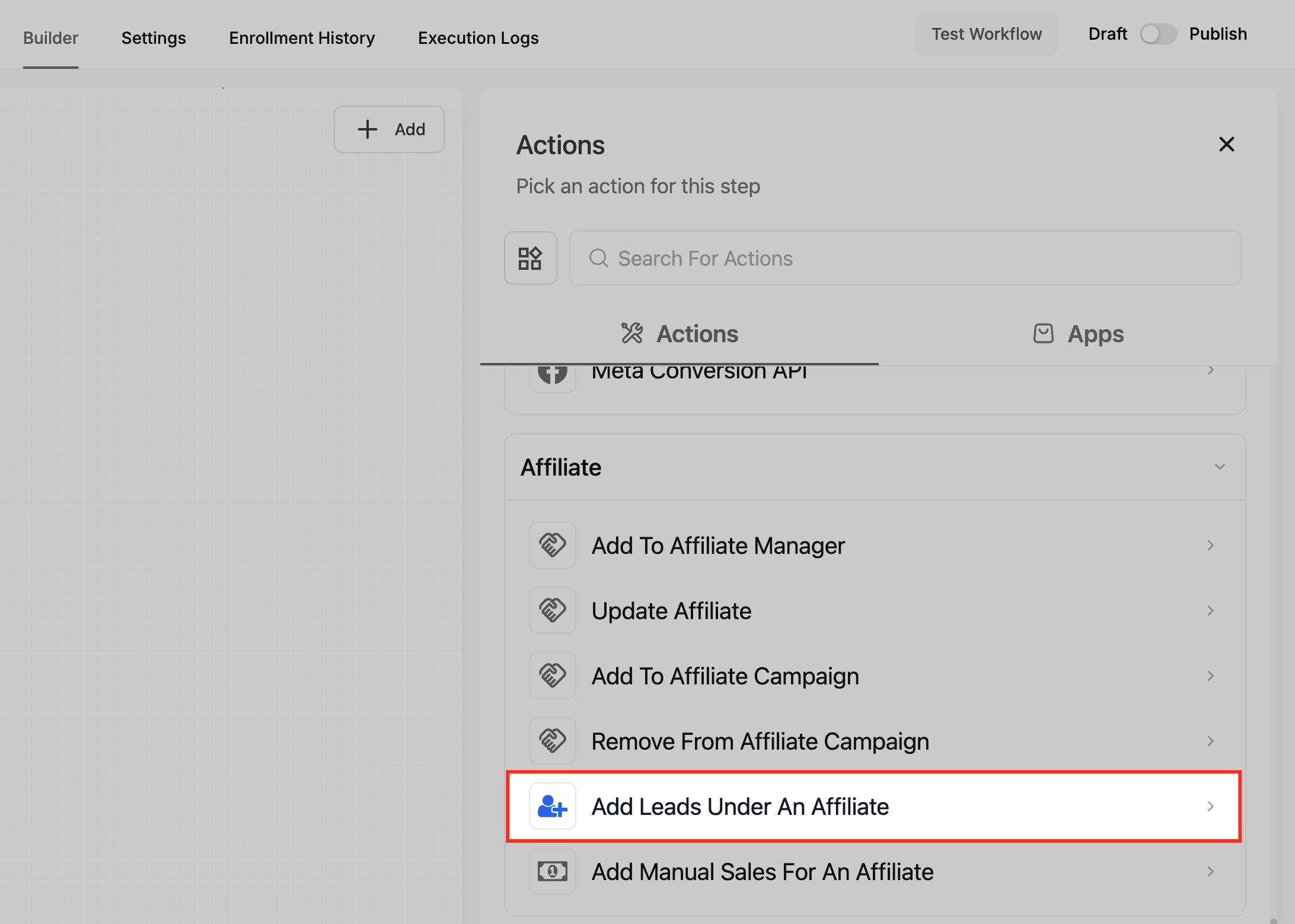
- Scroll to the Affiliate section and choose Add Leads Under an Affiliate.
- The action block appears ready for configuration.
Select the Action Type
- After the action appears, open its settings to choose an assignment method.
Configure Manual Assignment
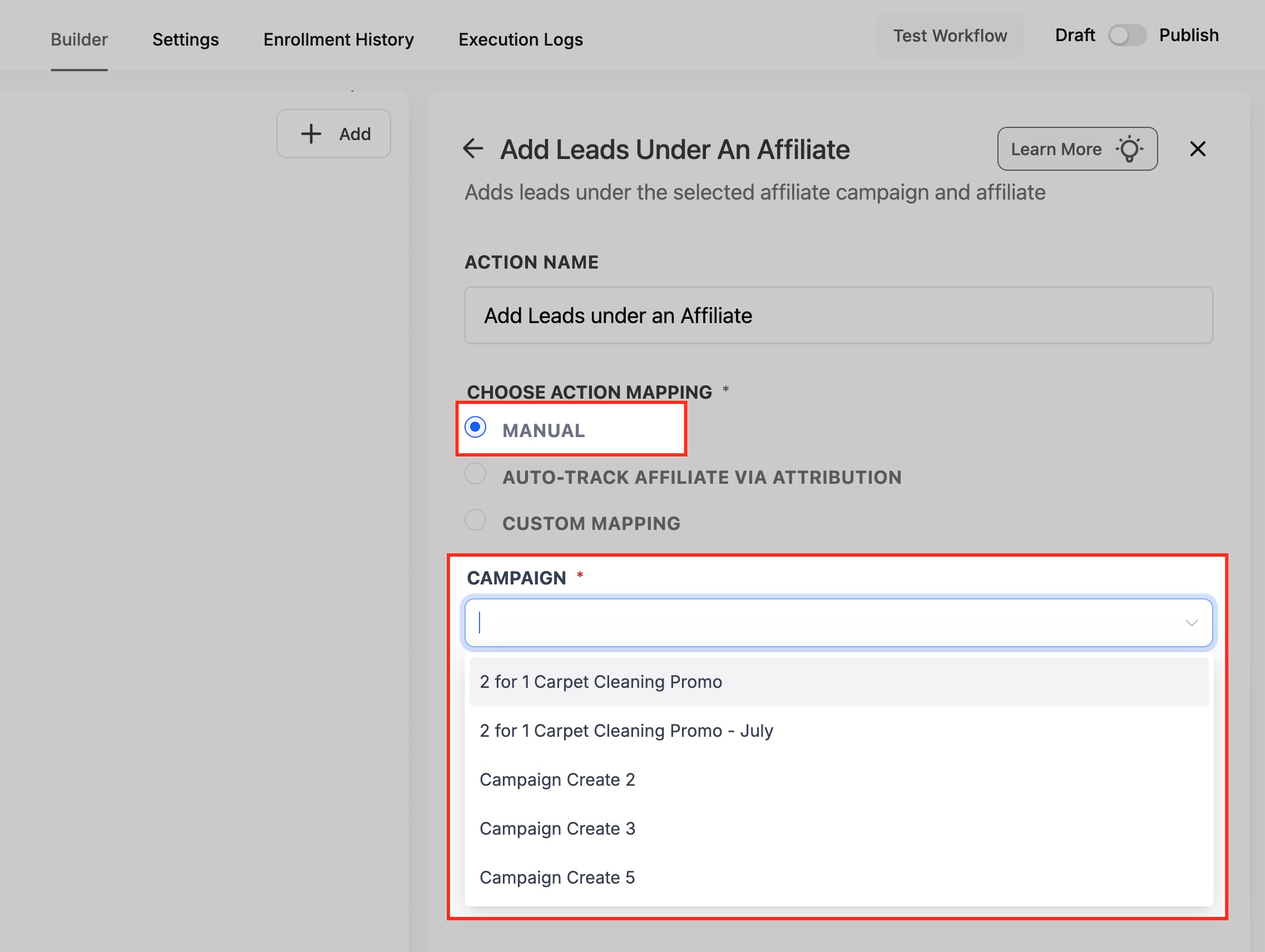
- Select Manual under Choose Action Mapping.
- Pick a campaign from the dropdown, then select an affiliate from the list that appears.
- Save the configuration; all new leads will be assigned to this affiliate.
Configure Auto Track via Attribution
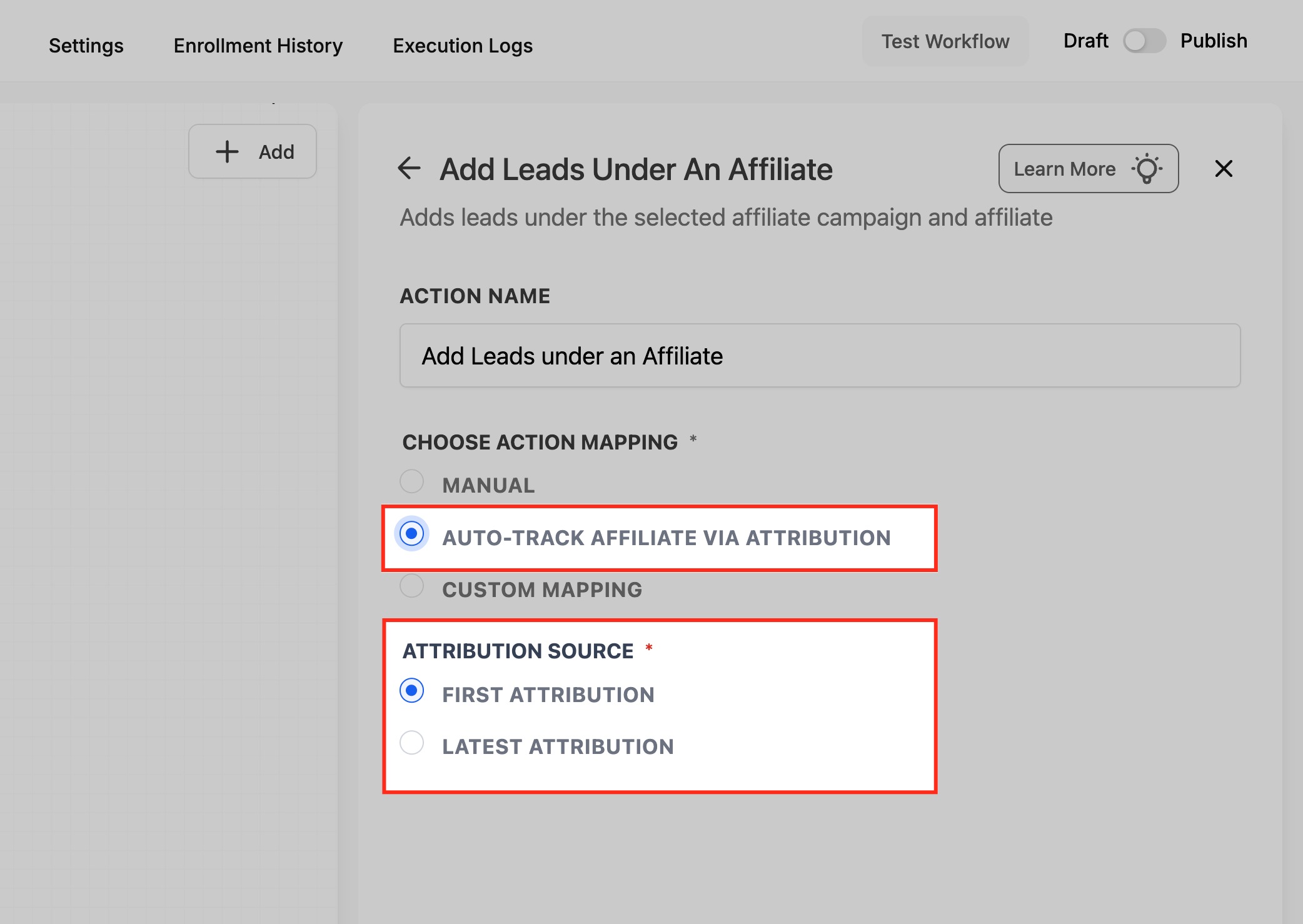
- Select Auto Track Affiliate via Attribution under Choose Action Mapping.
- Choose the Attribution Source, First Attribution or Latest Attribution.
- Save the configuration; leads arriving with an am_id in the URL are automatically credited.
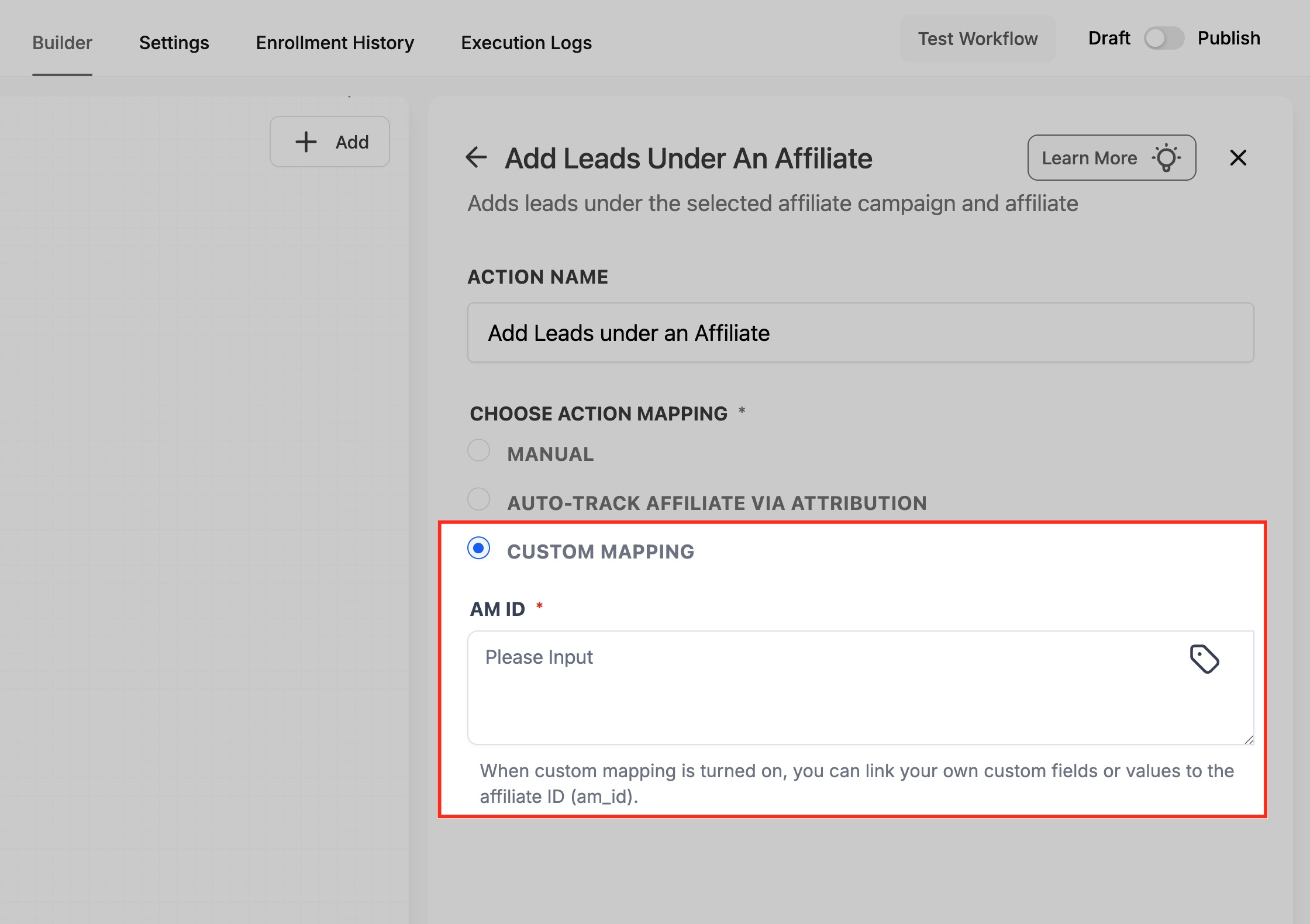
Configure Custom Mapping
- Select Custom Mapping under Choose Action Mapping.
- Enter the source, a custom contact field (e.g., {{contact.custom_field.am_id}}) or a workflow variable (e.g., {{workflow.am_id}}).
- Save the configuration; the system matches the ID to the correct affiliate.
Test and Publish
- Click Test Workflow in the top right corner to simulate a lead entry.
- Review the Execution Logs to confirm correct affiliate assignment.
- Toggle the workflow status from Draft to Publish to activate it.
07What it looks like in HighLevel
08Settings that matter
- Choose Action Mapping. Determines which method is used to assign the lead to an affiliate.
- Manual. Lets you pick a specific campaign and affiliate for every incoming lead.
- Auto, Track Affiliate via Attribution. Assigns leads based on the am_id present in the inbound URL.
- Custom Mapping. Uses a custom contact field or workflow variable to match an affiliate ID.
- Attribution Source. Selects whether the first or latest affiliate interaction receives credit.
- First Attribution. Credits the affiliate who first referred the contact.
- Latest Attribution. Credits the most recent affiliate interaction before the lead enters the workflow.
09Things to know before you rely on it
- A lead can be assigned to only one affiliate per campaign.
- If the supplied am_id does not match an existing affiliate, the workflow finishes without assigning the lead.
10If something goes wrong
- No matching affiliate is found for the am_id. Verify that the am_id in the URL corresponds to an affiliate that exists in the selected campaign.
- Need to change an automatically assigned affiliate. Reassign the lead manually from within the Affiliate Manager after the workflow runs.
11How it connects to the rest of HighLevel
- Learn how to start a workflow with triggers, filters, and actions Workflow basics
- Add a tag to a contact as a possible workflow trigger Add Contact Tag
- Assign contacts to users within a workflow Assign to User
Michael's take

Wondering how to keep affiliate crediting honest without chasing every lead? The Add Leads Under an Affiliate action ties your lead capture straight into the Affiliate Manager so each contact lands under the right partner as soon as it enters your workflow. It wipes out the copy and paste step and lets you trust the data for payouts and reporting.
If I were setting this up, I’d start with a simple manual assignment to confirm the flow works, then experiment with autotrack attribution for the traffic that comes from affiliate links. Run a few test submissions, watch the execution log, and make sure the right affiliate shows up before you push it live.