
01Who this is for
- Founders of ecommerce brands using WhatsApp for support, because the indicator reassures shoppers while automated replies are prepared.
- Small businesses that schedule appointments via WhatsApp, as the read receipt confirms messages were received and reduces duplicate inquiries.
- Service providers following up leads on WhatsApp, to make bot conversations feel more human.
02WhatsApp typing indicator actions, explained
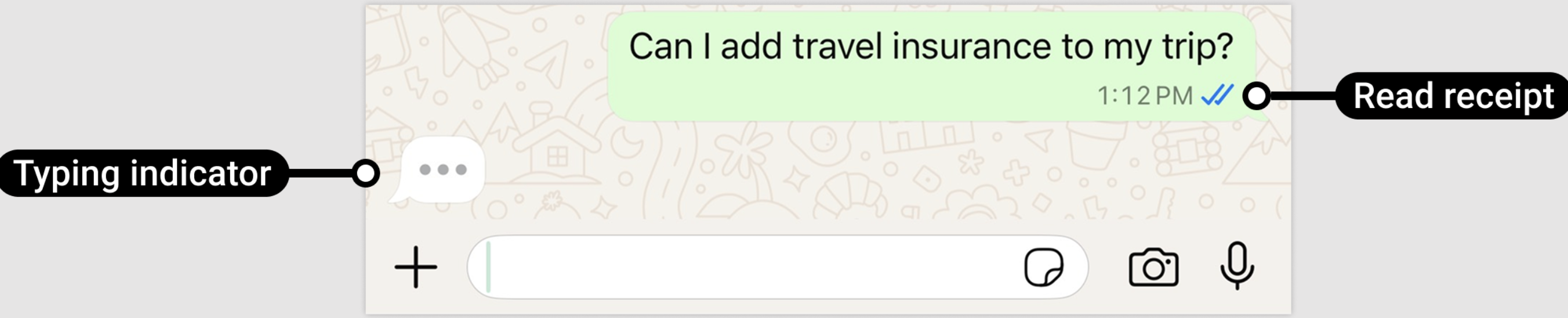
The WhatsApp Typing Indicator Action shows the standard WhatsApp typing animation to a contact while a HighLevel workflow is generating a response. At the same time, the contact’s most recent inbound WhatsApp message is marked as read, displaying the blue ticks.
The animation stays visible until the workflow sends a WhatsApp reply or until roughly 25 seconds have passed, whichever happens first. The action does not create or send any message on its own and needs no additional settings.
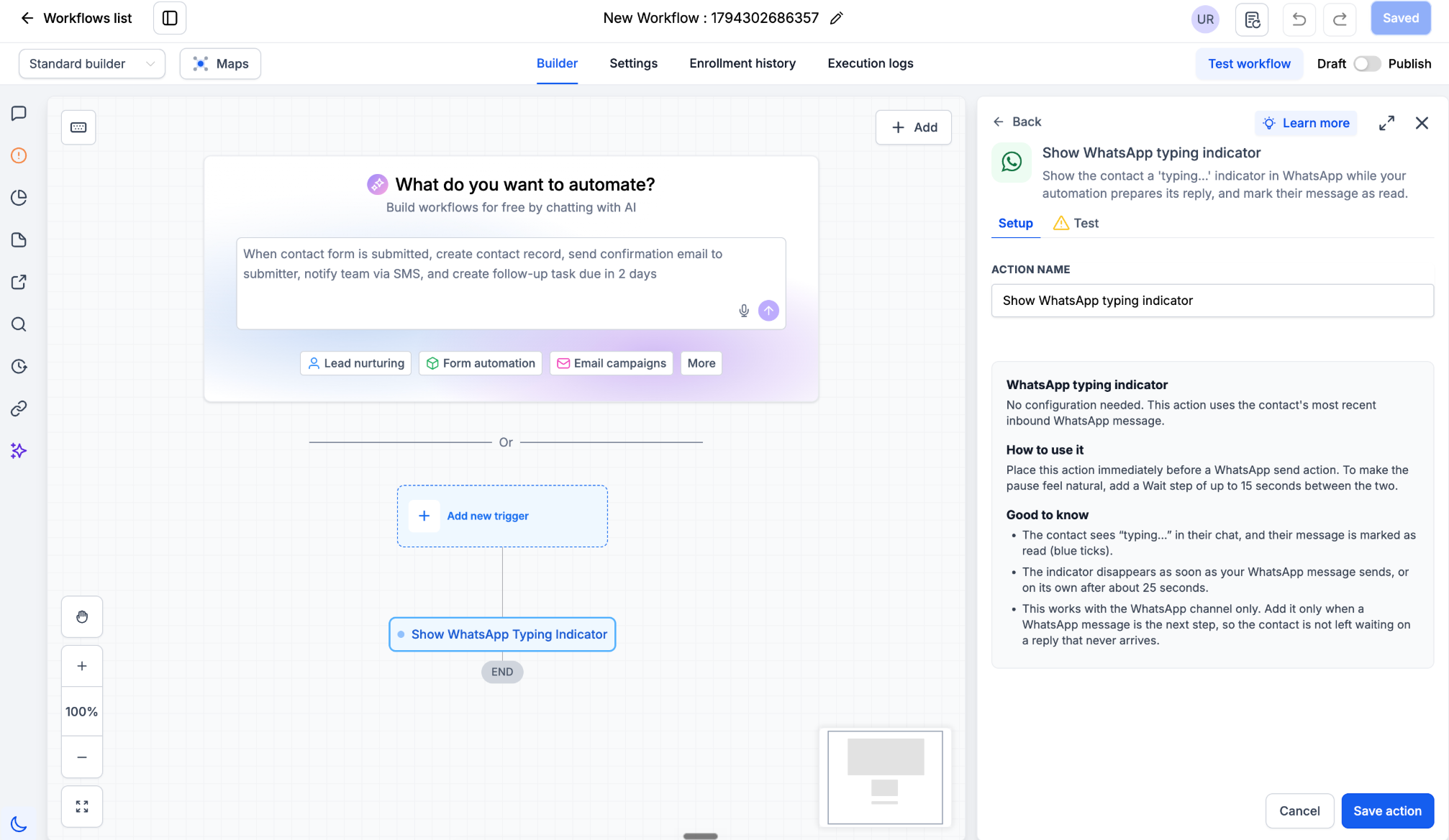
You find the action in the workflow action library. Add it like any other action, typically right before the step that sends the WhatsApp message. It works only for WhatsApp channels and runs only in the places where you place it in the workflow.
03How businesses use WhatsApp typing indicator action
- Online retailer. Insert the typing indicator before the WhatsApp Send Message step that delivers product availability. The customer sees a typing cue while the workflow checks inventory, then receives the reply.
- Fitness studio. Add the indicator before the WhatsApp appointment confirmation action. Members see the typing animation while the workflow creates the confirmation details, then receive the message.
- Real estate agent. Place the indicator before a WhatsApp reply that shares property information. Prospects see a typing animation while the workflow pulls listing data, followed by the response.
04The numbers and rules that matter
- Duration ends when the WhatsApp reply is sent or after approximately 25 seconds.
05Before you start
- A workflow that is triggered by an incoming WhatsApp message must exist.
- The contact must have a recent inbound WhatsApp message for the action to work.
06How to set up and use WhatsApp typing indicator action in HighLevel
Add typing indicator to a workflow
- Open Automation > Workflows and select a workflow that starts with a WhatsApp inbound trigger.
- Click the plus sign to add an action and search for the typing indicator.
- Insert the action immediately before the step that sends the WhatsApp reply.
- Save the workflow and publish it.
07What it looks like in HighLevel
08Things to know before you rely on it
- The action works only with WhatsApp conversations.
- No configuration settings are required for the action.
- The typing animation ends after about 25 seconds or when a reply is sent.
- If placed without a following WhatsApp reply, the indicator may confuse the contact.
- The action does not send any message; a separate WhatsApp send action is needed.
09If something goes wrong
- Typing indicator does not appear. Confirm the action executed, verify the contact has a recent inbound WhatsApp message, and ensure the workflow uses the WhatsApp channel. Check execution logs and test the message flow.
10How it connects to the rest of HighLevel
- Learn about other workflow actions for Conversation AI. Conversation AI actions
- Get started with building workflows and adding actions. Workflow basics
- View the complete list of workflow capabilities. All workflow features
Michael's take

Using the typing indicator can feel like a gimmick if you forget that customers still expect a real response. Show the animation without following up and you risk confusing people and harming trust.
When you need a quick, natural pause before an automated WhatsApp reply, the typing indicator adds that human touch. It’s a low effort way to reassure customers that their message was received and a reply is on the way.