
01Who this is for
- Founders designing SMS outreach workflows can verify each setting right away, reducing setup uncertainty.
- Marketing teams that manage outbound call campaigns gain quick insight into advanced options without leaving the builder.
- Operations managers building automated follow up sequences learn field behavior on the job, easing onboarding of new staff.
02AI Powered Field Tooltips, explained
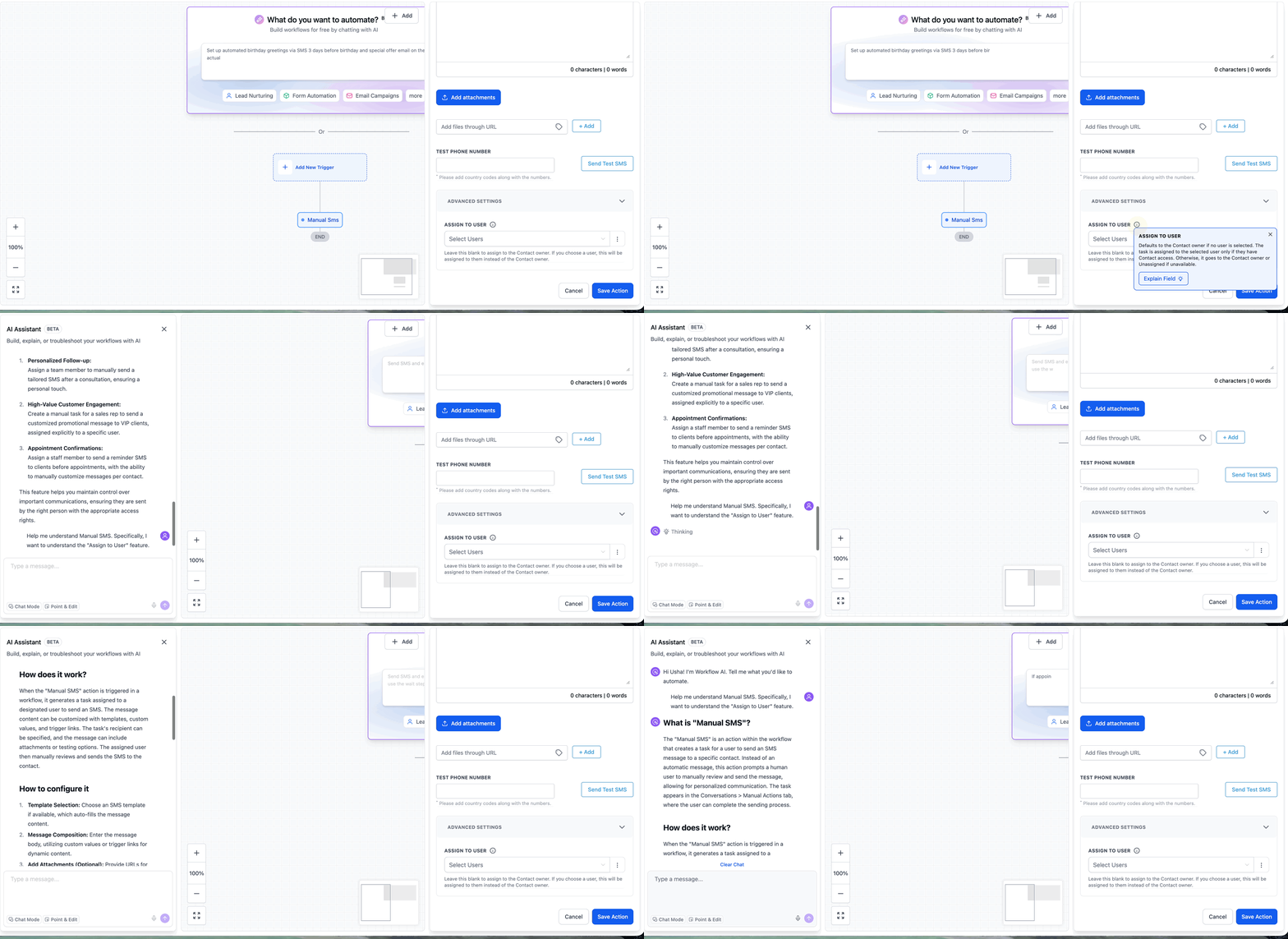
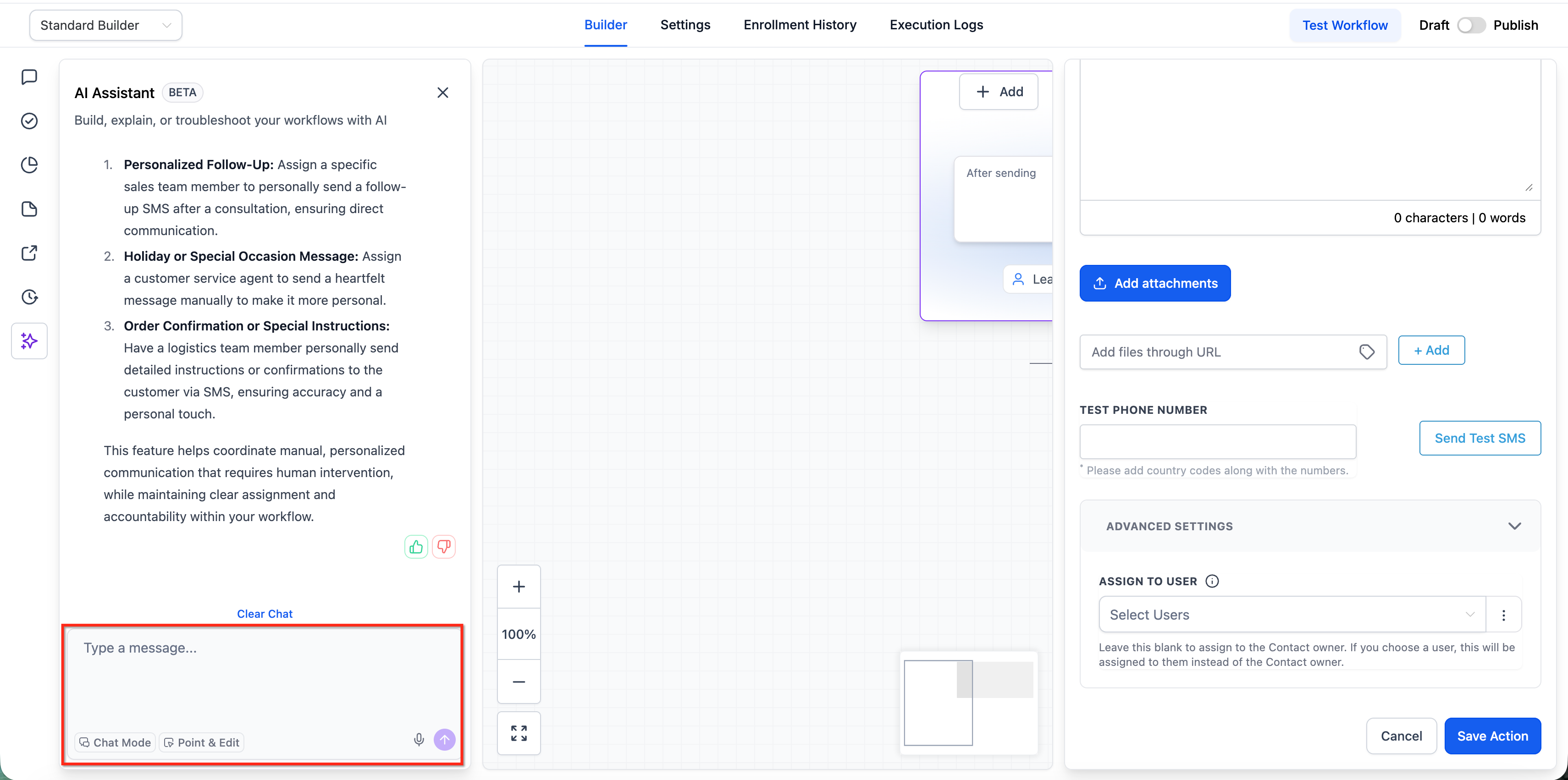
The feature places an information icon next to selected fields in the Advanced Settings of Manual SMS and Manual Call actions. Hovering the icon shows a brief tooltip, while clicking the Explain Field button opens an AI chat that explains the field in detail. It lives inside the action configuration panel of the Workflow Builder and appears only for the experimental fields listed by the platform.
When the AI assistant is active, users may ask follow up questions about how the field influences workflow timing, assignments, or outcomes. The assistant provides conversational answers but never changes any settings automatically; all changes must still be saved manually. Availability is limited to eligible accounts and the two supported fields at launch.
03How businesses use AI Powered Field Tooltips
- SMS notification. Add a Manual SMS action, hover the tooltip on a field such as delivery window, and use Explain Field to confirm how timing works before saving.
- Call reminder. Configure a Manual Call action, hover the tooltip on a field like retry count, and ask follow up questions to understand call flow impact.
- Lead follow up. Create a workflow that triggers a Manual SMS after a form submission, use the tooltip on a personalization token field, and verify merge syntax via the AI assistant.
04Before you start
- Access to Automation > Workflows must be available in your account.
- The workflow must include a Manual SMS or Manual Call action with Advanced Settings opened.
05How to set up and use AI Powered Field Tooltips in HighLevel
Use AI Powered Field Tooltips
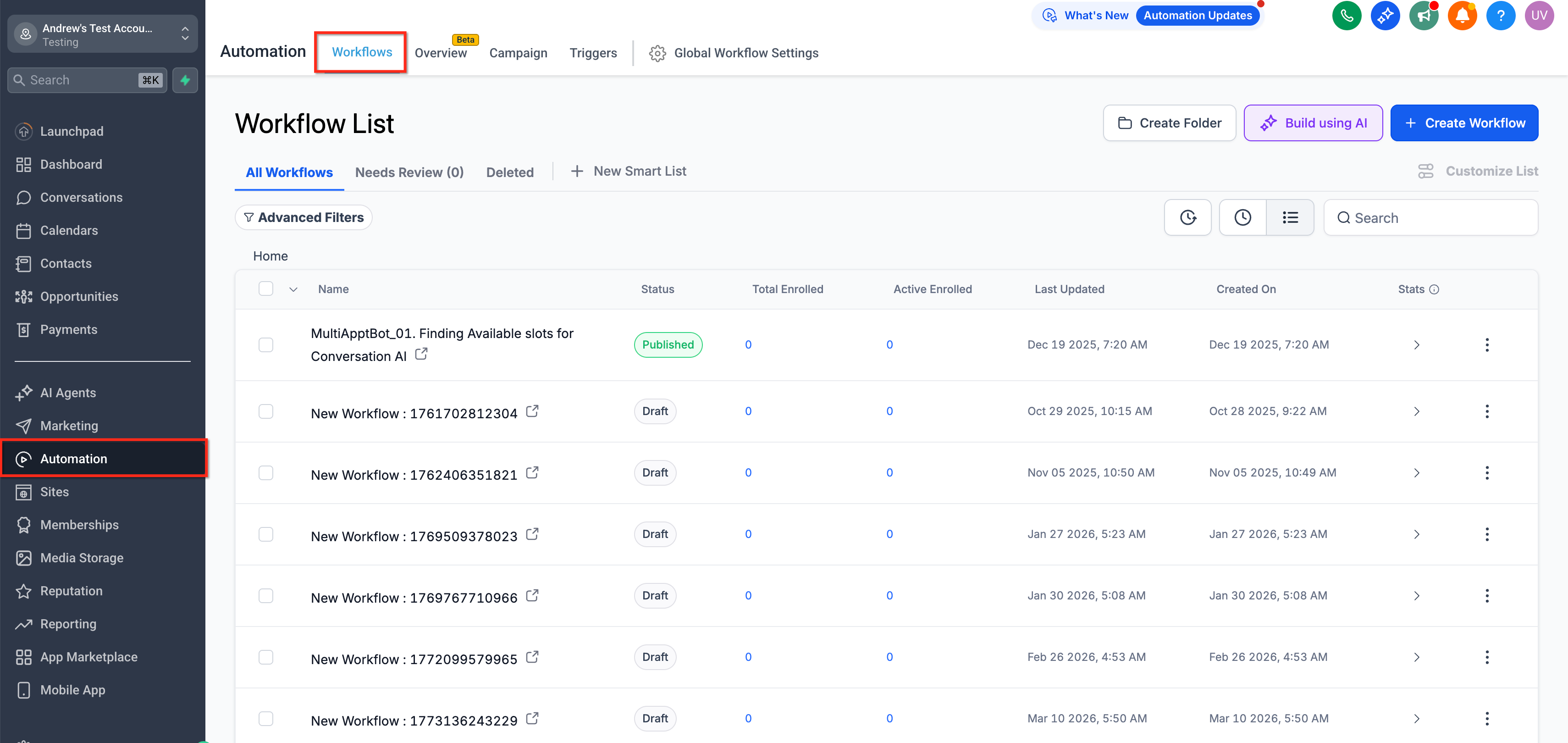
- Navigate to Automation > Workflows.
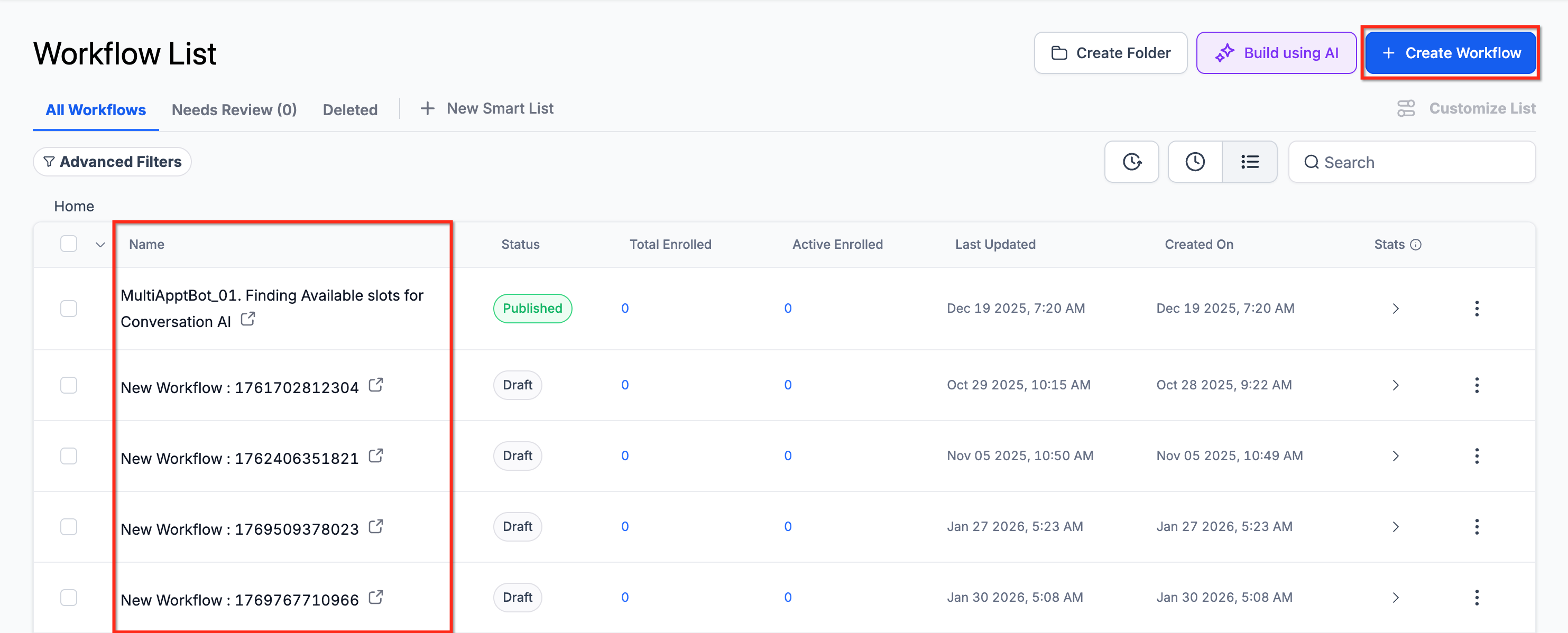
- Open an existing workflow or create a new one.
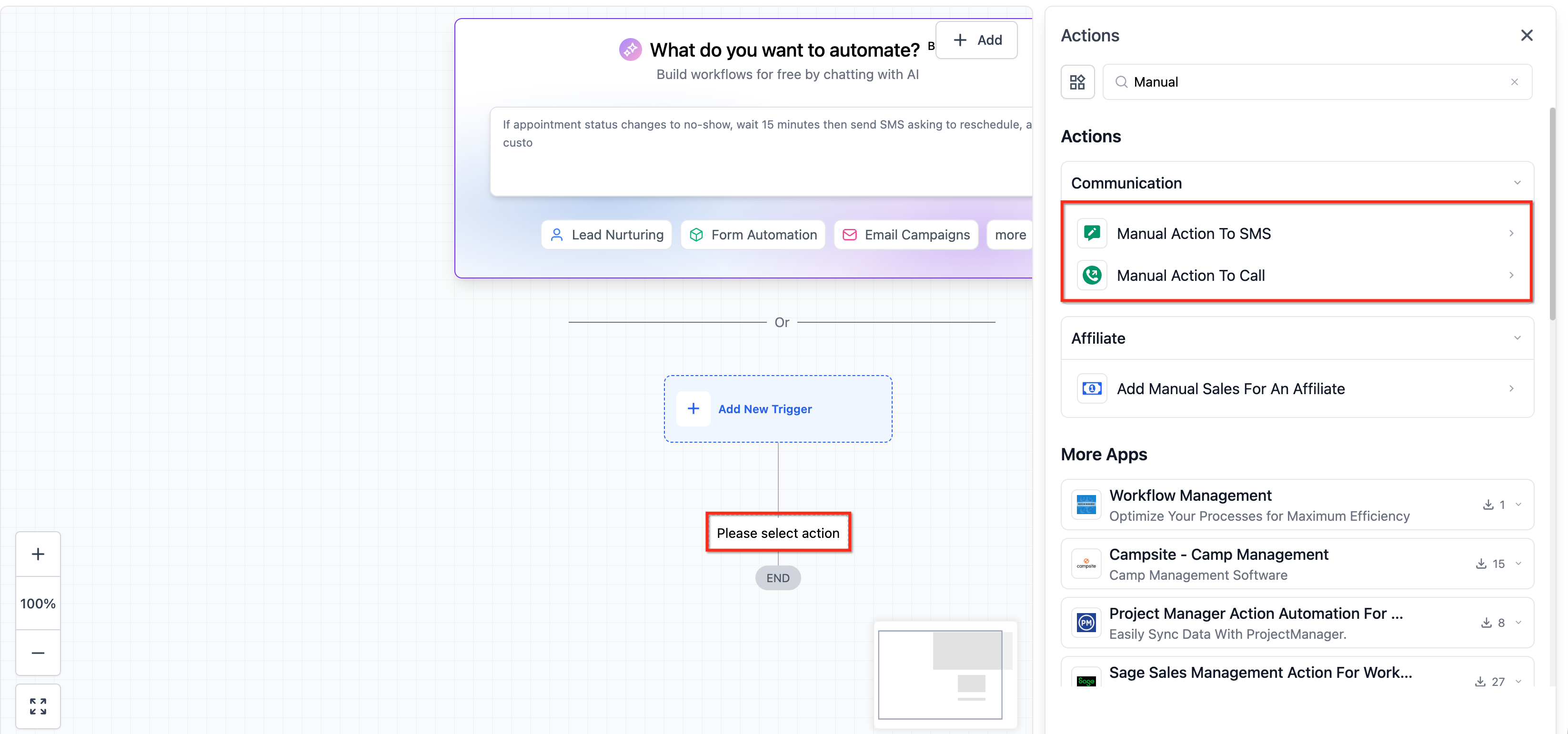
- Add or select a Manual SMS or Manual Call action.
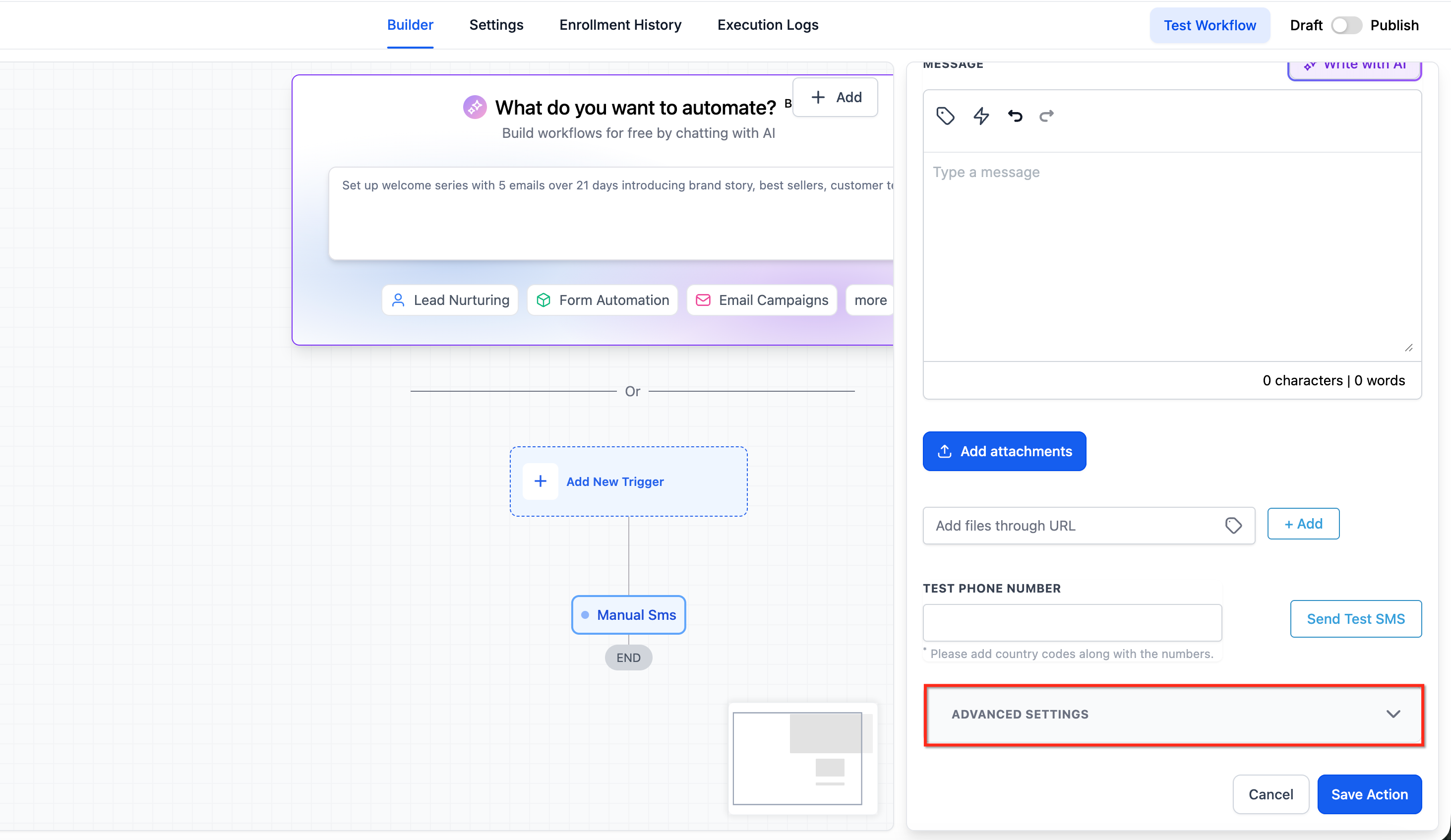
- Expand the Advanced Settings section in the action panel.
- Find the information icon next to a supported field.
- Hover over the icon to view the short tooltip description.
- Click the Explain Field button to launch the AI assistant.
- Enter any follow up questions to clarify the field’s impact.
06What it looks like in HighLevel
07Settings that matter
- Explain Field. Opens the AI assistant that provides a conversational explanation of the selected field.
08Things to know before you rely on it
- Tooltips appear only on two fields inside Advanced Settings for Manual SMS and Manual Call actions.
- The feature is in experiment; the icon and Explain Field button may not be visible for every account or every field.
09If something goes wrong
- The ℹ️ icon is missing next to a field.. Confirm you are viewing Advanced Settings of a Manual SMS or Manual Call action and that your account is eligible for the experiment.
- The Explain Field button does not appear after hovering the icon.. Check another supported field or switch between Manual SMS and Manual Call actions; the button may only show for eligible fields and accounts.
10How it connects to the rest of HighLevel
- Learn the basics of building workflows in HighLevel. Workflow basics
- Explore the AI Builder for creating and editing automations. AI Builder
- Review the pricing tiers for Workflow Pro features. Workflow pricing
Michael's take

Don’t assume the icon will be everywhere; verify you’re in the right Advanced Settings area before looking for it.