
01Who this is for
- Founders who oversee many automations can keep their workspace tidy by switching workflows in the same tab.
- Marketing teams that need to edit several campaign automations can quickly duplicate or delete them without leaving the builder.
02Workflow Switcher, explained
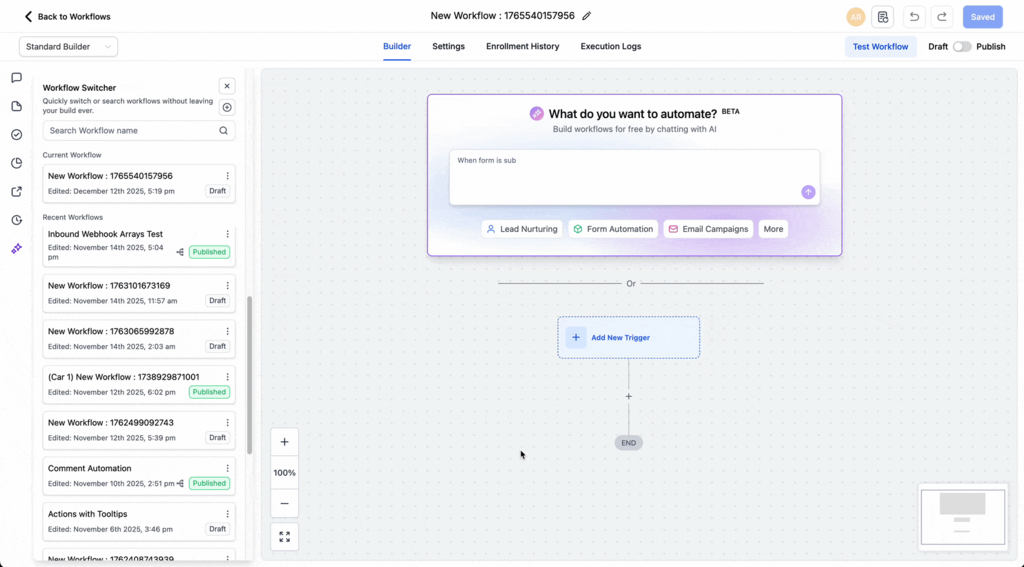
The Workflow Switcher appears in the left sidebar of the workflow builder. It shows recent workflows, provides a searchable list, and lets you scroll endlessly through all existing automations.
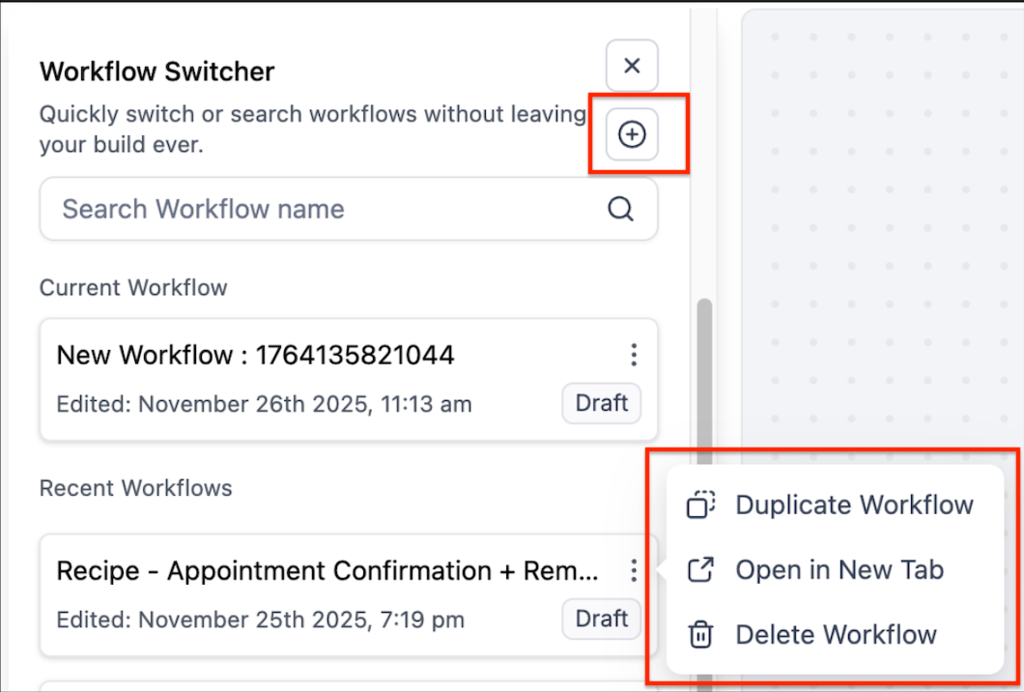
From this panel you can create a new workflow, duplicate an existing one, open any workflow in a new browser tab, or delete workflows you no longer need, all while staying inside the builder.
03How businesses use the Workflow Switcher
- Real estate agency. Agents open the switcher to jump from a lead capture workflow to a follow up workflow while editing. They duplicate a successful nurture workflow to tailor it for a new property listing and delete outdated workflows directly from the panel.
- Ecommerce store. The store creates a fresh checkout reminder workflow using the plus icon inside the switcher. It duplicates the workflow to apply minor changes for a seasonal promotion and removes the temporary workflow when the promotion ends.
- Consulting firm. Consultants use the switcher to open a client onboarding workflow in a new tab while finalizing another project workflow. They create a new workflow for a fresh client directly from the switcher and keep the workspace focused by staying in the same tab.
04How to set up and use the Workflow Switcher in HighLevel
Open the Workflow Switcher
- Navigate to Automations > Workflows.
- Open any existing workflow.
- Click the Workflow Switcher icon in the left sidebar.
- Press Shift + W to toggle the switcher.
Switch between workflows
- Open the Workflow Switcher.
- Use the search bar or scroll to locate the desired workflow.
- Click the workflow name to load it in the same tab.
- If you have unsaved changes, you will be prompted to save or discard them before switching.
Manage workflows from the Switcher
- Click the plus icon in the switcher to create a new workflow.
- Open a workflow’s options menu and select Duplicate to copy it.
- Open a workflow’s options menu and choose Delete to remove it.
- Open a workflow’s options menu and select Open in new tab to view it separately.
05What it looks like in HighLevel
06Things to know before you rely on it
- Infinite scroll removes pagination, so there is no limit on how many workflows can be viewed.
- Switching opens the selected workflow in the same tab, reducing tab clutter.
07How it connects to the rest of HighLevel
- Learn the basics of workflow automation in HighLevel. Workflow basics
- Step by step guide to creating workflows and adding triggers. Create workflows
- Details on pricing for the Workflow Pro Plan. Workflow pricing
Michael's take

Michael ReimerFounder of CRM Pros, HighLevel Commander and Certified Admin
The Workflow Switcher is a handy shortcut for anyone who spends a lot of time building automations. Skip it if you rarely use the Workflow Builder or prefer opening each workflow in its own browser tab.
Get More InformationOpens on HighLevelPublished November 2, 2026 · Updated November 17, 2026