
01Who this is for
- Marketing agencies that build client automations benefit from seeing real time results before campaigns go live.
- SaaS companies can validate that onboarding sequences create the correct records without sending unintended emails.
- Service based businesses such as video production firms can ensure form submissions generate the right opportunities and tasks.
02Test workflow, explained
Test Workflow is a feature inside HighLevel Labs that lets you experiment with automations using actual data from your account. You can isolate a trigger, run a single action, or execute the whole workflow step by step. Each test runs the real actions, so any messages sent or records created are genuine.
The feature appears in the workflow builder under a Test tab on each node and a Test workflow panel in the top right corner. After enabling the feature in Settings > Labs, you select a trigger event, watch each step’s status, and open any step to view its Input and Output. A History tab records every run and lets you retry a previous test with the same data.
03How businesses use test workflow
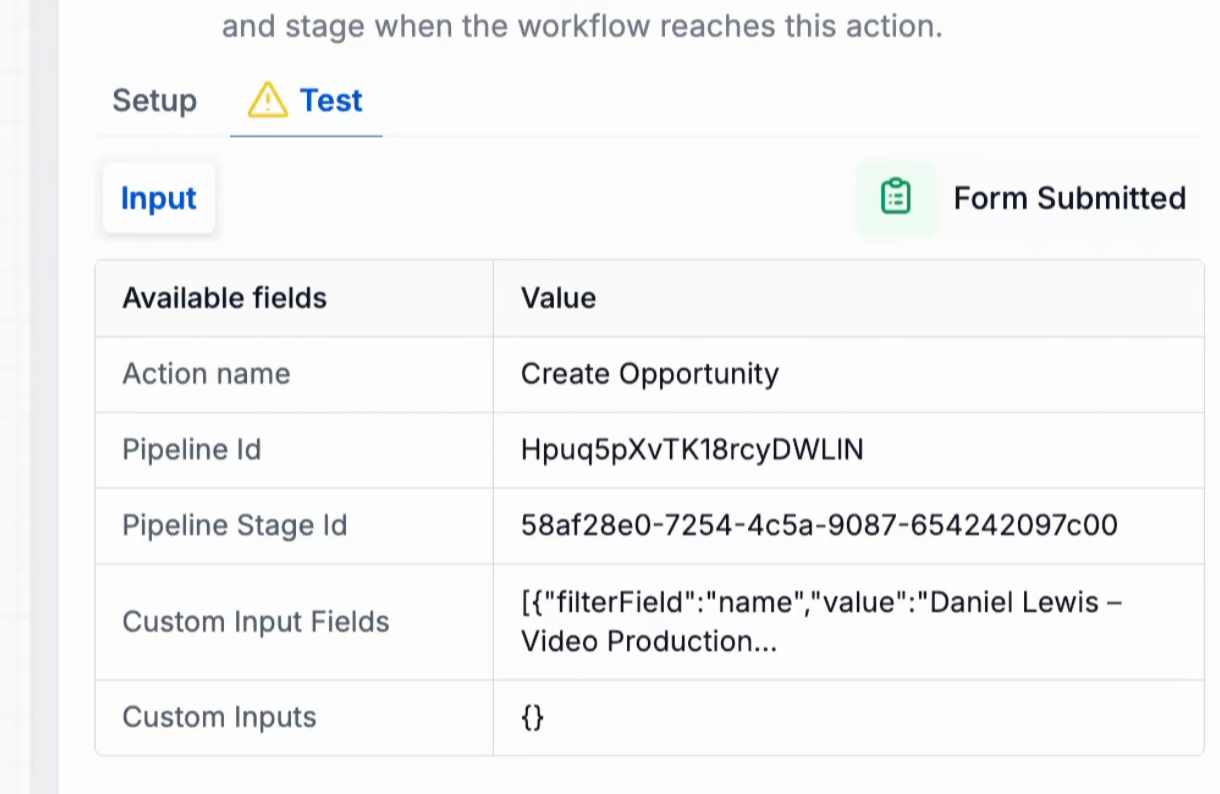
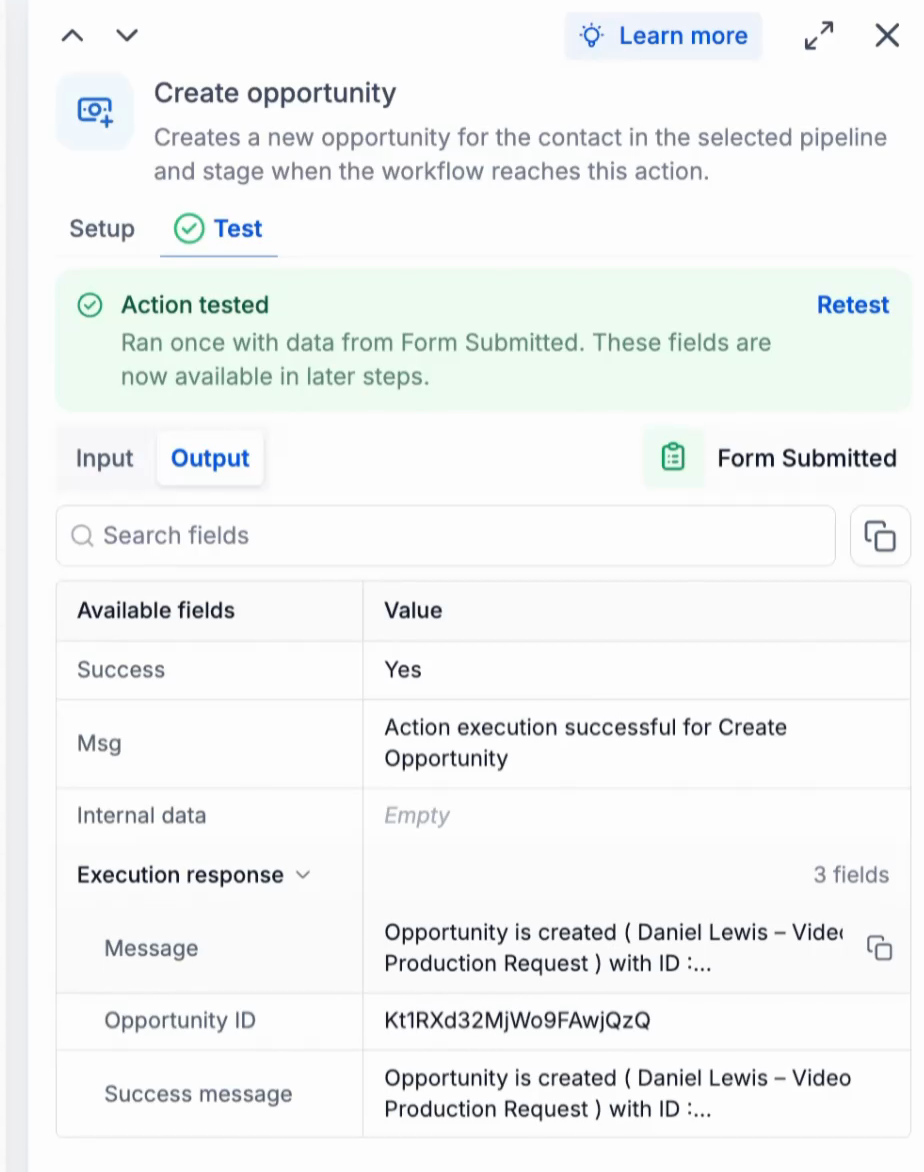
- Video production agency. The agency enables the Test Workflow feature in Labs, then fires a form submission to test the trigger. After the trigger pins the event, they test the Create Opportunity action and finally run the full workflow to confirm every email, tag, and task executes correctly.
- Real estate brokerage. The brokerage turns on Listen for events on a new lead form trigger, captures a real submission, and uses Test Trigger to pin the event. They then test the Send Email action to ensure the welcome message reaches the prospect before publishing the automation.
- SaaS startup. The startup selects Enroll a contact on the Test tab to simulate a user signing up, runs the full workflow, and reviews each step’s Output to verify that the correct subscription record is created and the confirmation email is sent.
04The numbers and rules that matter
- Listening lasts 15 minutes.
05Before you start
- Enable the Test Workflow feature in Settings > Labs for the appropriate subaccount.
- Test the workflow trigger first; the pinned event is required before testing any action.
06How to set up and use test workflow in HighLevel
Enable test workflow feature
- Open Agency View and navigate to Settings > Labs.
- Find the The New Test Workflow feature card in the Labs tab.
- Turn on the feature for the target subaccount using the card controls.
- If a Manage button appears, select the subaccount and save the change.
- Switch to Subaccount View, go to Automation > Workflows, and open the workflow you want to test.
- Important: Tests execute real actions. Use test data to avoid sending unintended messages or changing customer records.
Test a trigger
- Click the trigger on the canvas to open its panel.
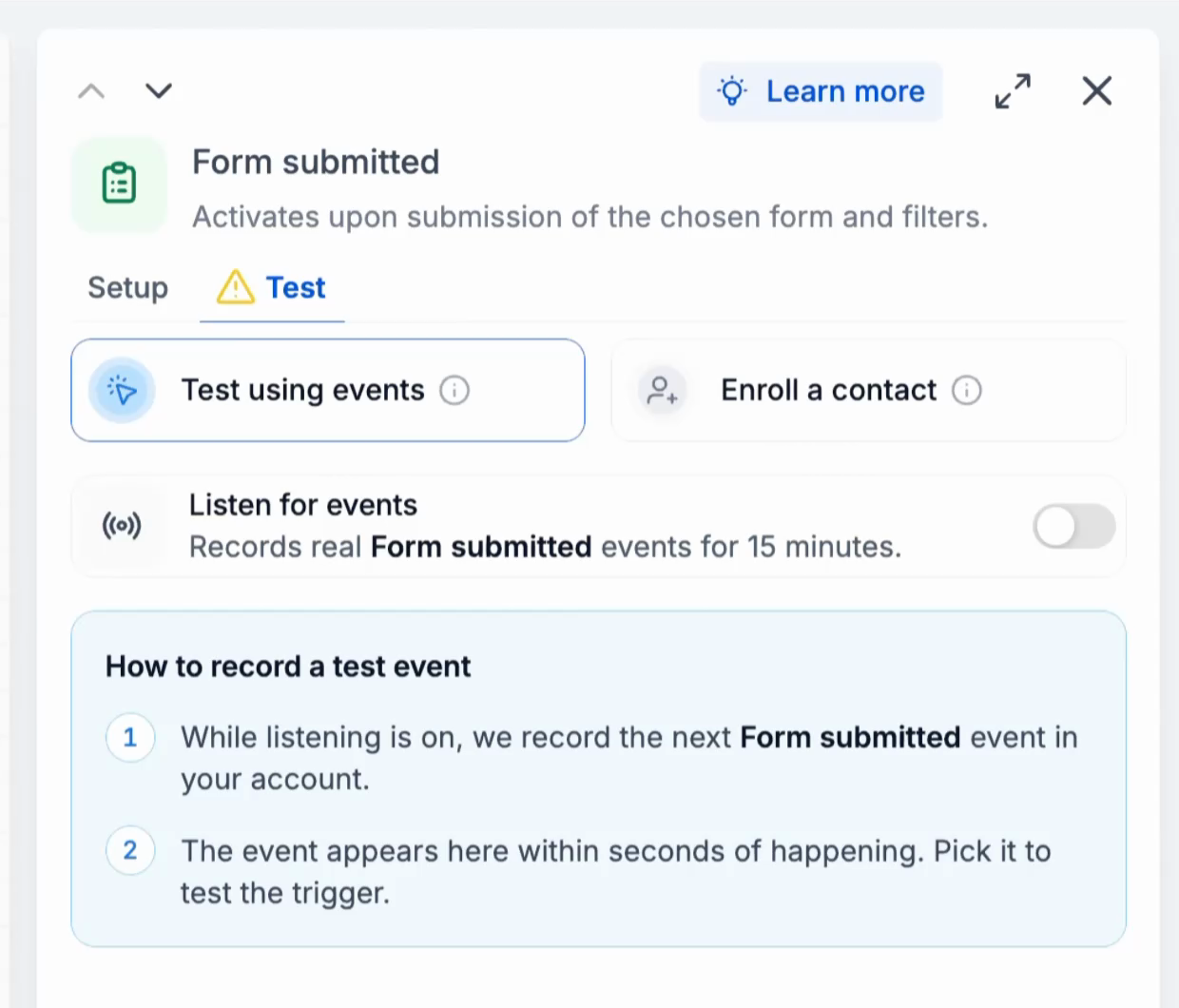
- Select the Test tab and choose Test using events.
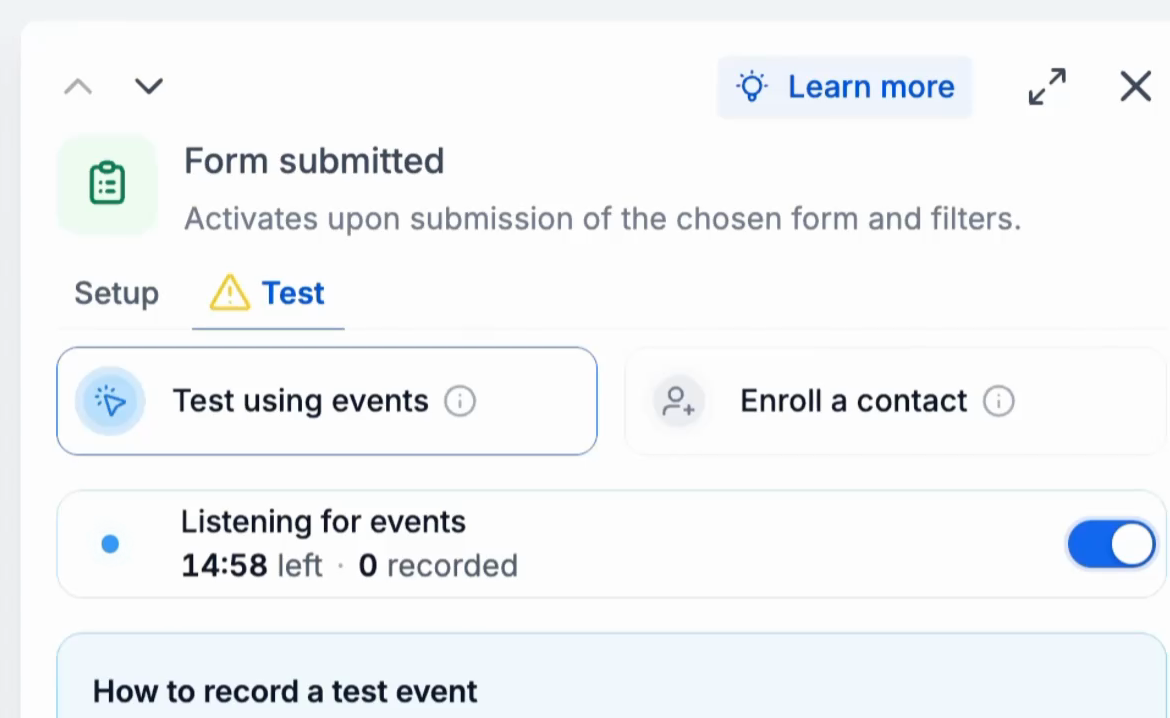
- Activate the Listen for events toggle.
- Perform the action that fires the trigger, such as submitting a form.
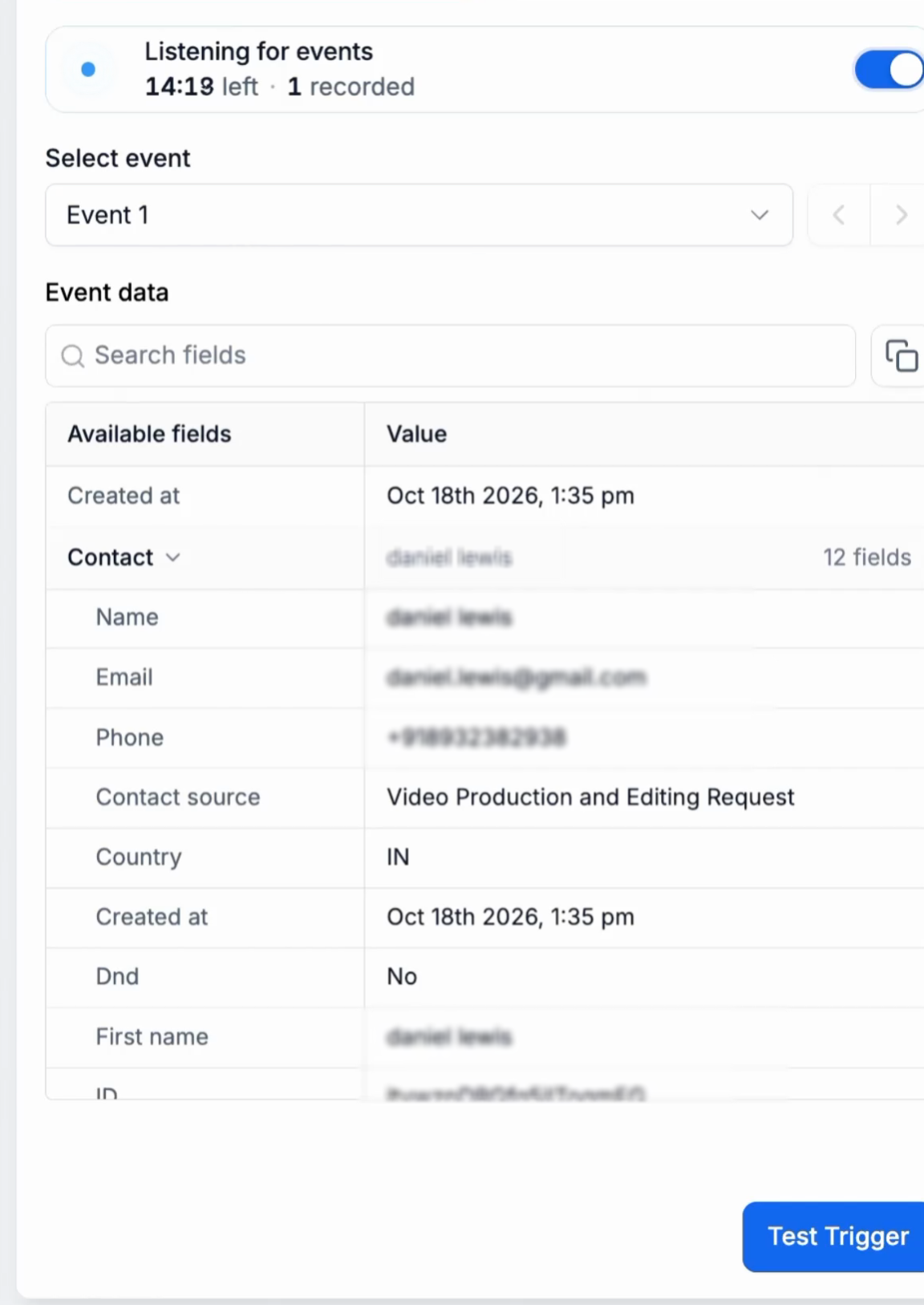
- Pick the recorded event under Select event.
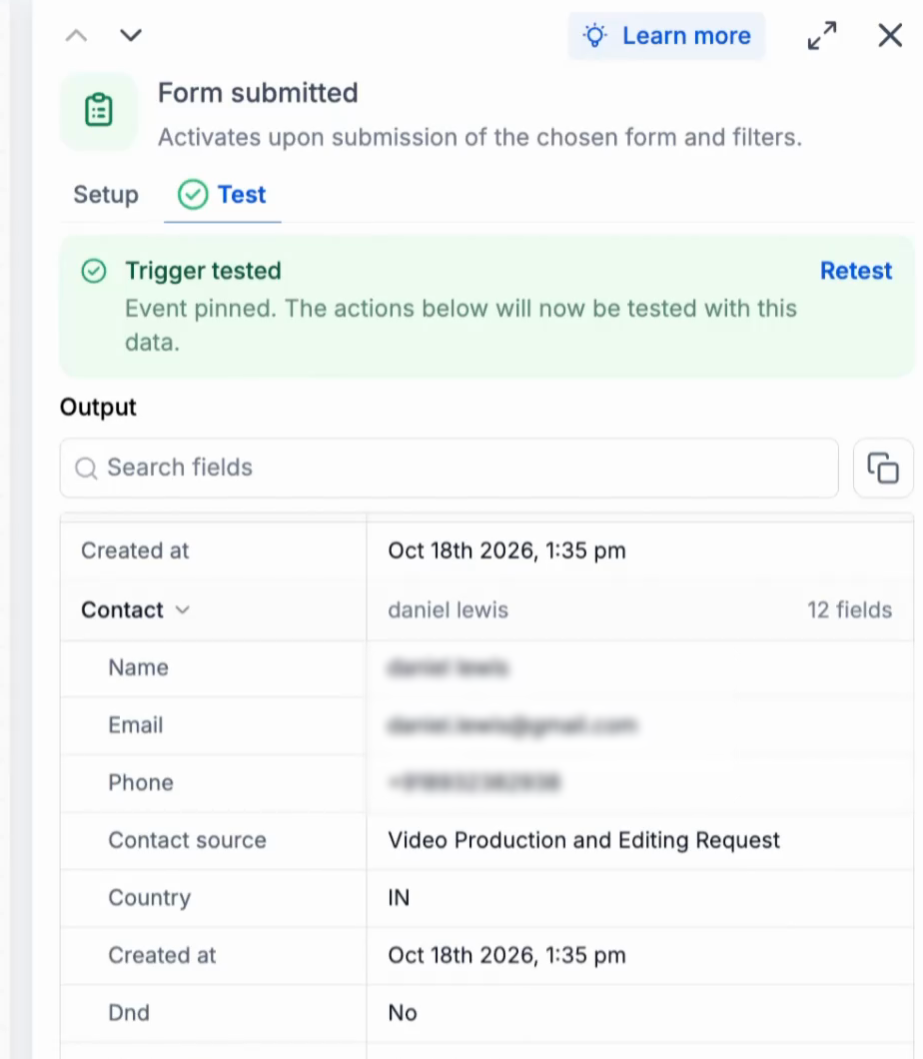
- Click Test Trigger and confirm the trigger is tested.
- Note: Click Retest at any time to test the trigger again with a different event.
Test an action
- Click the action on the canvas and review its fields on the Setup tab.
- Open the Test tab for the action.
- Check that the Input values are filled from the pinned event.
- Click Test action.
- After the test passes, switch to the Output tab to see the result.
Test the whole workflow
- Click Test workflow in the top right of the builder.
- On the New test tab, select Test using events or Enroll a contact, then choose the trigger.
- Select an event or enable Listen for events to capture a new one, then click Start test run.
- Watch each step on the canvas change status as the run proceeds.
- When the run finishes, review the status of every step and open any step to view its Input and Output.
Review history and retry a run
- Open the History tab in the Test workflow panel.
- Locate the desired run and apply filters if needed.
- Hover over the run and click Retry run to execute it again.
07What it looks like in HighLevel
08Settings that matter
- The New Test Workflow. Controls whether the Test Workflow feature is available for the selected agency or subaccount.
- Listen for events. Enables a 15 minute window during which the platform records real events that fire the trigger.
- Test using events. Lets you select an existing recorded event or capture a new one to test a trigger or workflow.
- Enroll a contact. Runs the test as if the chosen contact caused the trigger, without needing a real event.
- Manage. Appears when enabling the feature for a specific subaccount; selecting it lets you choose the account to activate.
09Things to know before you rely on it
- All tests run the real actions; emails are sent and records are created or changed.
- Listening for events only lasts 15 minutes; you must turn it on again if no event is captured.
- Testing is optional; you may publish a workflow without any tests.
- The pinned event remains until you retest the trigger with a different event.
10If something goes wrong
- No event arrives while listening. Turn on Listen for events again and fire the trigger once more, such as by submitting the form.
- Trigger test fails because no event is selected. Choose an event under Select event after listening, or use Enroll a contact to simulate the trigger.
11How it connects to the rest of HighLevel
- Learn the basics of HighLevel workflow automation Workflow basics
- Step by step guide to building workflows with triggers and actions Workflow creation guide
- Details on HighLevel pricing and plans Pricing
Michael's take

Running real actions in a test can catch mistakes, but it also means you might send an email to a real address or create a record you didn’t intend. Treat test data as if it were live and use a dummy contact or a test form entry to keep customers out of the loop.
When you need confidence that a workflow works, the Test workflow feature gives you a step by step view of every input and output.