
01Who this is for
- Founders designing automations, they can verify each integration step before a workflow goes live.
- Marketing teams, they can confirm data sent to email or SMS services matches campaign requirements.
- Support managers, they can test ticket system actions without creating real tickets.
02Test Action, explained
Test Action is an in builder feature that runs a real API call for any external app step while you edit a workflow. It uses the same Connected Account and input values that will run at runtime, replacing the older method of publishing a workflow, enrolling a test contact, and checking logs.
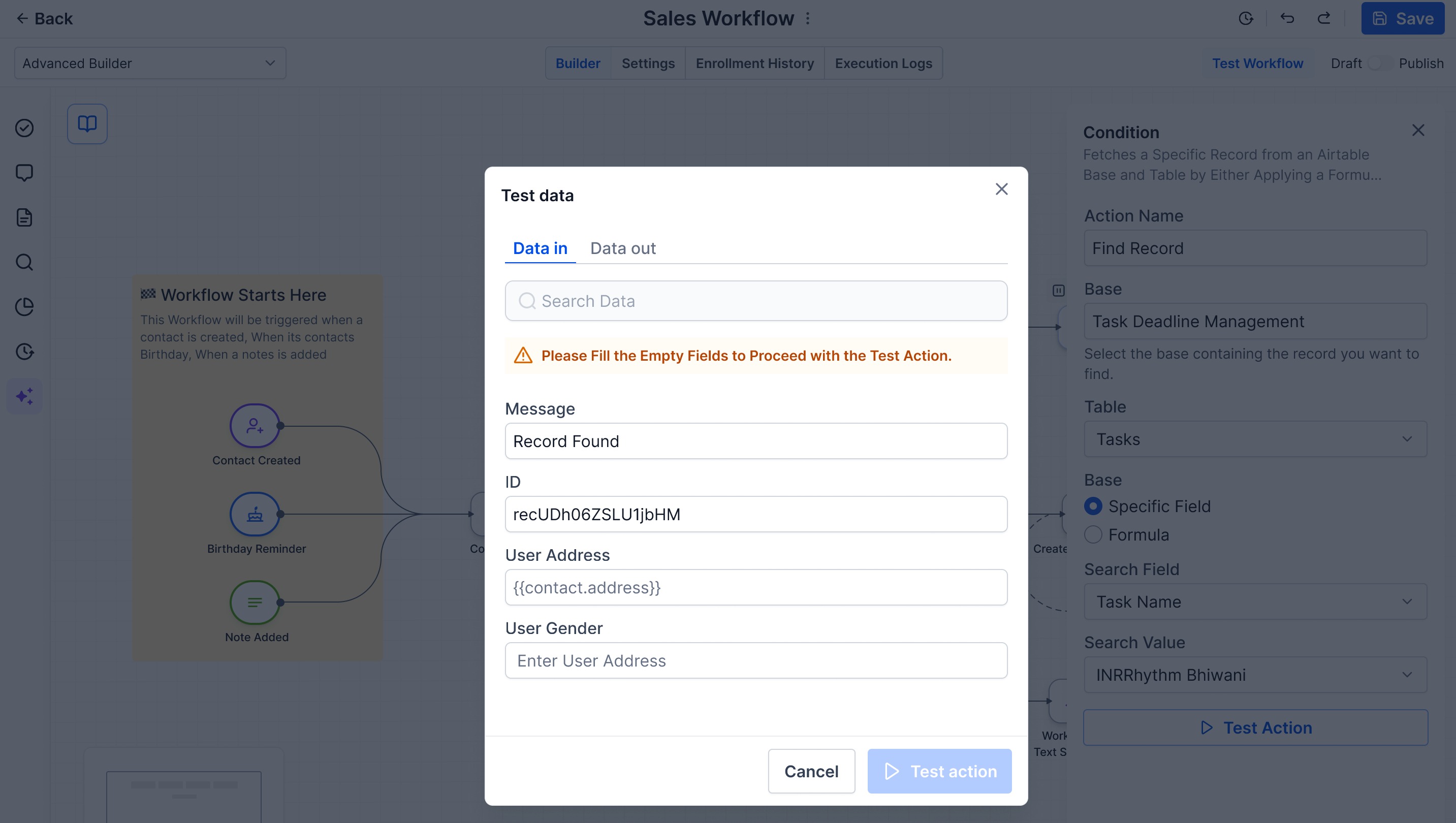
When you trigger the test, a side drawer slides in from the right showing three sections: a status header, a Data In pane with the resolved payload sent to the provider, and a Data Out pane with the raw JSON response. Key fields appear as chips and cards above the JSON. If the call succeeds, a "Use this as sample" button appears, letting you lock the response schema so downstream actions and conditions can reference any field. The drawer supports unlimited retests.
03How businesses use Test Action
- Ecommerce store. The store configures a "Create Contact" step in Klaviyo, runs Test Action to see the exact payload sent and the provider’s reply, then locks the schema so later steps can add the contact to a segment without guessing field names.
- Real estate agency. An agent sets up a "Send Message" step through a SMS integration, tests the action to verify the message data and response, and uses the locked schema to conditionally branch based on delivery status in following steps.
- Consulting firm. The firm creates an "Update Record" step in a project management tool, runs a test to confirm the update payload and response format, and then references fields from the locked response when creating follow up tasks.
04The numbers and rules that matter
- Available on every external app action step (Find Contact, Create Card, Send Message, Update Record, etc.).
- The drawer supports unlimited retests.
05Before you start
- A Connected Account must be linked via OAuth or API key in the action’s Connected Account dropdown.
- All required input fields on the action need to be filled with literal values or workflow variables.
- If the action references output from an earlier step, that earlier step must have a saved sample or be tested first.
- Network access is required; the test will fail if the provider is down or the account is rate limited.
06How to set up and use Test Action in HighLevel
Run a test of an external app action in the Workflow Builder
- Open the workflow and select or add the action step you want to test.
- Choose the integration and the specific action from the Apps tab.
- Map every required input, using literal values, workflow variables, or upstream outputs.
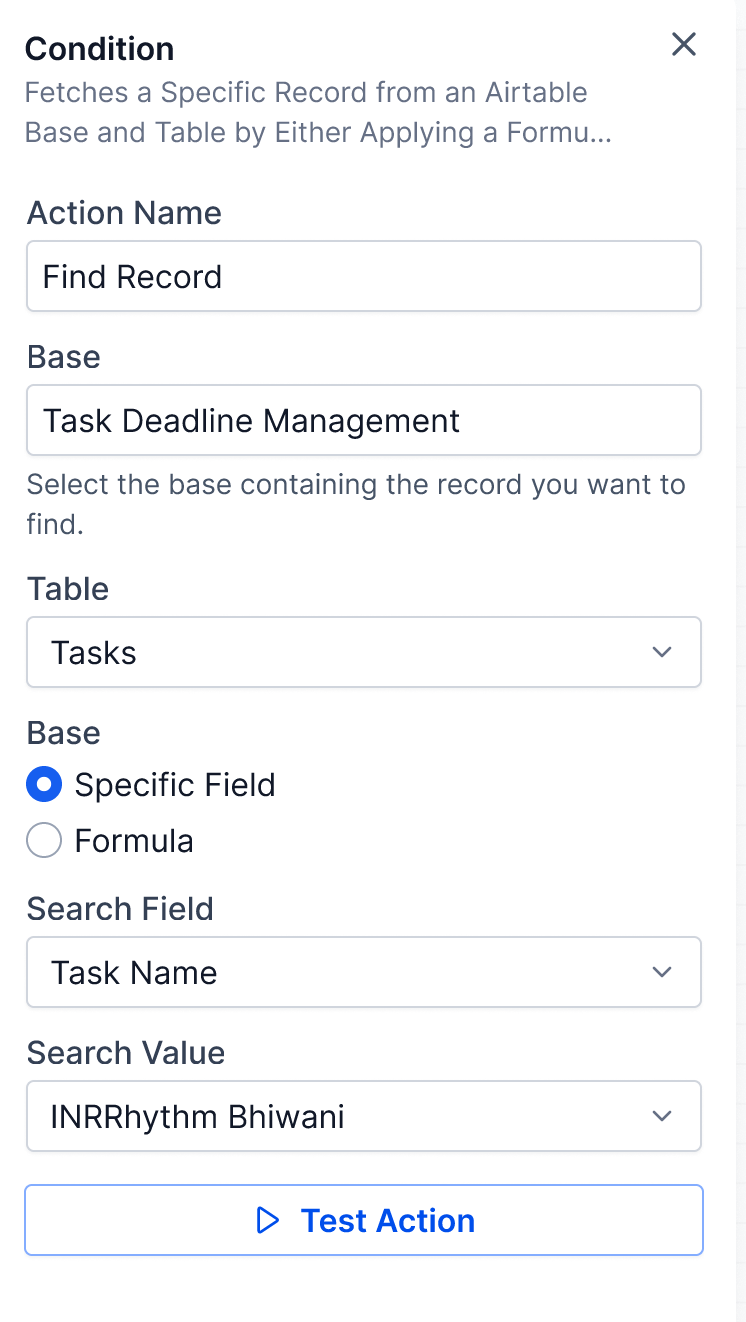
- Click the Test Action button on the configuration card; it becomes enabled when prerequisites are met.
- If a confirmation popup appears, note that Cancel has default focus and click Yes, Run Test to proceed.
- Review the Data In pane and Data Out pane; click Use this as sample to lock the response schema.
- Save the action; if the test failed, correct highlighted fields and retest as needed.
07What it looks like in HighLevel
08Settings that matter
- Connected Account. Selects which linked integration account the test call will use.
- Test Action. Button that initiates a live API call for the configured action.
- Use this as sample. Locks the returned response as a schema that downstream steps can reference.
09Things to know before you rely on it
- The Test Action button stays disabled until all required inputs are provided.
- A confirmation popup appears for actions that may create or modify data; Cancel is the default focus to prevent accidental runs.
- Tests make live outbound calls; they will fail if the provider is unavailable or the account is rate limited.
- You can retest an action unlimited times.
10If something goes wrong
- Test Action button remains disabled. Fill in all required fields on the action configuration.
- Test fails with an error code. Check the provider’s service status or verify that your account is not rate limited.
- Accidentally clicked Cancel on the confirmation popup. Click Yes, Run Test on the popup to proceed with the live test.
11How it connects to the rest of HighLevel
- Learn the basics of building workflows in HighLevel. Workflow basics
- Explore pricing options for workflow premium features. Workflow pricing
- Start a free 30 day trial to test HighLevel features. Start trial
- Get step by step guidance on creating workflows with triggers, filters, and actions. Workflow creation guide
Michael's take

Test Action is a handy way to see exactly what an integration will do before you push a workflow live.
If you don’t need that level of confidence before publishing, you can skip it.