
01Who this is for
- Founders who run multiple workflows benefit because skills let them change a rule once and have it apply everywhere.
- Marketing teams gain consistency by reusing writing guidelines across email and SMS actions.
- Support managers can add emergency response steps as a skill, ensuring the AI Agent follows safety protocols only when required.
02Skills in the AI agent action, explained
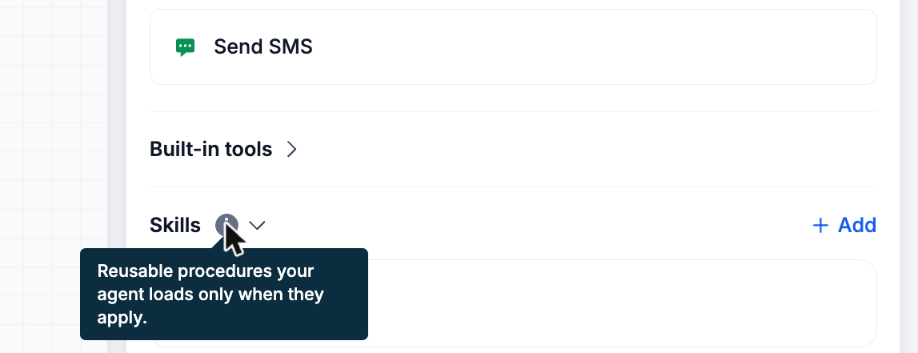
Skills sit in a shared library attached to any AI Agent action. Each skill contains a name, a short usage description, and detailed instructions. The AI Agent reads the name and usage description on every run and loads the full instructions only when the description matches the lead's context.
The library lives in the Automation > Workflows area of a subaccount. Built in skills such as Humanizer, Write well, Cold email, and Sms writer are provided automatically and can be edited or removed like any custom skill. Skills are optional; an action works without them, but they help keep instructions modular and reusable.
03How businesses use skills in the AI Agent action
- Real estate brokerage. The brokerage creates a skill that outlines how to phrase property showing invitations. It attaches the skill to the AI Agent action that sends appointment emails, ensuring the wording stays consistent across all agents.
- Dental practice. The practice writes a skill that directs the AI Agent to include post visit care instructions in reminder texts. The skill is attached to the SMS action so it only runs when a follow up reminder is being sent.
- Ecommerce store. The store builds a skill with AI that generates discount code messages for abandoned cart emails. It adds the skill to the email sending AI Agent action, loading the instructions only for customers who have an abandoned cart.
04How to set up and use skills in the AI Agent action in HighLevel
Add a skill to an AI Agent action
- Open the desired subaccount and navigate to Automation > Workflows.
- Select the workflow that contains the AI Agent action.
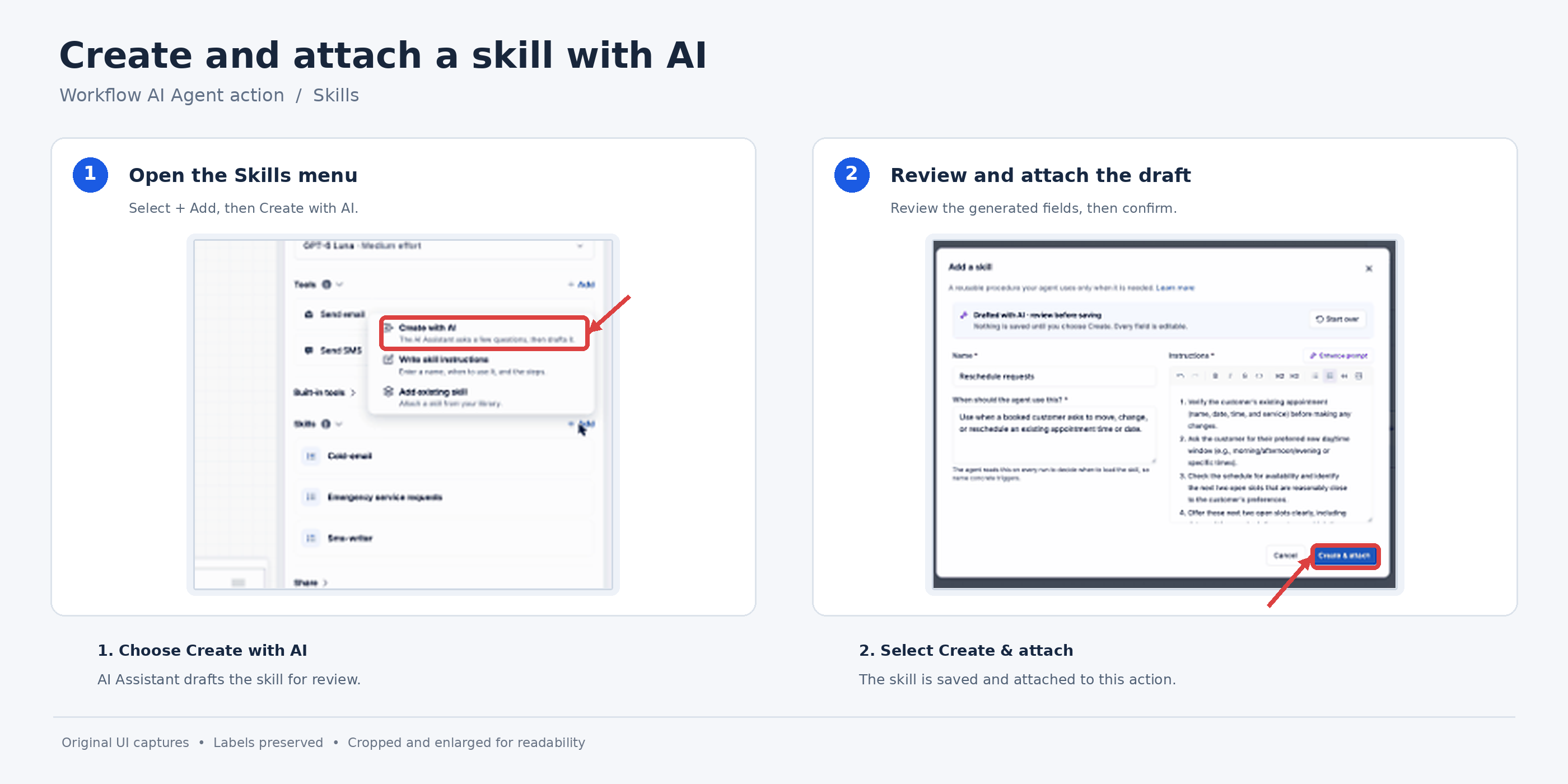
- Open the AI Agent action and locate the Skills section below Tools.
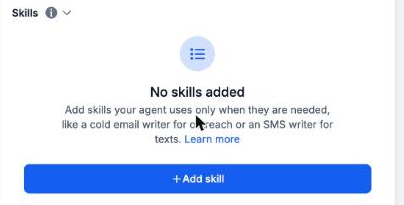
- Click the + Add skill button (or + Add beside the Skills heading if skills are already attached).
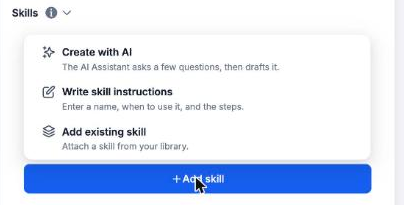
- Choose one of the three options: Create with AI, Write skill instructions, or Add existing skill, and follow the steps for that option.
- Save the AI Agent action to keep the new skill attached.
Create a skill with AI
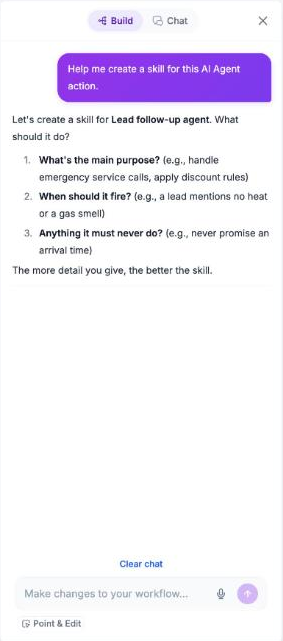
- In the Skills section, click Create with AI to launch the AI Assistant on the left side.
- Describe the skill’s purpose, when it should be used, and any prohibitions in the chat.
- When the assistant finishes, click Review & attach to open the generated draft in the skill form.
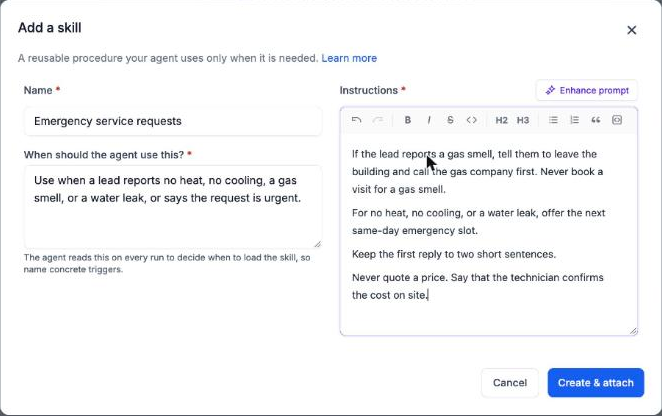
- Check the Name, usage description, and Instructions fields and edit if needed.
- Click Create & attach; this action saves the skill and attaches it to the AI Agent action. (Note: Review & attach alone does not save the skill.)
Write a skill manually
- Select Write Skill Instructions from the Skills options.
- Enter a concise Name for the skill.
- Fill in the usage description field with one or two sentences that tell the agent when to load the skill.
- Write the step by step Instructions, using lists or headings as needed, then click Create & attach.
Add an existing skill
- Choose Add Existing Skill in the Skills area.
- Search or scroll through the library to locate the desired skill, noting any Built in tag.
- Click the skill row to view its full details, then click Attach to add it to the action.
- Press Done when all needed skills are attached.
Manage attached skills
- Hover over a skill in the action and click the pencil icon to edit it, or open it via Add Existing Skill and choose Edit.
- Hover over the skill and click the X icon to detach it from the current action while keeping it in the library.
- Open the skill from Add Existing Skill and select Delete to remove it from the library and all actions that use it.
05What it looks like in HighLevel
06Settings that matter
- Name. The short identifier that appears in the action and in the skill library.
- When should the agent use this?. A brief description, one or two sentences, that tells the AI Agent when the skill is relevant.
- Instructions. The detailed procedure the AI Agent follows if the skill is loaded, written as numbered steps or rules.
07Things to know before you rely on it
- Every subaccount includes four Built in skills that can be edited or deleted like any other skill.
- A skill is shared across all actions it is attached to; editing it updates every attached instance.
- Deleting a skill removes it from the library and from every action that references it.
08How it connects to the rest of HighLevel
- Overview of the AI Agent workflow action AI Agent action
- How to configure the GPT action for workflow automation GPT action guide
- Introduction to building workflows in HighLevel Workflow basics
Michael's take

When lead messages range from routine quote requests to urgent safety issues, keeping the AI Agent’s instructions clean and consistent can feel impossible. The first thing I would get right is the skill description that tells the agent when to pull in the emergency service skill. Clear, concrete triggers avoid accidental firing.
After that I’d attach the built in Cold email and SMS writer skills to handle the everyday follow up. That gives the agent a solid foundation while the custom emergency skill steps in only for the rare, high risk leads.