
01Who this is for
- Founders of service based businesses who need a single lead to trigger follow up for several departments.
- Marketing agencies that want to apply multiple campaign rules to the same prospect.
02Router action, explained
The Router sits in a workflow and checks each defined branch against the contact’s data. If a branch’s conditions are true, that branch runs; every matching branch runs in sequence. Branches can be set to run only on matching conditions, always run, or act as a fallback when no other branch matches.
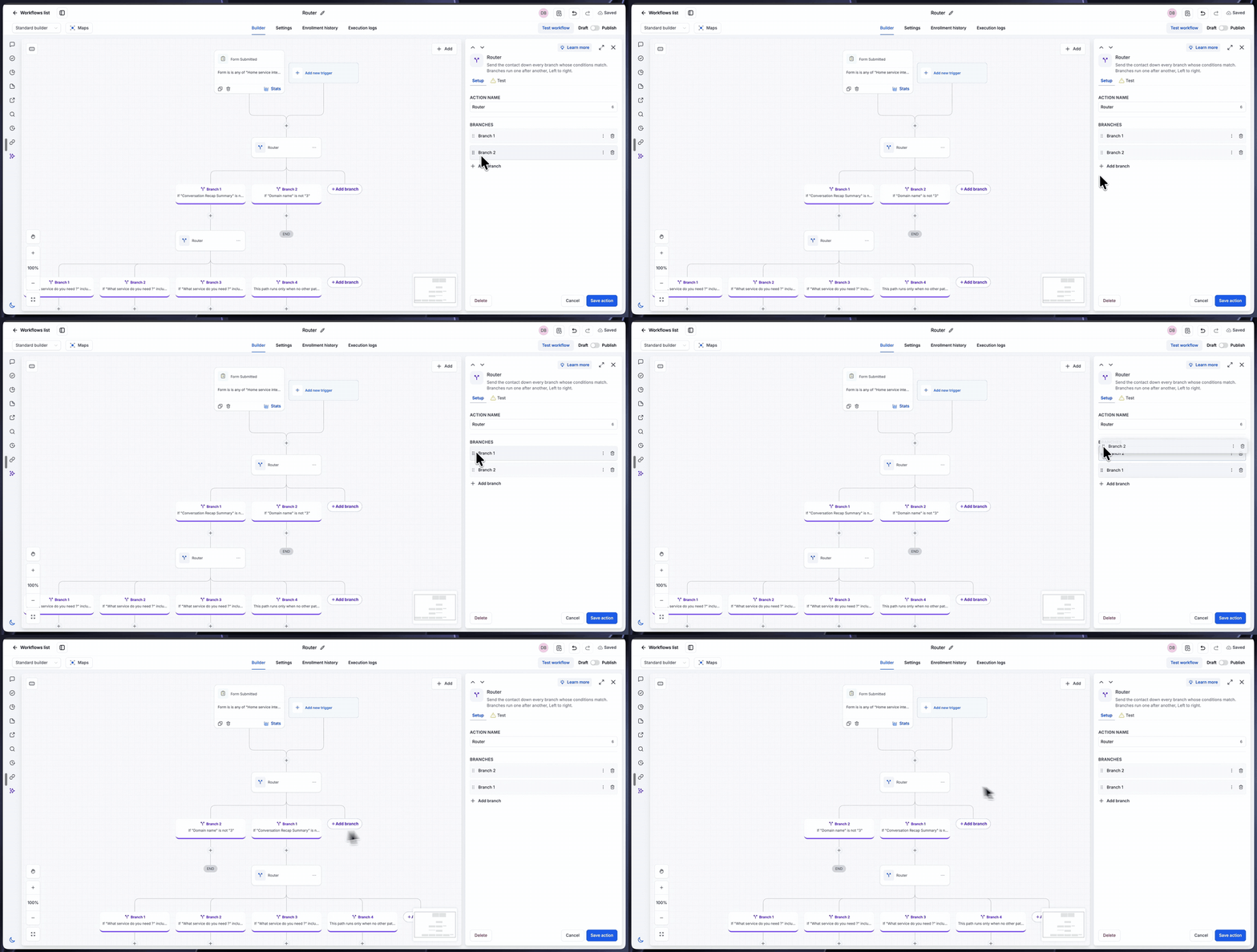
The action appears on the canvas with a list of branches below it. Each branch has a name, a type, and optional conditions built from contact fields, operators and values. The order of branches is controlled by dragging handles in the list, and the workflow runs the matching branches from left to right.
After the Router, you add the actions that should happen for each path, notes, tags, internal notifications, tasks, etc. The Router replaces the need for multiple separate workflows that would otherwise capture each combination of conditions.
03How businesses use the Router action
- Home services business. Create a Router with branches for HVAC, Plumbing, Electrical and a fallback. When a lead selects several services, the Router runs each matching branch, allowing each team to receive its own follow up actions.
- Any business with multi service leads. Add a Router after a lead capture trigger and define custom rule branches for each service option. The contact follows every path that applies, so multiple departments can be notified simultaneously.
- Complex lead qualification. Use the Router to evaluate several attribute conditions (e.g., industry, budget, location) in separate branches, ensuring that all relevant follow up sequences are executed for a single prospect.
04The numbers and rules that matter
- Operators include is, is not, contains, does not contain, is any of (comma separated), is none of (comma separated), is not empty.
05Before you start
- Access to the HighLevel subaccount where the workflow will be edited.
- An existing workflow or a new workflow created in Automation > Workflows.
06How to set up and use the Router action in HighLevel
Configure a router action
- Open the desired subaccount in HighLevel.
- Navigate to Automation > Workflows.
- Open an existing workflow or create a new one.
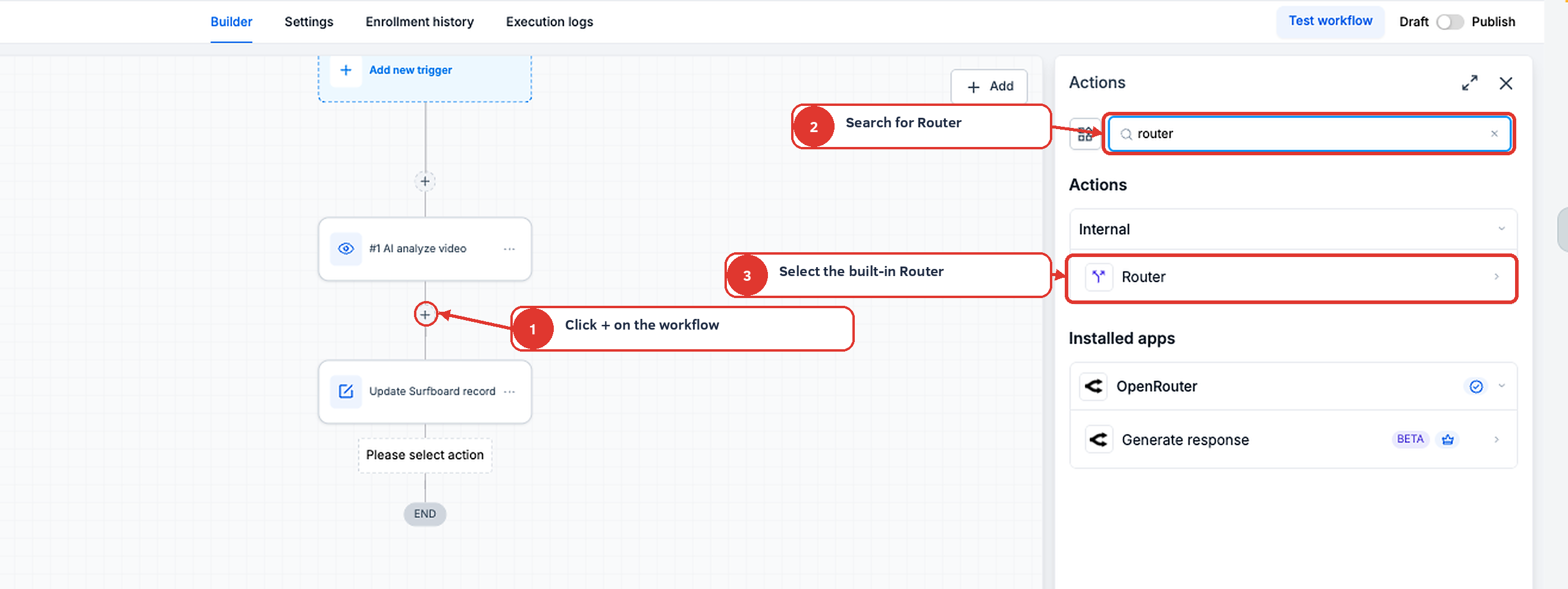
- Click the + icon on the canvas where the Router should be placed.
- Search for "Router" in the Actions panel and select it.
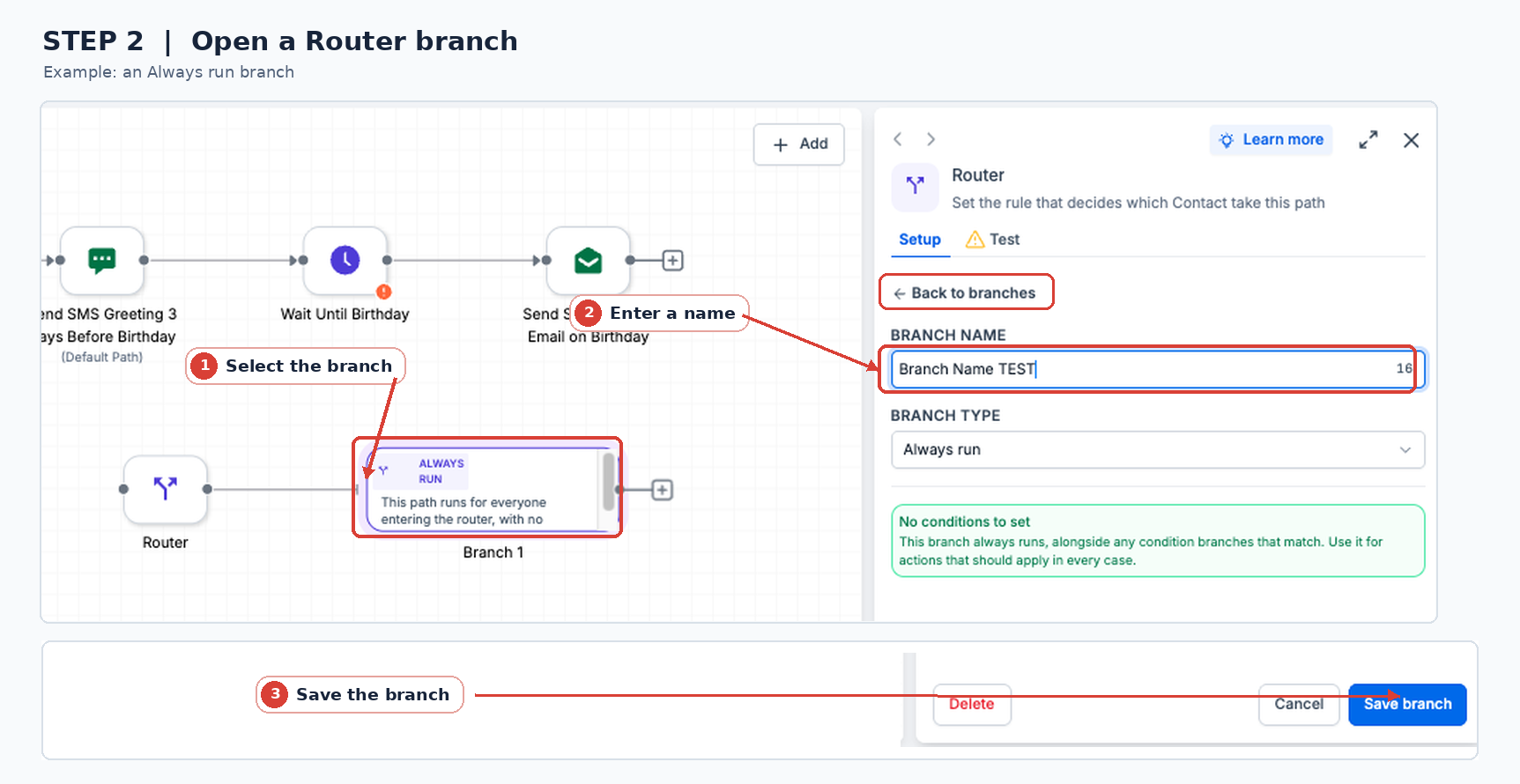
- Click a branch in the Router panel to open its settings.
- Enter a name for the branch and return to the branch list.
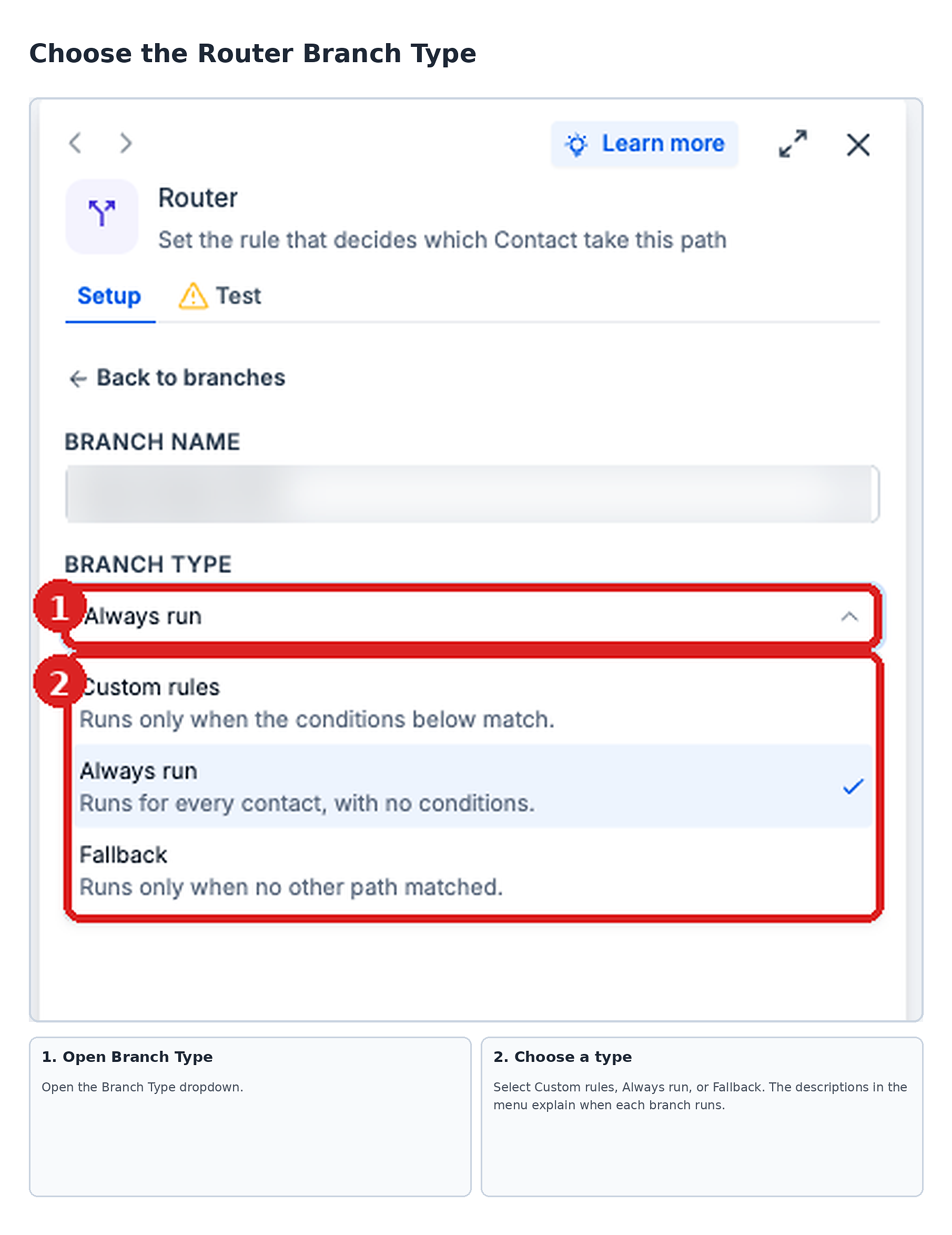
- Open the Branch Type dropdown and choose Custom rules, Always run, or Fallback.
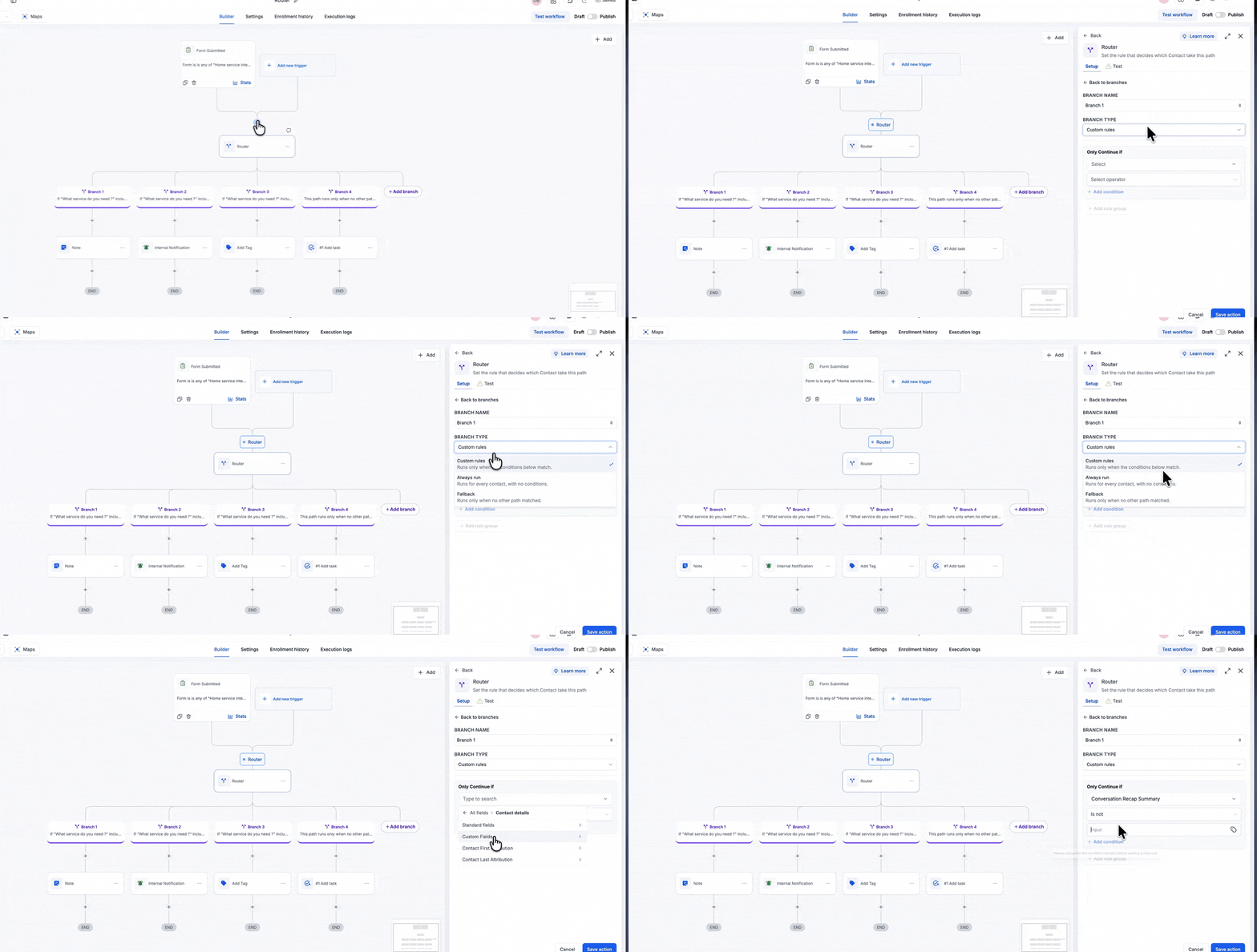
- If Custom rules is selected, choose a contact or custom field for the condition.
- Select an operator such as is, is not, contains, does not contain, is any of, is none of, or is not empty.
- Enter the value to compare against the chosen field.
- Add additional conditions or rule groups if needed.
- Save the branch.
- Click + Add branch to create additional branches as required.
- Drag a branch by its handle to reorder the list and set the run order.
- Click Save action to store the Router configuration.
- Under each branch, click the + icon to add the actions that should run for that path.
Test the router
- In the workflow builder, click Test workflow in the upper right corner.
- Select Test using events on the New test tab.
- Choose the workflow trigger under Select Trigger.
- Select a recorded event under Select event, enabling Listen for events if a new event is needed.
- Review the event data and click Start test run.
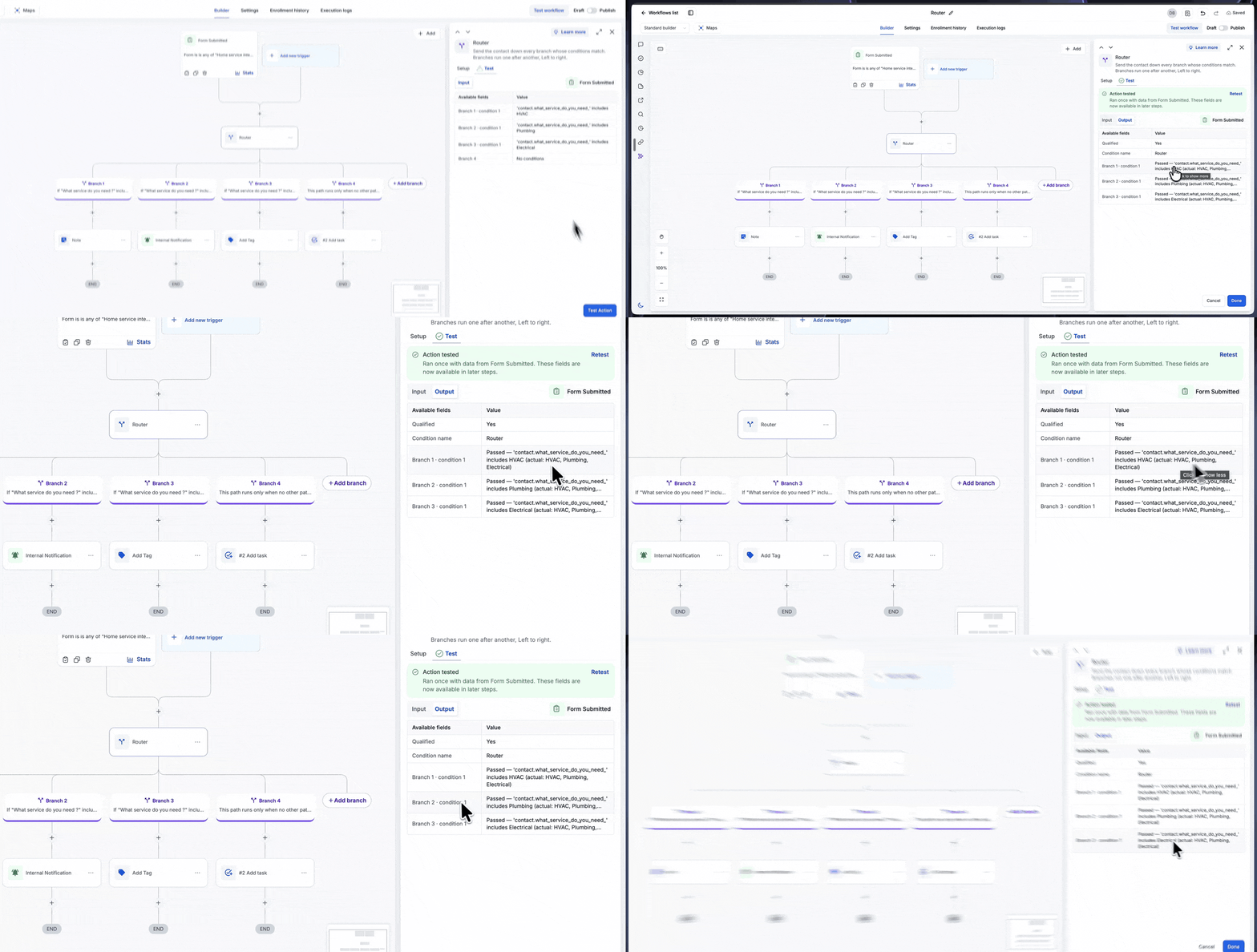
- When the test ends, click the Router step on the canvas and open Output to see which branch conditions passed.
Publish the workflow
- After confirming that the expected branches ran, click Save.
- Click Publish to make the workflow active for live contacts.
07What it looks like in HighLevel
08Settings that matter
- Action Name. The label that appears on the workflow canvas to identify the Router step.
- Branches. The collection of branch entries that the Router will evaluate, ordered from left to right.
- Branch Name. A friendly name for each branch, shown above the branch on the canvas.
- Branch Type. Determines when the branch runs: Custom rules (requires matching conditions), Always run (runs for every contact), or Fallback (runs only if no other branch matches).
- Only continue if. The set of conditions a contact must satisfy for a Custom rules branch to run.
09Things to know before you rely on it
- Branches run sequentially from left to right; they do not execute at the same time.
- Always run branches run for every contact without conditions.
- Fallback branches run only when no other branch matches.
10If something goes wrong
- Workflow tests execute real actions and may affect live records.. Use test data in the trigger event to avoid sending unintended messages or updating real contacts.
11How it connects to the rest of HighLevel
- Learn the basics of building workflows in HighLevel. Workflow basics
- Compare Router with the If/Else action to decide which fits your logic. If/Else comparison
- View pricing options for workflow features and the Founder Plan. Pricing
Michael's take

The Router action lets a small business route a single lead into multiple follow up streams without building separate workflows for each combination.