
01Who this is for
- Founders automating client onboarding can quickly detect broken steps and keep the process active.
- Marketing agencies using automated sequences can pinpoint errors to maintain lead flow.
02Review workflows with errors, explained
The errors badge indicates that a workflow encountered errors during recent runs. It appears on the Workflow Maps screen under Automation. When you click Review workflows with errors, the system displays all workflows that have a badge, grouped by Published and Draft status. A filter called Has issues lets you narrow the view to only those with problems.
From the error view you can open the workflow in the builder, correct the step, and then click Mark as read to remove the badge. Marking as read does not retry the execution; it only clears the notification.
03How businesses use review workflows with errors
- Digital marketing agency. The agency opens the error review to see which email campaign workflows failed, inspects the webhook action that returned an error, updates the URL in the builder, and clears the badge to confirm the fix.
- SaaS subscription business. The business checks the error badge on its trial activation workflow, reads the failure details for the payment gateway step, modifies the API credentials in the builder, and marks the issue as read.
- Real estate lead nurturing team. The team reviews flagged drip campaign workflows, opens the failed execution to see which SMS action failed, corrects the phone number format in the builder, and clears the badge after fixing.
04How to set up and use review workflows with errors in HighLevel
Find workflows with errors
- Navigate to Automation, then select Workflows and open Workflow Maps.
- Click the Review workflows with errors button.
- Examine the list that separates Published and Draft workflows.
- Choose a workflow from the list to see its failed executions.
- Apply the Has issues filter to limit the map to flagged workflows.
Inspect a failed execution
- Select a workflow from the error review to view its failed runs and the step that failed.
- Read the error message shown next to the affected step.
- Click Open in builder to open the workflow for editing.
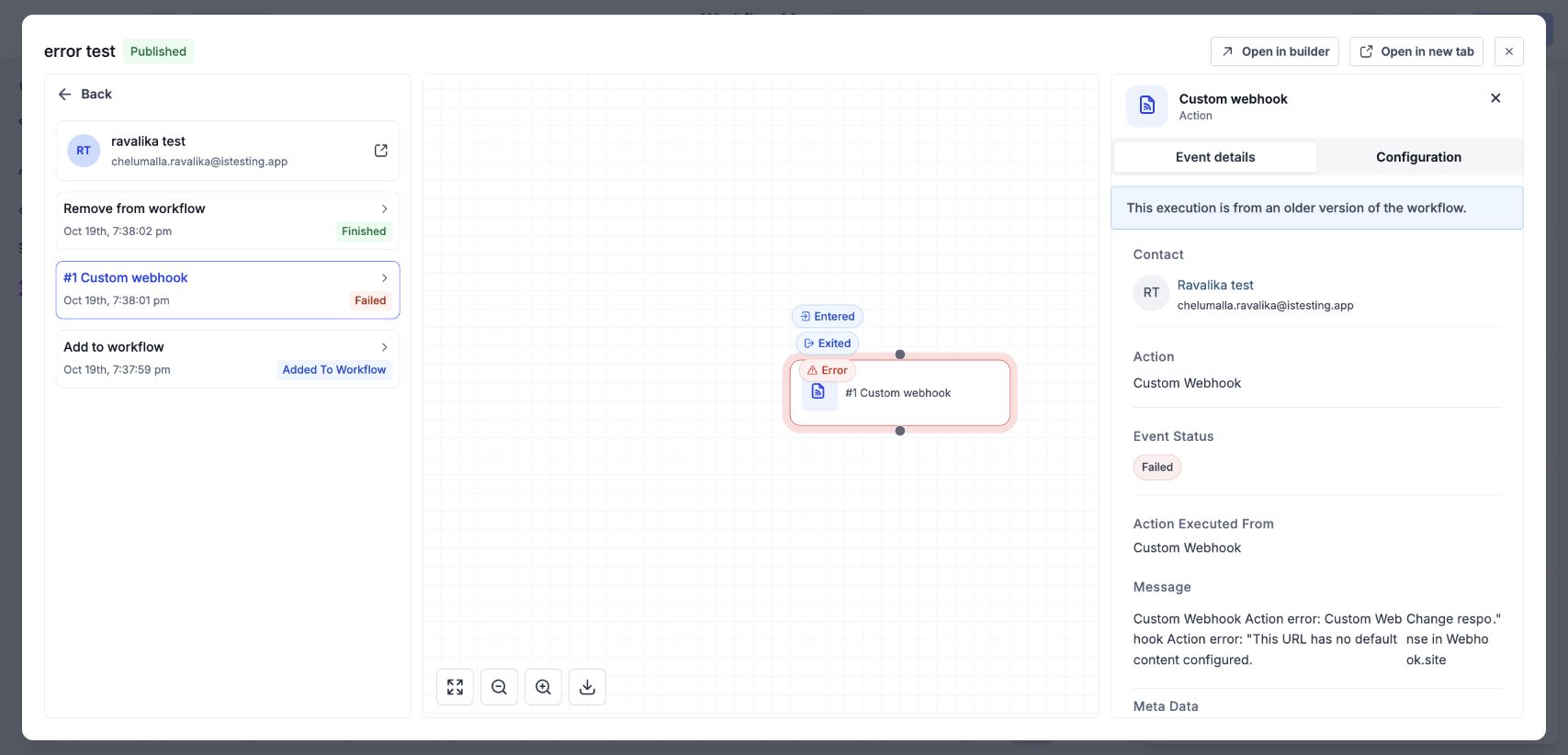
- From the workflow details, pick Total Enrolled, choose an enrollment, and select the failed action to see its Event details.
- Review the historical execution information to identify the failed action, its status, and the error.
Fix the step and mark the issue as read
- Open the problematic workflow in the builder.
- Examine the error details and adjust the failing step.
- Return to the Workflow Maps view.
- Click Mark as read to remove the error badge.
05What it looks like in HighLevel
06Settings that matter
- Has issues filter. Filters the workflow map to display only workflows that have an error badge.
- Mark as read. Clears the error badge after you have reviewed and fixed the workflow step.
07Things to know before you rely on it
- Mark as read only removes the notification badge; it does not retry or repair the failed execution.
08How it connects to the rest of HighLevel
- Learn about workflow map symbols and how to read connections Workflow map symbols guide
- Trace a contact through workflows to view its path Trace contact
- Get started with workflow automation basics Workflow basics
Michael's take

Michael ReimerFounder of CRM Pros, HighLevel Commander and Certified Admin
The errors badge is a useful checkpoint.
Get More InformationOpens on HighLevelPublished November 3, 2026 · Updated November 17, 2026