
01Who this is for
- Founders who need a quick visual overview of how their automations interact with assets, to keep the system organized.
- Marketing teams that manage many forms, tags and campaigns and want to see which workflows respond to each asset.
- Operations managers who oversee multiple workflow folders and need to verify that assets are correctly referenced across departments.
02Workflow maps, explained
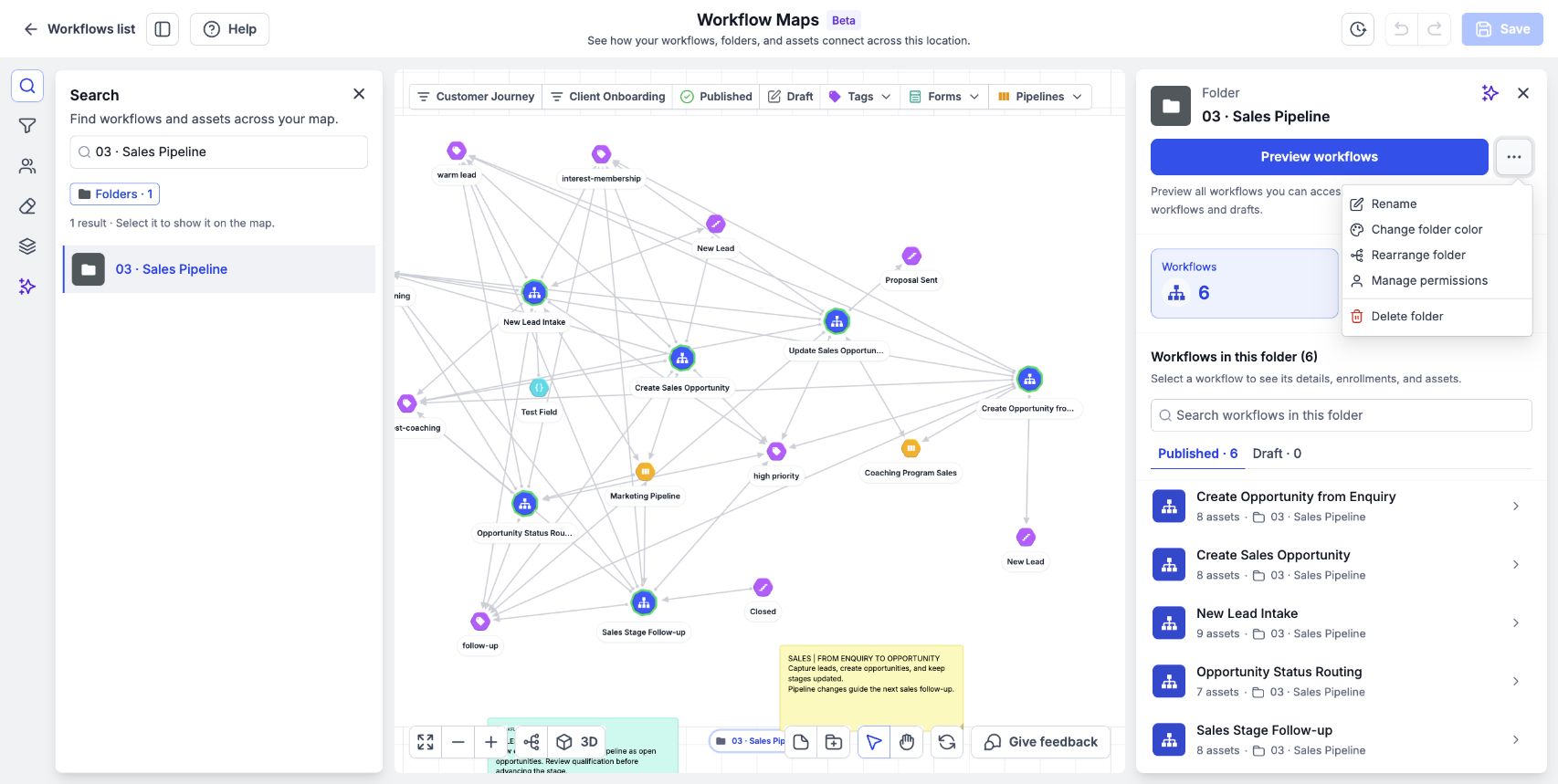
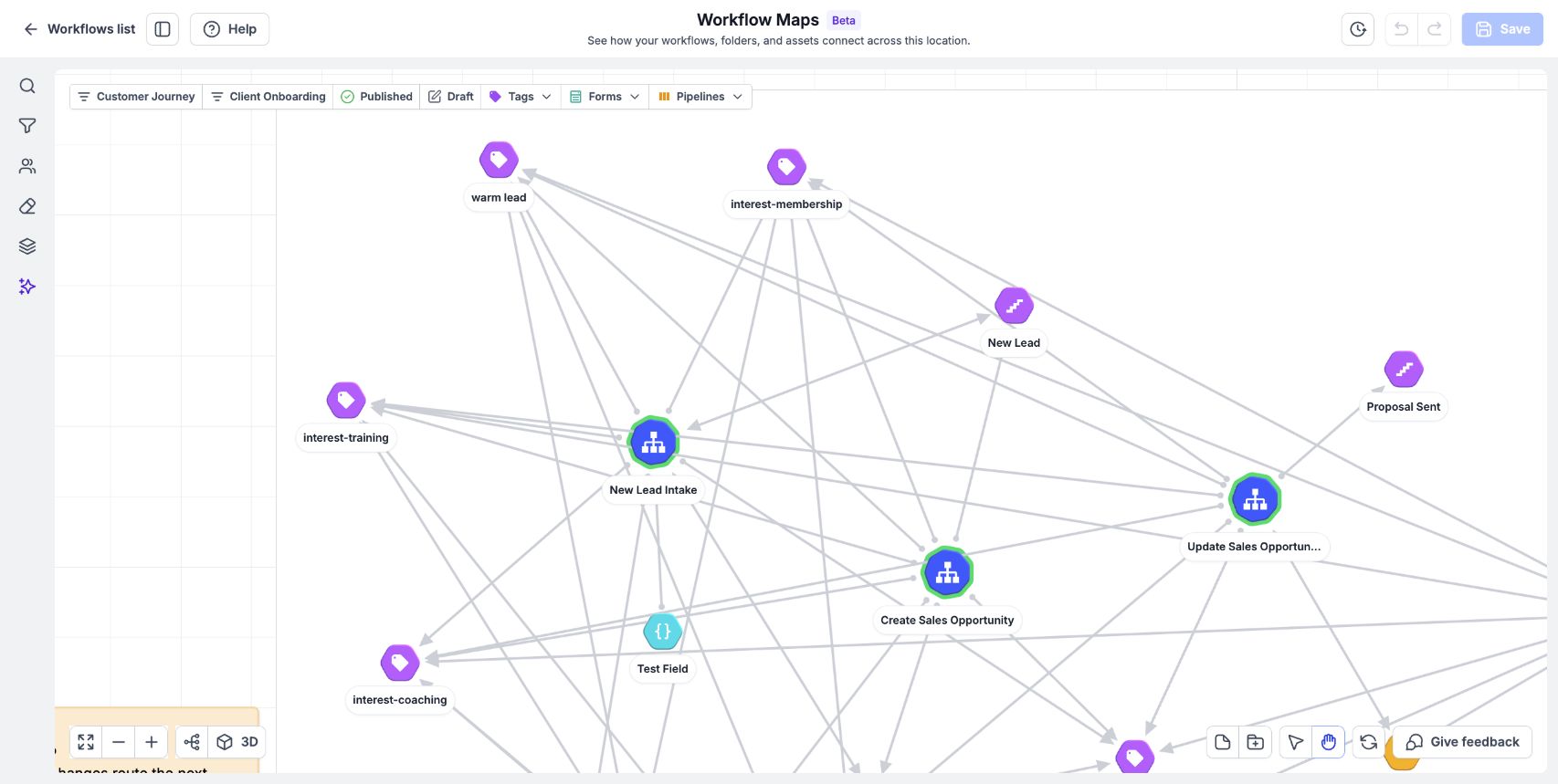
The map displays folder islands, nested folders, workflow chips, asset chips, sticky notes and badges, each using specific colors or borders to indicate status such as published versus draft workflows.
Arrows on the map describe the relationship between assets and workflows, while solid and dashed line styles indicate whether a connection can start or change something or is only a reference.
03How businesses use workflow maps
- Digital marketing agency. The agency hovers over a form asset to see which client workflows are triggered when the form is submitted. By clicking the highlighted line, the agency reads the list of actions that tag contacts or add them to follow up workflows.
- Ecommerce store. The store clicks a product asset on the map to discover every workflow that changes inventory or sends order confirmation emails. The side panel shows the specific actions linked to that product.
- Coaching business. The coaching team selects a membership offer asset, then inspects the connection line to view the workflow that enrolls new members and assigns them to a membership lesson series.
04How to set up and use workflow maps in HighLevel
Inspect a connection
- Zoom in on the map if it is fully zoomed out.
- Hover over a workflow or asset to highlight its connections.
- Click the line you want to inspect.
- Read the triggers and actions listed in the side panel.
05What it looks like in HighLevel
06Things to know before you rely on it
- Lines cannot be selected while the map is zoomed all the way out.
- Missing asset badges indicate the asset no longer exists but is still referenced.
07How it connects to the rest of HighLevel
- Learn how to navigate, search and filter workflow maps for faster access. Navigate, search, and filter workflow maps
- Organize your folders and save the map layout to keep the visual map consistent. Organize folders and save layout
- Add sticky notes to the map to annotate connections for your team. Add and manage sticky notes
Michael's take

Michael ReimerFounder of CRM Pros, HighLevel Commander and Certified Admin
Workflow maps give a clear visual of how automations are linked and where assets are used, which I find valuable.
Avoid trying to click a line while the map is fully zoomed out; you won’t be able to select it.
Get More InformationOpens on HighLevelPublished November 3, 2026 · Updated November 17, 2026