
01Who this is for
- Founder, needs quick visibility into all automations to keep strategy aligned.
- Operations manager, uses map navigation to troubleshoot workflow issues across teams.
- Marketing automation specialist, relies on search and filters to locate tags, forms or triggers within large maps.
02Workflow maps, explained
The map view displays every workflow, trigger, action and asset as nodes connected by lines. You can drag to move the view, zoom in for details or zoom out for a broader overview, and click a Fit button to return to the full map.
Switching between 2D and 3D changes how depth is shown. 3D adds a perspective view, while 2D presents a flat top down layout that can be easier to read, especially on very large accounts or when taking screenshots.
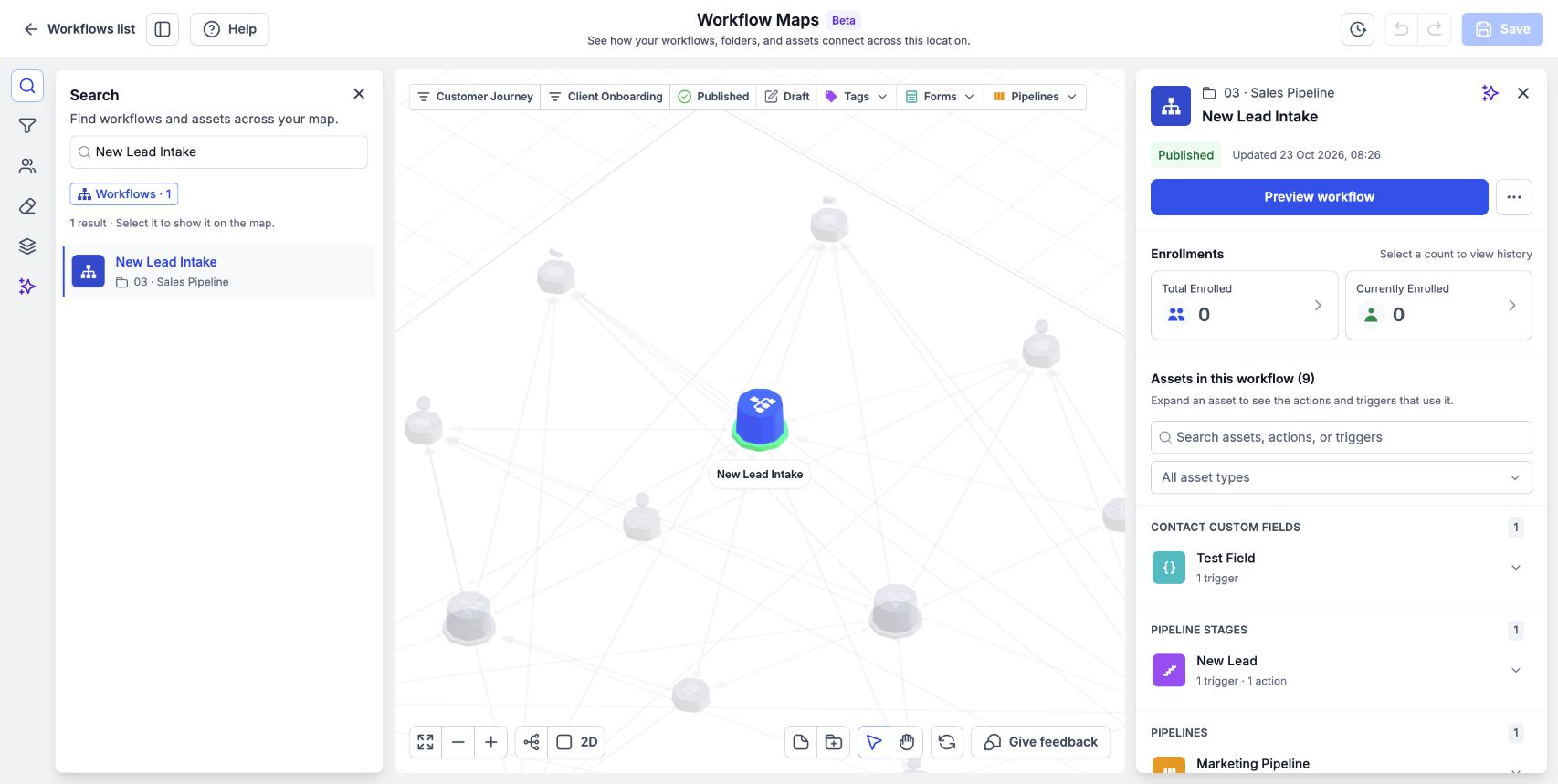
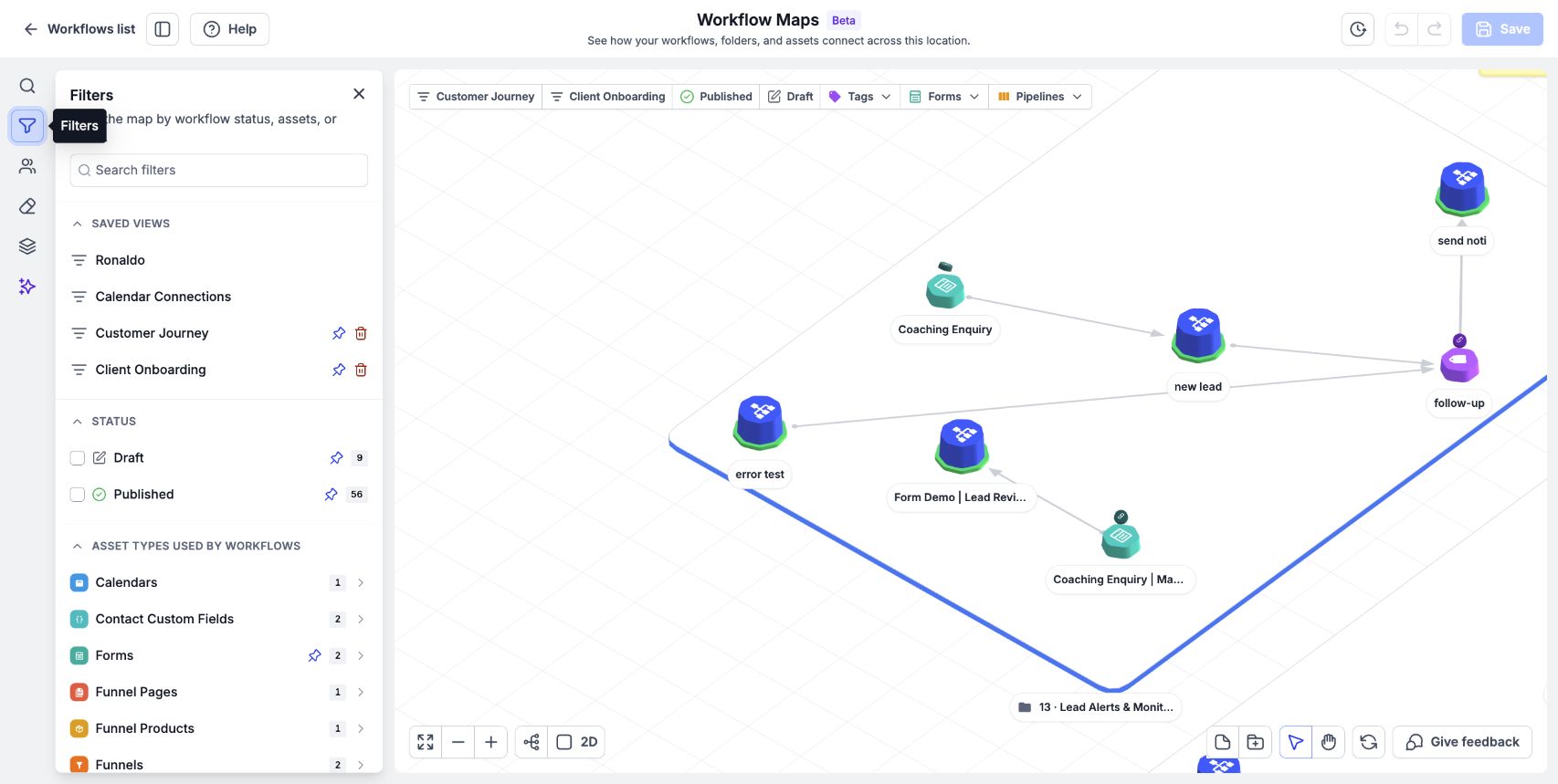
Search and filter tools sit at the top of the map. Search lets you type a workflow, asset or trigger name and jump directly to its location. Filters let you show only published workflows, drafts, specific asset types, or items with issues, narrowing the map to what you need.
03How businesses use workflow maps
- SaaS company. The team opens the map, uses the search bar to type a tag name, and clicks the result to jump to the exact workflow node. This lets them verify where the tag is used without opening each workflow individually.
- Dental practice. A practice manager switches to 2D view to get a clear overview of patient reminder workflows. They then apply a filter to show only draft workflows, making it easy to identify unfinished automations.
- Real estate agency. Agents use the zoom controls to focus on a specific property lead capture workflow, then click Fit to return to the whole map and see how that workflow connects to follow up campaigns.
04The numbers and rules that matter
- Use 2D / 3D to switch views.
05How to set up and use workflow maps in HighLevel
Pan, zoom, and fit the map
- Click and hold the mouse button on the map, then drag to move the view.
- Press the + button to enlarge the map or the, button to shrink it.
- Click the Fit control to restore the full map view.
Switch between 2D and 3D
- Locate the 2D / 3D toggle control on the map toolbar.
- Click the control to change from the current view to the other mode.
- Observe the map rendering either with depth (3D) or as a flat layout (2D).
Search the map
- Open the Search field; on a Mac you may also press ⌘K.
- Enter the name of a workflow, asset, tag, or form.
- Review the list of matching results that appear.
- Select a result to move the map focus directly to that item.
Filter the map
- Click a quick filter at the top to show only published, draft, or a single asset type.
- Open the detailed filter panel from the left rail if more options are needed.
- Adjust the filter choices to narrow the displayed workflows or assets.
- Press the Clear button to remove all filters and view the complete map again.
06What it looks like in HighLevel
07Settings that matter
- graphics acceleration. Enables hardware accelerated rendering in the browser, which helps large accounts load and interact with the map more smoothly.
08Things to know before you rely on it
- Lines cannot be selected when the map is zoomed out to its widest level.
- The map does not display internal logic steps inside if/else blocks; search can still locate those references.
- 3D view adds depth but may be harder to navigate on very large maps; 2D view is recommended in that case.
09If something goes wrong
- A workflow is missing. Check and clear any active filters, then use the Search field to locate the workflow by name. If it is still missing, use Give feedback and include the workflow name.
- A connection will not open. Zoom in on the map and click the connection line again; selection works only at closer zoom levels.
- The map is slow or does not load. Enable graphics acceleration in the browser and try switching to the 2D view for very large accounts.
10How it connects to the rest of HighLevel
- How to organize folders and save the map layout Organize folders
- Adding and managing sticky notes on workflow maps Sticky notes
- Tracing a contact through workflows for deeper insight Trace contacts
Michael's take

Ever wonder how to quickly find that one workflow buried in a sea of nodes? The map’s search bar and filters let you jump straight to the item you need, saving you the headache of opening each workflow one by one. I love using the "Has issues" filter to isolate problem workflows and fix them in bulk.
If I were setting up a new account with hundreds of automations, I’d flip to the 2D view and enable graphics acceleration right away. That way the map stays responsive and I can keep the big picture in sight without getting lost.