
01Who this is for
- Support agents can quickly determine why a client received a specific message and where they are stuck in an automation.
- Marketing managers can verify that campaign workflows are triggering correctly for each lead.
- Sales representatives can see if a prospect has completed required steps before a follow up call.
02Contact tracing, explained
Contact tracing is a view inside the workflow map that shows a contact’s recent automation activity. The history lists every workflow the contact entered, timestamps, and the execution status, finished, waiting, or error. It only retains data for the last 60 days.
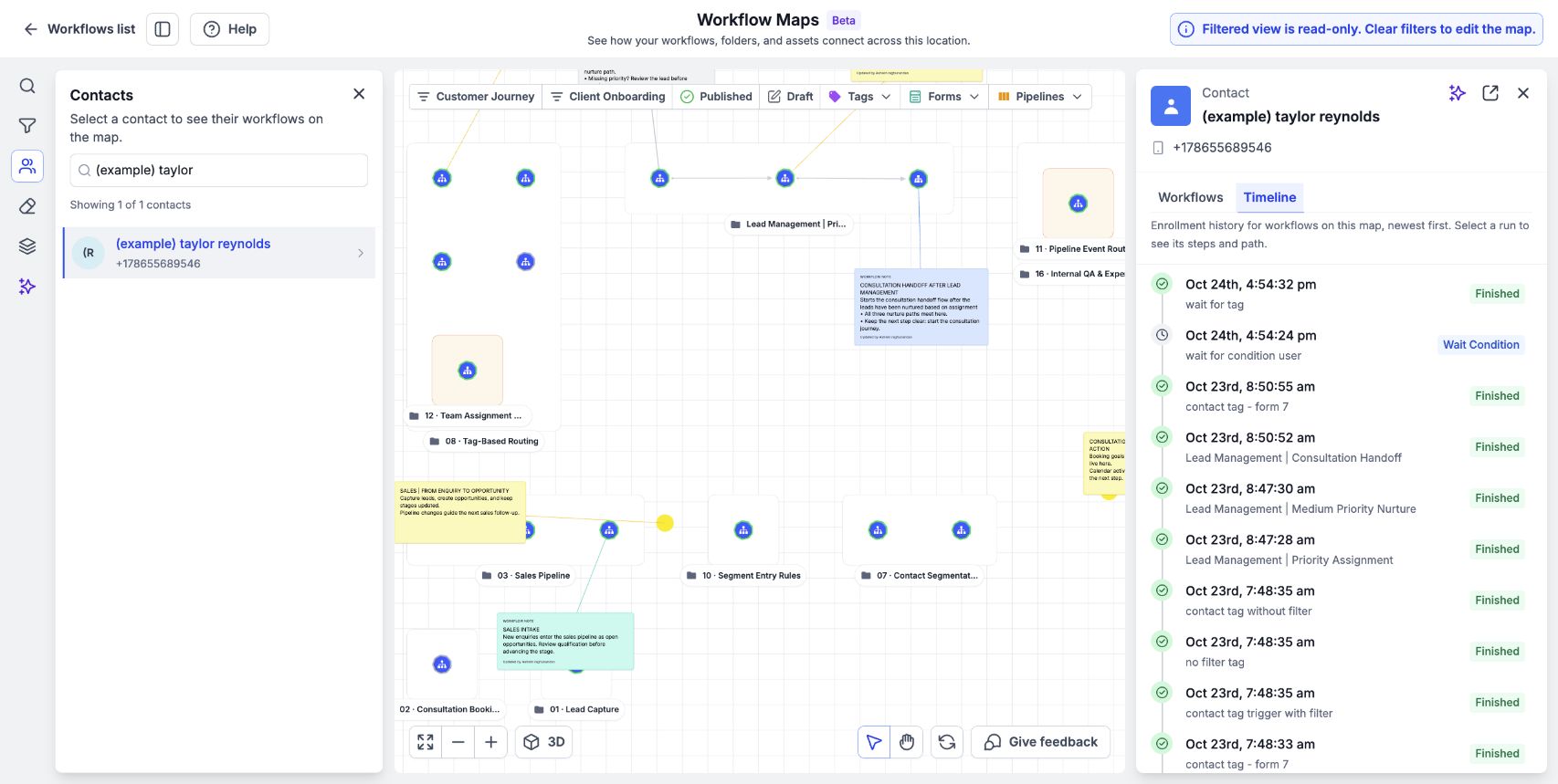
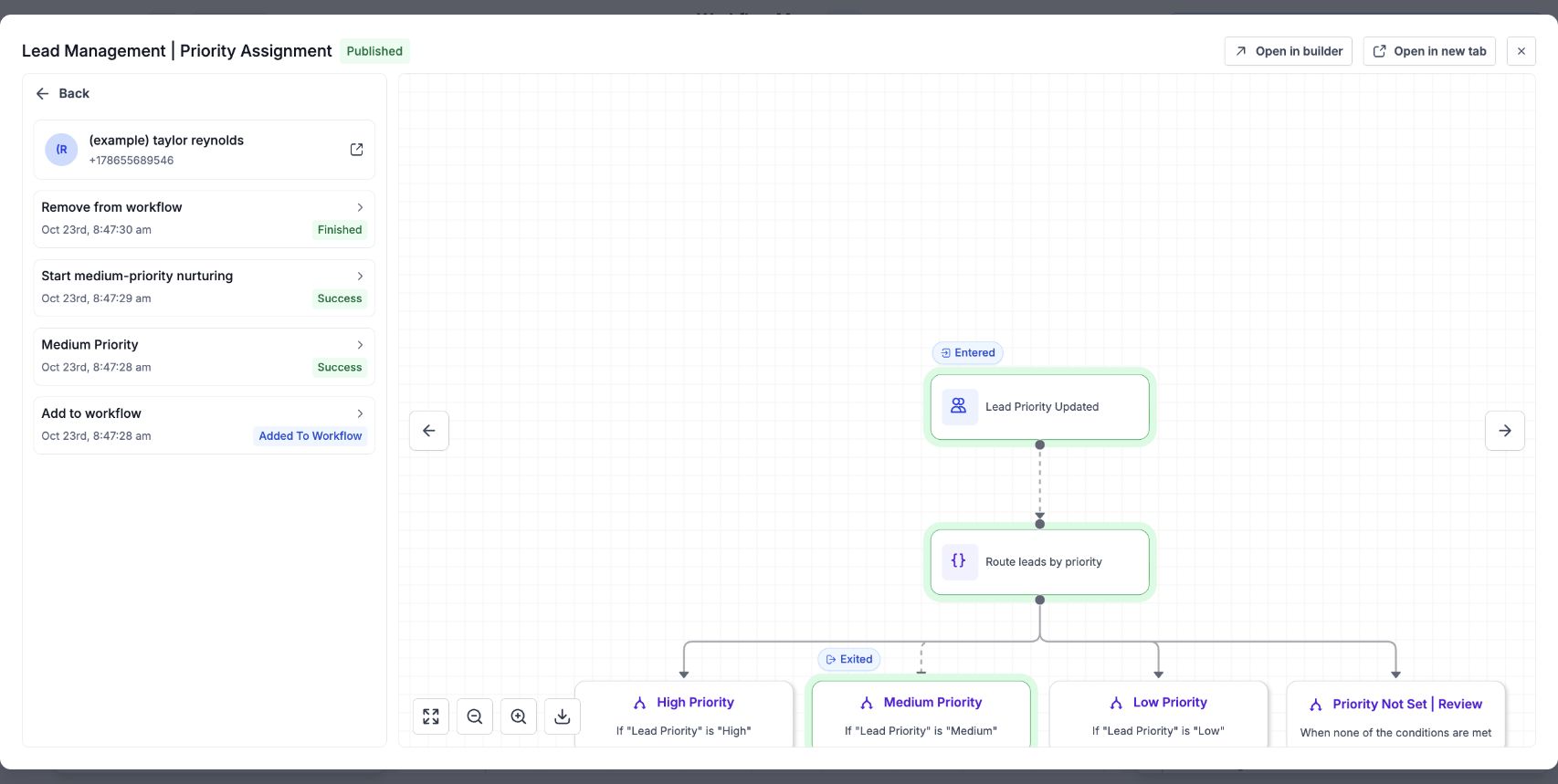
The feature lives in the Workflow Maps area. From the left rail you can open the Contacts pane, search for a person, and then review their workflow and timeline tabs. Clicking a workflow entry reveals the exact step the contact reached, and selecting that step opens the workflow at that point for deeper inspection.
03How businesses use contact tracing
- Digital marketing agency. The agency searches a lead’s email to see which nurture sequence they entered, checks the timeline to confirm a welcome email was sent, and opens the specific step to verify the correct template was used.
- Ecommerce store. Store staff look up a customer’s phone number, read the workflow history to find a cart abandonment flow, and open the step where the reminder message was queued to confirm timing.
- Consulting firm. Consultants locate a prospect by name, view the series of onboarding automations they passed through, and open the execution to see any errors that prevented a contract document from being sent.
04The numbers and rules that matter
- Contact history covers the last 60 days.
05How to set up and use contact tracing in HighLevel
Find a contact
- Go to Automation > Workflows > Workflow Maps.
- Open the Contacts panel on the left side of the map.
- Enter the contact’s name, email, or phone in the search field.
- Select the matching contact to display its history.
Read the workflow history
- Switch to the Workflows tab to see each workflow entry for the contact.
- Check the rows that show workflow name, time, and execution status.
- Use the Timeline tab to view the events in chronological order.
Open the step or execution
- Click a workflow listed in the contact’s history to reveal the reached step.
- Select that step to load the workflow at the exact execution point.
- Review the execution details displayed for that step.
06What it looks like in HighLevel
07Things to know before you rely on it
- Contact history is limited to the most recent 60 days.
- Search supports name, email, and phone values only.
08How it connects to the rest of HighLevel
- Workflow maps overview Understanding workflow maps
- How to navigate and filter maps Navigate, search, and filter workflow maps
- Saving map layout and organizing folders Organize folders and save layout
Michael's take

People often jump straight to the map’s connections and assume they’ll see why a contact got a message. That misses the actual execution data. Instead, start by pulling the contact’s history and walking through the timeline to locate the exact step that ran.
If I were using this, I’d first search for the contact, open the workflow entry that triggered the message, and inspect the execution details.