
01Who this is for
- Agency admins who need a unified map view for every user in the subaccount; they control moves, renames and color settings.
- Team members who rely on the workflow list; organized folders speed up finding the right automation.
02Folders and map layout, explained
Within the Automation section, the Workflow Maps screen displays all workflows as draggable cards grouped in folders. Agency admins can change the arrangement, rename elements, and apply colors to folder labels. Any layout change can be saved, and the saved version replaces the previous view for every user in that subaccount.
Saving does not alter the internal steps of a workflow; it only updates the visual organization and the order shown in the Workflows list. Undo, redo and a recent changes panel let admins experiment before committing the layout.
03How businesses use folders and map layout
- Digital marketing agency. The agency creates separate folders for each client campaign, drags the related workflows into those folders, gives each folder a distinct color, and then saves the map so every account manager sees the same structure.
- SaaS startup. The product team renames onboarding and churn prevention workflows to reflect their purpose, moves them into logical groups, and saves the layout so new engineers can quickly locate the correct automation.
- Real estate brokerage. The brokerage assigns a bright color to the folder that contains lead capture workflows, renames the folder to match the market segment, and stores the layout so agents across the office have a consistent navigation experience.
04Before you start
- User must have the Agency Admin role.
- User must be on the Automation > Workflows > Workflow Maps screen.
05How to set up and use folders and map layout in HighLevel
Move a workflow to a different folder
- Open Automation, then select Workflows and go to Workflow Maps.
- Locate the workflow you want to reposition.
- Drag the workflow card onto the target folder.
- Check that the workflow appears where you expect.
- Press Save to lock the new placement.
Rename a workflow or folder
- Double click the name of the workflow or folder.
- Type the new descriptive label.
- Review the updated name for accuracy.
- Click Save to apply the rename.
Assign a new color to a folder
- Hover over the folder’s label to reveal the color picker.
- Select the desired color from the options.
- Click Save to keep the color change.
Create a new folder and place workflows inside it
- Click the Add folder button located in the bottom toolbar.
- Enter a name for the new folder.
- Drag any workflows you wish to group into the new folder.
- Inspect the layout to ensure the workflows sit correctly.
- Press Save to store the new folder arrangement.
Rebuild the map using the Rearrange layout function
- Save the existing layout first.
- Clear any filters that are currently applied.
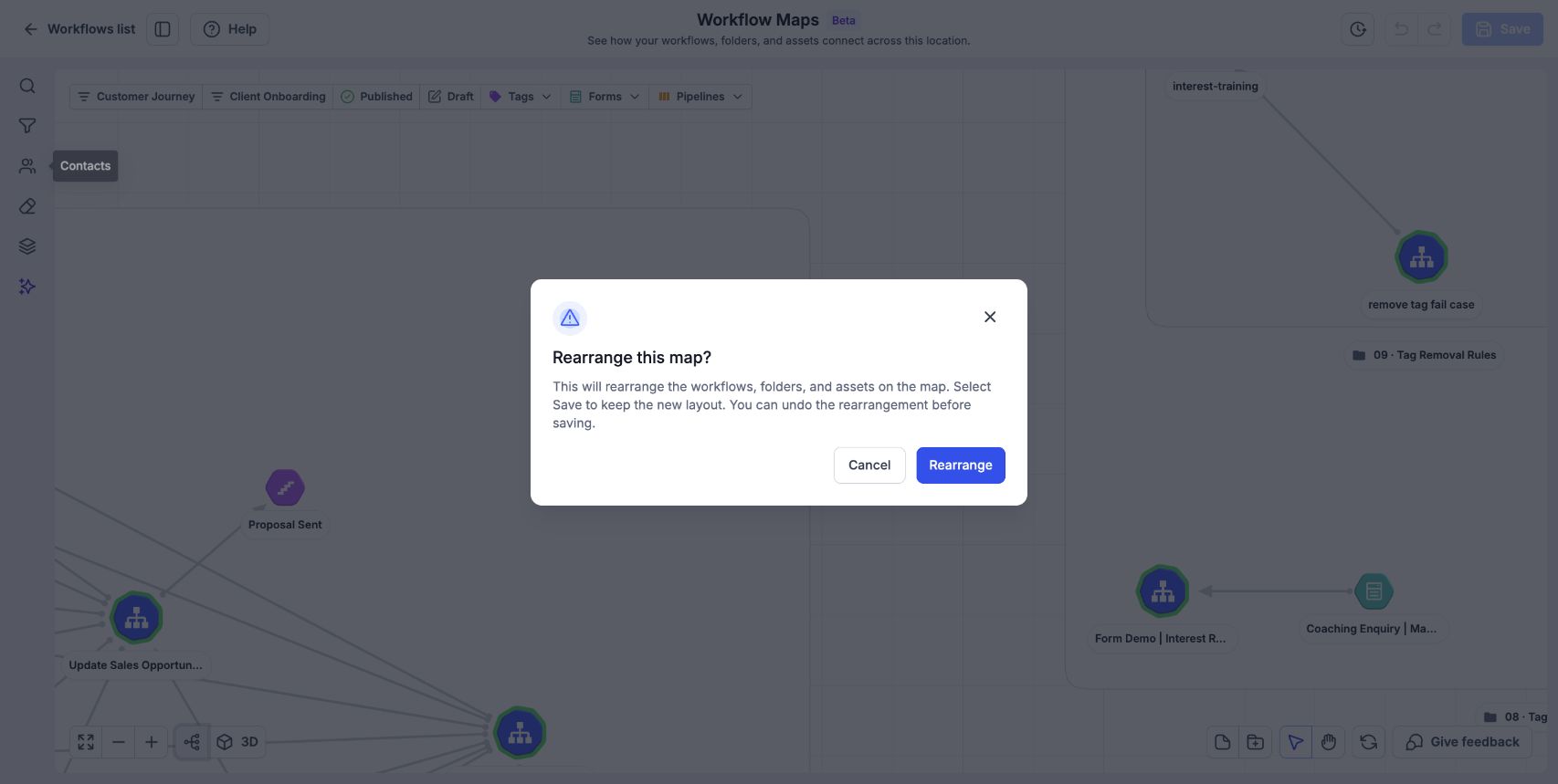
- Activate the Rearrange layout option to start fresh.
- Confirm the rearrangement prompt.
- Click Save when the new layout meets your needs.
06What it looks like in HighLevel
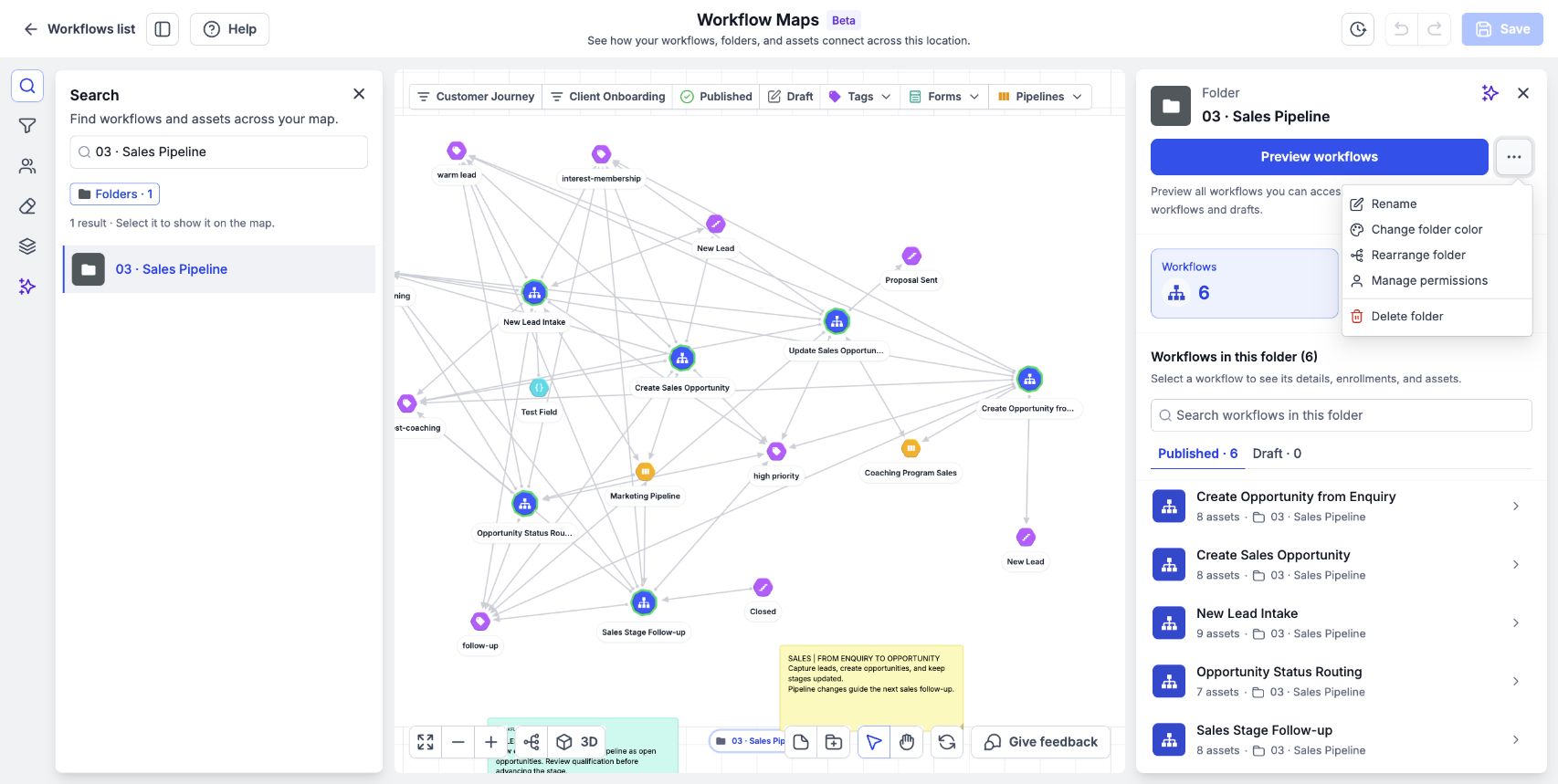
07Settings that matter
- Add folder control. Opens a dialog to create a new folder at the bottom of the map.
- More folder actions. Provides extra options for a folder, such as renaming or changing its color.
- Change folder color. Lets the user pick a highlight color for a folder label.
- Undo. Steps back through recent layout modifications.
- Redo. Reapplies changes that were undone.
- Recent changes. Shows a list of layout edits allowing selective undo or redo.
08Things to know before you rely on it
- Only users with the Agency Admin role can commit a layout change.
- Saving a layout updates the view for every member of the subaccount; it is not a personal setting.
- Rearrange layout requires that active filters be cleared before it runs.
- Moving a workflow also modifies its entry in the Workflows list.
09How it connects to the rest of HighLevel
- Learn how workflow maps display automation logic Workflow maps guide
- Find tips for navigating, searching, and filtering workflow maps Map navigation help
- Add and manage sticky notes on workflow maps Sticky notes feature
Michael's take

Michael ReimerFounder of CRM Pros, HighLevel Commander and Certified Admin
Folder colors provide a visual cue to identify related folders.
Get More InformationOpens on HighLevelPublished November 3, 2026 · Updated November 17, 2026