
01Who this is for
- Marketing managers can verify which automations depend on a tag before renaming it.
- Sales team leaders can ensure pipelines are not inadvertently broken when editing stages.
- Agency owners can audit client accounts to avoid deleting forms that are still referenced in workflows.
02Asset usage, explained
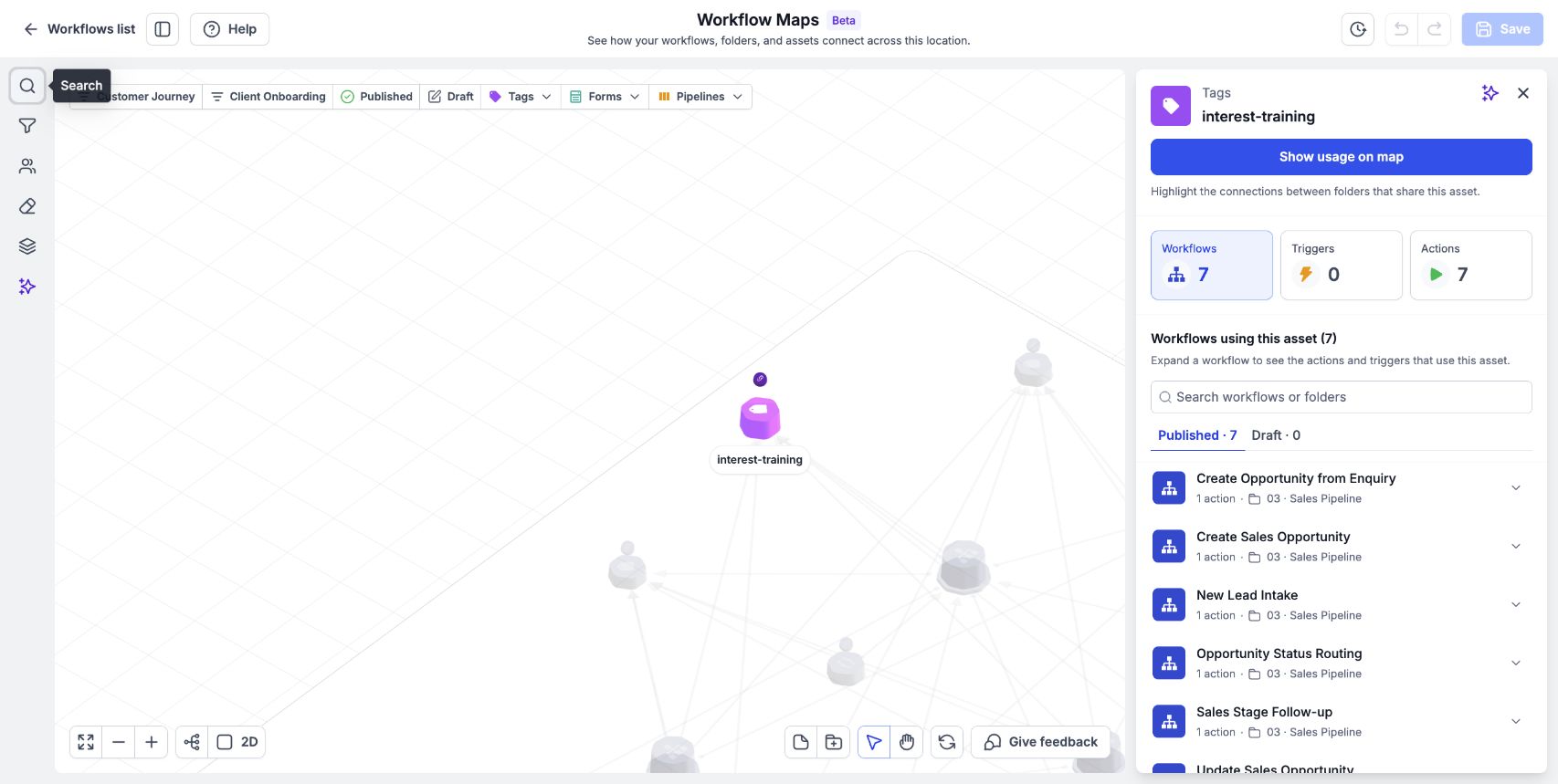
The asset usage panel appears when you select a tag, form, calendar, pipeline or another supported asset. It shows a list of workflows that reference the asset, together with counts of triggers and actions and whether each workflow is published or in draft mode.
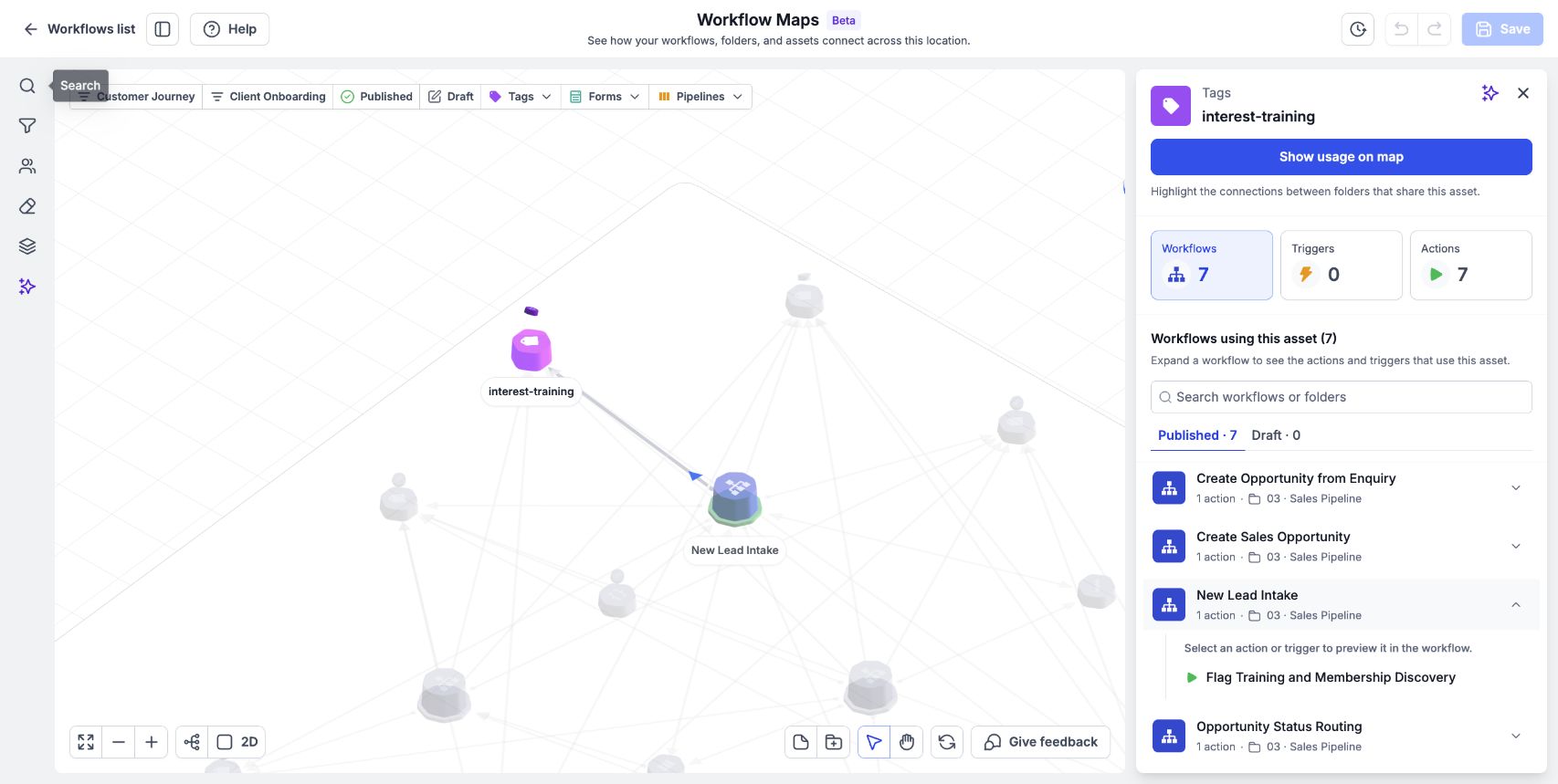
You can expand any workflow row in the panel to see each individual trigger or action that uses the asset. From there you can jump directly to the step in the workflow builder for closer inspection.
03How businesses use asset usage
- Dental practice. Select the patient intake form asset to see which appointment reminder workflows reference it. Expand the relevant workflow rows to confirm the form is only used in the intended reminder trigger before making any changes.
- Real estate agency. Choose a lead tag asset to view all agents' follow up workflows that start when the tag is applied. Open the specific trigger step to verify the correct messaging is attached before updating the tag name.
- Online course platform. Pick a membership welcome email asset and review the enrollment automation workflows that send it. Use the View step button to edit the email content directly within the workflow builder.
04The numbers and rules that matter
- Its usage row may show separate trigger and action counts, such as 2 triggers · 1 action.
05How to set up and use asset usage in HighLevel
Find asset usage
- Open Automation > Workflows > Workflow Maps.
- Locate the asset on the map or search for it using the search field.
- Click the asset to select it.
- Read the list of workflows shown in the usage panel.
- Expand a workflow row to see each trigger and action that uses the asset.
Open the step that uses the asset
- In the usage panel, expand the workflow row that contains the needed step.
- Hover over the trigger or action you want to examine.
- Click View step to open the workflow at that exact step.
06What it looks like in HighLevel
07Things to know before you rely on it
- The usage list may be empty, meaning no workflow references the asset; still verify any non workflow dependencies before deleting.
- A Missing asset badge indicates the asset was removed but still appears in workflow references, requiring manual review.
- If an asset appears in multiple folders, a curved line connects the copies; you can highlight usage across folders with Show usage on map.
08How it connects to the rest of HighLevel
- Asset usage is displayed within the workflow map view, so you can see connections while navigating maps. Navigate workflow maps
- Search the workflow map to quickly find a tag, form, or other asset before checking its usage. Workflow maps introduction
- Review any workflow errors after locating an asset to ensure removing it will not break automations. Review workflow errors
Michael's take

Michael ReimerFounder of CRM Pros, HighLevel Commander and Certified Admin
Seeing where an asset lives in the automation map feels like a small convenience that can help avoid accidental changes when renaming or deleting assets.
Get More InformationOpens on HighLevelPublished November 3, 2026 · Updated November 17, 2026