
01Who this is for
- Automation consultants who need to document complex flow logic for client handovers.
- Marketing agencies that share workflow maps with multiple account managers.
02Sticky notes, explained
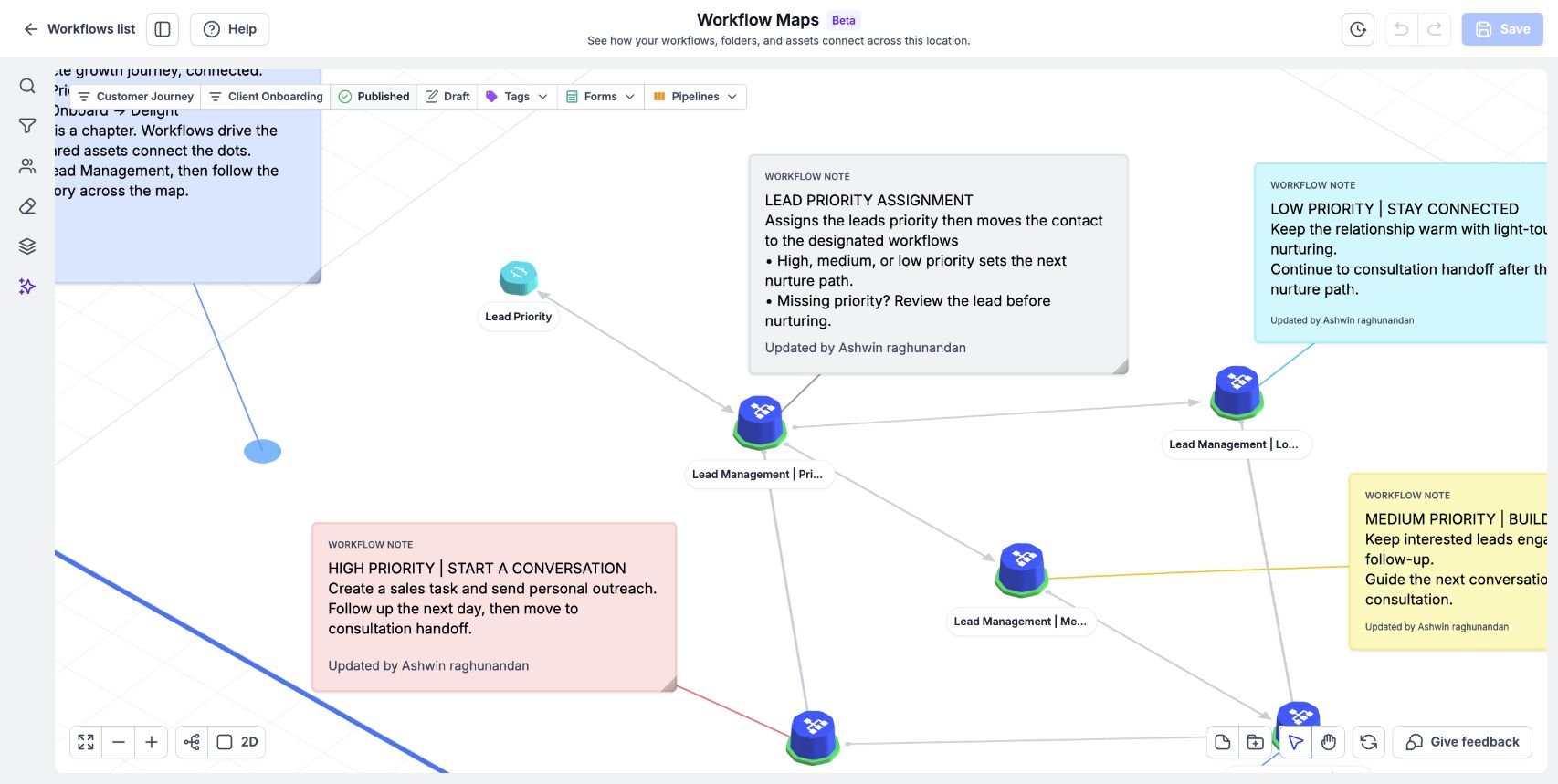
Sticky notes serve as on map commentary. They disappear from the automation itself, so they never affect how steps execute. A note can be linked to a specific workflow, an asset such as a message template, or an entire folder, keeping the annotation attached even if the map is rearranged.
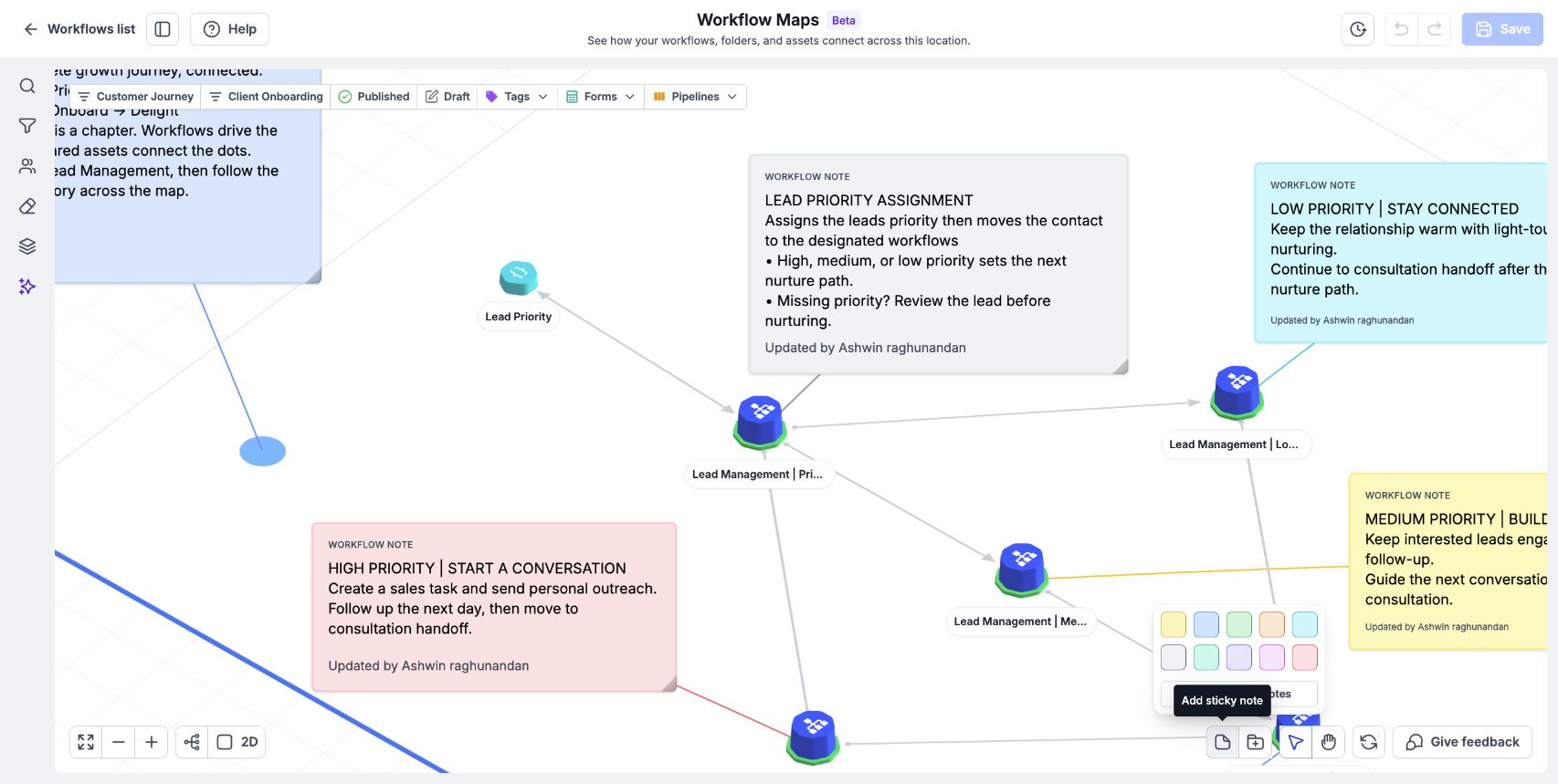
The notes are created from the bottom toolbar while viewing a workflow map. After selecting a color, the note appears where it is placed and a short text can be typed. Visibility can be toggled for all notes using the hide or show command, which helps reduce visual clutter when reviewing large maps.
All notes live within the workflow map interface, accessible via Automation > Workflows > Workflow Maps. They are stored with the map and travel with any connected item, ensuring the context remains available wherever the item is used.
03How businesses use sticky notes
- Marketing agency. The agency adds a yellow note beside a lead nurture workflow to indicate which client segment it targets. The note is attached to that workflow so new team members see the purpose without guessing.
- SaaS startup. Developers place a blue note next to an onboarding automation and connect it to the email template asset. This clarifies which template version the workflow expects, helping the product team keep documentation up to date.
- Real estate brokerage. The brokerage adds a green note to a folder containing property listing triggers and links it to the folder. When the folder is moved, the note follows, reminding agents of the folder’s role in the lead pipeline.
04How to set up and use sticky notes in HighLevel
Add a sticky note to a workflow map
- Open Automation > Workflows > Workflow Maps.
- Select the Add sticky note button in the bottom toolbar and pick a colour.
- Click on the map where the note should be placed.
- Enter a brief description into the note field.
05What it looks like in HighLevel
06Settings that matter
- Hide all sticky notes / Show all sticky notes. Controls whether every sticky note on the current map is visible or concealed, helping to declutter the view.
07How it connects to the rest of HighLevel
- Read the related article on workflow map symbols. Workflow maps introduction
Michael's take

Sticky notes keep the reasoning behind an automation path visible, helping teammates understand the intent.
When the map gets crowded, you can hide all notes, inspect the map, and then bring the notes back for a quick refresher.