
01Who this is for
- Marketing managers can prevent holiday season messages from being sent, preserving brand relevance.
- Customer support leaders can halt non essential follow ups during peak load times, focusing on urgent tickets.
- Small business owners can synchronize pauses across all campaigns, avoiding manual adjustments each year.
02Pause workflows, explained
Pause Workflow is a global setting that stops the execution of chosen automations for a configured time window. The feature lives in the Global Workflow Settings area, accessible from the Automation section or the Settings > Automation tab. Once a pause is active, contacts still enter the workflow but wait at the trigger or the next action until the pause ends.
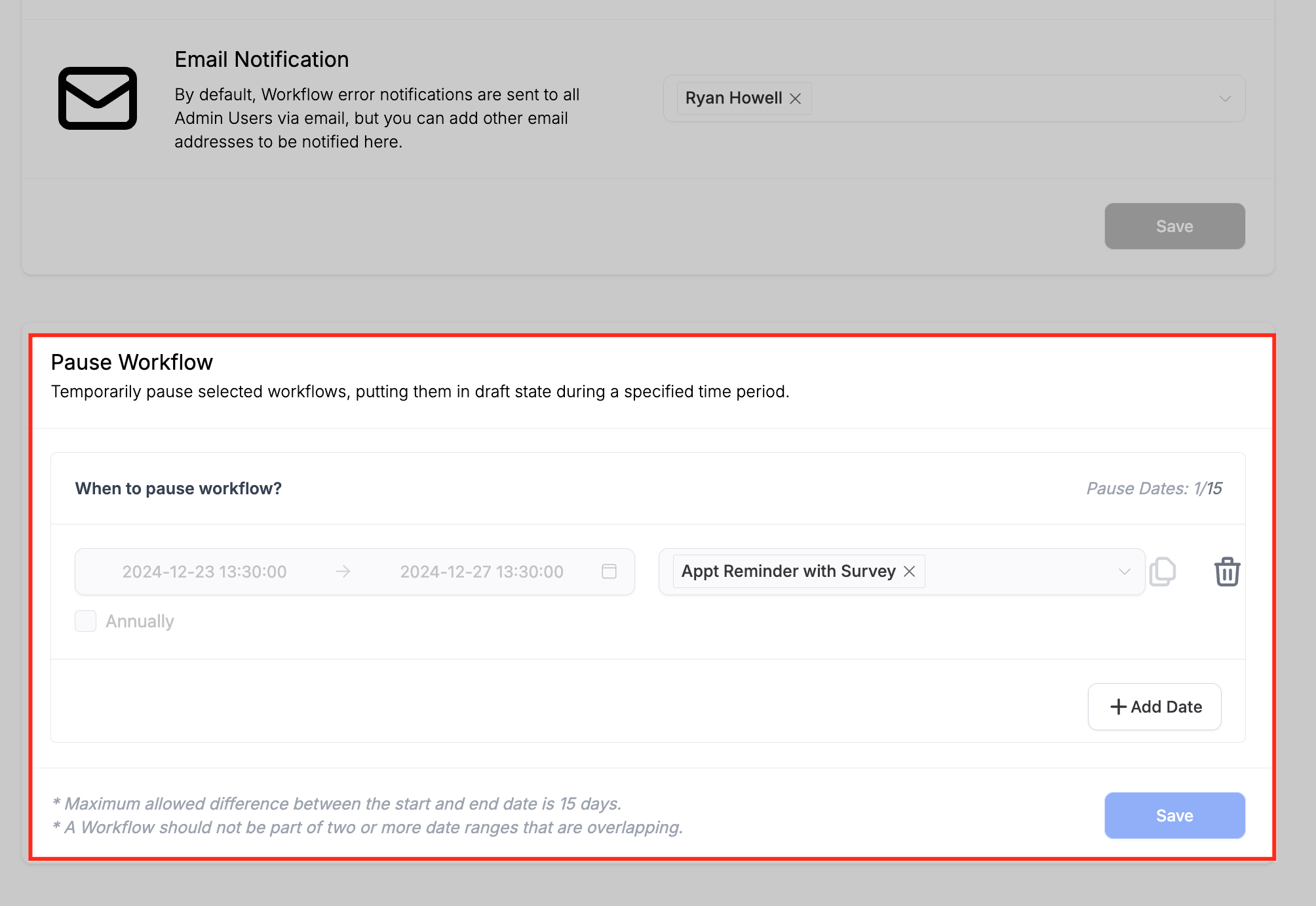
The configuration lets you define a start date, time, and an end date, then pick one, several, or all published workflows to pause. You can add multiple rows, each representing a distinct date range, and optionally mark a row as annual so the same dates repeat each year. Rows can be duplicated or removed using the Clone and Delete icons. When a workflow is paused, its status appears as “Paused” on the workflow landing page and in the builder’s Pause Workflow section.
03How businesses use pause workflow option
- Ecommerce store. The owner defines a pause from Dec 24 to Jan 2, selecting all published order confirmation workflows. The system holds contacts at the trigger until the dates pass, preventing holiday time emails. The annual checkbox automates the same pause every year.
- Dental practice. During a two week office closure, the clinic adds a date row for the pause and selects the appointment reminder workflow. Patients who book before the closure are enrolled but wait at the reminder trigger until the office reopens.
- SaaS startup. The team creates a row that pauses the onboarding drip campaign for a planned system upgrade. Multiple workflows are selected, and the pause ensures no onboarding emails are sent while the platform is offline.
04The numbers and rules that matter
- Maximum of 15 date ranges can be added.
- Maximum allowed difference between start and end date is 15 days.
05Before you start
- Contacts are still enrolled in a paused workflow; they wait at the trigger or subsequent actions until the pause ends.
- The maximum allowed difference between a start date and its corresponding end date is fifteen days.
- A workflow cannot belong to overlapping date ranges; each workflow may appear in only one non overlapping period.
06How to set up and use pause workflow option in HighLevel
Configure Pause Workflow for selected automations
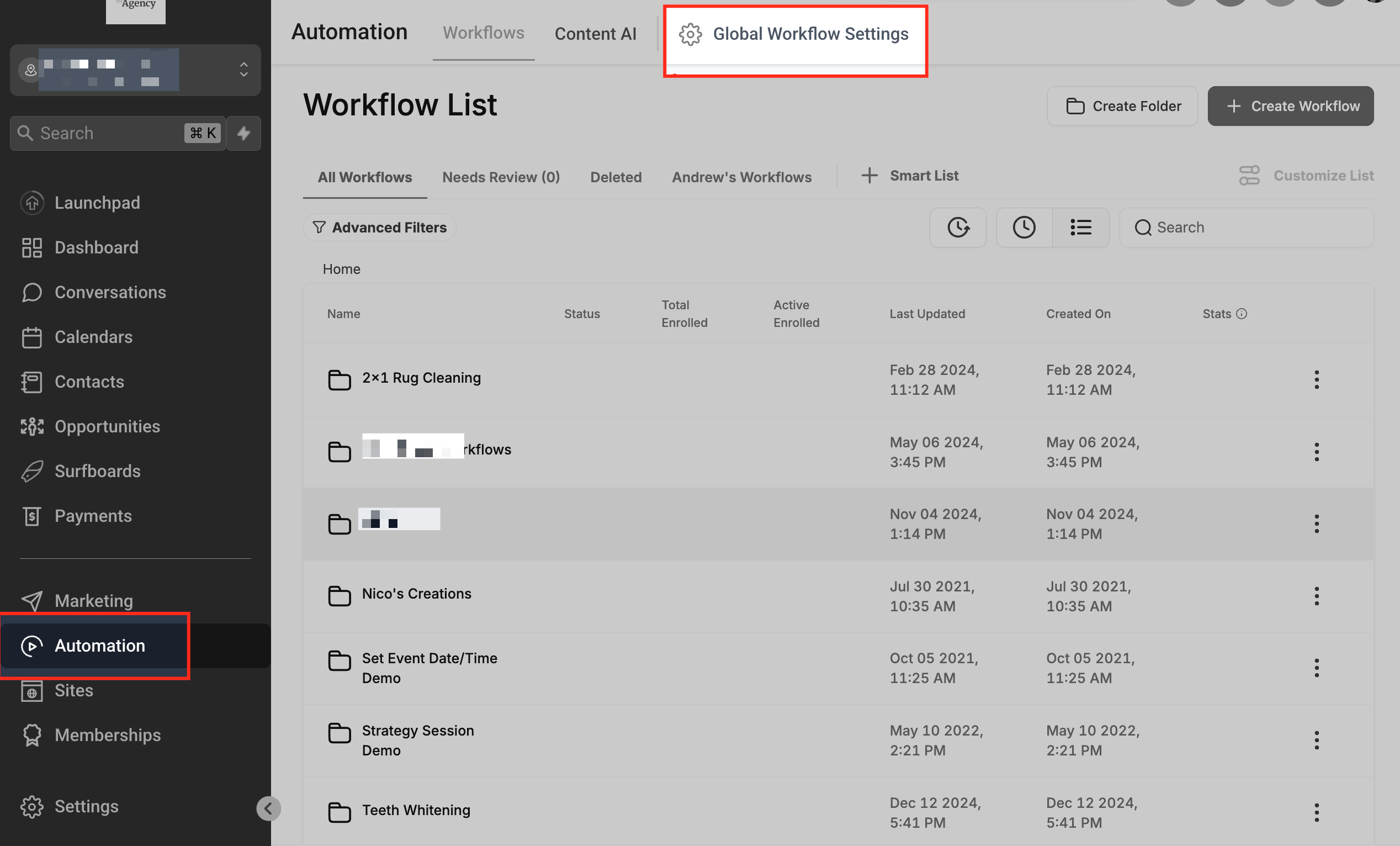
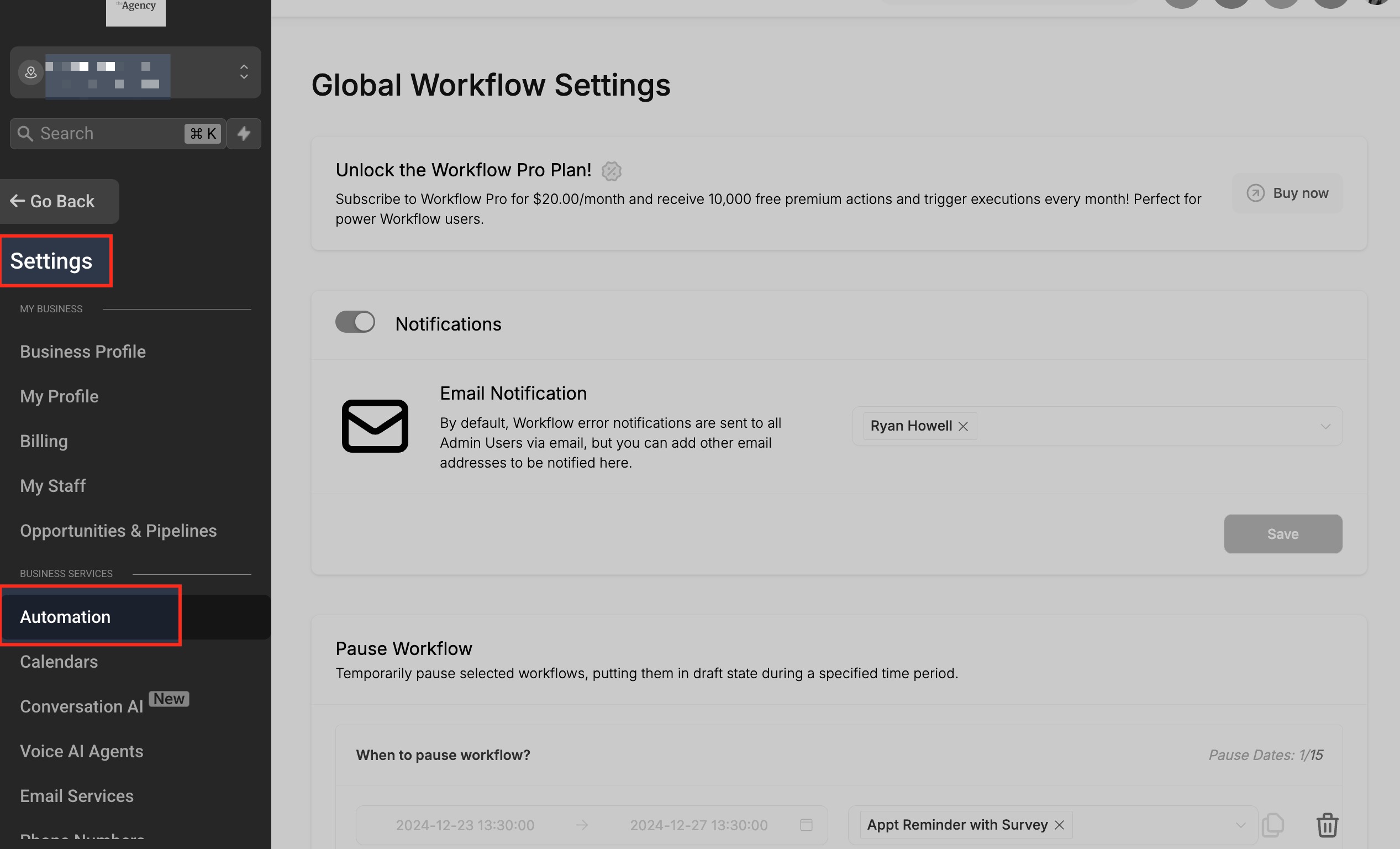
- Open the Global Workflow Settings from the Automation area or the Settings > Automation tab.
- Scroll down until the Pause Workflow option appears.
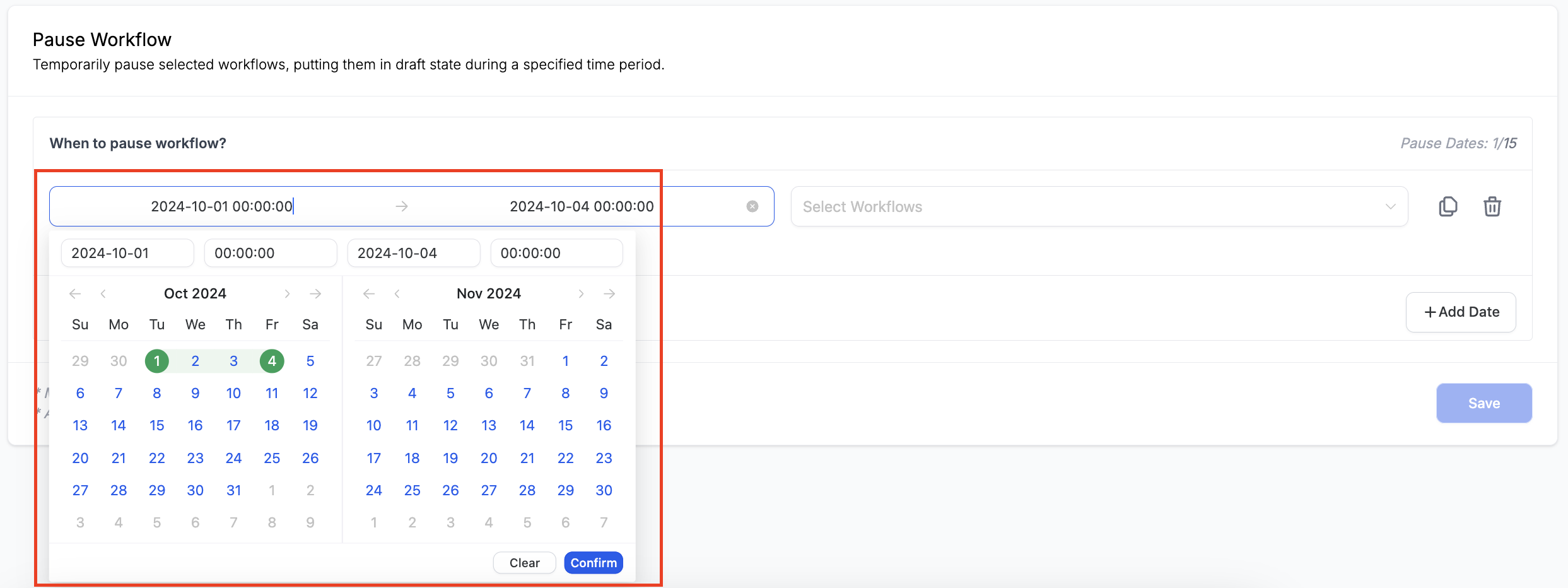
- Click the Start Date and Time field, choose the start and end dates, then confirm the selection.
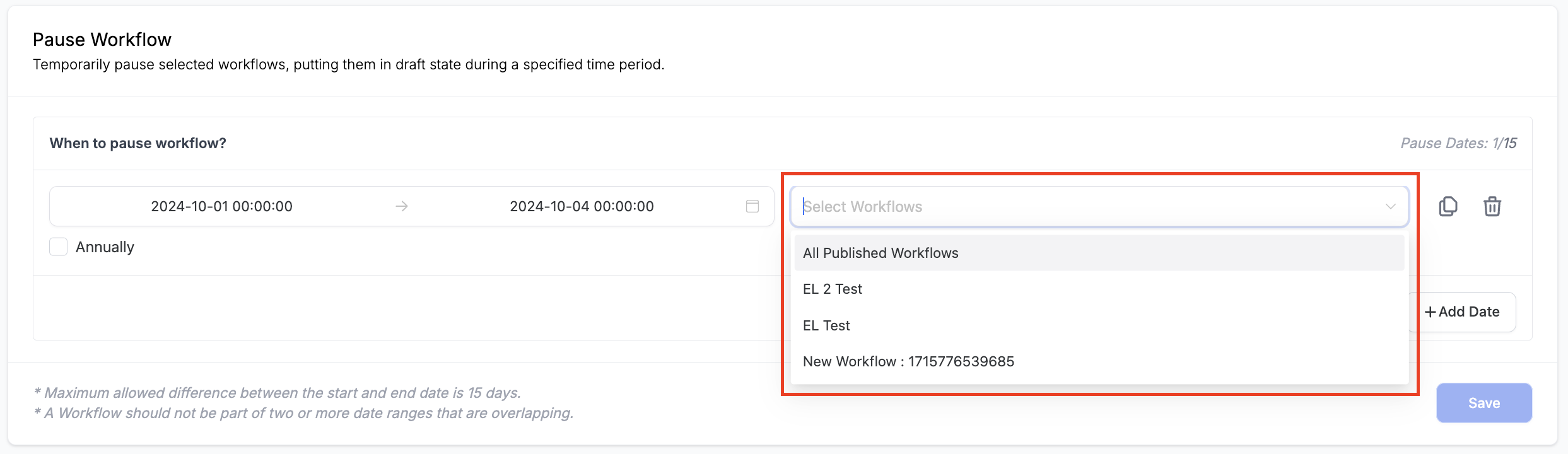
- Open the Select Workflows field and choose one, several, or the All Published Workflows entry.
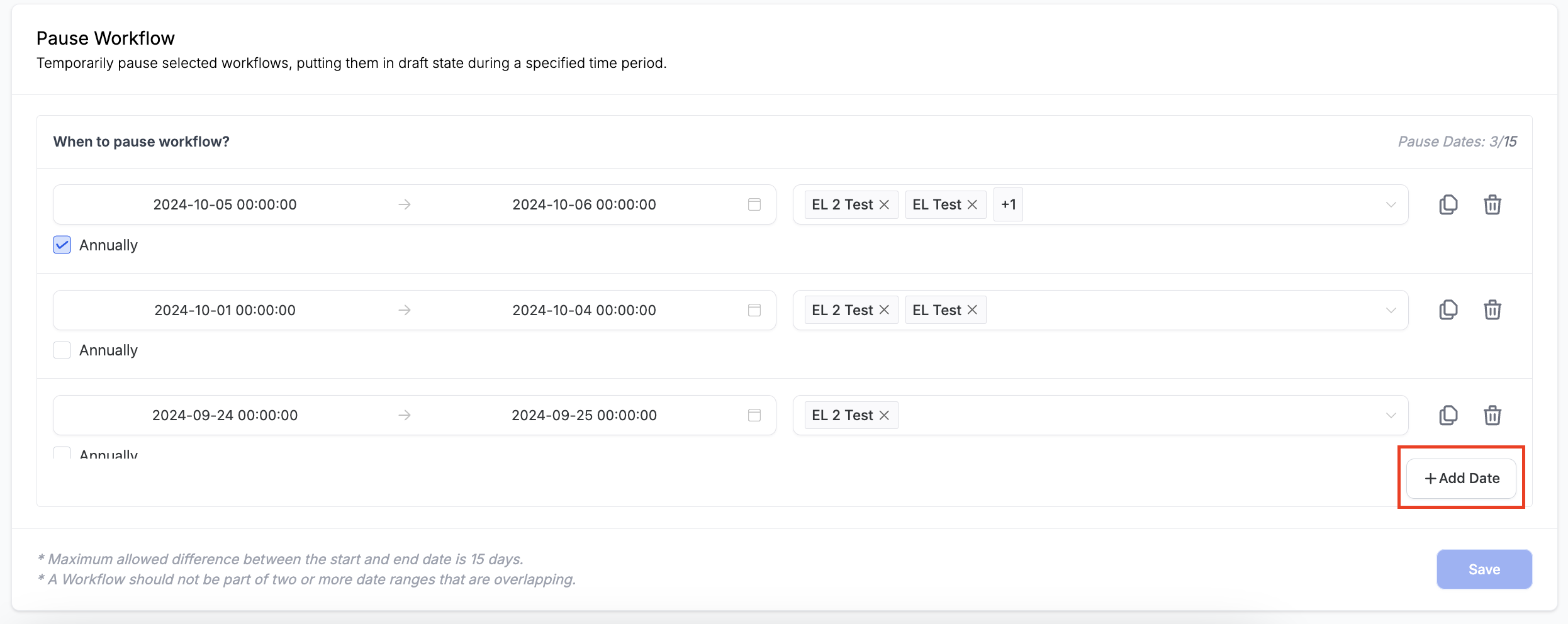
- Press the Add Date button to create additional rows as needed, up to fifteen total.
- Check the Annually box on a row if the same pause should repeat each calendar year.
- Use the Clone icon to duplicate a row or the Delete icon to remove a row you no longer need.
- The paused status will be shown as “Paused” on the workflow landing page and in the builder’s Pause Workflow section.
- You can also open Global Workflow Settings directly from the builder’s Pause Workflow section if further changes are required.
07What it looks like in HighLevel
08Settings that matter
- Pause Workflow. Enables temporary suspension of chosen workflows for a defined period.
- Start Date and Time. Sets the beginning of the pause window.
- Select Workflows. Determines which published workflows will be paused.
- Add Date. Adds another row for an additional pause period, up to fifteen rows.
- Annually. When checked, the pause repeats on the same dates each year.
- Clone. Duplicates a configured row to reuse its settings.
- Delete. Removes a row from the pause schedule.
09Things to know before you rely on it
- A maximum of fifteen distinct date ranges can be defined.
- The interval between a start date and its corresponding end date cannot exceed fifteen days.
- Date ranges must not overlap; overlapping entries will cause an error.
- Only workflows with a Published status appear in the selection list.
10How it connects to the rest of HighLevel
- See the full overview of workflow settings and timing controls. Workflow settings guide
- Learn how to create and edit workflows, including triggers and actions. Workflow creation guide
- Explore pricing options for workflow automation features. Workflow Pro pricing
Michael's take

When a holiday or seasonal event could cause an untimely message, I set the date range for the upcoming holiday and include the relevant published workflows.
If the campaign repeats each year, I tick the Annually box so the pause recurs without extra effort. I also double check that no date ranges overlap to keep the system functioning smoothly.