
01Who this is for
- Customer support teams can capture bug reports and automatically generate Linear issues, keeping support and engineering aligned.
- Product managers can use Linear triggers to alert customers when a feature request moves to Done, ensuring timely communication.
02Linear integration, explained
The integration adds a set of Linear triggers and actions to the workflow library. Triggers start a workflow when events such as a new issue, updated issue or new project occur in Linear. Actions let a workflow create or modify issues, comments, projects, customers, and other Linear objects.
Both triggers and actions are available inside the Workflow Builder after a Linear connection is authorized. They operate in real time via Linear webhooks and require no manual API keys.
03How businesses use linear integration
- SaaS startup. When a user submits a bug through a form, the workflow finds the matching Linear customer, creates an issue with the report details, attaches HighLevel record URL, and adds a customer need linked to that issue.
- Ecommerce platform. When a Linear issue status changes to Done, the workflow fetches the latest issue data, filters for a specific label, and sends an email or SMS to the original reporter informing them of the resolution.
- Tech product team. When a new customer need is recorded in Linear, the workflow can automatically add a label to the related issue and post a comment to keep the engineering team informed.
04Before you start
- You must have a Linear account and permission to authorize a workspace via OAuth.
05How to set up and use linear integration in HighLevel
Connect Linear from the Workflow Builder
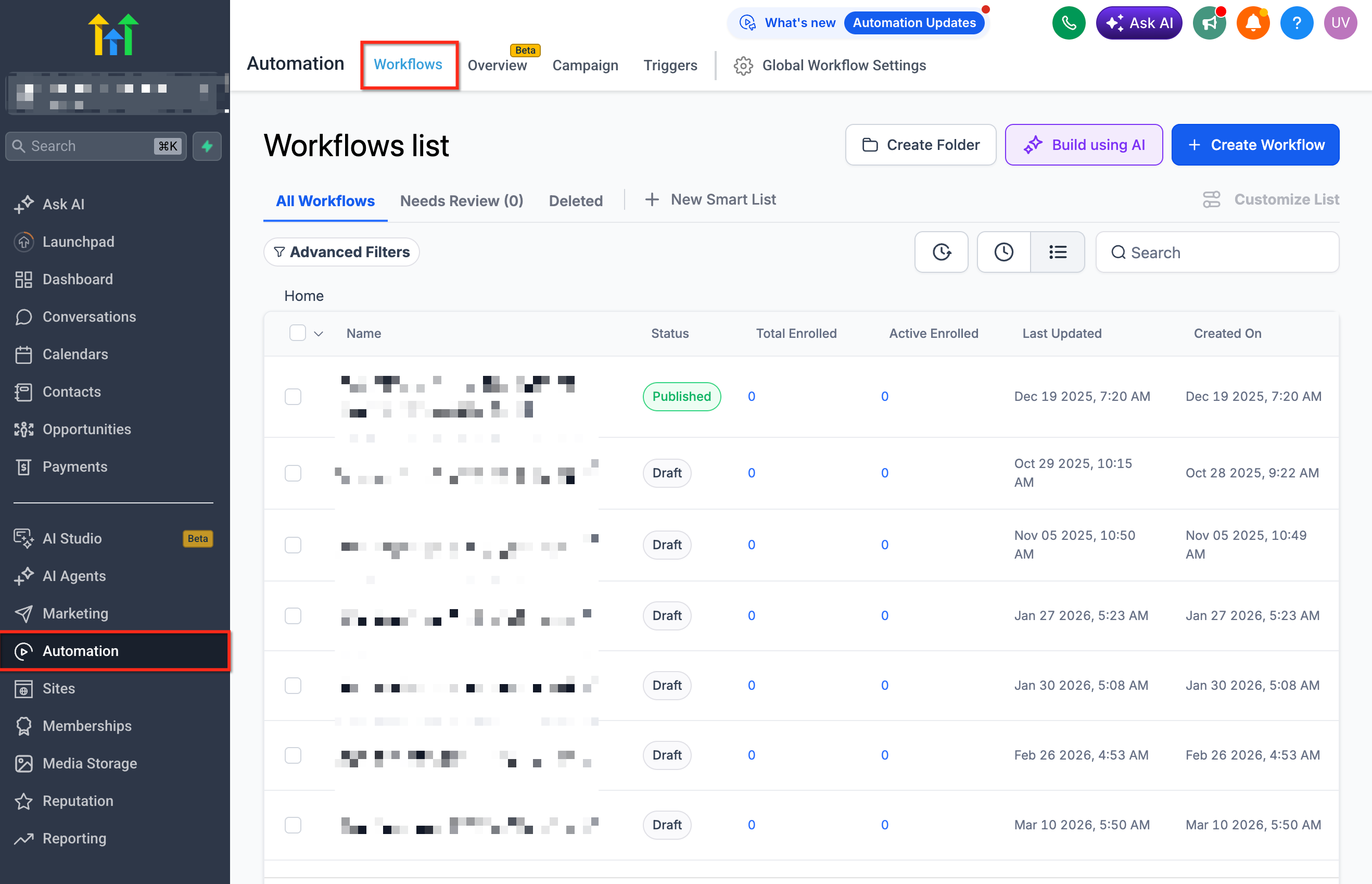
- Navigate to Automation > Workflows.
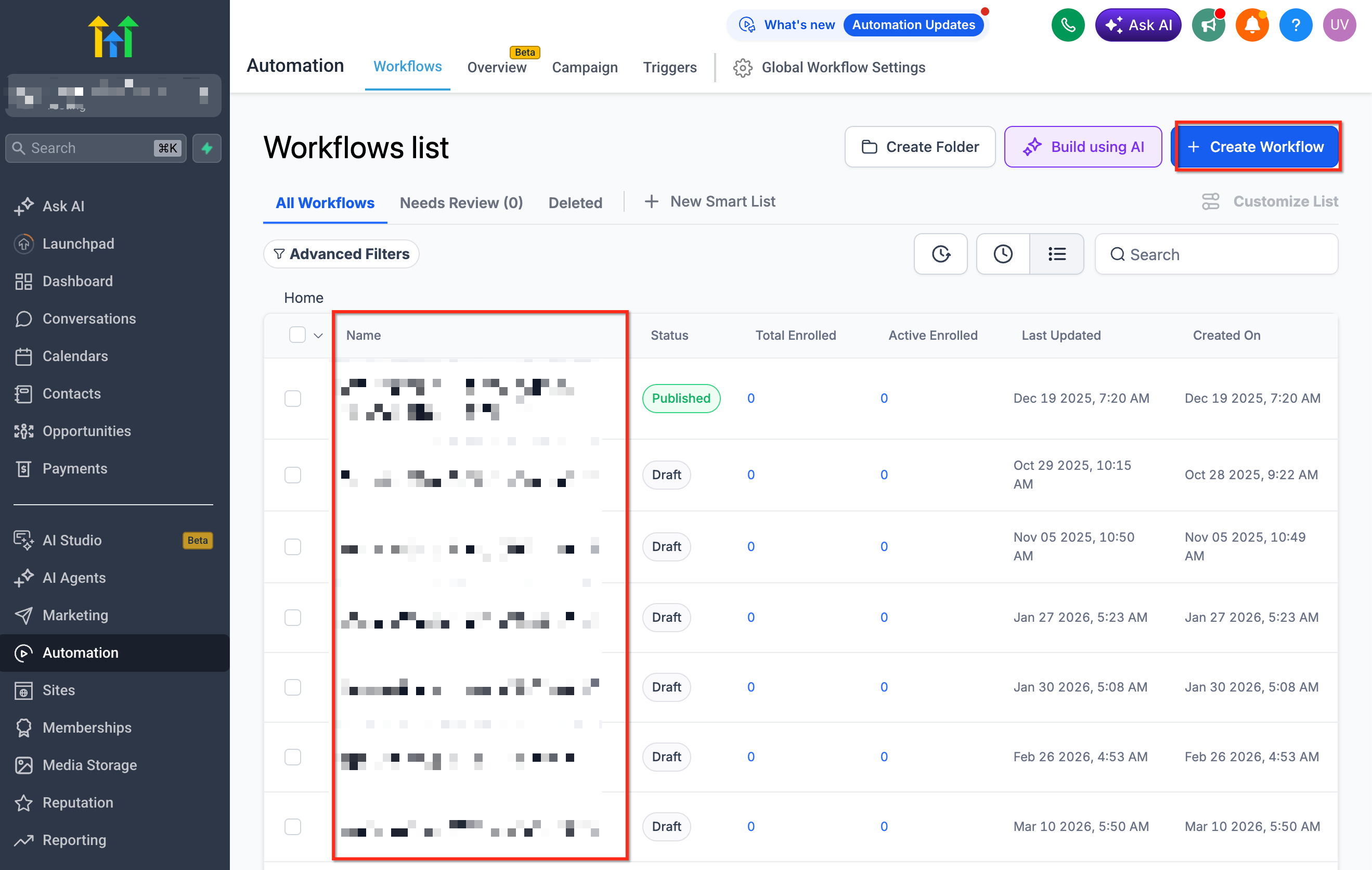
- Open an existing workflow or start a new one.
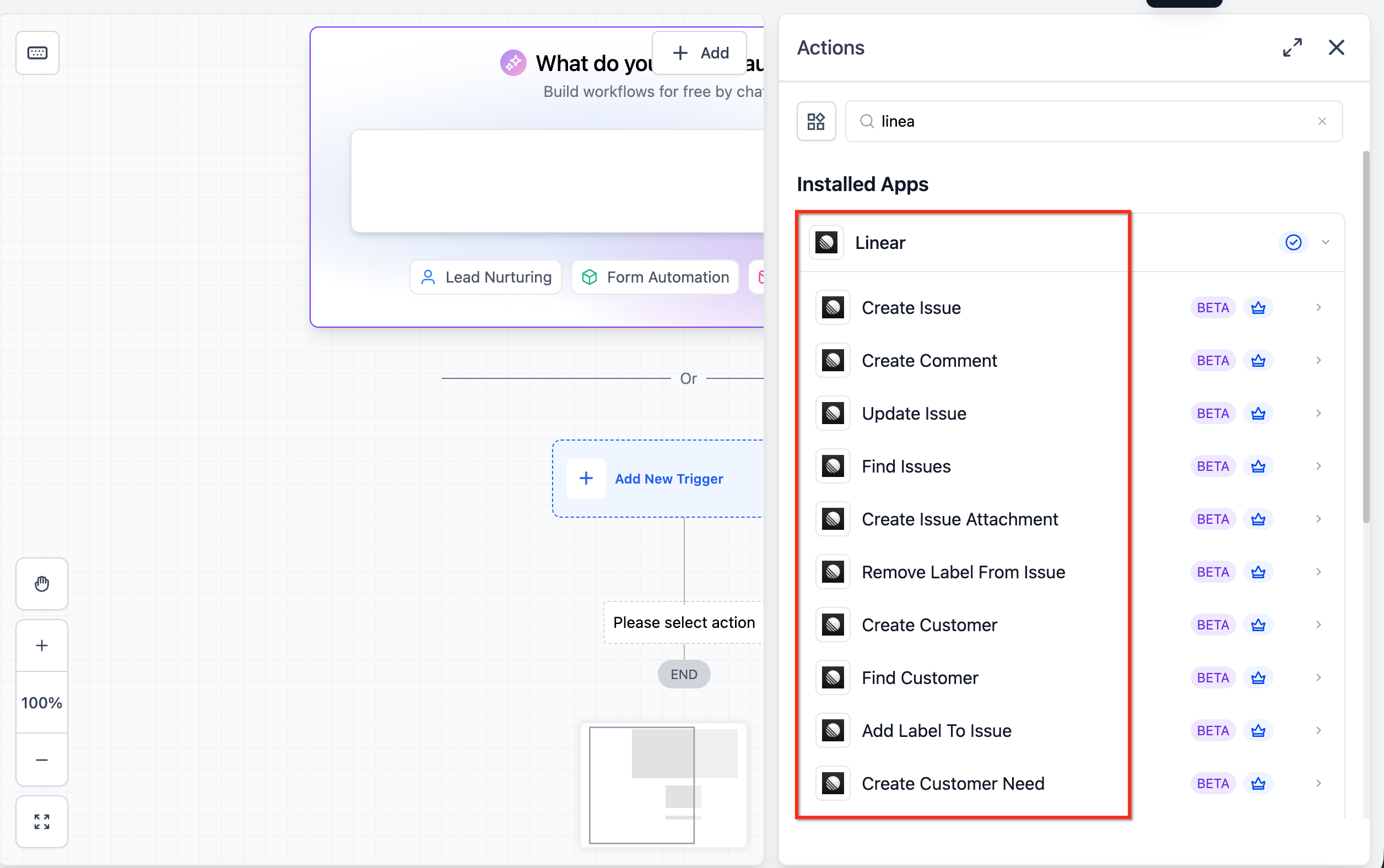
- Add a Linear trigger or action to the canvas.
- Choose the trigger or action you need.
- Click Connect Now.
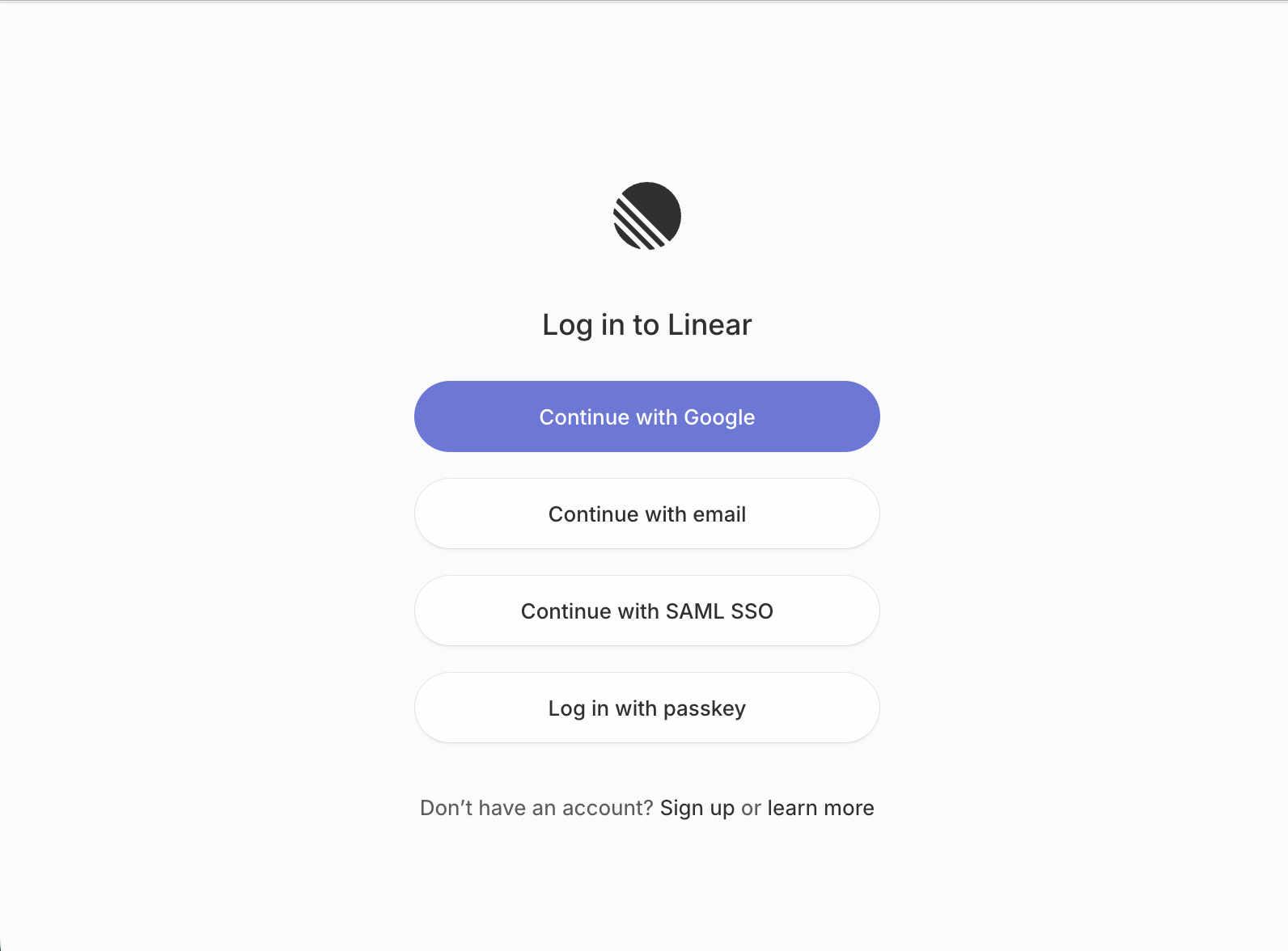
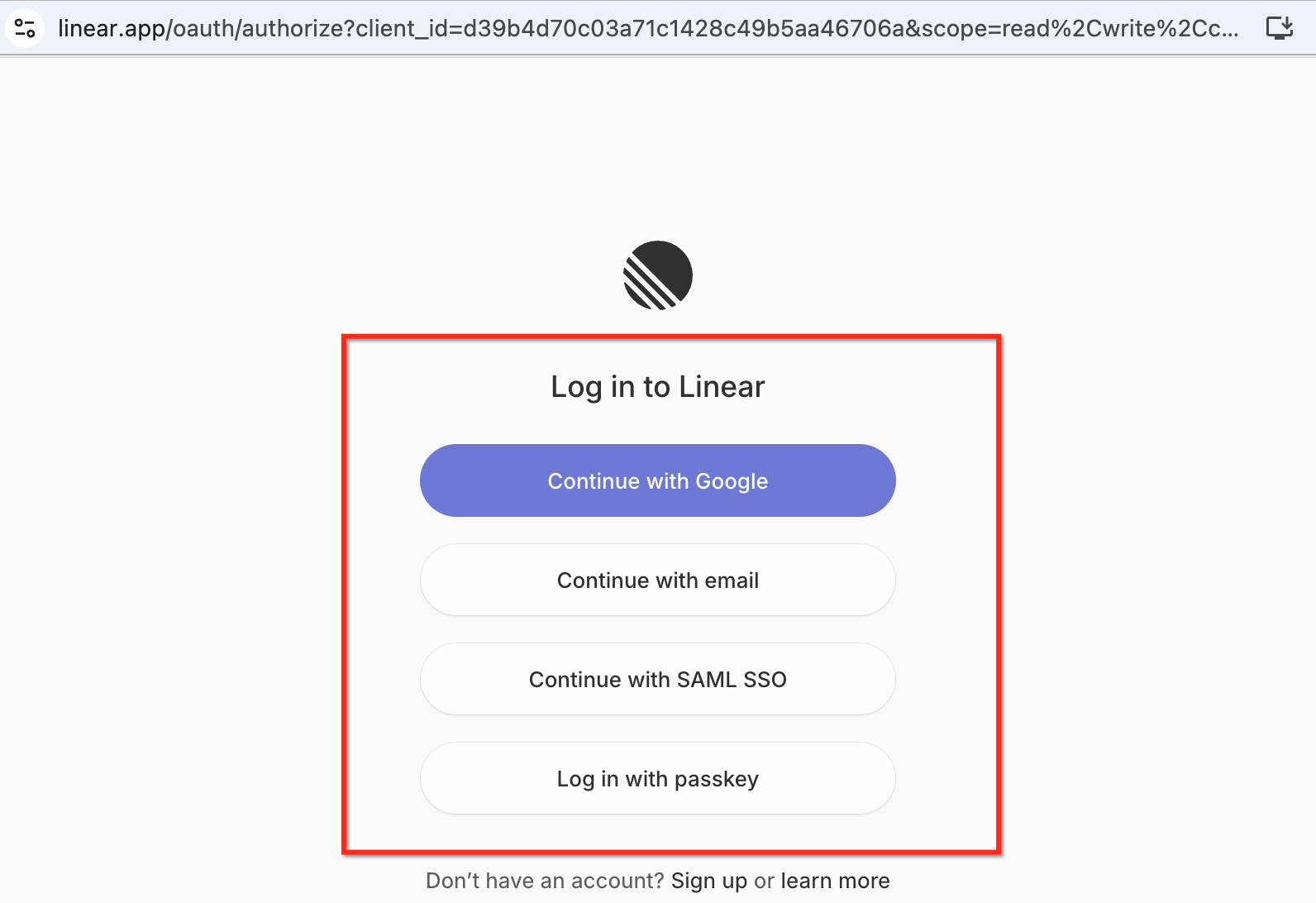
- Sign in to Linear using OAuth.
- Authorize the workspace and the team or teams to access.
- Click Save.
- Proceed to configure the selected trigger or action.
Connect Linear from Settings
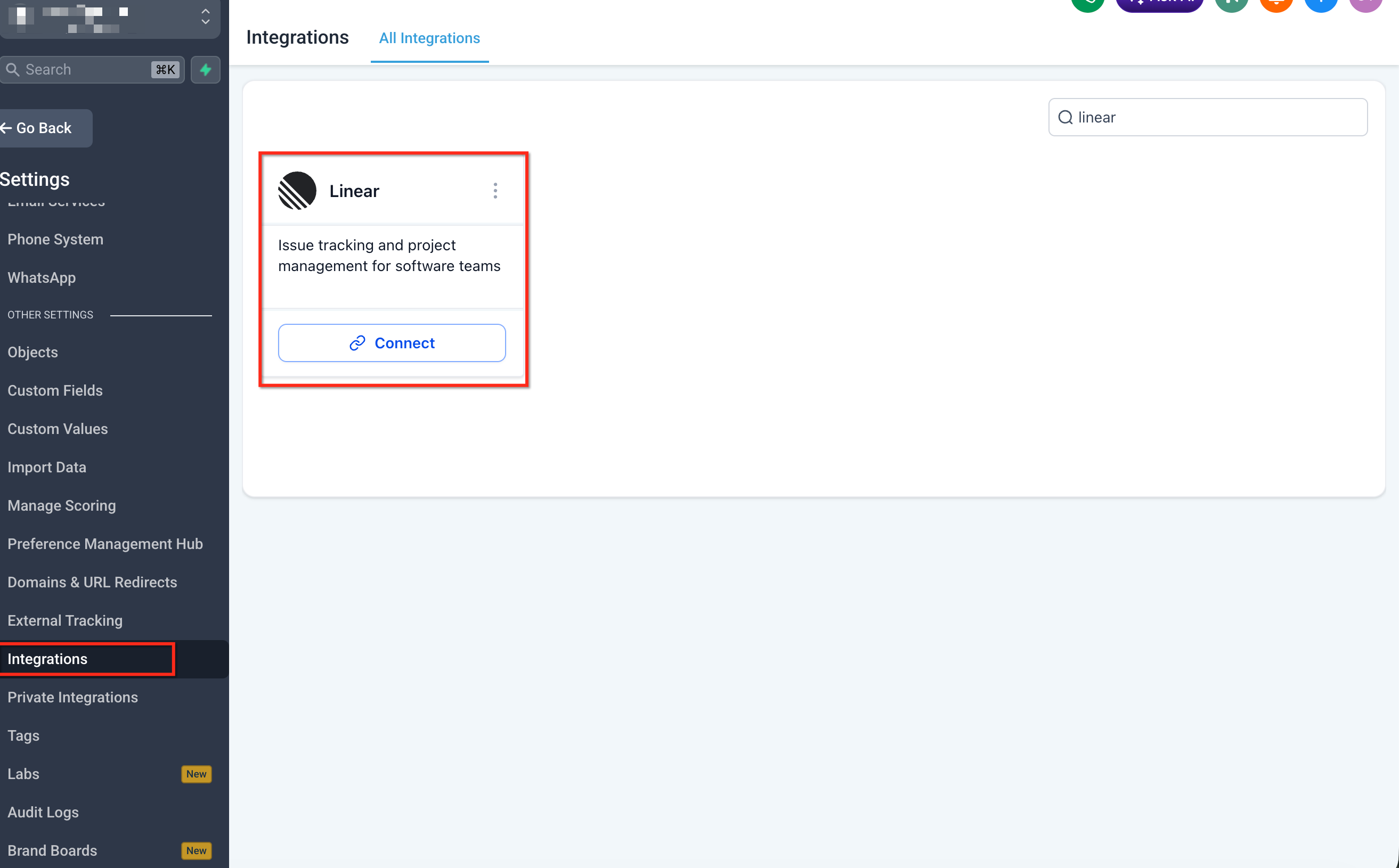
- Go to Settings > Integrations and locate Linear in the list.
- Click Connect.
- Sign in to Linear using OAuth.
- Authorize the workspace.
- Save the connection.
- Return to the Workflow Builder and configure Linear triggers or actions.
06What it looks like in HighLevel
07Settings that matter
- Authorized Linear workspace and team. Controls which Linear workspace and teams the integration can read from and write to.
08Things to know before you rely on it
- All Linear triggers fire right away via webhooks.
- Triggers and actions are premium workflow components and consume premium action credits.
- The Customer and Customer Need actions depend on Linear’s Customer Requests feature and may need a specific Linear plan tier.
- If a team does not appear in the dropdown, it was not authorized during the OAuth setup.
- Update Issue only changes fields you specify; other fields stay unchanged.
09If something goes wrong
- Linear team not available in the trigger or action dropdown. Reconnect the Linear integration or review the connection to confirm the correct workspace and teams were authorized.
- Linear trigger not firing. Check the selected team, filters, labels, project, status, and workflow publish status. Test with a recent matching Linear record and review the workflow execution logs.
10How it connects to the rest of HighLevel
- Start building automations in HighLevel Workflow basics
- View all workflow actions available in HighLevel All workflow features
- Pricing details for premium workflow components Pricing
Michael's take

Linear integration feels like a small convenience that can become a real shift for teams that juggle support tickets and product work. It removes the manual copy paste step and keeps engineering and customer facing folks looking at the same record.
A SaaS startup that fields dozens of feature requests each week would benefit most. The workflow can turn each request into a Linear issue, attach the HighLevel contact link, and then ping the user when the issue is marked Done.