
01Who this is for
- Founders of real estate teams, they can turn lead notification emails into contact records automatically.
- Small business owners who receive service requests by email, they can capture request details for ticket creation.
- Marketing managers handling inbound lead forms that arrive via email, they can feed extracted leads directly into nurturing sequences.
02AI extract data action, explained
The AI Extract Data action is a premium workflow step that parses the content of an inbound email and returns structured fields. You tell the action which part of the email to read and which values to pull out. The action does not store data on its own; the resulting fields are available only through the custom value picker in later steps.
The action lives inside the workflow builder under the list of available actions. After you add a trigger, you insert AI Extract Data, choose the email source, optionally add context, define the fields, and then follow it with actions such as Create Contact or Update Opportunity. The extracted values can be mapped directly to record fields, notifications, or any other downstream automation.
03How businesses use AI extract data action
- Real estate brokerage. The team creates a workflow that triggers on inbound lead emails. AI Extract Data pulls the lead's name, contact info, budget and property interest. The workflow then creates a contact and assigns the lead to an agent.
- IT support service. When a support request arrives by email, the workflow extracts the requester’s name, device type and issue description. A ticket is then generated with those details using a Create Opportunity action.
- Online retailer. Order confirmation emails from a marketplace are parsed to retrieve product SKU, quantity and customer email. The workflow updates the corresponding contact record and sends a thank you SMS.
04The numbers and rules that matter
- AI Extract Data is a premium workflow action and incurs additional charges per execution.
05Before you start
- Identify the mailbox or email flow that should start the workflow.
- Decide which specific values need to be extracted from the email.
- Plan a downstream action (e.g., Create Contact) where the extracted values will be stored.
06How to set up and use AI extract data action in HighLevel
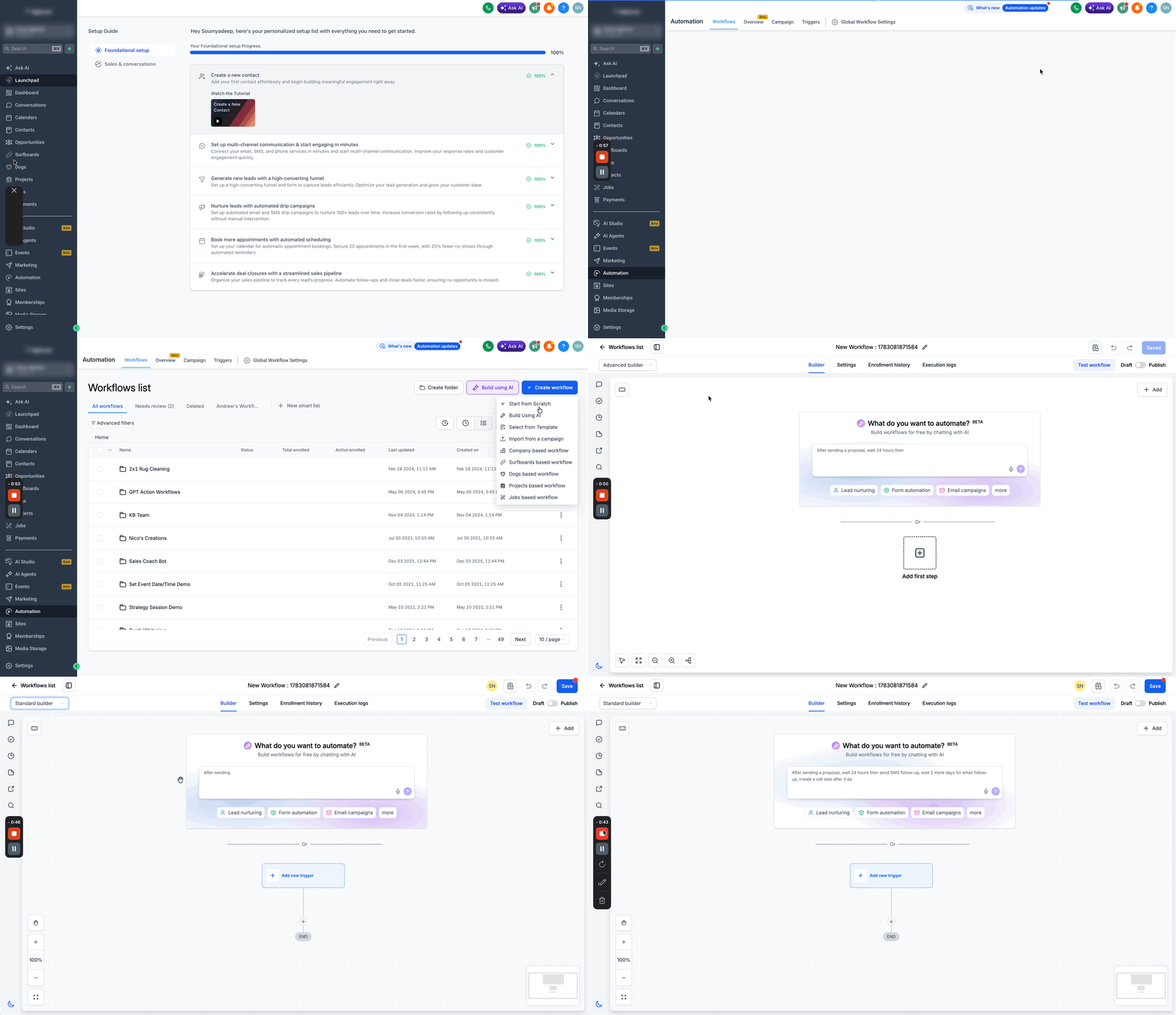
Create a new workflow
- Navigate to Automation > Workflows.
- Press the + Create Workflow button.
- Select Start from Scratch as the template.
- Choose either Standard Builder or Advanced Builder.
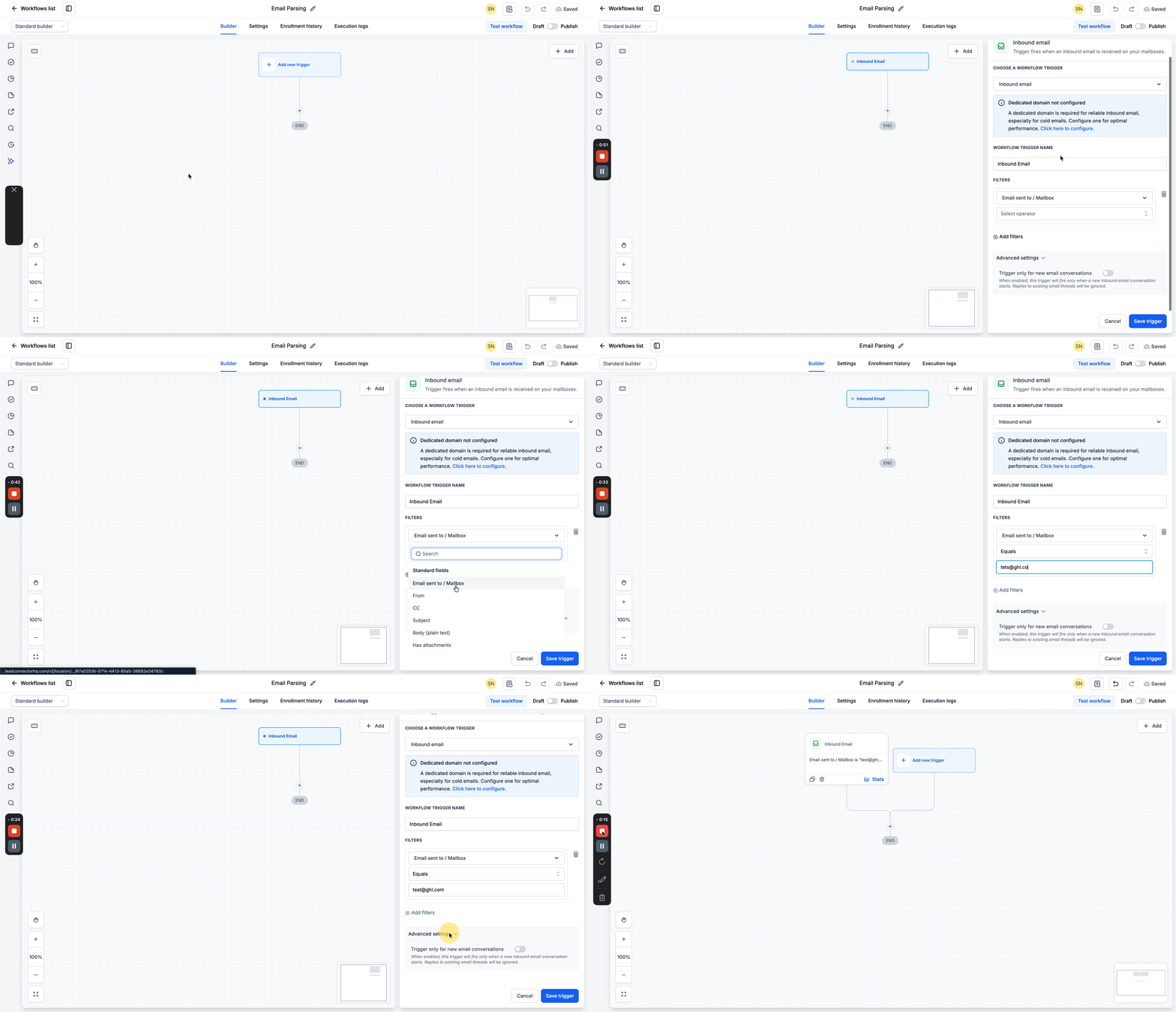
Add the email trigger
- Click the + Add New Trigger option.
- Pick Inbound Email as the trigger type.
- Configure the mailbox or email pattern you want to monitor.
- Apply any needed filters such as Sent To Mailbox, Sent From, Subject, Body Plain Text, or Has Attachments.
- In Advanced Settings, decide if the workflow should run only for a new email conversation.
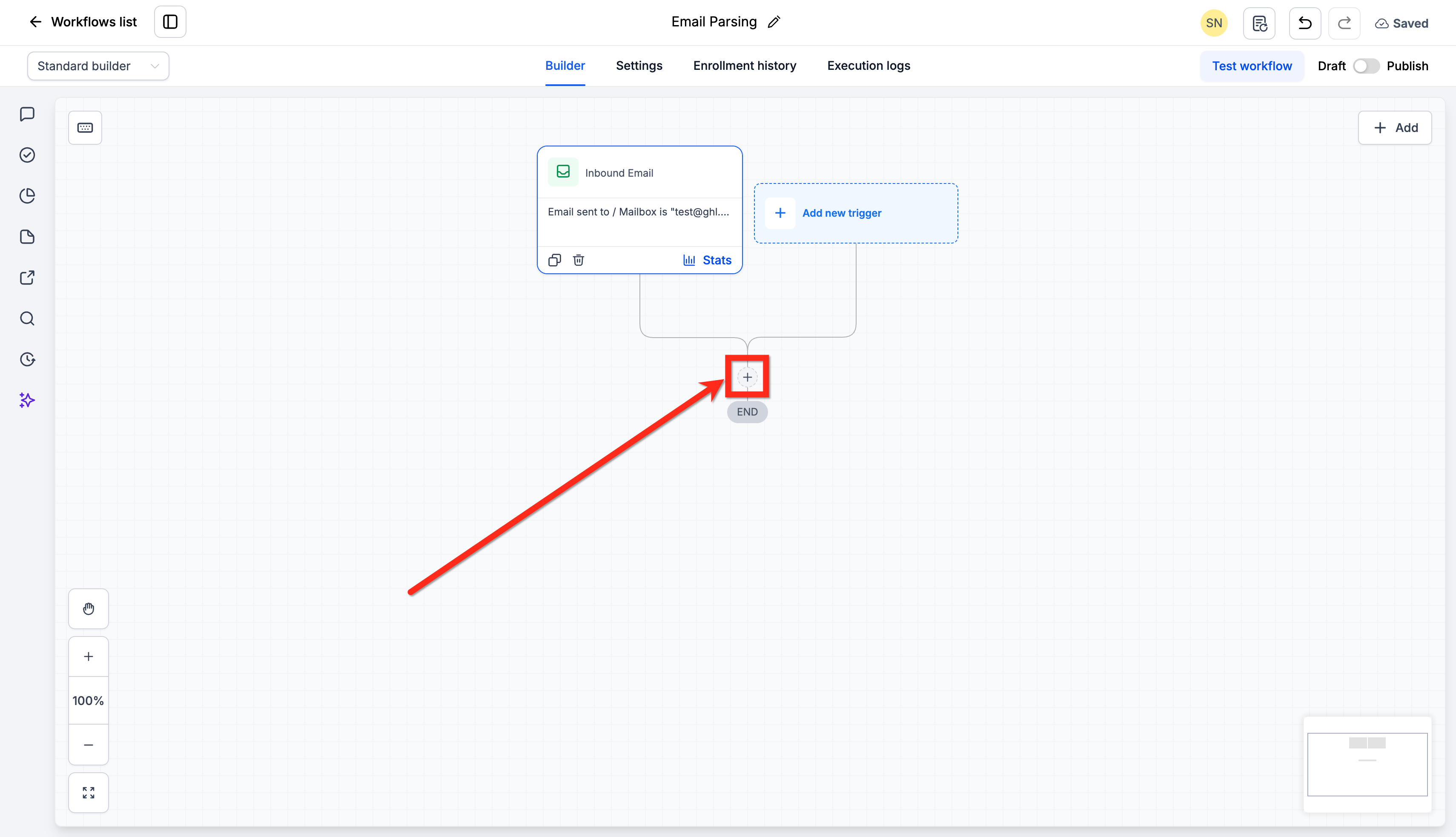
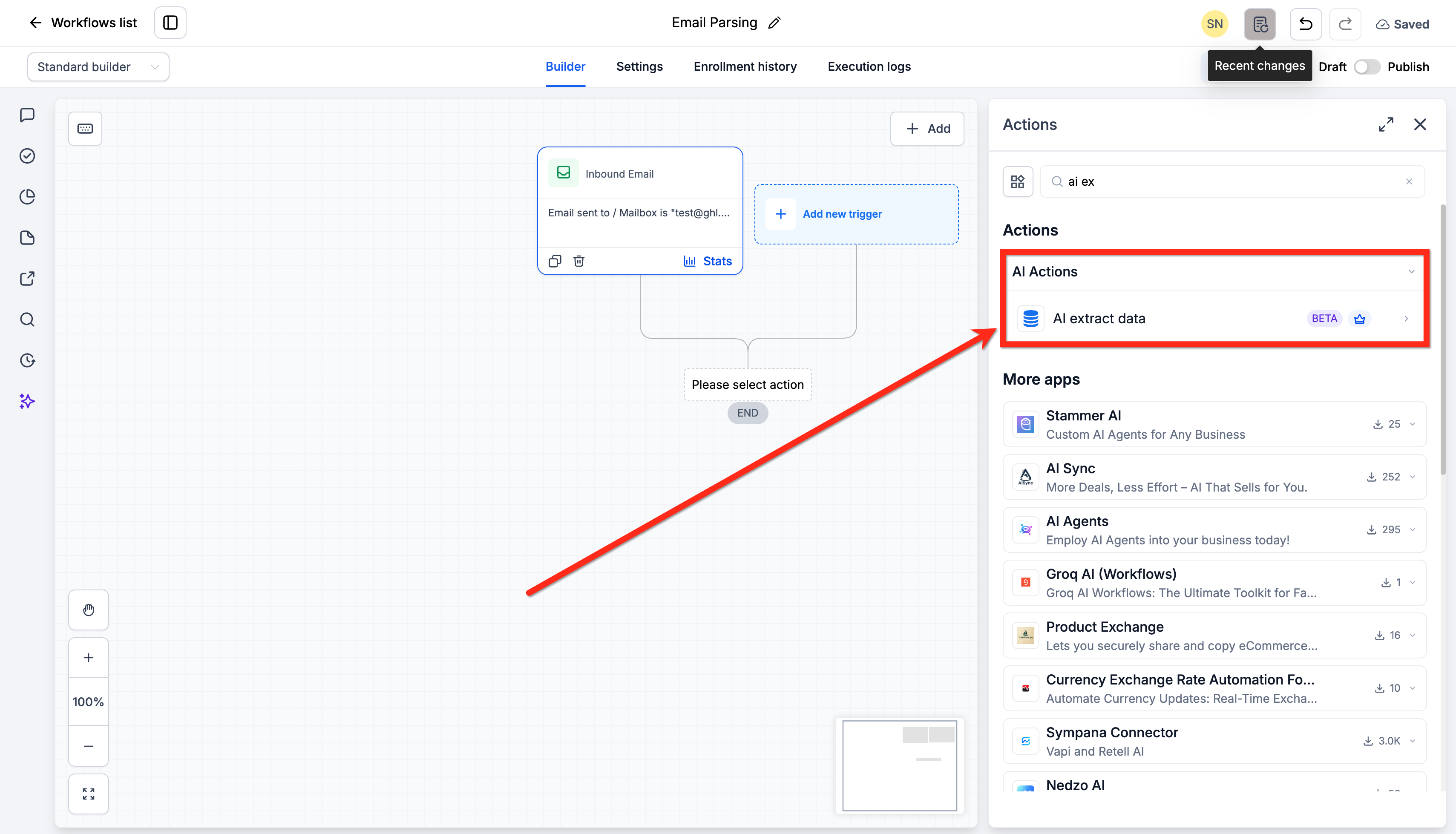
Add the AI Extract Data action
- Click the plus icon directly under the trigger.
- Search for AI Extract Data and select it.
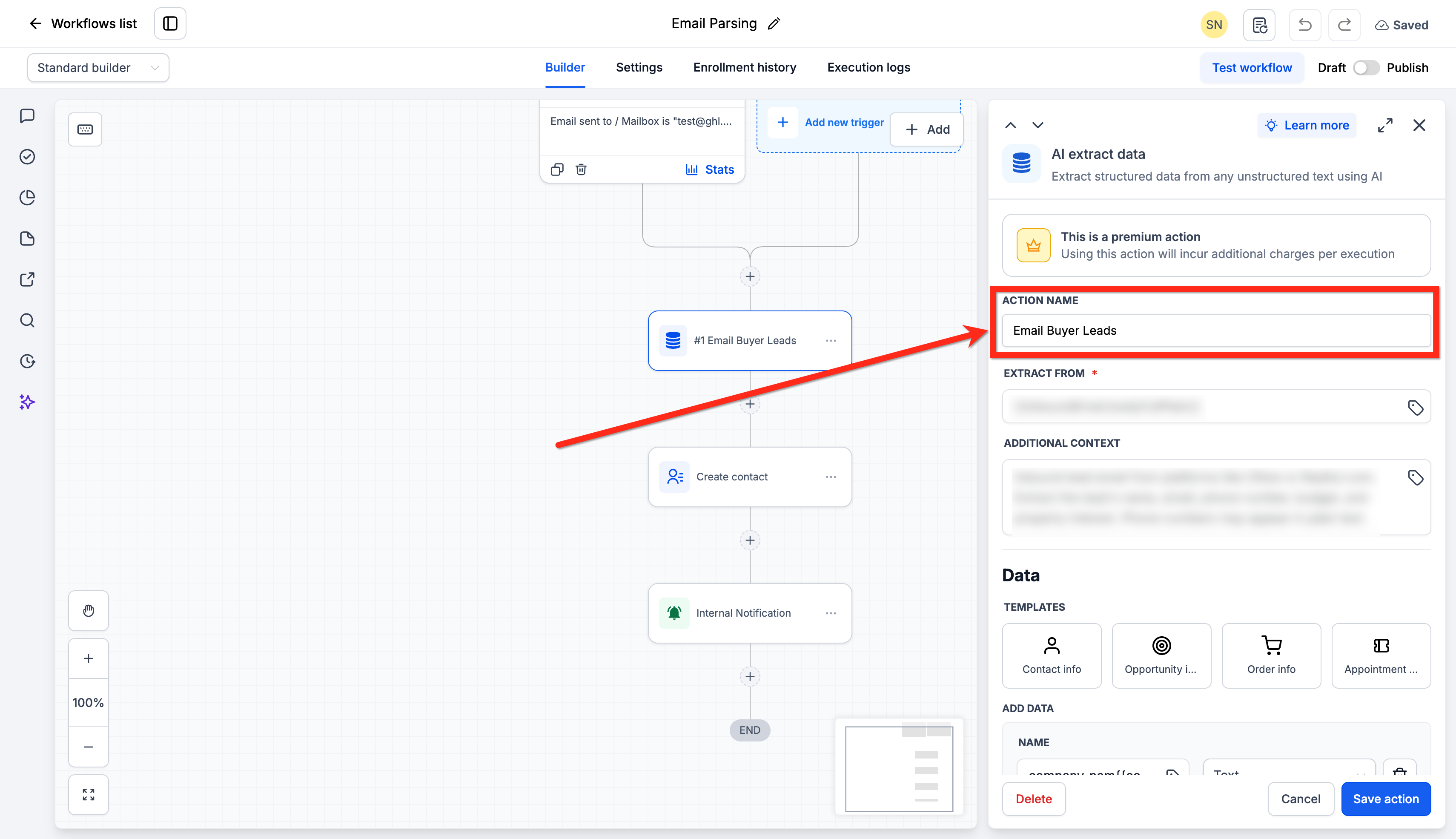
- Rename the action if a clearer label helps later identification.
Choose email content to extract from
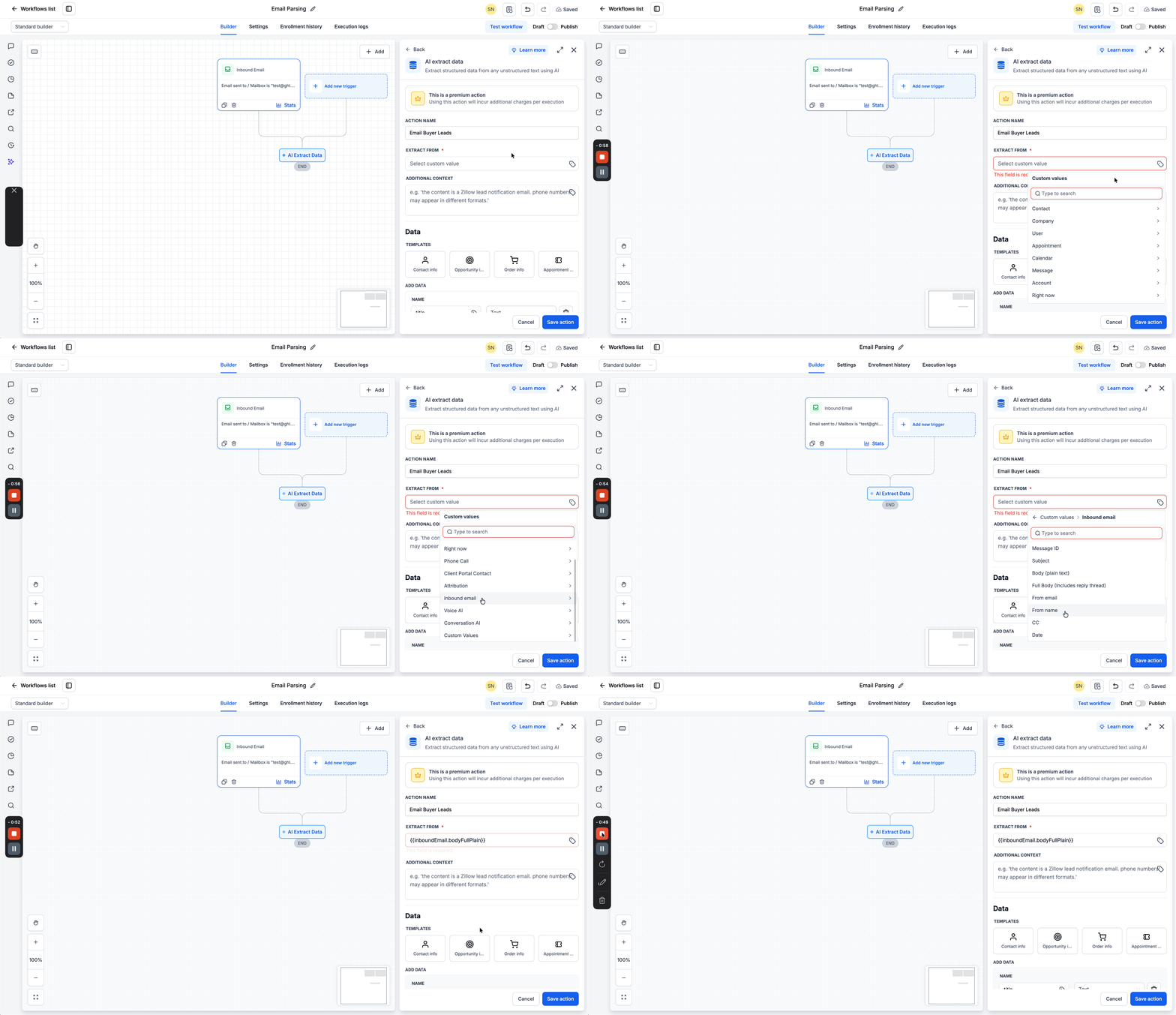
- Open the custom value picker in the Extract From field.
- Navigate to the Inbound Email options.
- Select the part of the email to parse, such as Body Plain Text, Full Body Includes Reply Thread, Subject, or other listed values.
Add Additional Context (optional)
- Enter a description of the email type and expected values to improve extraction accuracy.
Define the data to extract
- Start with a pre built template (Contact Info, Opportunity Info, etc.) or begin with a blank set.
- Edit, add, remove, or rename fields so they match the information you need to capture.
- Save the action to finalize the extraction definition.
Add a downstream action to store the extracted values
- Add an action such as Create Contact, Update Contact Field, or Create Opportunity.
- Map each destination field to the corresponding value from AI Extract Data using the custom value picker.
- Important: AI Extract Data does not permanently store the extracted values by itself; without this step the data will not be saved.
Add any follow up actions you need
- Continue the workflow with actions like internal notifications, email or SMS follow ups, lead assignment, or triggering another workflow based on the updated record.
07What it looks like in HighLevel
08Settings that matter
- Extract From. Selects which part of the inbound email the AI should analyze, such as plain text body or full thread.
- Additional Context. Provides description of the email type and expected values to improve extraction accuracy.
- Template. Offers pre built field groups like Contact Info or Opportunity Info that can be customized for the specific extraction job.
- Advanced Settings (trigger). Controls whether the workflow runs only on a new email conversation.
09Things to know before you rely on it
- AI Extract Data is a premium workflow action and adds extra charges each time it runs.
- The action does not automatically store extracted values; another action must be added to save them.
10How it connects to the rest of HighLevel
- Set up the AI Extract Data action in a workflow AI Extract Data setup
- Review workflow pricing and premium action costs Pricing details
- Learn how to configure the GPT action for advanced AI use GPT action guide
Michael's take

Inbound emails that contain lead or request details often sit in a mailbox while someone manually copies the information into HighLevel. That extra work slows the response time and can lead to errors.
I would lock in the Additional Context setting first, because giving the AI a clear picture of what the email looks like and which fields matter most drives the most accurate extraction.