
01Who this is for
- Ecommerce Founders, need to capture purchased product titles for order logs.
- Agency owners building client automation, want to send formatted product lists to external tools.
02Pluck and join helpers, explained
Pluck is a helper that reads a specific field from every object inside an array, such as the title of each line item in an order. Join takes the array output from pluck and stitches the values together using a separator you choose. The result is a plain string that can be placed into any supported workflow text field. The feature lives inside the workflow editor and is accessed via the Custom Value picker or by typing the helper syntax directly into a field.
The native list formatter offers a shortcut for common display needs. When you open the Custom Value picker on a text field, you can pick a list or array, select which property to show, and choose a format, comma, bullet, number, or a custom separator. An optional fallback can be set for empty arrays. The formatted text appears in the field preview before you insert it.
03How businesses use pluck and join helpers
- Online retail store. Create a workflow that triggers on Order Submitted. Use pluck to pull each product title from order.line_items and join them with commas. Map the resulting string into a Google Sheets row to keep a simple product list per order.
- Digital marketing agency. Set up an inbound webhook trigger that receives a payload with line_items. In a text field, open the Custom Value picker, select the line_items array, choose the title field, and apply a bulleted list format. Insert the formatted list into an email template sent to the client.
- Subscription service. Add a workflow action that posts data to an external API. Use the native formatter to turn the array of subscribed plans into a numbered list, then include that list in the webhook body to inform downstream systems.
04The numbers and rules that matter
- Supported fields: Title, image, price, quantity, line_subtotal, line_discount, line_price, meta, product_ID, price_ID, order_ID / invoice_ID.
05Before you start
- A workflow trigger that provides an array of line items, such as Order Submitted or Inbound Webhook, must be configured before using pluck or the native list formatter.
06How to set up and use pluck and join helpers in HighLevel
Fetch product titles with pluck and join
- Select a trigger that supplies line item data, like Order Submitted or an Inbound Webhook.
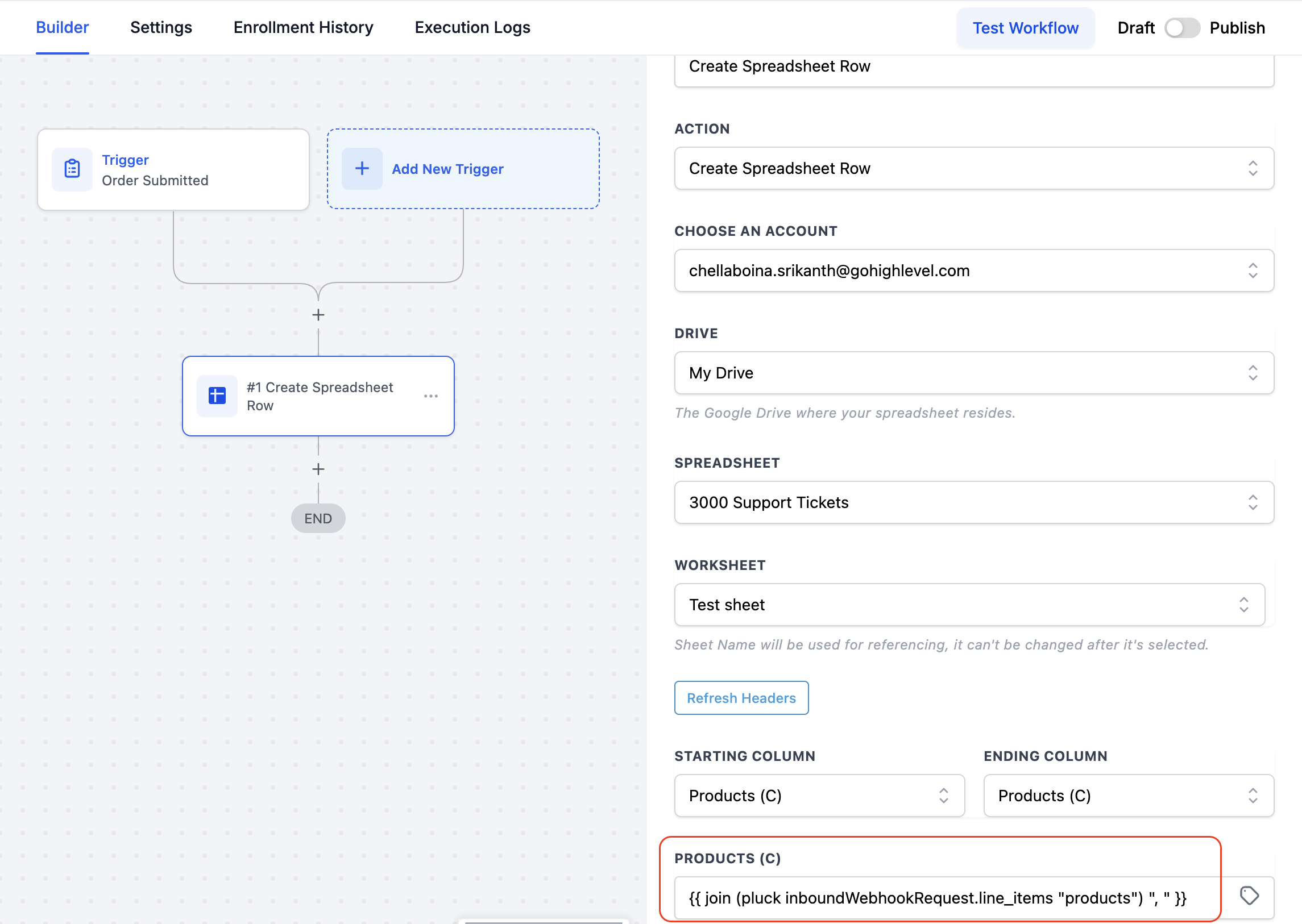
- Add an action, for example the Create Row in Google Sheets action.
- Map the customer name field using the {{ contact.first_name }} placeholder.
- Map the email field using the {{ contact.email }} placeholder.
- Insert a placeholder for the products field that will receive the combined string.
- Enter the pluck helper to extract titles: {{ pluck order.line_items "title" }}.
- Wrap the pluck call with the join helper to combine titles, e.g., {{ join (pluck order.line_items "title") ", " }}.
- Execute a test order or use Postman to verify the formatted output.
- Review the list of extractable fields such as title, image, price, and others for future use.
Format list using native formatter
- Open the Custom Value picker inside the workflow text field where the list will appear.
- Choose the list or array value that contains the items to display.
- Select the specific field from each array element that you want to show.
- Pick a presentation style: comma separated, bulleted list, numbered list, or a custom separator.
- Optionally define an empty list fallback value to use when the array has no items.
- Look at the preview to confirm the formatted result matches expectations.
- Click Insert to place the formatted list at the cursor location in the field.
07What it looks like in HighLevel
08Settings that matter
- empty list fallback. Provides a default text to display when the selected array contains no items.
09Things to know before you rely on it
- The native list formatter works only in workflow text fields that support the Custom Value picker.
- Existing pluck and join expressions remain available for manual array handling.
10How it connects to the rest of HighLevel
- Configure an inbound webhook trigger for order data Inbound Webhook trigger
- Learn how to create a workflow and add actions Workflow creation guide
- Set up the Google Sheets action used in the example Google Sheets action guide
Michael's take

Pluck and join helpers are handy when you need to turn order line items into readable text. Skip it if your workflow never deals with list data or you only ever need single values.