
01Who this is for
- Users of HighLevel can activate GPT history to keep context across interactions.
- Teams can tailor AI replies by storing conversations per contact or workflow.
02History for GPT actions, explained
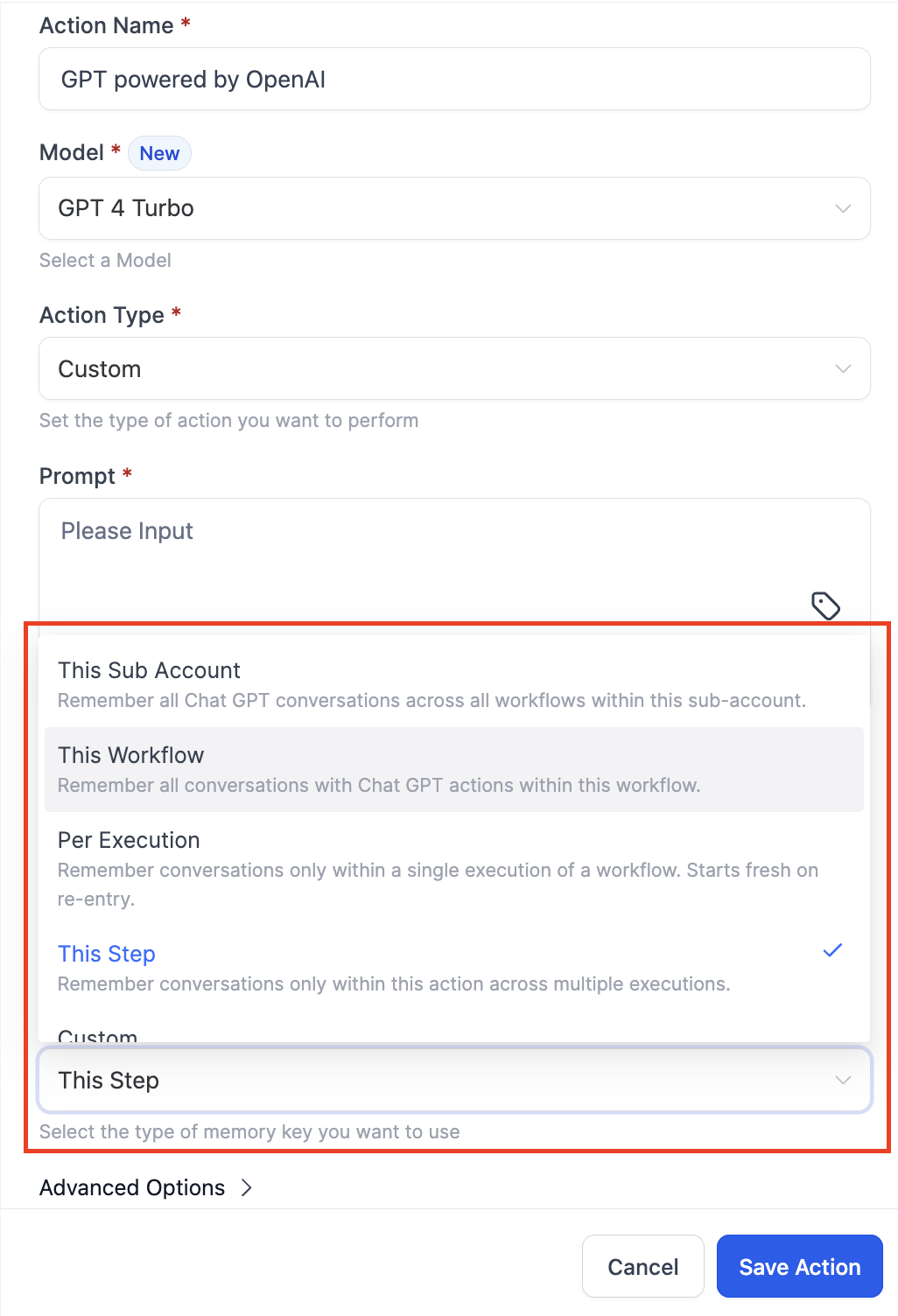
The GPT action now includes a history feature. When turned on, the AI stores previous exchanges according to the selected scope, subaccount, workflow, single execution, step, or a custom definition. The stored data is used to shape future replies, making them more relevant.
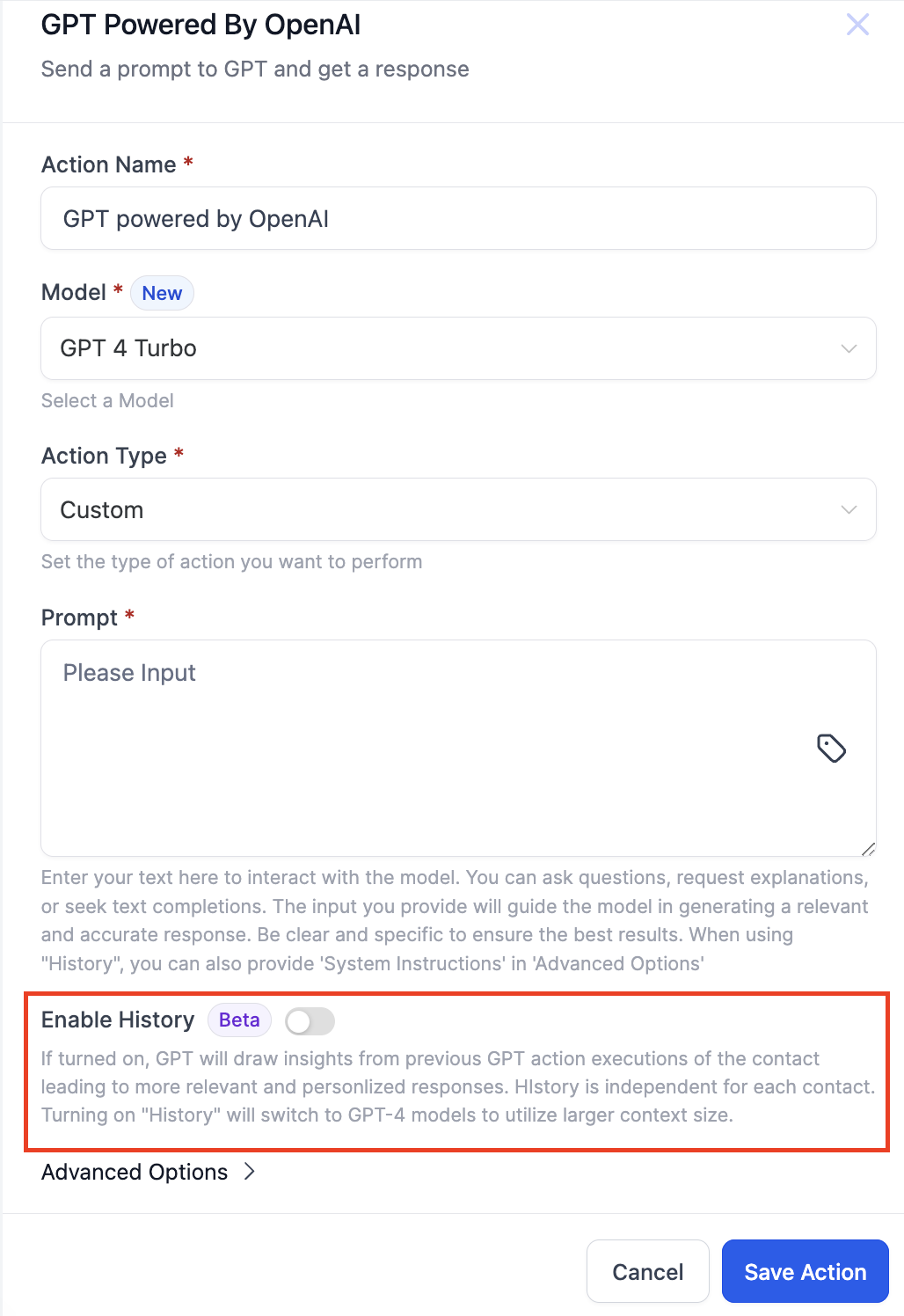
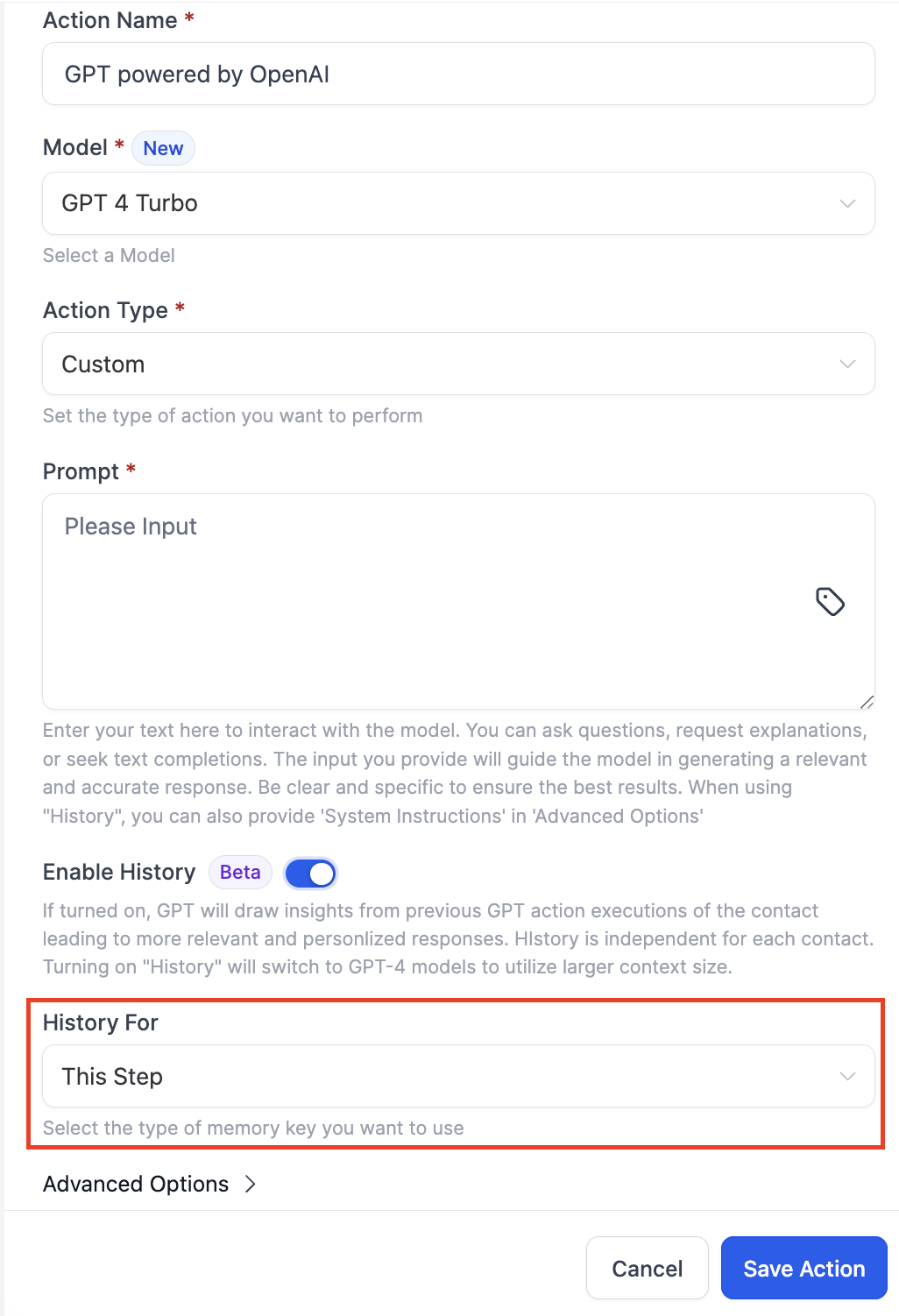
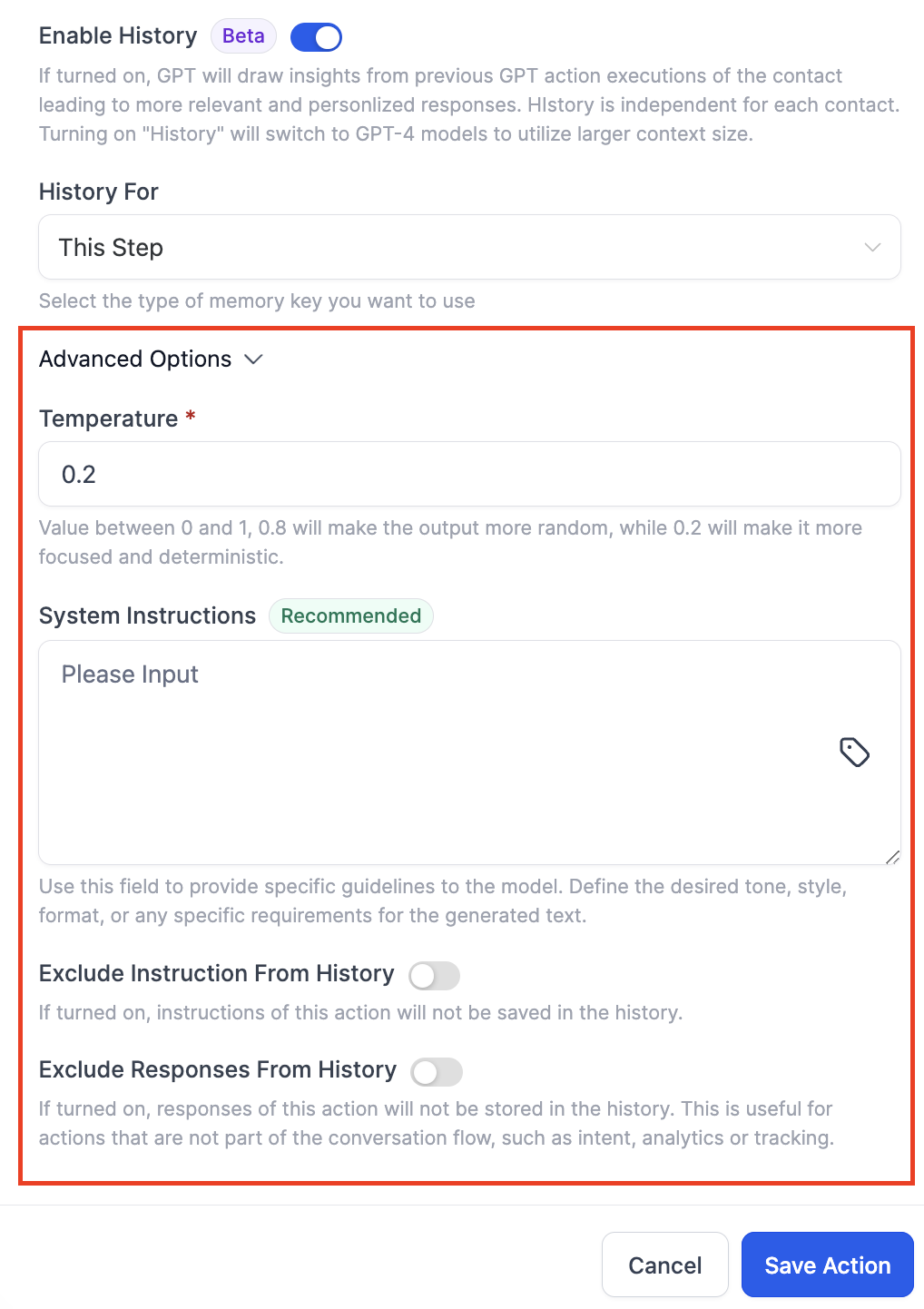
The feature lives inside the GPT Powered By OpenAI workflow action. After selecting the action, you toggle the Enable history switch, pick a History for option from a dropdown, and optionally add system instructions. Additional toggles let you exclude system instructions or the action's responses from being saved.
History works only for the Custom action type and is independent for each contact. Enabling it automatically selects GPT 4 models unless you change the model manually.
03How businesses use history for GPT actions
- Marketing agency. The agency adds the GPT action to a workflow that follows up with leads. By enabling history at the workflow level, the AI can reference earlier messages sent to each lead, ensuring follow ups feel continuous and tailored.
- SaaS product. A SaaS company includes the GPT action in a support workflow. Setting history per contact lets the AI recall a user's past troubleshooting steps, providing consistent assistance across sessions.
- Customer support team. Support staff embed the GPT action in a ticket routing workflow. Using step level history, the AI remembers the instructions it gave in previous steps, allowing the same style and tone throughout the ticket lifecycle.
04The numbers and rules that matter
- 5 types of History can be stored: This subaccount, This Workflow, Per Execution, This Step, Custom.
- If Enable History is switched on then by default GPT 4 models will be selected.
05How to set up and use history for GPT actions in HighLevel
Enable and set history for a GPT action
- Enable the Labs option for GPT history.
- Choose the GPT Powered By OpenAI action in your workflow.
- Turn on the Enable history toggle.
- Select the desired History for scope from the dropdown list.
- Enter any system instructions required for the action.
06What it looks like in HighLevel
07Settings that matter
- Enable history. Activates the storage of prior GPT conversations for the selected scope.
- History for. Determines where the conversation memory is kept, subaccount, workflow, execution, step, or a custom type.
- System Instructions. Provides fixed guidelines that the GPT model follows for every call.
- Exclude instructions from history. Prevents the system instructions from being saved in the conversation history.
- Exclude responses from history. Stops the action’s output from being added to the stored history.
08Things to know before you rely on it
- When Enable History is on, GPT 4 models are selected by default.
- History works only for the Custom action type.
- The stored history is separate for each contact.
09How it connects to the rest of HighLevel
- Configure the GPT action in a workflow Configure GPT action
- Overview of workflow settings and timing control Workflow settings
- Start a 30 day trial to test GPT history 30 day trial
Michael's take

When a workflow needs the AI to remember earlier prompts, the lack of context can lead to generic replies that feel disconnected from the customer’s journey.
The first setting I’d lock down is the history scope. Picking the right "History for" option makes sure the AI only sees the data that matters for that specific flow.