
01Who this is for
- Marketing teams that build multi step automations and need to ensure every trigger and action is correctly set up before launch.
- Operations managers who rely on workflows for internal processes and want to avoid publishing blocks caused by missing required fields.
02Workflow errors, explained
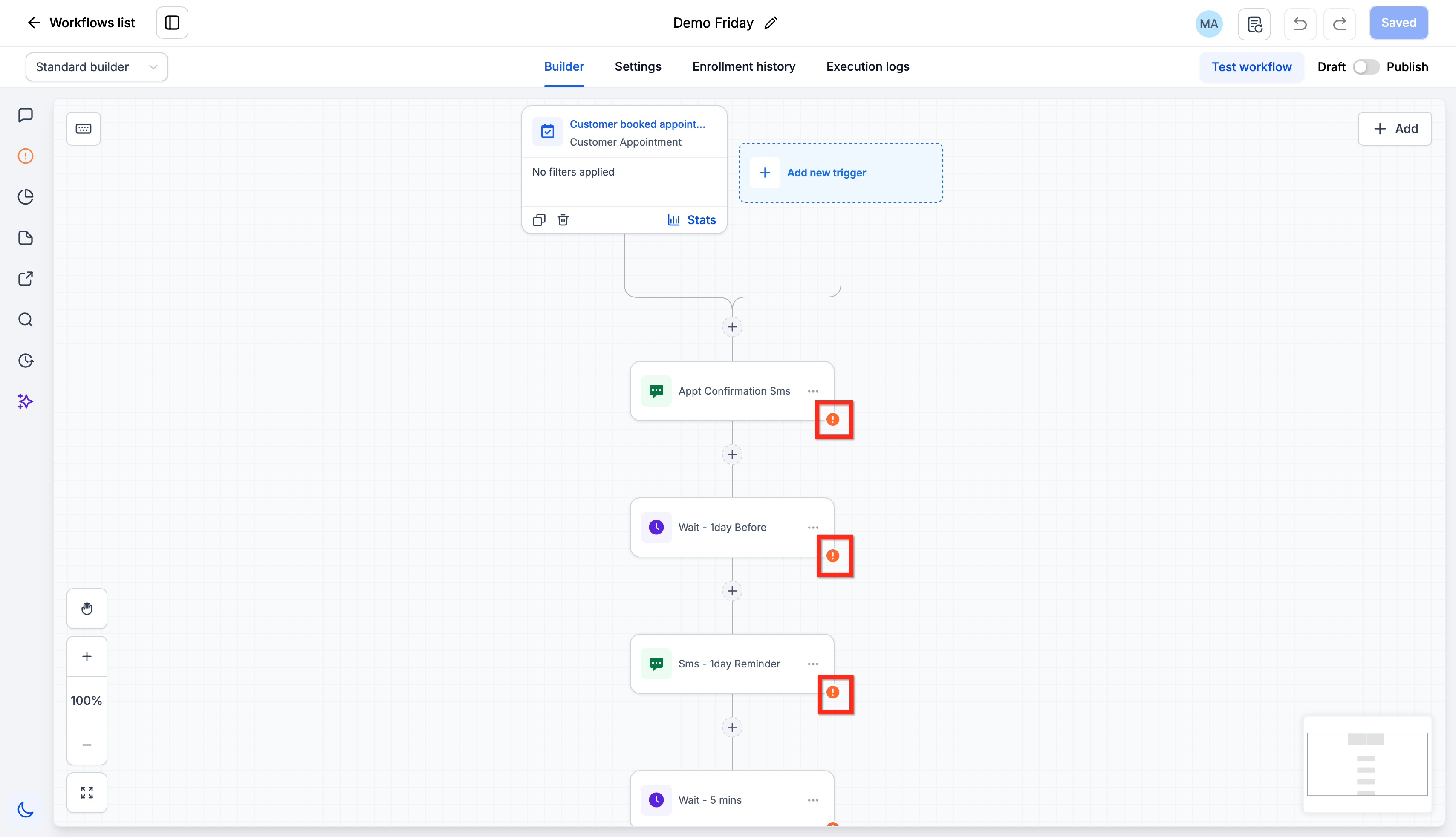
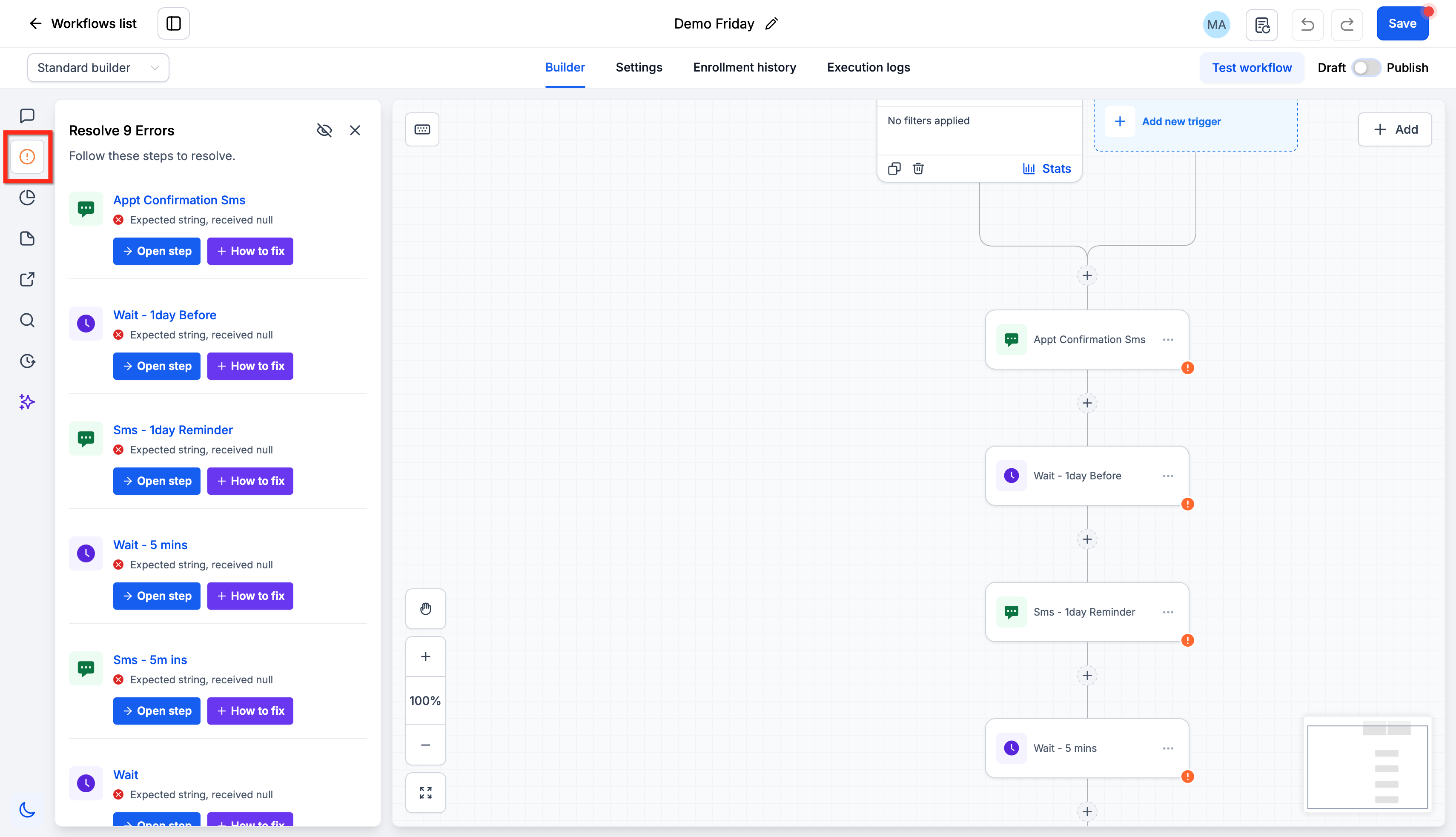
HighLevel scans a workflow for supported configuration issues while you build it. When it finds a missing mandatory field, a disconnected integration, or an invalid If/Else or Wait setup, it places an error icon on the affected step. All detected problems are also gathered in the Resolve Errors sidebar on the left side of the builder.
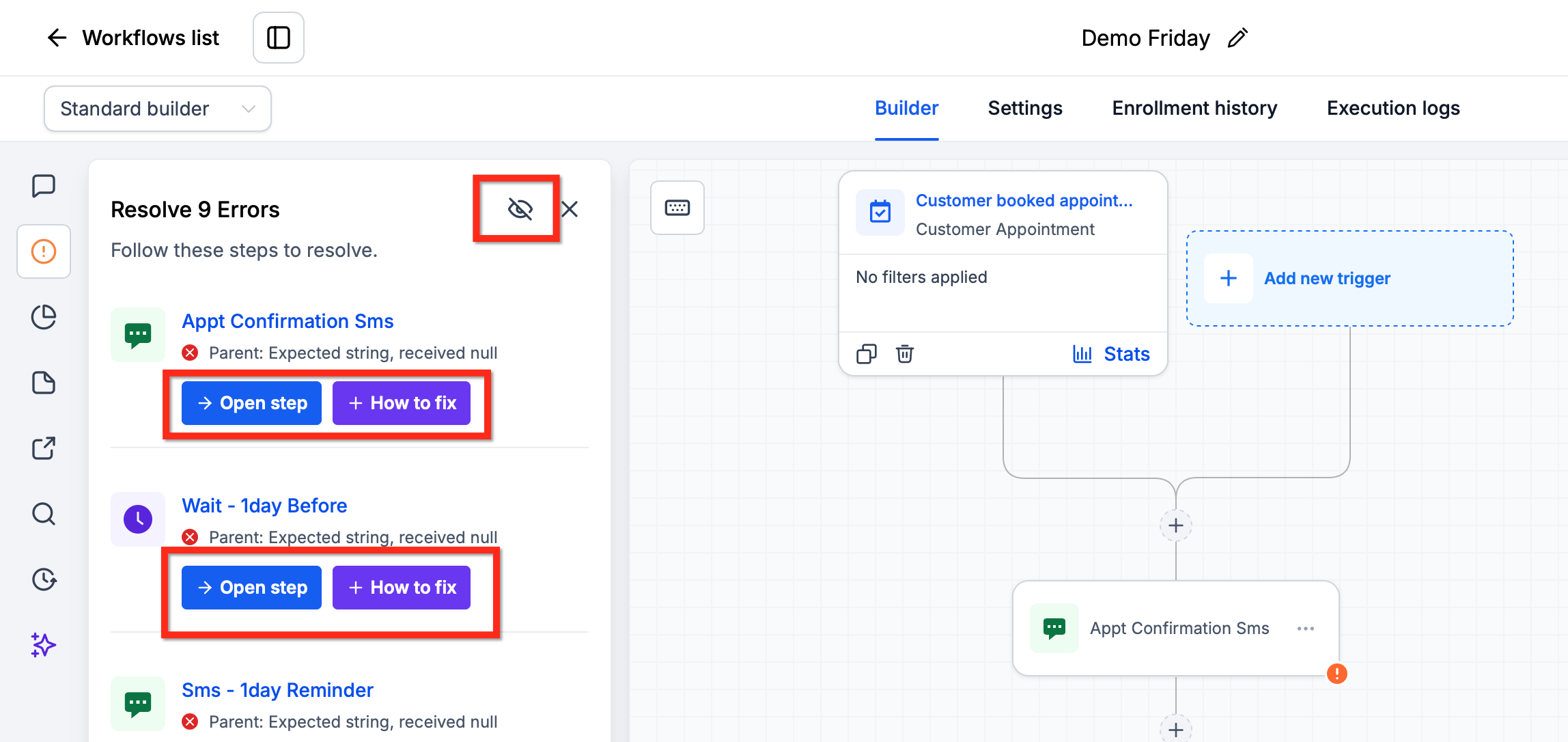
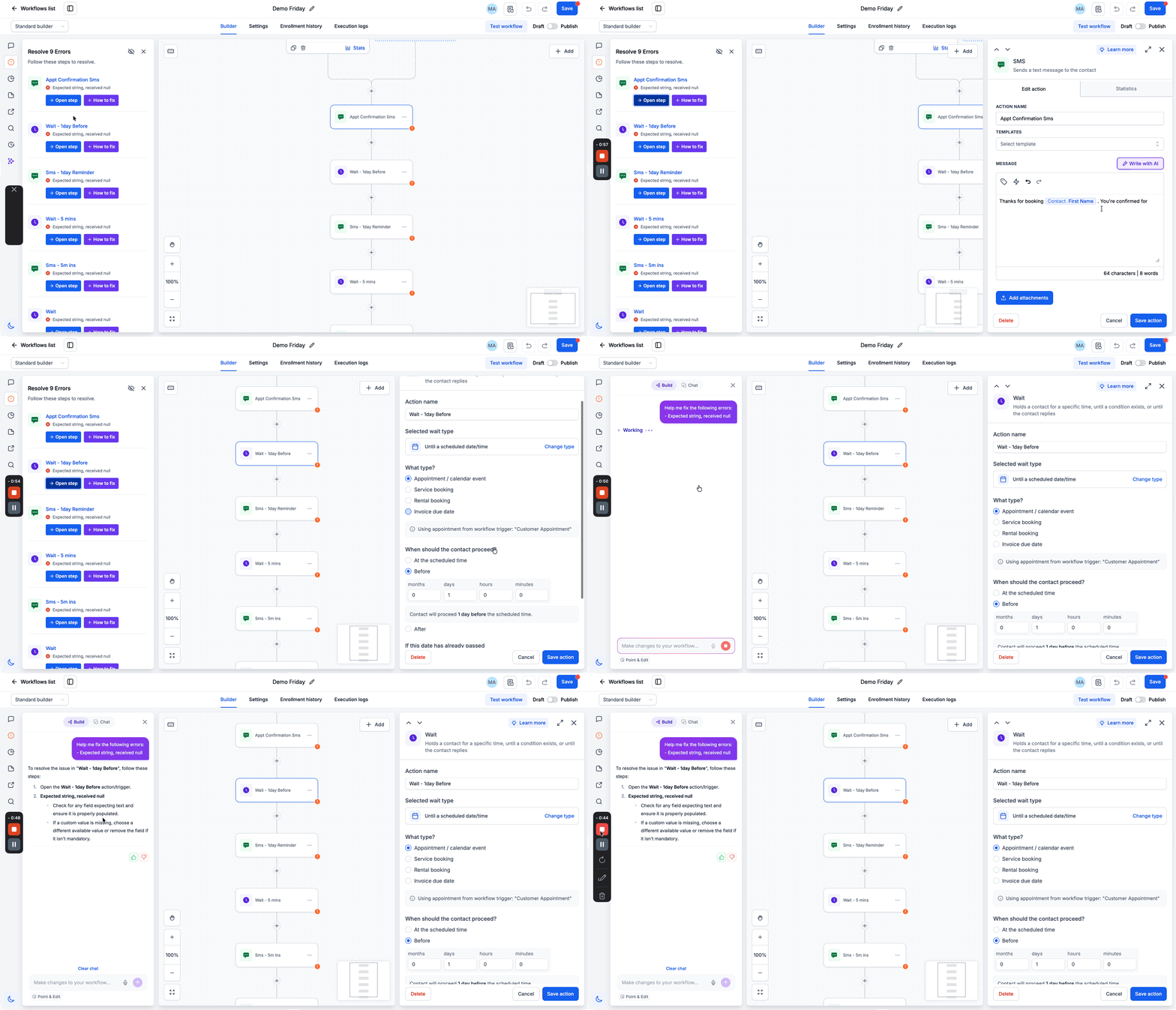
The sidebar lets you review each error, jump directly to the problematic component, or request AI generated guidance. Errors that prevent publishing must be fixed before the workflow can go live, but you can still save drafts with remaining non blocking issues. Once a supported issue is corrected, its icon disappears and the entry is removed from the list automatically.
03How businesses use workflow error highlighting and resolution
- Real estate agency. The agency builds a lead nurture workflow that includes an appointment trigger. If the calendar field is empty, the error indicator flags the step. The agent opens the step from the sidebar, selects the correct calendar, and clears the error before publishing.
- Dental practice. A practice sets up an SMS reminder workflow. When the message body is left blank, HighLevel shows an error icon on the SMS action. Using the Open step option, the staff member adds the reminder text, fixes the issue, and then publishes the automation.
- Online course provider. The provider creates a workflow that uses an If/Else branch to segment students. An invalid condition triggers an error indicator. The creator clicks How to fix for AI assistance, updates the condition, and resolves the publish blocking error.
04The numbers and rules that matter
- Supported errors include missing mandatory fields, missing or invalid configuration selections, disconnected integrations, invalid If/Else configurations, invalid Wait configurations, and required information that has not been entered.
05How to set up and use workflow error highlighting and resolution in HighLevel
Resolve workflow errors before publishing
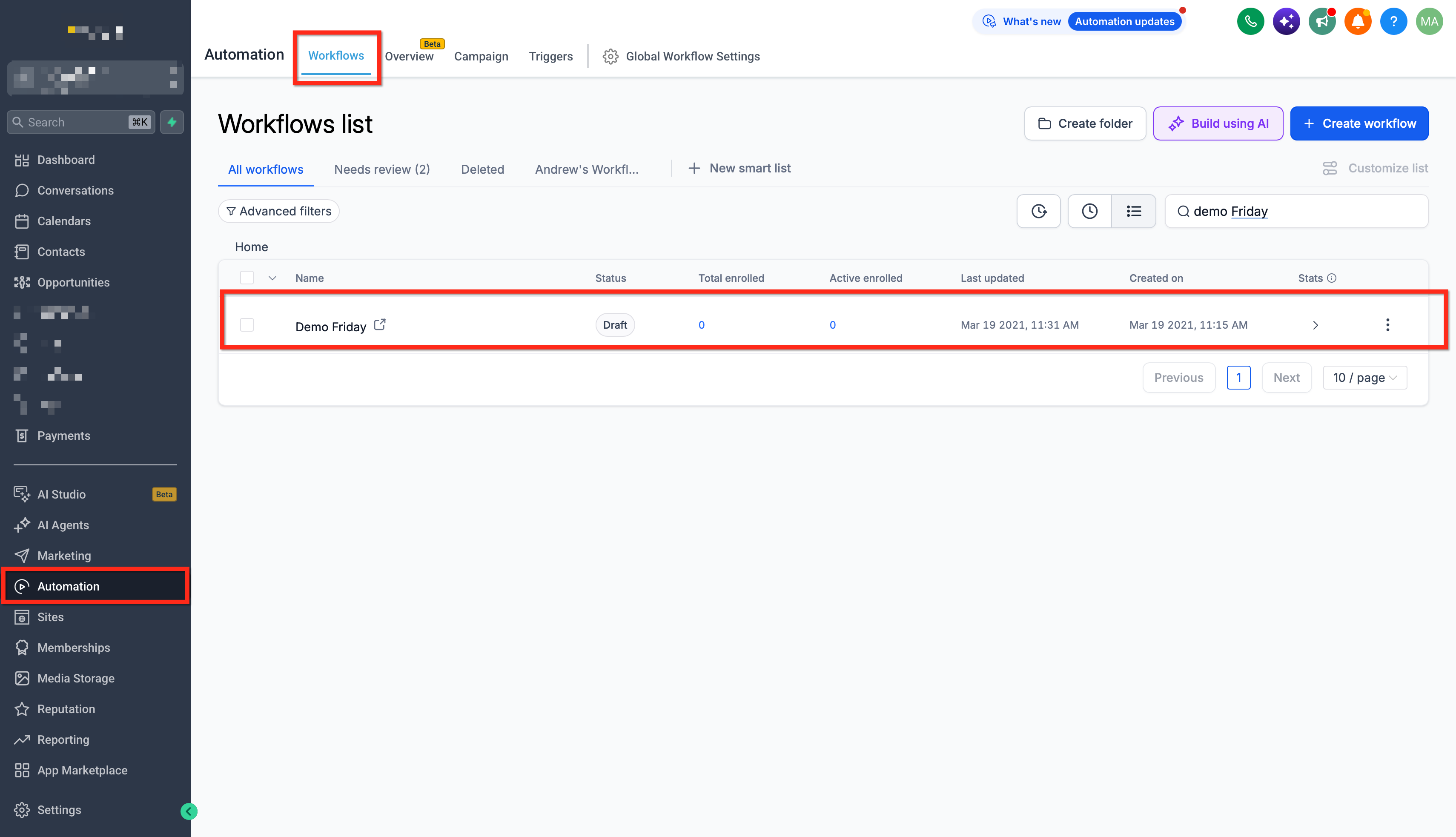
- Open the Automation > workflow you want to check.
- Continue editing and save your work, even if errors are shown.
- When ready, press the Publish button.
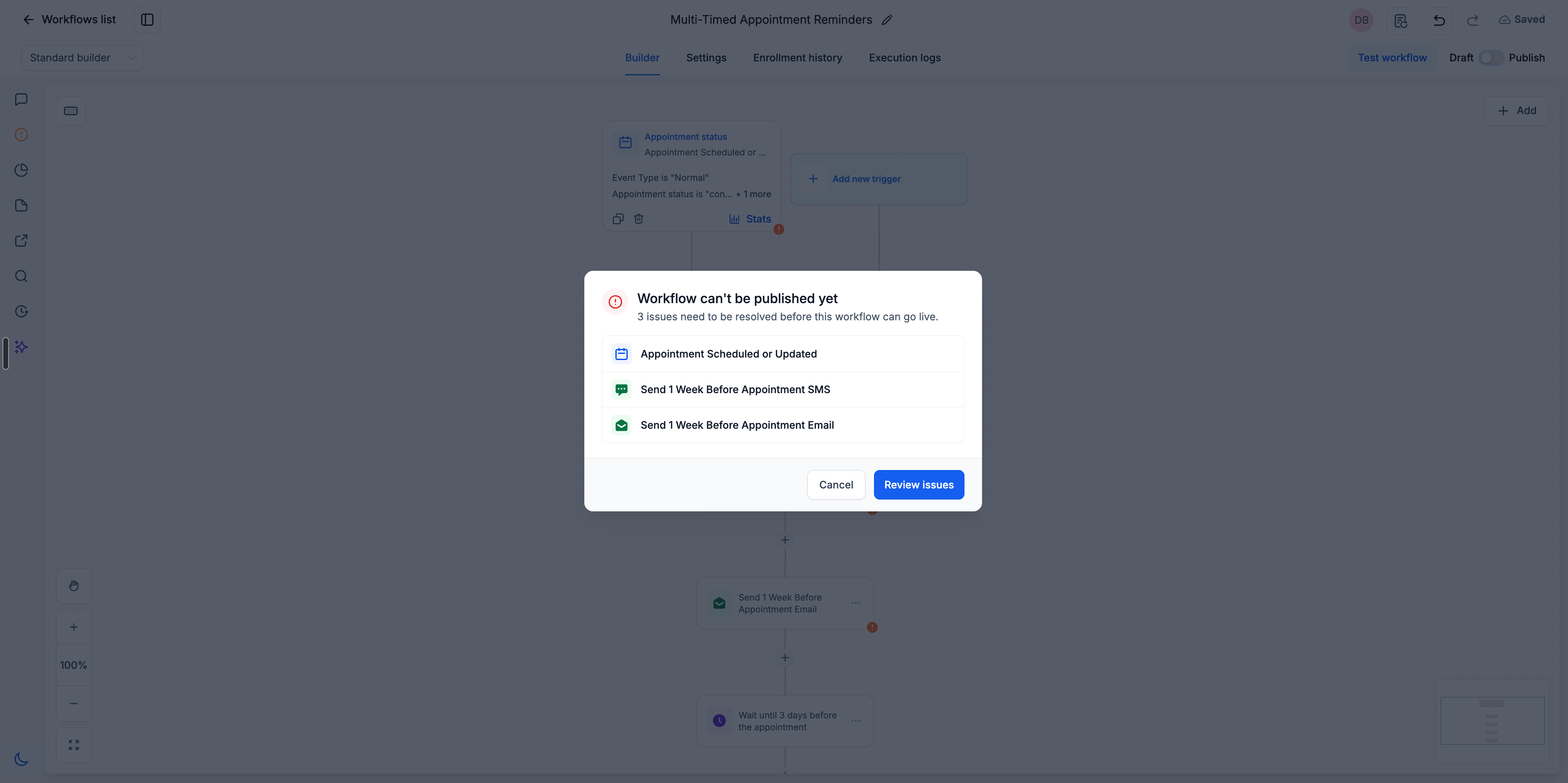
- If publishing is blocked, a modal appears; click Review issues.
- The Resolve Errors sidebar opens, listing each problem.
- For an error, select Open step to jump to its settings, or choose How to fix for AI help.
- Adjust the configuration to address the highlighted issue.
- Repeat the Open step / How to fix process for any other publish blocking errors.
- After all errors are cleared, click Publish again to make the workflow live.
06What it looks like in HighLevel
07Settings that matter
- Error visibility controls. Toggle to show or hide error icons on the workflow canvas without changing the underlying configuration.
08Things to know before you rely on it
- Only supported configuration problems are detected; not every possible mistake is caught.
- Publish blocking errors must be resolved before the workflow can go live.
- Hiding an error icon does not fix the issue; the problem still needs correction for publishing.
09If something goes wrong
- Publish attempt is blocked by an unresolved error.. Open the Resolve Errors sidebar, locate the cited component, and correct its configuration.
- Error icon is hidden but publishing still fails.. Unhide the indicator or directly fix the underlying setting that caused the error.
10How it connects to the rest of HighLevel
- Start with the fundamentals of building workflows in HighLevel. Workflow basics
- Use the AI Builder to generate and edit automations, then apply error resolution. AI Builder
- Review pricing and plan options if you need access to premium workflow features. Pricing
Michael's take

Workflow error highlighting can be useful for building automations.
If you never use workflows or only run a single trivial step, you can skip it.