
01Who this is for
- Founders who oversee multiple subaccounts benefit from immediate visibility of broken automations.
- Digital marketers managing large numbers of client workflows can quickly locate and fix errors.
- Support teams handling workflow troubleshooting gain a central place to review and acknowledge issues.
02Error notifications, explained
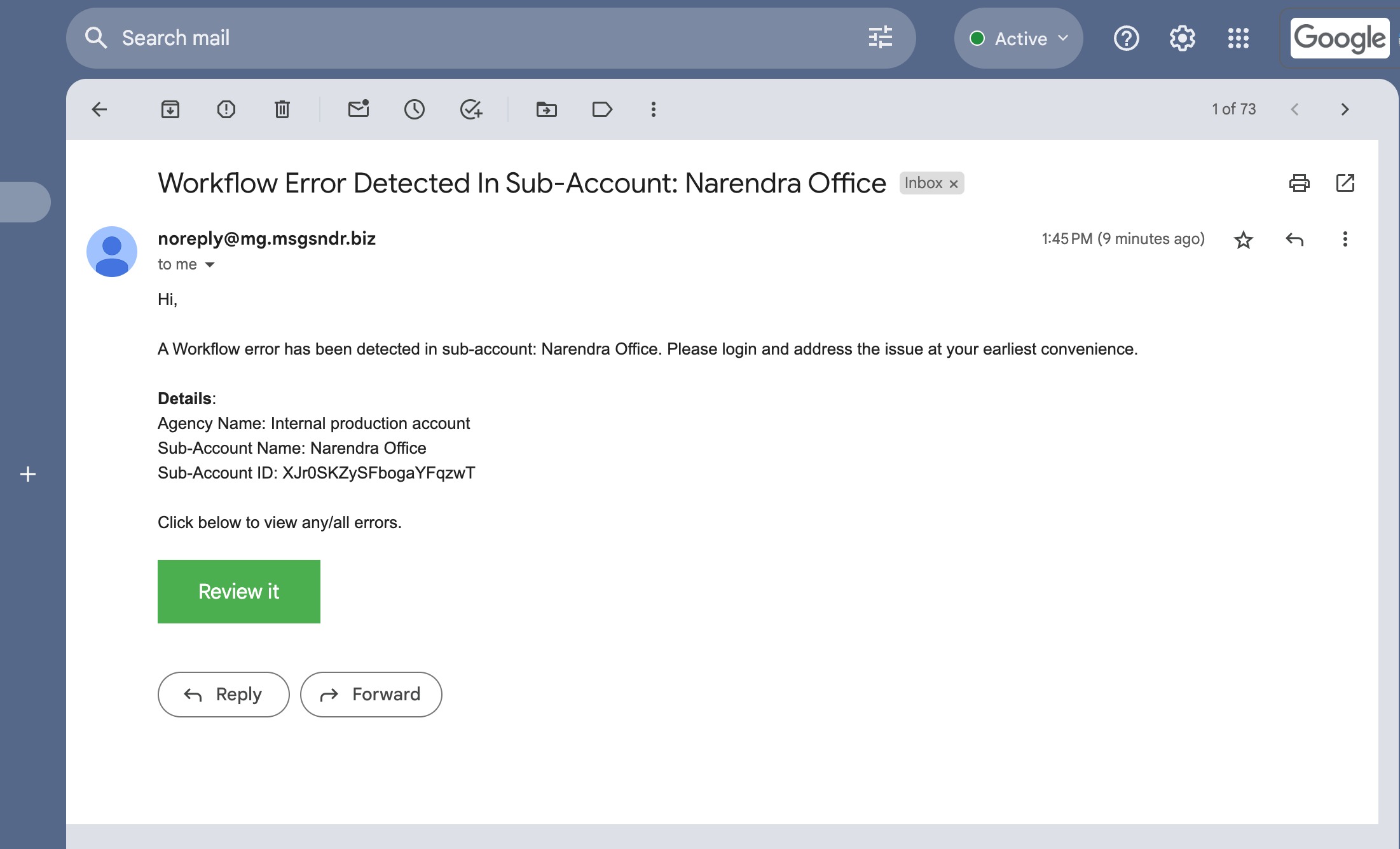
HighLevel now includes an email alert system that fires when a workflow fails. The alert reaches the designated recipients, usually subaccount admins, as soon as the error occurs. A dedicated Needs Review tab on the workflows list aggregates every workflow that has reported an error.
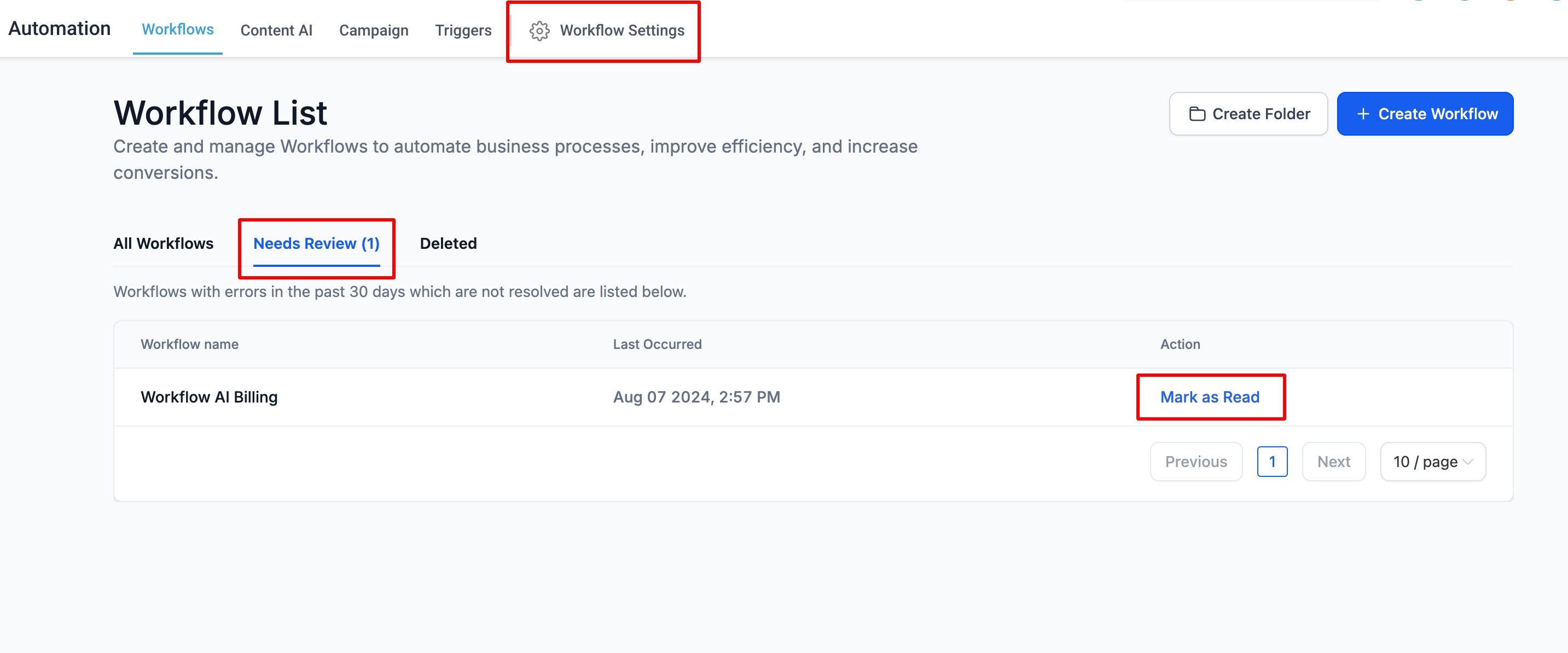
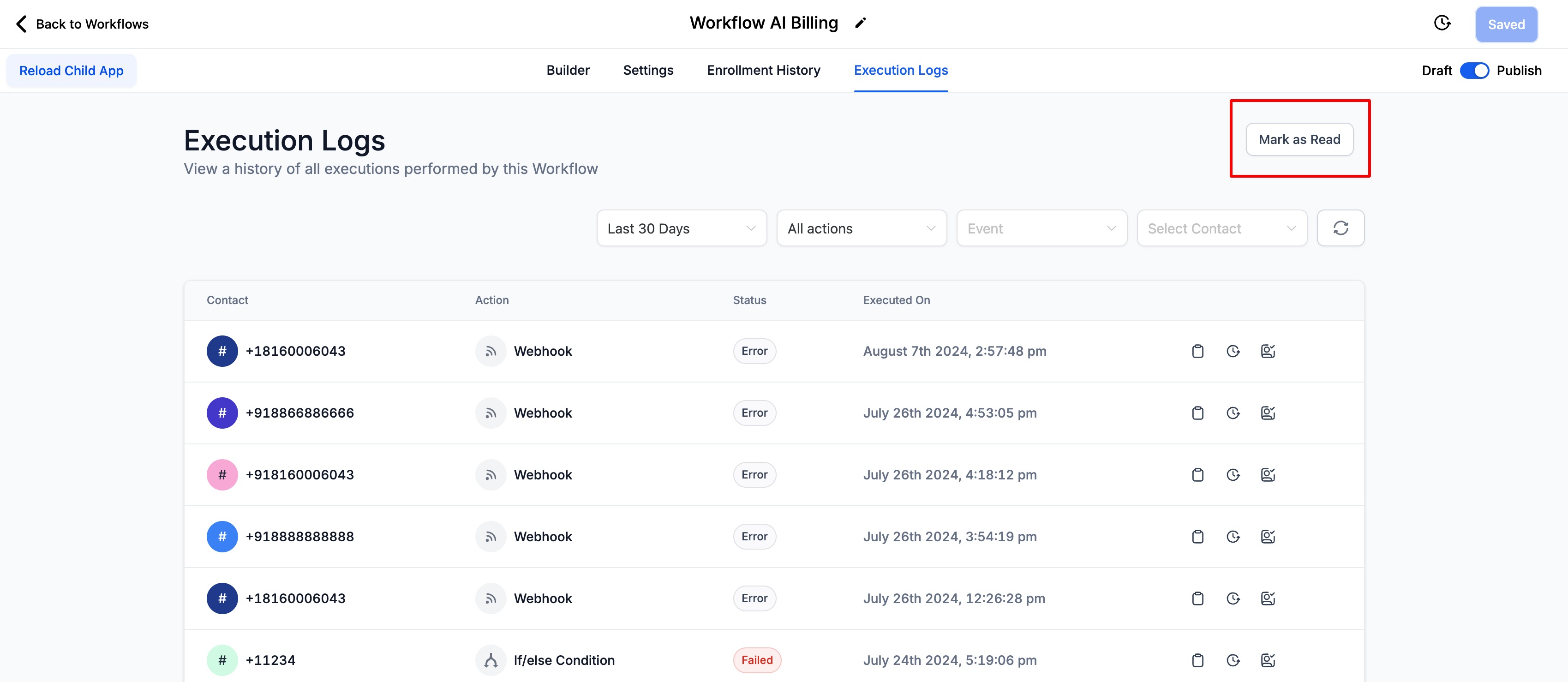
The alert email contains a “Review it” button that opens the Needs Review tab. Within that tab, users can click a workflow to open its execution logs, where a new button lets them mark the error as read, indicating it has been seen. Notifications are optional and can be toggled on or off in the Workflow Settings page.
03How businesses use error notifications
- Digital marketing agency. The agency turns on email notifications in Workflow Settings so account managers receive alerts when client automations fail. They then use the Needs Review tab to locate the broken workflow, open its execution log, and mark the error as read after fixing the issue.
- Ecommerce store. Store owners enable the notification toggle and add the store’s operations email. When a checkout related workflow errors, an email arrives right away. The owner opens the Needs Review tab, reviews the error details, and acknowledges it to keep the log tidy.
- Online course platform. The platform configures the workflow email list with the education team’s address. If a membership welcome workflow fails, the team receives an alert, visits the Needs Review tab, inspects the execution log, and acknowledges the error after updating the action.
04The numbers and rules that matter
- Users receive only one email every 24 hours; a new email is sent if new errors appear after that window.
05How to set up and use error notifications in HighLevel
Set up email notifications
- Open the Workflow Settings page from the workflows list.
- Add or remove email addresses in the notification section as needed.
- Switch the toggle on to activate error email alerts.
Review and acknowledge errors
- Select the Needs Review tab to see all workflows that contain errors.
- Click a workflow entry to open its execution log.
- Press the button to mark the error as read, acknowledging it.
06What it looks like in HighLevel

07Settings that matter
- Workflow Settings. Provides the controls for enabling or disabling email notifications and managing the list of recipients who receive error alerts.
08Things to know before you rely on it
- Notifications are disabled by default and must be turned on manually.
- Emails are sent right away when an error is detected, but only one email per workflow is sent within a 24 hour window.
- A new email is generated after the 24 hour period if additional errors appear.
09How it connects to the rest of HighLevel
- Learn the basics of building workflows and where to find triggers, filters, and actions. Workflow basics
- Review the complete guide to configuring workflow settings, including email notifications. Workflow settings
- Explore an overview of workflow automation concepts and how to set them up in HighLevel. Workflow intro
Michael's take

People often think the alert will keep coming every time a workflow trips, but HighLevel throttles it to one email per 24 hours. That can leave you blind to multiple failures until the next day.
If I were setting this up, I’d turn the toggle on, add the whole ops team, and then schedule a quick check of the Needs Review tab each morning. That way you catch new errors right away without flooding inboxes.