
01Who this is for
- Founders who need a quick health check of all automations in one view.
- Marketing teams that run multiple forms and surveys and want to track enrollment trends.
- Service based businesses using appointment triggers and needing rapid error detection.
02Automation overview dashboards, explained
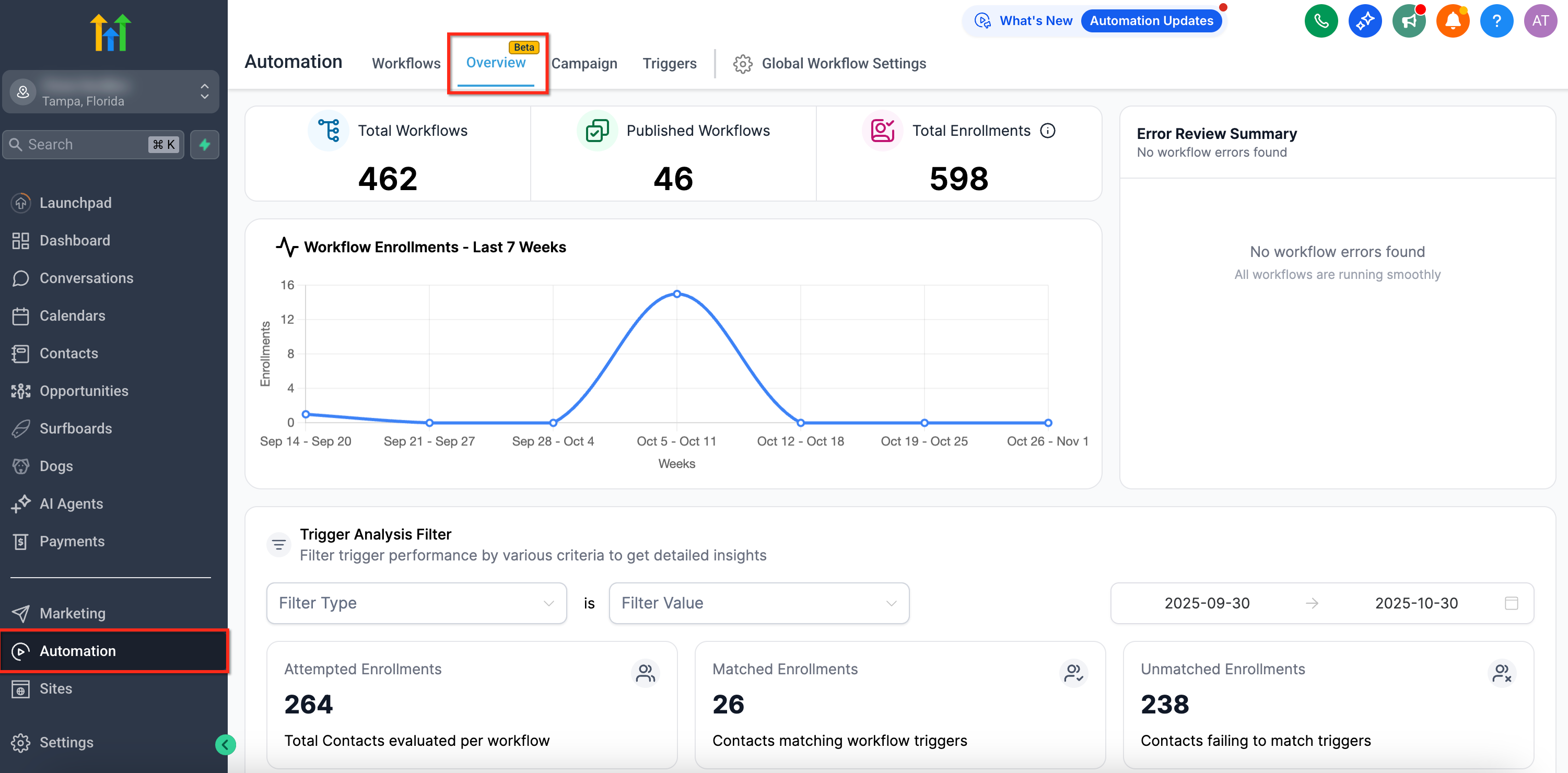
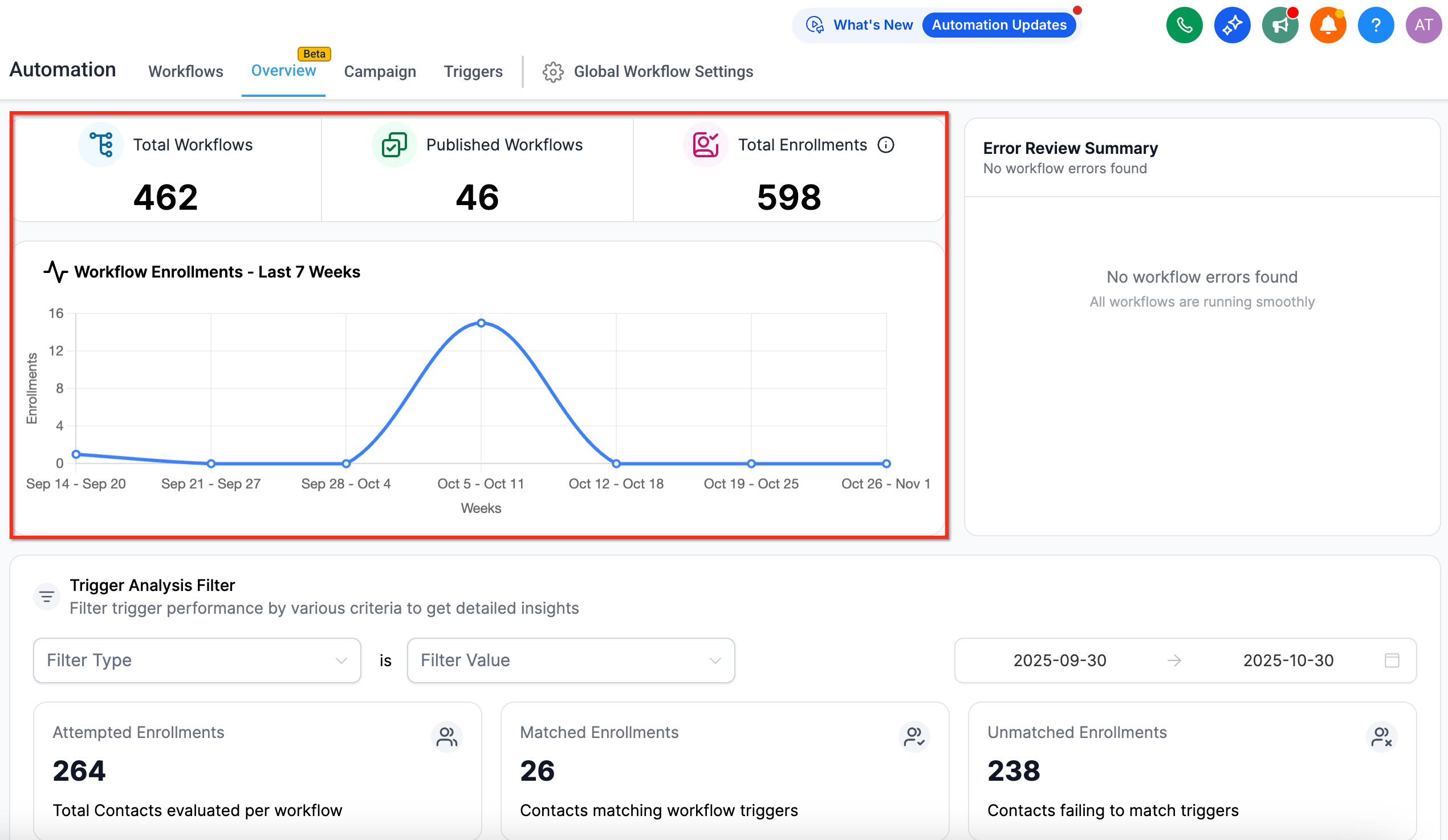
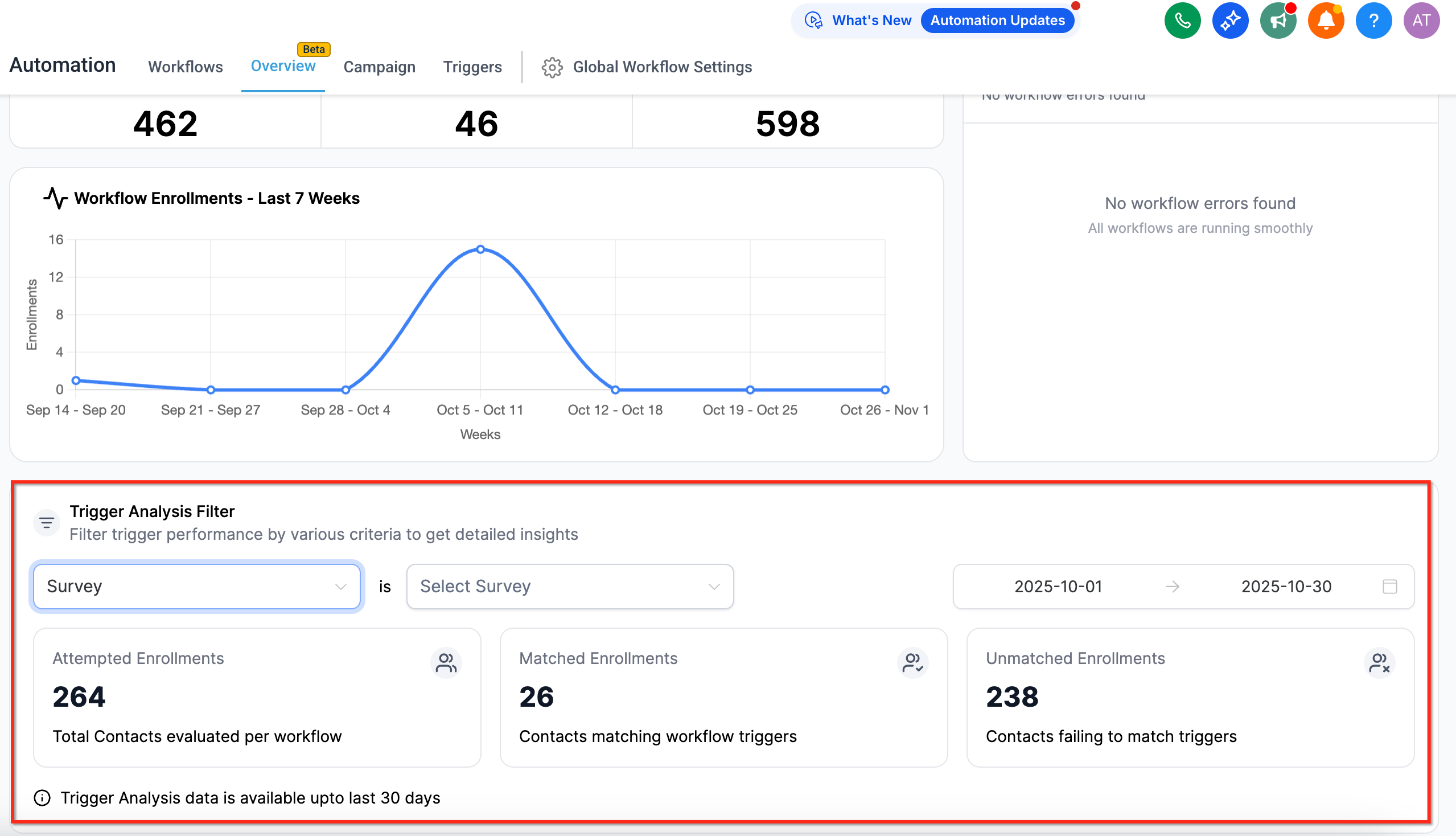
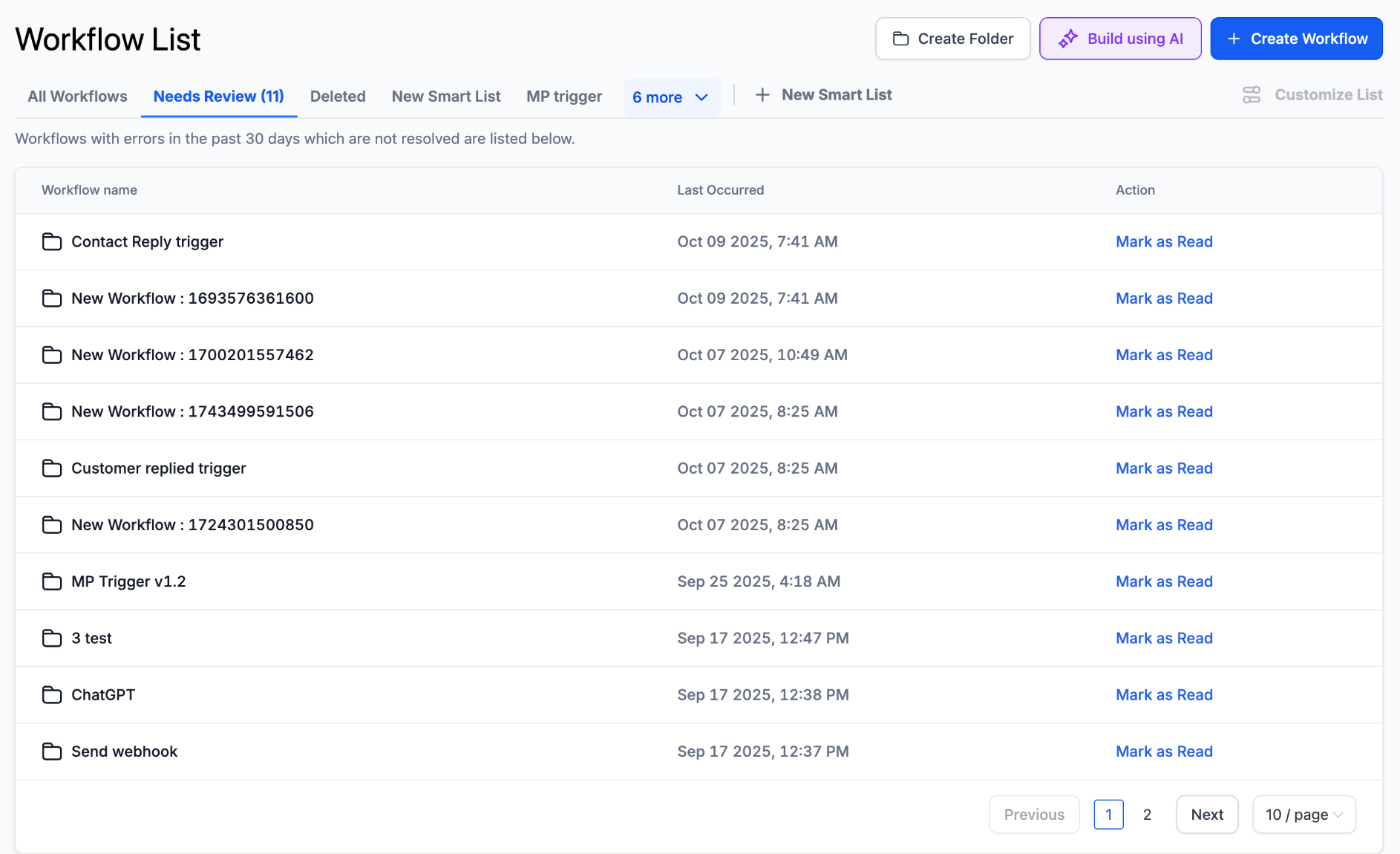
The Workflow Overview Dashboard lives under Automation > Overview. It displays a high level count of total and published workflows, plus the number of enrollments across all automations. Below the summary, three widgets provide deeper insight: a chart of workflow enrollments over time, a trigger analysis filter, and an error review summary.
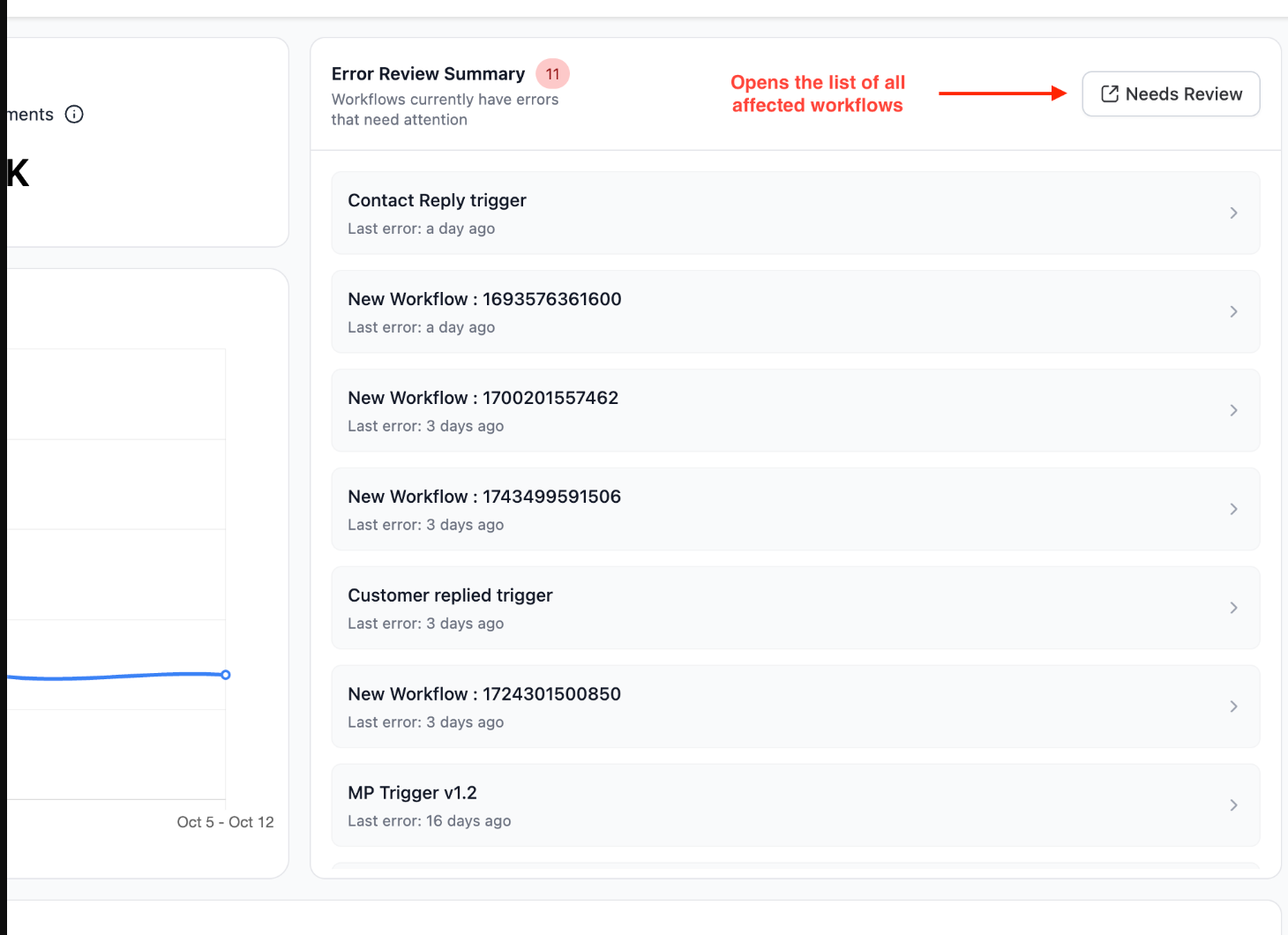
Data reflects the account’s timezone and can be narrowed by a custom date range. The trigger analysis filter lets you isolate results for a specific trigger type, form, or survey, while the error review summary highlights any workflows that have encountered problems, offering a direct link to review those errors.
03How businesses use automation overview dashboard
- Dental practice. The practice can open the dashboard, filter by its patient intake form trigger, and watch weekly enrollment trends to gauge new patient acquisition. If any workflow shows an error, the staff clicks the Needs Review link to investigate the specific issue.
- Ecommerce store. The store accesses the dashboard to filter by a promotional survey trigger, reviewing how many customers enroll each week. The error summary helps the team spot any broken automations that could affect order follow up.
- Coaching business. A coach navigates to the overview, filters by appointment trigger type, and monitors enrollment spikes after webinars. Any workflow flagged in the error section is opened directly from the dashboard for correction.
04The numbers and rules that matter
- Trigger Analysis data is available up to the last 30 days.
05How to set up and use automation overview dashboard in HighLevel
Open the Automations Overview Dashboard
- Navigate to Automation > Overview.
06What it looks like in HighLevel
07Settings that matter
- Trigger Analysis Filter. Allows you to narrow the dashboard data by selecting a specific trigger type, form, or survey.
08Things to know before you rely on it
- Trigger analysis data is only available for the most recent 30 days.
- All displayed information uses the account’s timezone.
09How it connects to the rest of HighLevel
- Get started with workflow basics and automation triggers. Workflow basics
- Review the pricing tiers for advanced workflow features. Workflow pricing
- Use the AI Builder to create or edit automations quickly. AI workflow builder
Michael's take

Wondering if the Automation Overview Dashboard is worth the time? It gives you a single spot to see how many automations you’ve built, how many contacts are flowing through them, and whether any of them are tripping up. That high level view saves you from opening each workflow one by one.
If I were setting up a new funnel, I’d pull up the dashboard first to confirm enrollments are tracking and to spot any red flags early. A quick scan of the error summary can highlight potential issues.