
01Who this is for
- Marketing agencies can enrich lead lists automatically, saving time on manual data entry.
- Local business owners can pull fresh contact information from online maps without leaving HighLevel.
02Apify actions & triggers, explained
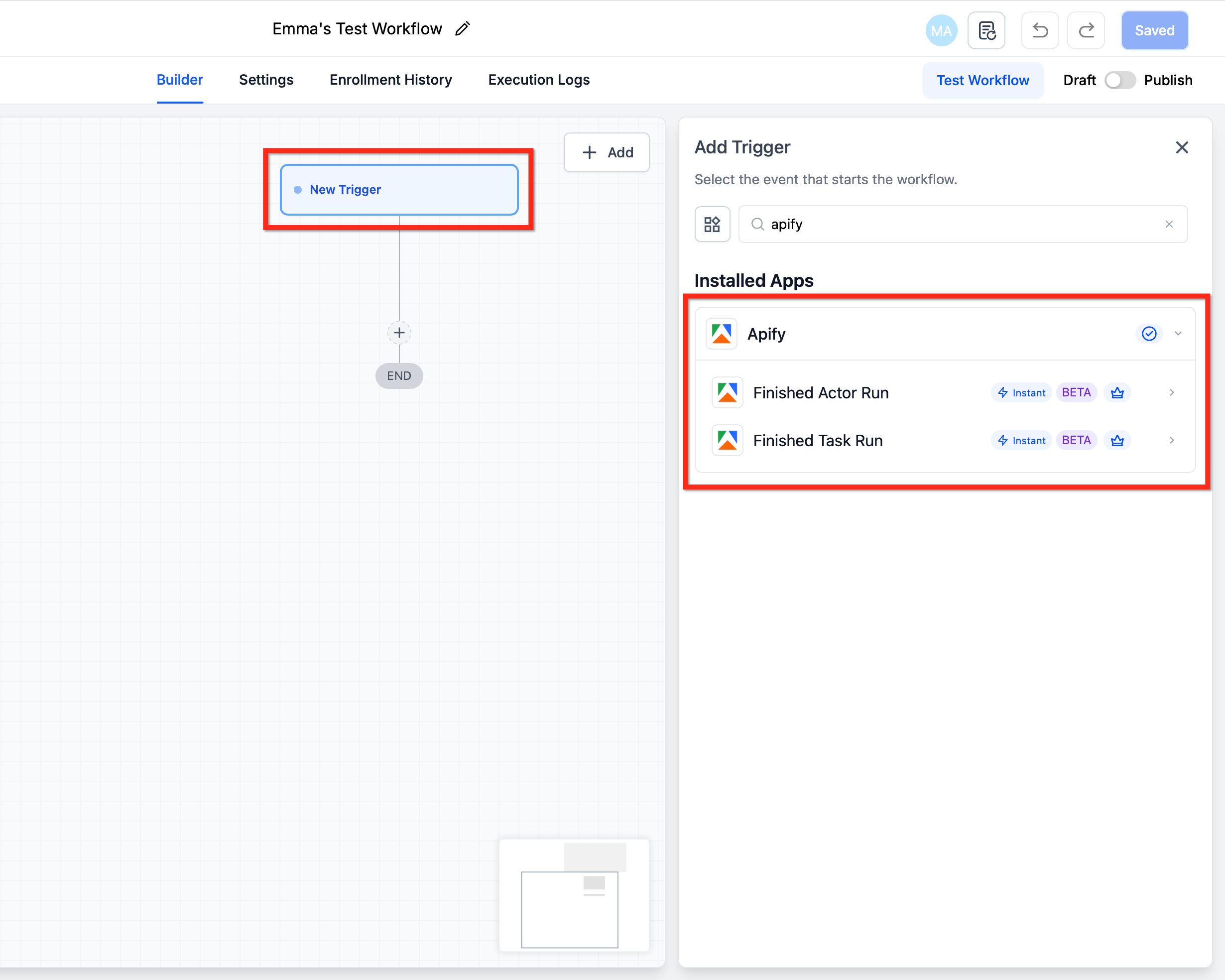
Apify actions and triggers integrate HighLevel workflows with Apify’s scraping platform. An action sends a request from a workflow to Apify, such as launching a task or scraping a single URL. A trigger starts a workflow when an Apify actor or task finishes. These components are available inside the Automation > Workflows builder and appear as selectable steps.
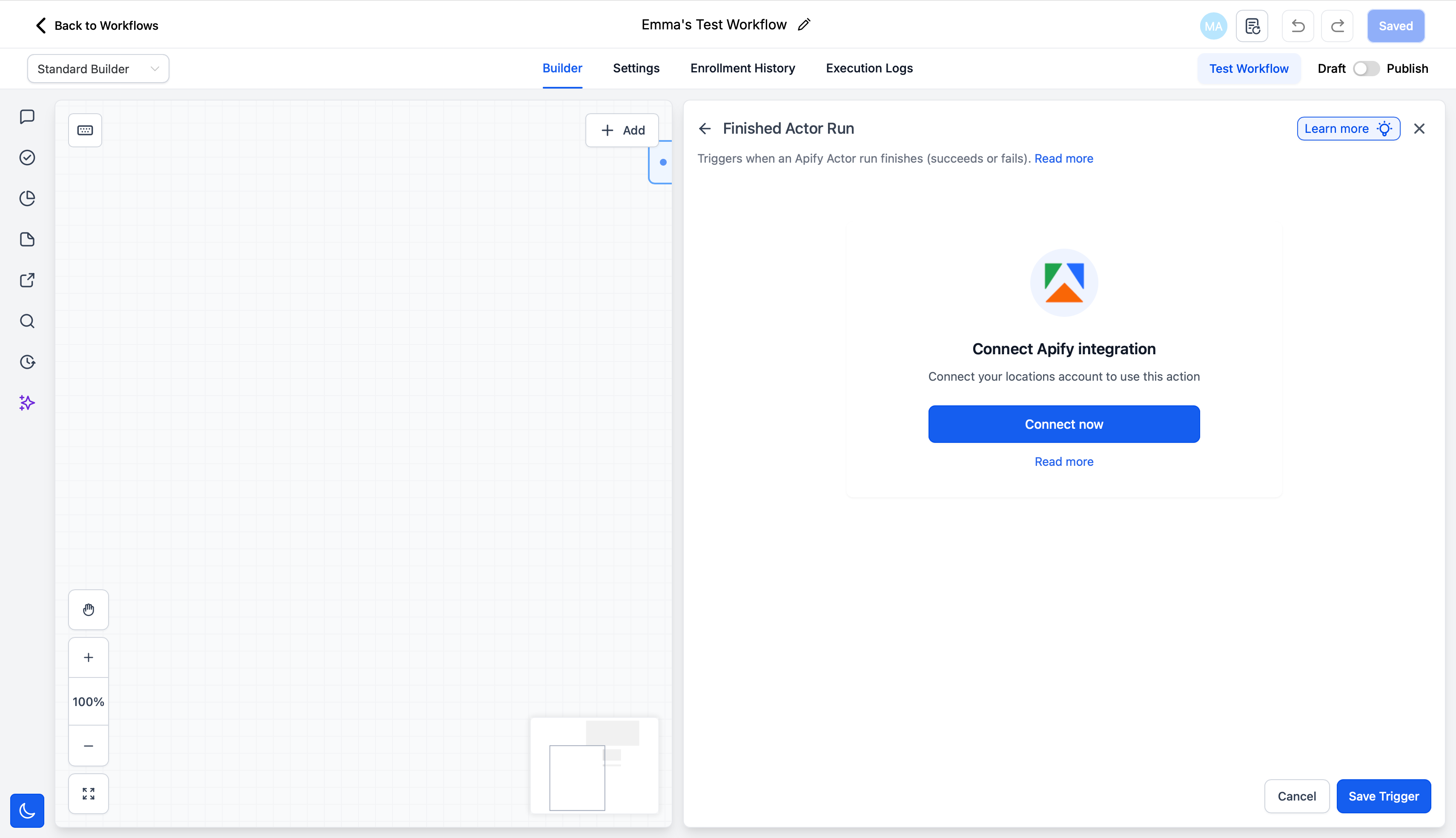
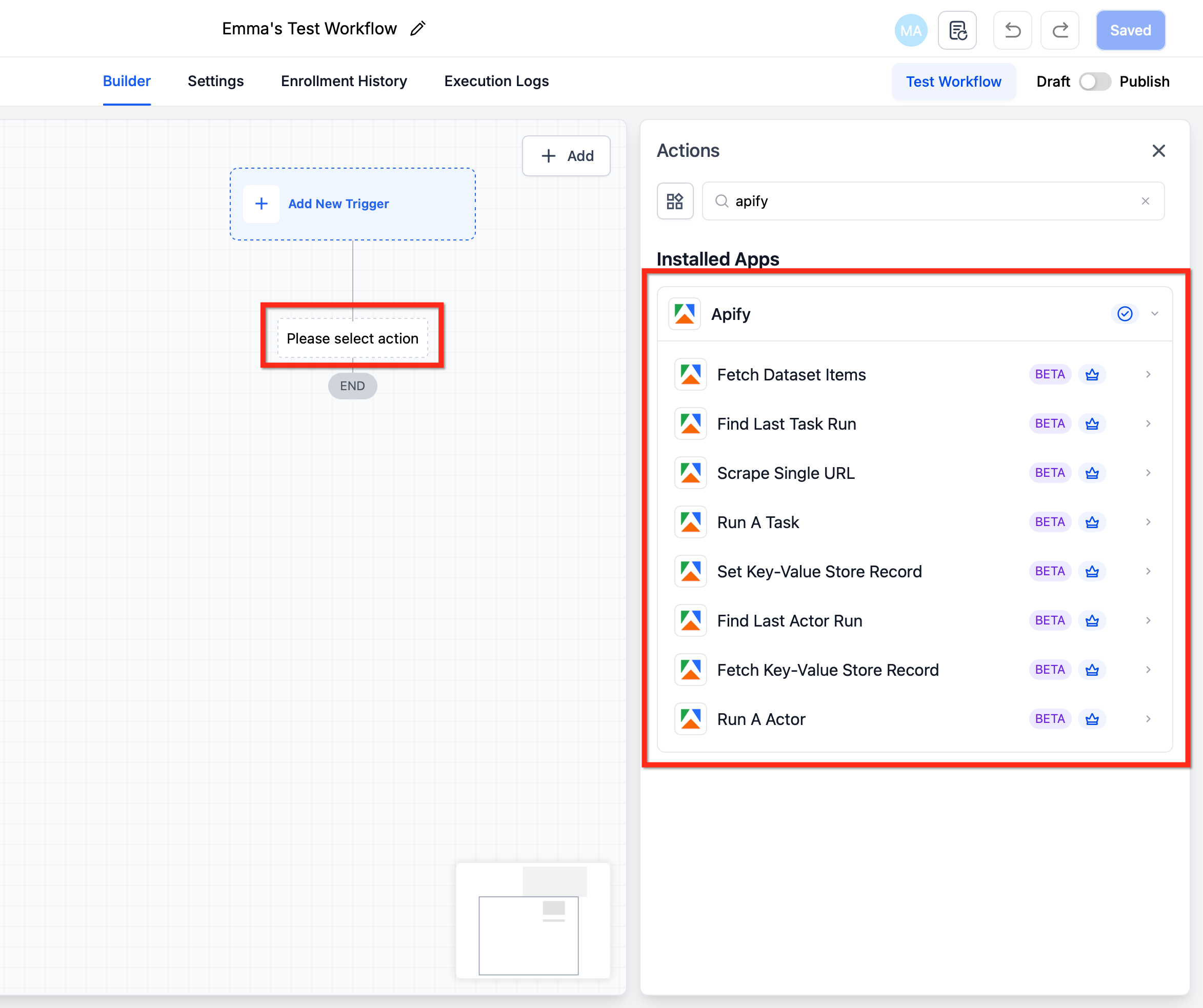
The integration uses your Apify API key to authenticate calls. Once connected, you can choose from specific triggers, Finished Actor Run or Finished Task Run, and from actions like Run A Task, Run An Actor, Scrape Single URL, Fetch Dataset Items, Find Last Task Run, and Find Last Actor Run. A Wait step is recommended before fetching results to ensure the Apify run completes.
03How businesses use apify actions & triggers
- Marketing agency. The agency adds a Run A Task action to launch an Apify lead generation actor when a new campaign starts. After the actor finishes, a Finished Actor Run trigger fetches the dataset items and updates contacts in HighLevel.
- Local business owner. The owner sets a Scrape Single URL action to pull address data from a competitor’s site. A Wait step follows, then Fetch Dataset Items stores the structured data in a custom field for follow up messaging.
- Ecommerce retailer. The retailer uses a Finished Task Run trigger that fires when an Apify task monitors competitor pricing. The workflow then sends an internal notification and creates a task for the pricing team.
04Before you start
- Access to Automation > Workflows in the subaccount where the workflow will run.
- An Apify account with a valid API key.
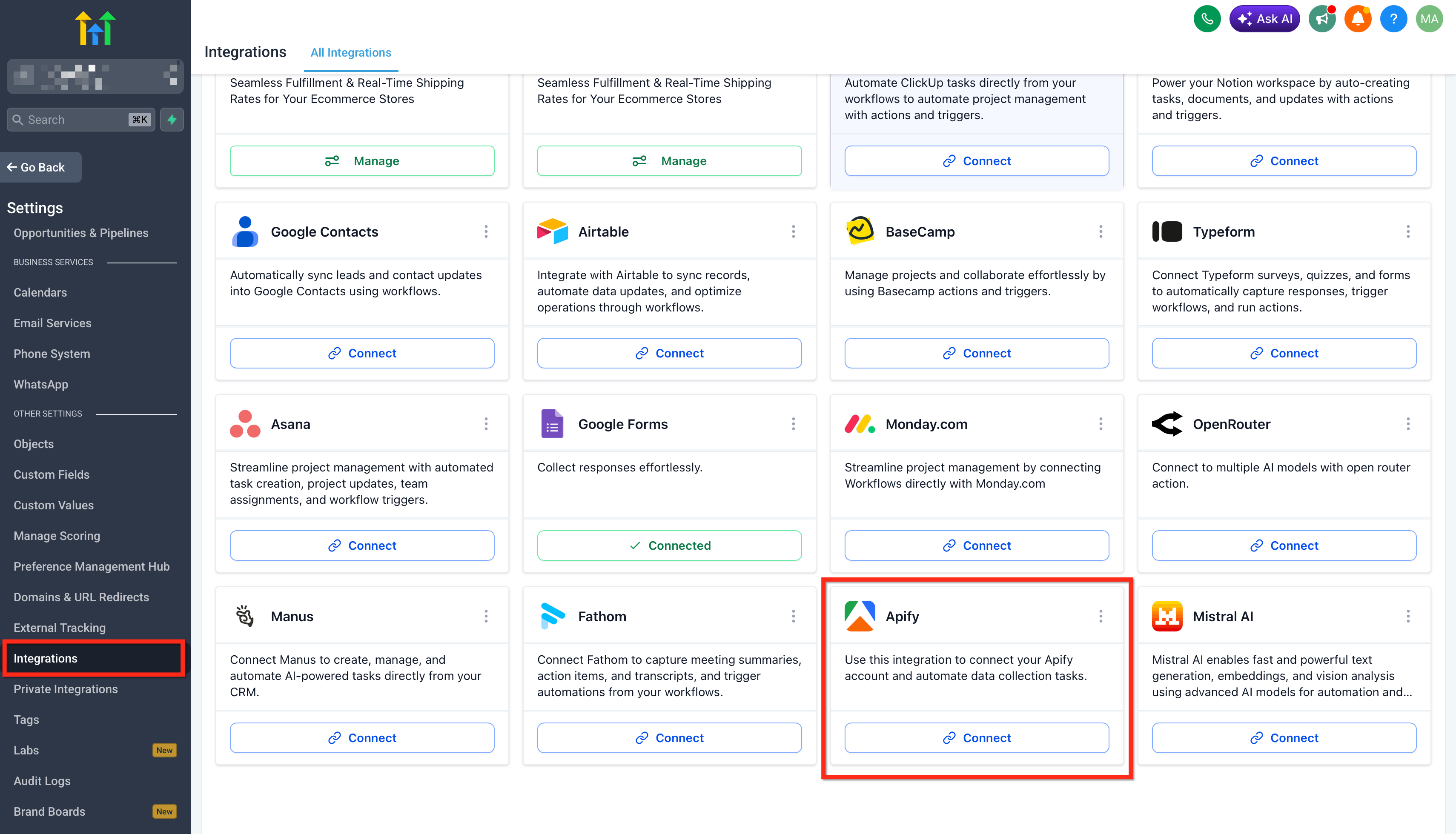
- Access to Settings > Integrations if you plan to connect Apify outside the workflow builder.
05How to set up and use apify actions & triggers in HighLevel
Set up Apify actions & triggers
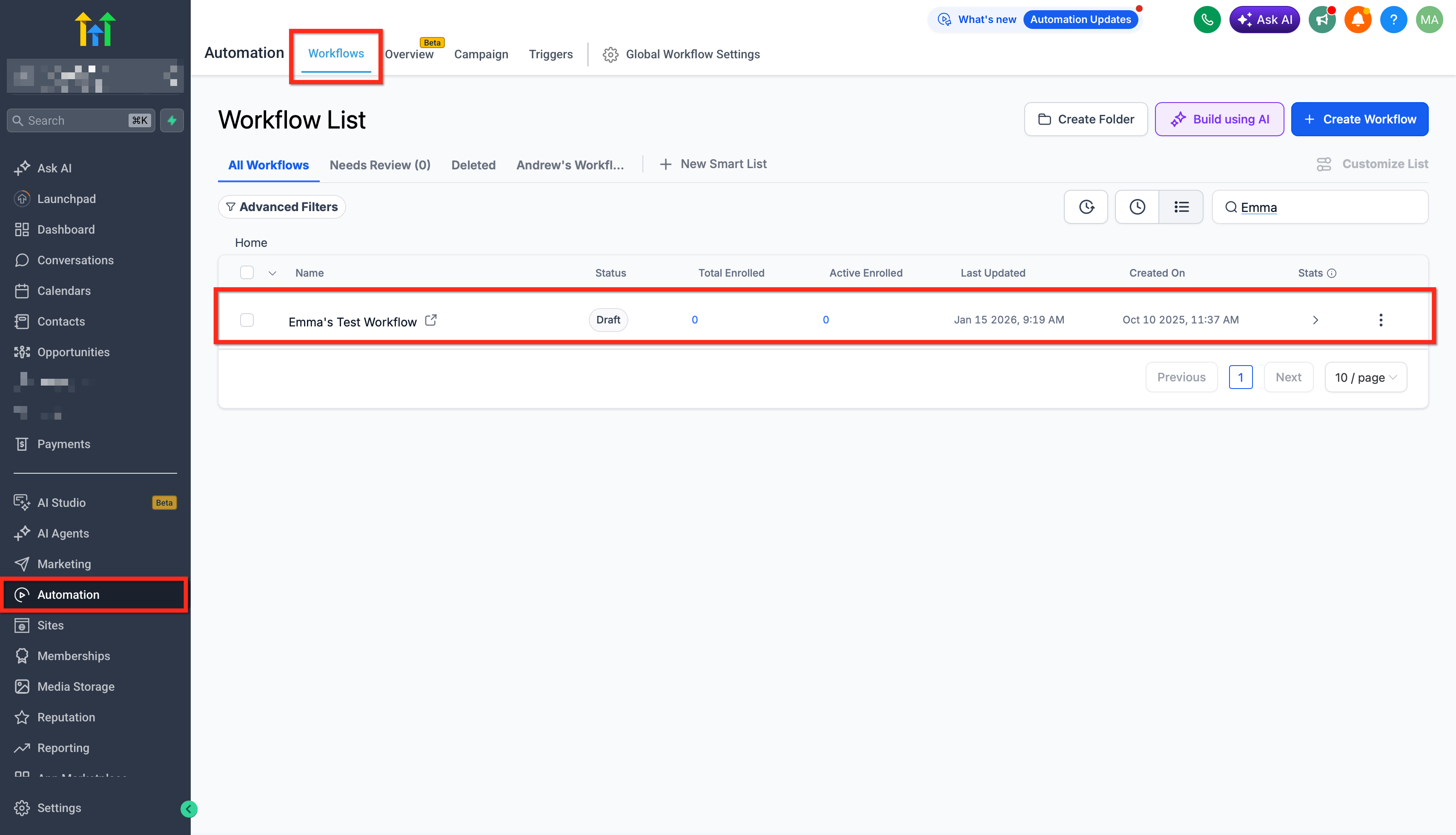
- Open Automation > Workflows and create a new workflow or open an existing one.
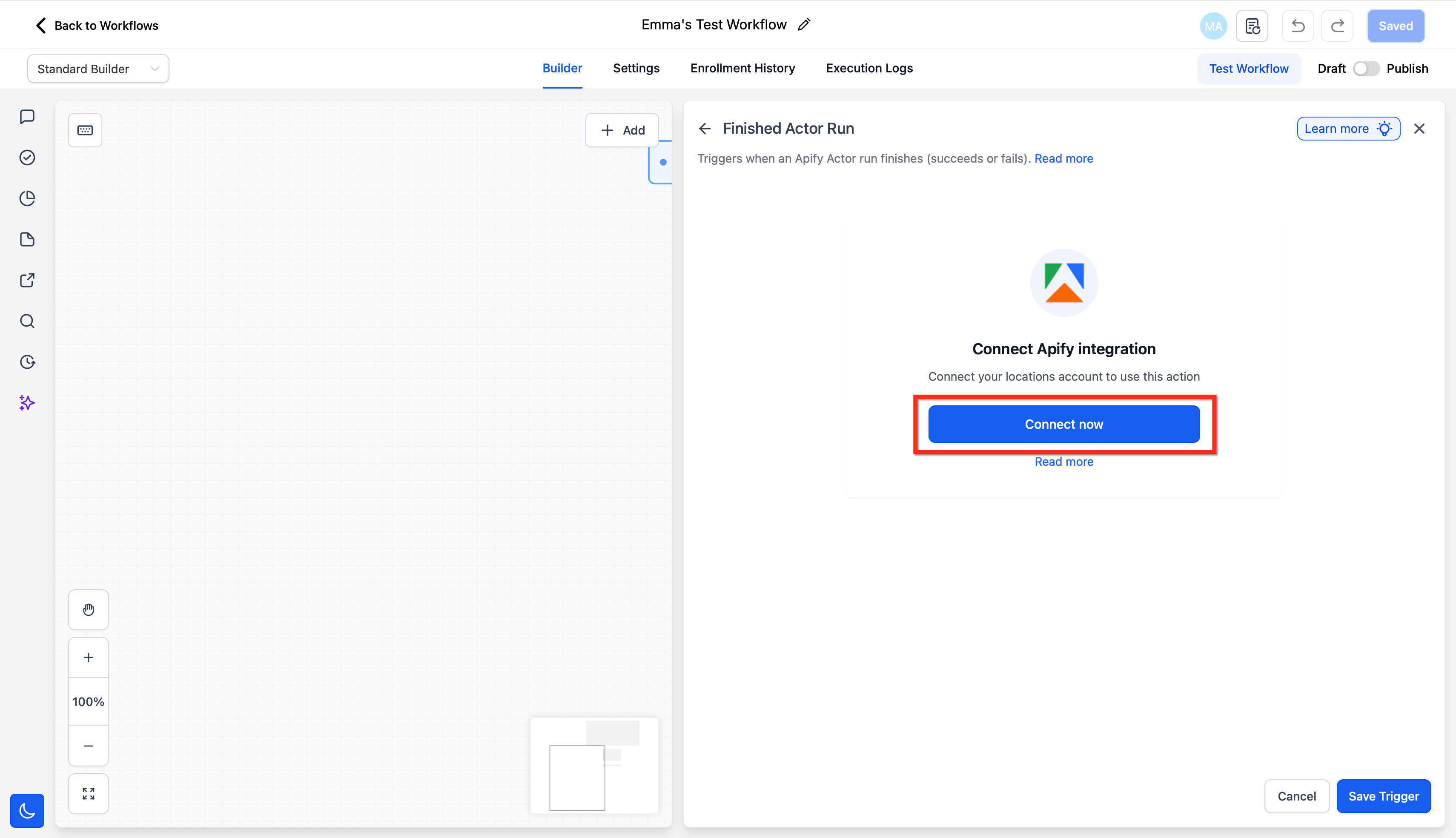
- Add an Apify step and connect the account using the API key, or connect first via Settings > Integrations.
- Select the workflow direction: Apify > HighLevel trigger first or HighLevel > Apify action first.
- Choose the specific Apify trigger or action you need and configure its parameters.
- Insert a Wait step before using Find Last Actor Run, Find Last Task Run, or Fetch Dataset Items to allow the Apify run to finish.
- Run a test, verify the returned data, and publish the workflow when everything works as expected.
06What it looks like in HighLevel
07Settings that matter
- Integrations. Controls connections to external services like Apify; used to store and manage the Apify API key.
- Apify API key. Authorizes HighLevel to send actions to your Apify account and receive trigger notifications.
08Things to know before you rely on it
- Premium workflow usage may apply depending on how the Apify actions or triggers are billed in your HighLevel account.
- Apify charges are separate and based on your Apify subscription.
- Only the listed triggers (Finished Actor Run, Finished Task Run) and actions (Run A Task, Run An Actor, Scrape Single URL, Fetch Dataset Items, Find Last Task Run, Find Last Actor Run) are available.
09If something goes wrong
- No data is returned after an Apify action.. Confirm the Apify run completed successfully, add a Wait step before fetching results, and retest with a small sample.
10How it connects to the rest of HighLevel
- Learn the basics of workflow automation in HighLevel Workflow basics
- Check which workflow plan includes premium features Pricing tiers
- Enable and rebill premium workflow features like Apify Premium billing
- Step by step guide to creating workflows with triggers and actions Getting started
Michael's take

The integration lets the workflow wait for the scrape, fetch the results, and move the contact straight into a campaign without any manual export steps.
If your process only needs occasional manual research, adding an Apify step can add unnecessary complexity. The extra wait step and API key management may outweigh the benefit when the data isn’t a core part of the daily flow.