
01Who this is for
- Sales teams benefit because customers can share screenshots or PDFs right away, reducing back and forth clarification.
- Ecommerce owners gain faster issue resolution as shoppers send product photos or voice complaints without typing long messages.
- Support managers improve context by hearing voice notes, allowing quicker understanding of customer problems.
02Voice notes and attachments, explained
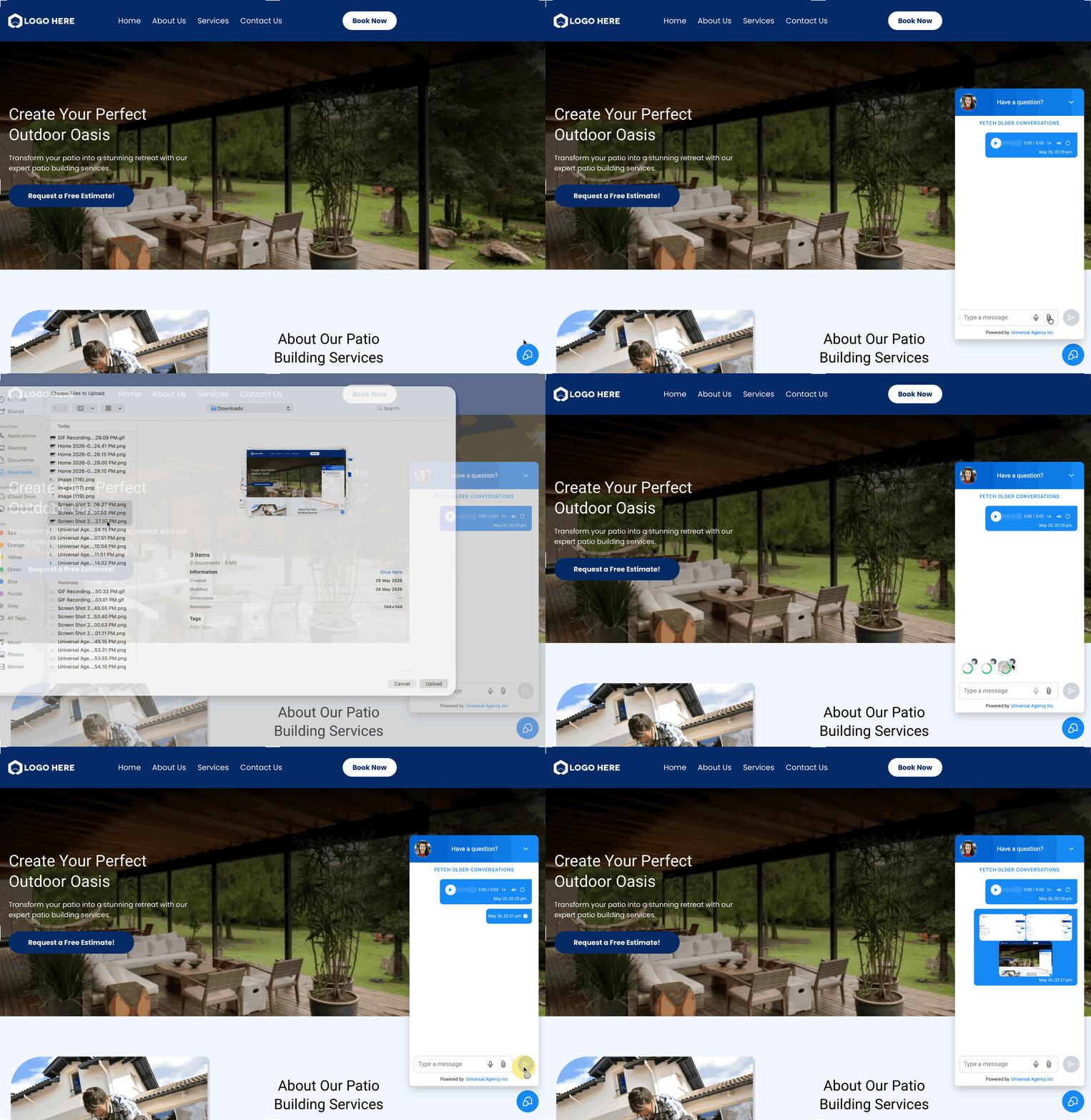
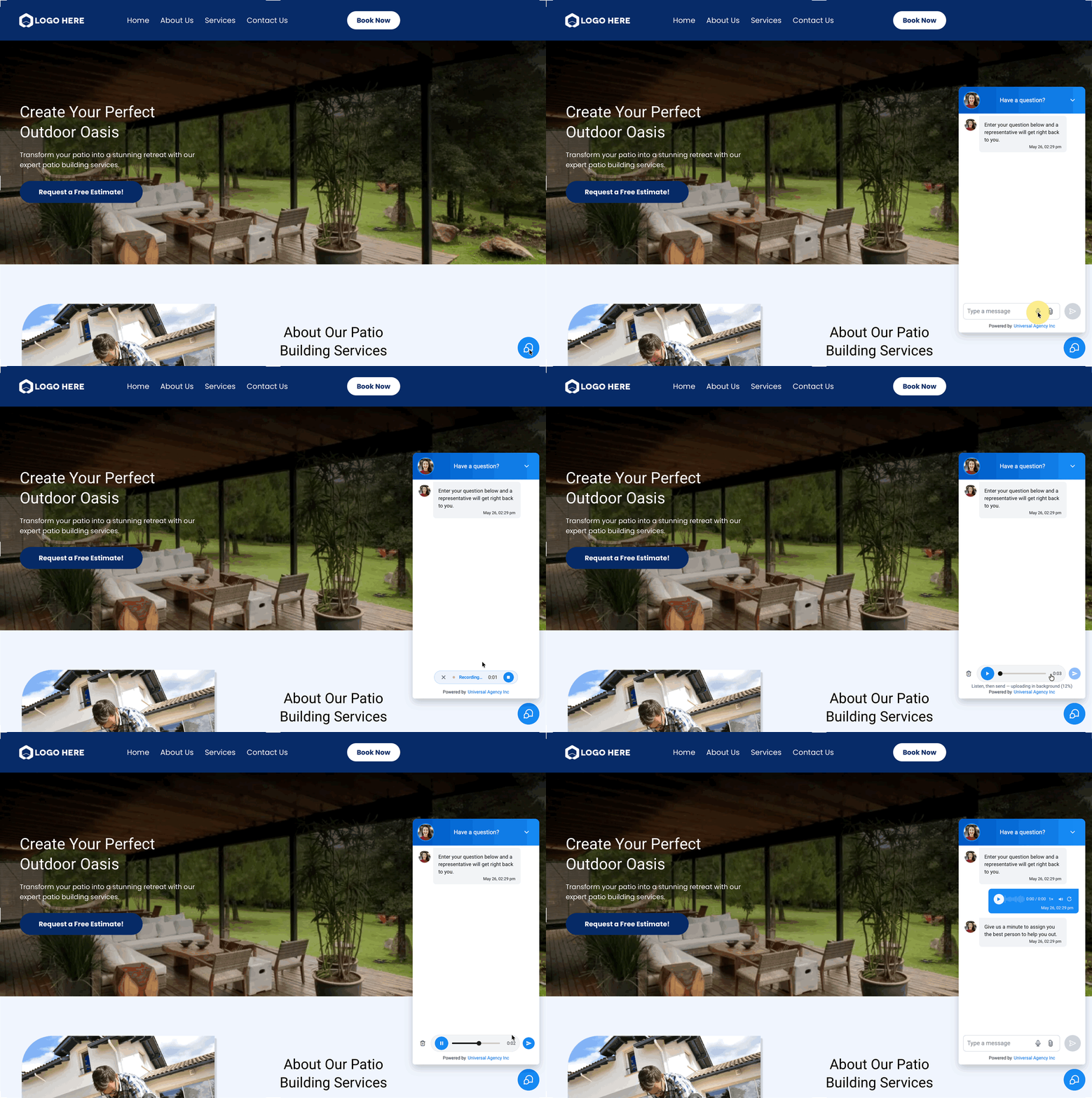
Voice notes and attachments add file and audio capabilities to the HighLevel Live Chat Widget. When a visitor selects a file or records a voice note, the widget shows an upload progress bar or an audio preview before the message is sent. The content arrives in the Conversations inbox, where agents can play audio, view image previews, download files, or save them to the Media Library.
The widget displays separate icons for attachments and the microphone. Visitors may send files without typing any text, and audio cards include play pause waveform speed controls mute and restart. A single message can contain up to five files, each no larger than 25 MB; unsupported types, oversized files, or duplicates are blocked automatically.
If Conversation AI is configured to respond to images or voice notes, the bot can analyze supported JPG JPEG and PNG images or transcribe audio files, then reply with text based on that context.
03How businesses use voice notes and attachments
- Dental practice. Patients can upload X ray images or photos of dental issues through the chat widget. The staff reviews the images in Conversations and can schedule treatment without requesting additional screenshots.
- Real estate agency. Prospects send property photos or floor plan PDFs via the widget. Agents preview the files right away in Conversations and respond with matching listings, eliminating lengthy typed explanations.
- Online tutoring service. Students attach screenshots of homework problems or record a brief voice note describing their difficulty. Tutors listen to the audio or view the image in Conversations and provide targeted assistance.
04The numbers and rules that matter
- Max files per message: Up to 5 files.
- Per file size limit: Up to 25 MB.
- .jpg,.jpeg,.png,.heic,.PDF are supported file types.
- Supported audio formats for AI: OGG, MP3, MP4 audio only, AAC, M4A, MPEG.
- Audio player includes play/pause, waveform, seek, mute, 1×, 1.5×, 2× speed, restart.
05Before you start
- The Live Chat widget must be installed and embedded on the website before visitors can send voice notes or attachments.
06How to set up and use voice notes and attachments in HighLevel
Set up voice notes and attachments in the widget
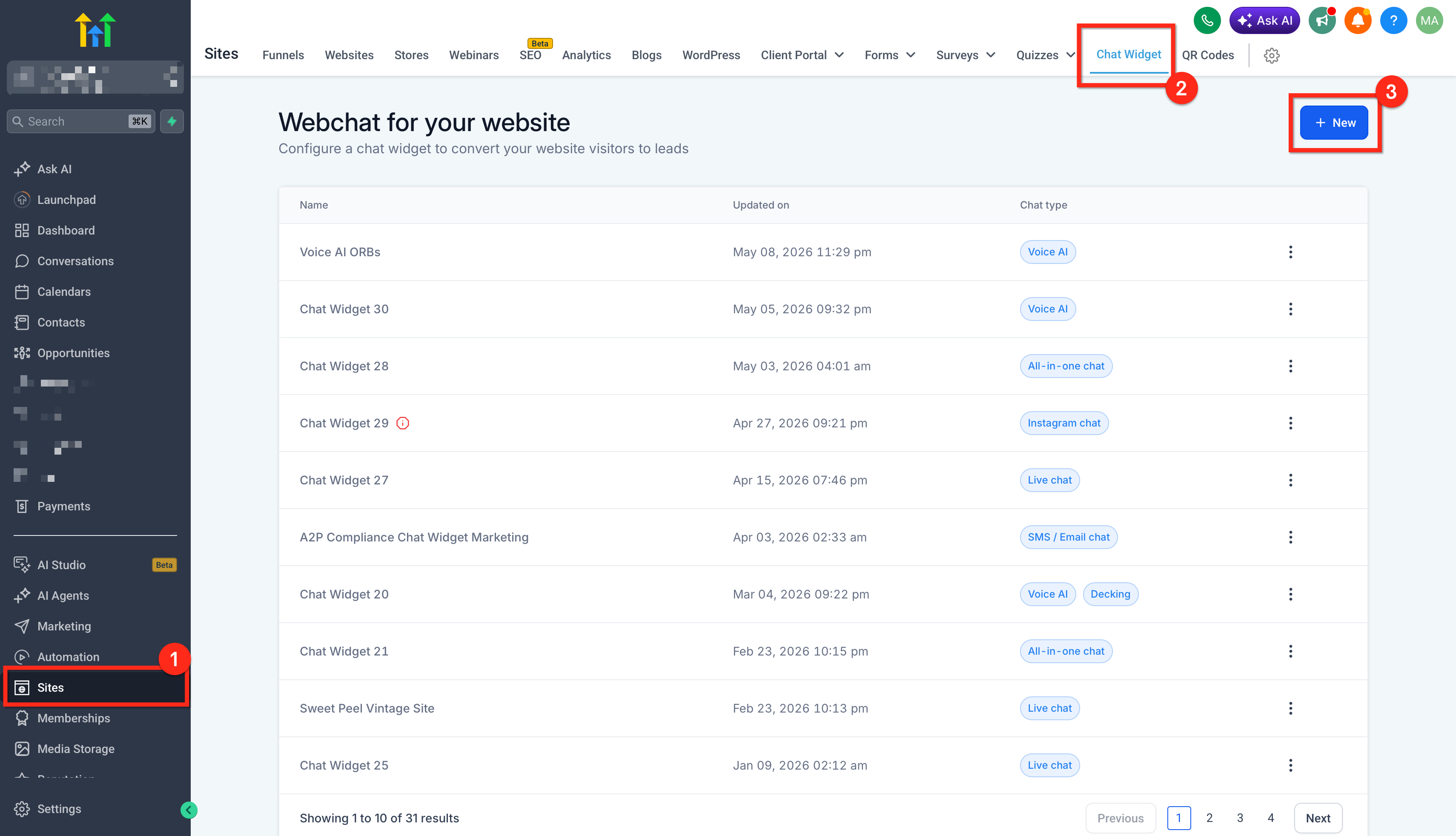
- Navigate to Sites > Chat Widget and create a new Live Chat Widget or open an existing one.
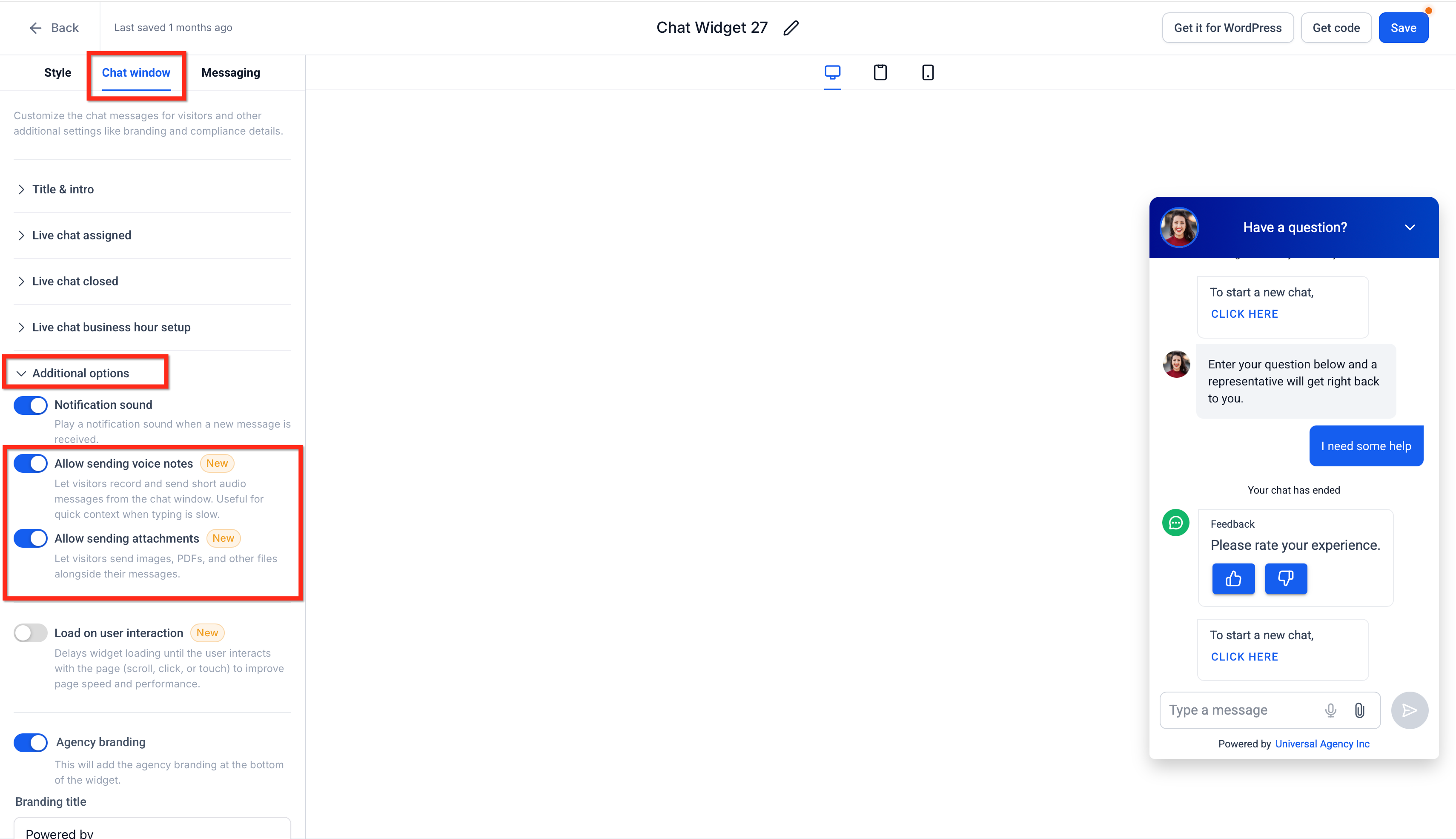
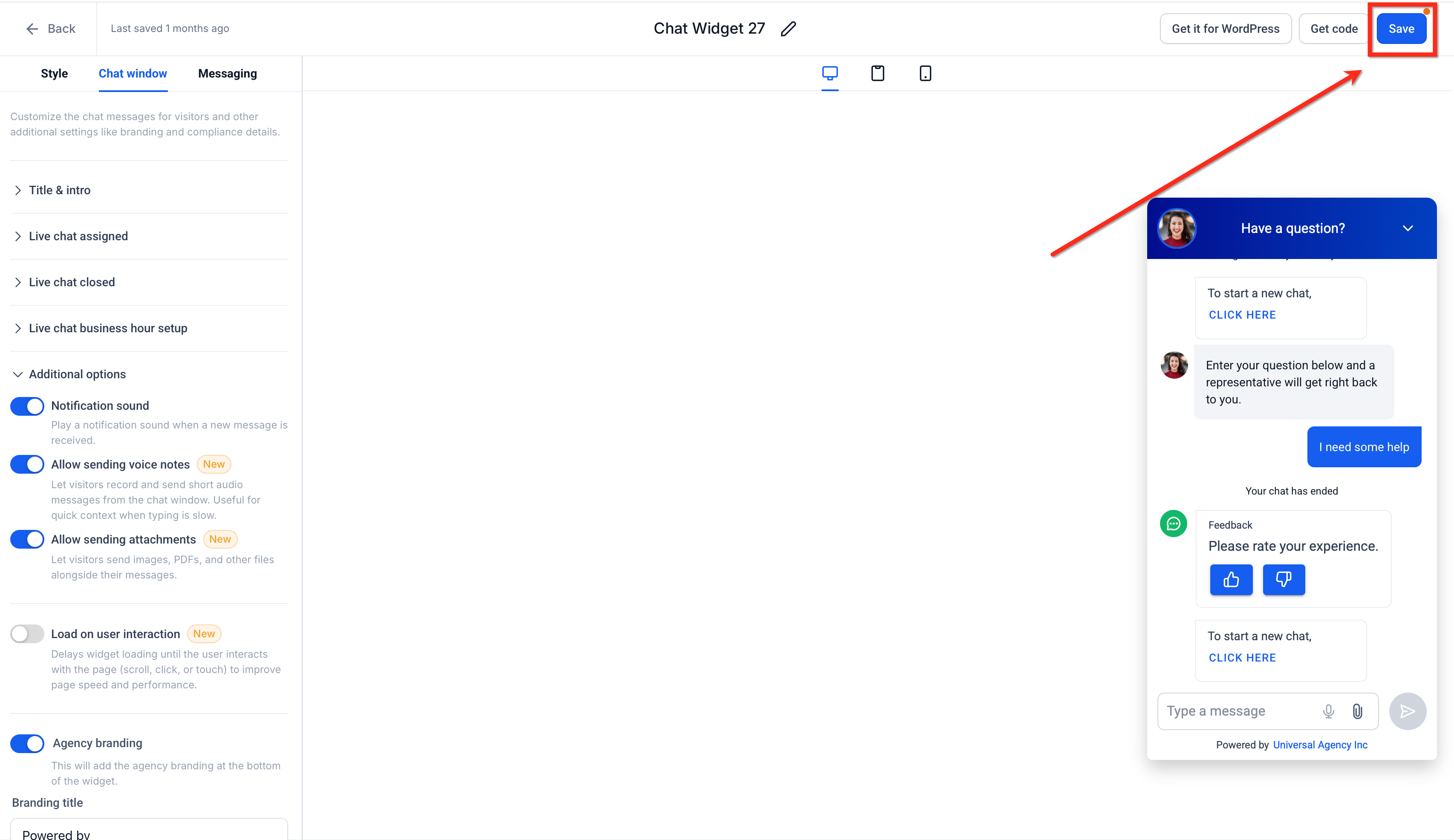
- Open the Chat Window tab and select Additional Options.
- Enable the Allow sending voice notes toggle.
- Enable the Allow sending attachments toggle.
- Save the widget configuration.
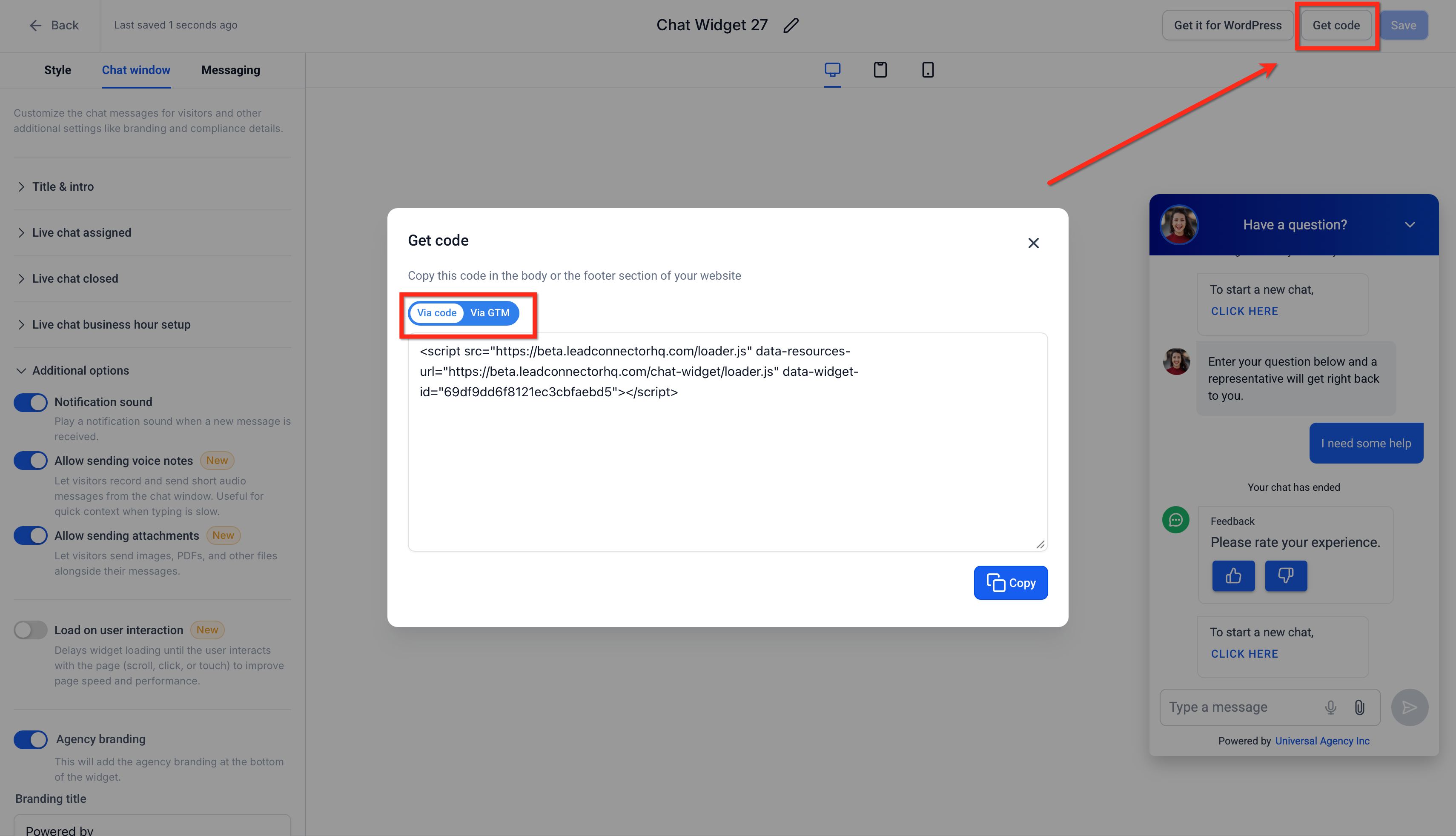
- Copy the widget embed code and add it to the website, or enable the widget via page or funnel settings.
- Visit the site as a visitor and open the chat widget.
- Send a file, an attachment only message, and a voice note, then verify each appears in Conversations.
Upload files from the visitor side
- Open the Live Chat Widget on the website.
- Click the attachment icon or drag supported files onto the chat composer.
- Select the file or files to attach.
- Wait for the upload progress indicator to finish.
- Press Send to deliver the message.
Record and send a voice note
- Open the Live Chat Widget.
- Click or tap the microphone icon.
- Grant microphone permission when the browser prompts.
- Record the voice note.
- Play the preview to review the audio.
- Click Send to submit the voice note.
Enable Conversation AI responses for images and voice notes
- Navigate to AI Agents > Conversation AI > Agent List.
- Open the bot’s menu via the three dots and choose Edit.
- In Bot Settings, turn on Images and/or Voice Notes under Also allow this bot to respond to.
- Save the changes.
07What it looks like in HighLevel
08Settings that matter
- Allow sending voice notes. Controls whether visitors can record and send voice notes from the Live Chat Widget.
- Allow sending attachments. Controls whether visitors can attach files, images, or PDFs in the Live Chat Widget.
- Also allow this bot to respond to → Images. Enables Conversation AI to analyze supported image files and generate replies based on their content.
- Also allow this bot to respond to → Voice Notes. Enables Conversation AI to transcribe voice notes and use the transcript to create a response.
09Things to know before you rely on it
- Up to five files can be attached in a single message.
- Each file may be no larger than 25 MB.
- Unsupported file types, oversized files, or duplicate selections are blocked automatically.
- JPG JPEG and PNG files display inline; HEIC and PDF files appear as downloadable filenames.
10If something goes wrong
- File is too large. Compress the file or choose a smaller version.
- File type is not supported. Convert the file to a supported format before uploading.
- Duplicate file warning appears. Remove the duplicate and attach a different file.
- Upload is slow. Wait for the progress indicator to complete or try again on a stronger connection.
- Drag and drop does not work. Use the attachment icon instead of dragging the file.
- Microphone permission is denied. Allow microphone access in the browser settings and try recording again.
- AI does not respond to an image or voice note. Confirm the correct AI Agent setting is enabled for Images or Voice Notes.
11How it connects to the rest of HighLevel
- Install and configure the HighLevel chat widget Chat widget installation
- Track chat widget activity with Google Analytics 4 GA4 tracking
- Use the All in One Chat widget for multiple pages All in One widget
Michael's take

Voice notes and attachments are handy, but if you never need richer media from visitors, you can skip it. Small scale shops that rely only on quick text chats may not need the extra setup.