
01Who this is for
- Founders who need a voice based lead capture tool can place the widget on high intent pages to gather contact details without forms.
- Customer support teams can offer instant voice assistance inside the chat widget, eliminating the need for phone calls.
- Marketing managers can test real time voice interactions during the Labs phase to fine tune AI prompts before a full rollout.
02Voice AI chat widgets, explained
The Voice AI Chat Widget adds a voice only mode to the standard chat widget. Visitors click a microphone icon, grant browser permission, and speak directly to your configured AI agent. The agent answers in real time and can collect information verbally. The widget appears wherever you embed the generated script and follows the same placement rules as other chat widgets.
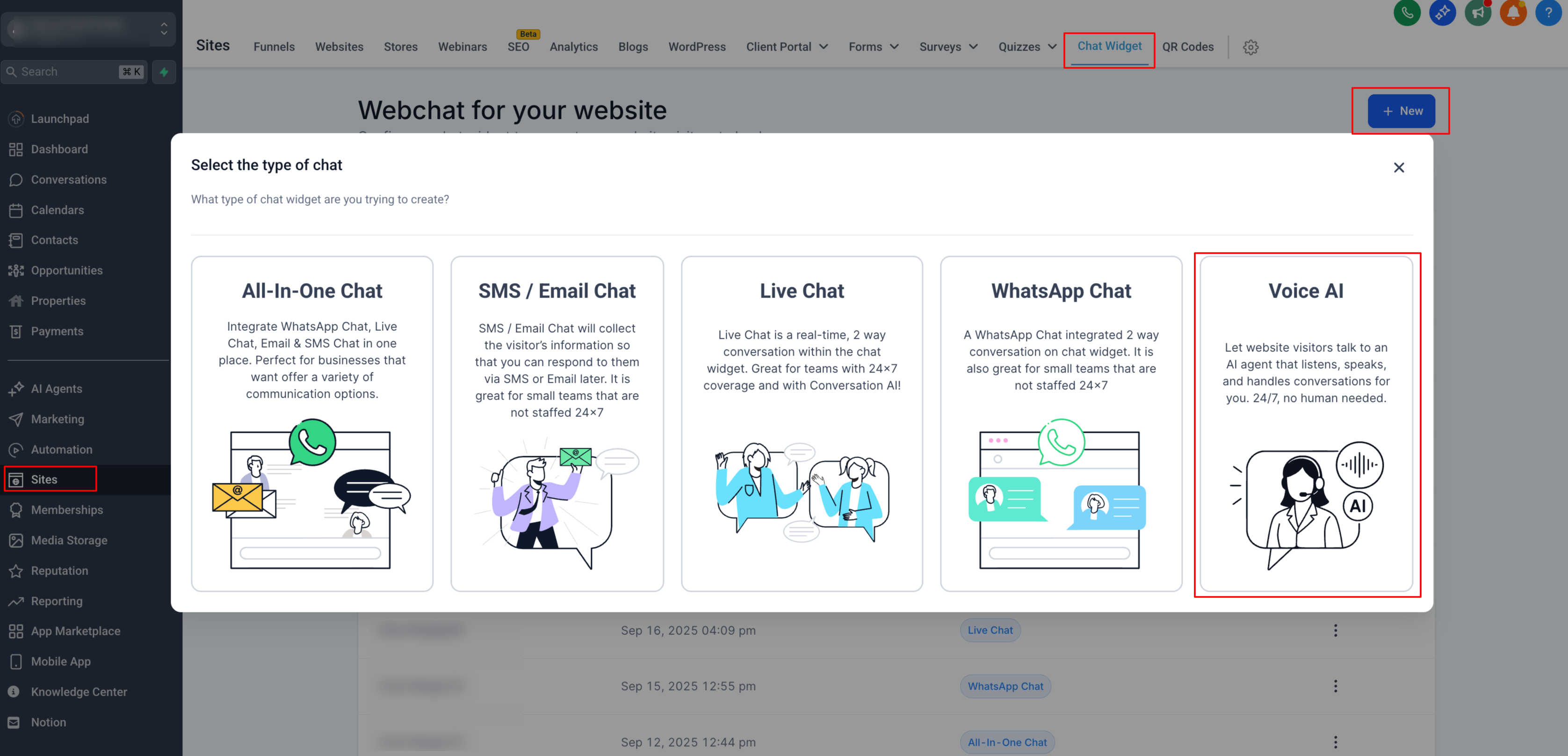
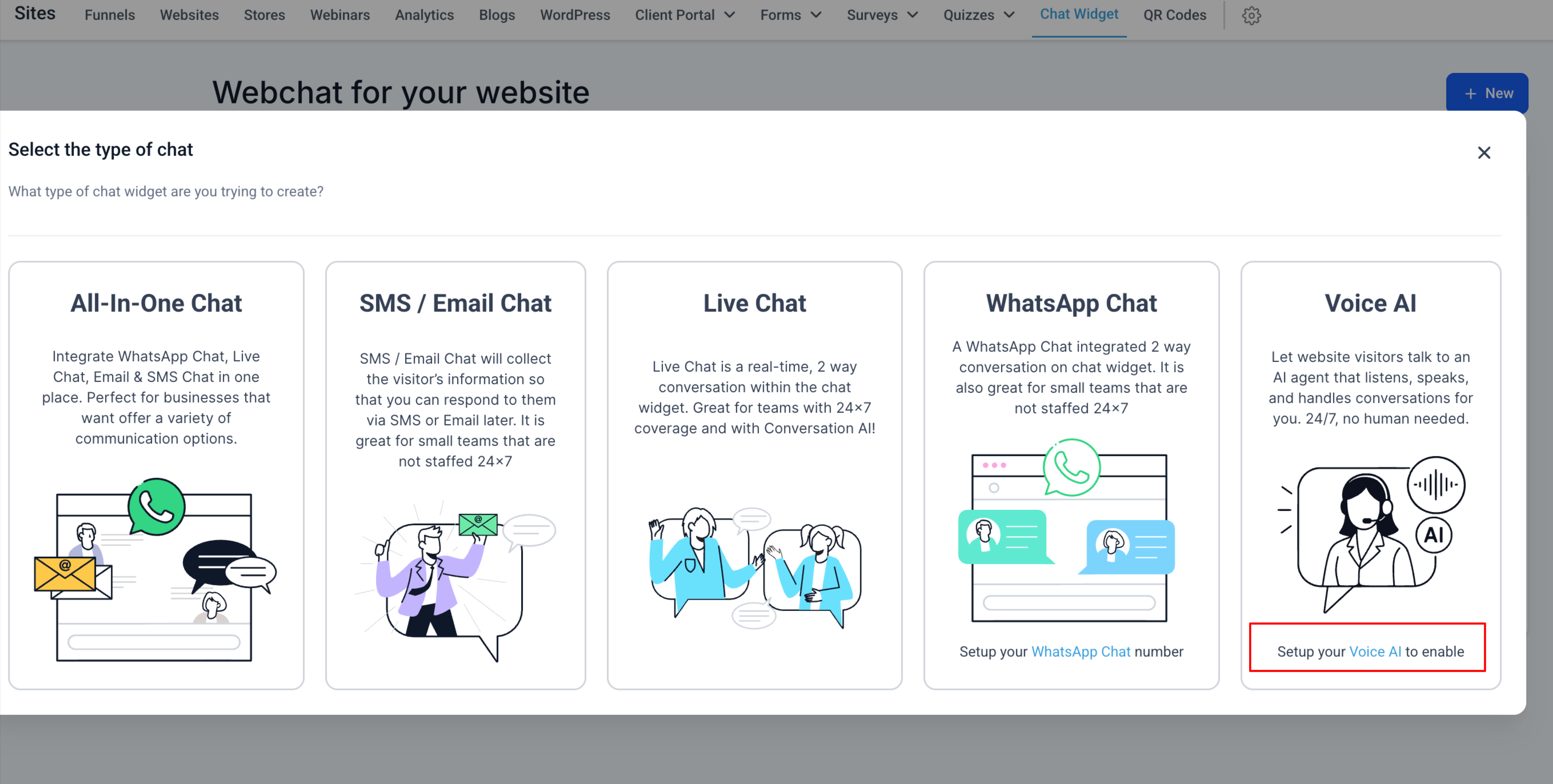
You find the feature under Settings > Labs > subaccount tab. After enabling it, a Voice AI chat type becomes selectable in Sites > Chat Widgets. The widget supports all existing Voice AI actions except Call Transfer and automatically displays a non recording notice.
03How businesses use Voice AI chat widget
- Real estate agency. The agency creates a Voice AI agent named “Property Guide” and embeds the widget on property listing pages. Prospects can ask for details about a home by speaking, and the AI captures the visitor’s name and email for follow up.
- SaaS startup. A startup configures a Voice AI agent called “Sales Assistant” and places the widget on its pricing page. Visitors start a voice chat, provide company information verbally, and the AI saves the lead directly in the platform.
- Healthcare clinic. The clinic sets up an agent titled “Appointment Bot” and adds the widget to its appointment request page. Patients describe their symptoms by voice, and the AI captures the details for the clinic’s scheduling process.
04The numbers and rules that matter
- You can create up to 100 Voice AI Agents.
- If a user connects and disconnects 10 times within 60 seconds, a reCAPTCHA challenge appears.
05Before you start
- A Voice AI agent must be created and the Voice AI setup completed before the widget can be configured.
06How to set up and use Voice AI chat widget in HighLevel
Enable the Voice AI Chat Widget in Labs
- Open Settings and select Labs, then go to the subaccount tab.
- Locate the option labeled Voice AI Chat Widget.
- Turn the toggle ON to activate the feature.
Configure the Voice AI Chat Widget
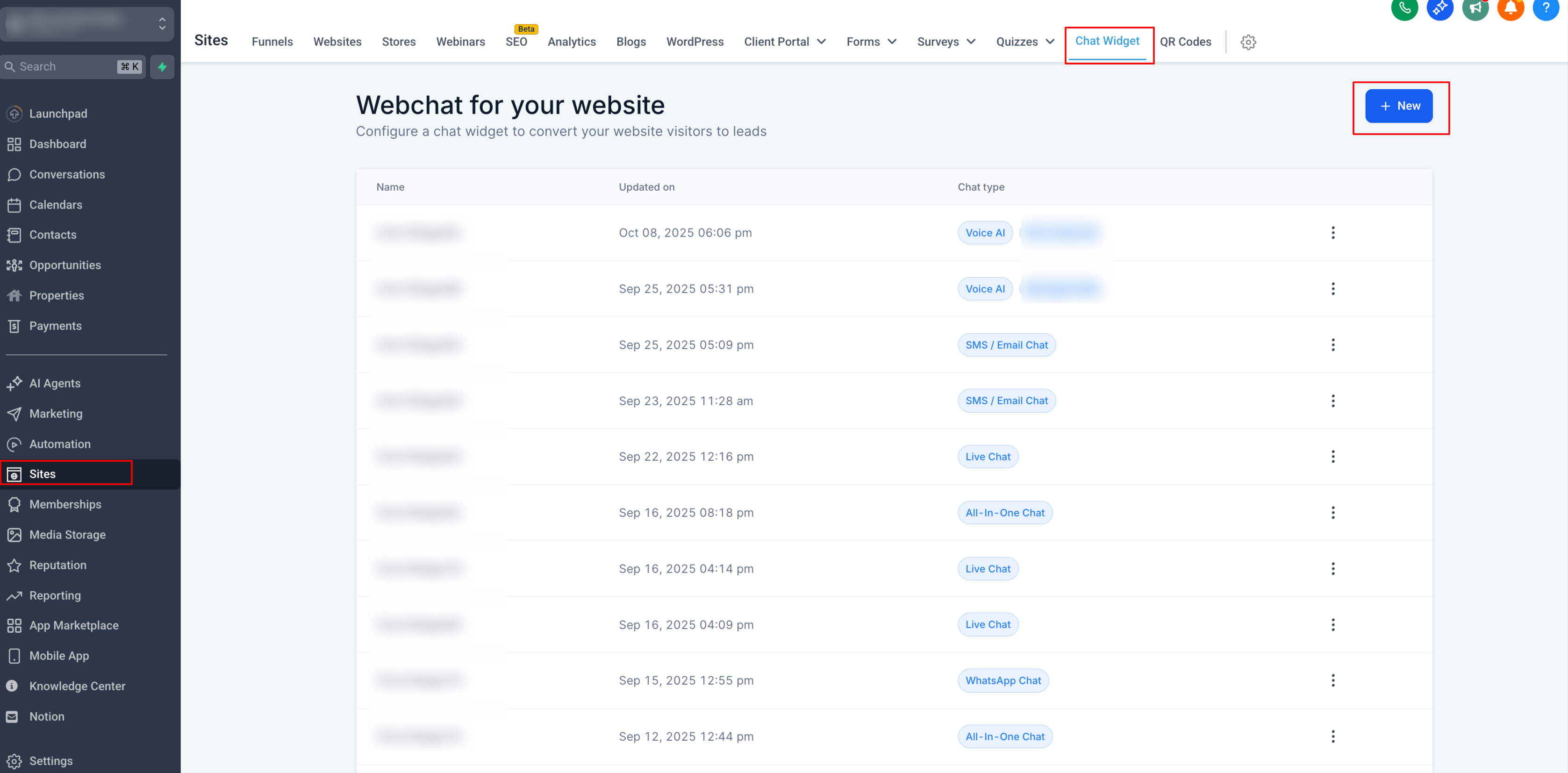
- Navigate to Sites and open the Chat Widgets section.
- Select an existing widget or start a new one.
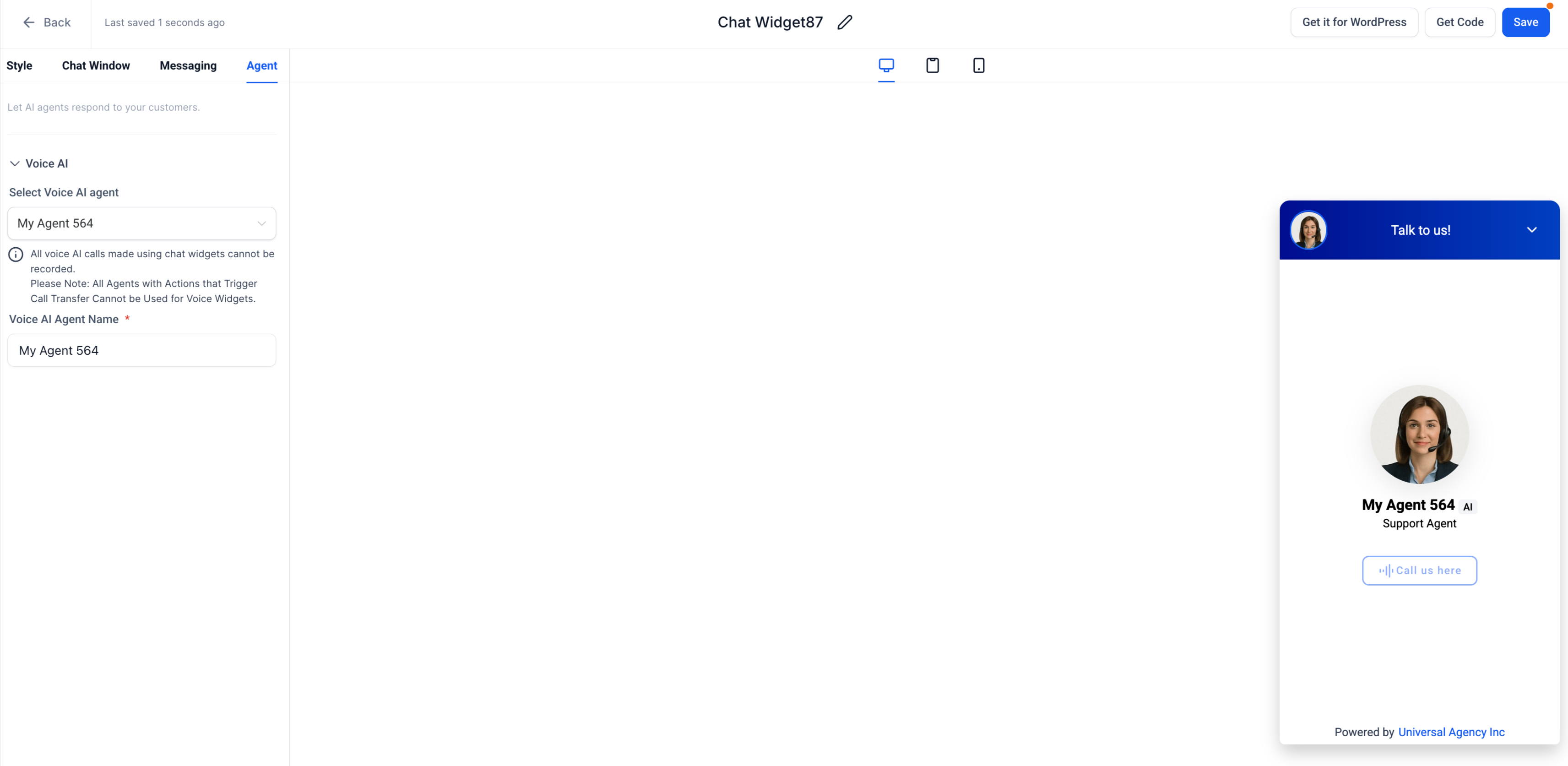
- In the Agent tab, choose Voice AI Agent as the type.
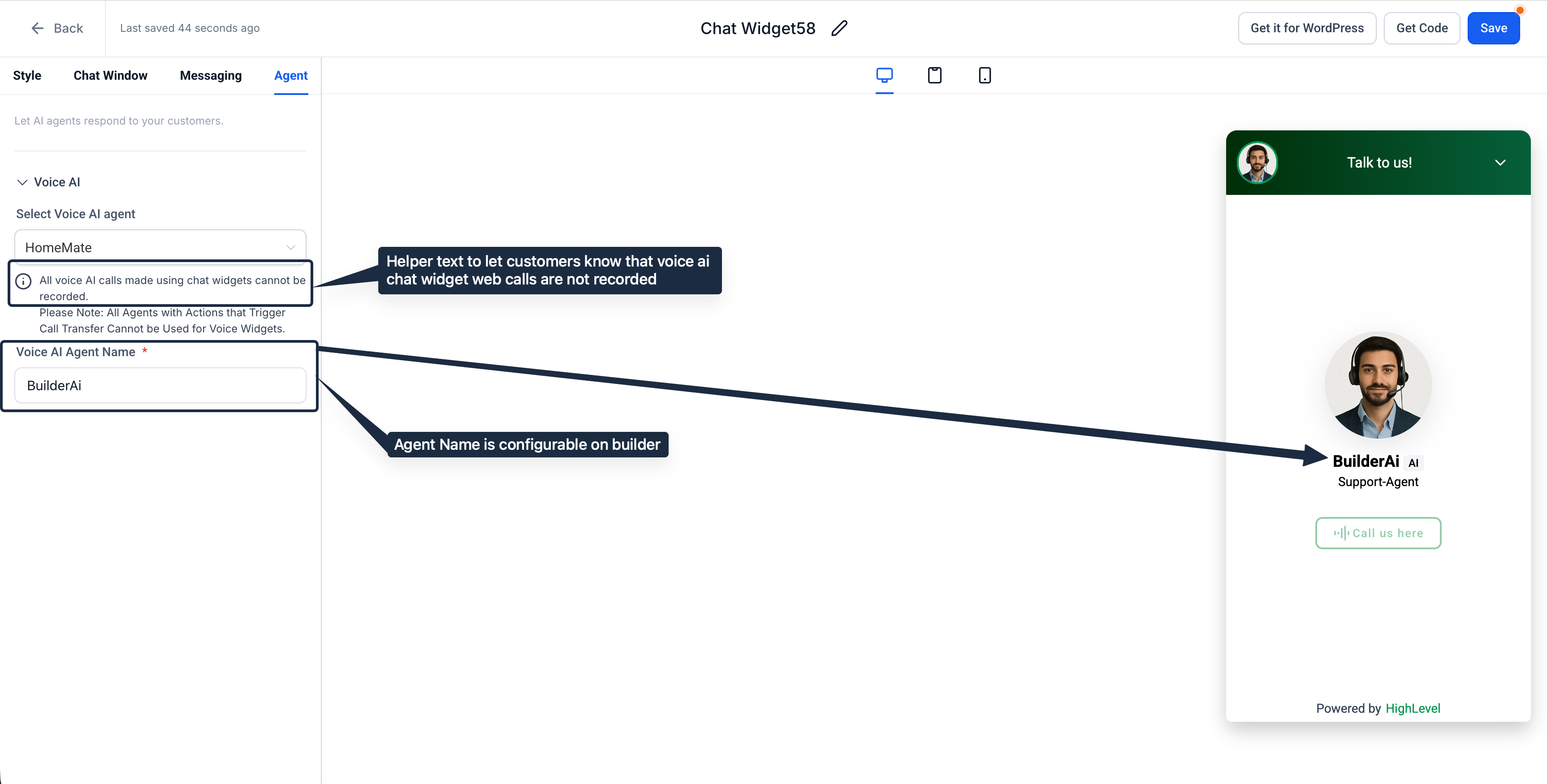
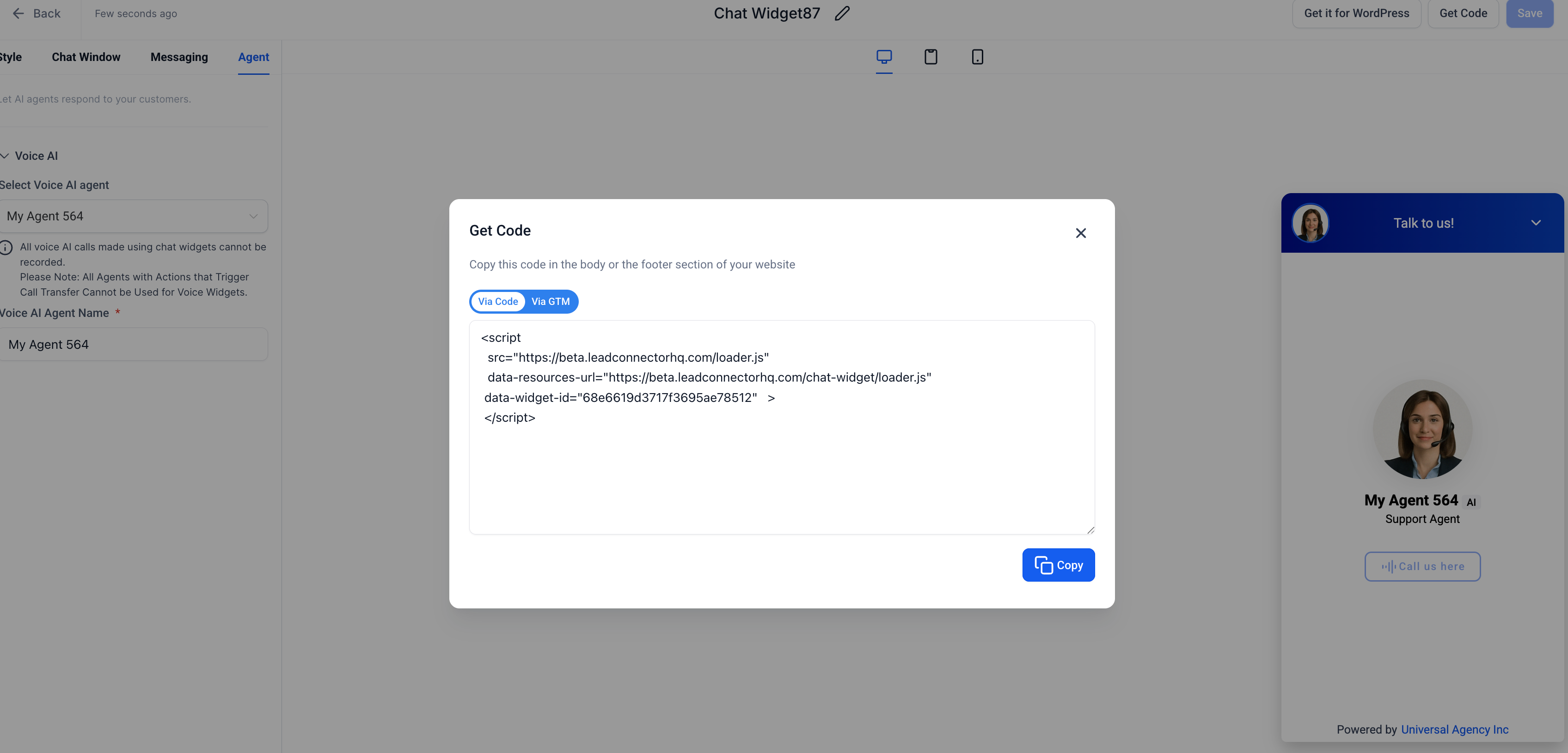
- Enter the desired display name in the Voice AI Agent Name field.
- Click Save to store the configuration.
Add the widget to a website or funnel
- In the Chat Widget builder, click the Get Code button.
- Copy the generated <script> tag.
- Paste the script into the Header or Footer Tracking area of the target site or funnel.
- Publish or update the page to make the widget visible.
Connect a Chat Widget from Voice AI Deploy
- Open AI Agents > Voice AI and select the desired agent.
- Switch to the Deploy tab.
- In the Widgets section, either pick an existing widget or click Create new widget.
- To edit a linked widget, click its chip to open the editor in a new tab.
- Click Save to apply the deployment changes.
How visitors interact with the widget
- Visitors see a microphone icon in the chat widget.
- Clicking the icon starts a live voice session.
- The browser prompts for microphone access; visitors must grant permission.
- The AI agent responds in real time; visitors can mute, unmute, or end the call.
- If a visitor connects and disconnects ten times within sixty seconds, a reCAPTCHA challenge appears.
07What it looks like in HighLevel
08Settings that matter
- Voice AI Chat Widget. Controls whether the voice chat option appears in the chat widget builder.
- Voice AI Agent Name. Defines the name shown to visitors when the voice session starts.
09Things to know before you rely on it
- You can create up to 100 Voice AI agents.
- Call Transfer actions are not supported in this widget.
- If a user connects and disconnects ten times within sixty seconds, a reCAPTCHA challenge is triggered.
- The feature is currently in Labs and must be enabled before general use.
10If something goes wrong
- Voice session not starting. Ask the user to allow microphone access when the browser prompt appears.
- No audio output. Check that speakers are unmuted and the device output is active.
- Widget not appearing. Re copy the <script> tag from the builder and re insert it in the site’s tracking code area.
- Frequent reCAPTCHA prompts. Reduce the speed of reconnection attempts to avoid triggering the limit.
- Unable to record sessions. Inform users that call recording is not available for this widget.
11How it connects to the rest of HighLevel
- Installing HighLevel chat widget and configuring its workflow Install chat widget
- Add HighLevel's chat widget to a Wix website Wix integration
- HighLevel pricing and plans Pricing
Michael's take

The Voice AI Chat Widget is useful only if you need a browser based voice channel without phone numbers. If your audience prefers typing or you already have a Phone System, skip it.
It works best on pages where visitors are ready to talk, like contact or demo request pages. Test the microphone flow on a few browsers before rolling it out to the whole site.