
01Who this is for
- Customer support managers who need to inform visitors when live agents are available.
- Small ecommerce owners who want to gather lead information after normal business time.
- Service based businesses that operate on set schedules and want to manage chat expectations.
02Business office hours, explained
The feature lets you define when the live chat is considered open or closed. You set the hours for each day of the week and choose a message that appears when the chat is closed. The widget also closes automatically after the contact form is submitted.
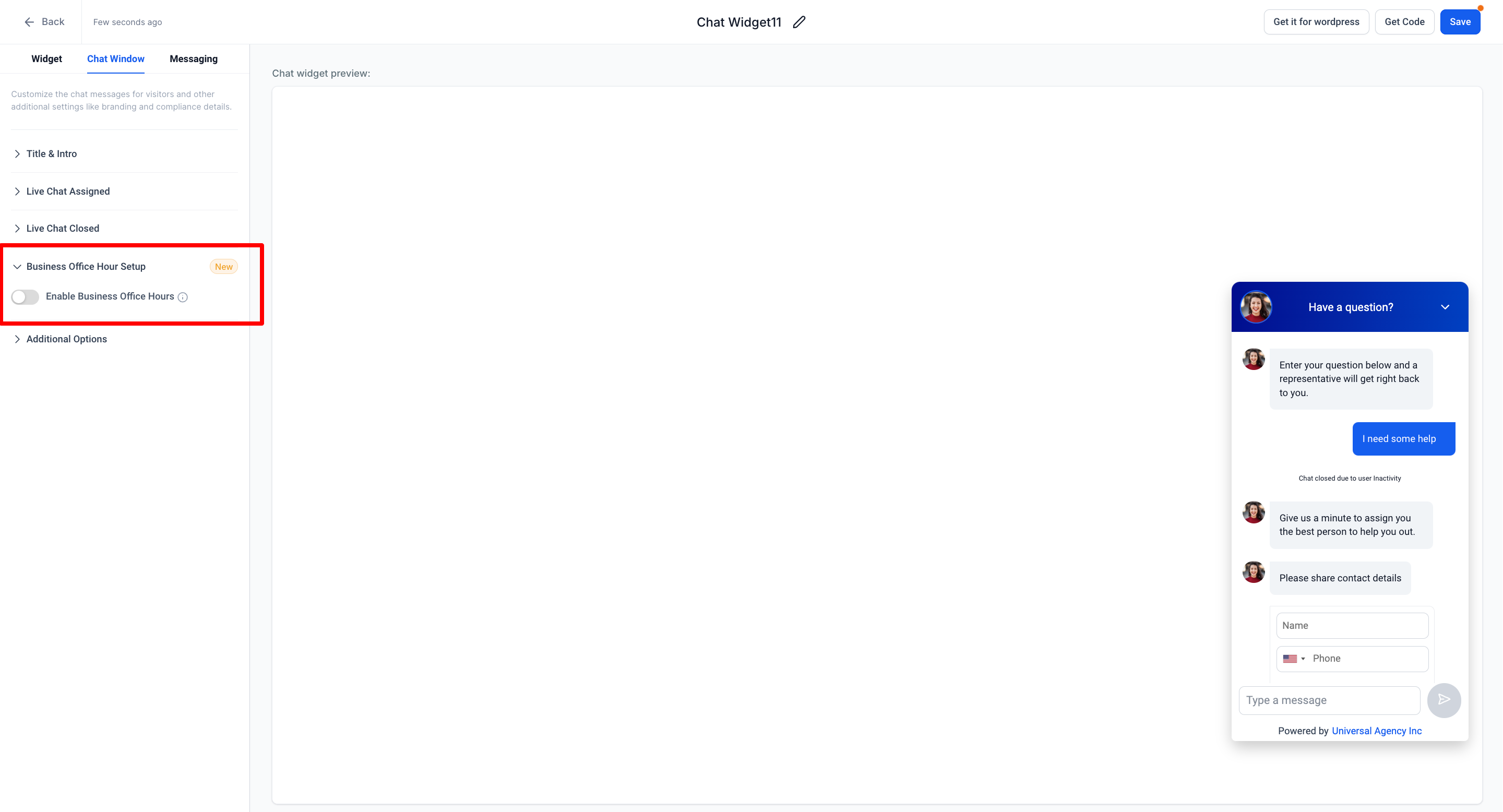
Configuration lives under Sites > Chat Widget. After selecting the Live chat type, you go to the Chat Window tab and enable Business Office Hour Setup. The system uses the business location timezone to compare visitor time.
03How businesses use business office hours
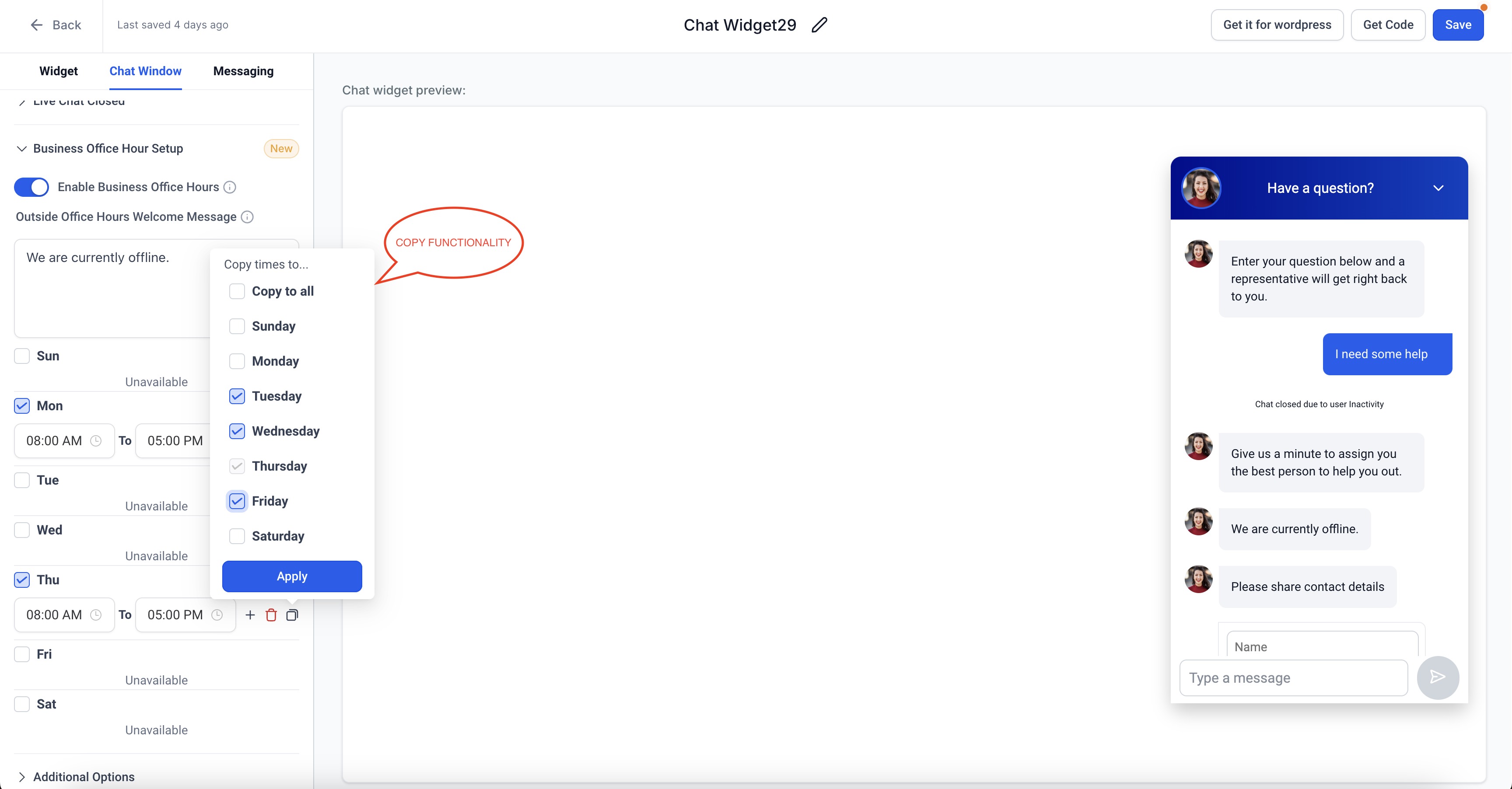
- Real estate agency. The agency enables Business Office Hour Setup, adds morning and afternoon windows for each weekday, and writes an offline message that invites prospects to leave their contact details. When a visitor chats after hours, the form appears and the chat ends after submission.
- Dental practice. The practice copies the same time range to Monday through Friday, disables overlapping slots, and customizes the outside office hours welcome text to note that appointments are booked online. Visitors see this message outside the set hours and can submit the form.
- Online coaching business. The coach sets weekend availability, copies those hours to Saturday and Sunday, and updates the after hours welcome message to direct users to a scheduling link. The widget follows the coach’s timezone and automatically closes after the form is sent.
04How to set up and use business office hours in HighLevel
Set up business office hours for the chat widget
- Navigate to Sites > Chat Widget.
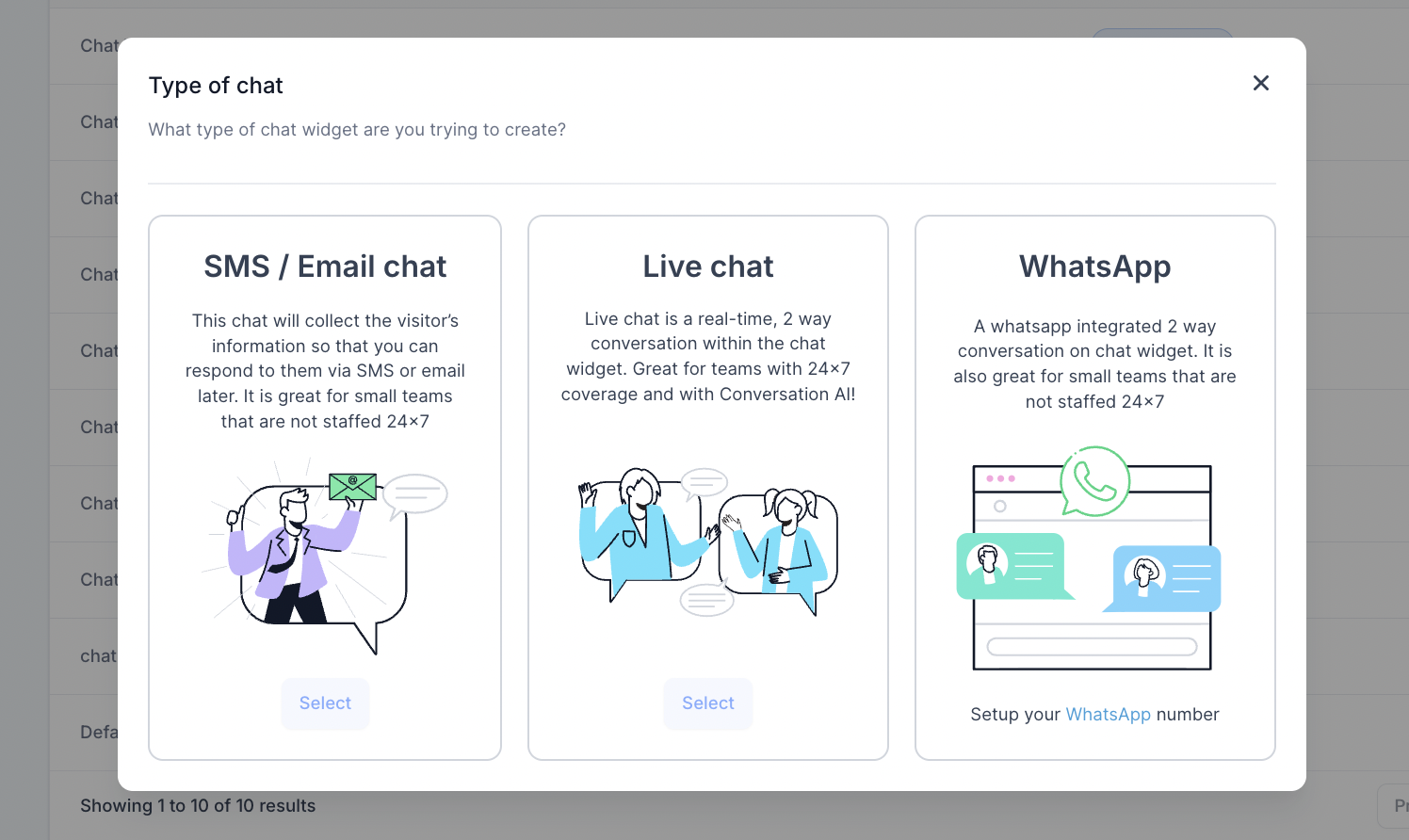
- Choose Live chat as the widget type.
- Open the Chat Window tab in the widget settings.
- Turn on Business Office Hour Setup.
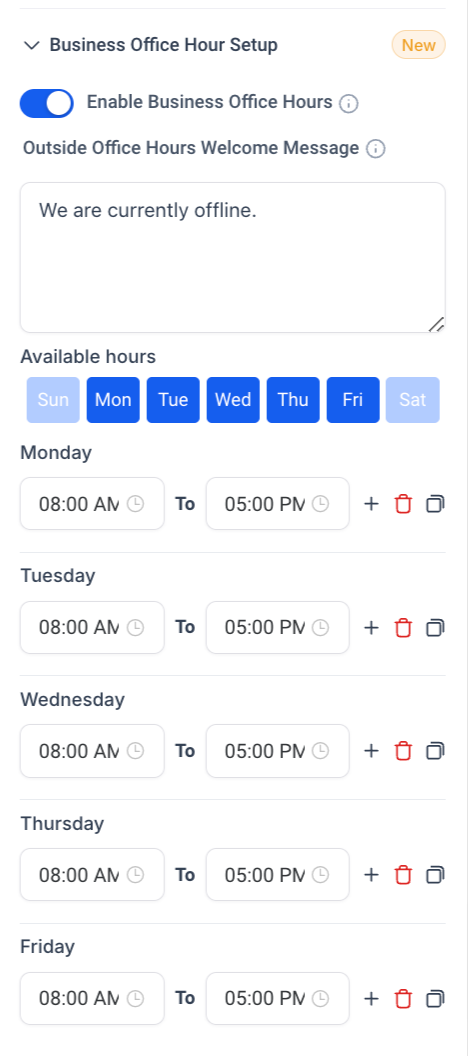
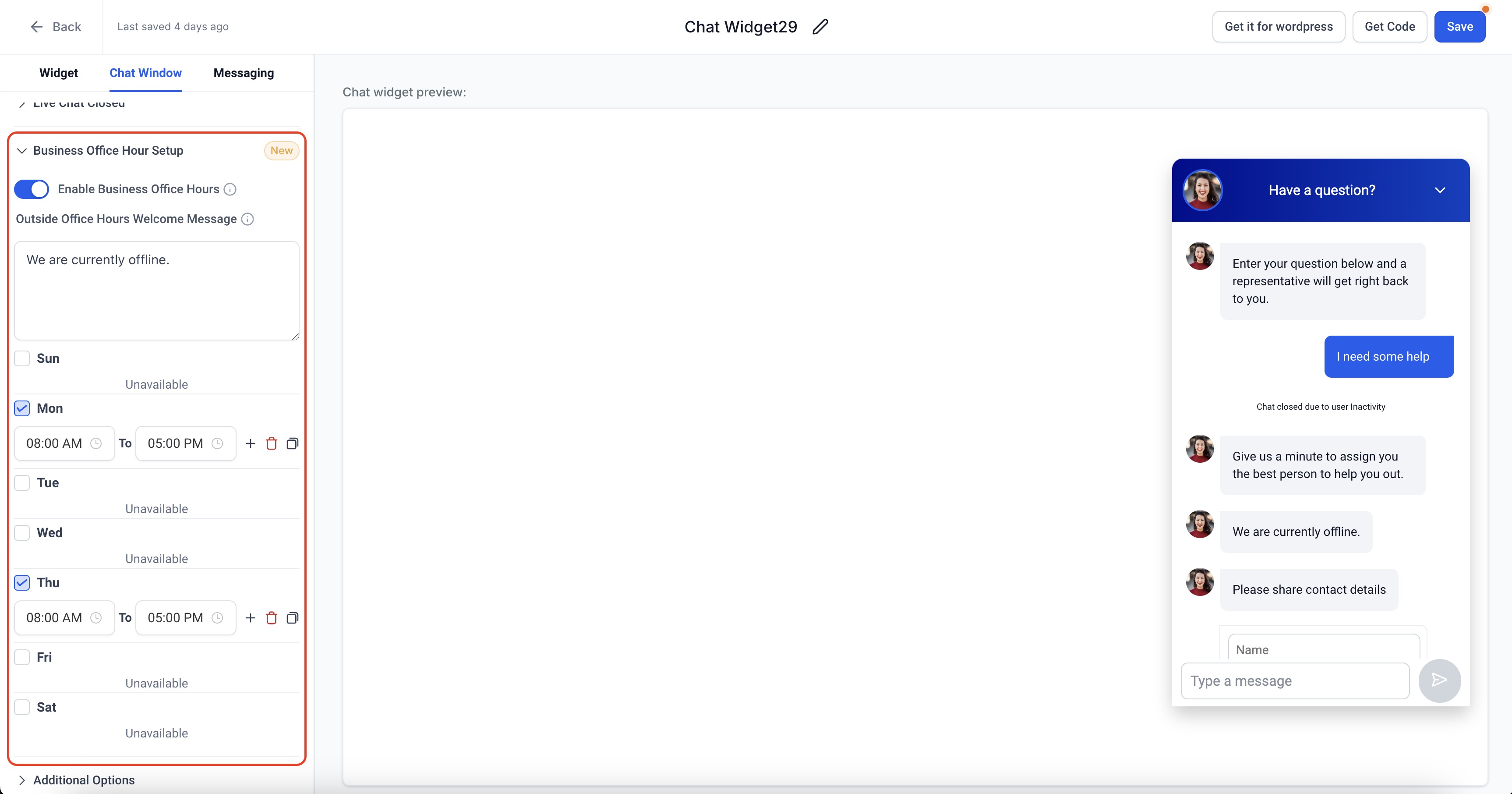
- Edit the Outside Office Hours Welcome Message if a custom text is needed.
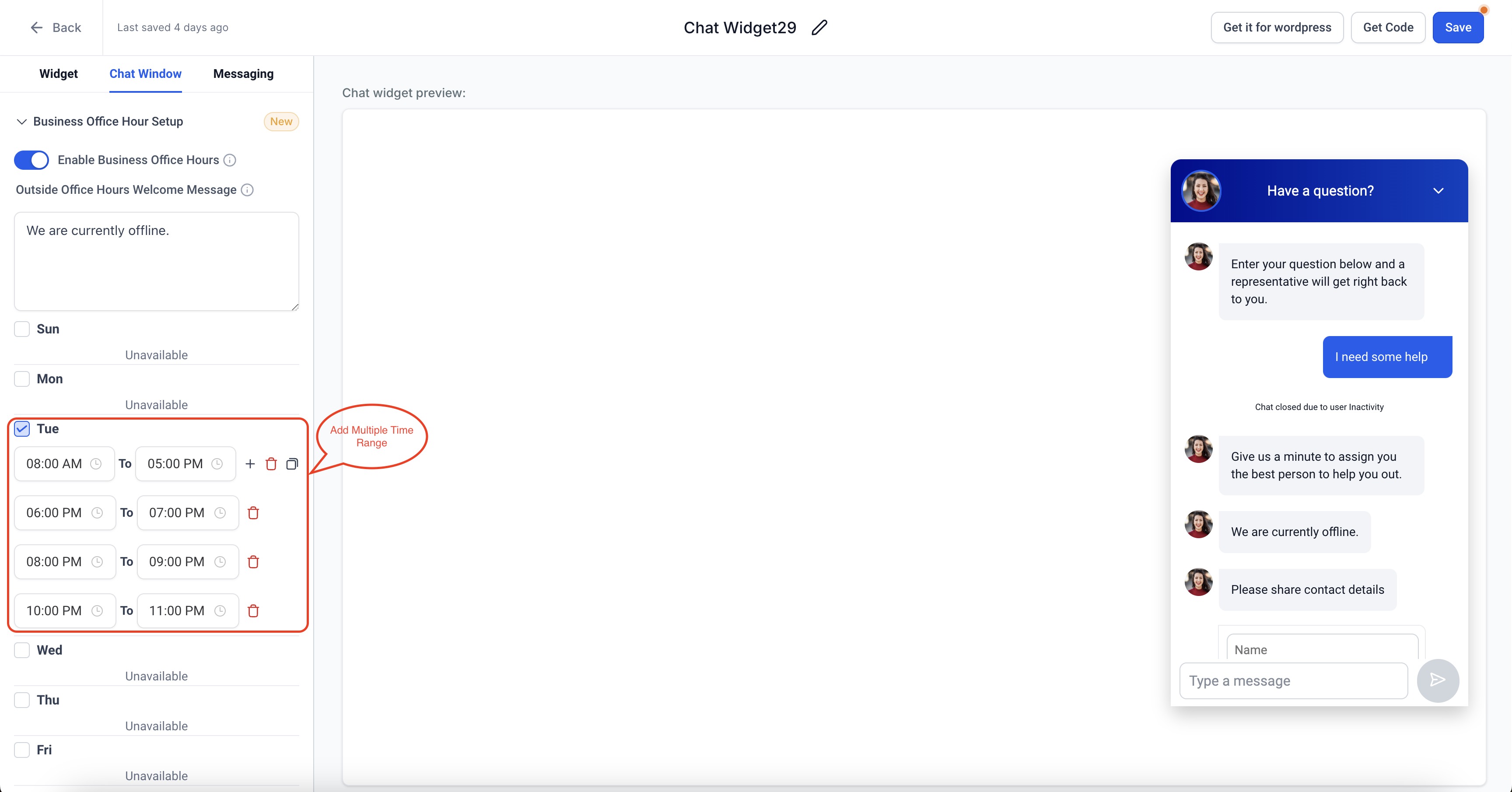
- Create time ranges for each day, making sure no ranges overlap.
- Use the copy function to apply the same hours to additional selected days.
- Verify that the timezone reflects the business location.
- When the contact form is submitted, the chat window closes automatically.
05What it looks like in HighLevel
06Settings that matter
- Business Office Hour Setup. Activates the ability to define open and closed periods for the chat widget.
- Outside Office Hours Welcome Message. Specifies the text shown to visitors when they chat outside the defined business hours.
- Notification Sound. When enabled, plays a sound for visitors when the outside office hours message appears.
07Things to know before you rely on it
- Time ranges cannot overlap for any day.
- Hours can be set for each day from Sunday to Saturday.
- The default outside office hours message is "We are currently offline" if not edited.
08How it connects to the rest of HighLevel
- Install the chat widget before configuring office hours Install chat widget
- Track chat widget activity with Google Analytics 4 GA4 tracking
- Learn about the All in One Chat widget for broader use cases All in One Chat
Michael's take

Michael ReimerFounder of CRM Pros, HighLevel Commander and Certified Admin
Business office hours in HighLevel give a tiny operation a professional front desk.
Don’t forget to keep your time blocks from overlapping or the widget will reject them.
Get More InformationOpens on HighLevelPublished November 2, 2026 · Updated November 16, 2026