
01Who this is for
- Founders who need to onboard large client lists quickly and keep data consistent.
- Operations managers responsible for maintaining clean Custom Object records across teams.
02Bulk import custom object records, explained
The bulk import feature accepts a CSV file and processes each row as a Custom Object record. Depending on the selected mode, the import will add new records, modify existing ones, or handle both scenarios in a single run.
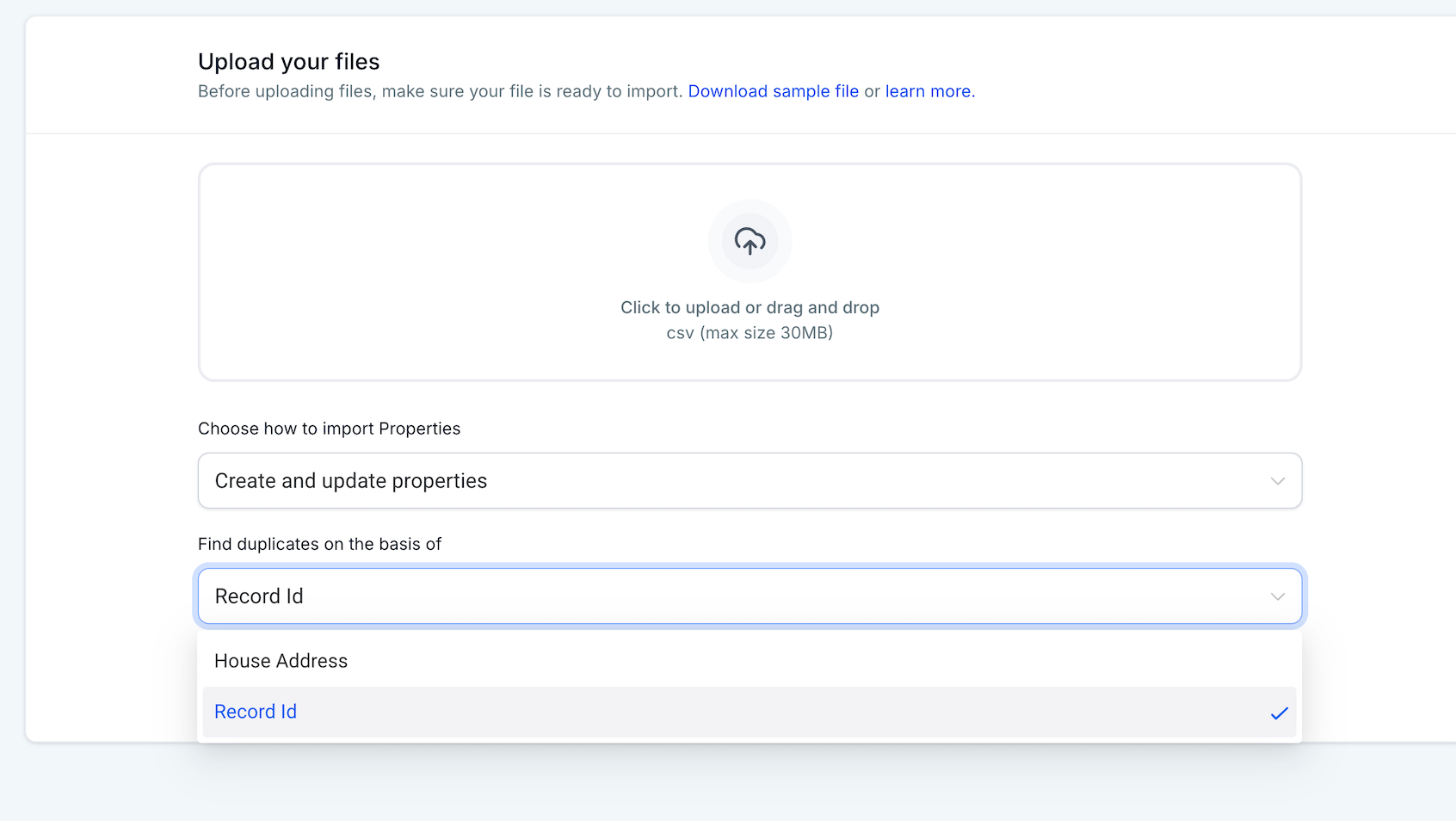
During the import you can specify a unique field for deduplication, decide whether blank values should overwrite existing data, and watch the operation from the Bulk Actions > Custom Objects screen. The page lets you pause, resume, or cancel the job and view detailed statistics and row level messages.
03How businesses use bulk import custom object records
- Real estate agency. The agency prepares a CSV of property listings and uploads it to create new Custom Object records. By selecting the address field as the unique identifier, duplicate listings are avoided. The team can pause the import if a data issue arises.
- Fitness studio chain. The chain exports member data from another system and runs an Update only import to refresh contact details. Enabling "Update empty values" lets blank cells clear outdated information while required fields stay protected.
- SaaS startup. The startup imports a mixed CSV containing new and existing subscription records, using the Create + Update mode. Unique field deduplication matches existing subscriptions, preventing duplicate entries during onboarding.
04Before you start
- A correctly formatted CSV file with column headers that match the Custom Object fields.
05How to set up and use bulk import custom object records in HighLevel
Set up custom object bulk import
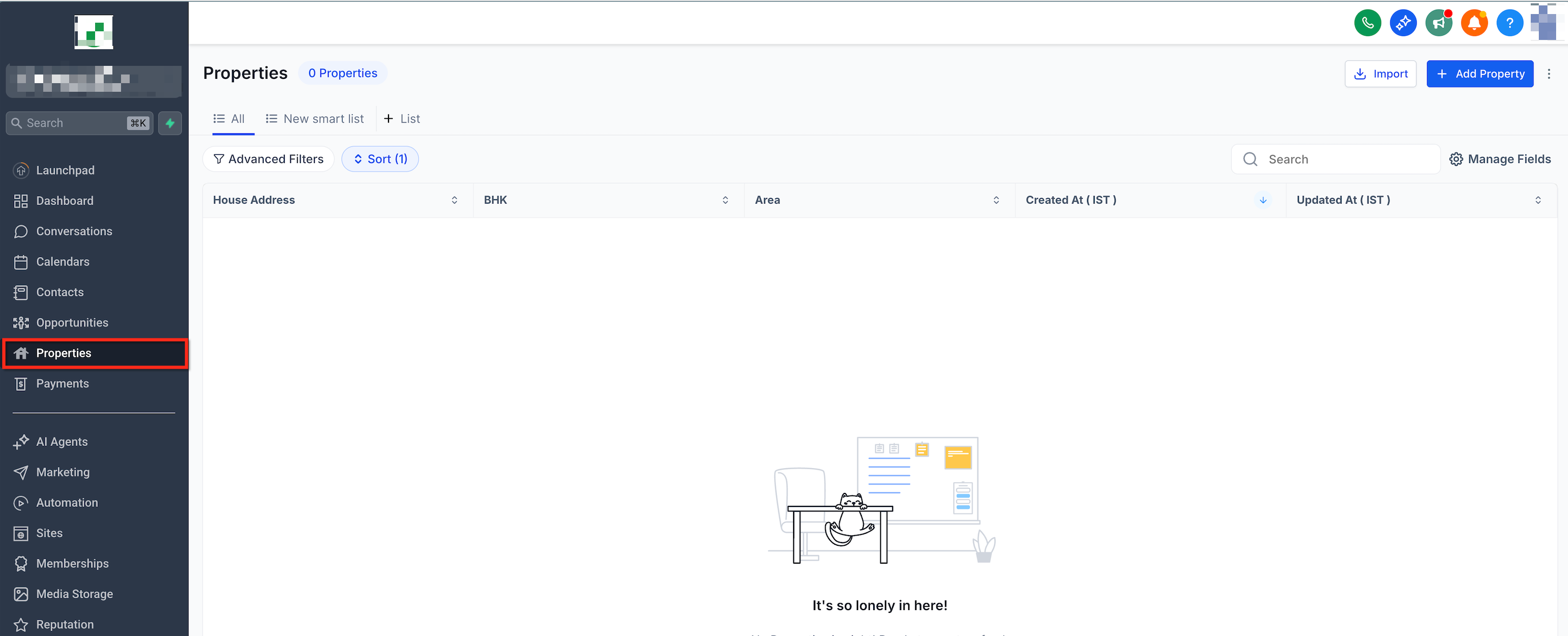
- Open Custom Objects in the subaccount and choose the target Custom Object.
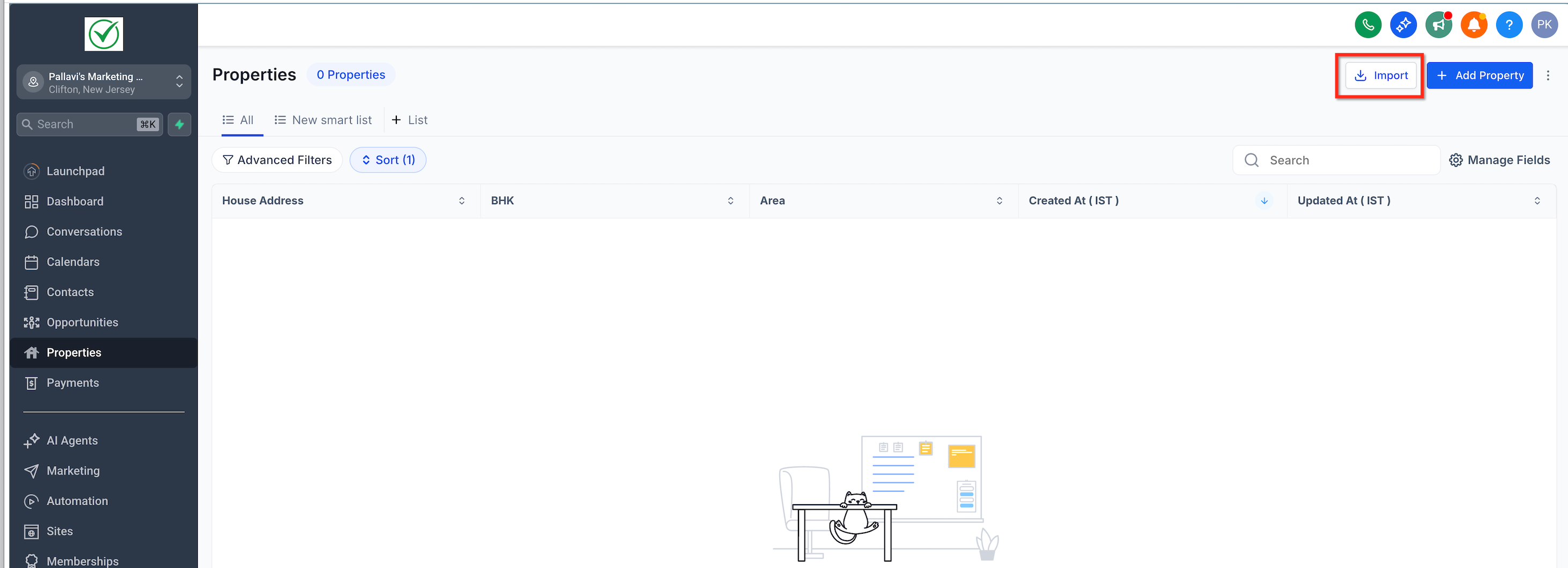
- Click the Import button located at the top right.
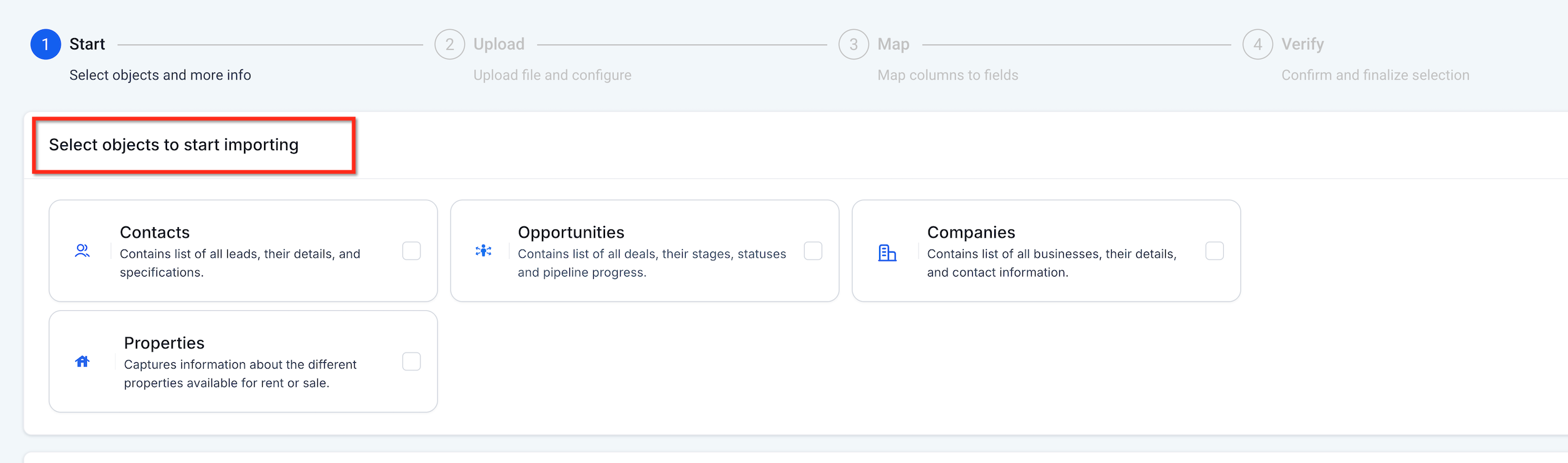
- Select the CSV file that holds the records to import.
- Pick an import mode, Create, Update, or Create + Update.
- If multiple unique fields are mapped, choose the field that will be used for deduplication.
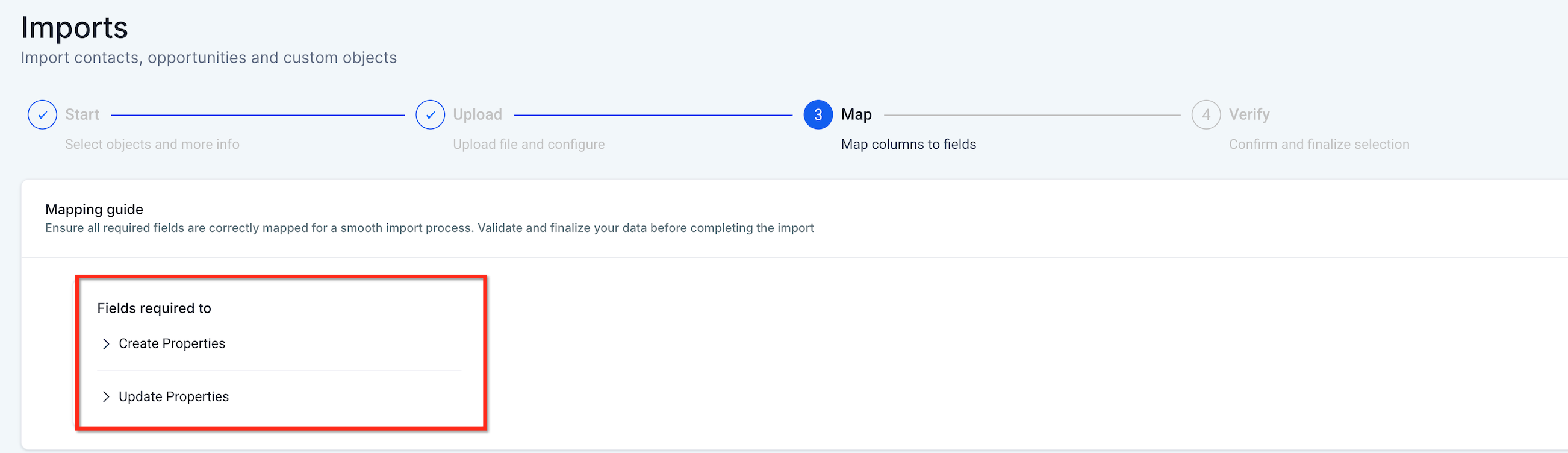
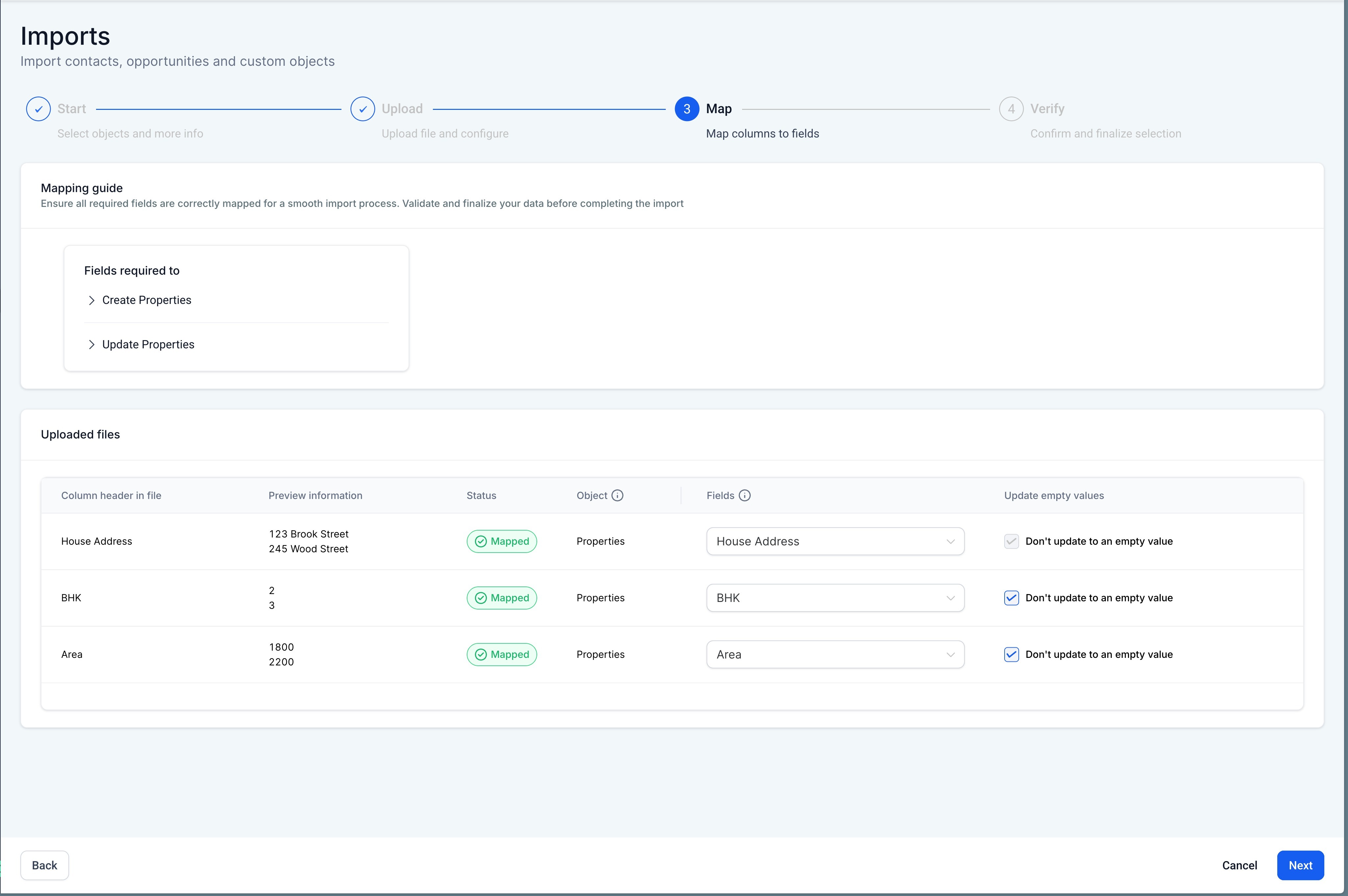
- Map the primary and required fields first.
- Map any additional fields, such as Owner or Followers, as needed.
- Activate the Update empty values option when blank cells should overwrite existing data, while primary/required fields remain unchanged.
- Press the Start Import button to launch the process.
- Open Bulk Actions > Custom Objects to monitor the import’s progress.
- From the Bulk Actions screen, pause, resume, or cancel the job and open the details to review statistics and row level messages.
06What it looks like in HighLevel
07Settings that matter
- Import mode. Determines whether the CSV rows will create new records, update existing ones, or perform both actions in one operation.
- Dedupe unique field. Specifies which unique field HighLevel should use to match incoming rows with existing records, preventing duplicate entries.
- Update empty values. Allows empty CSV cells to overwrite data in existing records during an update; primary and required fields are excluded from this behavior.
08Things to know before you rely on it
- Importing multiple Custom Objects from a single CSV is not available; the feature shows “Coming soon.”
- Primary and required fields cannot be cleared with the Update empty values option.
09How it connects to the rest of HighLevel
- Explore all Sites features All Sites features
- View HighLevel pricing and plans HighLevel pricing
- Start a 30 day HighLevel trial 30 day trial
Michael's take

Michael ReimerFounder of CRM Pros, HighLevel Commander and Certified Admin
I find bulk CSV import handy when I need to bring a lot of custom object data into HighLevel.
The ability to pause or cancel an import gives me confidence while working with large files.
Get More InformationOpens on HighLevelPublished November 2, 2026 · Updated November 17, 2026