
01Who this is for
- Agency admins need a reliable way to see who changed what, ensuring oversight of team actions.
- Compliance officers can verify that only authorized users performed modifications to meet policy requirements.
- Agency owners can review user activity to spot accidental deletions or unexpected edits.
02Audit logs, explained
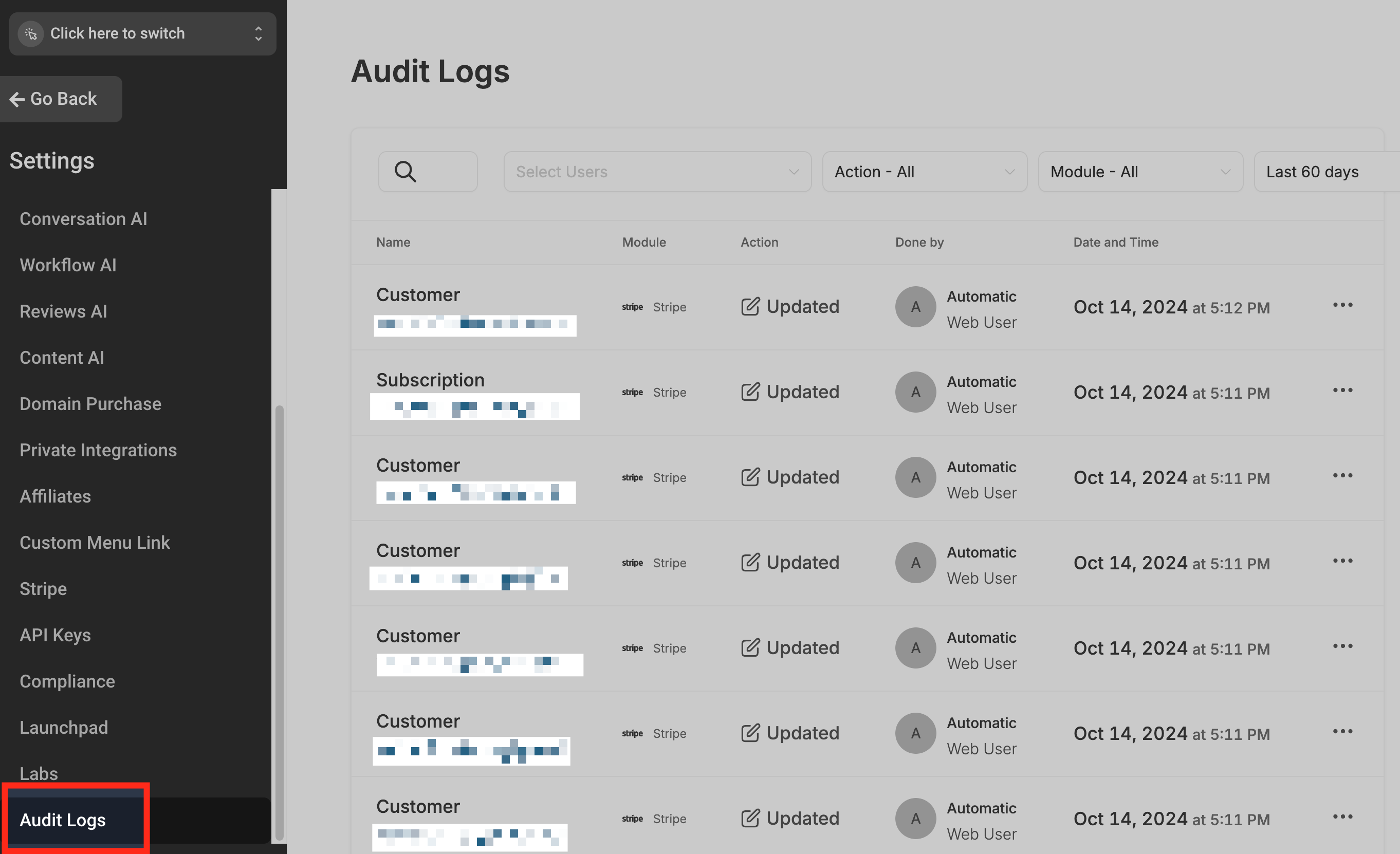
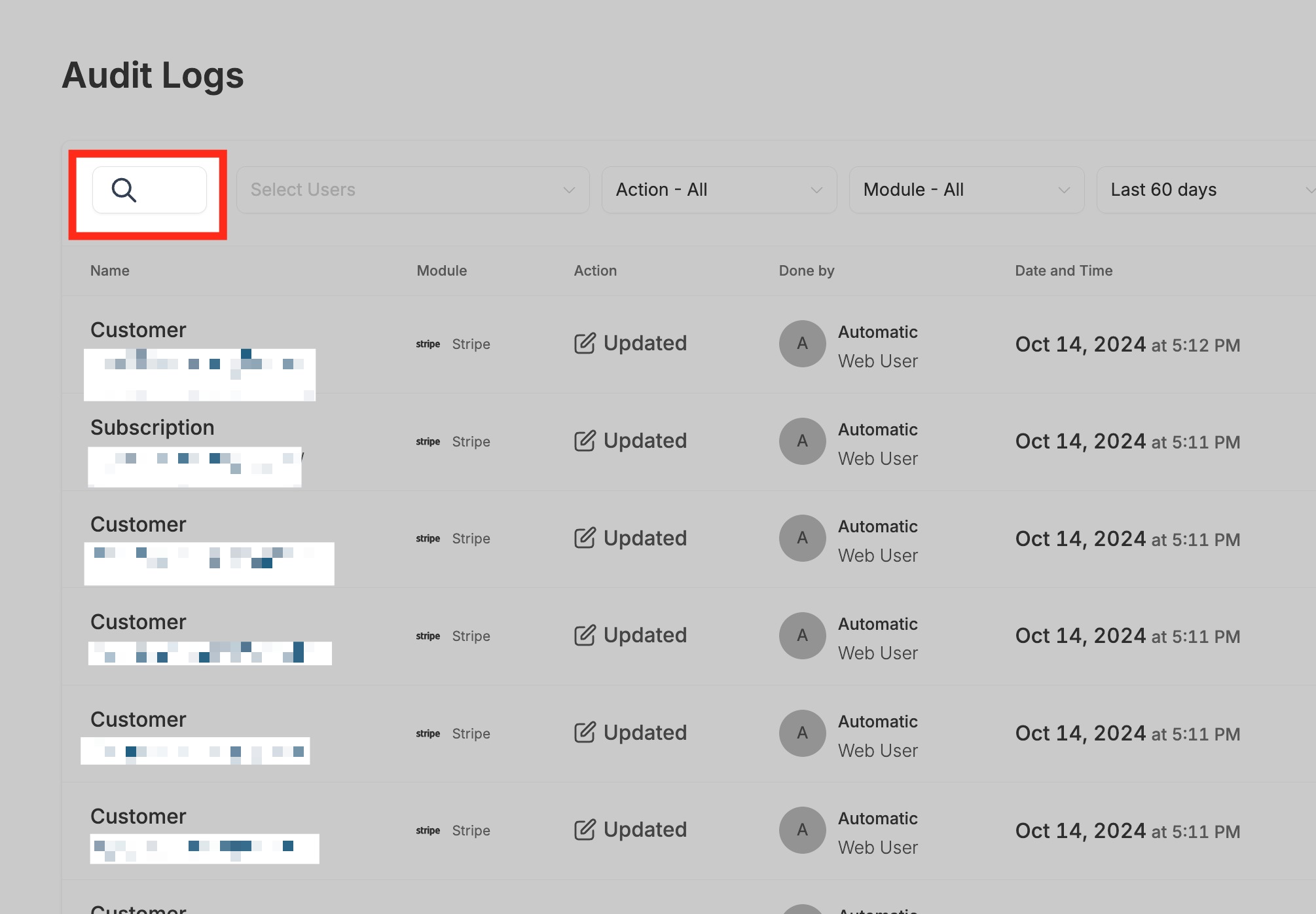
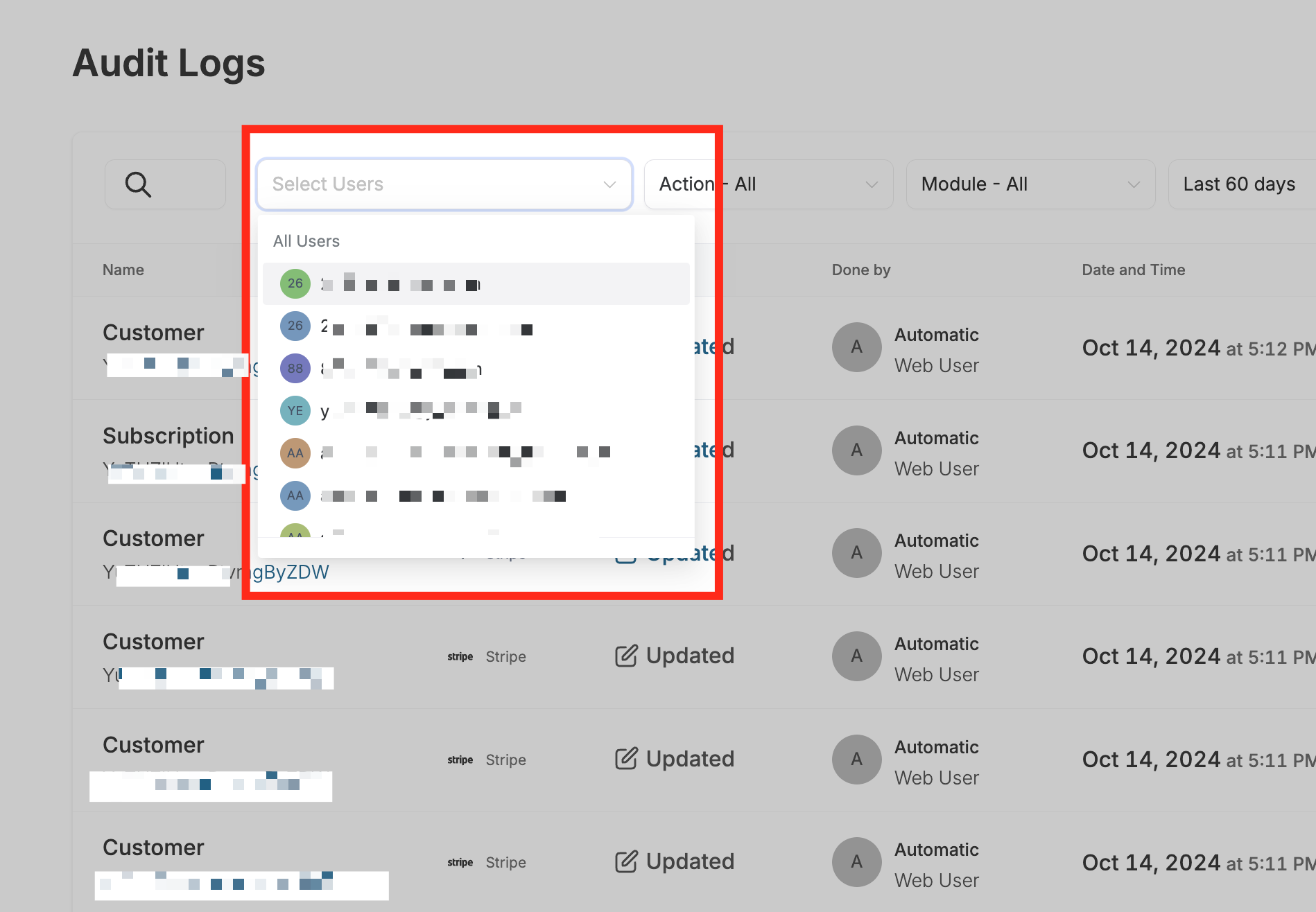
Audit Logs record changes made to users, accounts and settings within a HighLevel agency account. Each entry shows who performed the action, what type of action occurred, which module was affected and when it happened. Filters let you narrow the list by specific team members, action categories such as create, update or delete, system modules and a chosen time period. The logs are accessed through the agency view of Settings; each entry includes a three dot menu and a View Details option that expands the entry to reveal field names, values and object identifiers for the action. Currently the logs capture only user module changes, including manual web app updates, creations, edits and deletions.
03How businesses use audit logs
- Digital marketing agency. An agency admin opens the Audit Logs, filters by a specific team member, and reviews any user deletions that occurred last week. The admin then clicks View Details on a suspicious entry to see which fields were changed before taking corrective action.
- SaaS startup. The Founder, acting as agency admin, switches to agency view, accesses Settings, and uses the Action Type filter to display only user creations. This lets the Founder confirm that new staff accounts were set up correctly during a hiring sprint.
- Real estate brokerage. The brokerage manager selects the Time Range filter for the past month and the Module filter for Users. By scanning the resulting list, the manager verifies that no unauthorized user edits occurred during the quarterly audit period.
04Before you start
- You must have Agency Admin permissions in the HighLevel agency account.
05How to set up and use audit logs in HighLevel
Open audit logs in HighLevel
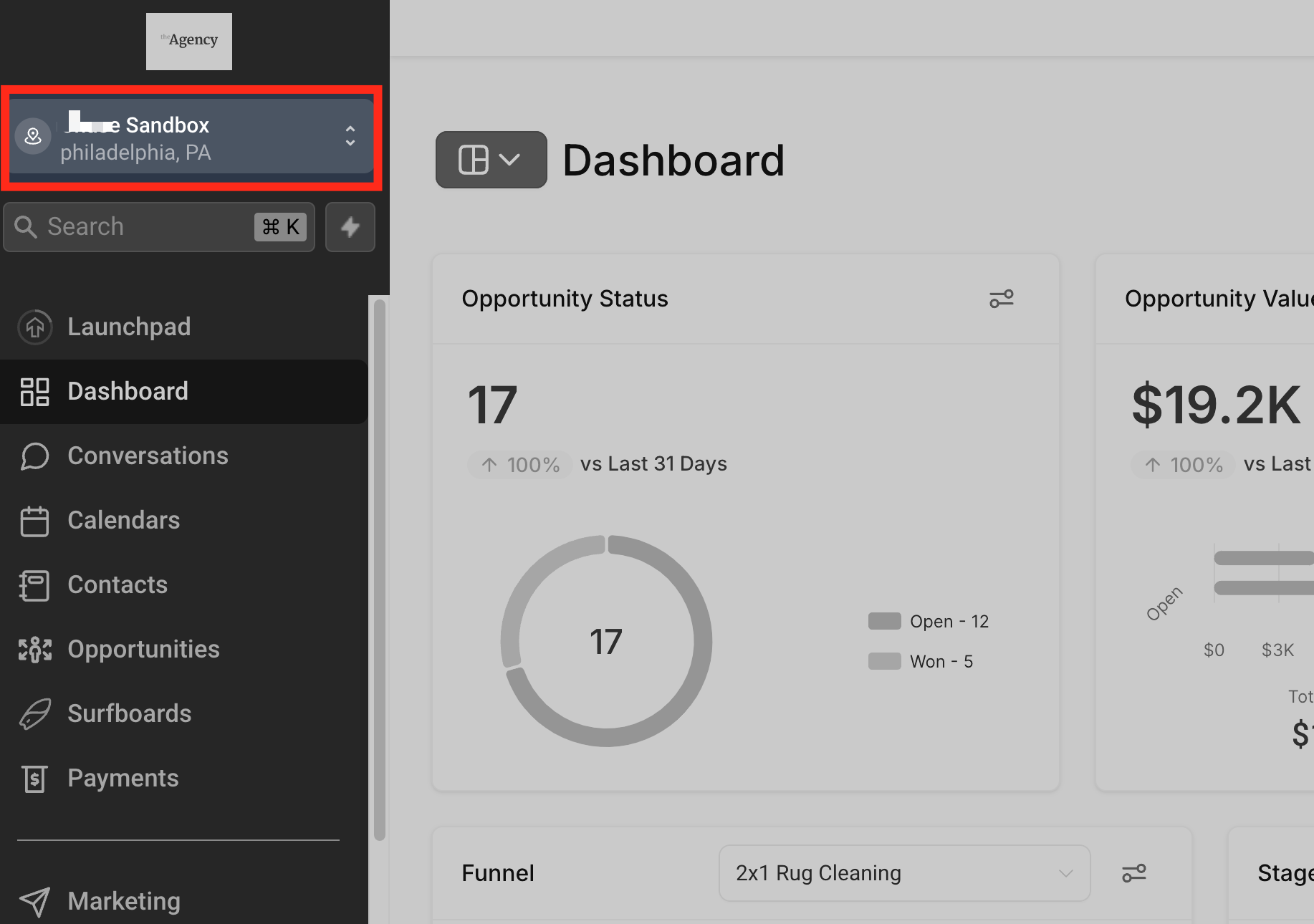
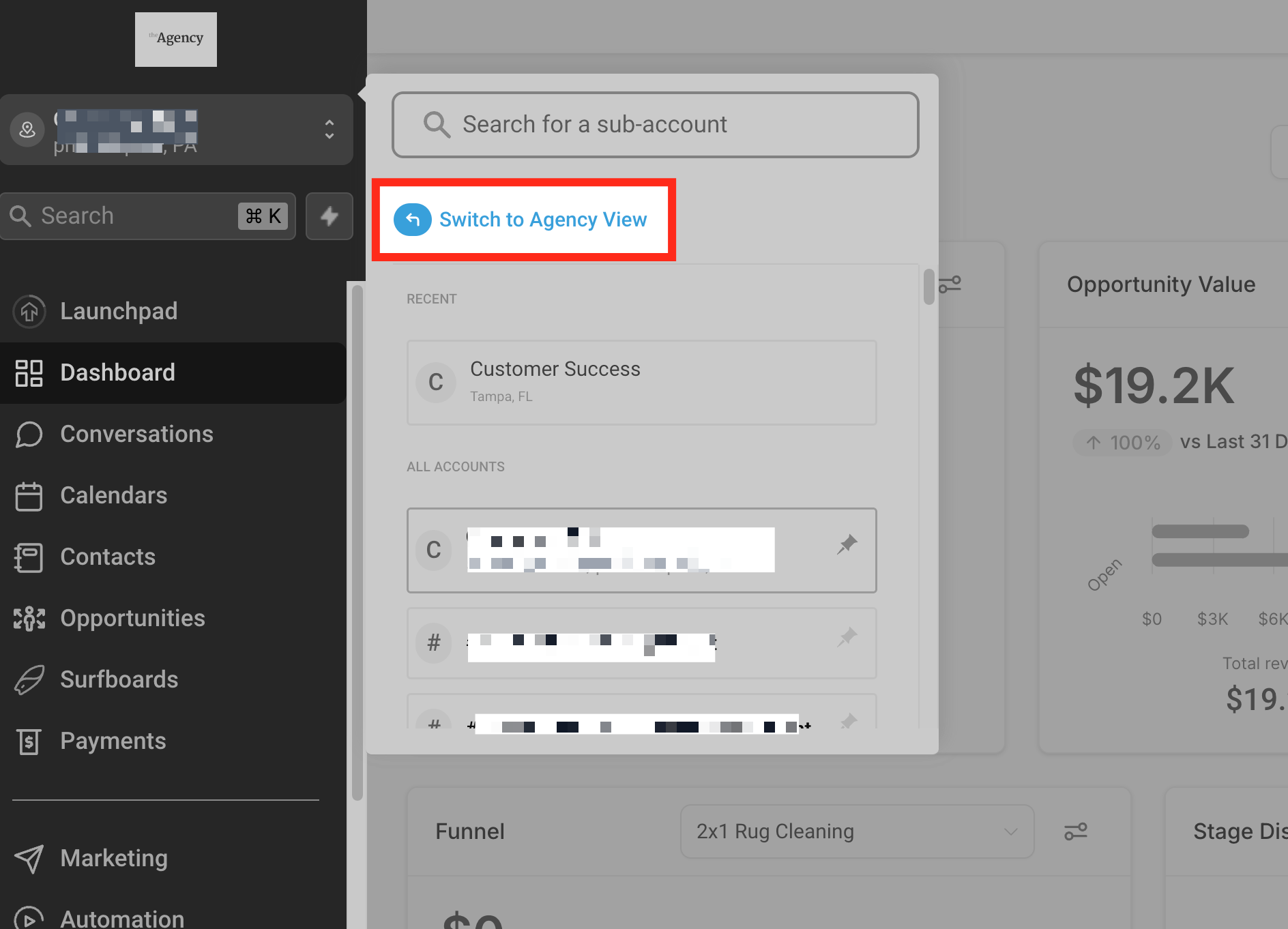
- Click the subaccount switcher dropdown in the left navigation bar.
- Choose Switch to Agency View.
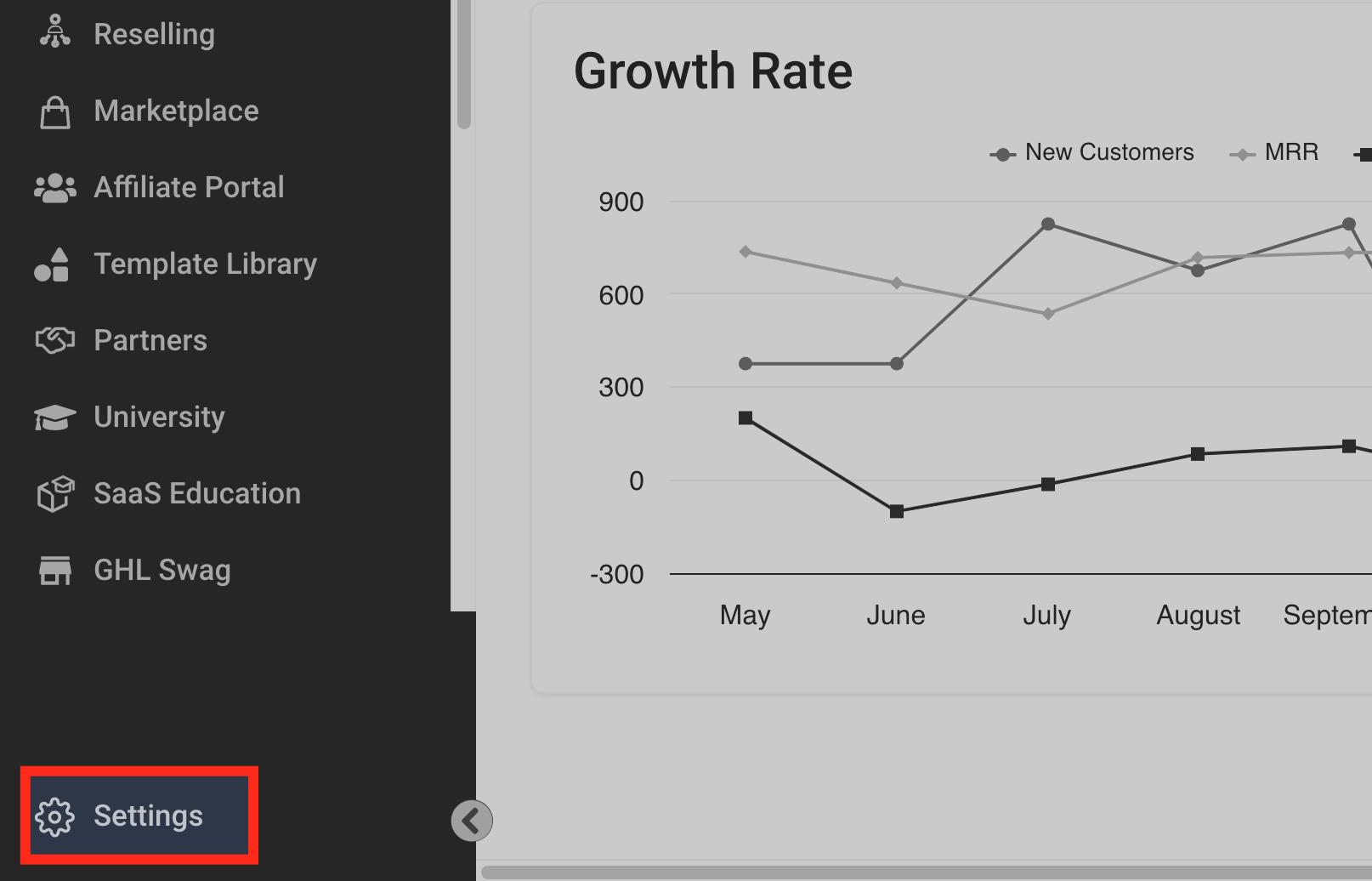
- Click the Settings tab at the bottom left of the screen.
- Scroll down in Settings and click the Audit Logs button.
06What it looks like in HighLevel
07Settings that matter
- Audit Logs. Opens the page that lists every recorded user related action for the agency account.
- Filter by User. Limits the displayed entries to actions performed by the selected team member.
- Filter by Action Type. Shows only creates, updates or deletions, helping isolate a particular kind of change.
- Filter by Module. Restricts results to a specific system area such as Users, Accounts or Contacts.
- Filter by Time Range. Displays entries that occurred within the chosen start and end dates.
08Things to know before you rely on it
- Only changes in the USER module are tracked at this time; future updates will add Contacts, Accounts and Automations.
- Audit Logs are viewable only by users with Agency Admin access.
- Current tracking includes manual web app changes, but does not yet capture Zapier, Public API or automation generated actions.
09How it connects to the rest of HighLevel
- Manage user roles and permissions that affect who can see audit logs. User access settings
- Use the subaccount switcher to move between client accounts and agency view. Login as another user
- Explore all other Settings features for additional agency configuration. All Settings
Michael's take

When a team member makes a change and you can’t tell who did it, chaos can quickly spread. Audit logs give you a single source of truth, so you always know which user created, updated, or deleted an account or setting.
The first setting I would lock down is the filter by user view. It lets you see each person’s activity and spot any out of place actions.