
01Who this is for
- Agency admins who need to manage multiple client accounts quickly, because they can act as each user without logging out.
- Marketing agencies that support clients’ ad accounts and must adjust settings or send messages on the client’s behalf.
- Consultants offering platform support who require direct access to a client’s view to verify configurations.
02Login As User, explained
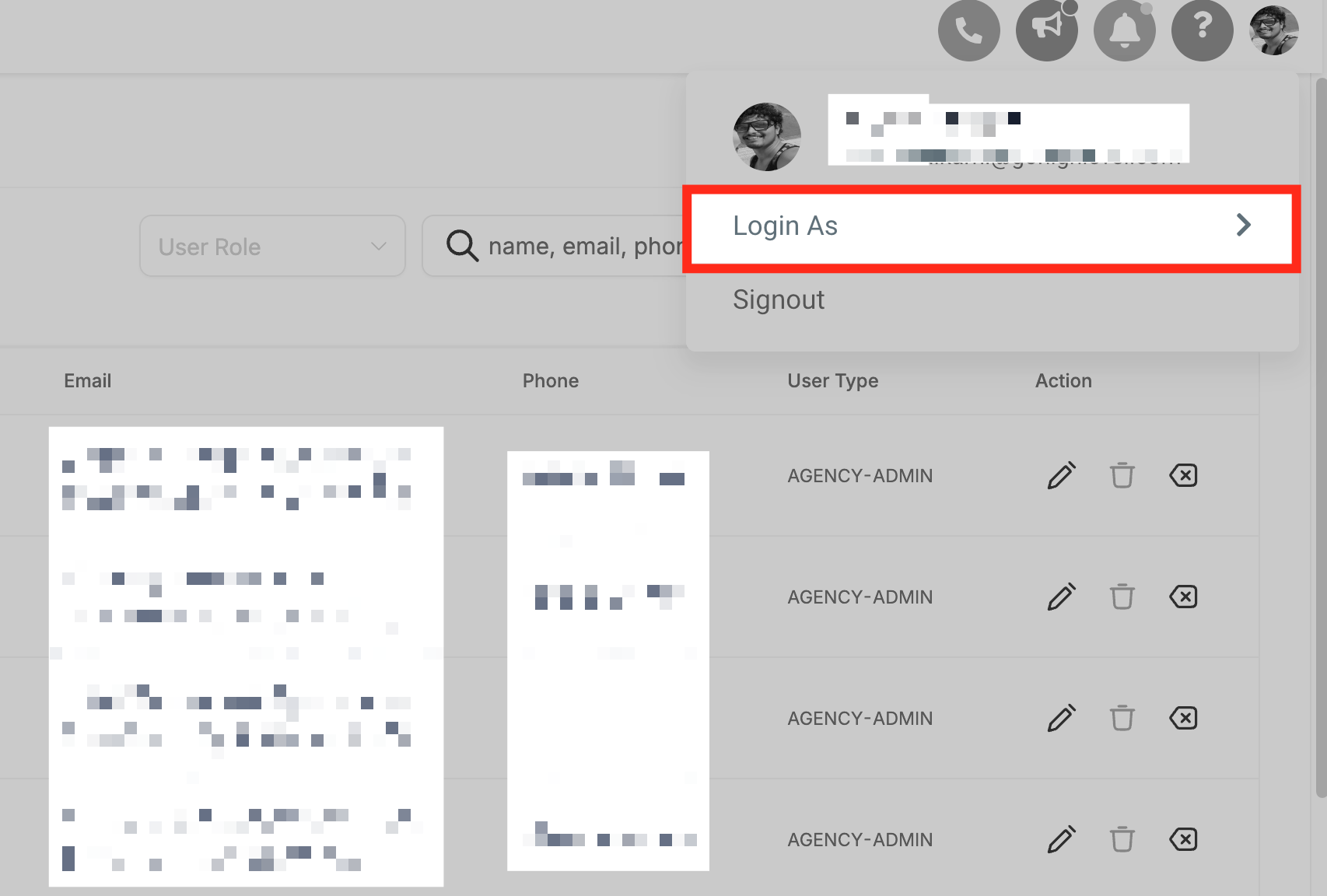
Login As is a permission based tool that appears only for users with the Agency Admin role. When enabled, the admin sees a Login As button in the profile menu and can choose any user within the agency to impersonate. The admin is then placed inside that user’s subaccount, gaining full access to the user’s dashboard and tools.
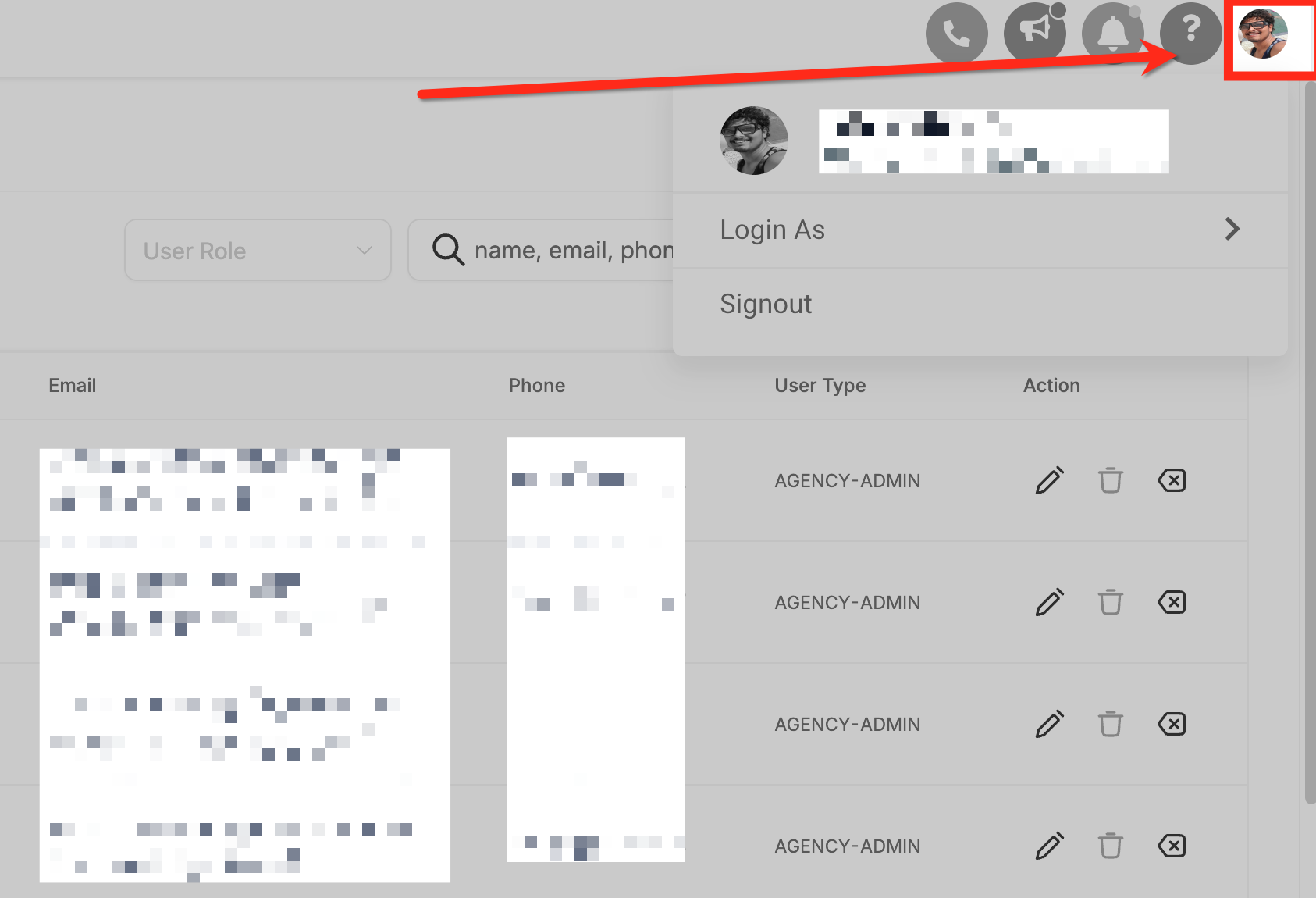
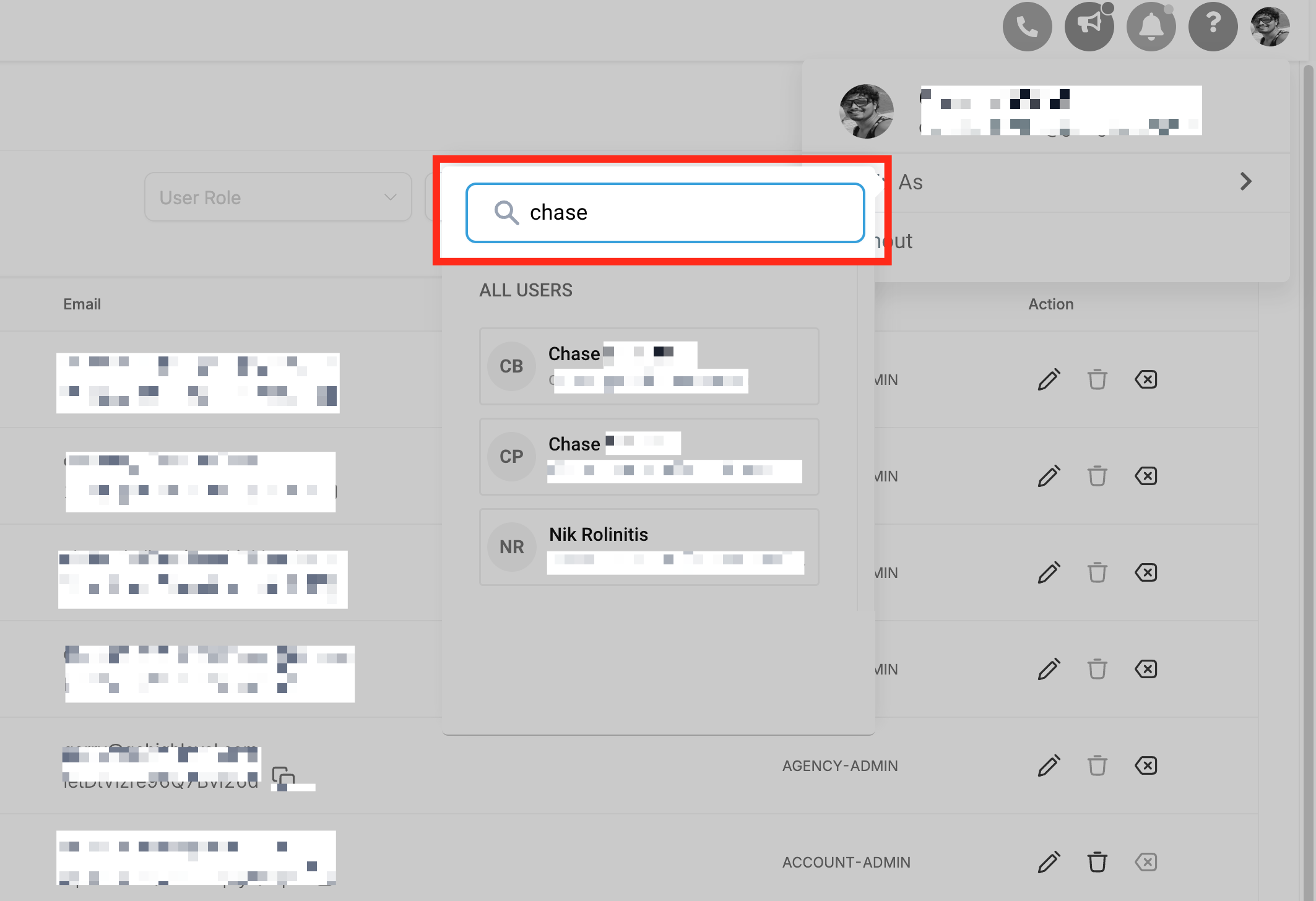
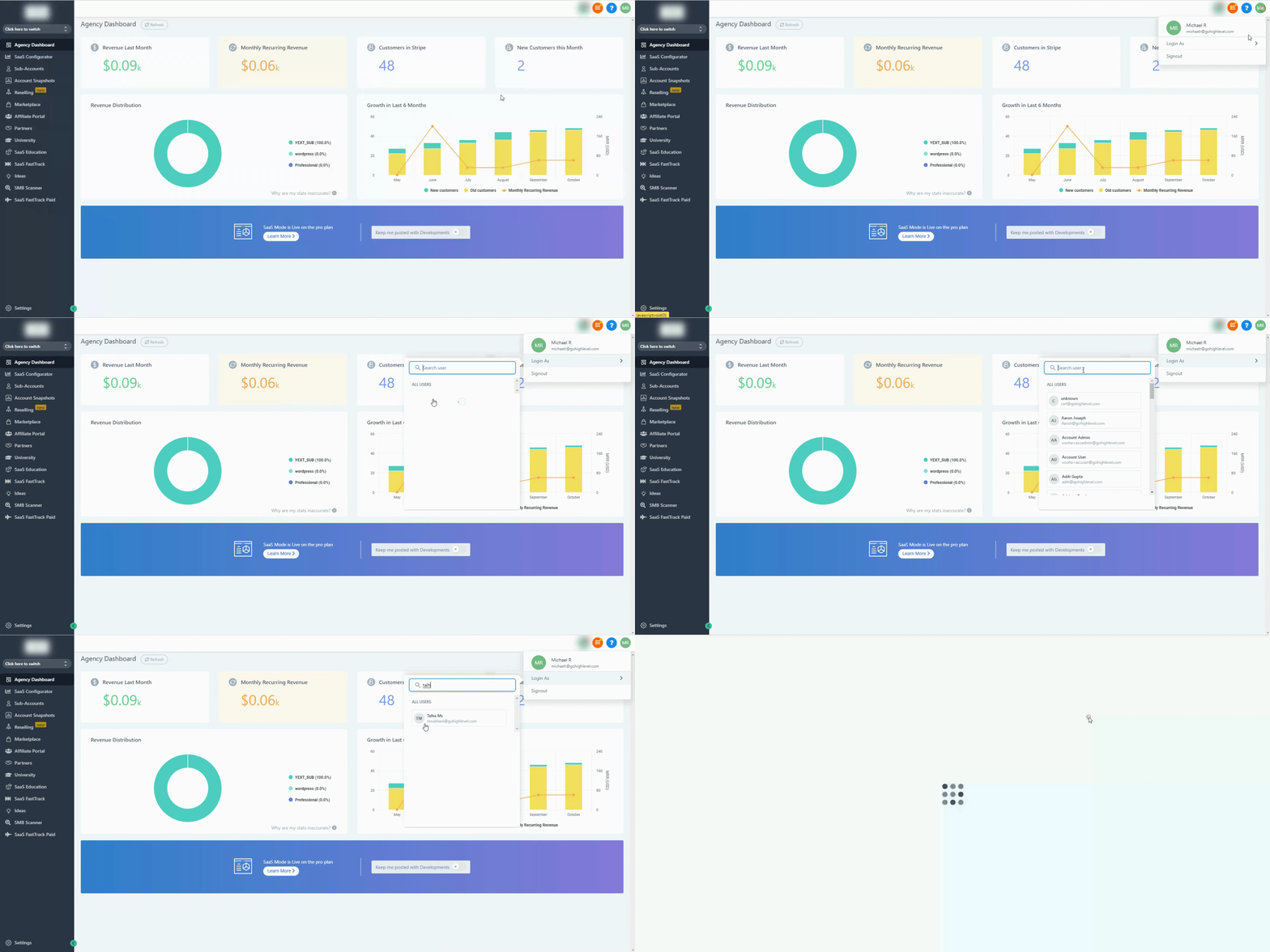
The feature resides in the top right profile icon area of the HighLevel interface. Selecting a user is done via a search bar or by scrolling through the listed accounts. After logging in as the chosen user, the admin can make changes, send communications, or troubleshoot as if they were that user. A switch account option also lets the admin return to their own admin view.
03How businesses use Login As User
- Marketing agency. An agency admin selects a client’s marketer account, logs in as that user, and updates campaign settings directly, avoiding separate logins for each client.
- Web design firm. The admin logs in as a client’s website manager to test a new integration, then switches back to admin to review results.
- Coaching business. A coach logs in as a client’s member account to send a personalized message, ensuring the tone matches the client’s brand.
04Before you start
- The user must hold the Agency Admin role.
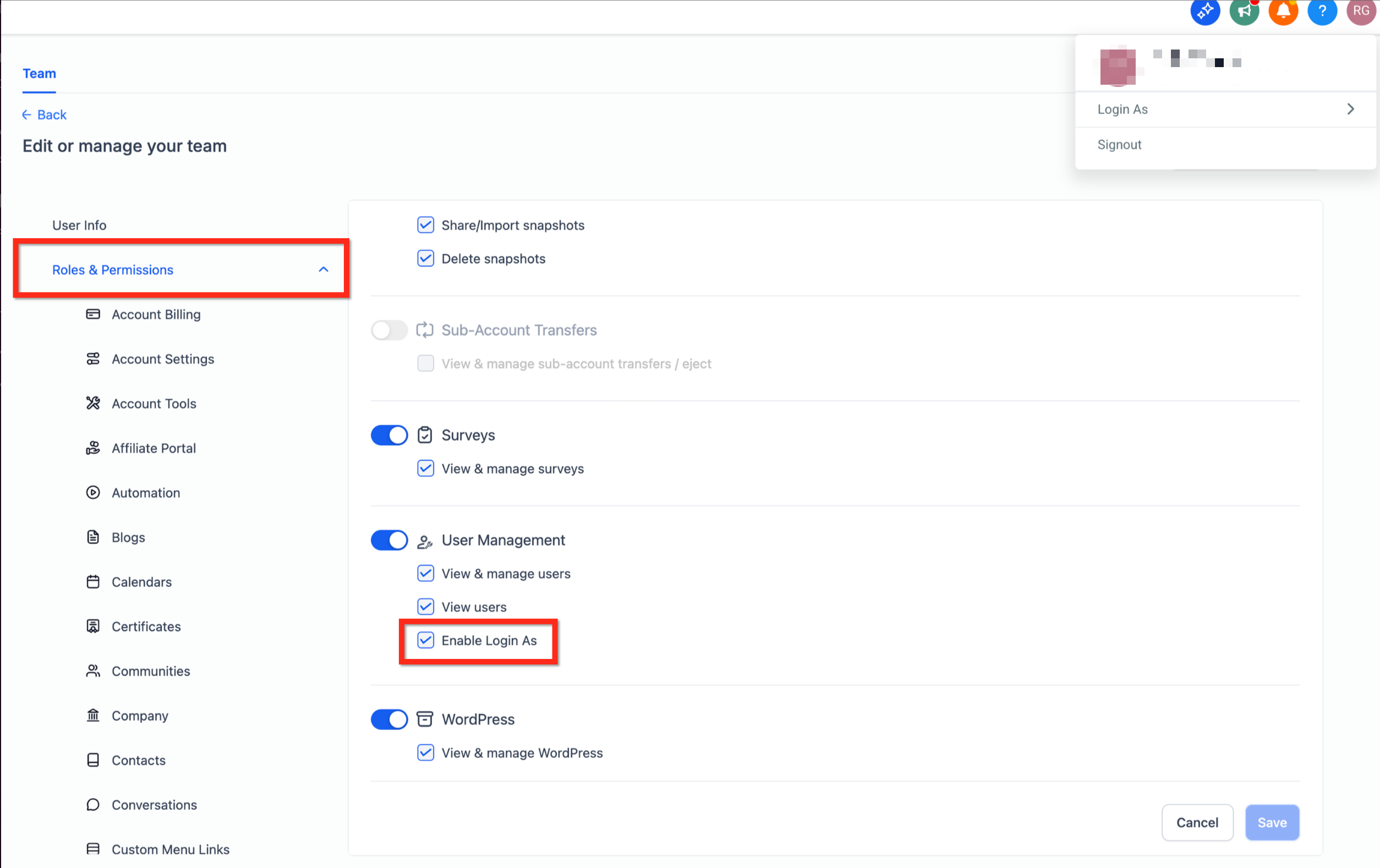
- The Enable Login As permission must be turned on in Agency permissions.
05How to set up and use Login As User in HighLevel
Login as another user
- Click the profile icon at the top right of the screen.
- Select the "Login as" button and choose the user you want to access.
- Use the search bar or scroll to locate the desired user, then click to log in as that user.
06What it looks like in HighLevel
07Settings that matter
- Enable Login As. Controls whether the Login As button appears for an Agency Admin; when on, admins can impersonate users, when off the option is hidden.
08Things to know before you rely on it
- Only Agency Admins can see and use the feature; other roles will not see the option.
- In the first phase of release, audit logs record only the account user’s details, not the admin’s.
09If something goes wrong
- Login As button missing. Have an agency owner or admin enable the Enable Login As permission under User Management permissions.
10How it connects to the rest of HighLevel
- Manage user roles and permissions, including Enable Login As, in the User Access settings. User Access settings
- Find your agency’s Relationship Number, which may be needed for permission configurations. Agency Relationship Number
- Review the HighLevel Founder Plan for agencies that need all admin features. Founder Plan details
Michael's take

Ever wonder how to fix a client’s problem without asking them for their password? The Login As User button lets you hop into their subaccount, troubleshoot, and make updates in real time. If I were setting it up, I’d double check that the Enable Login As permission is on for my admin users, then use the search bar to jump straight to the account that needs attention.