
01Who this is for
- Agency Owners need the number to verify their account during support interactions.
- Agency Administrators use it to confirm the correct agency when managing multiple accounts.
- Support staff at HighLevel request the number to locate the agency quickly.
02Agency relationship numbers, explained
The Relationship Number is displayed as X XXX XXX and belongs to the agency, not to individual subaccounts. It can be copied from two places in the platform: the Company settings page or the Help menu. Access is limited to users who hold Agency Admin or Agency Owner roles.
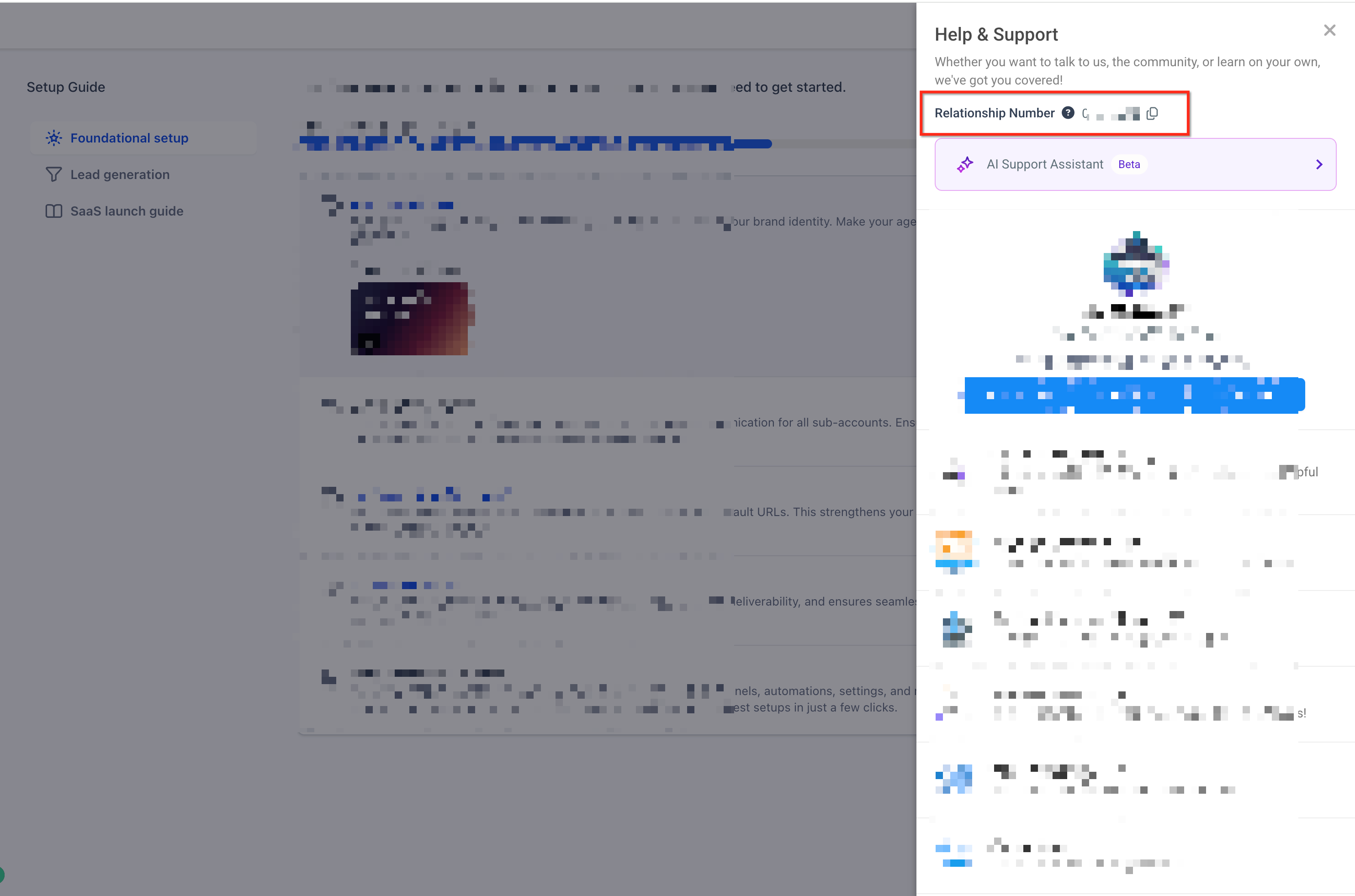
The number lives under Company Data within the Company settings. When you open the Help menu, the same identifier appears in the panel that shows agency information. Both locations provide a copy icon for easy retrieval.
03How businesses use agency relationship numbers
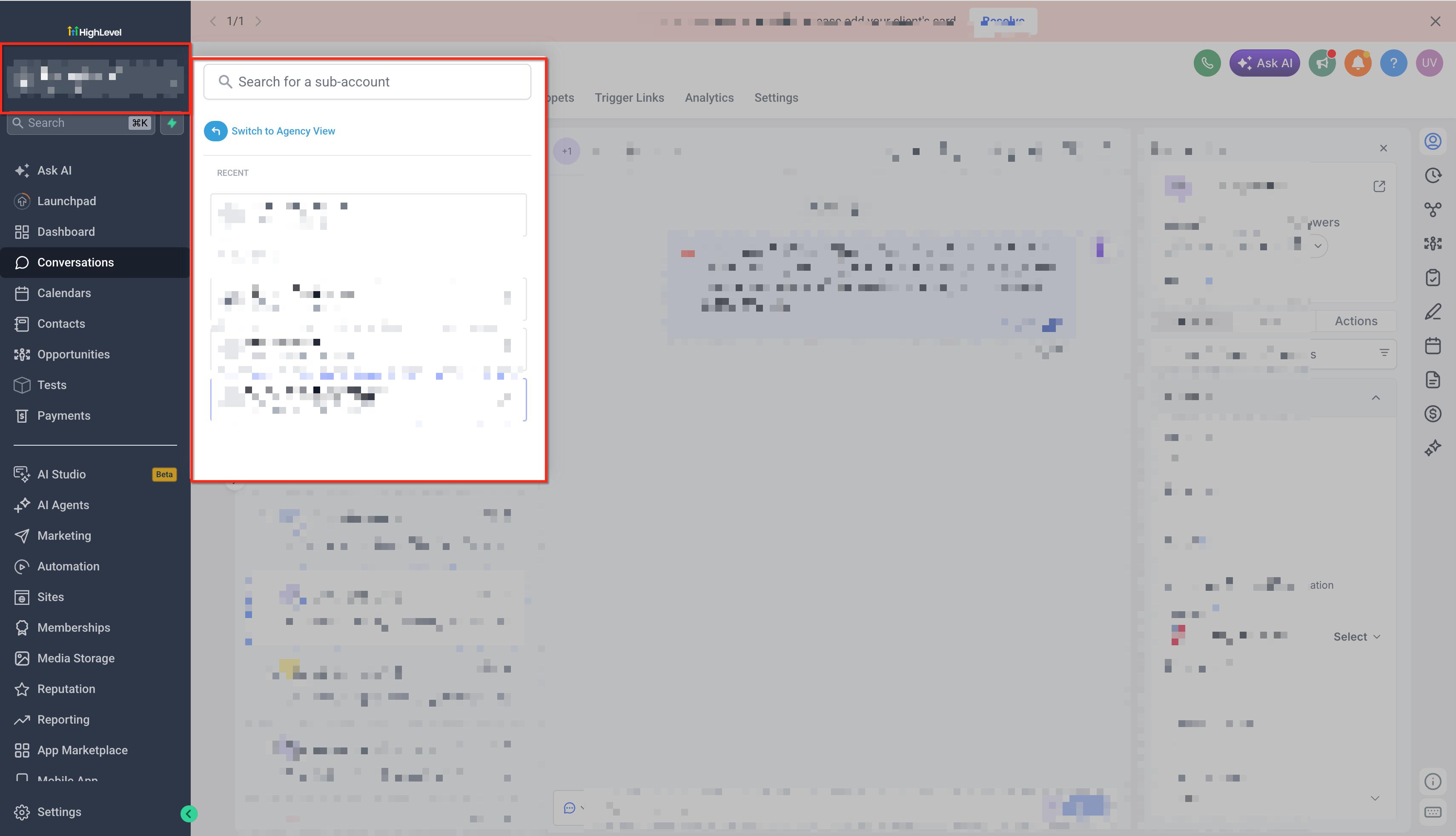
- Digital marketing agency. An agency admin opens the Subaccount Switcher, switches to Agency View, navigates to Settings > Company, and copies the Relationship Number. The code is then supplied to HighLevel Support when troubleshooting a campaign issue.
- SaaS startup using an agency for growth. The startup’s point of contact logs in with agency level access, clicks the blue question mark in the upper right, and copies the Relationship Number shown in the Help panel to share with the agency’s technical team.
- Consulting firm managing multiple client agencies. A consulting firm’s admin confirms they are in the correct Agency View, goes to Settings > Company, locates the Relationship Number under Company Data, and copies it for inclusion in a support ticket about billing.
04The numbers and rules that matter
- 7 digit identifier.
05Before you start
- User must be logged in with Agency Admin or Agency Owner permissions.
- User must be in Agency View, not inside a subaccount.
06How to set up and use agency relationship numbers in HighLevel
Find the Relationship Number via Company Settings
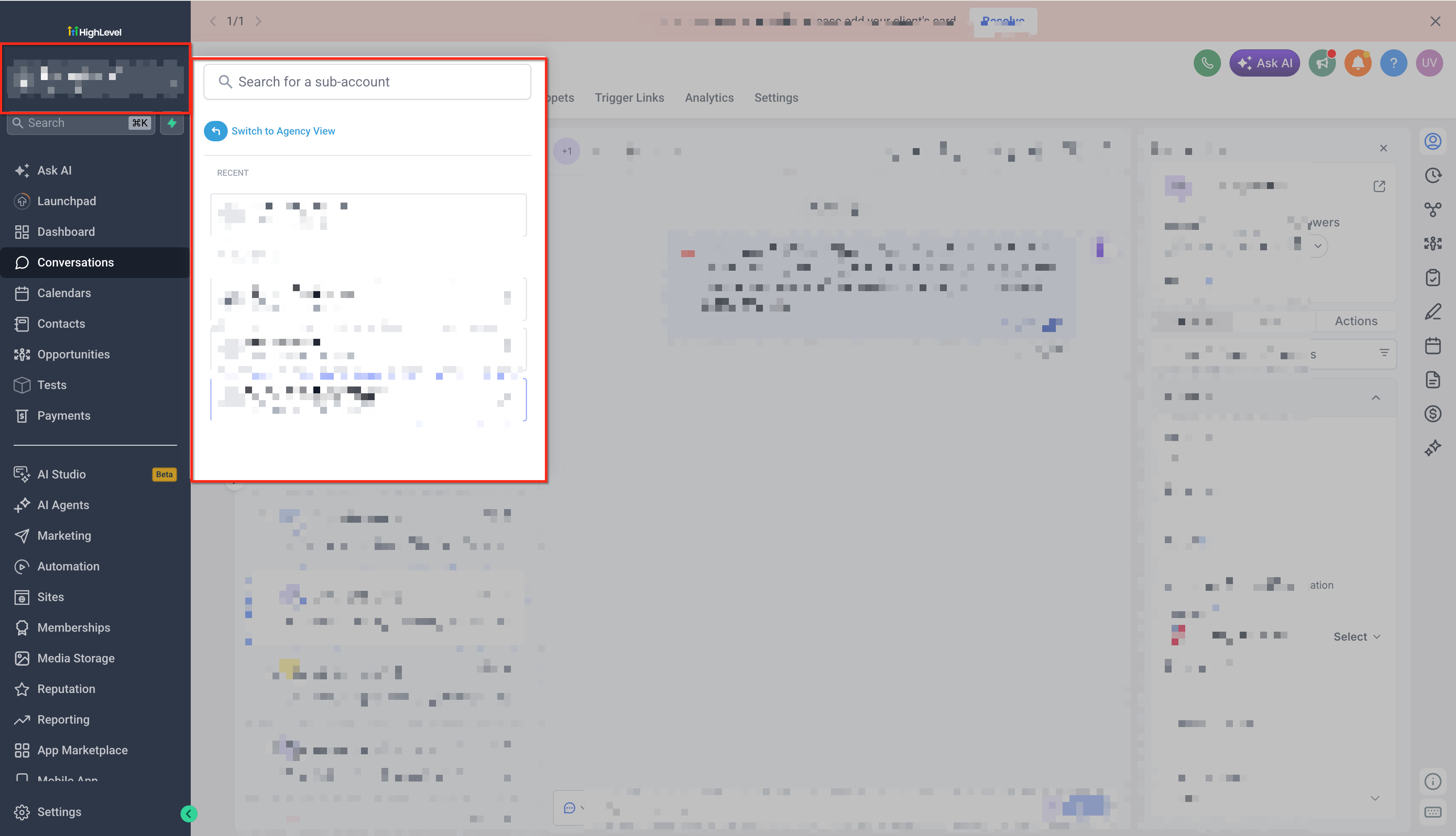
- Open the Subaccount Switcher in the upper left navigation.
- Choose Switch to Agency View.
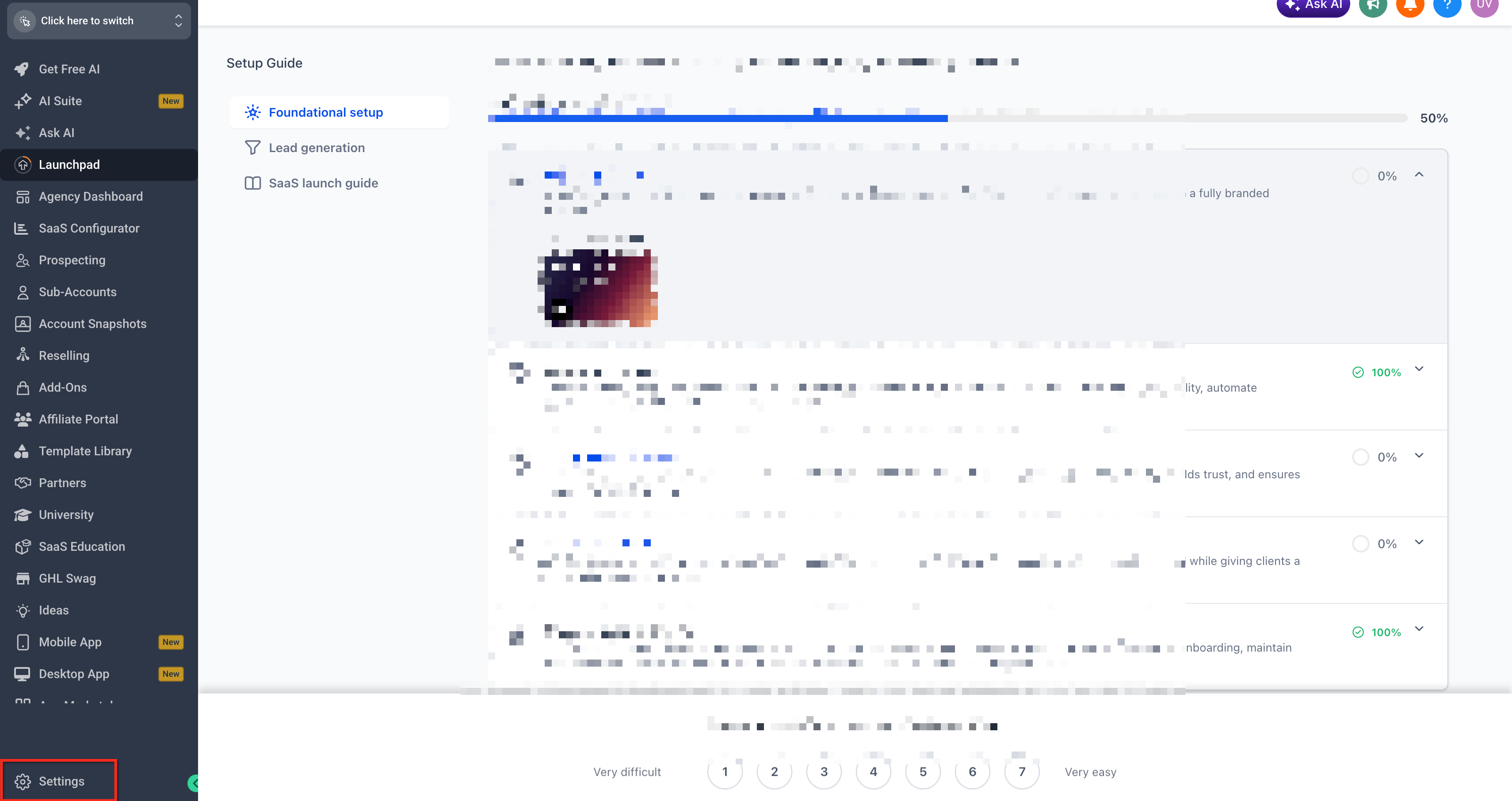
- Select Settings from the bottom left navigation.
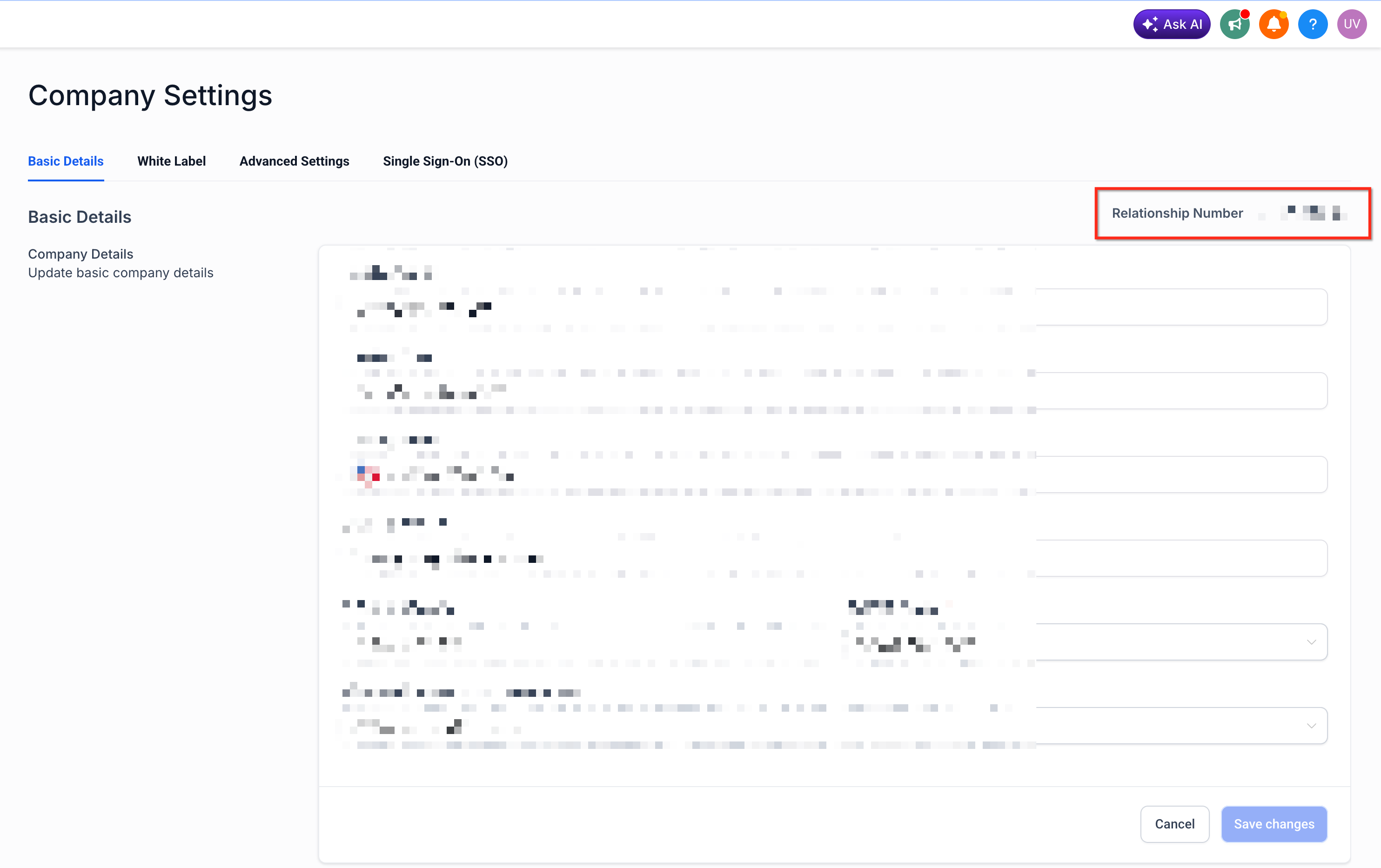
- Click the Company option.
- Find the Relationship Number listed under Company Data.
- Press the copy icon next to the number to copy it.
- If you have access to multiple agencies, verify you are in the correct Agency View before copying.
Find the Relationship Number from the Help Menu
- Confirm you are logged in with agency level access.
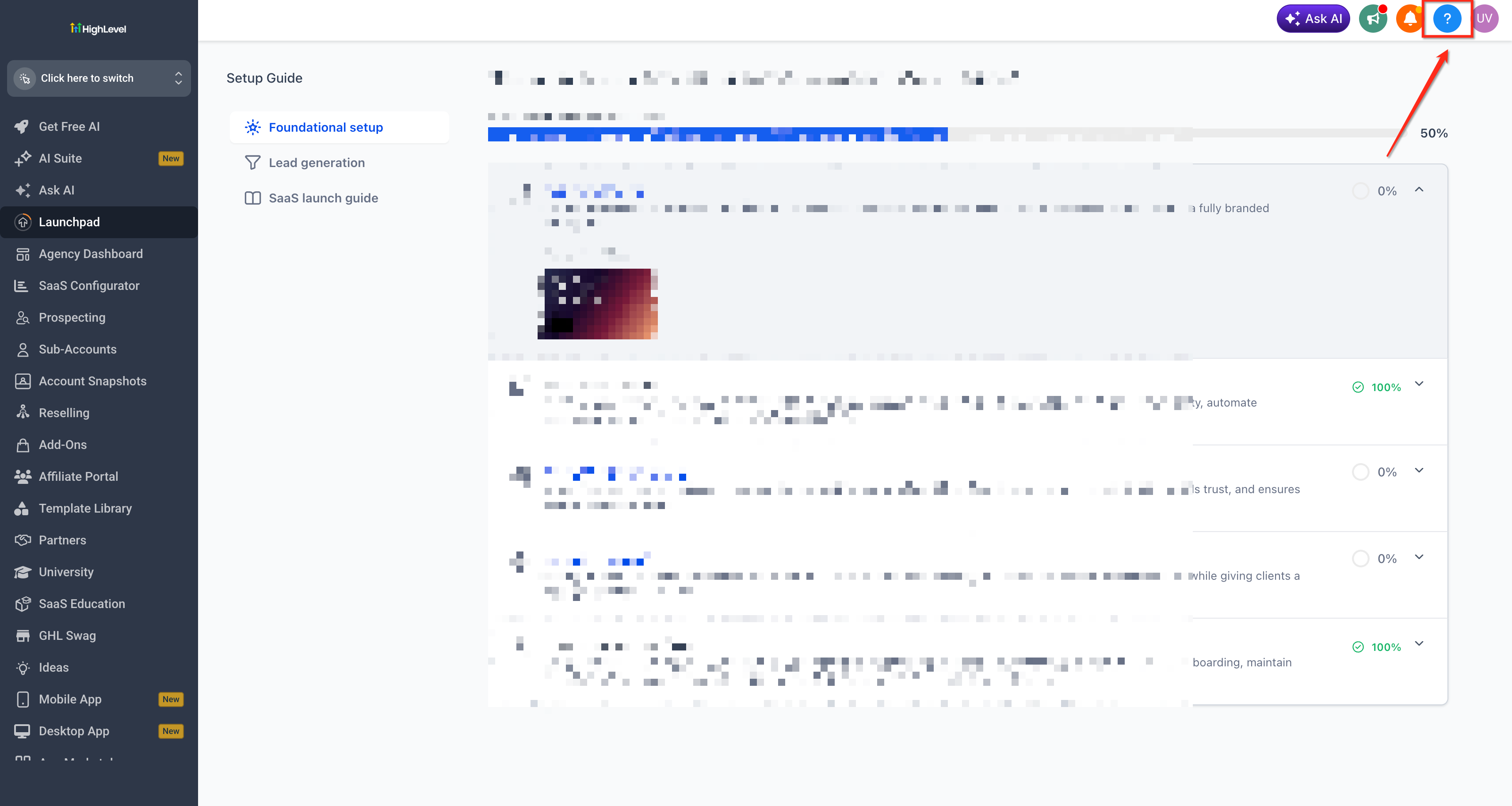
- Click the blue question mark (?) at the upper right of the screen.
- Locate the agency information panel that displays the Relationship Number.
- Copy the number as needed.
07What it looks like in HighLevel
08Settings that matter
- Company. Opens the page where agency level details, including the Relationship Number, are stored.
- Company Data. Section that lists core identifiers for the agency, such as the Relationship Number.
09Things to know before you rely on it
- The Relationship Number is a unique seven digit identifier for each agency.
- Only users with Agency Admin or Agency Owner roles can view it.
- Each agency has its own number; subaccounts use a different identifier called a Location ID.
10If something goes wrong
- Relationship Number not visible. Check that your user role is Agency Admin or Agency Owner.
- Viewing the wrong agency. Open the Subaccount Switcher and select Switch to Agency View for the correct agency.
- In a subaccount view. Switch to Agency View, then go to Settings > Company to locate the number.
11How it connects to the rest of HighLevel
- Explore the full Agency Company Settings guide Agency Company Settings
- Learn how to manage user access and permissions User Access Management
- Review billing related questions for agencies Agency Billing FAQs
Michael's take

Michael ReimerFounder of CRM Pros, HighLevel Commander and Certified Admin
Don’t copy the number from the wrong Agency View.
Get More InformationOpens on HighLevelPublished November 2, 2026 · Updated November 16, 2026