
01Who this is for
- Agency administrators can streamline staff workflows by placing training portals directly in the navigation.
- Marketing consultants can give clients quick entry to reporting dashboards without leaving HighLevel.
- Support teams can add direct links to knowledge base articles, reducing time searching for help.
02Custom menu links, explained
Custom Menu Links are a setting inside Settings > Custom Menu Links that adds new items to the left hand navigation for agency and subaccount users. The links appear alongside native HighLevel options and can point to any external URL.
When a link is clicked, it can open inside an Embedded Page (iFrame) within the dashboard, launch in a new browser tab, or replace the current HighLevel tab. The chosen opening method determines whether users stay inside the platform or move to a separate window.
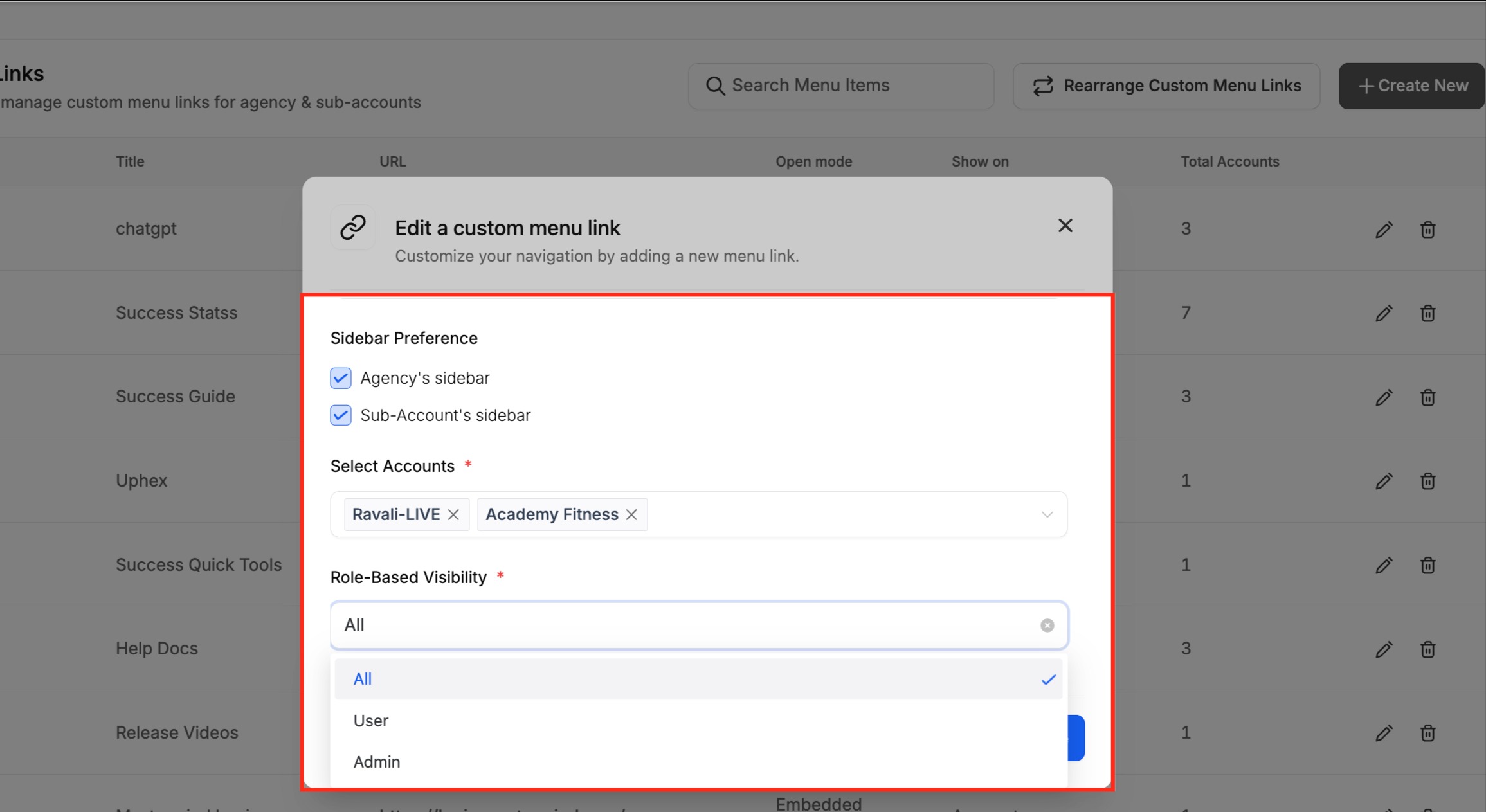
Visibility of each link is controlled by Sidebar Preference, which decides if the link shows in the Agency sidebar, Subaccount sidebar, or both, and by Role Based Visibility, which limits access to all roles, only Users, or only Admins.
03How businesses use custom menu links
- Digital marketing agency. Create a link that opens an external reporting dashboard in a new browser tab, then set Role Based Visibility to Admin so only account managers see it. The link appears in the Agency sidebar for quick access.
- SaaS startup. Add an Embedded Page link to the product analytics site, using the iFrame option. Include {{location.id}} in the URL to pass the current subaccount ID, and place the link in the Subaccount sidebar so each customer sees its own data.
- Real estate brokerage. Set up a Current Tab link to the MLS search portal, configure the URL with {{user.email}} to pre fill login, and restrict visibility to Users so agents can open the portal directly from HighLevel.
04The numbers and rules that matter
- Supported params include user.first_name, user.last_name, user.name, user.phone, user.email, location.I'd, location.name, location.city, location.state, location.country, location.address, location.email, location.phone, location.postal_code, location.full_address, location.website, location.logo_URL, location_owner.first_name, location_owner.last_name, location_owner.email, custom_values.{CUSTOM_VALUE_NAME}.
05Before you start
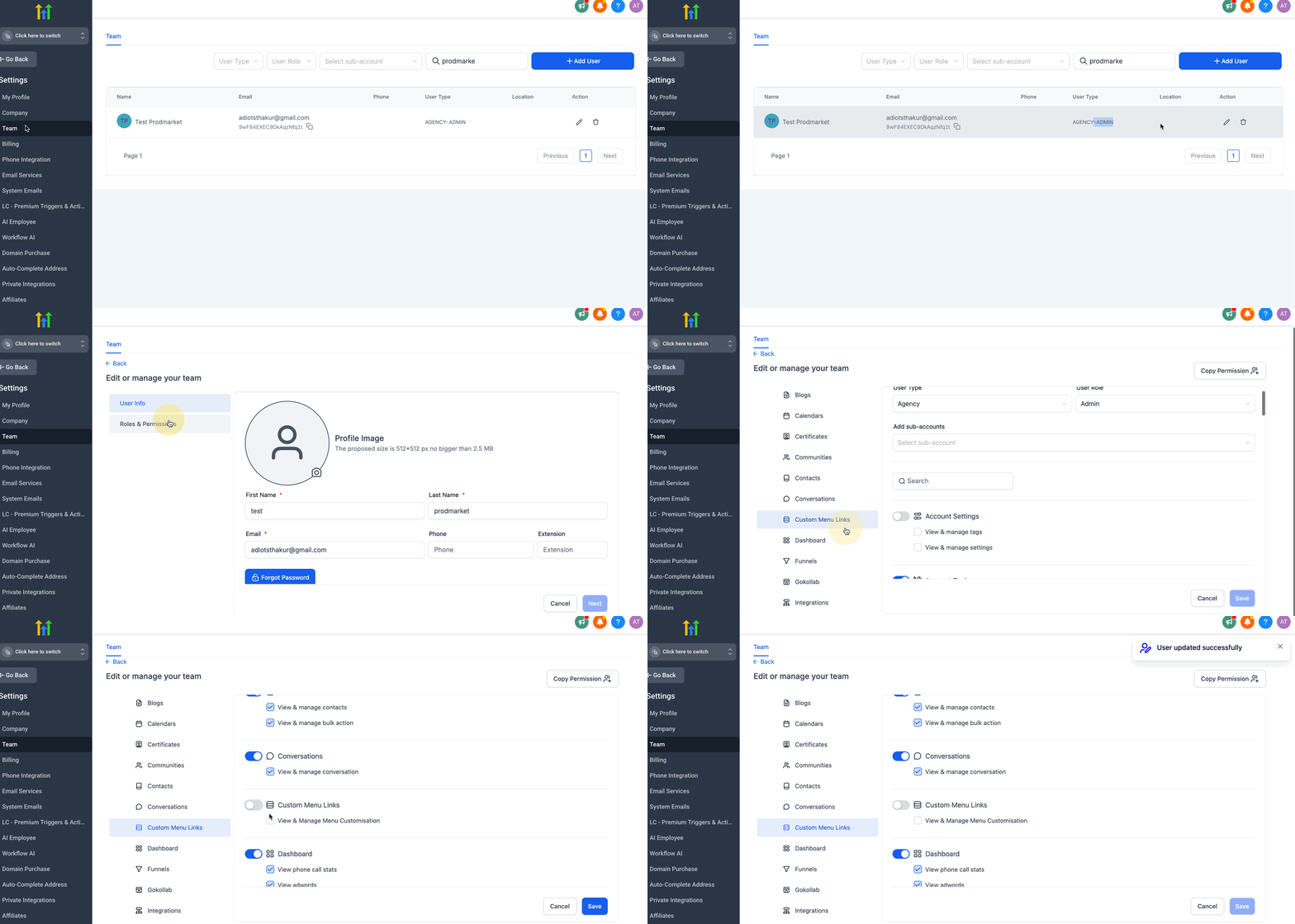
- The user must have the Manage Custom Menu Links permission enabled in Settings > Team.
06How to set up and use custom menu links in HighLevel
Create a new custom menu link
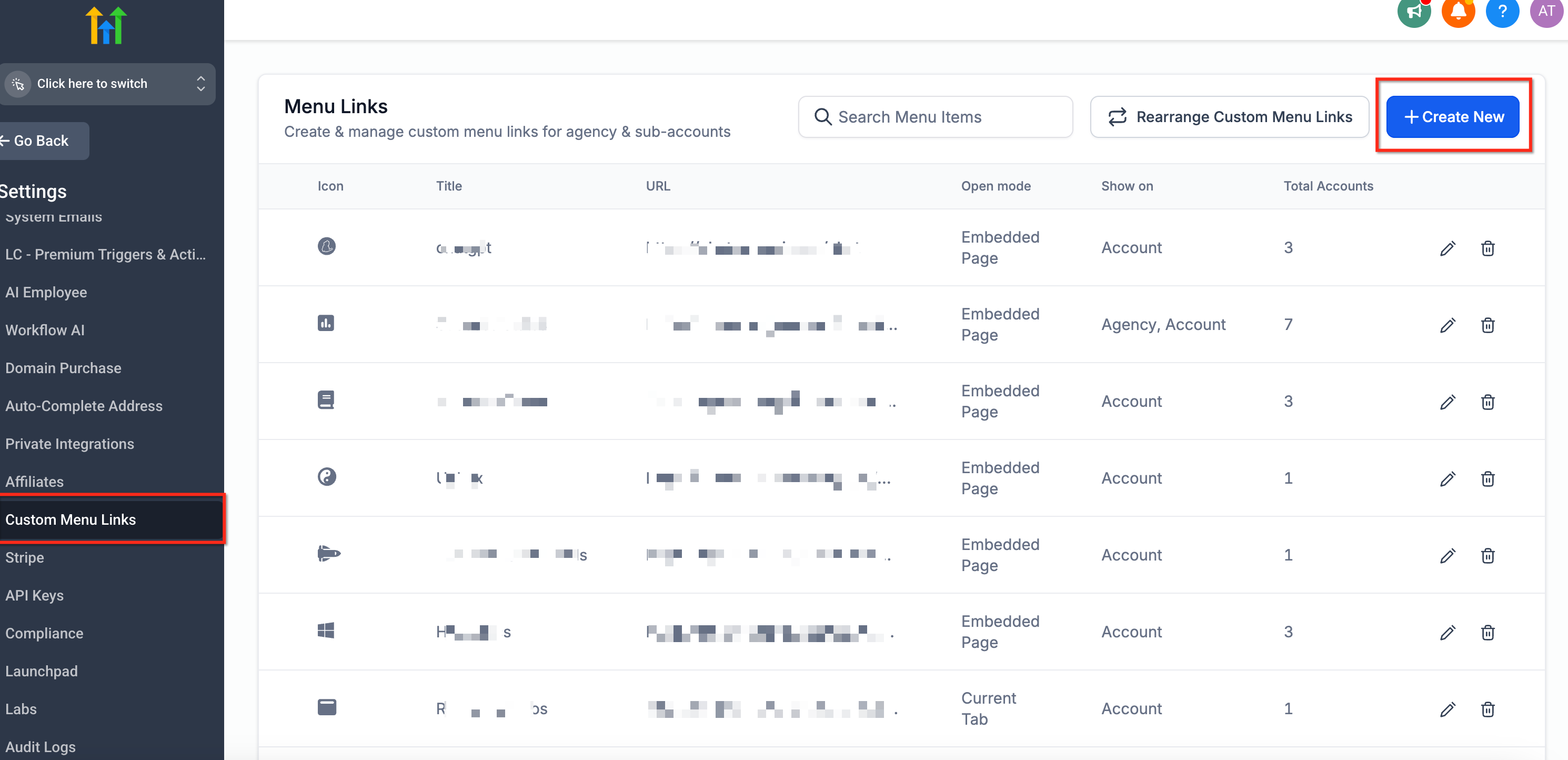
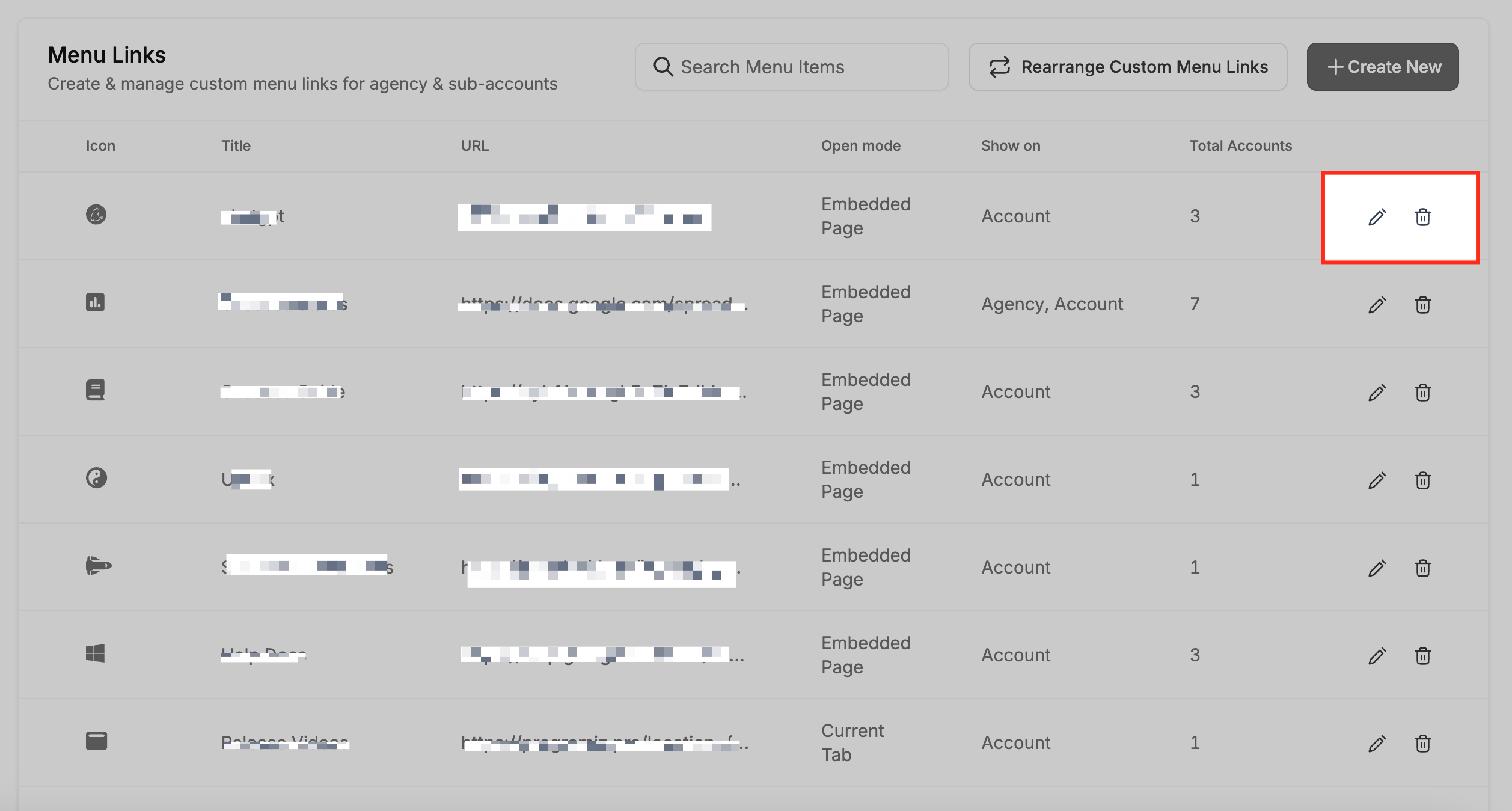
- Open Settings > Custom Menu Links and click the Create New button.
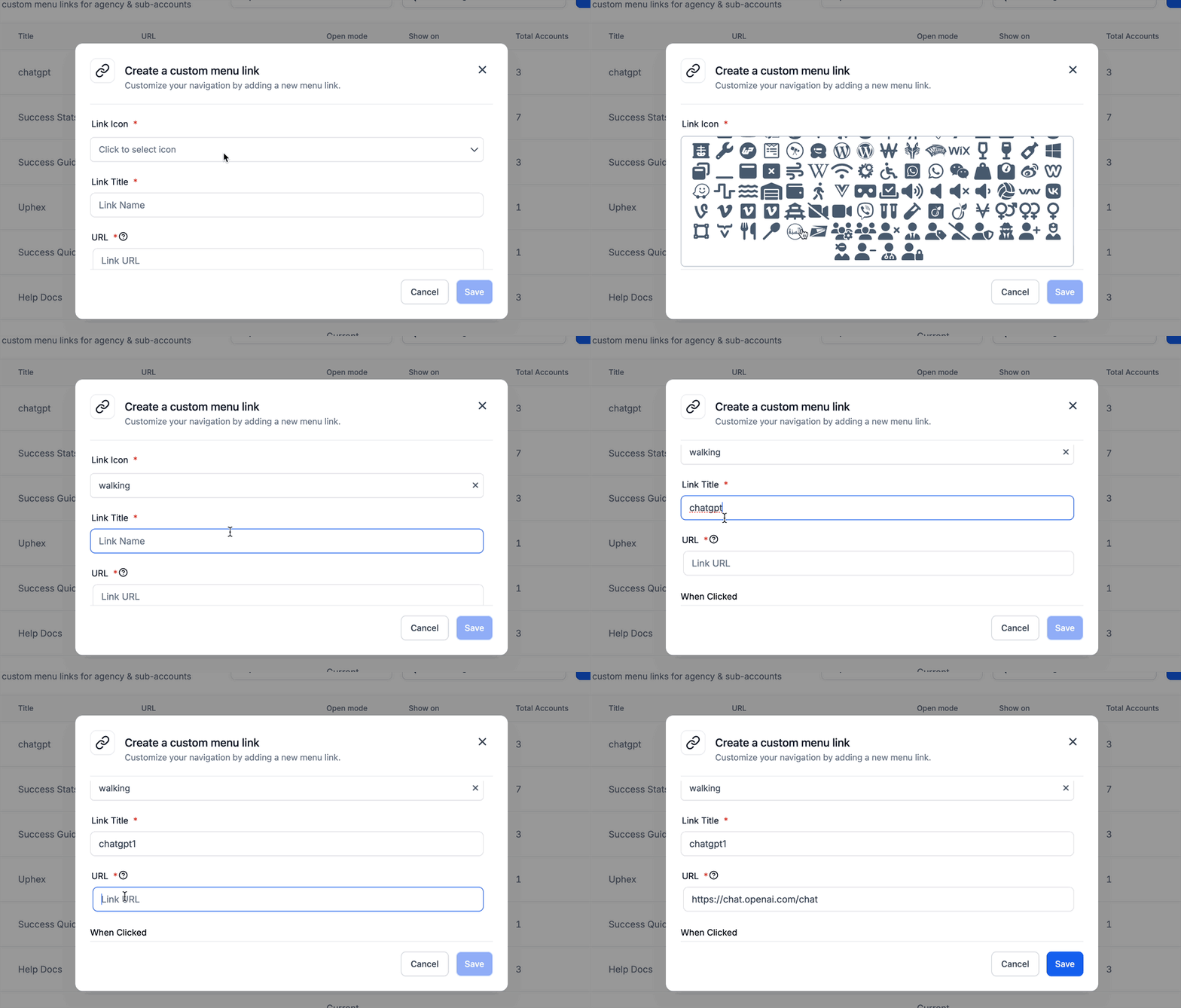
- Select an icon for the link.
- Enter a title and the destination URL, ensuring it starts with http:// or https:// and add any location or custom variables as needed.
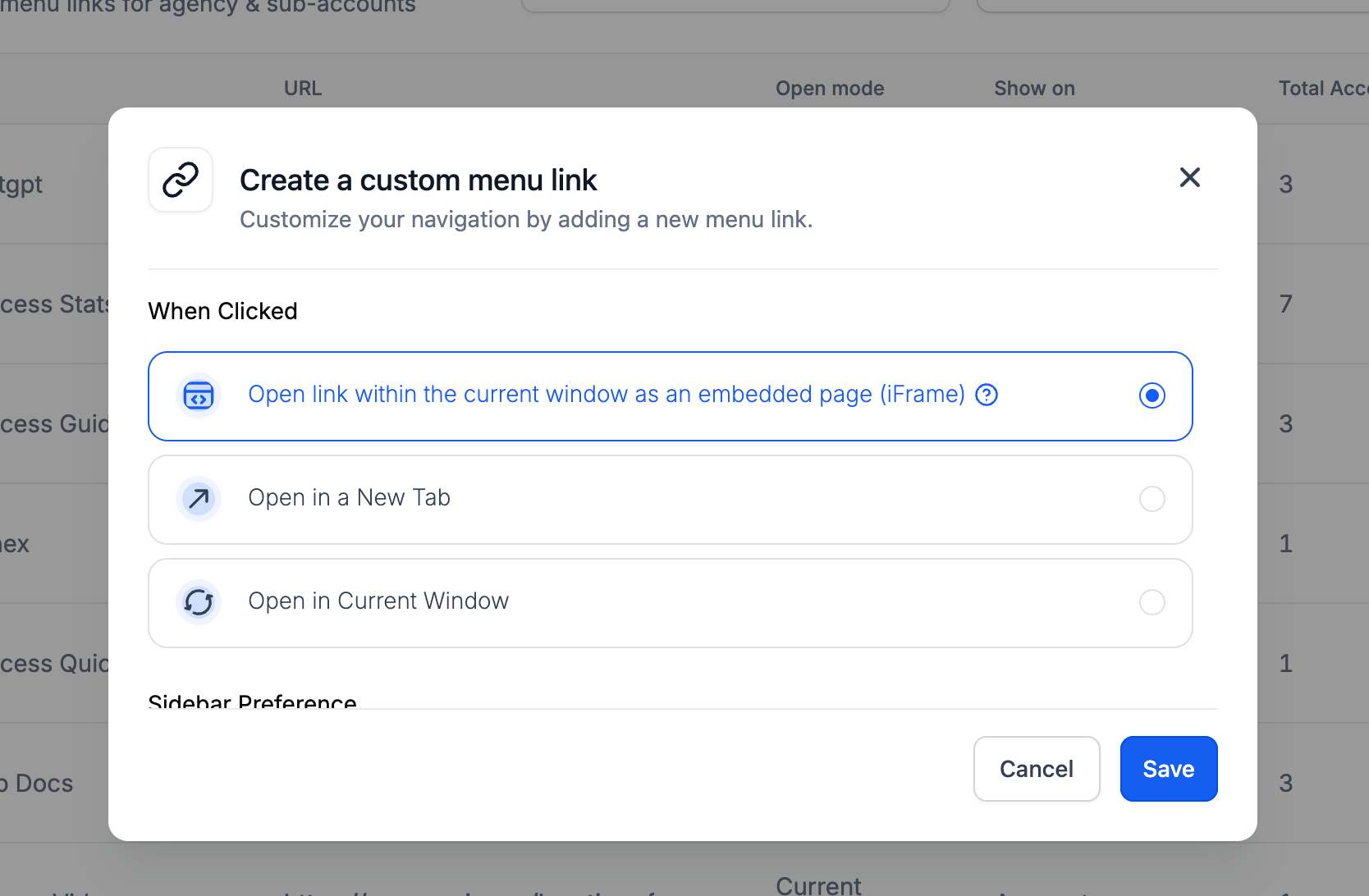
- Choose whether the link opens in an Embedded Page (iFrame), a New Browser Tab, or the Current Tab.
- Set the Sidebar Preference and Role Based Visibility, then save the link.
Edit or delete a custom menu link
- Open Settings > Custom Menu Links and locate the link you want to change.
- Click the Edit (pencil) icon to modify the link, or the Delete (trash) icon to remove it.
- Update the icon, title, URL, opening method, or visibility settings as required.
- Save the changes or confirm the deletion to apply them.
Rearrange custom menu links
- In Settings > Custom Menu Links, select the Rearrange Custom Menu Links button.
- Drag the menu items into the desired order.
- Click Save to store the new arrangement.
07What it looks like in HighLevel
08Settings that matter
- Link Icon. Defines the graphic shown next to the menu item in the navigation.
- Link Title. Specifies the text label that appears for the custom link.
- URL. The web address the link points to; must begin with http:// or https:// and can include location or custom values.
- Opening method. Controls whether the link opens inside an iFrame, a new browser tab, or replaces the current HighLevel tab.
- Sidebar Preference. Chooses whether the link appears in the Agency sidebar, the Subaccount sidebar, or both.
- Role, Based Visibility. Limits which user roles (All, User, Admin) can see the custom link.
- Manage Custom Menu Links permission. Grants a user the ability to create, edit, delete, or rearrange custom menu links.
09Things to know before you rely on it
- The URL must start with http:// or https://.
- Embedded Page links work only if the destination site permits iFrame embedding; otherwise choose New Tab or Current Tab.
- Variables added to the URL are passed openly and may appear in browser history or server logs, so avoid placing sensitive information in them.
- Only agency users with the Manage Custom Menu Links permission can manage links.
- Adding an excessive number of links can clutter the navigation menu; keep the list concise.
10How it connects to the rest of HighLevel
- Manage user roles and permissions for Custom Menu Links User access settings
- Explore all settings options available in HighLevel All settings
- Review HighLevel pricing and plan details Pricing
Michael's take

Adding extra links to the sidebar can feel risky if you’re not sure how users will interact with external pages. A poorly placed or insecure URL can expose data or clutter the navigation, making the platform harder to use.
When used thoughtfully, Custom Menu Links streamline daily tasks, bring reporting tools into view, and give quick access to training resources. All without forcing users to juggle multiple tabs. The ability to pass user context in the URL adds a nice touch of personalization.