
01Who this is for
- Agency owners who need consistent branding across all client portals and login pages.
- Founders managing multiple subaccounts that want to enable AI tools and premium triggers centrally.
- Marketers who require custom JavaScript or CSS to embed tracking or modify the dashboard appearance.
02Agency company settings, explained
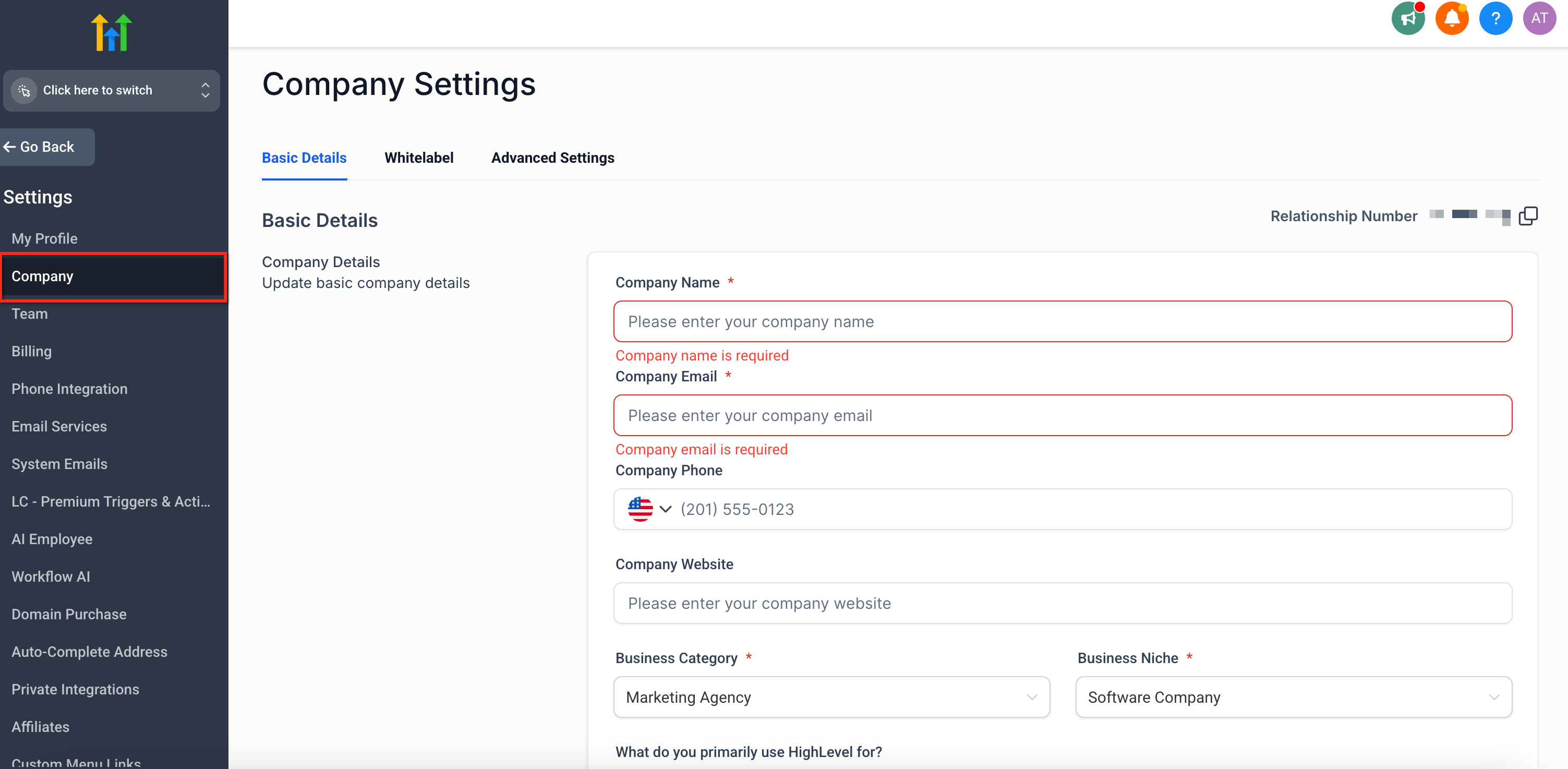
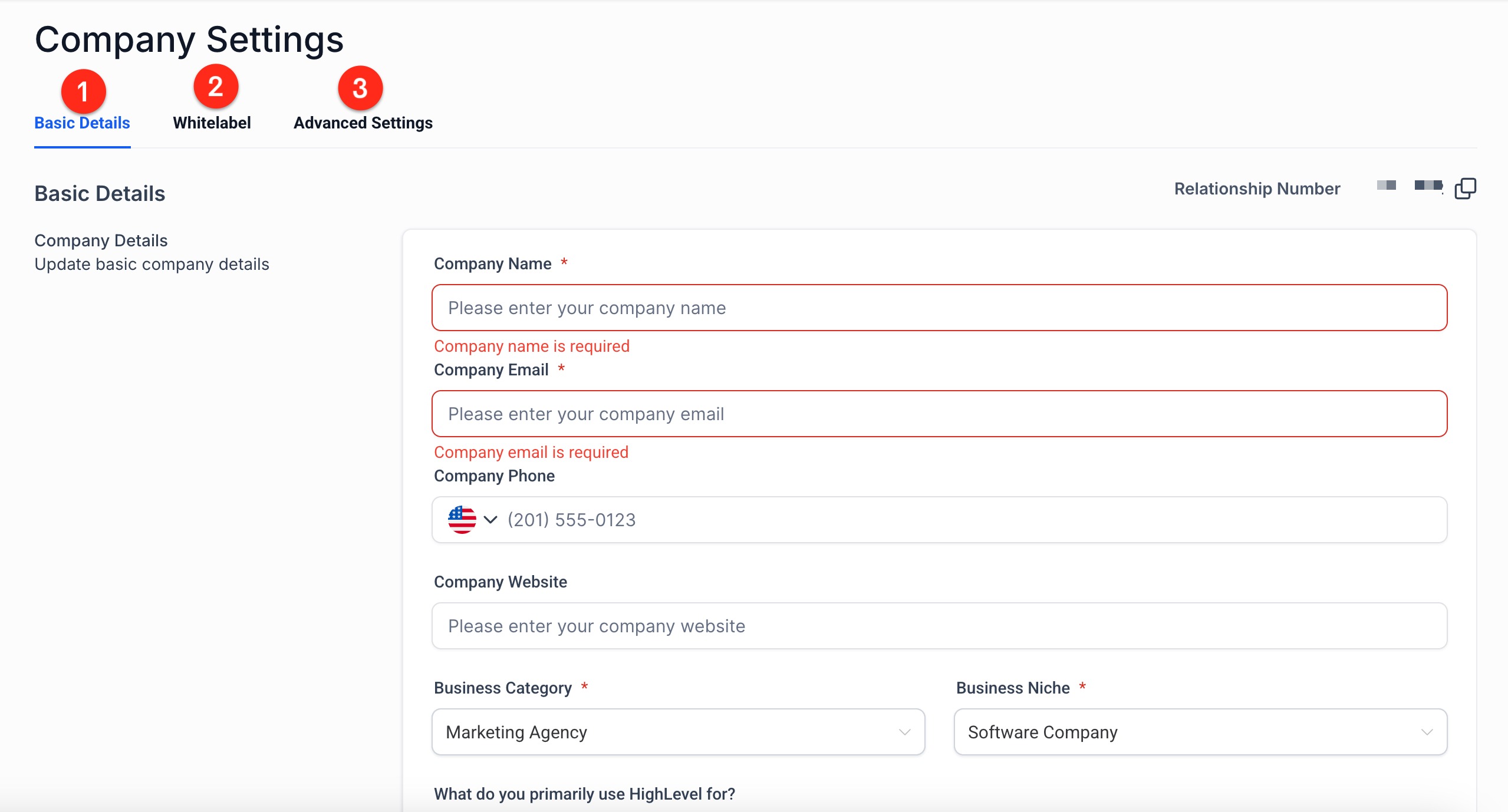
Agency Company Settings act as a central control panel inside the Agency Dashboard. The panel is reached by clicking the Settings gear icon on the bottom left navigation and then choosing the Company tab. Within the panel are three tabs, Basic Details, Whitelabel, and Advanced Settings, each holding related options.
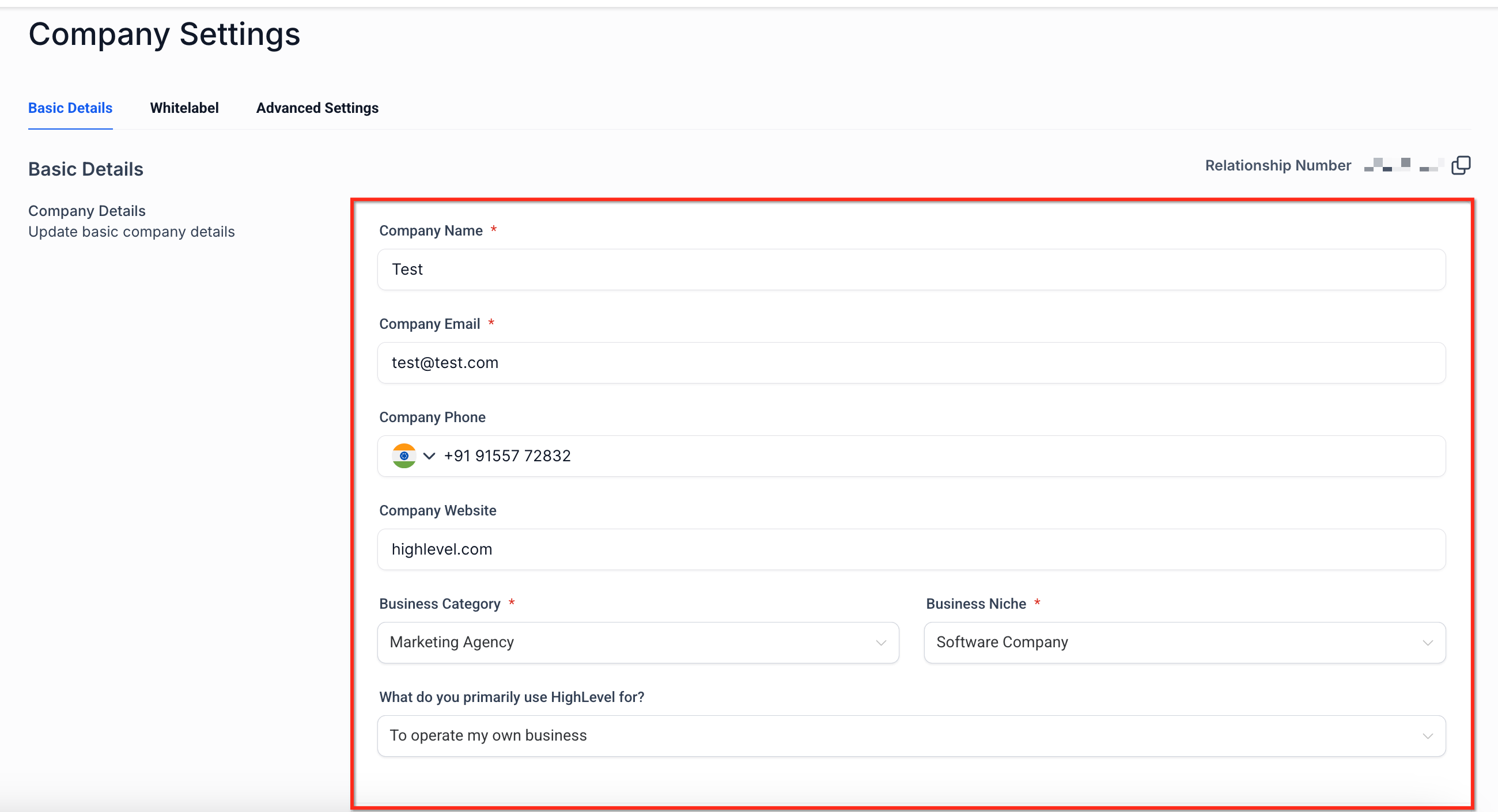
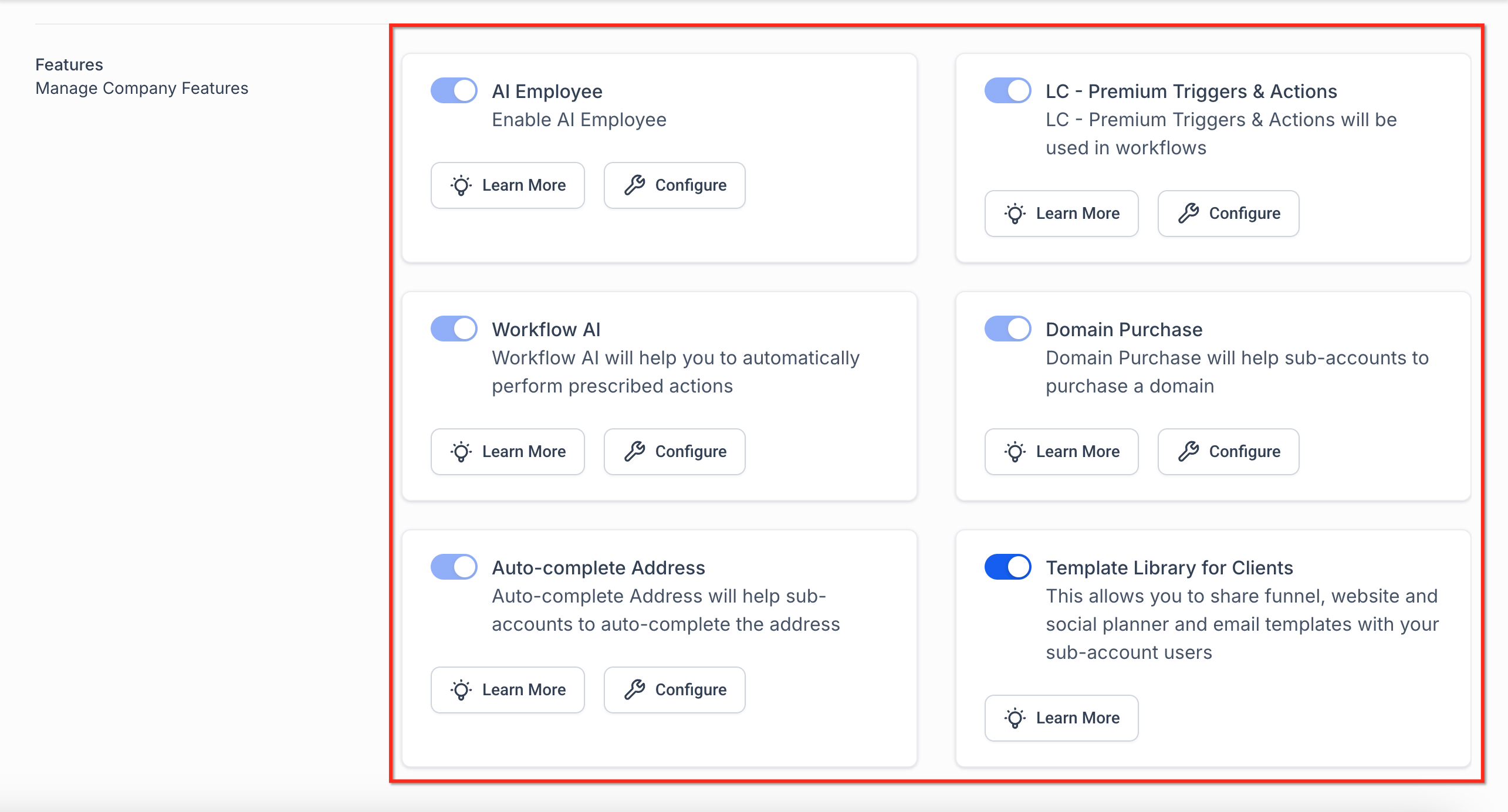
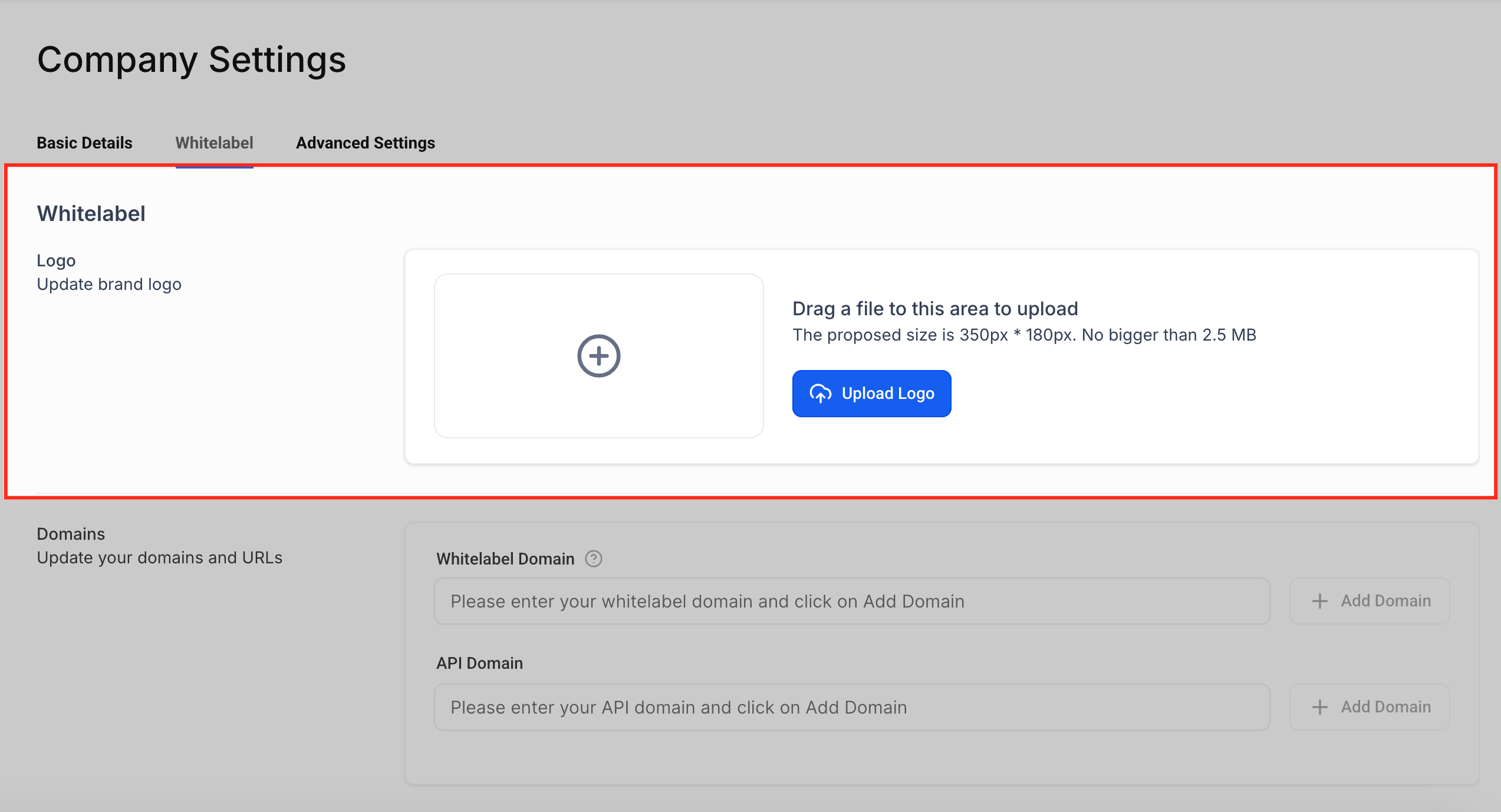
The Basic Details tab stores core business information such as name, contact data, address, time zone, and a set of feature toggles for AI Employee, Workflow AI, domain purchase, and other platform add ons. The Whitelabel tab handles visual branding, including logo upload, favicons for sites and portals, custom domains for login and API links, policy URLs, and custom JavaScript or CSS. The Advanced Settings tab provides security controls, session timeout choices, and onboarding tools that affect both the agency and its subaccounts.
03How businesses use agency company settings
- Digital marketing agency. The agency uploads its logo and configures a custom whitelabel domain so client login portals display the agency’s brand. It also enables AI Employee and Workflow AI toggles to streamline repetitive tasks across all client accounts.
- Real estate brokerage. The brokerage sets a session timeout of one hour to protect access on shared devices. It enables the NPS survey option in Advanced Settings to collect client satisfaction after each transaction.
- SaaS startup using HighLevel for internal operations. The startup turns on the Template Library toggle to share funnel and website templates across its teams. It adds custom JavaScript for analytics tracking in the Whitelabel tab and selects the Dark Mode theme for its dashboard.
04The numbers and rules that matter
- Recommended logo size: 350px * 180px, no bigger than 2.5 MB.
- Favicon must be square and at least 32×32 px.
- Session timeout options: 15 minutes, 1 hour, 4 hours, 8 hours, 12 hours, 1 day, 2 days, 3 days, Never.
05How to set up and use agency company settings in HighLevel
Access and configure Agency Company Settings, including custom CSS
- Click the Settings gear icon on the bottom left navigation panel and select the Company tab at the top.
- Explore the three primary tabs: Basic Details, Whitelabel, and Advanced Settings.
- Right click on the element in your HighLevel dashboard.
- Select Inspect to open Chrome DevTools.
- Copy the selector for the element.
- Paste the selector into Company Settings > Whitelabel > Custom CSS.
- Save changes.
06What it looks like in HighLevel
07Settings that matter
- Company Name. Defines the agency’s main identifier shown in headers, emails, and system messages.
- Email. Sets the primary contact address used in communications and system notifications.
- Phone. Provides a telephone contact for client facing areas.
- Website URL. Adds a reference link displayed in whitelabeled experiences.
- Business Category & Niche. Tailors HighLevel features to the agency’s industry.
- Usage Type. Specifies whether the account is an agency or a direct business user.
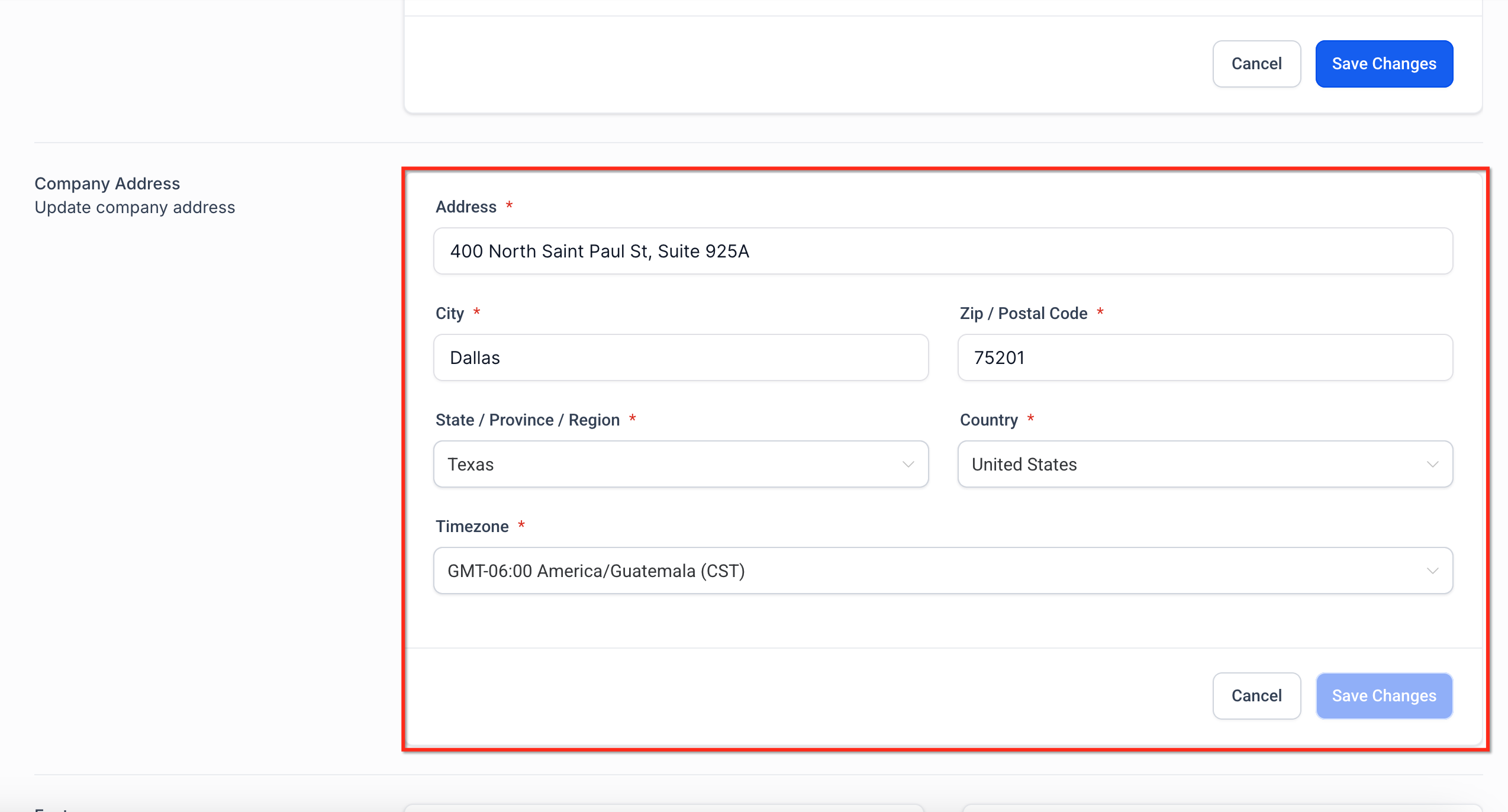
- Address, City, State, Zip, Country. Supplies location data for templates and compliance purposes.
- Time Zone. Determines the timing of automations and workflow logs.
- AI Employee. Activates a smart assistant for handling repetitive tasks.
- Workflow AI. Enables AI logic inside workflow actions.
- Auto, complete Address. Improves form usability by suggesting address information.
- LC, Premium Triggers & Actions. Makes premium workflow triggers and actions available.
08Things to know before you rely on it
- Custom JavaScript and CSS are unsupported; changes to HighLevel’s core UI may break and require testing after updates.
- CSS cannot be applied to mobile apps, React pop ups, PDF invoices, the drag and drop builder UI, or any element without a stable class or data id.
- There is no agency wide favicon upload; favicons must be added at the site, client portal, or membership level.
- Session timeout options include a setting that keeps users logged in indefinitely.
- Enabling Enhanced Account Security disables auto generation of legacy API keys.
09If something goes wrong
- Favicon isn’t showing after upload. Clear the browser cache, open the page in an incognito window, and verify the image is square and at least 32×32 px. Confirm the favicon is saved in the correct Site Settings, Client Portal, or Membership branding area.
10How it connects to the rest of HighLevel
- Read about billing considerations for agencies. Agency billing FAQ
- Learn how to update your agency’s tax ID types. Agency tax ID guide
- View HighLevel pricing and plan options. HighLevel pricing
- Start a 30 day trial of HighLevel. 30 day trial
Michael's take

Agency company settings let a small agency put its brand front and center while keeping security and advanced tools under control. I appreciate that every Client Portal, login screen and email can look like it belongs to us, and that we can turn on AI helpers or tighten API access without hopping between accounts. Don’t forget that custom CSS can break after an update. Always verify after each platform change.