
01Who this is for
- Agency owners who need to comply with regional tax rules and avoid extra VAT charges on their subscriptions.
- Finance managers in multinational agencies who must record the correct Tax ID for each jurisdiction.
- Billing administrators responsible for keeping agency payment information up to date.
02Tax IDs, explained
HighLevel stores a Tax ID for each agency under the Billing settings. The ID determines whether Value added tax (VAT) appears on invoices and whether the agency qualifies for VAT exemption. The system supports a global list of Tax ID types organized by region and country.
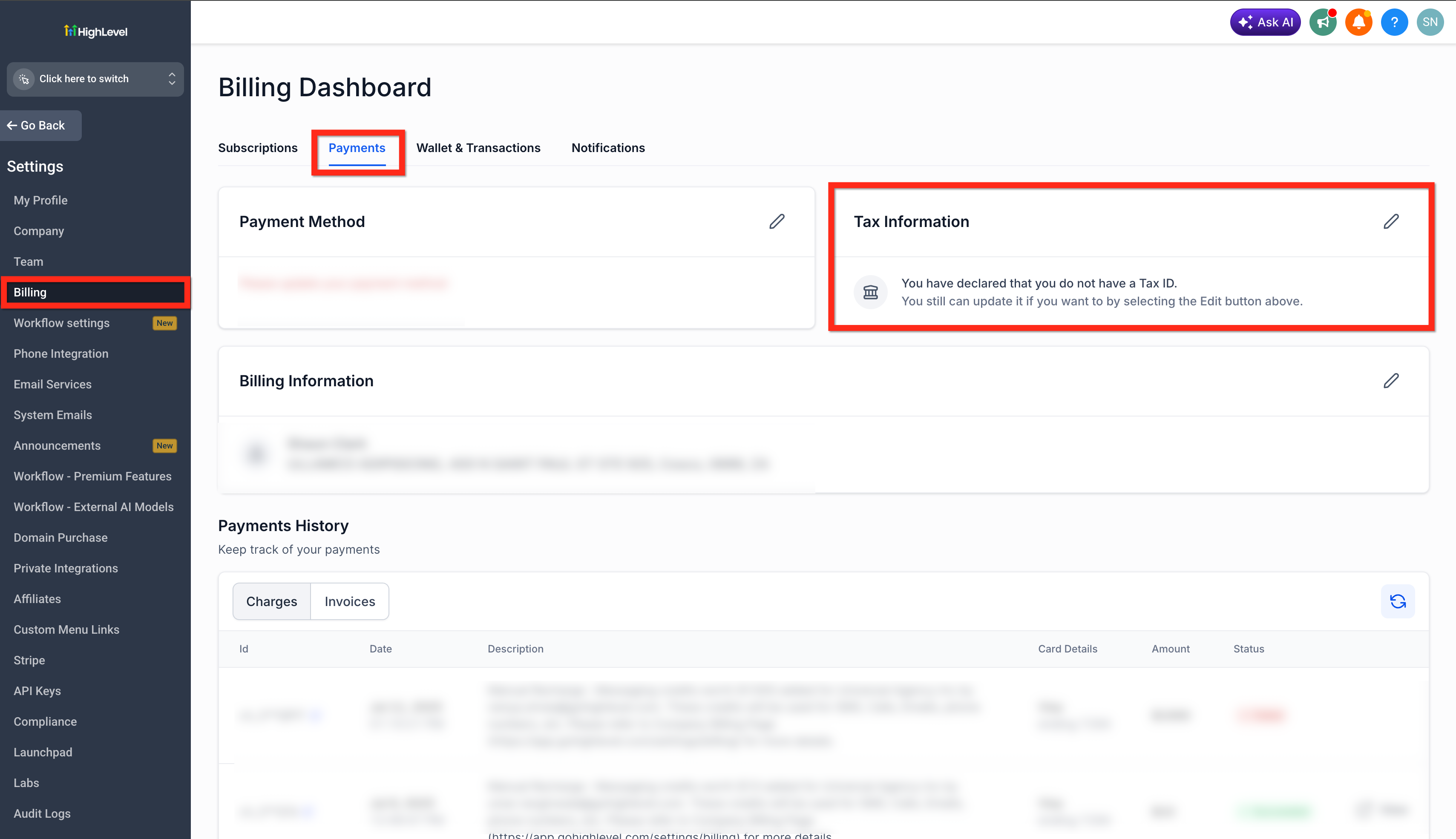
The Tax ID entry lives in Agency Settings > Billing > Payments. Admins can edit the entry, choose the appropriate Tax ID type, and enter the number. If a business does not have a listed Tax ID, a checkbox can be selected to indicate the absence of a Tax ID.
When the correct Tax ID is saved, HighLevel will automatically apply the appropriate tax treatment to future purchases, such as subscriptions and renewals.
03How businesses use tax IDs
- Digital marketing agency. The agency admin opens Agency Settings > Billing > Payments, clicks Edit, selects the Tax ID type that matches the agency’s country, enters the VAT number, and saves. This ensures invoices show VAT correctly or are exempt when applicable.
- Ecommerce consultancy. The consultancy reviews the regional Tax ID table, picks the region for its operating country, selects that region in the Tax ID dropdown, inputs its GST number, and saves. HighLevel then identifies the exact GST type without further input.
- International SaaS provider. If the provider lacks a listed Tax ID, it checks the “I do not have a Tax ID” box in the Tax ID pop up, confirms the choice, and saves. This records the absence of a Tax ID while keeping the account active.
04The numbers and rules that matter
- Tax ID types are listed per country in this page.
05Before you start
- Admin access to Agency Settings > Billing > Payments.
- Knowledge of the agency’s country and its corresponding Tax ID type.
06How to set up and use tax IDs in HighLevel
Update the tax ID
- Navigate to Agency Settings > Billing > Payments.
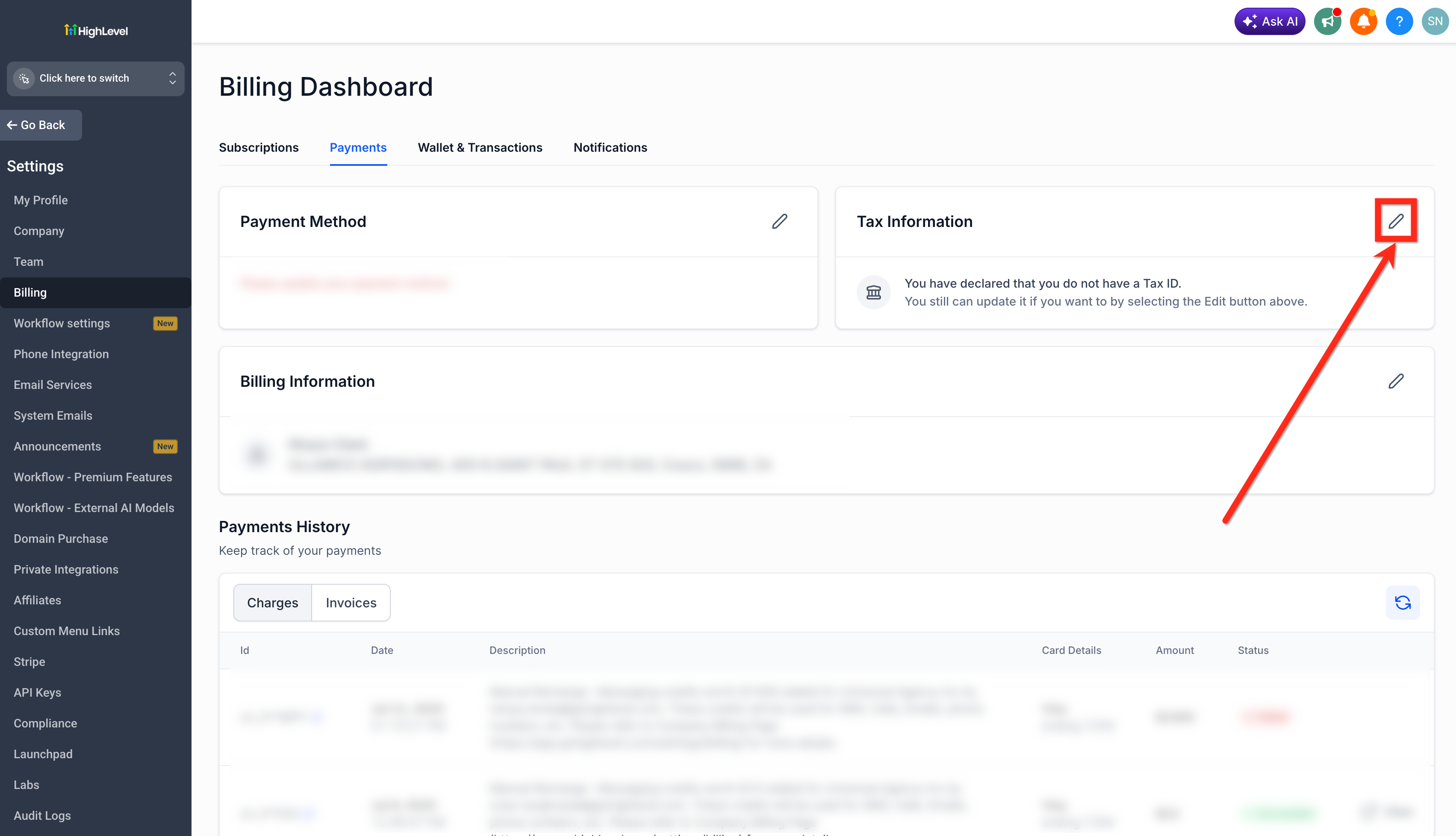
- Click the Edit button next to the Tax ID section.
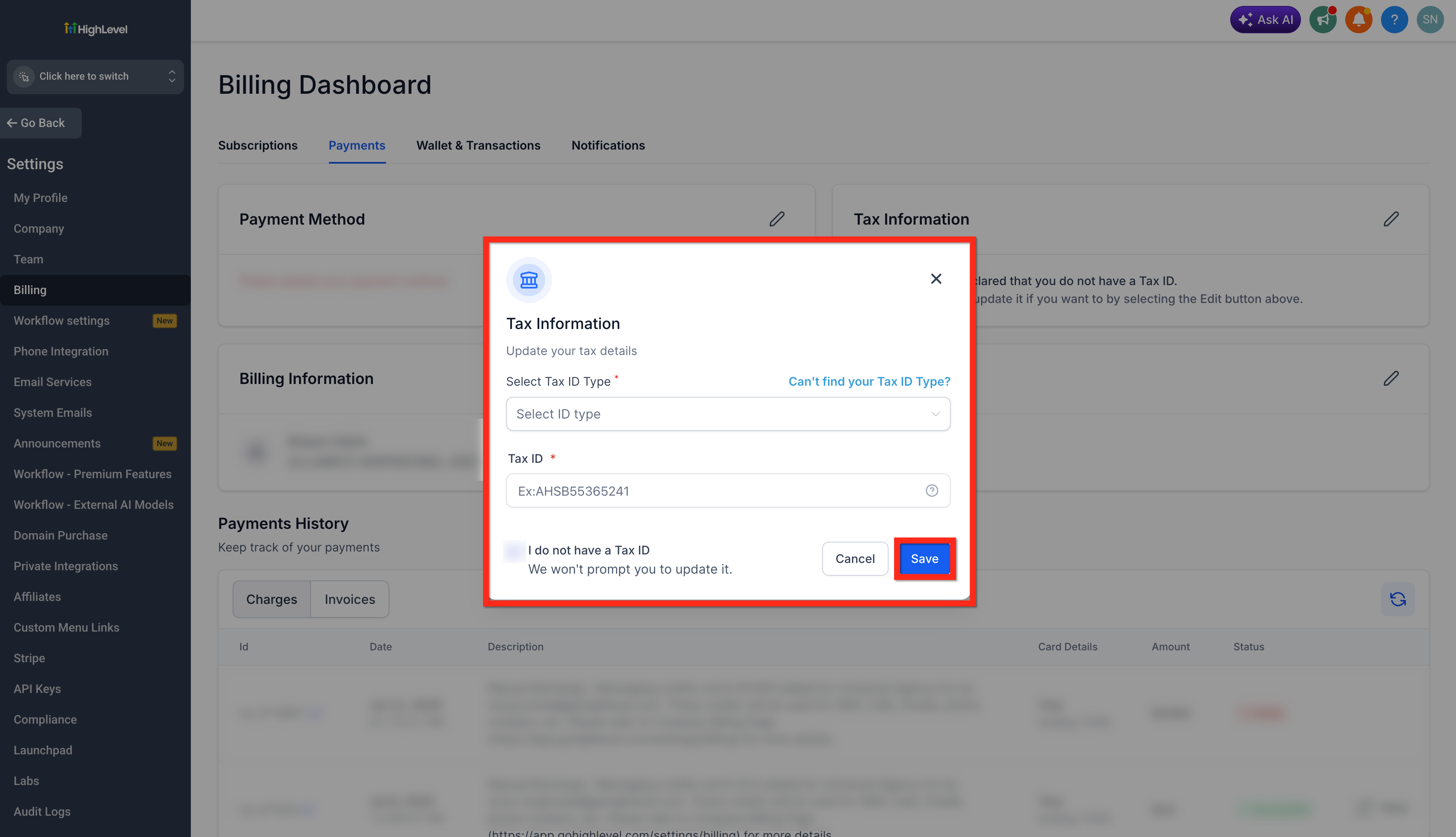
- In the pop up, choose the Tax ID type that matches the agency’s region.
- If the agency has no listed Tax ID, select the “I do not have a Tax ID” checkbox.
- Enter the Tax ID number in the provided field.
- Click Save to store the changes.
Choose the correct tax ID type
- Locate the agency’s country in the Tax ID region table.
- Identify the region associated with that country.
- Select the identified region from the Tax ID type dropdown.
- Enter the country level Tax ID number; HighLevel will infer the exact Tax ID subtype.
07What it looks like in HighLevel
08Settings that matter
- Tax ID type. Determines the regional tax classification used for VAT calculations.
- I do not have a Tax ID. Checkbox that records the absence of a listed Tax ID for the agency.
- Tax ID number. The actual tax identification string entered for the selected type.
09Things to know before you rely on it
- VAT is added only for purchases made by agencies in the European Union, Norway, Turkey, or the United Kingdom.
- VAT exemption applies only when a valid VAT ID is entered in the Billing > Payments page.
- If an agency has multiple Tax IDs, support must be contacted to determine which ID to use.
- The list of Tax ID types is regional; agencies must select the correct region to avoid errors.
10How it connects to the rest of HighLevel
- Read about billing questions for agencies. Billing FAQs
- Explore agency company settings for branding and domains. Agency company settings
- View HighLevel pricing and plan options. Pricing page
Michael's take

Keeping the correct tax number on file helps ensure VAT is applied correctly on your agency’s invoices.
The first thing I would do is select the exact region that matches your country so the system knows which format to expect.
Once the region is set, the rest is just a few clicks. It’s a straightforward way to keep your billing compliant.