
01Who this is for
- Agency owners who need to grant employees or client staff access across multiple client accounts.
- Admins responsible for assigning specific roles and permissions to keep access limited to required functions.
- Account managers who want to restrict a user to only selected client accounts.
02User access, explained
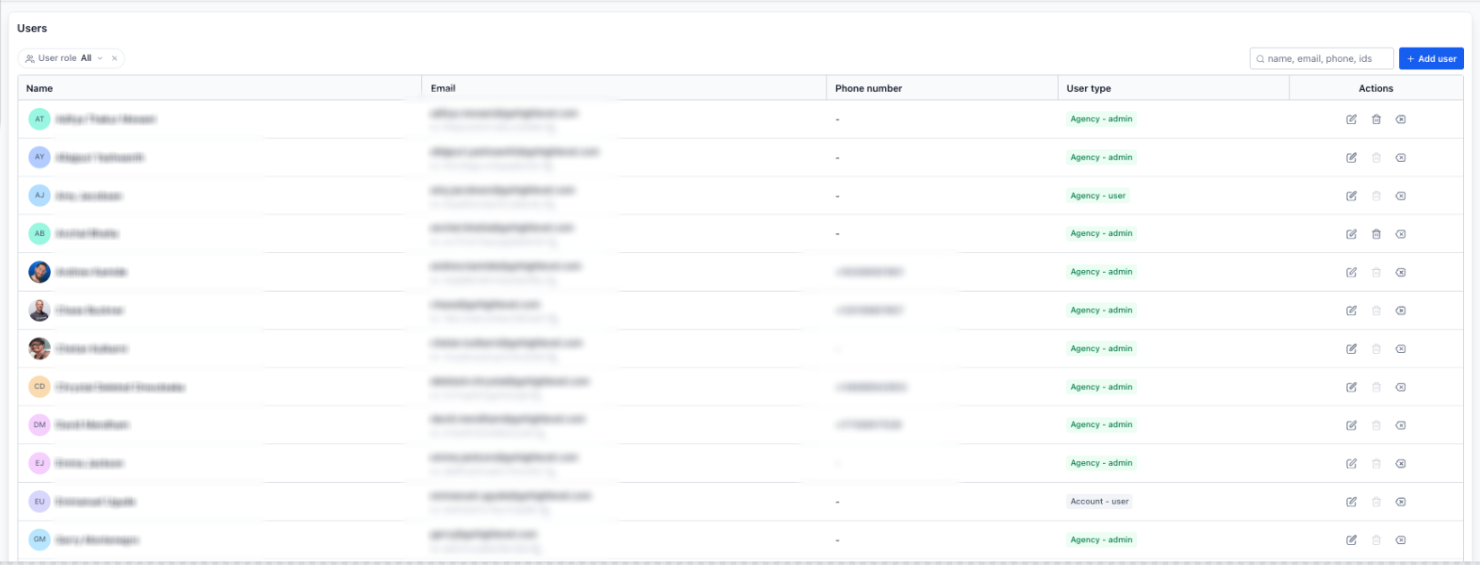
User Access is a settings area where you can create new users or modify existing ones at the agency level. You enter personal information, choose a user type, Agency for full access or Account for limited access, and assign the client accounts the user can see. Roles and permission scopes control which parts of the platform the user can work in.
The same Users screen exists inside each subaccount, allowing admins to add local users that also appear in the agency level list. Settings also include the optional Login As permission, which lets an admin impersonate another user when enabled.
When a login email is changed, HighLevel sends a security alert to the previous email address and shows an in app notification. If the change was not authorized, the alert includes a reversal link that restores the former email without requiring a sign in.
03How businesses use user access
- Digital marketing agency. The agency owner adds staff members in Settings > Users, fills in their profile details, selects Agency or Account type, assigns the client accounts they need, and sets appropriate roles. This gives each employee only the access required for their duties.
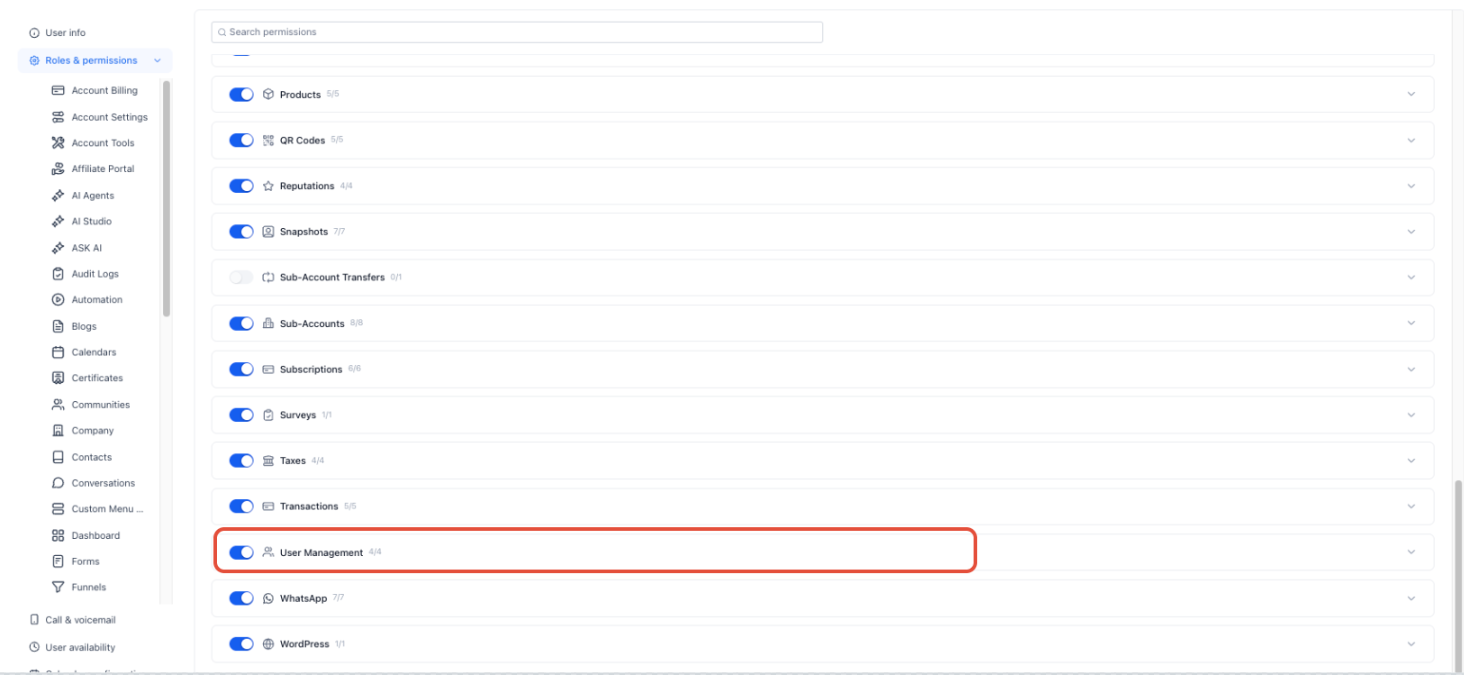
- Consulting firm. A senior consultant enables the Login As permission for a project manager by editing the manager’s user record, navigating to Roles & Permissions > User Management, and toggling the Login As option. The manager can then troubleshoot client accounts while preserving accountability.
- Health care practice. If a staff member’s login email is changed without notice, the practice reviews the security alert sent to the old address, clicks the reversal link, and confirms the restoration on the follow up page, regaining access without contacting support.
04The numbers and rules that matter
- Reversal link is valid for 30 days and can be used only once.
- Email change alerts support 12 locales.
05Before you start
- You must be an agency owner or admin to add or edit users at the agency level.
- To reverse an email change, you need access to the inbox of the previous login email address.
06How to set up and use user access in HighLevel
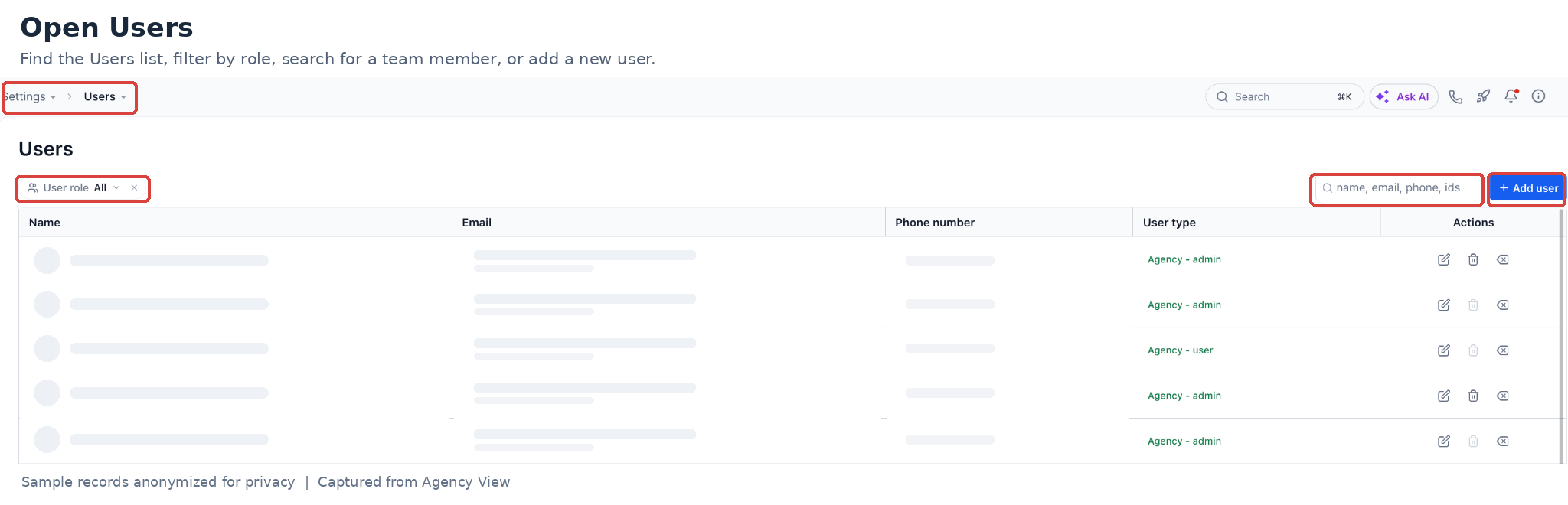
Add or edit a user at agency level
- From Agency View go to Settings.
- Select Users.
- Choose Add User or edit an existing user.
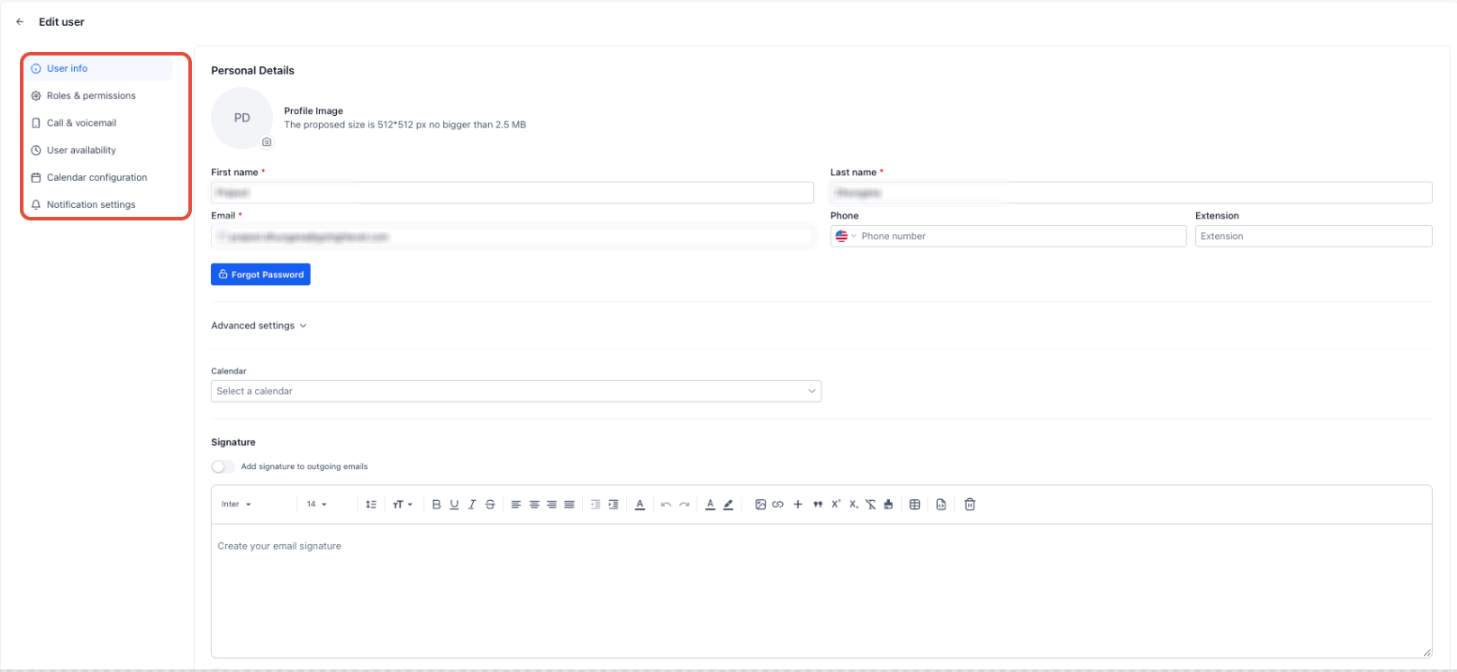
- Enter personal logo, first name, last name, email, phone number and password.
- Select the appropriate User Type, Agency or Account.
- If Agency, specify which client accounts should receive notifications.
- If Account, select the specific client accounts the user can access.
- Assign the required roles and permission scopes.
- Save the user record.
Enable or disable Login As permission
- From Agency View go to Settings.
- Select Users.
- Edit the user whose permission you want to change.
- Open Roles & Permissions and locate the User Management section.
- Toggle the Login As option on or off and save.
Reverse an unexpected email change
- Open the inbox of the previous login email address.
- Find the security alert email about the email change.
- Read the change details shown in the message.
- Click the reversal link included in the alert.
- Confirm the restoration on the confirmation page that appears.
07What it looks like in HighLevel
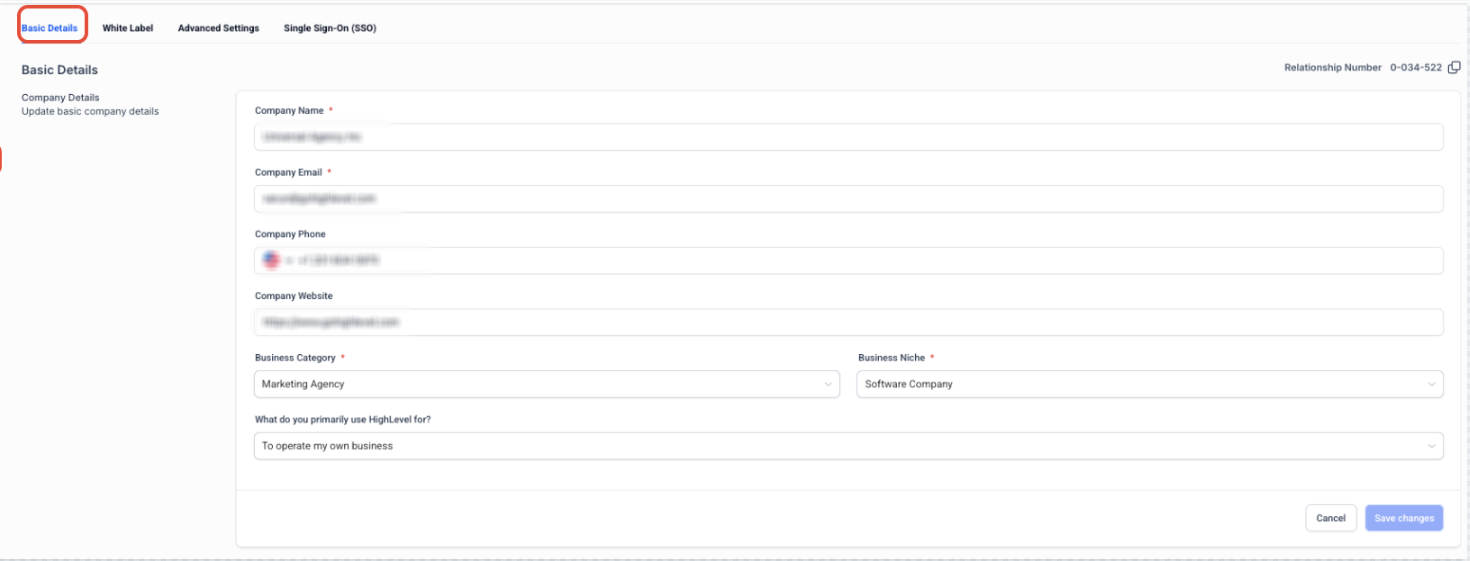
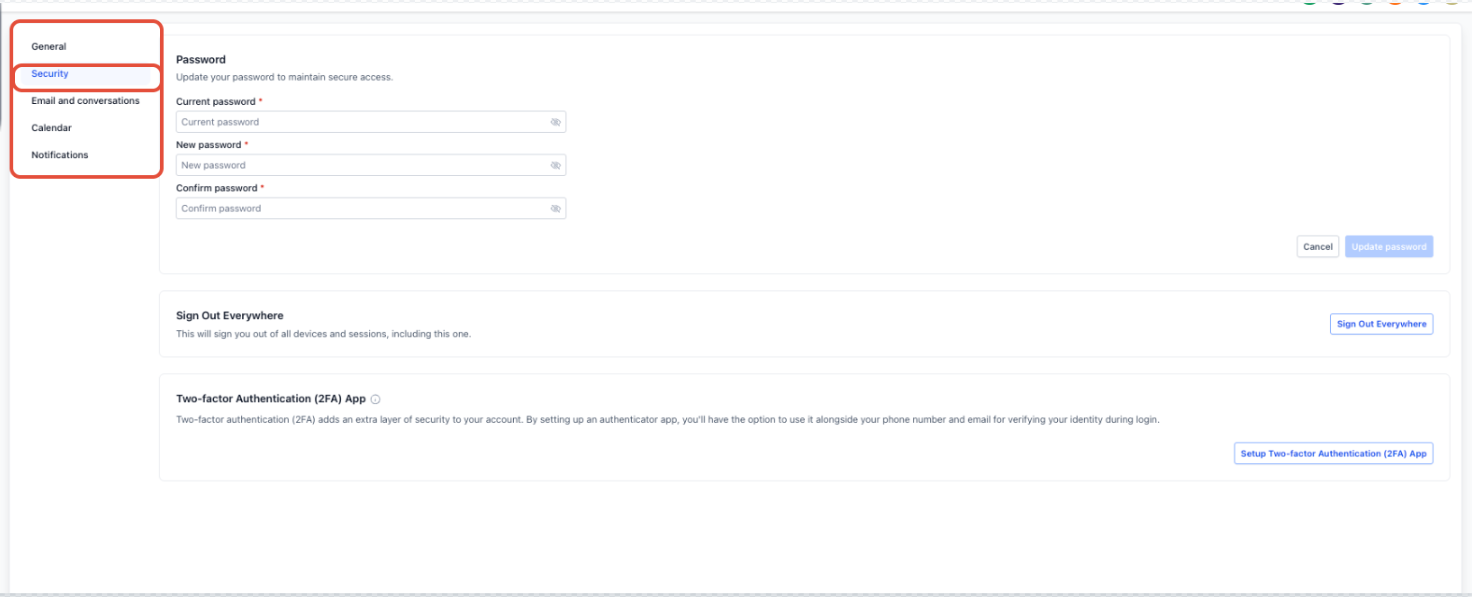
08Settings that matter
- Personal logo. Shows a user’s picture or brand image on their profile.
- First name. The given name stored for the user.
- Last name. The family name stored for the user.
- Email address used as the login email. Identifies the user for sign in and receives security alerts.
- Phone number. Used for SMS OTP verification and contact.
- Password. Credentials required for authentication.
- Permissions. Define which features and actions the user can access.
- User Type. Determines whether the user sees all agency client accounts (Agency) or only selected ones (Account).
- Login As permission. Controls whether an admin can impersonate the user from the Users list.
09Things to know before you rely on it
- The reversal link sent in a security alert expires after 30 days and can be used only once.
- If the reversal link has already been used, another reversal cannot be completed; you must contact your agency.
- When adding a user, an email address that already exists in the agency prompts guidance to contact the admin or add the existing user.
10How it connects to the rest of HighLevel
- Understanding admin and user role scopes admin vs user roles
- User roles and permissions for subaccounts subaccount roles
- Set up Single Sign On (SSO) for your agency SSO setup
Michael's take

User access is essential for keeping your agency secure and organized. If you don’t need granular control over who sees what, you can skip setting up the detailed roles and stick with basic admin access.
In most cases, I recommend starting by assigning the appropriate user type, Agency for full access staff and Account for limited access partners. Then double check the Login As setting so only trusted admins can impersonate others.