
01Who this is for
- Agency admins who need to delegate limited client access without exposing agency wide settings.
- Account type staff who work only inside specific client subaccounts and should not see other clients.
- Clients who require their own login to manage only their business data.
02Agency user roles and permissions, explained
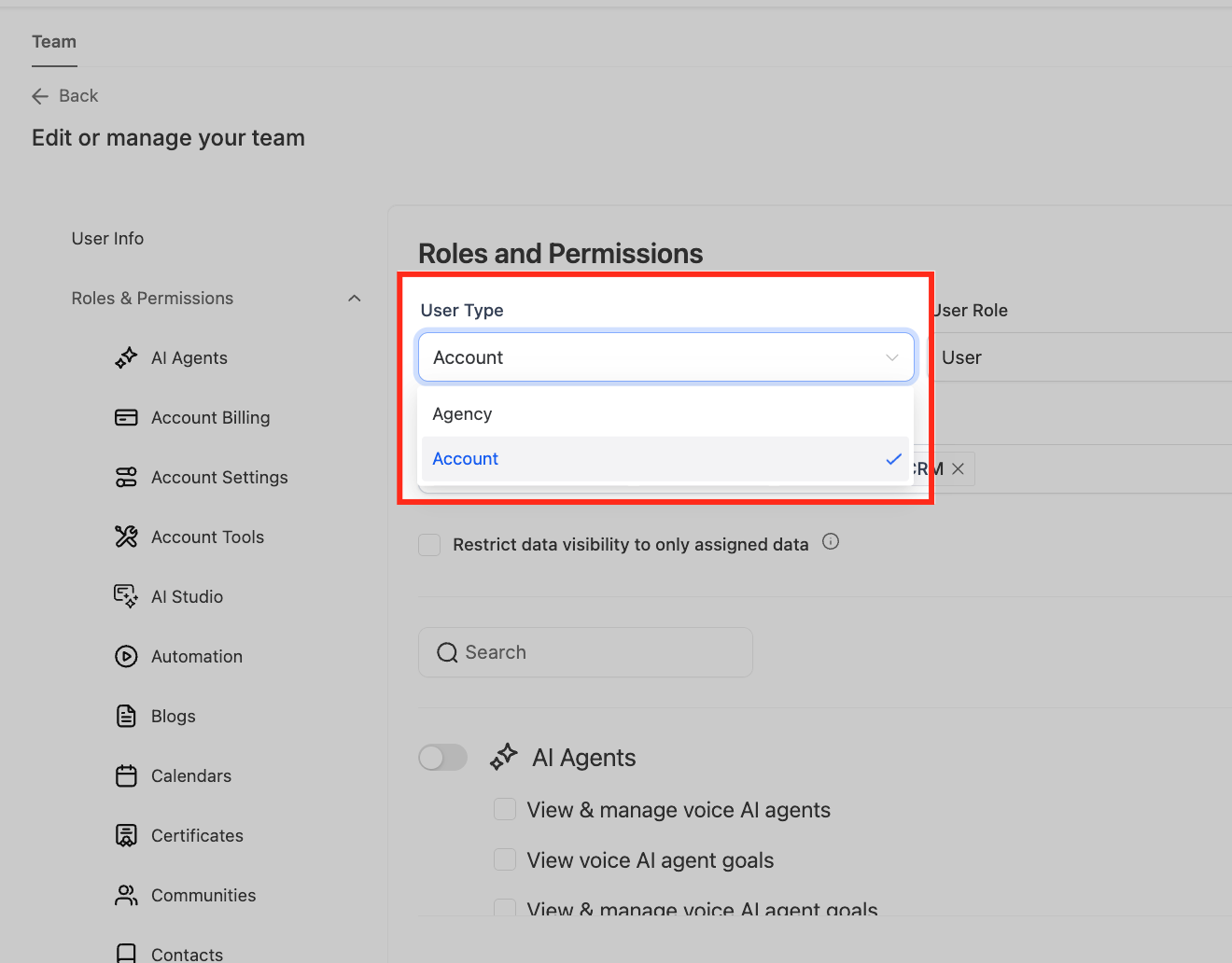
The feature lives in the Users section of Settings when you are in Agency View. It groups controls into layers: user type, role, subaccount assignment, module toggles and granular actions. User type defines the overall scope, Agency for full agency view or Account for selected subaccounts. Role sets the authority level within that scope, either Admin or User.
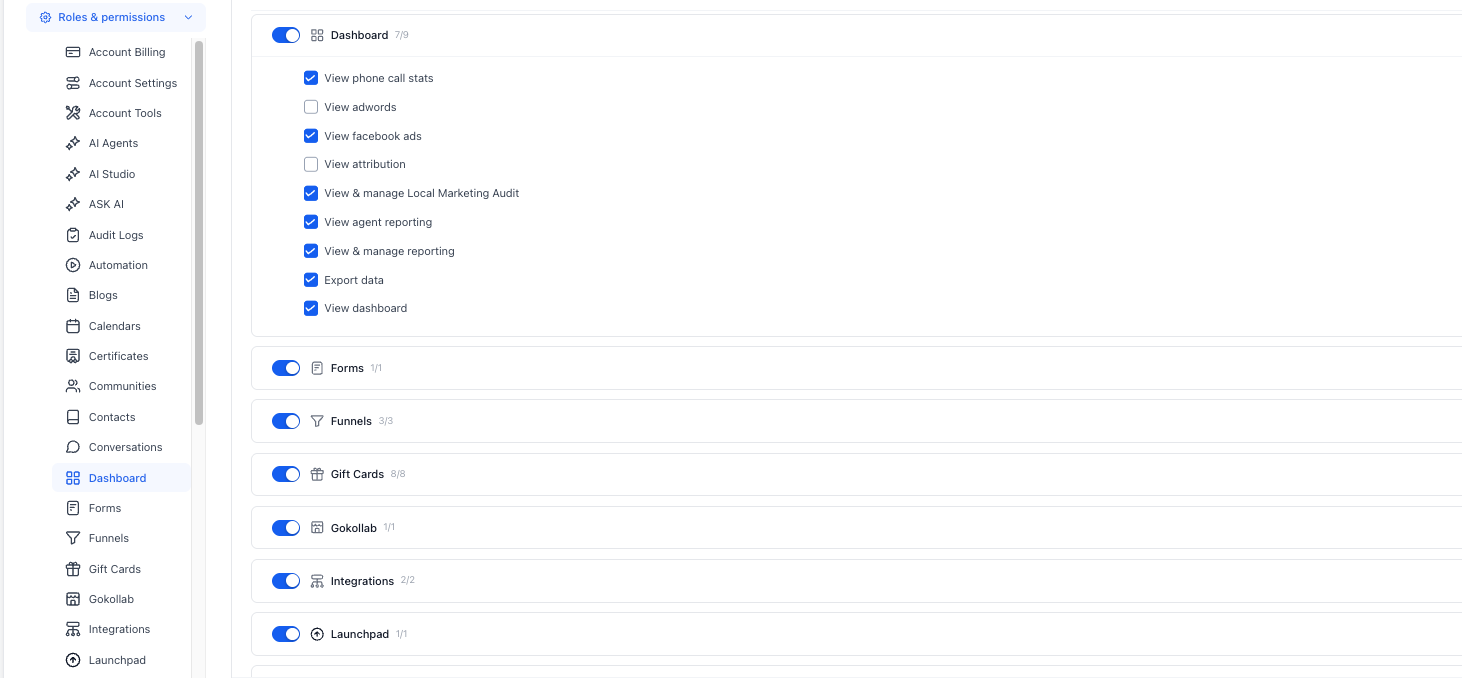
Modules can be turned on or off entirely. When a module is active, you can enable or disable individual supported actions called granular permissions. Special switches such as Only Assigned Data limit record visibility, while permissions like Enable Login As let an admin impersonate another user. All changes are saved per user and take effect immediately.
03How businesses use agency user roles and permissions
- Digital marketing agency. Create Account type users for each client, assign only that client’s subaccount, and turn off modules they don’t need. This keeps agency staff focused on their own client while protecting other accounts.
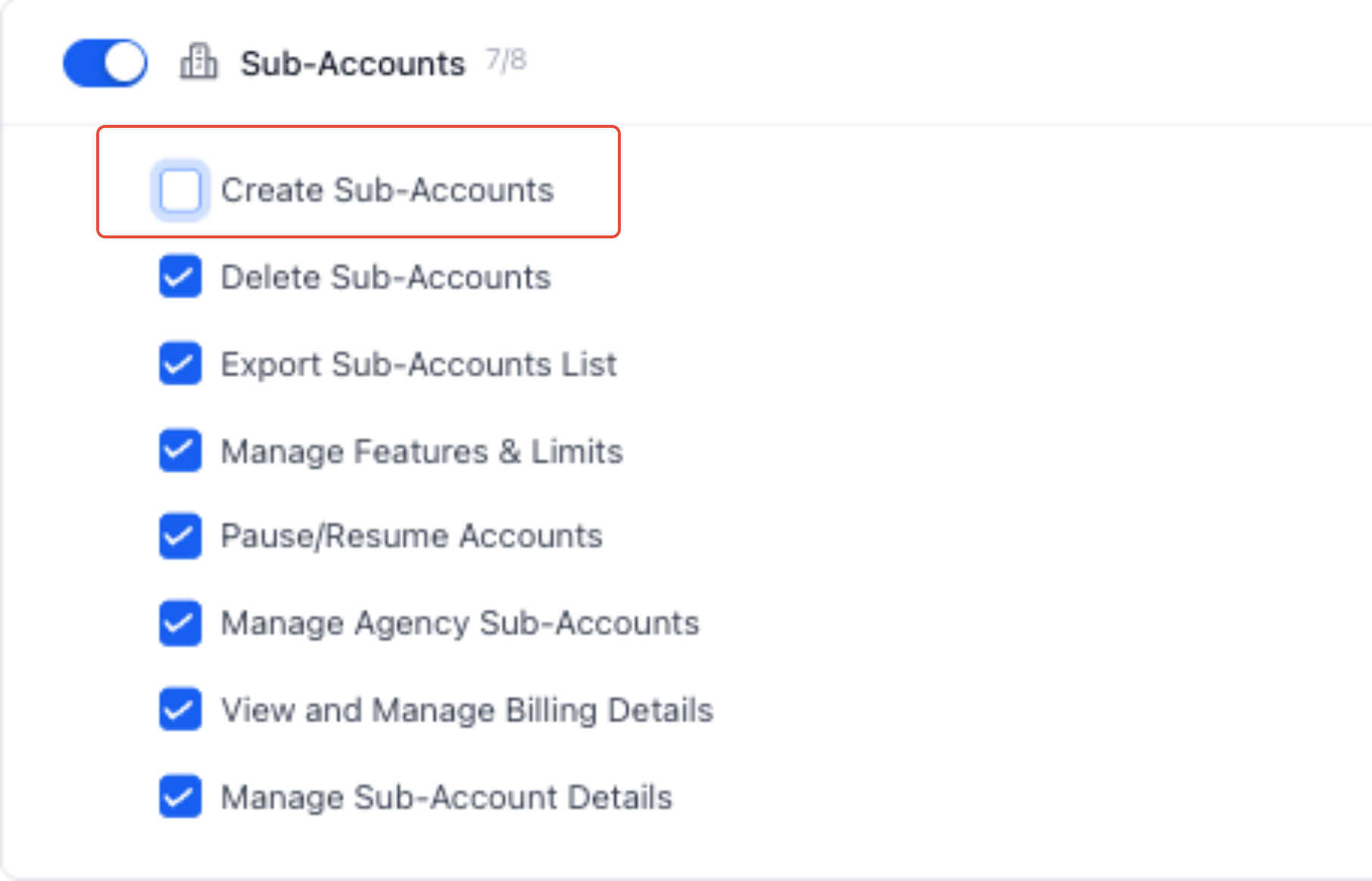
- Software consulting firm. Set up Agency type admins with Admin role, then disable the Create Subaccounts and Delete switches for junior admins. They can manage existing client accounts but cannot add or remove subaccounts.
- Online education platform. Assign Instructor users a User type of Account, give them access to the subaccounts that host their courses, and enable only the Memberships and Forms modules they need to manage class content.
04The numbers and rules that matter
- Only Assigned Data limits record visibility based on assignment.
05How to set up and use agency user roles and permissions in HighLevel
Restrict access to specific subaccounts
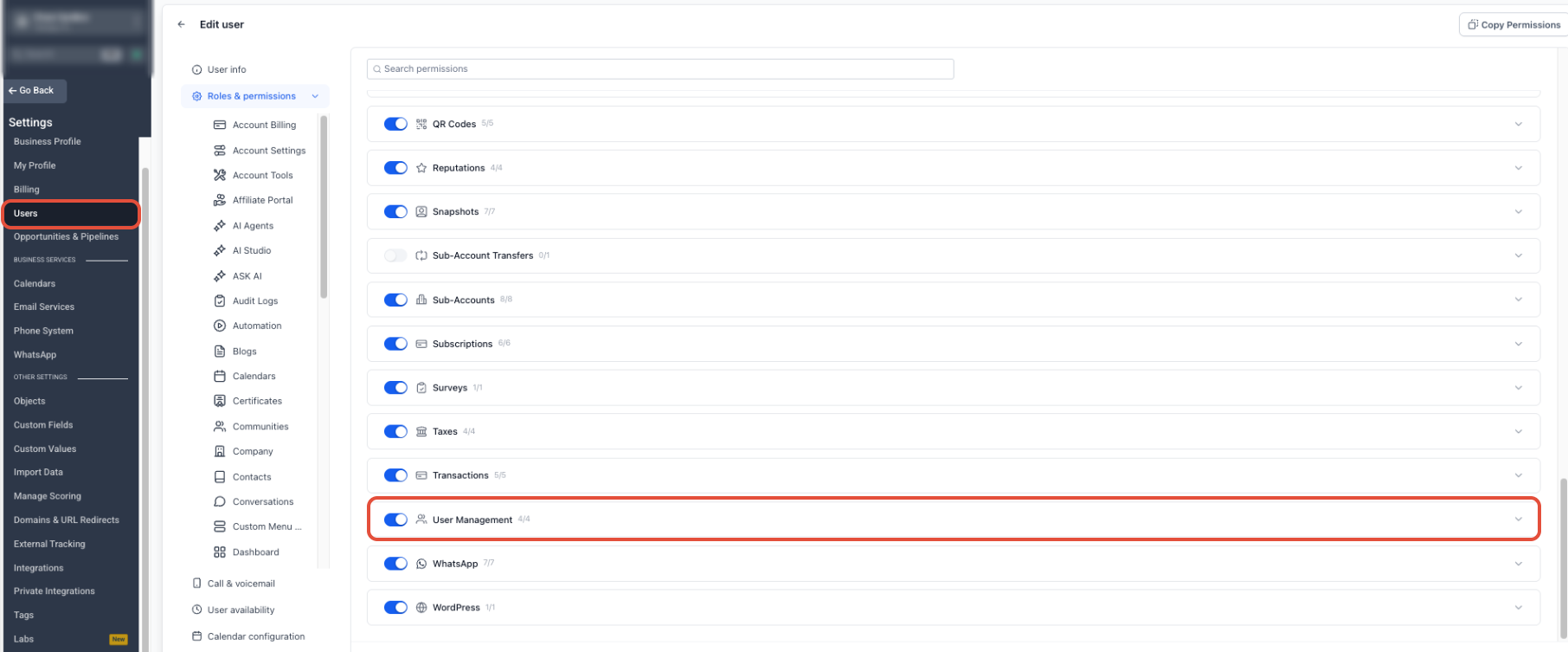
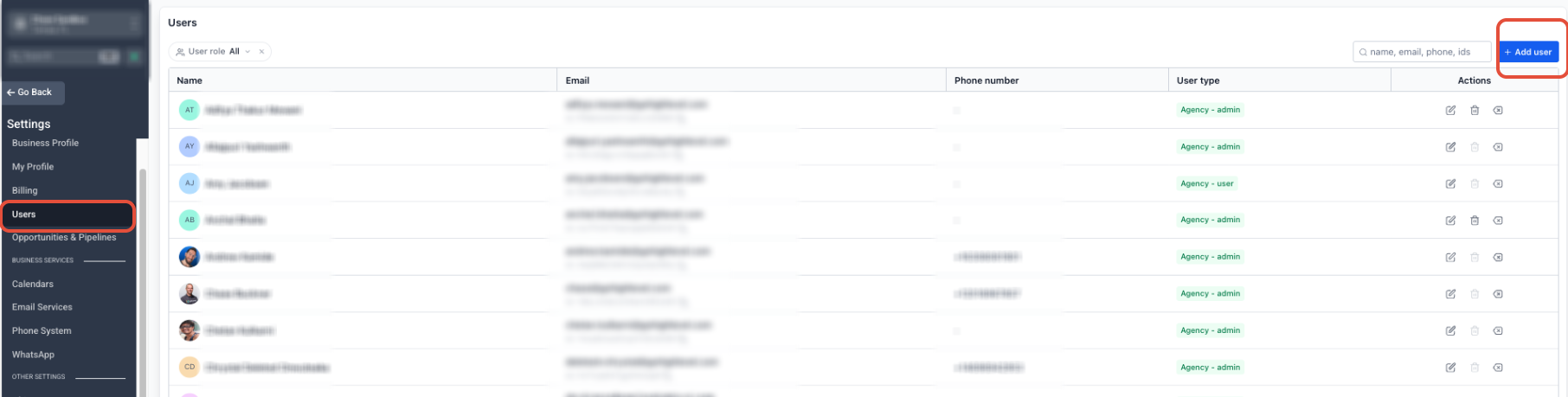
- In Agency View, open Settings and select Users.
- Find the user to edit and click Edit.
- Open the Roles & Permissions tab.
- Set User Type to Account.
- Choose the subaccounts the user may access.
- Select the appropriate Role.
- Turn on or off the needed module and granular permissions.
- Click Save to commit the changes.
Create and delete subaccounts permission
- From Agency View, go to Settings then Users.
- Locate the user to modify and select Edit.
- Open the Roles & Permissions area.
- Find the Subaccounts Agency module.
- Clear Create Subaccounts if the user must not add new subaccounts.
- Clear Delete if the user must not remove subaccounts.
- Turn off the entire Subaccounts module if the user should have no access.
- Save the updated permissions.
Add client with limited subaccount access
- In Agency View, navigate to Settings and click Users.
- Press the + Add User button.
- Enter the client’s name, email address and required details.
- Open the Roles & Permissions panel.
- Set User Type to Account.
- Select only the client’s own subaccount.
- Choose the appropriate Role.
- Configure the modules and granular permissions the client needs.
- Enable Only Assigned Data if record visibility must be limited.
- Click Save to create the user.
Set up agency user roles and permissions
- From Agency View, go to Settings then Users.
- Select the user you want to configure.
- Open Roles & Permissions.
- Choose the appropriate User Type (Agency or Account).
- Pick the suitable Role (Admin or User).
- If User Type is Account, assign the required subaccounts.
- Turn off any modules the user does not need.
- Adjust granular permissions inside each enabled module.
- Review sensitive permissions such as subaccount creation, login as, and dashboard export.
- Save the user’s configuration.
06What it looks like in HighLevel

07Settings that matter
- User Type. Determines whether a user works at the agency level or is limited to selected subaccounts.
- Role. Defines the authority level, Admin for full capabilities within the chosen scope, or User for restricted capabilities.
- Create Sub, Accounts. Controls whether the user can create new subaccounts.
- Delete. Controls whether the user can delete existing subaccounts.
- Enable Login As. Allows an eligible Agency Admin to impersonate another user.
- Enhanced Security. When turned on, limits certain API based user management actions.
- Only Assigned Data. Limits record visibility to items assigned to the user, without disabling the whole module.
08Things to know before you rely on it
- Enable Login As is enabled by default; disabling it hides the option for that admin.
- Only the Agency Owner can request or complete a subaccount transfer unless the permission is explicitly granted to an admin.
- Disabling Enhanced Security reduces overall account security and should only be done when a specific API workflow requires it.
- Granular permissions are only available for modules that are turned on; disabling a module removes all its actions.
09How it connects to the rest of HighLevel
- Managing users, roles and email security User access guide
- Admin vs user role scopes and permissions Role management
- Understanding the agency owner role and transfers Agency owner role
Michael's take

Be careful: Giving too much access can expose client data and agency settings you don’t want everyone seeing.
Keeping the scope tight. Assigning Account type users only to the subaccounts they need and turning off unused modules. Helps protect sensitive information.