
01Who this is for
- Agency admins who manage multiple user accounts and need reliable login for their team.
- Support staff in agencies that troubleshoot authentication problems for clients.
- Technical consultants who handle browser configuration and network diagnostics for agency users.
02Login issues, explained
The login troubleshooting feature provides a collection of procedures that address common authentication errors in HighLevel. It guides users through disabling ISP protection, capturing network traffic, updating two factor authentication phone numbers, and clearing browser site data.
03How businesses use login issues
- Digital marketing agency. When a team member cannot receive the two factor authentication code, the agency admin adds or updates the user's phone number in the user management area so the code can be delivered to the correct device.
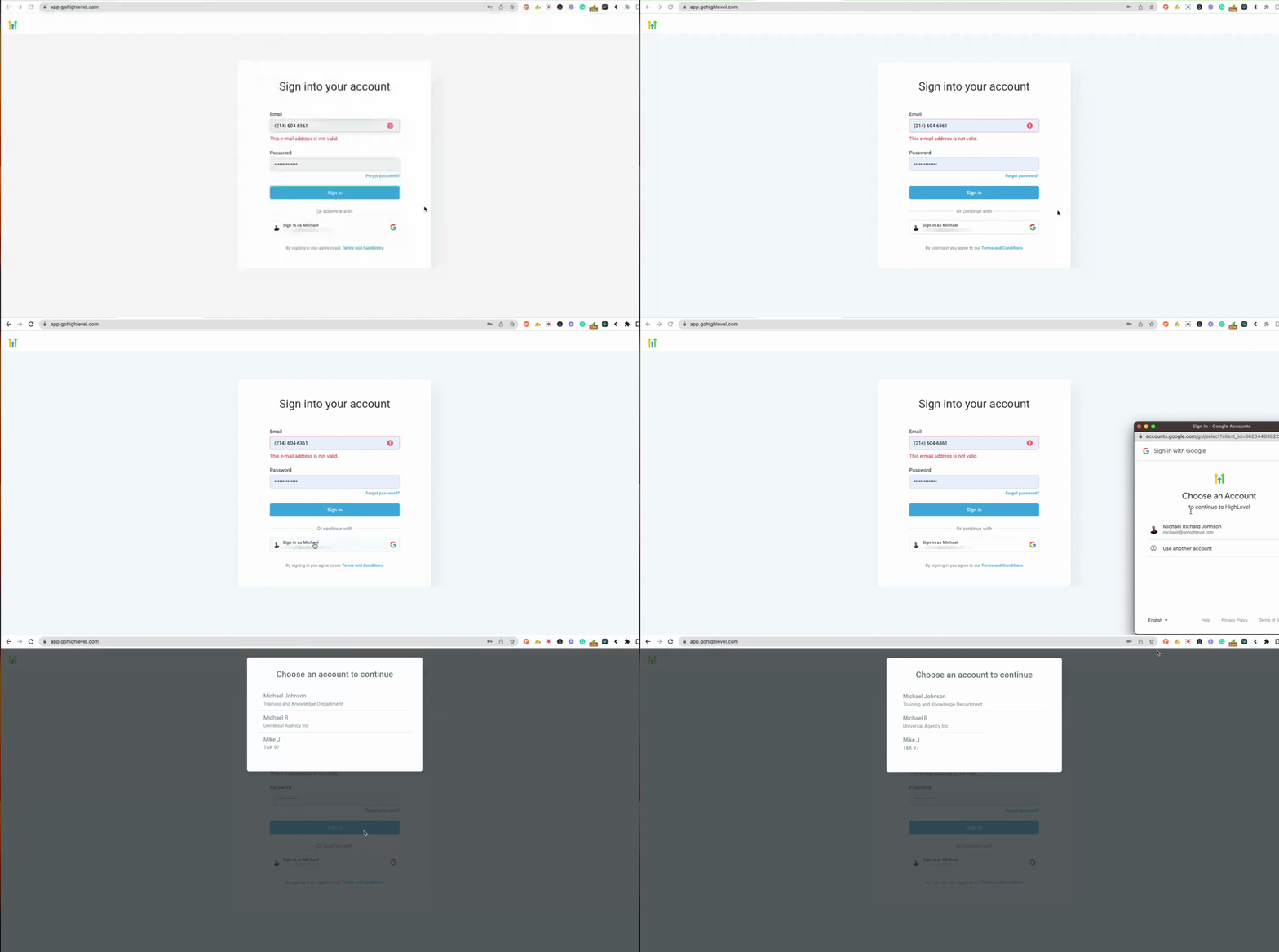
- IT consultancy. If a client sees the "Unable to log you in at this time" message, the consultant follows the ISP protection disabling steps, directing the client to the specific provider link and turning off the relevant security feature.
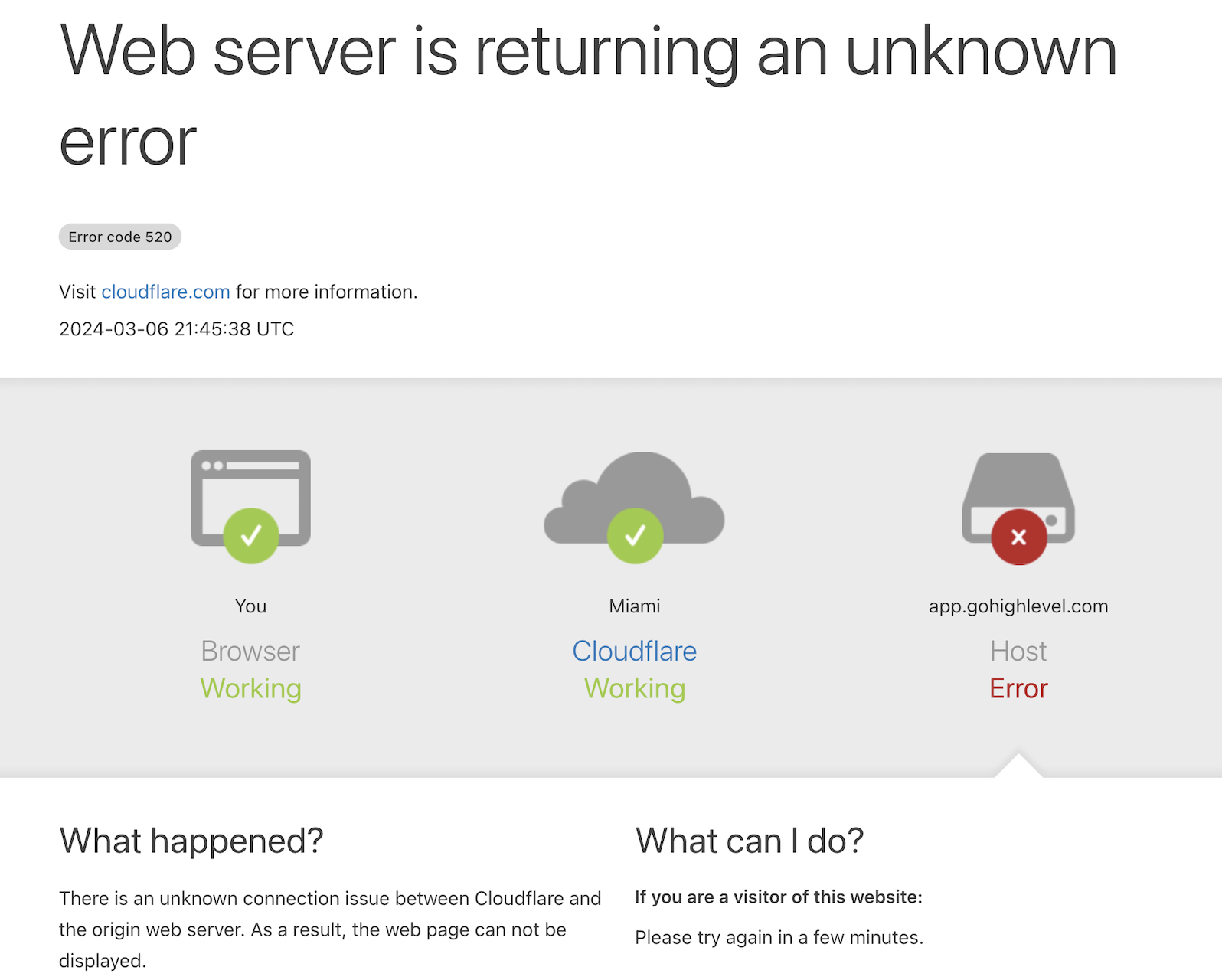
- Web development shop. When the "Web server is returning an Unknown Error" appears, the developer opens the browser's developer tools, clears site data in Chrome or Safari as described, refreshes the page, and attempts to log in again.
04The numbers and rules that matter
- Support phone number: (888) 732-4197.
- CenturyLink secure wifi disable URL: Https://kb.plu.edu/page.php?I'd=109248.
- McAfee web protection toggle URL: Https://www.help.k12.com/s/article/McAfee Web Protection Enable Disable.
- Mailgun email verification guide URL: Https://help.gohighlevel.com/support/solutions/articles/48001188059 how to check logs for a specific email in mailgun.
- Live 24/7 support URL: Https://help.gohighlevel.com/support/solutions/articles/155000000969 live 24 to 7 HighLevel support-.
05How to set up and use login issues in HighLevel
Disable ISP protection
- Ask the user which Internet service provider they are using.
- If the provider is Verizon Fios, direct them to disable protection using the Verizon support link.
- If the provider is CenturyLink, direct them to disable secure Wi Fi using the CenturyLink knowledge base link.
- If Survey Junkie is installed, have the user uninstall the application.
- If McAfee is installed, have the user turn off web protection via the McAfee support link.
- If the provider is Xfinity, have the user review the Xfinity online security page.
- If the provider is Spectrum, have the user turn off Security Shield using the Spectrum support link.
Capture network request for login
- Open the login page and launch the browser’s developer tools.
- Select the Network tab within the developer tools.
- Perform a login attempt to generate the request.
- Record the request and response using Loom.
- Send the Loom video to support at the provided phone number.
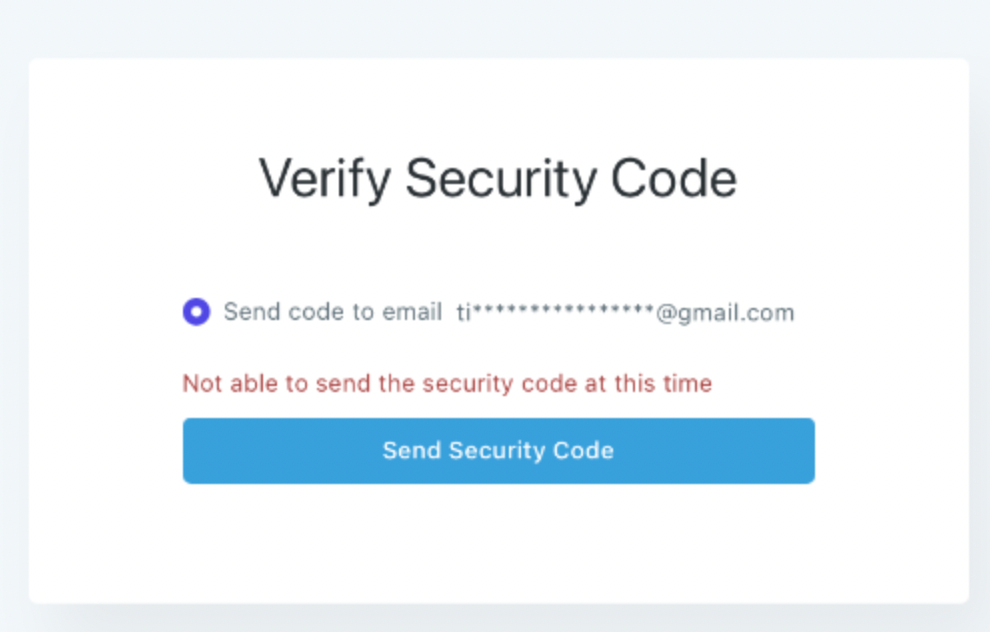
Add or update user phone number for 2FA
- Identify the user who is not receiving the two factor authentication code.
- Contact the agency admin and ask them to add or update the user's phone number.
- The admin opens the user management screen and enters the new phone number for that user.
- If no other admin exists, call support at (888) 732 to 4197 to have the phone number updated.
Ensure cookies are allowed and disable interfering software
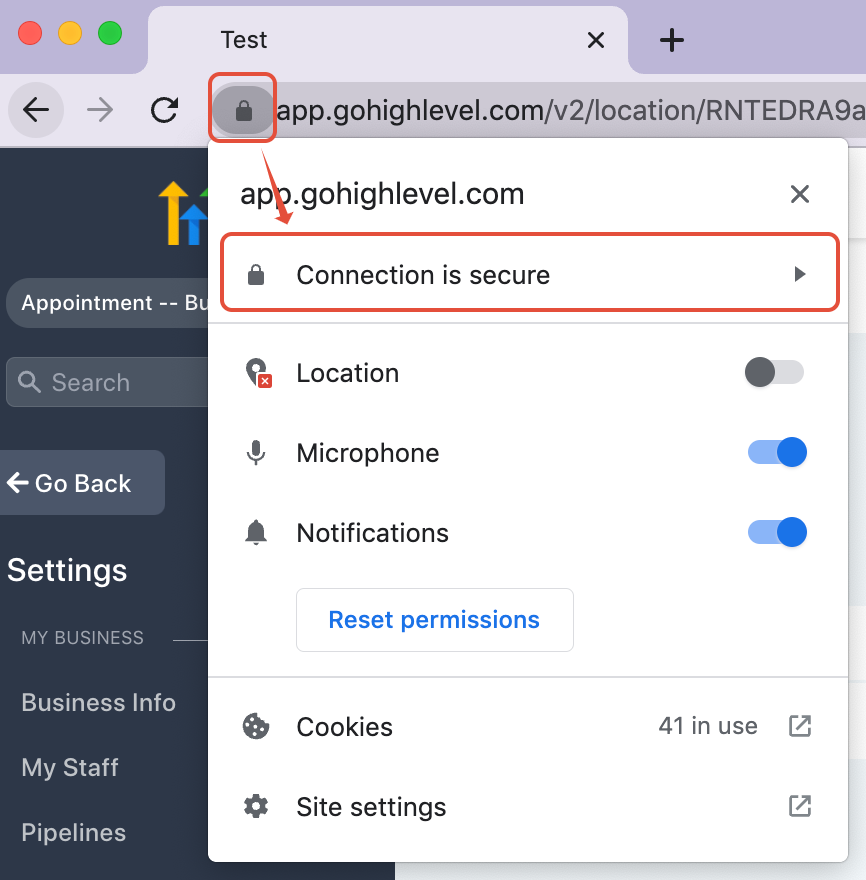
- Make sure cookies are allowed for app.gohighlevel.com.
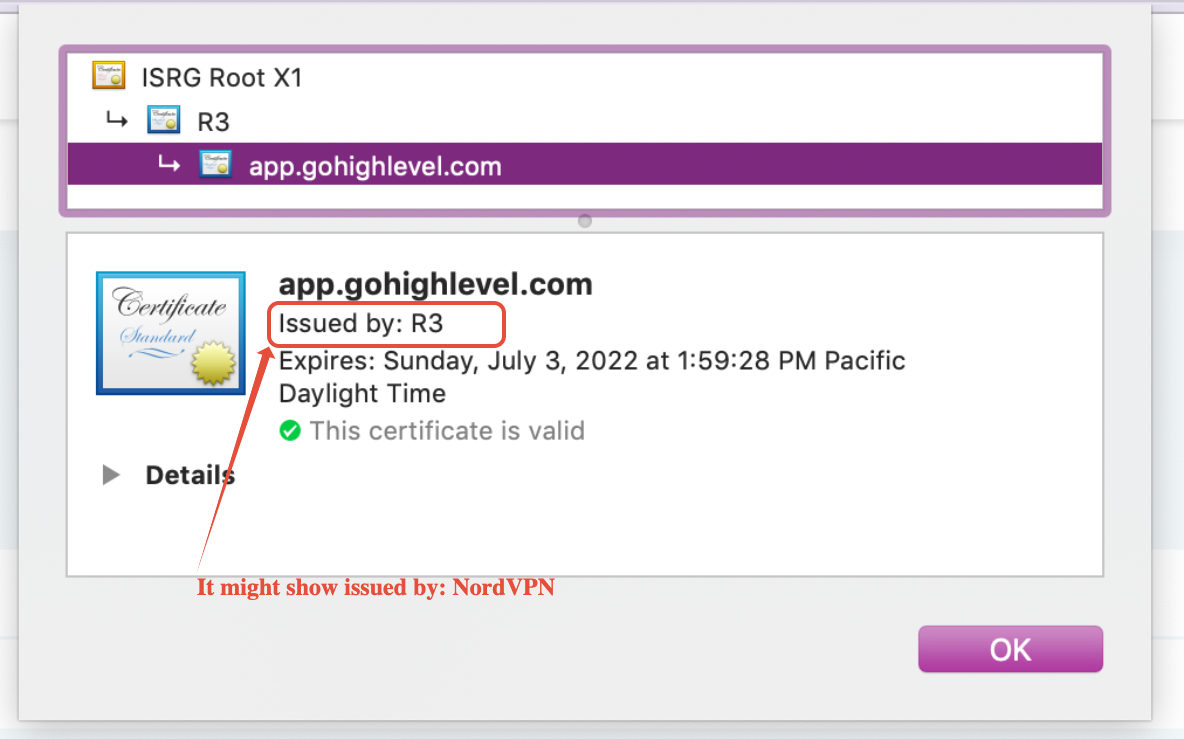
- If the page remains stuck, check for VPN or security software such as NordVPN, and turn it off or uninstall it.
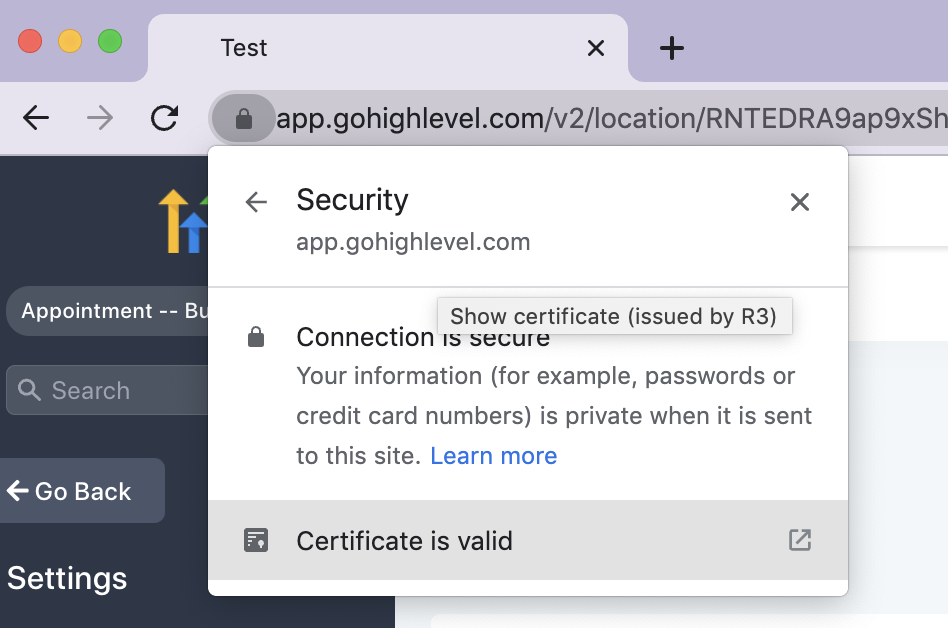
- Click the lock icon on the top left, expand "Connection is secure", and verify the certificate is valid.
Clear site data in Chrome
- Right click on the page and choose Inspect.
- Click the Applications tab in the developer tools.
- Select Storage from the left hand navigation menu.
- Click the "Clear Site Data" button displayed in the middle of the screen.
- Refresh the browser and attempt to log in again.
Clear site data in Safari
- Open Safari settings and select Safari from the menu.
- Click Advanced and enable "Show Develop menu".
- Right click the page and choose Inspect Element.
- In the developer window, select Storage, locate the site under Local Storage, and click the trash icon.
- Refresh the browser and try logging in again.
06What it looks like in HighLevel
07Settings that matter
- user phone number. Specifies the mobile number where two factor authentication codes are sent to a user.
08Things to know before you rely on it
- Turning off ISP security features may reduce protection while browsing, but it is recommended only for troubleshooting login.
- These steps are intended as temporary measures while a permanent fix is under development.
09If something goes wrong
- Unable to log you in at this time. Disable the ISP protection using the appropriate provider link as outlined in the procedure.
- Not able to send the security code at this time. Add or update the user's phone number for two factor authentication through the agency admin.
- User does not exist in this Agency. Confirm that the user is correctly associated with the agency, especially when using a white label domain.
- Page stuck without redirect. Ensure cookies are allowed for app.gohighlevel.com and disable any VPN or security software that may block the connection.
- Web server is returning an Unknown Error. Clear the site data in Chrome or Safari following the specified steps, then retry logging in.
10How it connects to the rest of HighLevel
- Manage user roles and permissions to control login access. User roles
- Set up Single Sign On (SSO) for streamlined authentication. SSO setup
- Explore pricing and plans to ensure your agency has the appropriate subscription. Pricing
Michael's take

Michael ReimerFounder of CRM Pros, HighLevel Commander and Certified Admin
The steps are straightforward to share with nontechnical staff.
In environments with strict network security or multiple VPNs, the extra steps to disable protections can feel cumbersome.
Get More InformationOpens on HighLevelPublished November 2, 2026 · Updated November 16, 2026