
01Who this is for
- Agency owners: need to grant global authority and set overall permission policies.
- Agency admins: manage user roles, billing, and branding across all subaccounts.
- Subaccount managers: control workflows, calendars, and media within their assigned accounts.
02Admin vs. user roles, explained
The role system assigns a set of permissions to each user. Permissions cover actions like creating subaccounts, editing pipelines, using global integrations, and accessing dashboards. When a permission appears in both agency and subaccount scopes, the agency setting takes precedence, so agency admins can override subaccount settings.
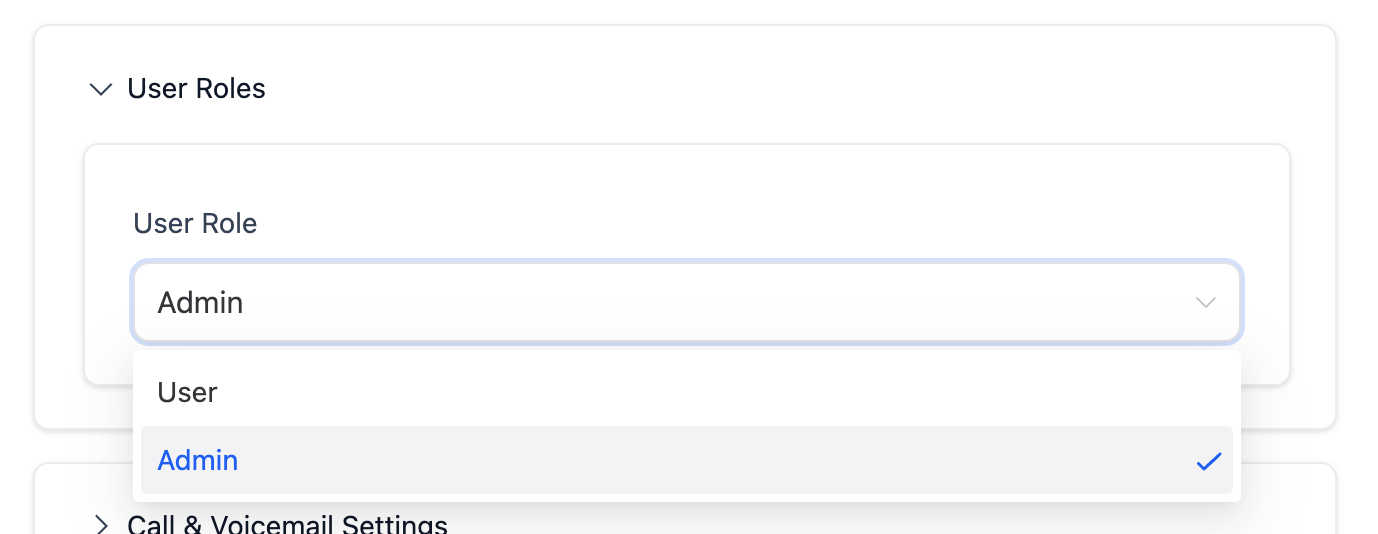
Roles are managed in the Settings area under My Staff. An admin can edit a user, expand the User Roles section, and select a different role. The platform automatically applies the new permission set to the user across the appropriate scopes.
The feature lives in the Settings menu of the HighLevel dashboard. It works together with other access controls such as the "Enable Login As" permission, which determines whether an admin can impersonate another user.
03How businesses use admin vs. user roles
- Digital marketing agency. The agency admin opens Settings > My Staff, edits a staff member, expands the User Roles area and assigns the "Subaccount Admin" role. This grants the staffer rights to manage workflows and calendars within their client subaccount while preserving agency level control.
- Consulting firm with multiple client portals. A firm manager adds a new consultant at the agency level, then gives them a specific subaccount role. In Settings > My Staff the manager edits the consultant's profile, expands User Roles, and selects both agency wide and subaccount permissions, ensuring the consultant can view reports agency wide and edit client specific campaigns.
- Healthcare practice using subaccounts for each department. The practice director changes a department lead’s role by navigating to Settings > My Staff, clicking the edit icon, scrolling to User Roles, and picking the appropriate subaccount role. This updates the lead’s ability to manage appointments and patient communications only within that department.
04Before you start
- User must have admin privileges at the agency level.
05How to set up and use admin vs. user roles in HighLevel
Change a user role
- Open Settings and select My Staff.
- Click the pencil (Edit) icon for the user you want to modify.
- Scroll down to locate the User Roles section.
- Expand User Roles and choose the new role to assign.
06What it looks like in HighLevel
07Settings that matter
- User Roles. Controls which permissions are granted to a user at agency and subaccount levels.
- Enable Login As. Determines whether an admin can use the Login As feature to impersonate another user.
08Things to know before you rely on it
- If a permission is not listed for a role, the user inherits the broader role’s default capabilities.
- Agency admins always have higher authority; their permissions override those of subaccount admins.
- The Login As option is hidden for admins whose Enable Login As permission is disabled.
09If something goes wrong
- Login As option not visible for an admin. Enable the Enable Login As permission at the agency level.
10How it connects to the rest of HighLevel
- Managing agency user roles and permissions in HighLevel Manage agency roles
- HighLevel user access: managing users, roles and email security User access guide
- User roles and permissions in HighLevel subaccounts Subaccount roles
Michael's take

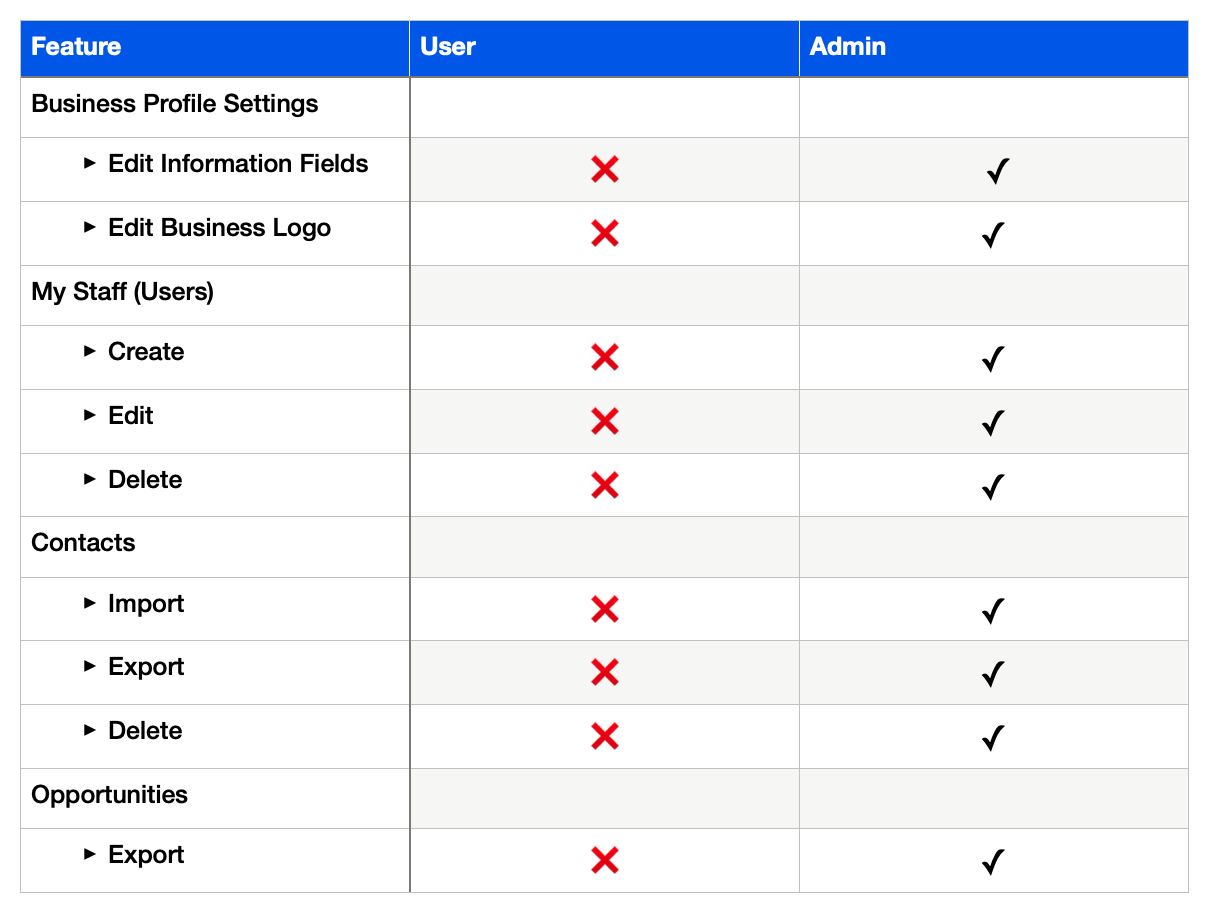
This matrix is essential for any agency that wants clear control over who can do what.
Skip it if you run a single user agency with no subaccounts.