
01Who this is for
- Founders who need to limit team member access to specific records and modules for security.
- Agency owners who must grant Admin rights to managers while restricting other staff to defined tasks.
02User roles and permissions, explained
Roles and permissions let you decide what a user can do inside a particular subaccount. Each user receives either an Admin role, which provides administrative rights subject to configurable granular permissions, or a User role, which follows the specific permissions you assign.
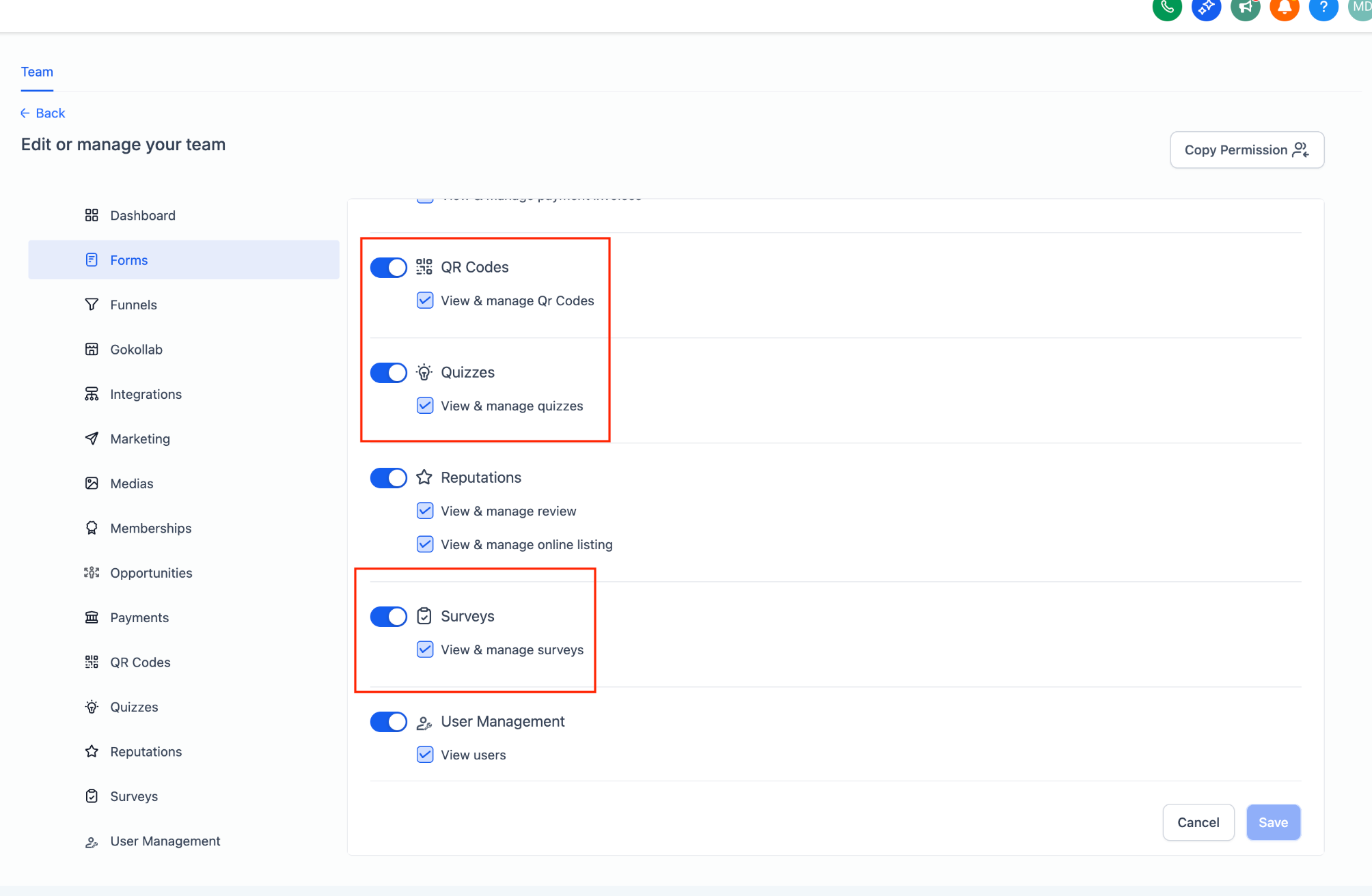
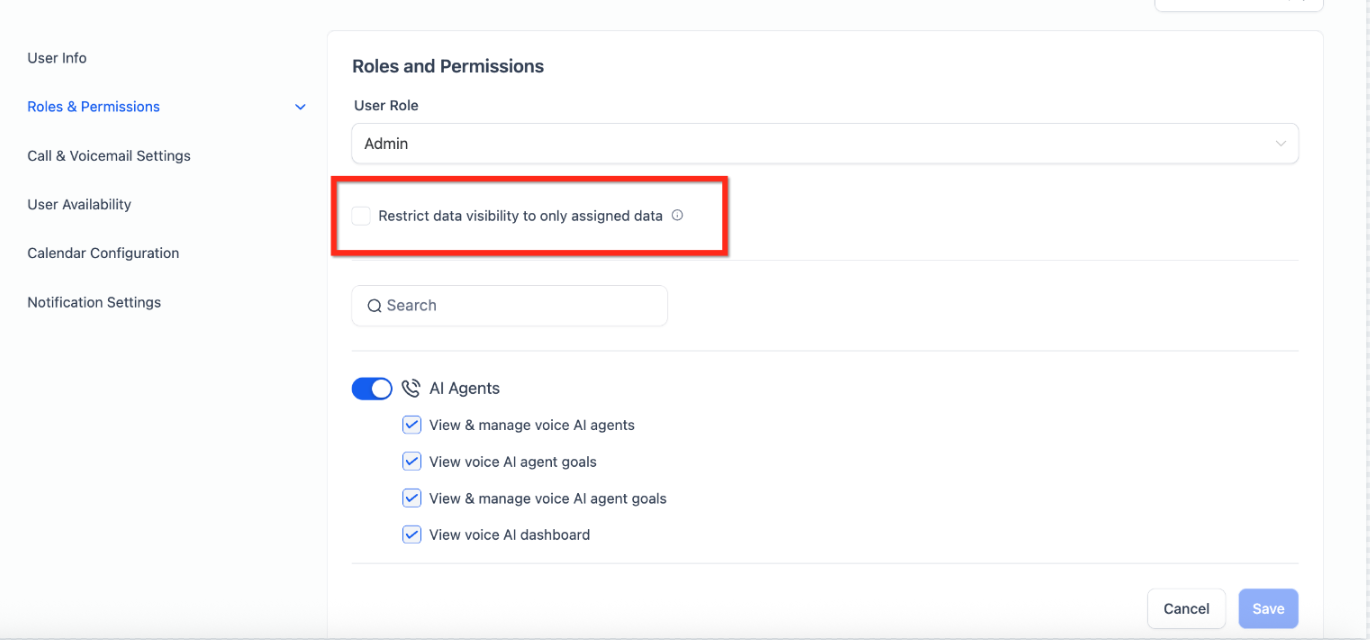
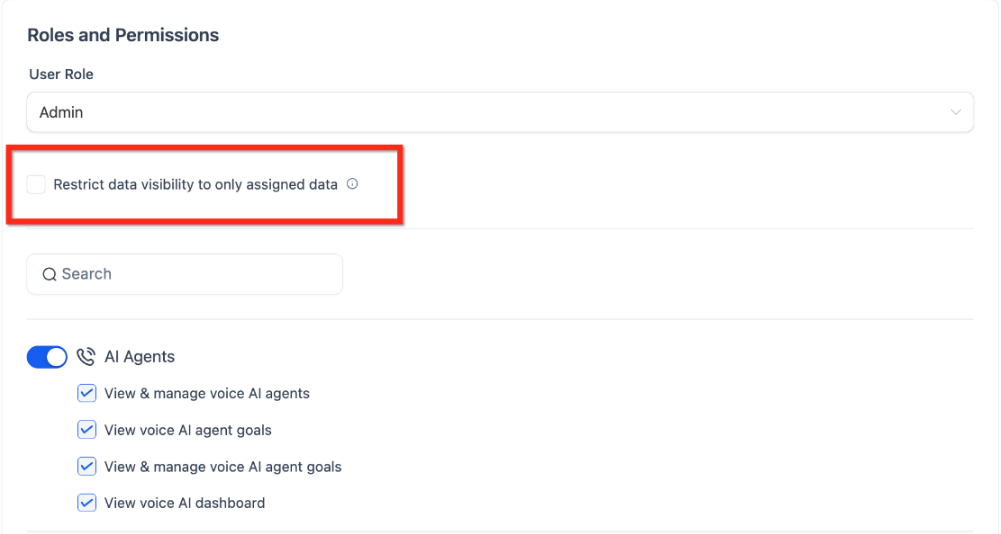
Permissions are controlled through the Roles & Permissions panel. You can turn modules on or off, set view and manage rights for forms, surveys, quizzes, QR codes, and other supported features, and enable the Affiliate Manager Payout permission for admins. The Only Assigned Data toggle restricts a user’s view to records that are assigned to them, such as contacts, opportunities, appointments, or tasks.
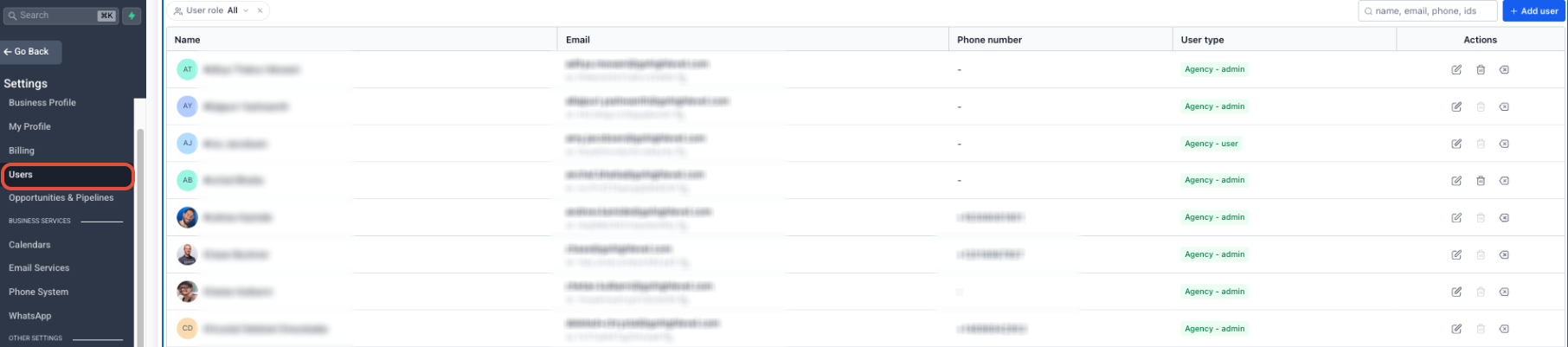
All settings live under Settings > Users within the subaccount. Changes are saved per user and take effect immediately for any new sessions.
03How businesses use user roles and permissions
- Marketing agency. The agency creates a user for each client manager, sets the role to User, enables Only Assigned Data, and grants access only to the client’s campaigns and reports. This keeps each manager focused on their own client’s data.
- Dental practice. The practice adds a front desk employee, selects the User role, and allows access to the Calendar module while disabling all other modules. Only Assigned Data ensures the employee sees appointments assigned to them only.
- Real estate brokerage. A broker assigns the Admin role to a senior agent, enables the Affiliate Manager Payout permission for processing referral fees, and configures module permissions so the agent can manage listings, contacts, and opportunities.
04The numbers and rules that matter
- Only Assigned Data limits visibility to assigned contacts, opportunities, appointments, or tasks.
05Before you start
- You must have access to the subaccount where you want to adjust user settings.
06How to set up and use user roles and permissions in HighLevel
Set up roles and permissions for a user
- Open the target subaccount and go to Settings > Users.
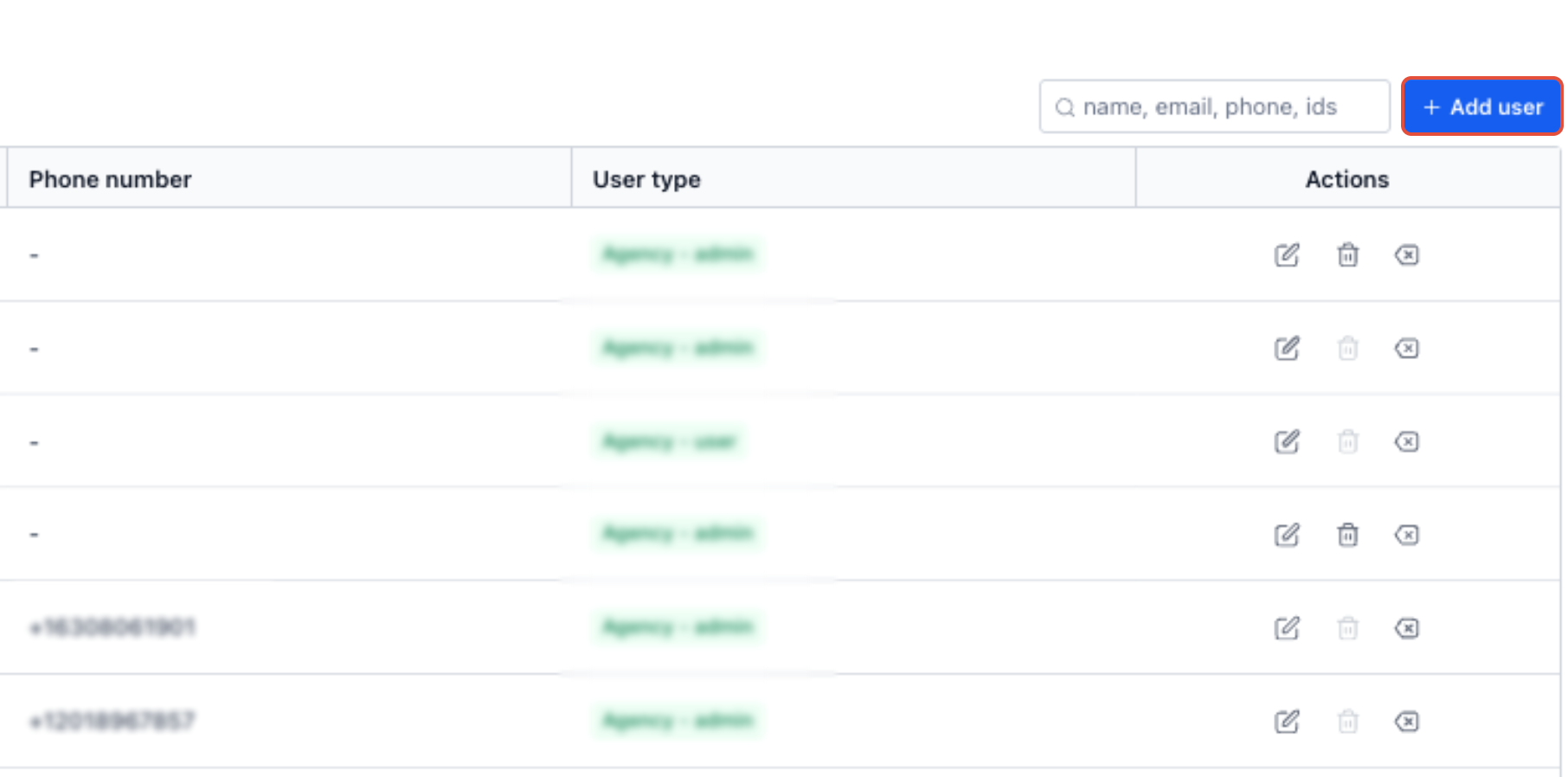
- Select an existing user or press + Add User to start a new record.
- If the email address already belongs to an existing user, follow the guidance shown in the Users experience instead of creating a duplicate.
- Open the Roles & Permissions section for that user.
- Choose either Admin or User as the role.
- Toggle module and granular permissions, including Affiliate Manager Payout if needed, and enable Only Assigned Data if the user should see only their records.
- Click Save to apply the configuration.
Copy permissions from one user to another
- Navigate to Settings > Users.
- Open the destination user or press + Add Employee to create one.
- Select Roles & Permissions for the opened user.
- Click the Copy Permissions button.
- Pick the source user from the dropdown list.
- Press Copy and then Save to confirm the transferred settings.
07What it looks like in HighLevel

08Settings that matter
- Roles & Permissions. Controls whether a user is an Admin with broad rights or a User whose access follows the permissions you define.
- Only Assigned Data. Limits the user’s view to records that are specifically assigned to them, such as contacts, opportunities, appointments, or tasks.
- Affiliate Manager Payout Permission. When enabled for Admins, allows processing of affiliate payouts; it cannot be granted to Users.
09Things to know before you rely on it
- Bulk permission changes are not available; you must use Copy Permissions for each individual user.
- Only Assigned Data applies only to supported record types within a module.
- The Affiliate Manager Payout permission is only configurable for Subaccount Admins.
10How it connects to the rest of HighLevel
- Understanding how agency and subaccount roles differ Admin vs. User roles
- Managing users, roles, and email security across the platform User access guide
- Full list of settings features for quick reference All Settings
Michael's take

User roles and permissions are worth the time for any small business.
Avoid the mistake of copying permissions without reviewing the destination user’s responsibilities first.