
01Who this is for
- Founders who run agencies and need to keep subaccount payment methods current to avoid service interruptions.
- Finance managers overseeing multiple SaaS V2 subscriptions who must remove outdated cards from the billing view.
02Account billing dashboard, explained
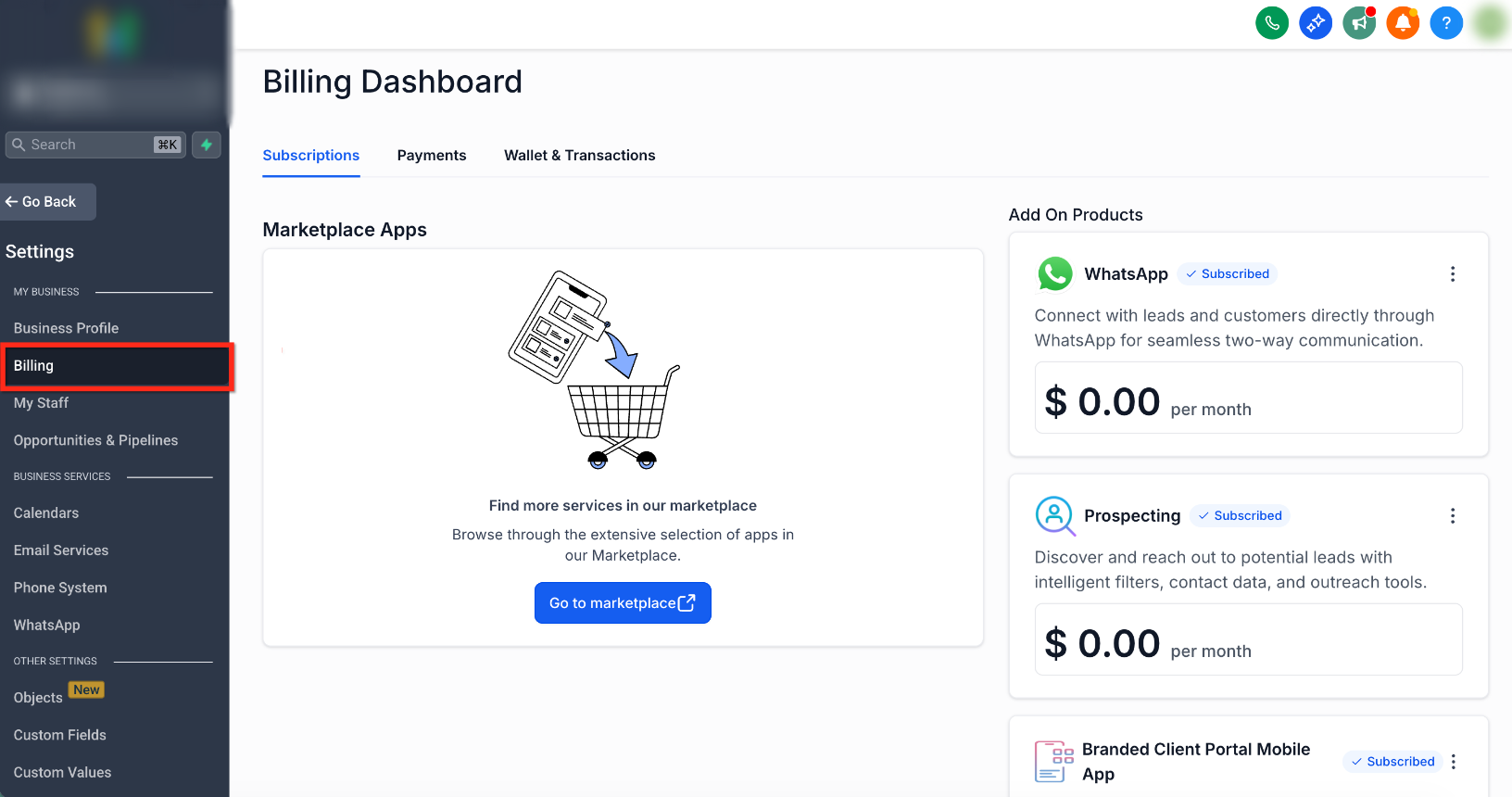
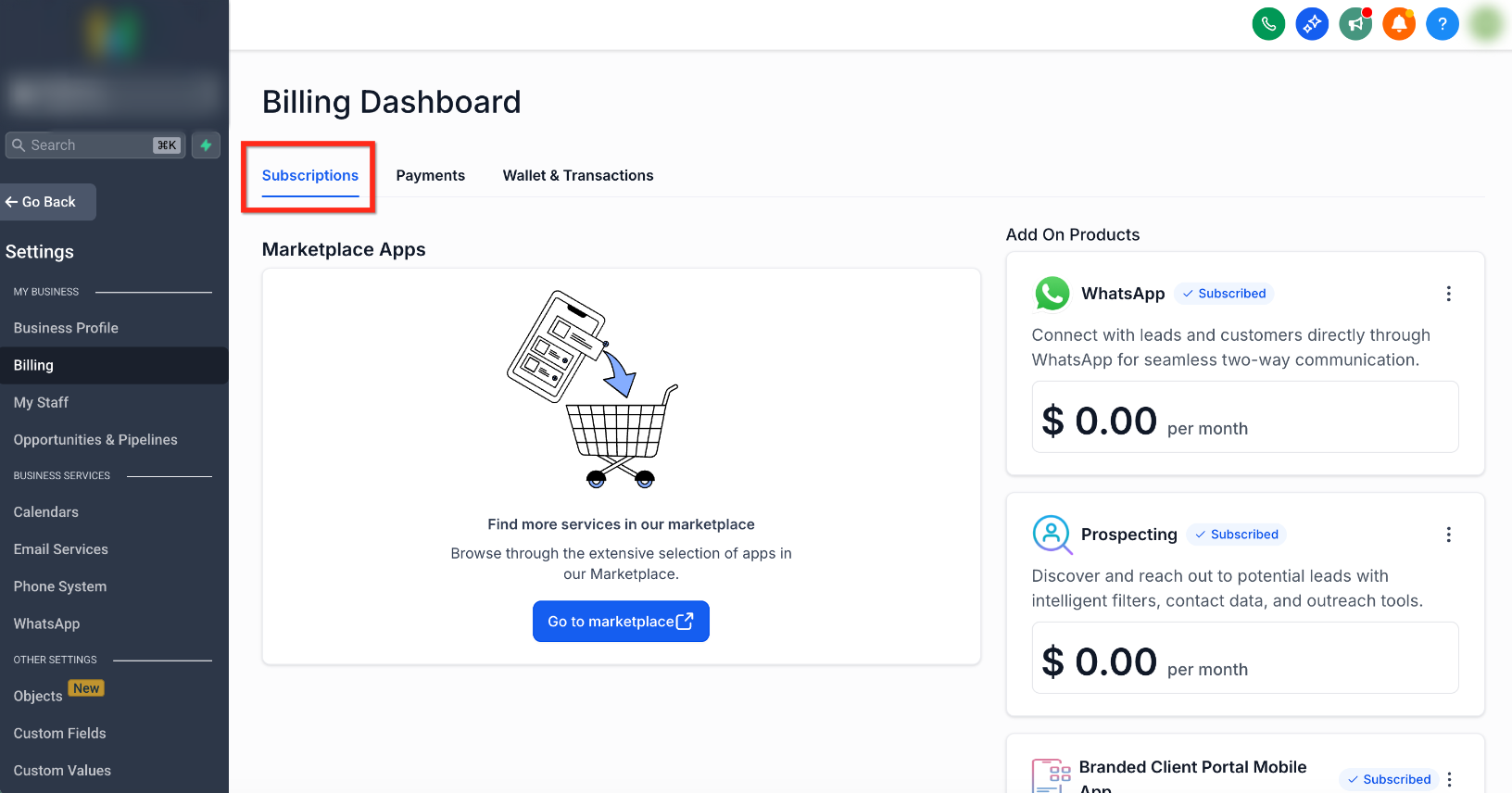
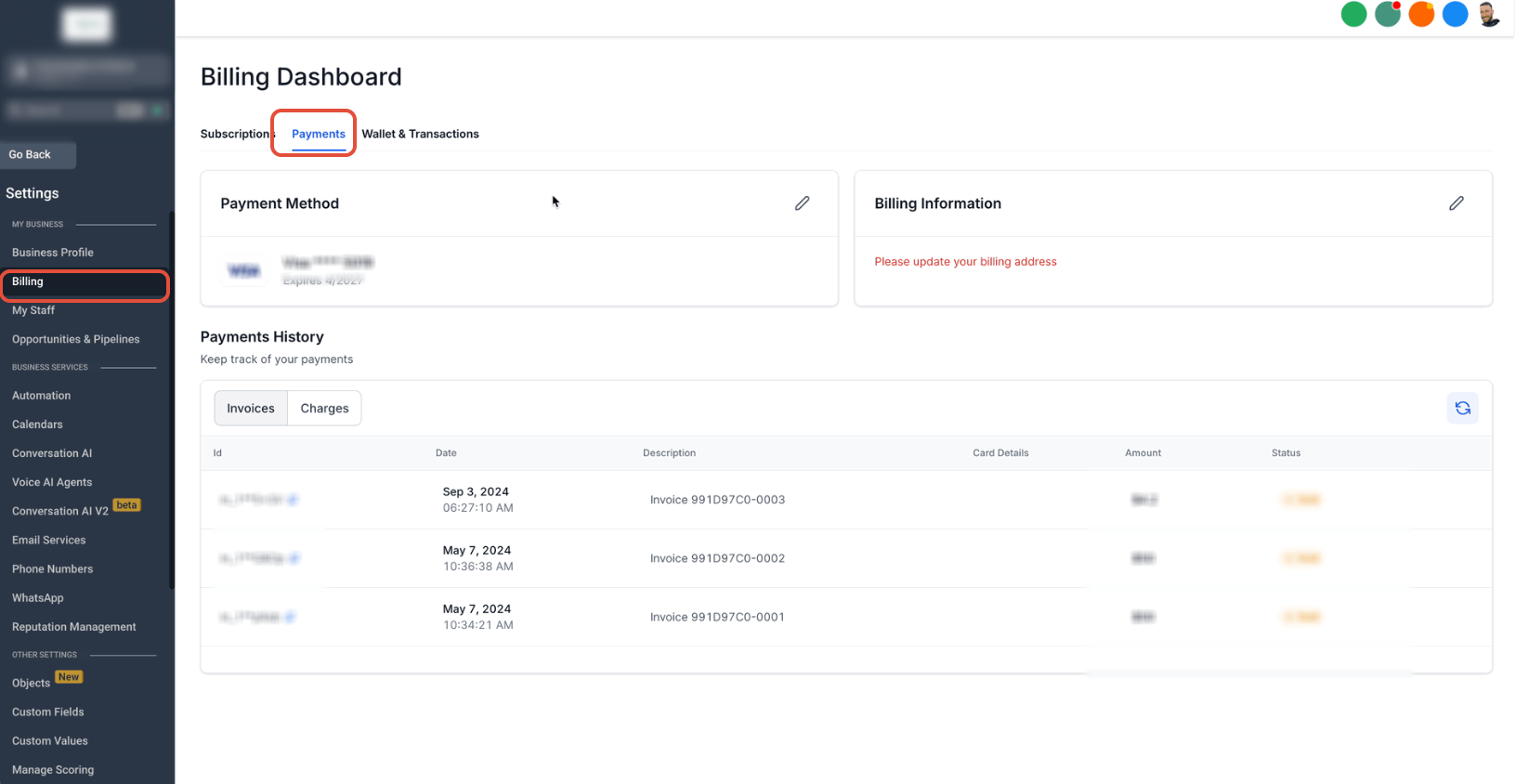
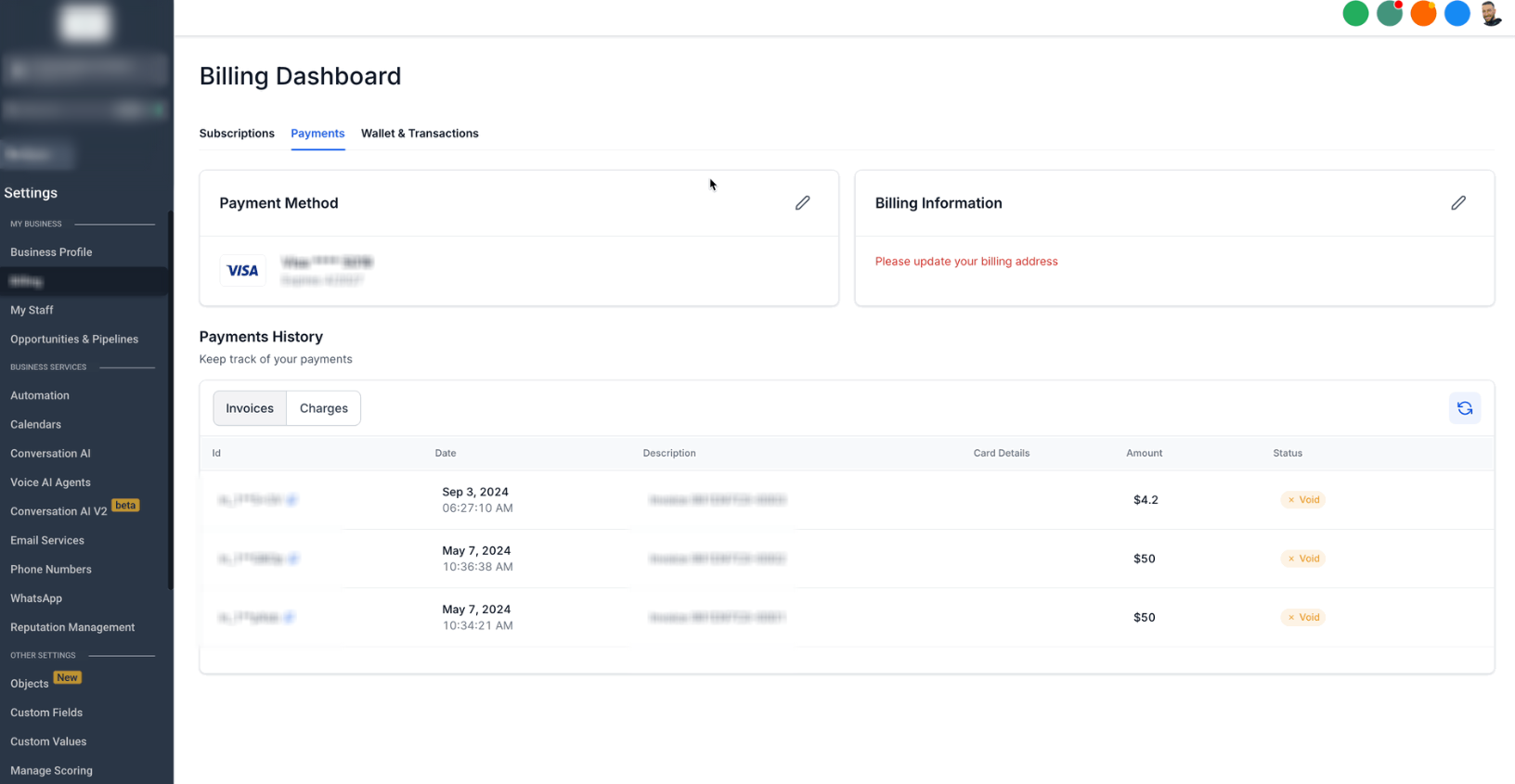
The Billing Dashboard is accessed from Settings > Billing inside a subaccount. It displays sections for Subscriptions, Payment Methods, Billing Information, Charges and Transaction History, and Wallet balances. Within the Payment Methods area you can add new cards, set a primary card, or delete cards that are no longer needed.
When a primary card changes, SaaS V2 subscriptions automatically use the new card, while wallet recharges continue to draw from the selected primary card. Saved cards can be removed directly from the Payments tab, provided the subaccount is eligible for the feature.
03How businesses use the account billing dashboard
- Digital marketing agency. The agency opens Settings > Billing, navigates to the Payments tab, and deletes an old card that was used for an expired client campaign. This keeps the payment list tidy and ensures only active cards remain.
- SaaS product provider. A SaaS provider with a V2 subscription accesses the Billing Dashboard, selects the saved card that funds the subscription, and removes it after adding a new one. The primary card update automatically aligns the subscription with the new payment source.
- Ecommerce store owner. The store owner goes to Settings > Billing, opens Manage your payment methods, and deletes a card that was used for a discontinued marketplace app. This prevents accidental selection of an invalid card for future wallet recharges.
04The numbers and rules that matter
- Changing the subaccount's primary card updates the payment method for an active SaaS V2 subscription only.
- The primary card continues to be used for wallet recharges for SaaS V2 subaccounts.
05Before you start
- The subaccount must be a SaaS V2 account for the delete card option to appear.
06How to set up and use the account billing dashboard in HighLevel
Delete a saved payment method
- From the subaccount view, click Settings in the left navigation.
- Select Billing from the Settings menu.
- Choose the Payments tab at the top of the Billing page.
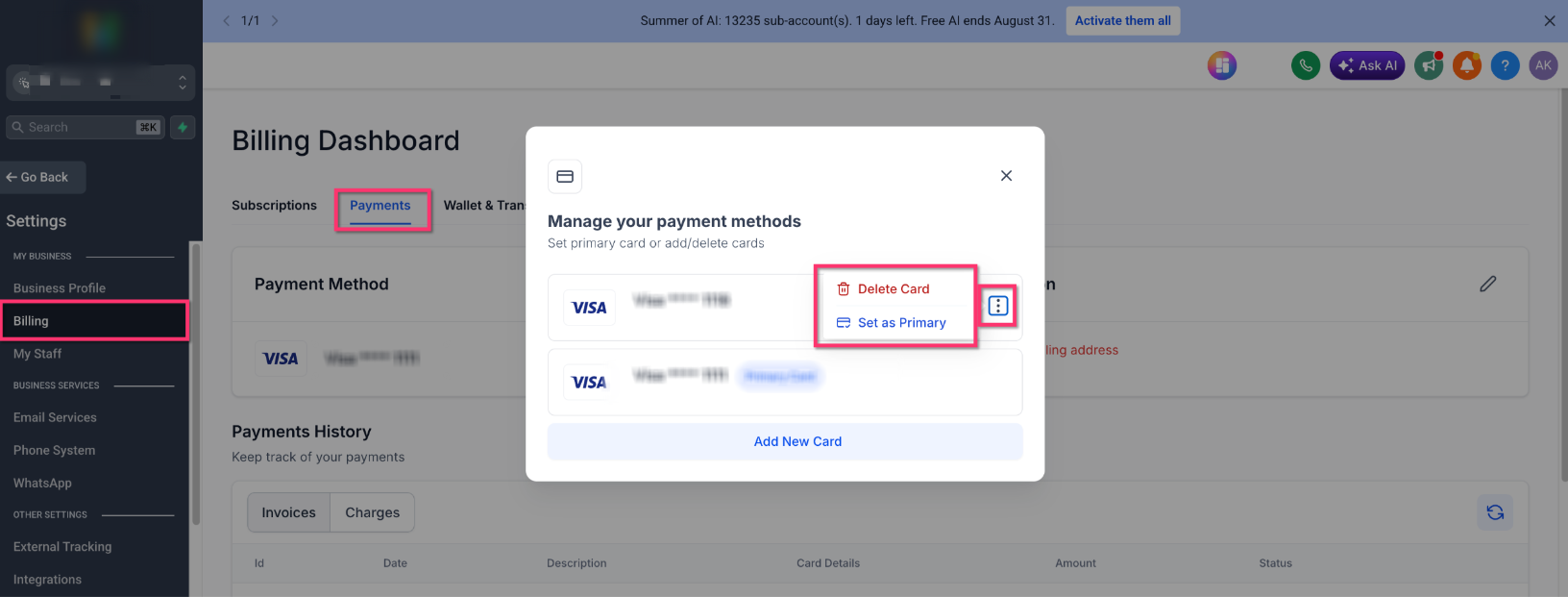
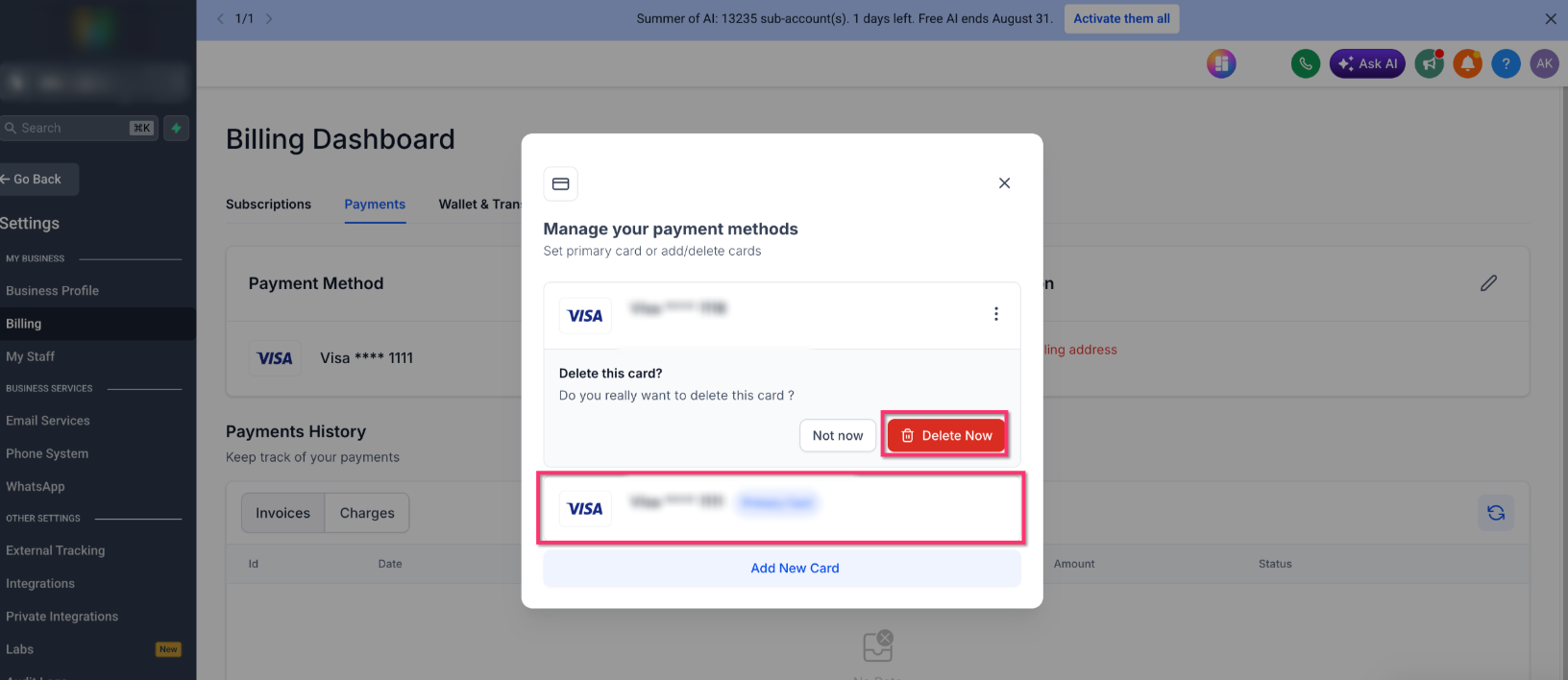
- Open Manage your payment methods within the Payment Method section.
- Find the saved card you want to remove in the list.
- Click the three dot icon (⋮) next to that card.
- Choose Delete Card from the dropdown menu.
- If a warning appears about the card funding active subscriptions, update those subscriptions before proceeding.
- Read the deletion confirmation dialog that appears.
- Click Delete Now to confirm removal, or click Not now to cancel.
07What it looks like in HighLevel
08Settings that matter
- Primary Card. Determines which saved card is used by default for supported billing activities, such as wallet recharges and, for SaaS V2 subscriptions, the subscription payment method.
09Things to know before you rely on it
- Card deletion is only offered to SaaS V2 subaccounts; SaaS V1 accounts already support this action.
- HighLevel may show a warning if the selected card funds active subscriptions. Update those subscriptions before deleting to avoid payment failures.
10How it connects to the rest of HighLevel
- Explore common billing questions for agencies. Billing FAQs for agencies
- Review wallet pricing and product rates. Wallet pricing
- See HighLevel pricing and plan options. Pricing plans
Michael's take

Then I walk through the dashboard to verify each active subscription, clean up old cards, and glance at the invoice list to make sure the right products are being billed and that PDFs are available for my records.