
01Who this is for
- Founders of SaaS startups, need a single place to manage WhatsApp numbers and templates for user outreach.
- Marketing managers at agencies, rely on the centralized dashboard to monitor delivery rates and handle multiple client numbers.
- Small business owners with appointment based services, use flows to automate booking without leaving the chat.
02WhatsApp settings, explained
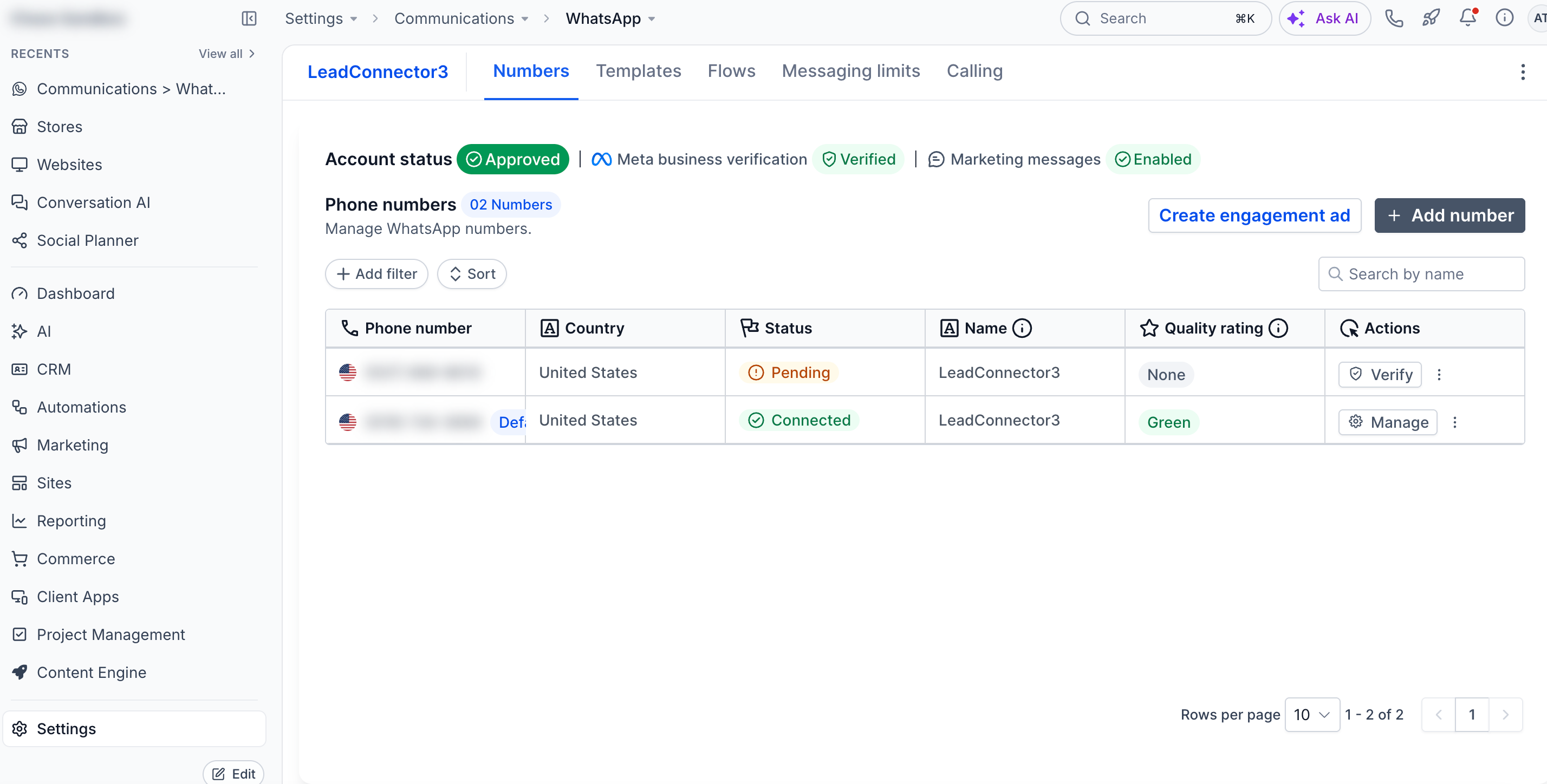
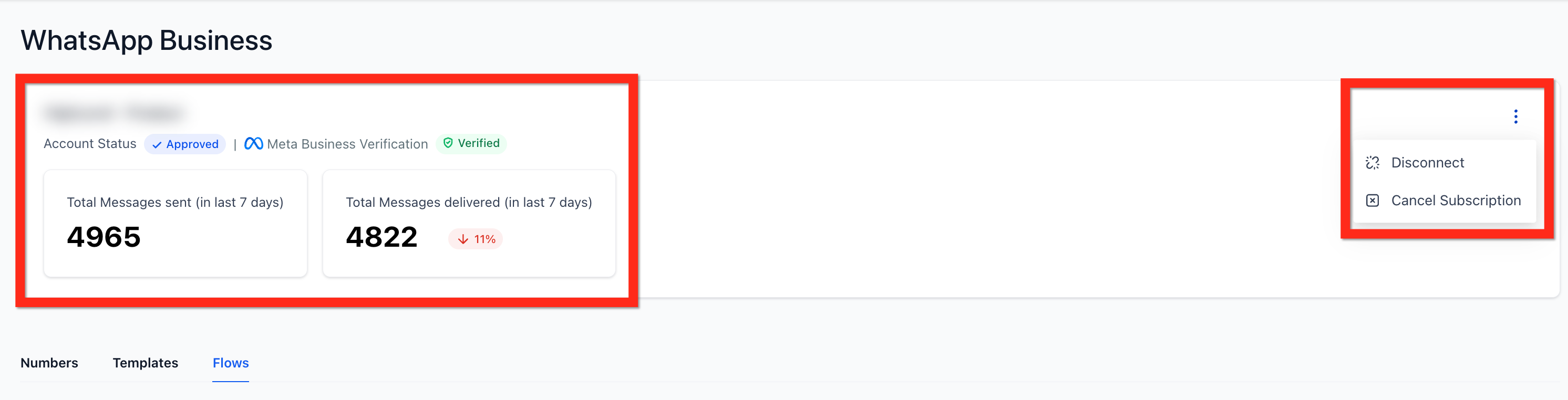
WhatsApp Settings is the command center for a location’s WhatsApp Business API connection. The header card gives a quick view of account status, Meta verification and recent message counts. Below the card, three tabs, Numbers, Templates and Flows, let you configure each element of the integration.
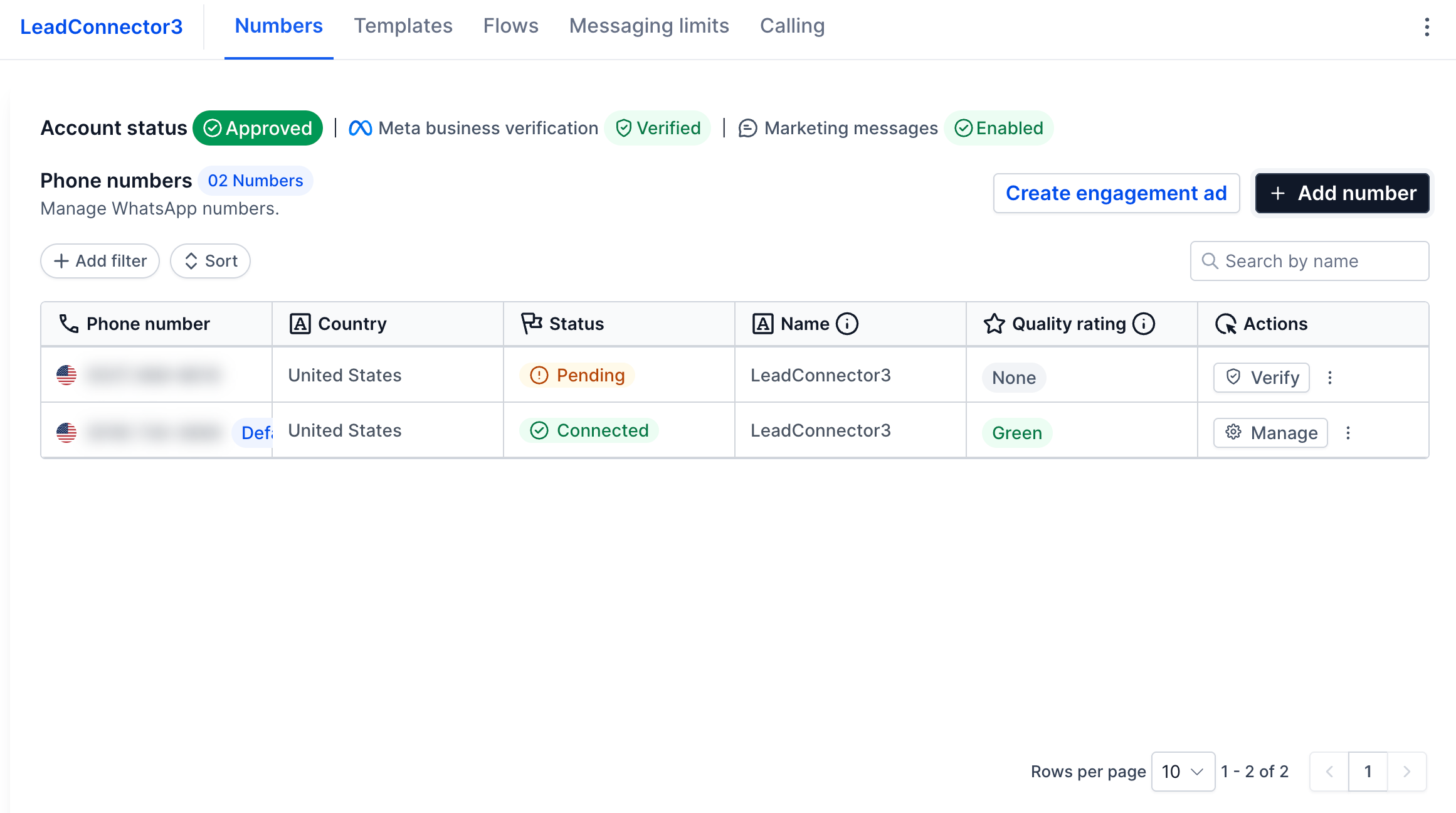
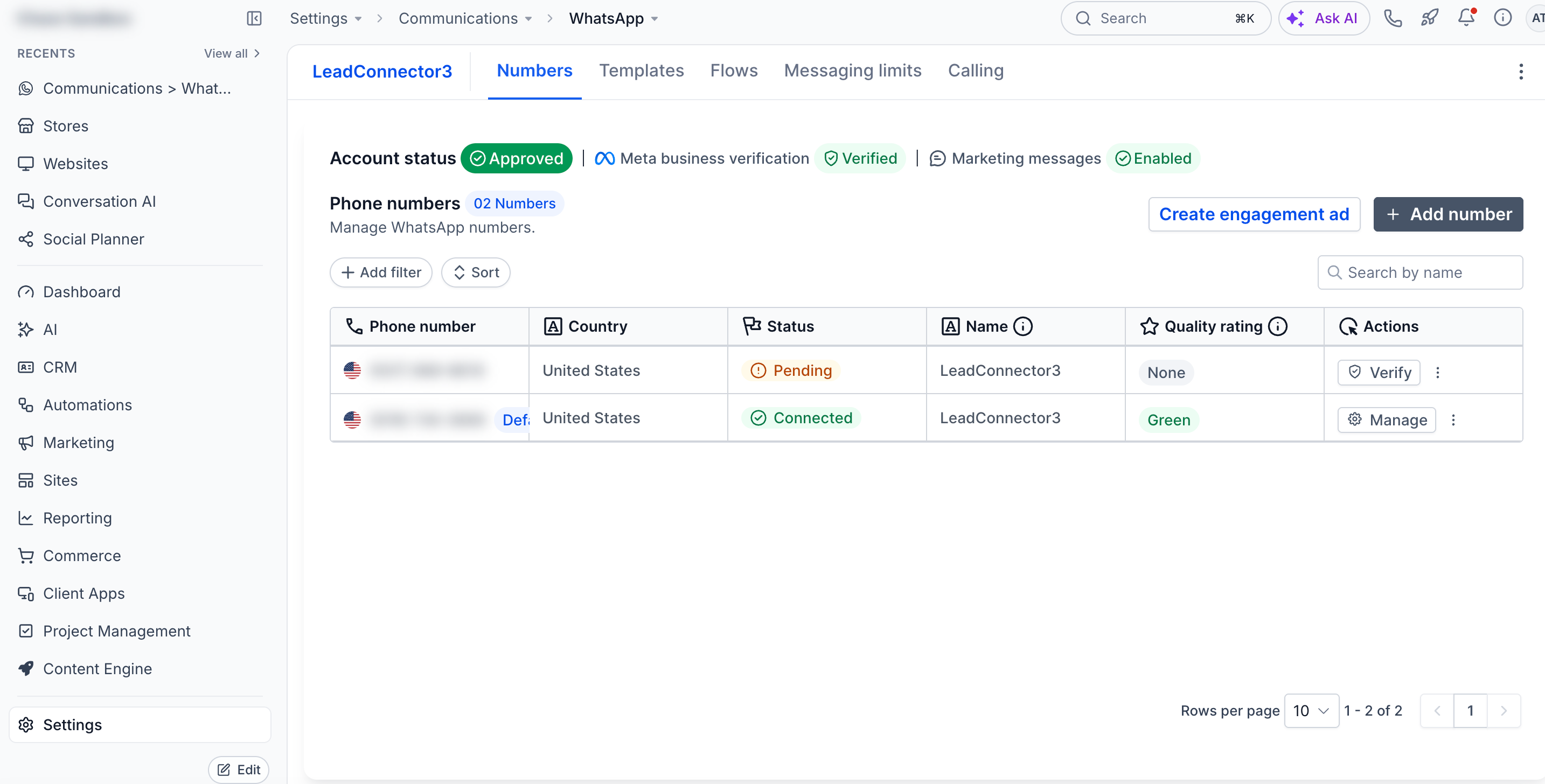
In the Numbers tab you can see every linked phone line, scroll through long lists, adjust rows per page and add new numbers. The Templates tab stores pre approved message formats that meet Meta policy. The Flows tab lets you create interactive experiences that run inside WhatsApp, linking to calendars and using buttons to launch the flow.
All actions stay inside HighLevel, and the page also offers quick actions to disconnect the integration or cancel the subscription.
03How businesses use the WhatsApp settings
- Real estate agency. The agency adds a dedicated phone number in the Numbers tab, builds template messages for new property alerts, and creates a flow that schedules property tours via the calendar link.
- Fitness studio. The studio sets up a template confirming class bookings, adds a flow that captures member details and books sessions on the studio calendar, and uses the number list to track multiple locations.
- Ecommerce store. The store creates order confirmation templates, designs a flow that gathers shipping information, and connects the flow to the order management calendar for delivery scheduling.
04The numbers and rules that matter
- Header card shows Account Status, Meta Business Verification status, Total Messages Sent (last 7 days), Total Messages Delivered (last 7 days).
- Numbers tab includes scrolling, pagination, and Rows per page control.
05Before you start
- Access HighLevel as a subaccount user.
- Have an active WhatsApp Business API subscription for the location.
06How to set up and use the WhatsApp settings in HighLevel
Add a new phone number for WhatsApp messaging
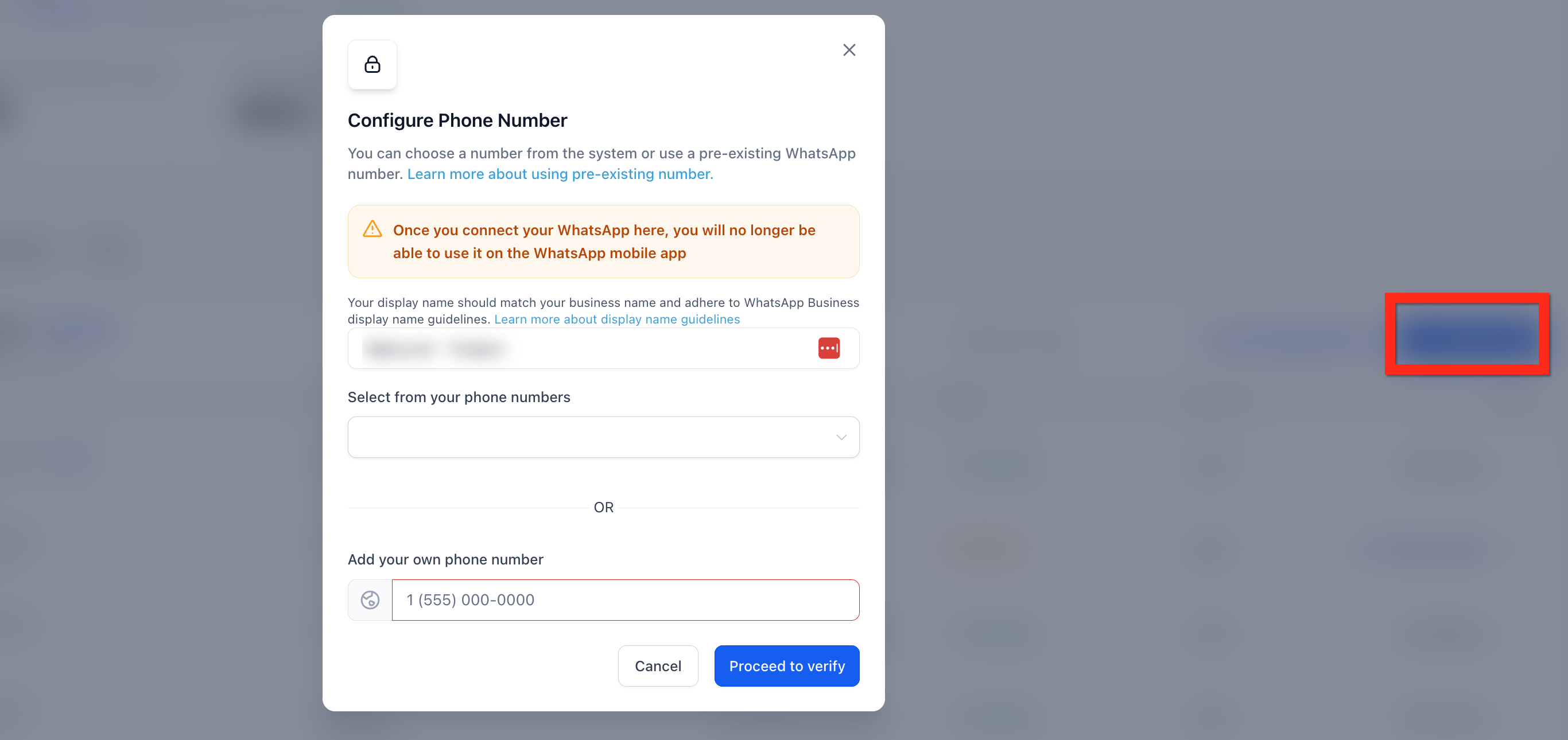
- Open Settings > WhatsApp > Numbers and click the + Add Number button.
- Enter a display name for the number in the configuration modal.
- Choose an existing number from the dropdown or type a new one in the field provided.
- Select Proceed and follow Meta’s verification prompts to finish adding the number.
Create a new message template
- In Settings > WhatsApp, open the Templates tab and click + Create Template.
- Choose Blank Template from the dropdown menu.
- Enter the template name, select a category and pick a language.
- Toggle Show Header on, pick a header type and add any variables needed.
- Write the main body text and insert variables for personalization.
- Optionally fill in the footer field with supplemental text.
- Add buttons by clicking + Add Button and select quick reply or call to action types.
- Click Create to submit the finished template to Meta for approval.
Create a new WhatsApp flow
- Navigate to Settings > WhatsApp > Flows and press + Create Flow.
- Enter a unique flow name in the first step.
- Select the appropriate HighLevel calendar from the dropdown.
- Click Next to move to the edit stage.
- Review and adjust the fields the flow will ask the user to fill.
- Click Next to proceed to the message template creation step.
- Provide header, body and footer text for the flow launching template.
- Enter the button label that will start the flow, then Save as Draft or Publish.
07What it looks like in HighLevel
08Settings that matter
- Account Status. Shows whether the WhatsApp integration is currently active or has any issues.
- Meta Business Verification. Indicates whether the linked Meta Business account has passed verification.
- Total Messages Sent (last 7 days). Counts all messages initiated from the account during the previous week.
- Total Messages Delivered (last 7 days). Displays the number and percentage of messages that successfully reached recipients in the past week.
- Show Header toggle. Enables or disables a header section in a message template.
- Rows per page. Controls how many phone numbers are displayed on each page of the Numbers list.
09Things to know before you rely on it
- The Numbers list uses pagination; only a set number of rows appear per page.
- Only WhatsApp Business Platform (API) numbers can be added; regular WhatsApp numbers are not accepted.
- Message templates must receive Meta approval, which can take from a few minutes up to 24 hours.
10If something goes wrong
- Unsure whether to use Disconnect or Cancel Subscription. Disconnect only pauses the link while keeping the subscription; Cancel Subscription permanently ends the WhatsApp service.
- Regular WhatsApp number cannot be added. Use a phone number that is part of the WhatsApp Business Platform API, either new or existing, via the Numbers tab.
- Template approval is taking longer than expected. Wait up to 24 hours, as approval time is managed by Meta.
11How it connects to the rest of HighLevel
- Explore all settings options in HighLevel All Settings
- View HighLevel pricing and plans for WhatsApp subscription Pricing
- Start a free 30 day trial of HighLevel 30 day trial
Michael's take

WhatsApp settings can feel like a lot to manage, especially if you’re not used to the API requirements and Meta’s verification steps.