
01Who this is for
- Founders who need a single source of truth for recurring data such as company phone numbers or tax IDs.
- Marketing managers who insert the same tracking IDs across multiple campaigns and want a quick way to update them.
- Agency account managers handling many client accounts and requiring organized folders for each client’s custom values.
02Custom Values settings, explained
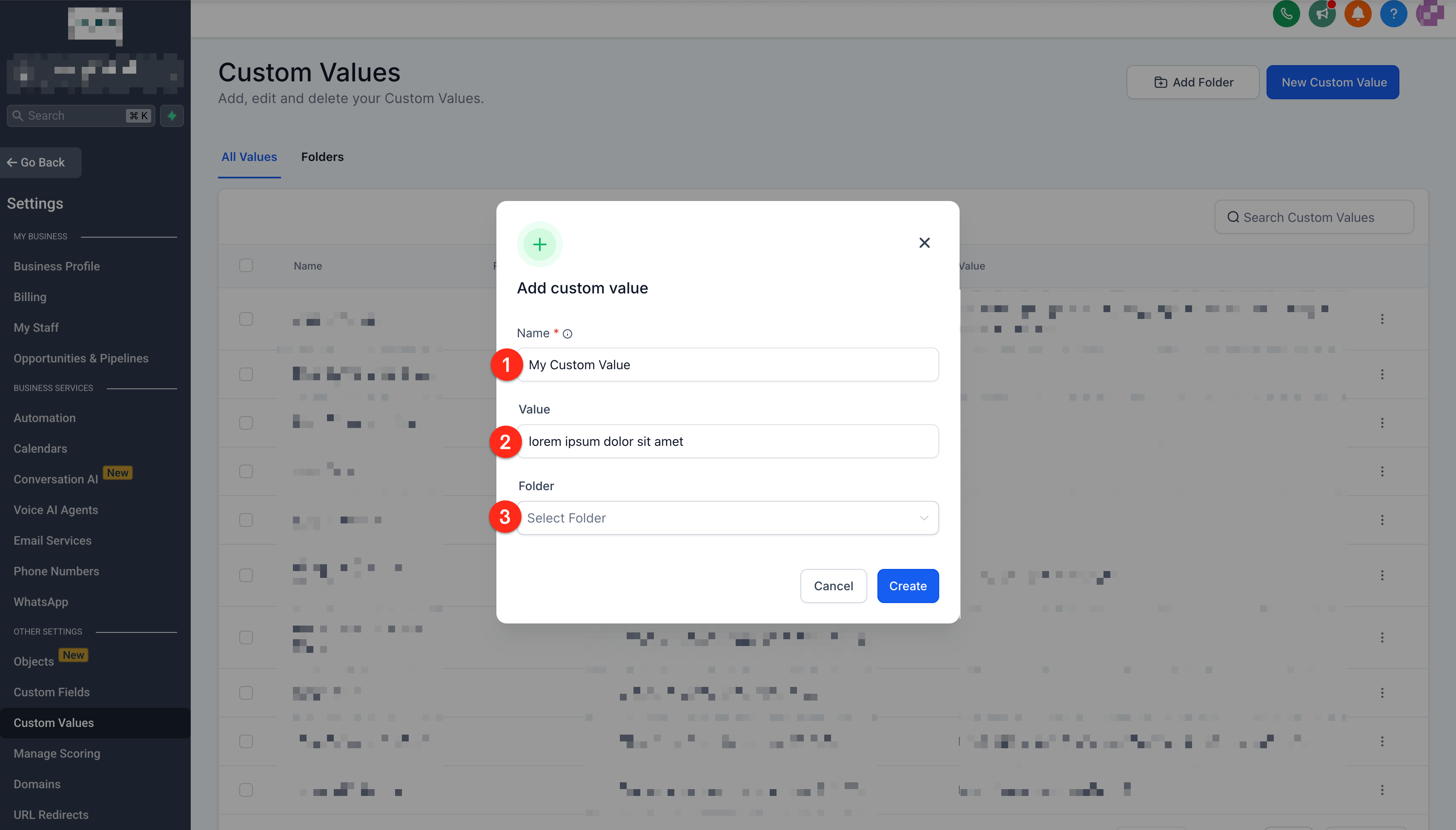
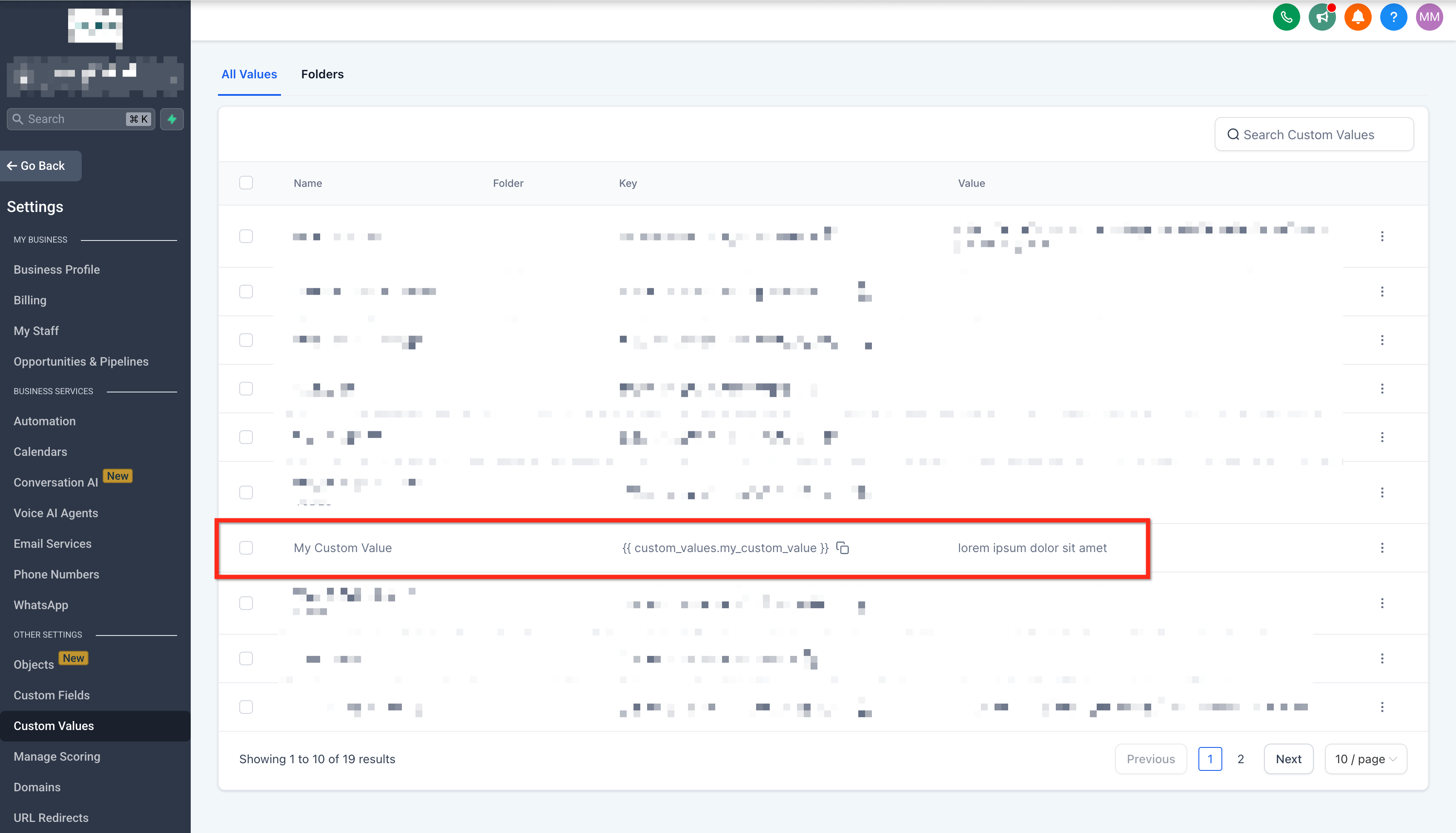
Custom values store a key and its associated value. The key is generated from the name you enter, for example a name of "My Custom Value" becomes custom_values.my_custom_value. Once created, the key can be referenced throughout the platform, and any change to the value propagates automatically.
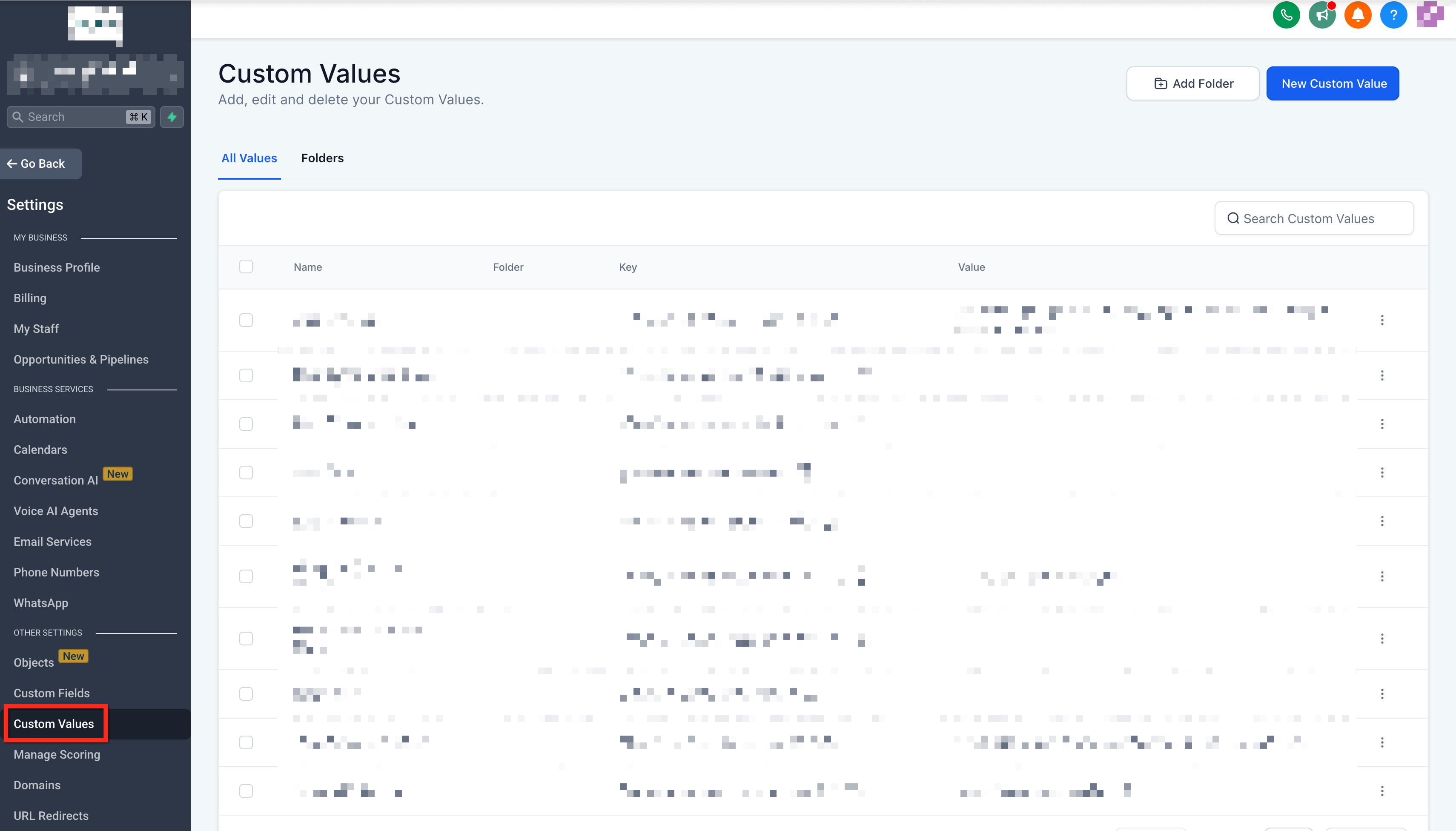
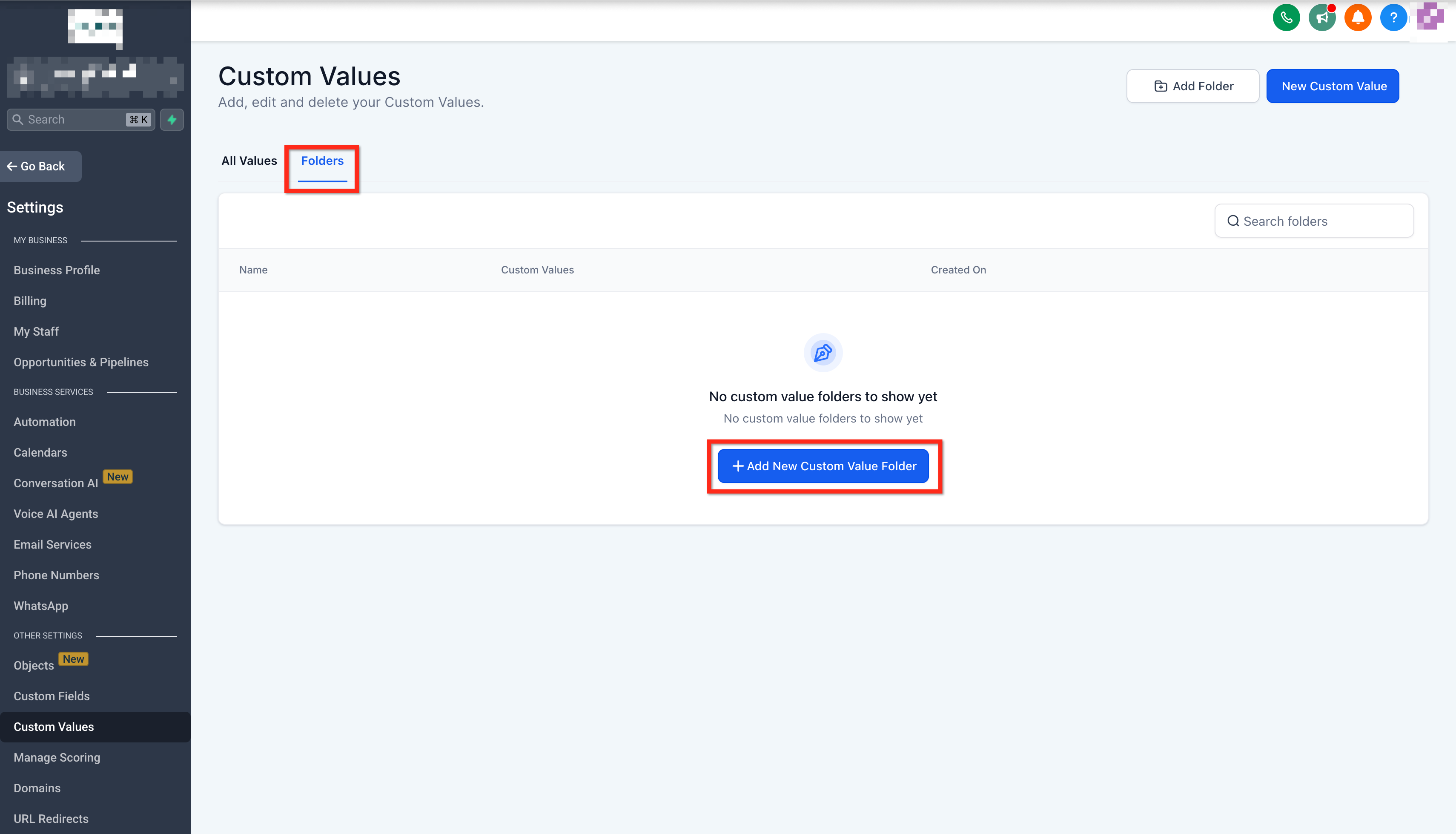
Custom values appear under Settings > Custom Values. They can be grouped in non nested folders for easier organization. Each value lives in a single folder; it cannot belong to multiple folders at once.
Management actions include renaming folders, moving values between folders, editing individual values, and bulk actions such as moving or deleting several values at once. All actions are accessed via the three dot menus next to folders or values.
03How businesses use Custom Values settings
- Real estate agency. Create a custom value for the agency’s standard commission rate. Insert the key into every listing template so the rate updates automatically when the agency changes it.
- Dental practice. Set a custom value for the office address. Use the key in appointment reminders and billing emails. Updating the address once updates all communications.
- Ecommerce store. Create a custom value for the support email address. Reference the key in purchase confirmations, support tickets, and social media posts. A single edit changes every instance.
04How to set up and use Custom Values settings in HighLevel
Create a custom value
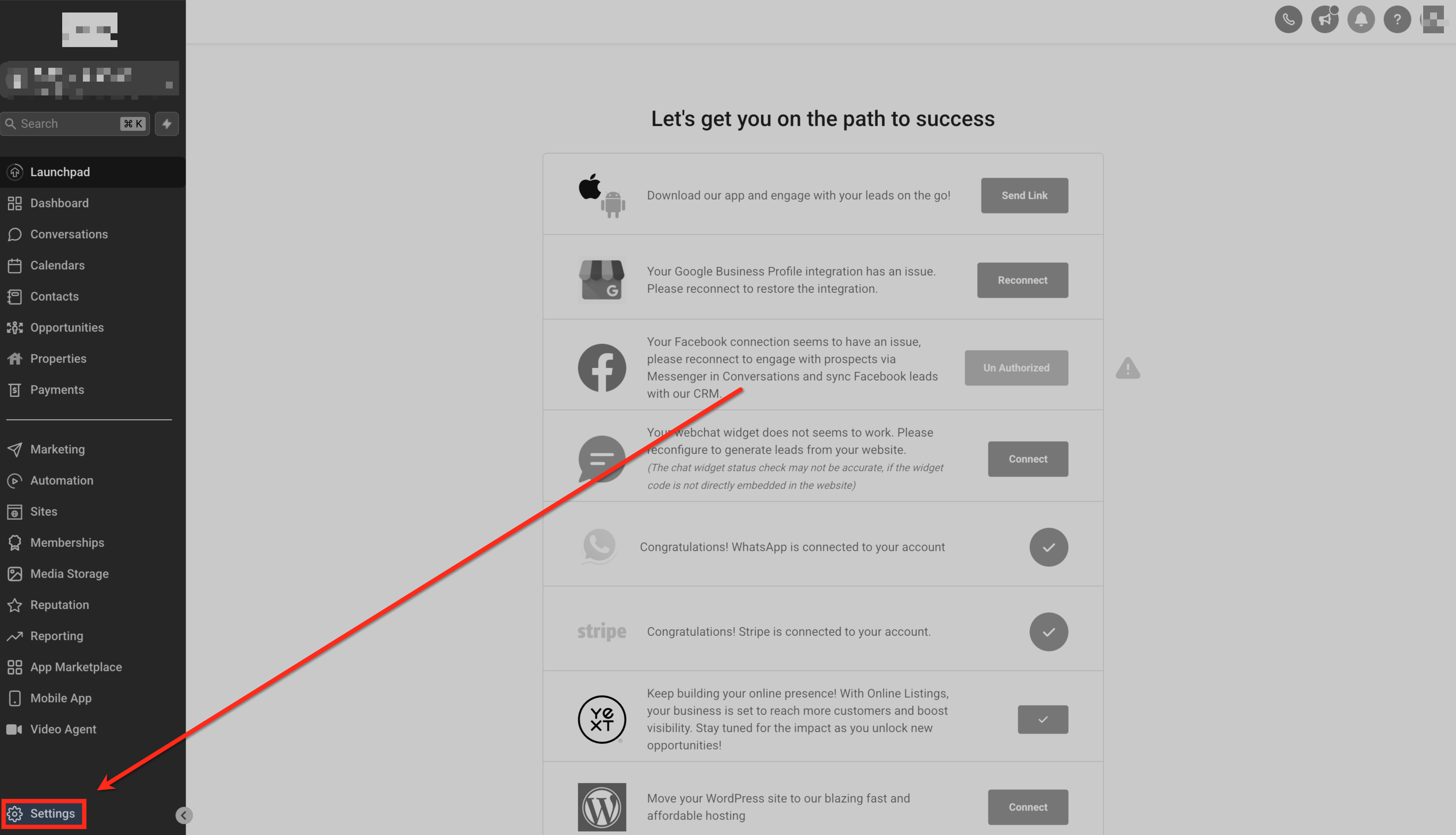
- Open the subaccount and go to Settings > Custom Values.
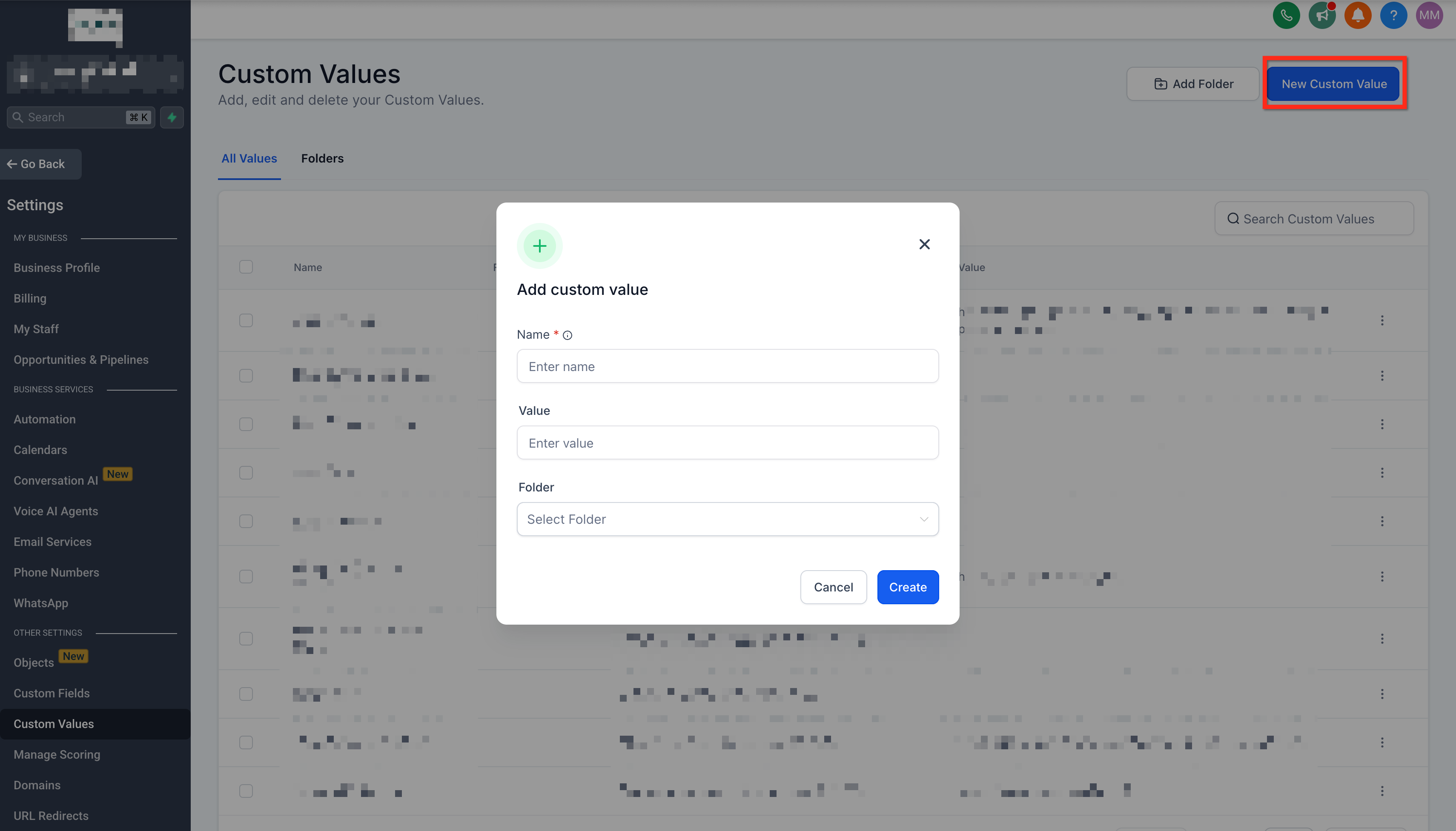
- Click the New Custom Value button at the top right.
- Enter a name in the Name field; the system builds the key from this name.
- Enter the desired content in the Value field.
- Optionally select a folder in the Folder field.
- Confirm the entry by saving the new custom value.
Rename a folder
- Open the Folders tab and locate the folder you wish to rename.
- Click the three dot menu at the right side of the folder entry.
- Choose Rename Folder from the menu.
- Type the new folder name and confirm the change.
Move Custom Values to a folder
- Click the three dot menu to the left of the custom value you want to move.
- Select Move To Folder from the menu.
- Pick the target folder in the modal and click Move.
Bulk delete Custom Values
- Check the boxes next to each custom value you want to remove.
- Click the Bulk Actions button that appears.
- Choose Delete Custom Value from the bulk menu.
- Confirm the deletion in the modal that follows.
05What it looks like in HighLevel
06Settings that matter
- Name. Defines the human readable label; HighLevel generates the key from this text.
- Value. Holds the data that will be inserted wherever the key is used.
- Folder. Optional grouping label that places the custom value in a single folder for organization.
07Things to know before you rely on it
- A custom value can belong to only one folder at a time.
- Folders cannot be nested; they exist only at a single level.
08How it connects to the rest of HighLevel
- Explore all settings options All Settings features
- Review HighLevel pricing and plans HighLevel pricing and plans
- Start a free trial of HighLevel 30 day trial
Michael's take

Custom Values give you one source of truth, so a change in the value updates every reference automatically.
You can set up a folder for items like branding URLs, add Custom Values for things such as a contact number, and then use the key in any template where that information is needed.