
01Who this is for
- Agency managers can reorganize client assets quickly without opening each file individually.
- Ecommerce operators can move or delete large batches of product images efficiently.
- Real estate teams can bulk download or remove property photos to keep the gallery current.
02MultiSelect in Media Storage, explained
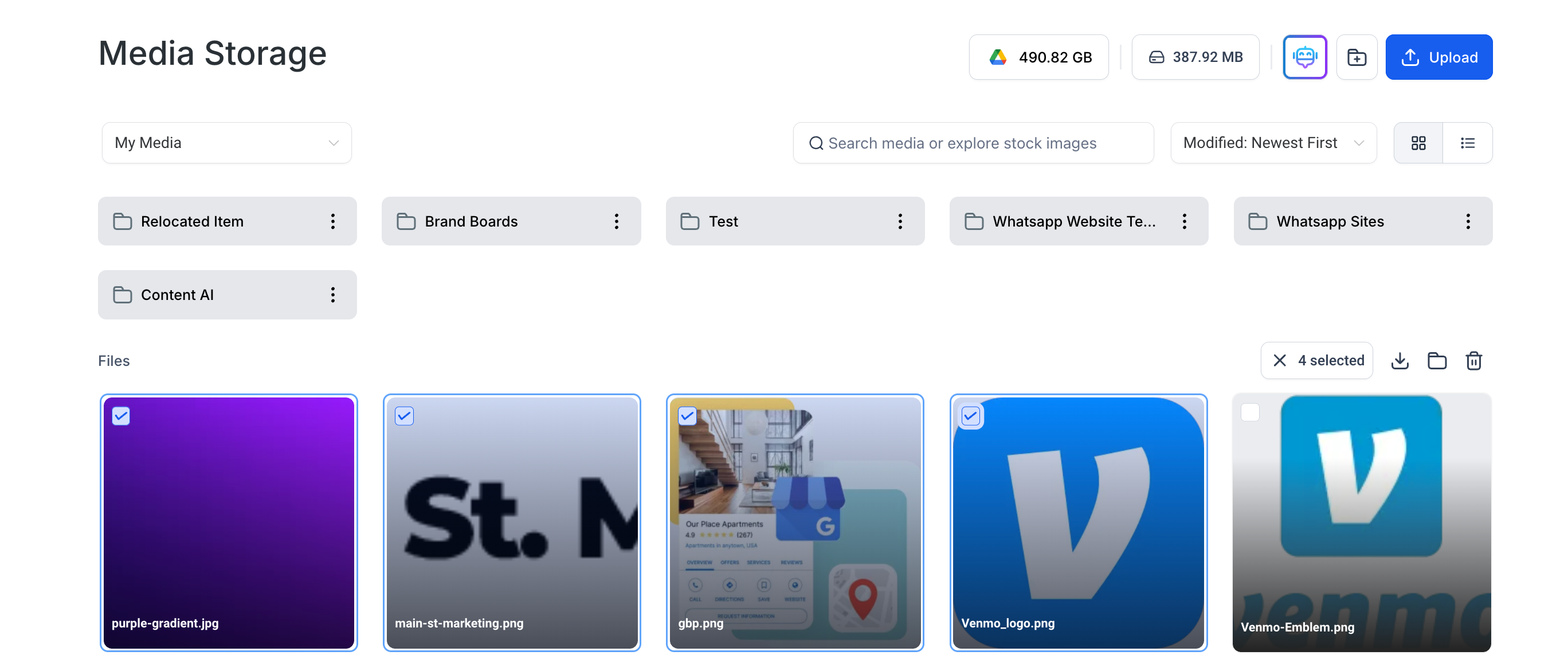
Multi Select lets a user highlight more than one file or folder inside Media Storage. The interface shows a checkmark on each selected item.
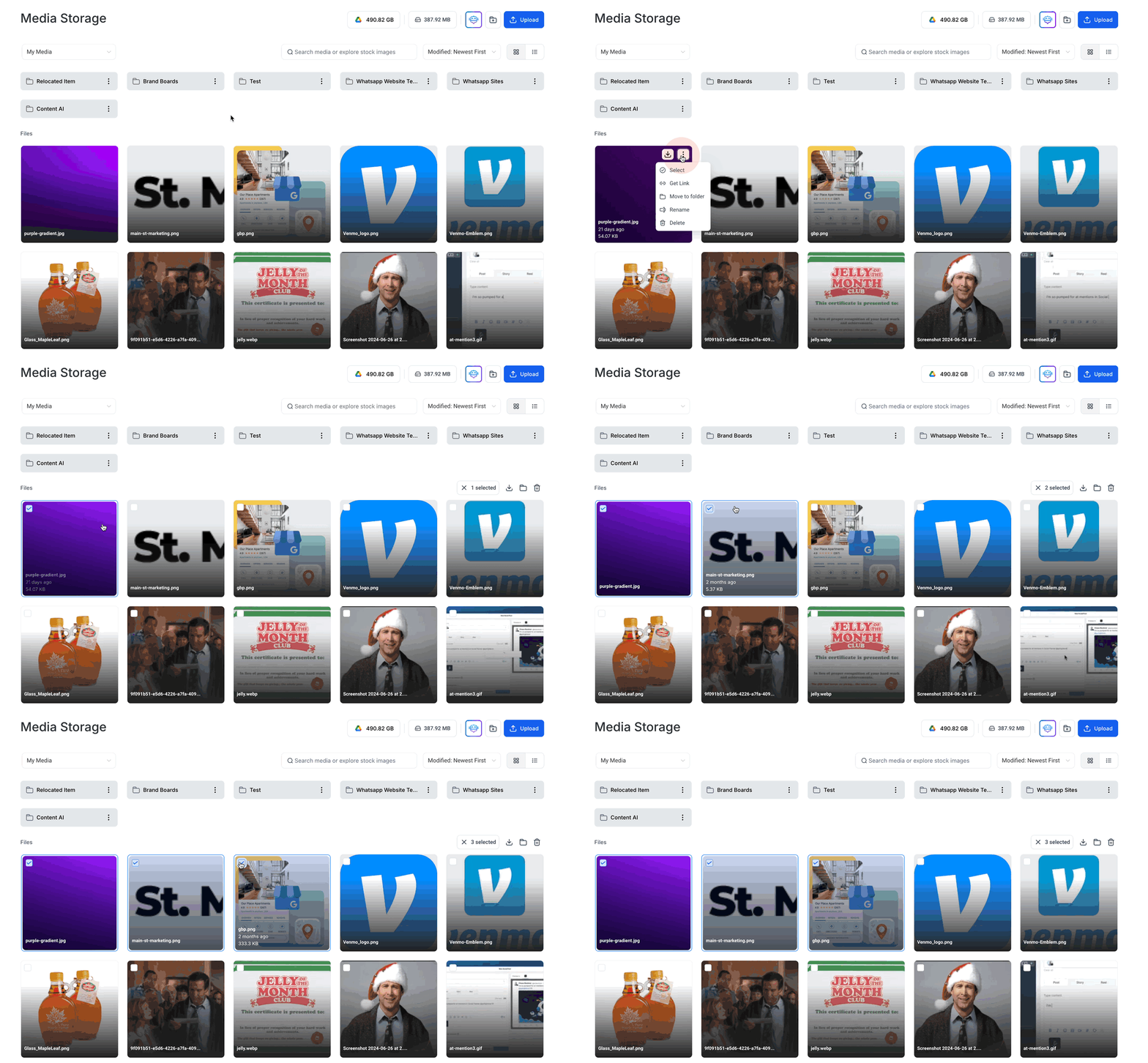
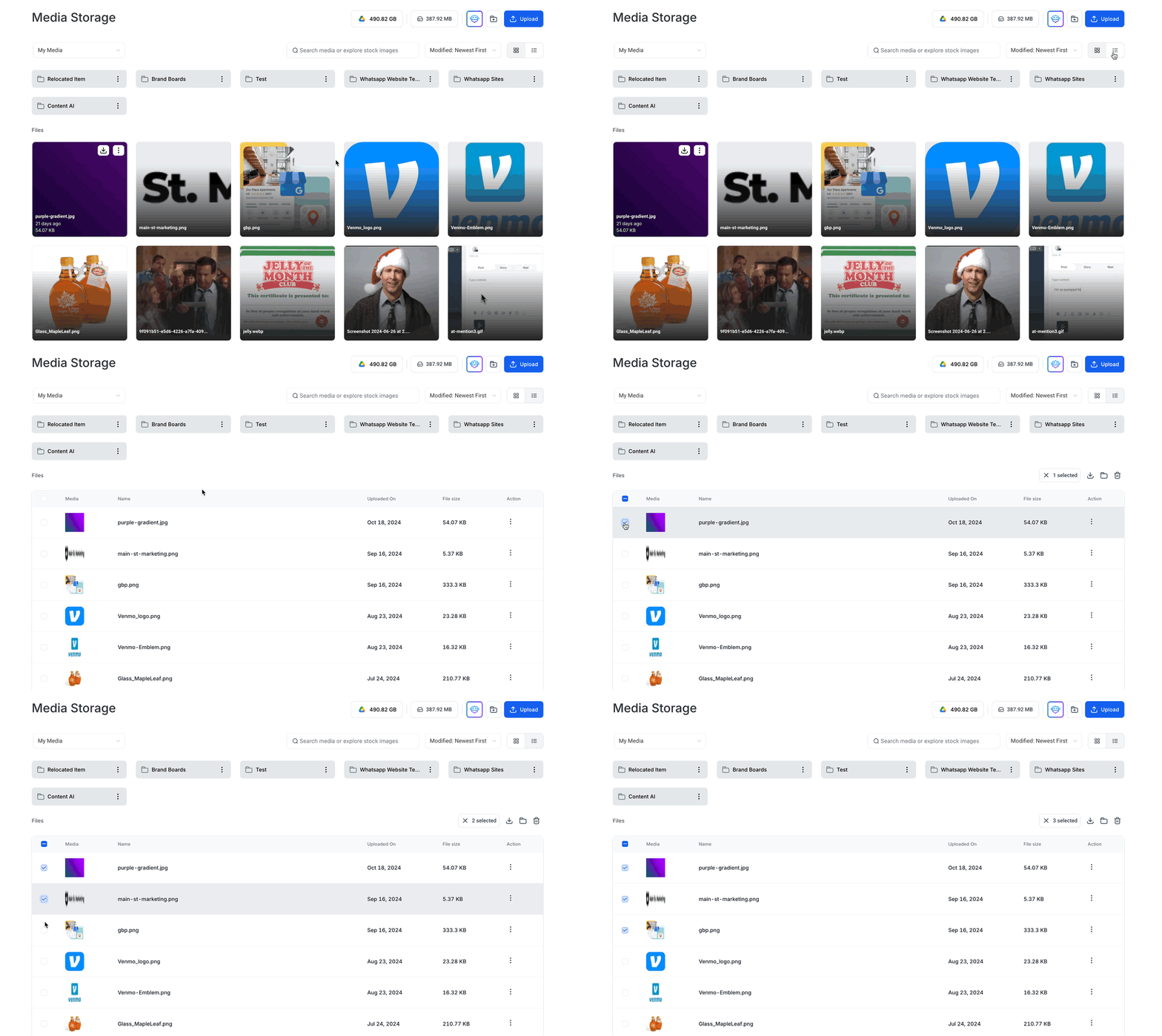
In grid view, a user drags the mouse across items or chooses the “Select” command from the three dot menu. In list view, checkboxes next to each entry perform the same function.
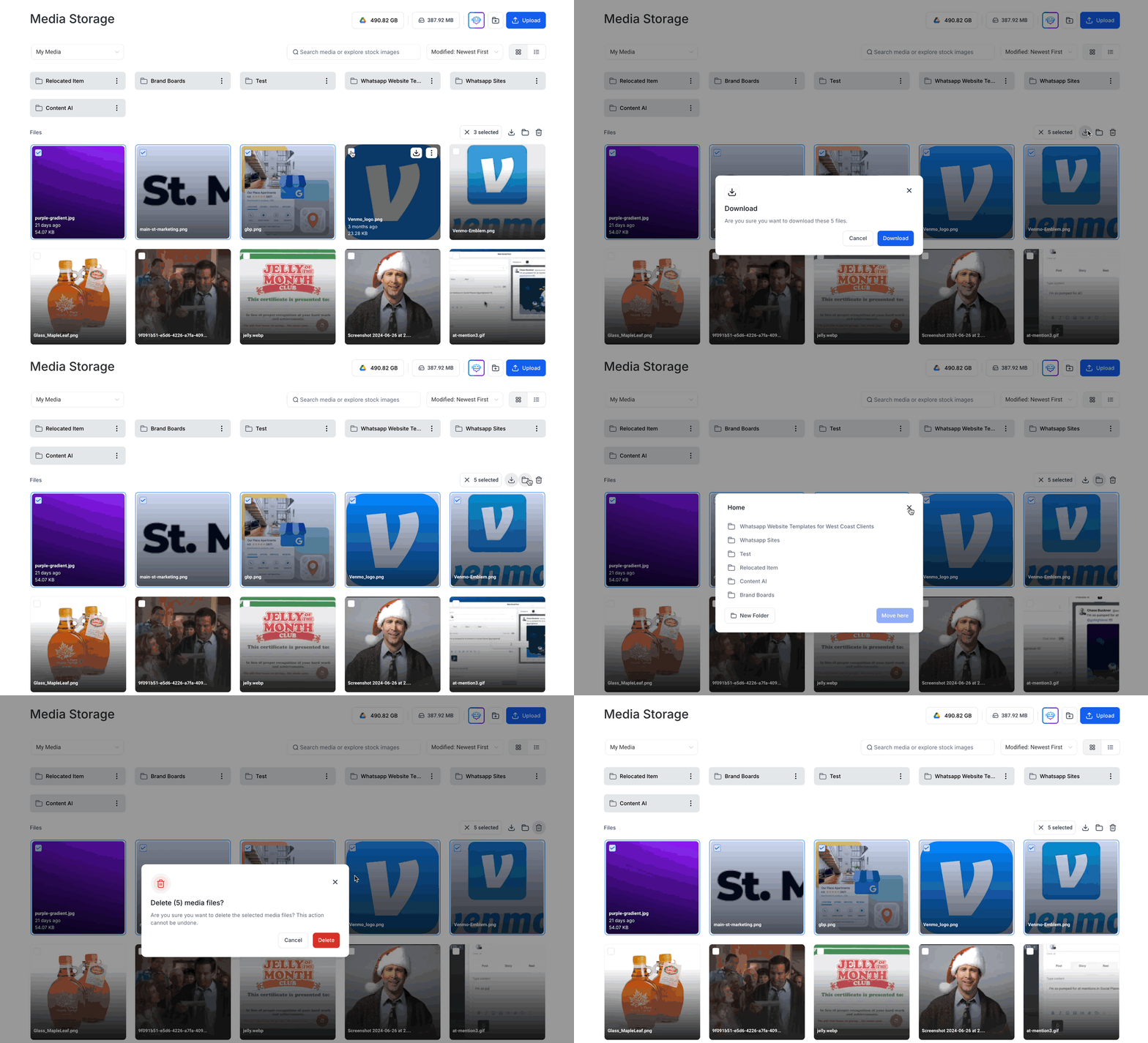
After items are marked, bulk action buttons appear, allowing a move, download, or delete of all chosen items in one step.
03How businesses use multiSelect in Media Storage
- Marketing agency. The agency opens Media Storage, selects dozens of client video files in grid view by dragging the cursor, then clicks the download button to retrieve all files at once.
- Ecommerce store. Store staff switches to list view, checks the boxes beside multiple product photos, and uses the move button to relocate them into a new folder for a seasonal catalog.
- Real estate office. Agents go to a property folder, select all old listing images with the checkbox column, and press delete to clear space in a single operation.
04The numbers and rules that matter
- Users can select and download up to 100 files at a time.
- If a file size exceeds 2 GB, it will be skipped in multidownload and must be downloaded individually.
05How to set up and use multiSelect in Media Storage in HighLevel
Select multiple files in grid view
- Open Media Storage and navigate to the folder that contains the desired files.
- Click and drag the mouse across the files you want, or open the three dot menu and choose “Select”.
- Confirm that a checkmark appears on each chosen file or folder.
Perform a bulk action
- After selecting files, click the move, download, or delete button that appears.
- If you try to select more than 100 files, a notification will appear.
- If any selected file is larger than 2 GB, it will be skipped during bulk download and must be downloaded individually.
06What it looks like in HighLevel
07Things to know before you rely on it
- A maximum of 100 files can be selected for a bulk action.
- Files larger than 2 GB are omitted from a multi download and must be downloaded one at a time.
- Selection is limited to items within a single folder; files across different folders cannot be chosen together.
- When multi select mode is active, the “Rename” and “Get Link” options are unavailable for the selected items.
- If multiple files share the same name during move or download, the system will prompt to rename or skip to avoid overwriting.
08How it connects to the rest of HighLevel
- See which file types are supported and any storage limits. Media storage file types and limits
- Explore other settings features available in the platform. All Settings features
- Start a trial to access Media Storage and test Multi Select. 30 day trial
Michael's take

When a team constantly shuffles images, PDFs, and videos across campaigns, the endless click through on each file can waste precious time. The first thing I would lock down is getting the checkboxes or drag select working so the bulk options appear without fail.
From there, I would test moving a handful of assets between folders and run a quick download of a mixed size batch to see the 2 GB skip rule in action.