
01Who this is for
- Agency owners who host client assets and need private product files.
- Funnel creators who require image and video assets within size limits for fast page loading.
- Digital product sellers who must protect purchased files and share temporary links.
02Media storage file types, explained
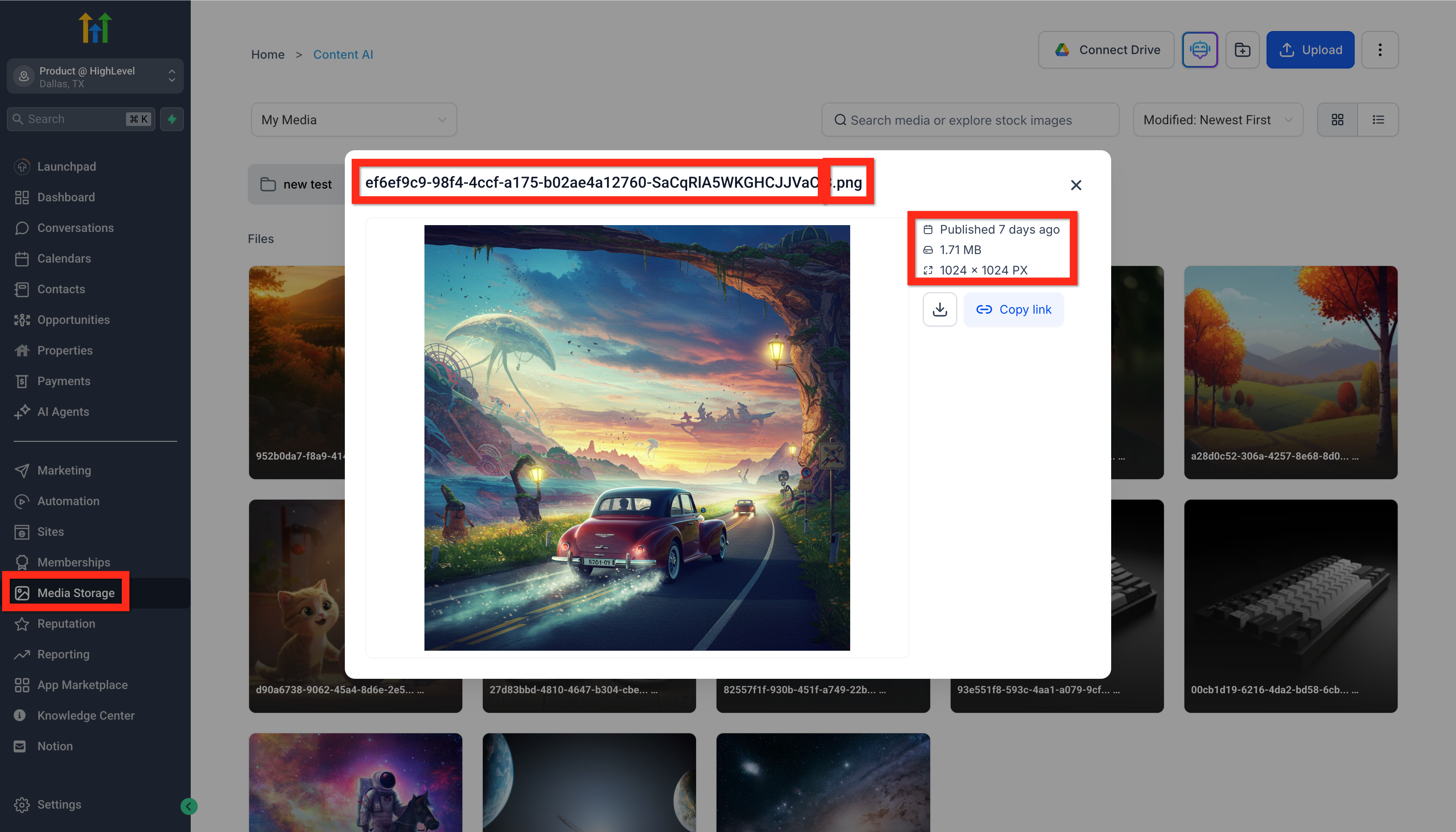
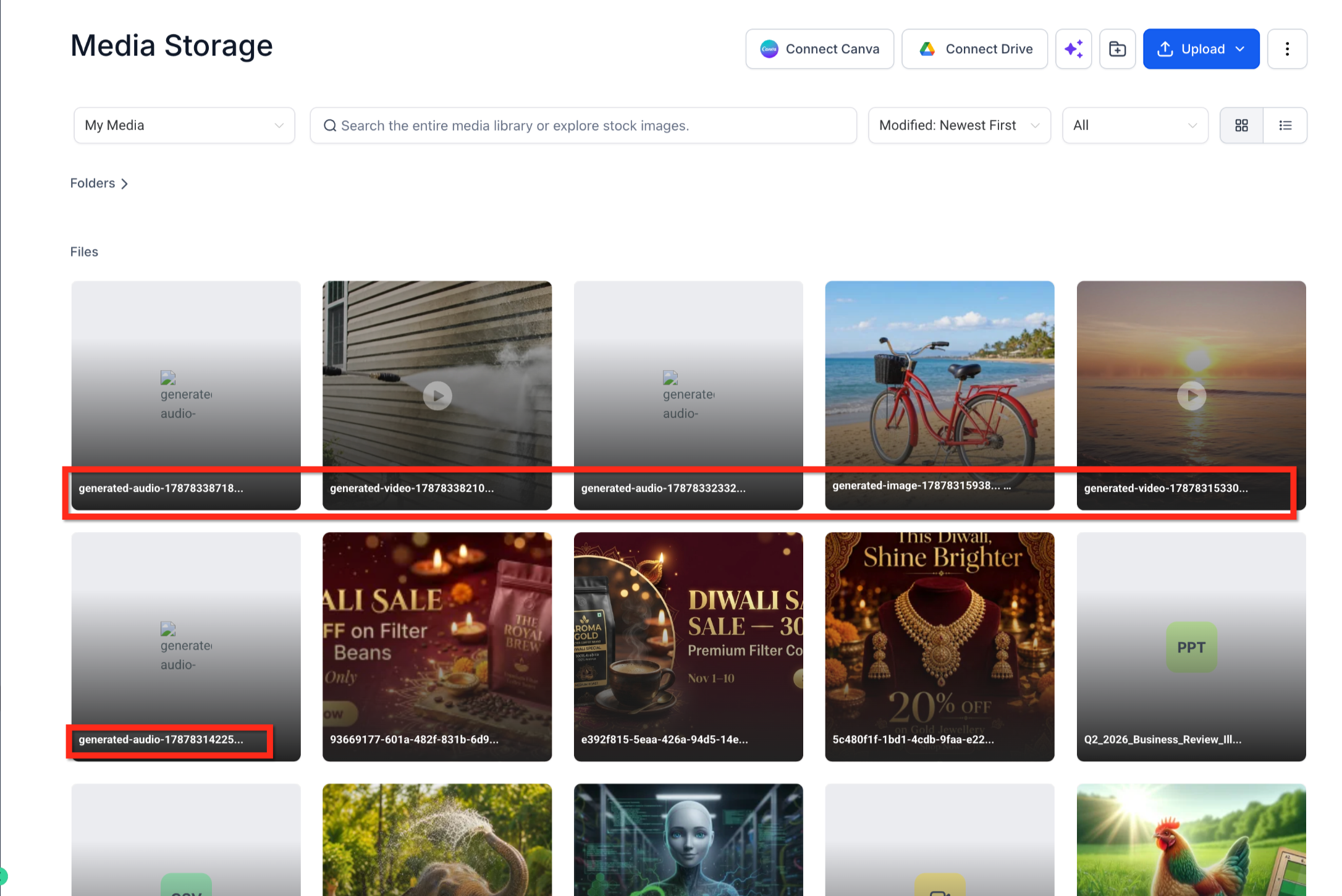
Media Storage is the central repository for all file types used across HighLevel products. It lists each file’s name, extension, upload date, size and, for images, dimensions. Supported formats include common images, video, audio, documents, fonts, and contact files, and they work in Chrome, Firefox and Safari.
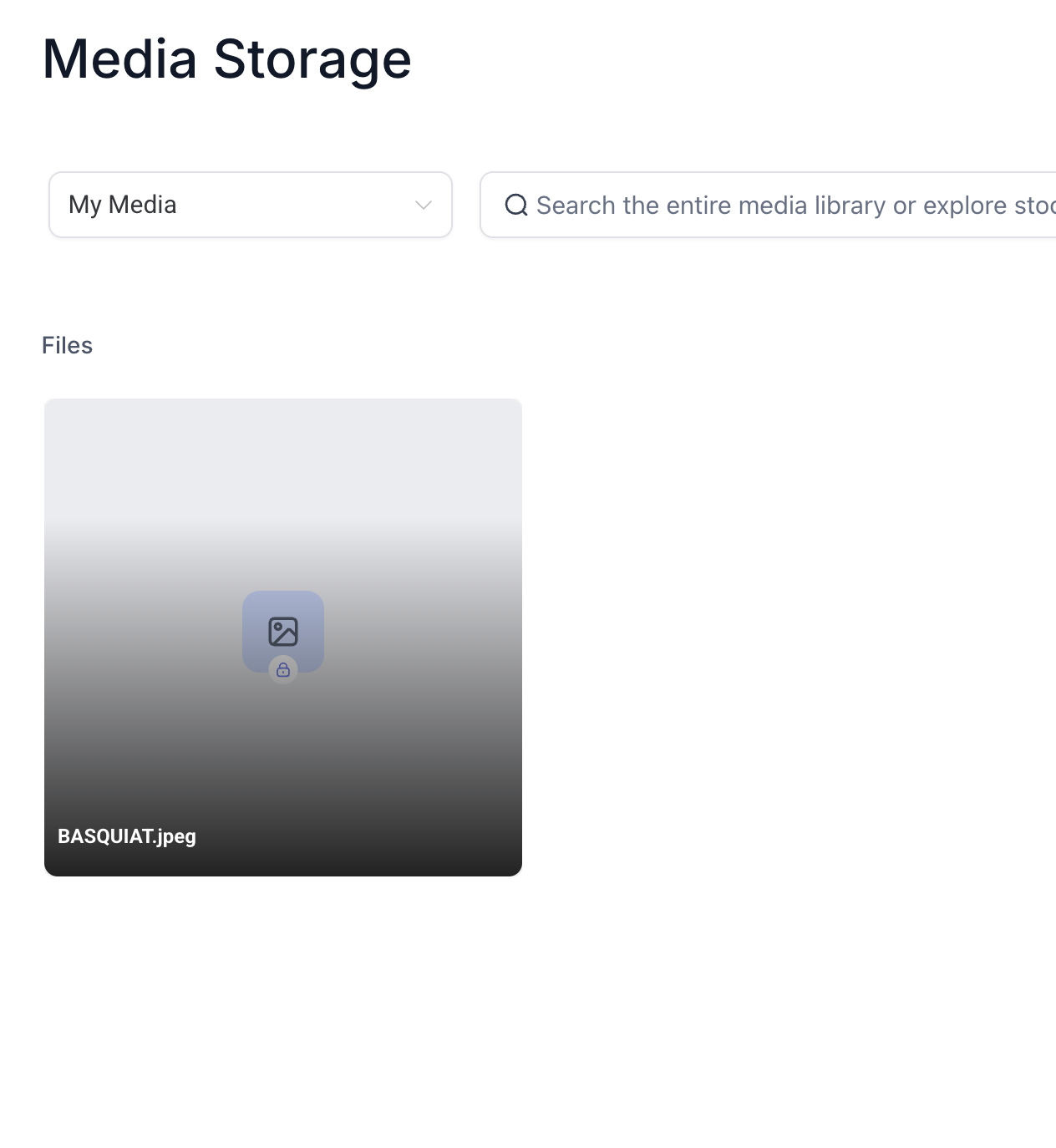
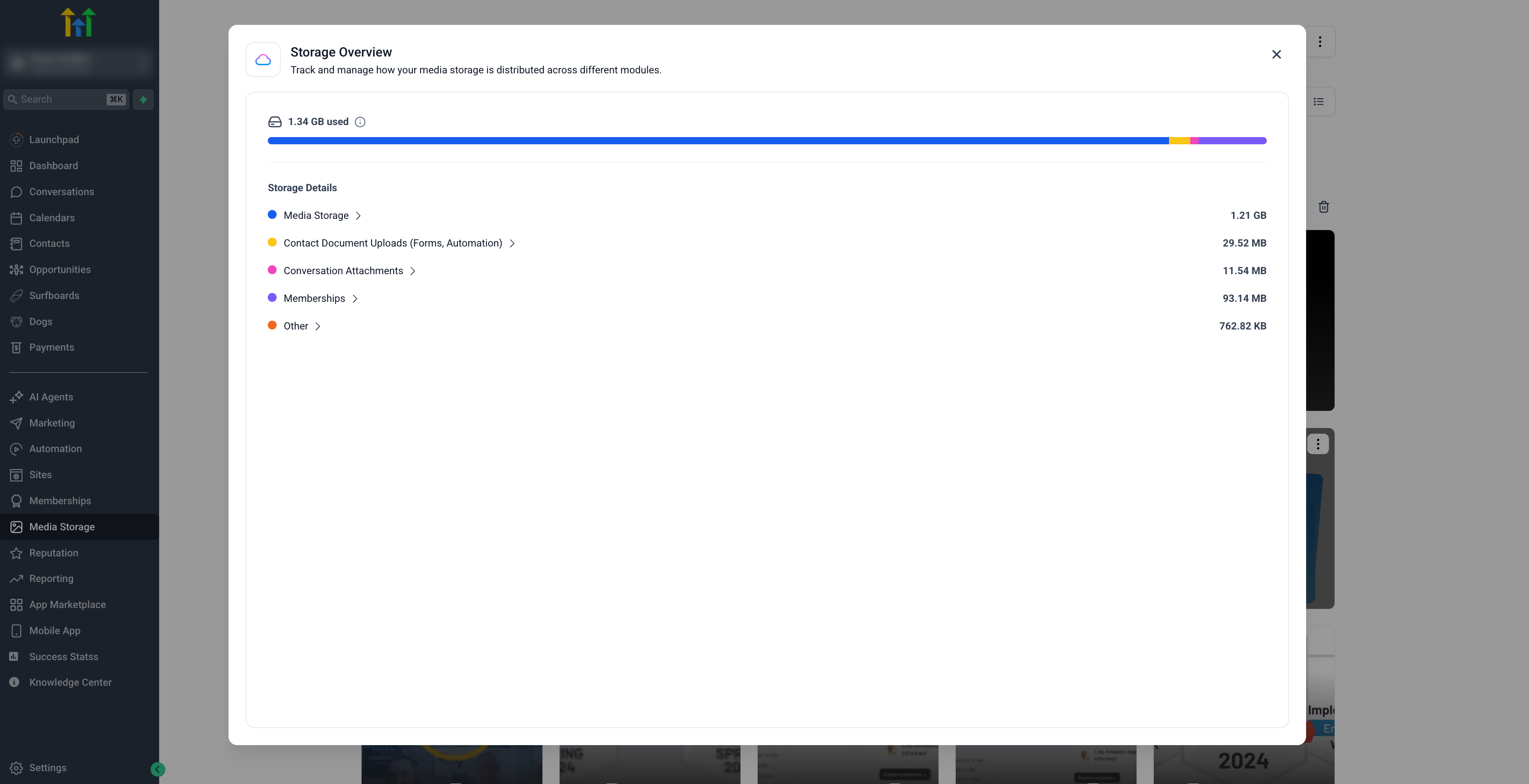
Private files are generated automatically when a file is uploaded through the Digital Product setup. These files show a lock icon, cannot be manually marked private, and can be downloaded, deleted, or accessed via a temporary private link that expires after ten minutes. A Storage modal shows total usage and breaks it down by module and file type.
03How businesses use media storage file types
- Ecommerce store selling digital downloads. Upload product files while configuring a Digital Product. The system stores them as private files, shows a lock icon, and lets you generate a ten minute private link for customers to download the file.
- Marketing agency building client funnels. Open Media Storage from the funnel editor, drag and drop images, videos or fonts into the modal, and select or upload assets that respect each product’s size limits without leaving the workflow.
- Online course creator. Add PDFs, video lessons and audio files to the Courses product, preview them in the browser, and edit supported text files directly in Media Storage while staying within the per product upload limits.
04The numbers and rules that matter
- PNG (.png), 100 MB Media Library, 10 MB Social Planner, 100 MB Sites & Funnels, 50 MB Courses, 50 MB CV File Upload.
- MP4 (.mp4), 4 GB Media Library, 1 GB Social Planner, 4 GB Sites & Funnels, 5 GB Courses, 50 MB CV File Upload.
- PDF (.PDF), 100 MB across all products.
- Preview limit. Text files larger than 5 MB cannot be previewed after saving.
- Private link expiry, 10 minutes.
05How to set up and use media storage file types in HighLevel
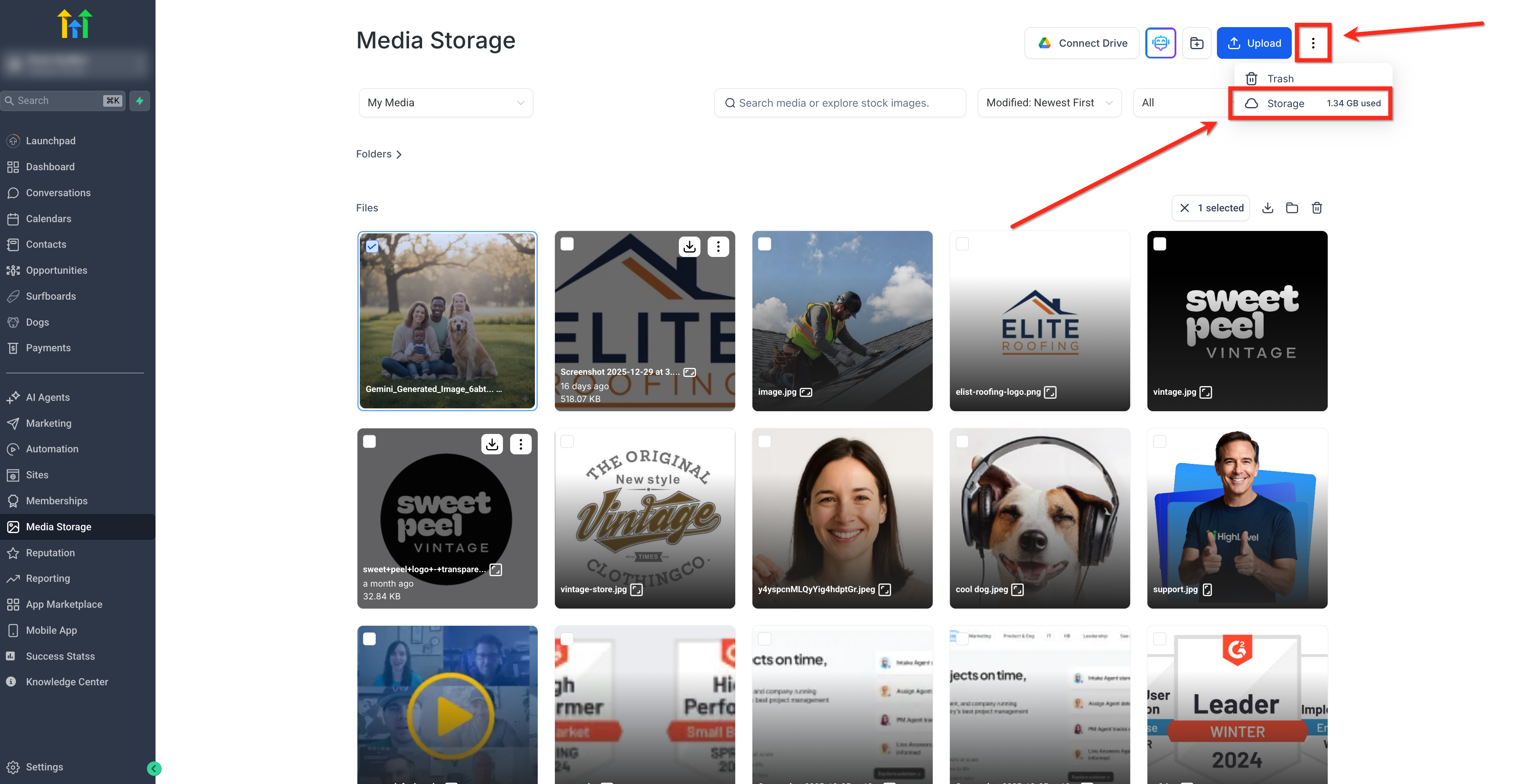
View account storage usage
- Click the three dot (⋮) menu and select Storage.
- Select a module to see usage broken down by file type.
Generate a temporary private link
- Locate a private file in Media Storage (lock icon present).
- Choose Copy Private Link to create a link that expires after ten minutes.
06What it looks like in HighLevel

07Settings that matter
- Connect Drive. Enables importing files you own from Google Drive into Media Storage; only owned files appear, not shared files or shortcuts.
08Things to know before you rely on it
- Images are limited to 100 MB in Media Library but only 10 MB in Social Planner.
- Video files can be up to 4 GB in Media Library, 1 GB in Social Planner, and 5 GB in Courses.
- Edited text files larger than 5 MB can be saved but lose preview capability after saving.
- Private files cannot be manually marked as private or changed back to public.
- Google Drive integration displays only files owned by the account; shared files and shortcuts are excluded.
- When using Login As, the Connect Drive button is disabled and Google Drive content from the original user is hidden.
09How it connects to the rest of HighLevel
- Add a file upload field to a form Custom Values Settings
- Perform bulk actions on Media Storage files Multi Select in Media Storage
- View overall storage consumption Account billing dashboard
Michael's take

Wondering if you really need to worry about file limits when building funnels? Most Founders just drop images and PDFs into Media Storage without checking the caps, and they end up hitting a 10 MB ceiling on Social Planner unexpectedly. Knowing the exact limits per product saves you from those surprise errors and keeps your launches smooth.
If I were setting up a new digital course, I’d upload the curriculum PDFs through the Digital Product wizard so they’re automatically private. That lock icon does the heavy lifting. No extra steps to hide the files. Test the private link quickly to confirm it expires as expected before you share it with students.