
01Who this is for
- Agency admins, they can run the migration and keep contact data organized across subaccounts.
- Subaccount admins, they can enable the automation for contacts within their own subaccount.
02Company object automation, explained
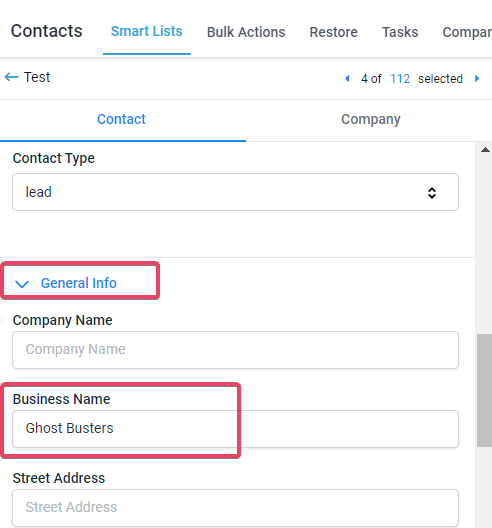
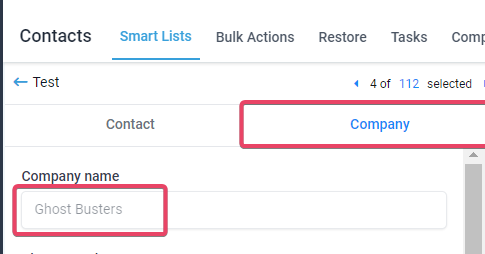
The feature lives under Settings > Objects > Company in each subaccount. When the automation checkbox is turned on, the platform scans every contact that has a Business Name entered in the General Info tab. For each unique business name, a company is created if none exists, and the contact is linked to that company.
During the migration, address related fields (street address, city, country, state, postal code, and website) from the contact are copied into the new company record. After the initial run, any new contact that includes a Business Name will be automatically associated with the matching company, as long as the contact is not already linked to a company.
03How businesses use the company object automation
- Real estate brokerage. Agents enter the Brokerage Name in the Business Name field for each client. When automation runs, a single brokerage company is created and all agents' contacts are attached, simplifying reporting by brokerage.
- SaaS startup. The sales team records the client’s corporate name in the Business Name field. The system creates a company entry for each distinct client and automatically maps address details, keeping the account hierarchy up to date.
- Event planning company. Event leads are imported with a Business Name column. Enabling automation generates a company for each venue and links all related contacts, allowing quick access to venue information.
04Before you start
- An admin level user must be logged in to access the setting.
- Contacts must have the Business Name field filled; for CSV imports the column header must be exactly "Business Name".
05How to set up and use the company object automation in HighLevel
Enable company object automation
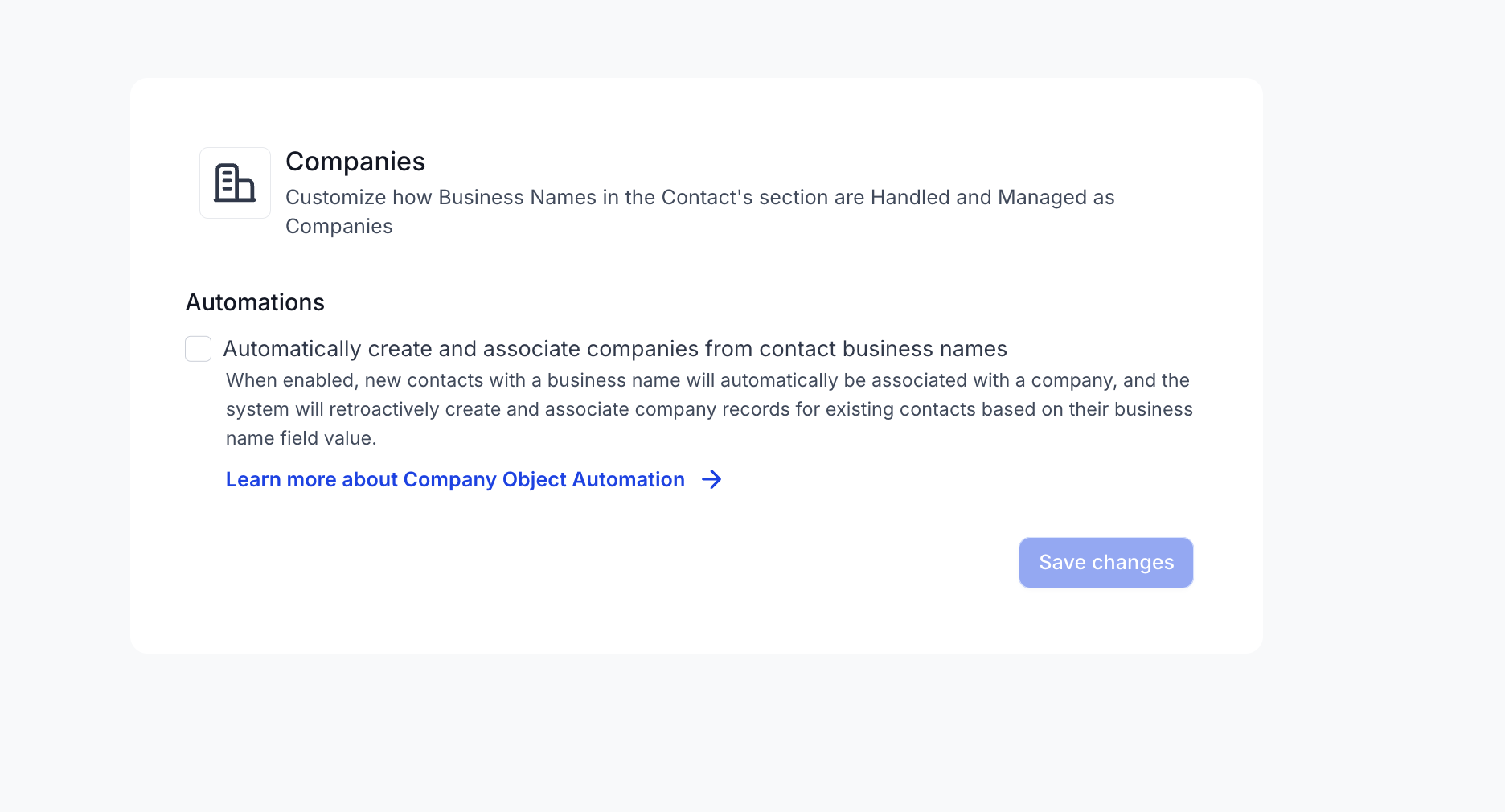
- Open the subaccount and go to Settings > Objects > Company.
- Check the box labeled “Automatically Create and Associate Companies from Contact Business Names”.
- Click the now active “Save Changes” button.
- When prompted, select “Yes” to start the migration process.
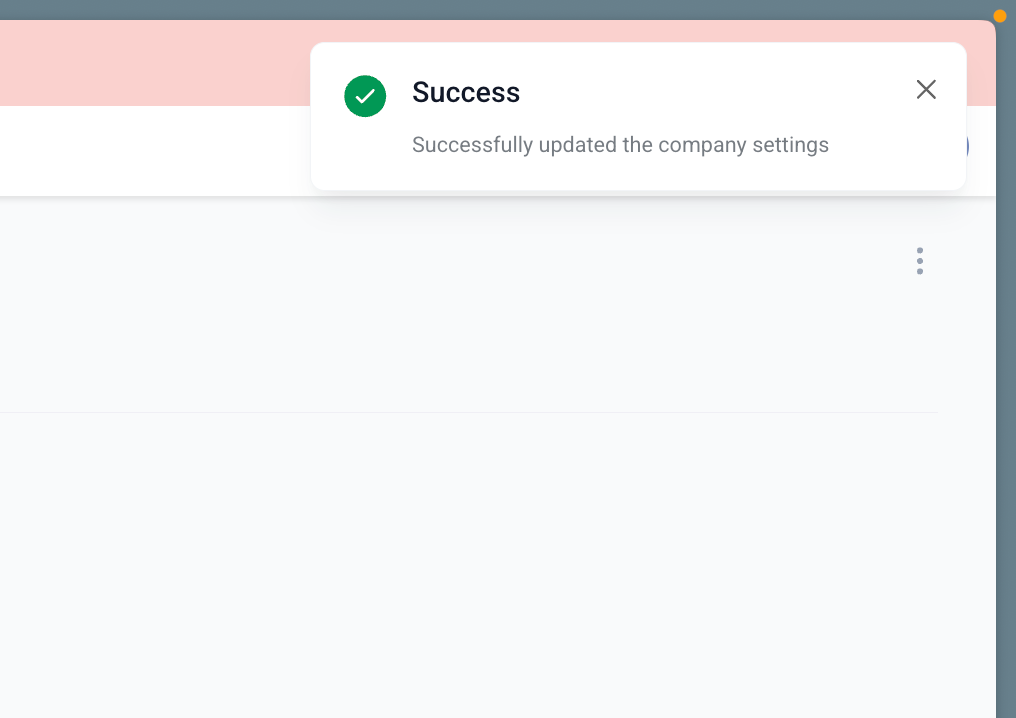
- Watch for the confirmation message that the process has begun.
06What it looks like in HighLevel
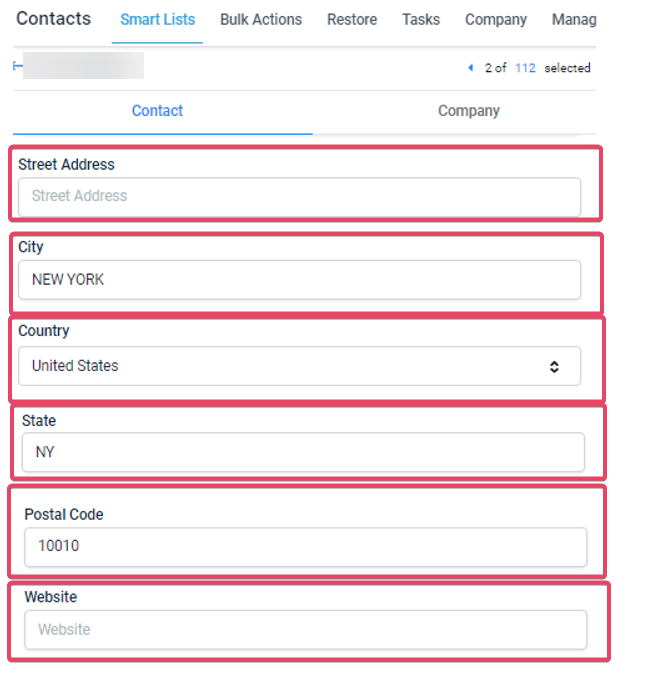
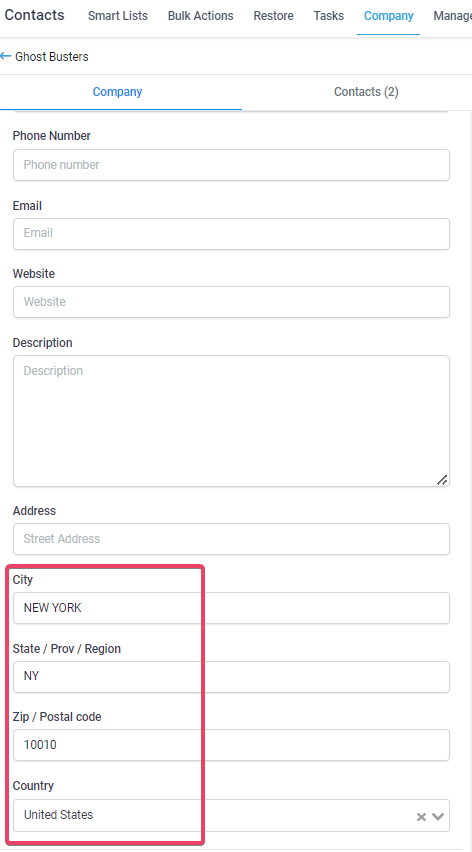
07Settings that matter
- Automatically Create and Associate Companies from Contact Business Names. Turns on the automatic generation of company records based on the Business Name field of contacts and links those contacts to the new companies.
- Create & Associate companies with the contacts. Triggers the migration of existing contacts that meet the criteria and saves the automation preference.
08Things to know before you rely on it
- Only admin users (agency or subaccount) can enable or run the automation; users with the User Role can see the option but cannot act on it.
- Company creation ignores case but treats spaces and spelling differences as distinct names, so “Burger King” and “burger king” become one company, while “BurgerKing” creates a separate record.
- Contacts already linked to a company are excluded from the migration, even if their Business Name differs.
- Changing a contact’s Business Name after the company is created does not move the contact to a different company.
- The automation does not update company attributes if the Business Name is edited later.
- If an import creates wrong company links because of misspellings or spacing, the affected contacts must be deleted and re imported with correct Business Names.
09If something goes wrong
- Contacts are linked to the wrong company after a CSV import due to misspelled Business Names.. Delete the incorrectly linked contacts and re import the CSV file with the correct Business Name values.
10How it connects to the rest of HighLevel
- All Settings features overview Settings overview
- Manage user roles and permissions User access
- Start a 30 day HighLevel trial Start trial
Michael's take

Be careful: The automation only works for contacts that aren’t already tied to a company, and it treats spacing and spelling as distinct names. A tiny typo can spawn a duplicate company, and fixing that later means deleting and reimporting contacts.
When it runs smoothly, companies appear automatically and address info flows into the right place.