
01Who this is for
- Agency owners who need to reconcile wallet charges for multiple client projects and want a single place to verify rates.
- Founders of SaaS startups that rely on AI or communication services billed through the wallet and require transparent pricing for budgeting.
- Ecommerce managers using domain and WhatsApp services who must confirm country specific costs before scaling campaigns.
02Wallet pricing page, explained
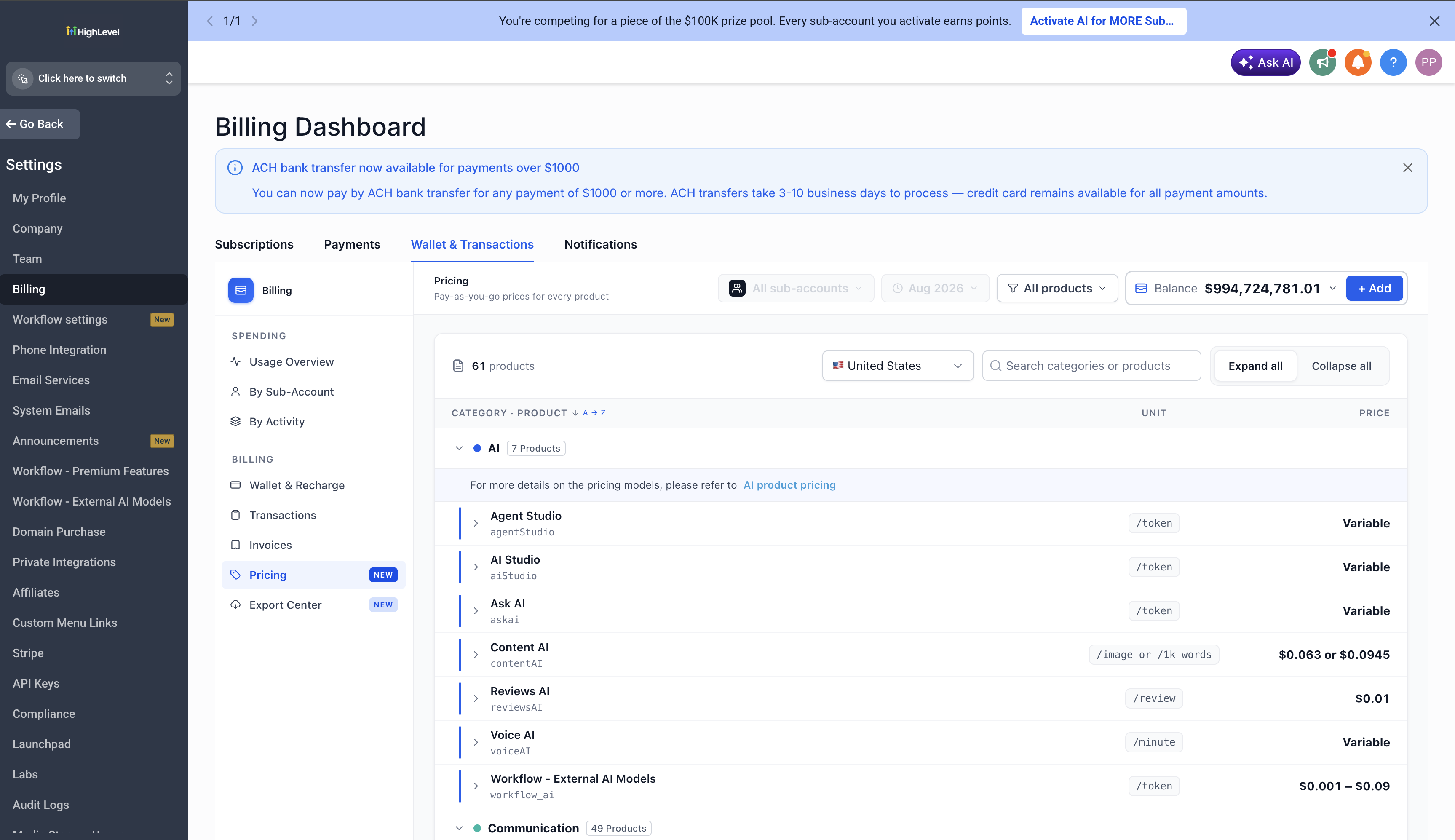
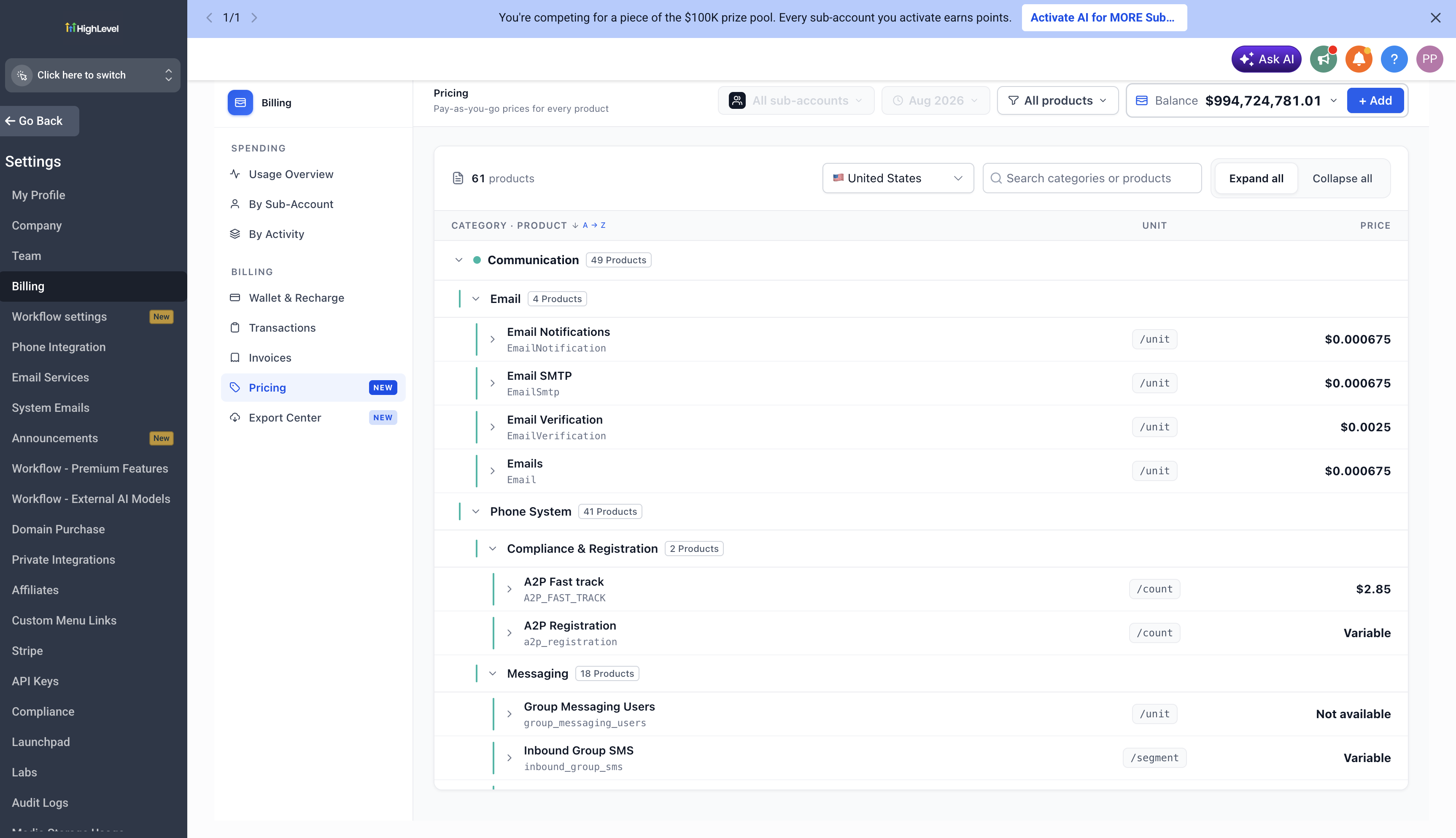
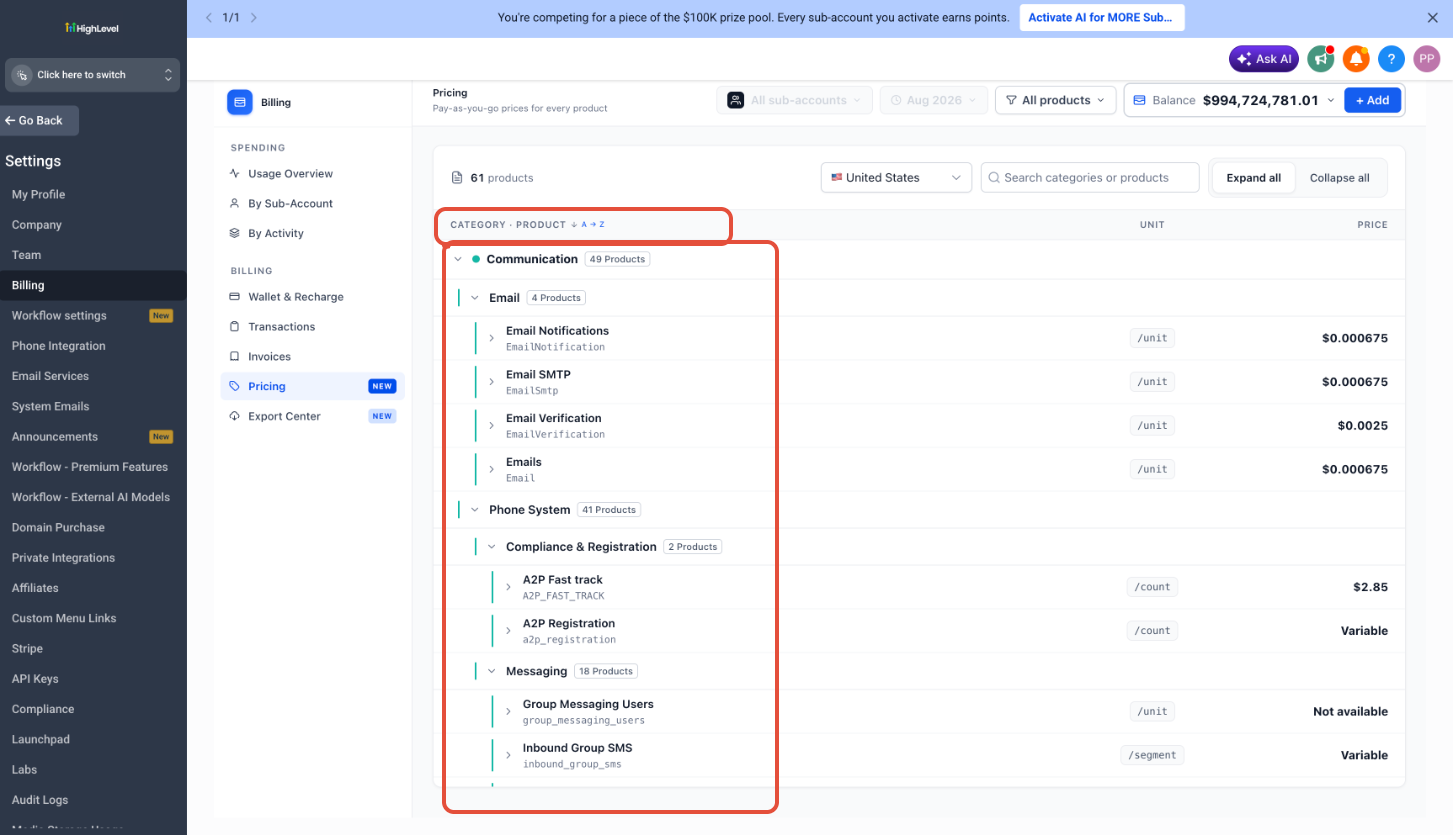
The Wallet Pricing page lives under Billing > Wallet and Transactions once the Wallet Pricing Labs feature is turned on. It shows a catalog of every product that charges against the wallet, grouped by category and sub category, with unit costs and billing units displayed.
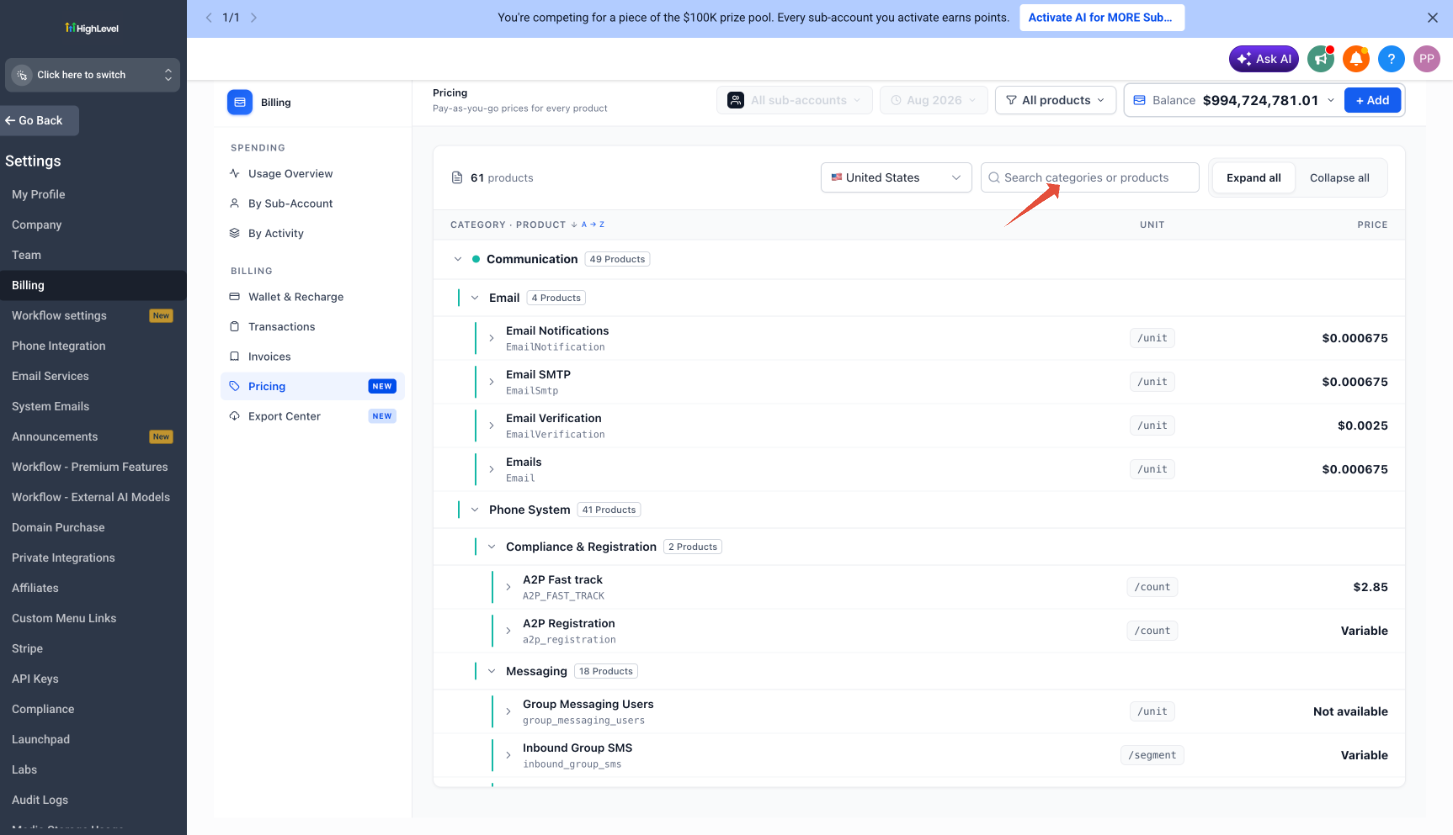
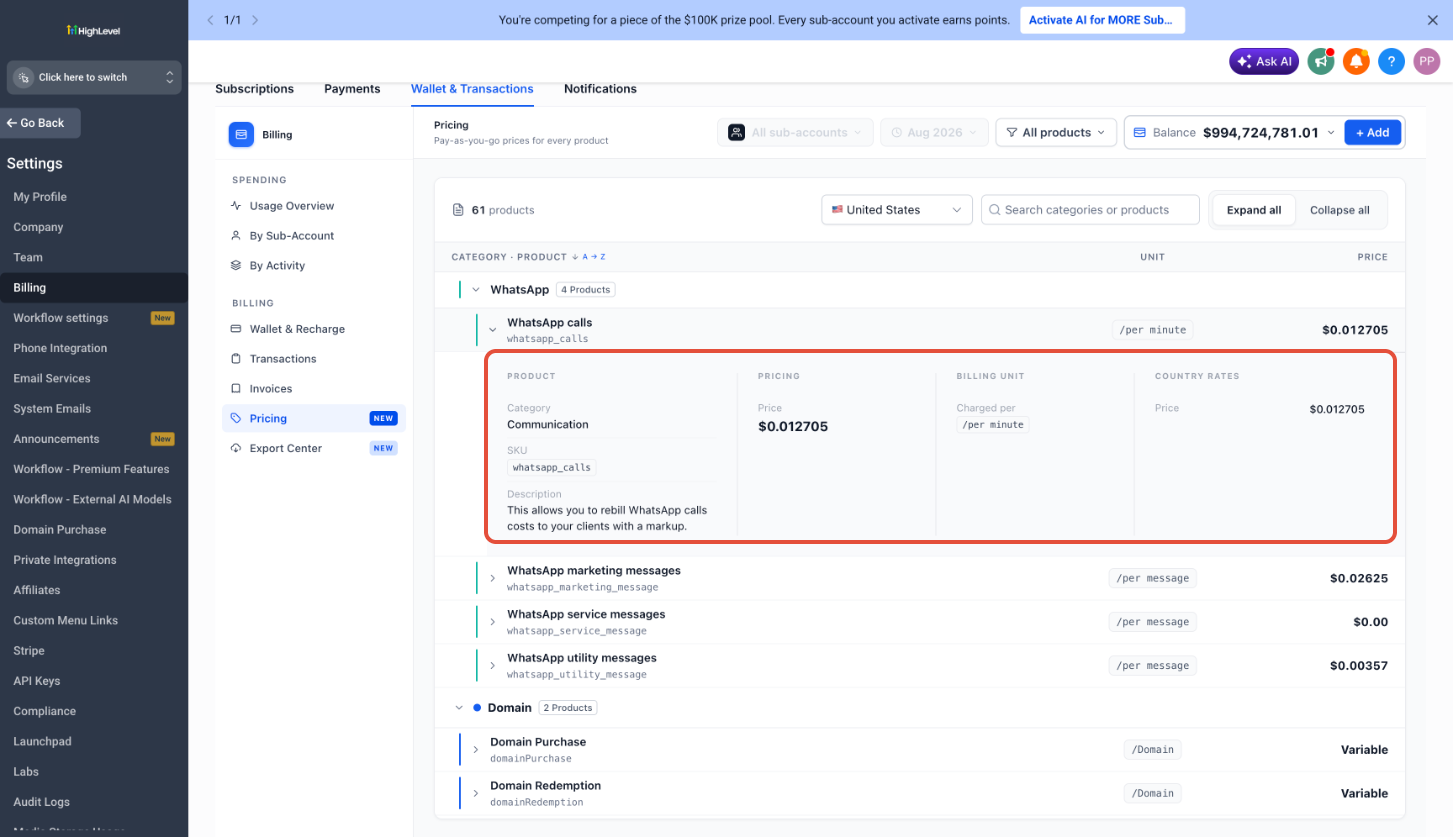
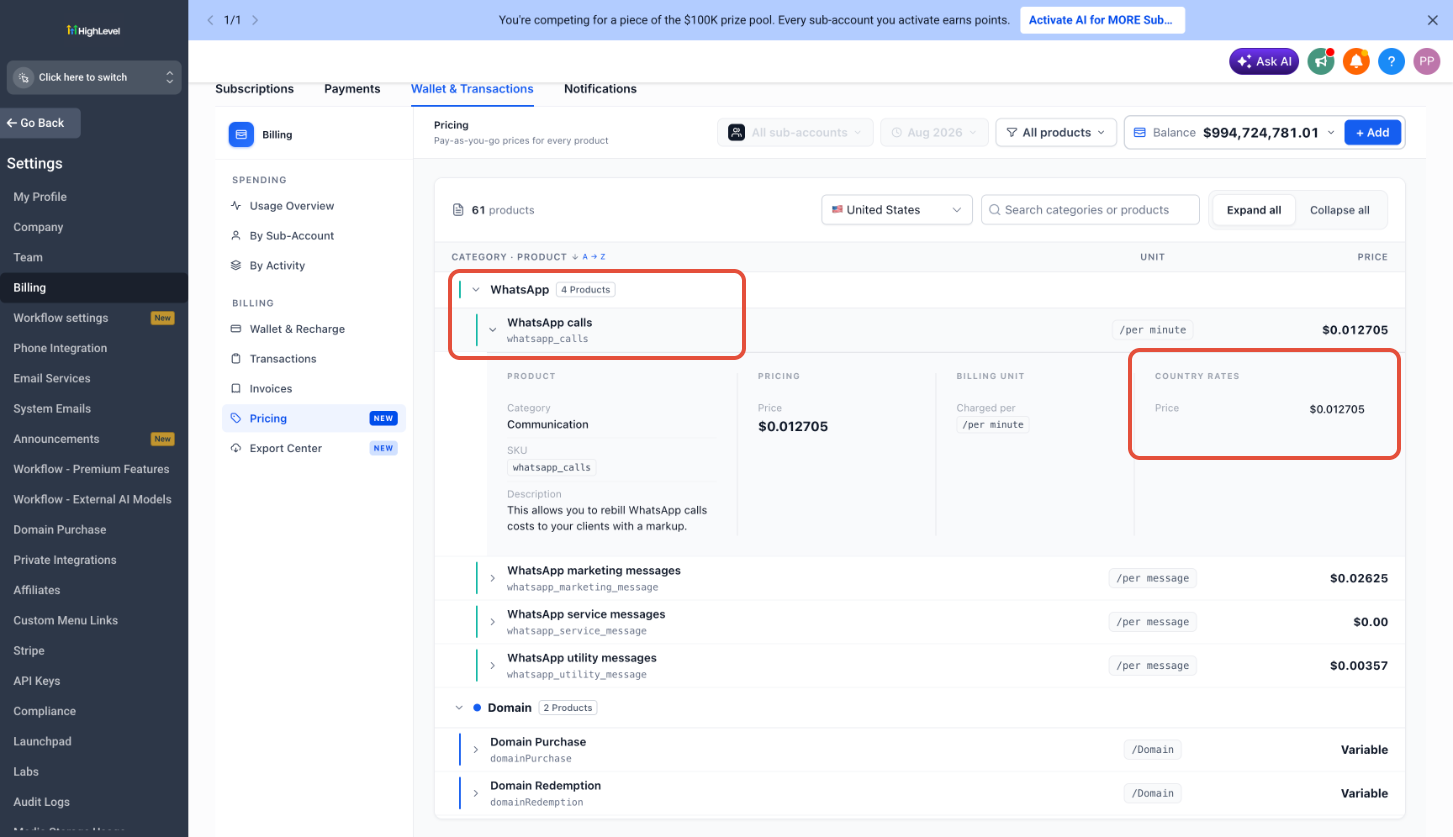
You can type a product or category name into the search bar to right away filter results. A country selector dropdown lets you view localized rates for the 27 supported nations. Clicking a product row expands a panel that reveals SKU, description, pricing, billing unit and any country specific numbers. Enterprise plan pricing appears alongside standard rates.
The page updates automatically, so the rates you see are always current without manual refresh.
03How businesses use the wallet pricing page
- Marketing agency. The agency enables the Wallet Pricing Labs feature, opens the page, and uses the search bar to confirm the cost of each client’s WhatsApp messages before invoicing. They also check the country selector to verify rates for campaigns running in different markets.
- SaaS startup. The startup turns on the feature, expands the AI product rows, and reads the unit cost to budget for projected usage. The startup also switches the country selector to see if any regional price differences affect their cost model.
- Ecommerce business. The ecommerce manager enables the page, filters for domain registration products, and expands each item to view the exact billing unit. They use the country selector to ensure the rates shown match the regions where they sell.
04The numbers and rules that matter
- 27 supported countries.
05Before you start
- Enable the Wallet Pricing feature in Settings > Labs before accessing the page in Billing.
06How to set up and use the wallet pricing page in HighLevel
Enable and use the Wallet Pricing page
- Open Settings, choose Labs, locate the Wallet Pricing feature and toggle it on.
- Select Billing from the main navigation and click the new Pricing page under Wallet and Transactions.
- Review the product list, expanding or collapsing categories to focus on the services you need.
- Enter a product or category name in the search bar to filter the list in real time.
- Open the country selector dropdown and choose one of the 27 supported countries to see localized rates.
- Click any product row to expand it and view the full details including SKU, description, pricing and country specific rates.
07What it looks like in HighLevel
08Settings that matter
- Wallet Pricing feature. Controls whether the Wallet Pricing page appears in the Billing section; it must be turned on in Settings > Labs.
09Things to know before you rely on it
- Only 27 countries are supported for localized rates; unsupported countries show default pricing.
- Exporting the pricing data is not available in the current phase.
- Subaccount pricing with markup controls is planned for future updates, not present now.
- The feature is a Labs toggle, so it may be disabled by the account administrator at any time.
10If something goes wrong
- Wallet Pricing page does not appear in Billing. Go to Settings > Labs and ensure the Wallet Pricing feature is enabled.
- Country specific pricing not showing for a market. Confirm the market is among the 27 supported countries; otherwise default pricing will be displayed.
11How it connects to the rest of HighLevel
- View all Settings options All Settings
- Explore HighLevel pricing and plan details Pricing and plans
- Start a 30 day trial of HighLevel 30 day trial
Michael's take

Be aware that the Wallet Pricing page is still a Labs feature, so you have to turn it on before you can use it. Until it’s enabled, you won’t see any of the centralized rates.
Once it’s on, you get a clean, searchable list of every wallet billed product and the exact cost for each market. That makes invoice checks, client cost explanations, and pricing plans a lot less guesswork.