
01Who this is for
- Any HighLevel user who has connected a WhatsApp Business account can use the checklist to activate core features quickly.
- Teams looking to streamline WhatsApp setup and improve feature discovery benefit from the guided steps.
02WhatsApp Business onboarding checklist, explained
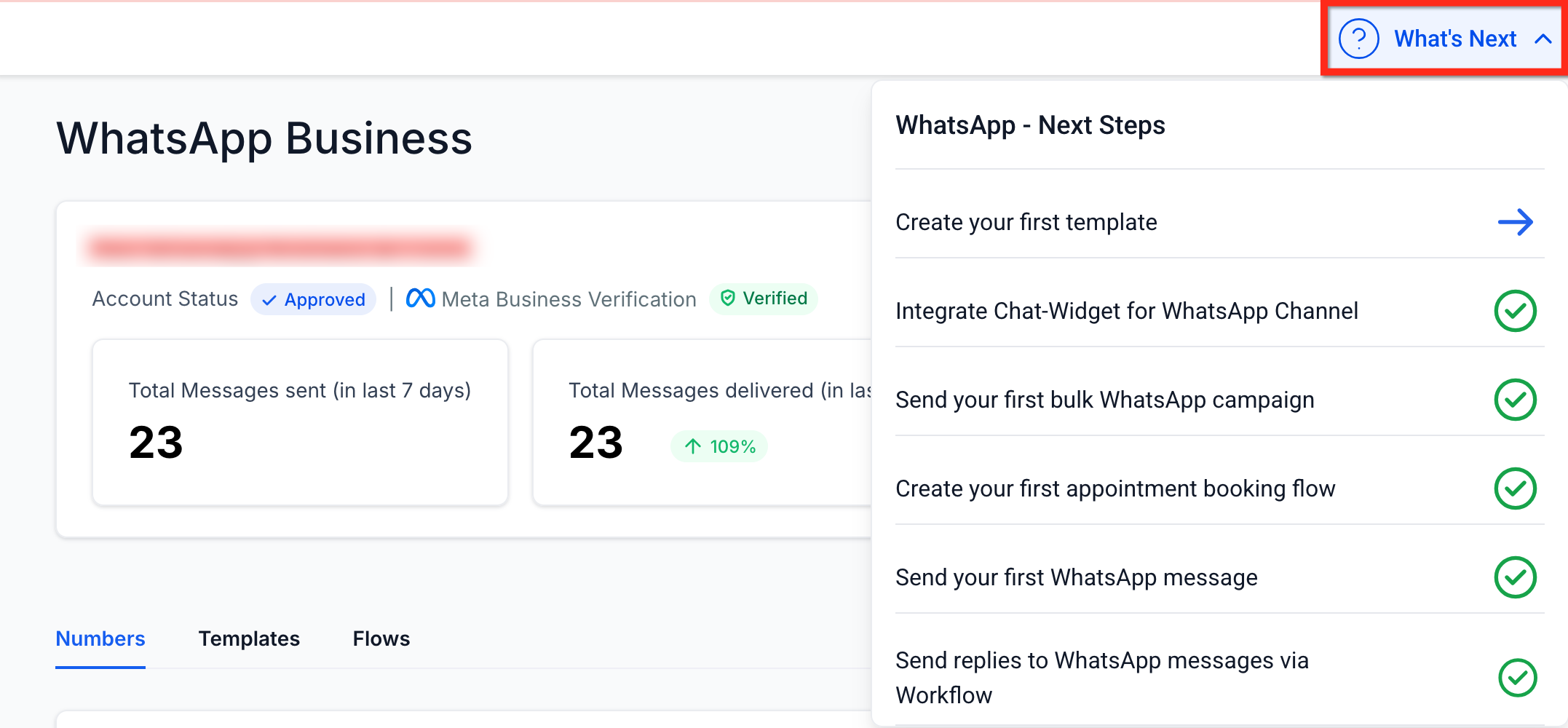
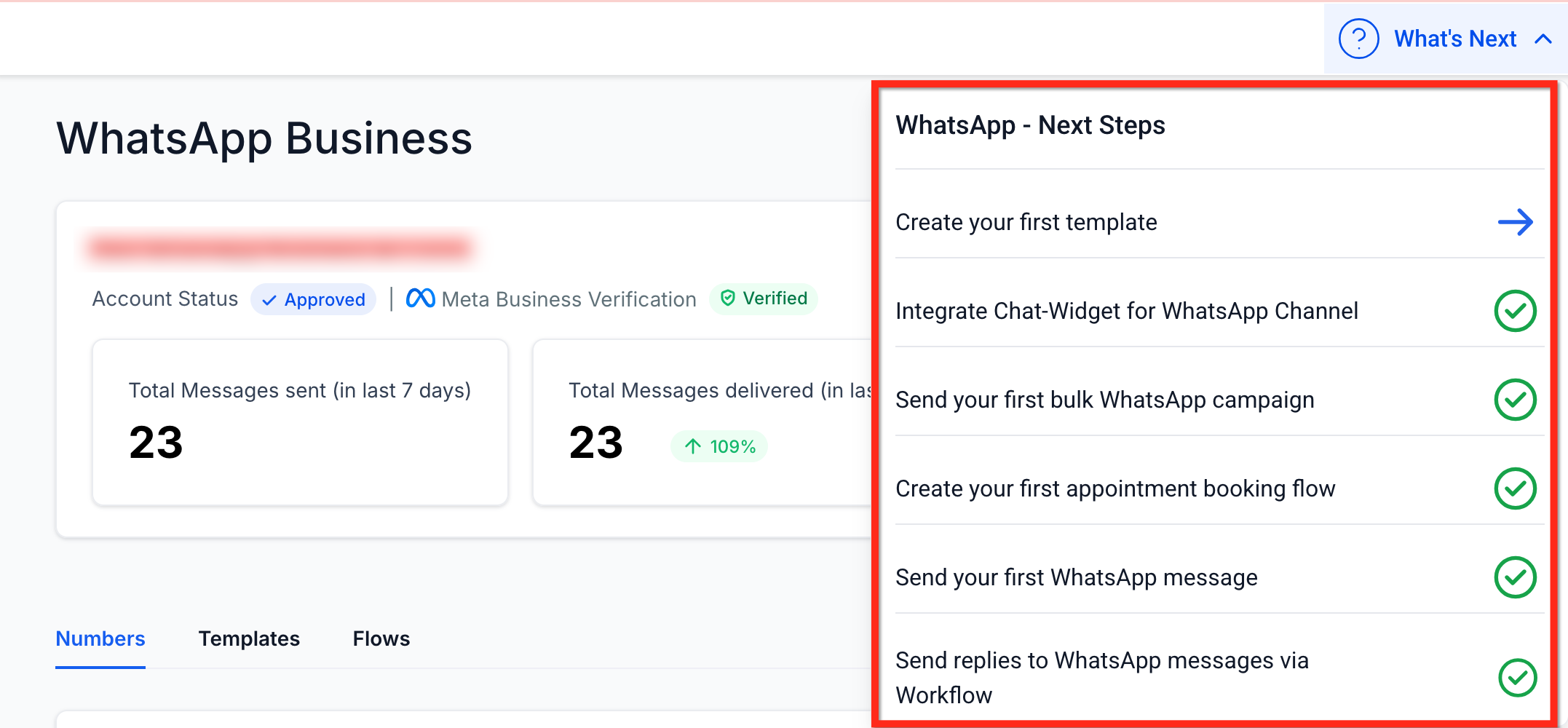
The checklist appears after a WhatsApp Business account is successfully linked to HighLevel. It presents a "What's Next" button that, when opened, displays six pre selected engagement touchpoints. Each touchpoint links directly to the corresponding feature, such as template creation or workflow automation.
Users watch a green checkmark appear beside each item as they complete the associated setup step. The list cannot be edited, ensuring every new user follows the same core path. The checklist remains accessible from the same location after the initial view.
The feature lives within the WhatsApp Business section of the platform, right after the initial configuration guide. It is designed to reduce drop offs and promote adoption of complementary tools.
03How businesses use WhatsApp Business onboarding checklist
- Real estate agency. The agency opens the checklist, clicks the What's Next button, and follows the template creation step to craft property inquiry messages. They then enable the chat widget on their listings page, allowing prospects to start conversations directly from the site.
- Dental practice. The practice uses the appointment booking flow touchpoint to set up automated scheduling messages. Afterward they activate the direct messaging item to send reminders to patients, tracking progress with the checklist’s green checkmarks.
- Online tutoring service. The service clicks the workflow automation touchpoint to configure auto responses for common questions. They also enable bulk campaign management through smart lists, allowing them to target groups of students with course updates.
04Before you start
- A WhatsApp Business account must be successfully connected to the HighLevel account.
05How to set up and use WhatsApp Business onboarding checklist in HighLevel
Activate the WhatsApp onboarding checklist
- Finish the WhatsApp Business configuration by following the standard setup guide.
- Wait for the system to display the What’s Next button automatically.
- Press the What’s Next button to expand the list of six engagement touchpoints.
- Watch the green checkmarks turn on as each task is completed.
06What it looks like in HighLevel
07Things to know before you rely on it
- Checklist items are fixed; users cannot add or remove tasks.
- The checklist only appears for accounts where WhatsApp Business is already connected.
08How it connects to the rest of HighLevel
- Detailed guide for setting up a WhatsApp subaccount WhatsApp subaccount setup
- How to create and manage WhatsApp templates WhatsApp templates
- Guide to linking a LeadConnector number with WhatsApp LeadConnector WhatsApp link
- Increase your HighLevel WhatsApp message limit Message limit guide
- Pricing and plans for WhatsApp reselling HighLevel pricing
Michael's take

Wondering if the WhatsApp Business onboarding checklist is worth the time? It’s a quick way to make sure you’re not missing the core tools that let WhatsApp work smoothly with your HighLevel account, from templates to automation.
If I were setting up a new WhatsApp channel, I’d hop onto the checklist right after the connection is live. It walks you through the essential steps, after which you can set up sending messages, booking appointments and running campaigns without back and forth searching for settings.