
01Who this is for
- Founders of ecommerce brands who need consistent promotional messages with personalized fields.
- Service based businesses such as clinics that send appointment confirmations using variables.
- Companies that provide authentication codes and must meet Meta’s authentication template rules.
02WhatsApp templates, explained
The WhatsApp template feature lets you design messages that will be sent from your WhatsApp Business account before Meta approves them. Each template can contain static text, numbered placeholders like {{1}} and {{2}}, optional media in the header, a footer, and interactive buttons such as Quick Reply or Visit Website.
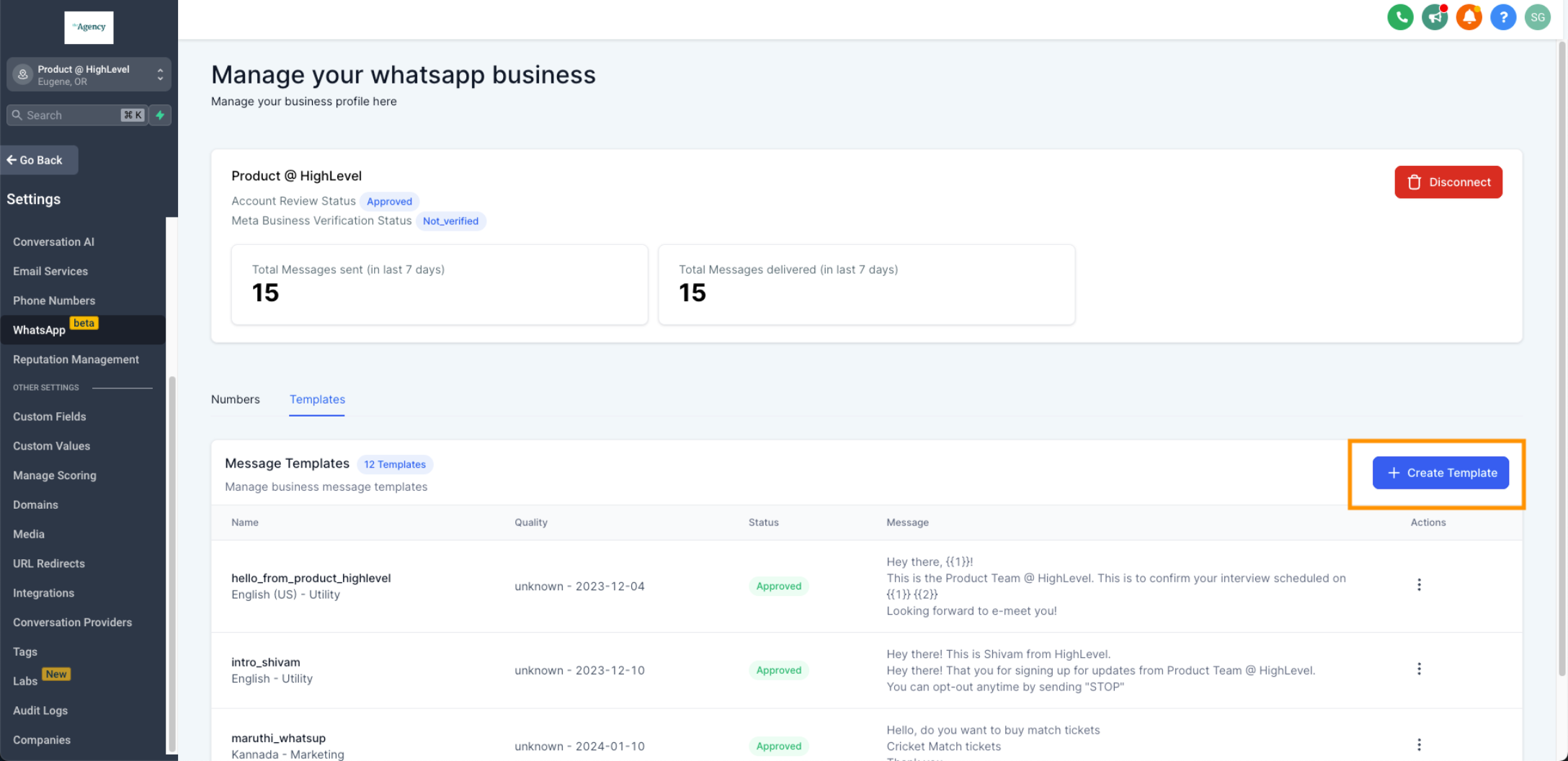
Templates are created and managed under Settings > WhatsApp > Templates. The builder checks variable syntax, brace balance and body placement as you type, highlighting any errors inline. After you finish, you submit the template to Meta and can watch its status from the same Templates list.
If a template is rejected, you can edit, resubmit, or clone it to reuse a working structure. All changes continue to be validated by the inline rules before you can save them.
03How businesses use WhatsApp templates
- Ecommerce store. Create a Marketing category template that includes a product name placeholder and a button linking to the shop. Enter sample values for the placeholders so Meta can see the final appearance before submission.
- Medical clinic. Build a Utility category template for appointment reminders. Use numbered variables for patient name and appointment time, add a Quick Reply button for confirming attendance, and submit for approval.
- Online authentication service. Design an Authentication category template that delivers a verification code using a numbered placeholder. Include a Call Phone Number button if you want users to reach support, then submit the template.
04The numbers and rules that matter
- Supported variable format: Numbered placeholders such as {{1}} and {{2}}.
05Before you start
- The subaccount must have an active WhatsApp subscription.
- WhatsApp onboarding must be completed successfully.
- The appropriate template category and language must be decided.
- Realistic sample values for all variables should be prepared.
06How to set up and use WhatsApp templates in HighLevel
Create a WhatsApp template
- Open Settings > WhatsApp > Templates and click Create Template.
- Enter a template name using only lowercase letters and underscores.
- Select the appropriate category, Marketing, Utility, or Authentication.
- Choose the language for the template.
- Fill the Header with text, allowed media, or a supported variable.
- Write the Body message and insert numbered placeholders with Add Variable.
- Provide a realistic sample value for each placeholder and add a Footer if needed.
- Add any required interactive buttons such as Quick Reply, Visit Website, Call Phone Number, Copy Offer Code, or Marketing Opt Out.
- Review the whole template, fix any inline validation alerts, then click Create; later monitor its status under Settings > WhatsApp > Templates.
Edit or resubmit a WhatsApp template
- Navigate to Settings > WhatsApp > Templates.
- Open the three dot menu for the template and select Edit template.
- Make the necessary changes and resolve any validation warnings.
- Submit the updated template again.
Clone a WhatsApp template
- Go to Settings > WhatsApp > Templates and open the three dot menu for the template you want to copy.
- Select Clone template.
- Enter a new name and modify any content, variables, or buttons as required.
- Correct any validation errors and click Create to save the cloned template.
07What it looks like in HighLevel
08Settings that matter
- Template Name. Defines the identifier for the template; must use only lowercase letters and underscores.
- Category. Specifies the purpose of the message, Marketing, Utility, or Authentication, which Meta uses to assess compliance.
- Language. Sets the language in which the template content is written.
- Header. Optional area where you can add text, supported media, or a variable, depending on the template type.
- Body. Main message block where numbered placeholders are placed; cannot start or end with a variable.
- Footer. Optional short text that appears after the body.
- Add Variable. Button that inserts numbered placeholders such as {{1}} or {{2}} into the body or header.
- Buttons. Interactive elements you can attach to a template, like Quick Reply, Visit Website, Call Phone Number, Copy Offer Code, or Marketing Opt Out.
09Things to know before you rely on it
- Variables must follow the numbered placeholder format like {{1}}; characters other than numbers are invalid.
- Every opening brace must have a matching closing brace; mismatched braces cause a validation error.
- The Body cannot begin or finish with a variable; regular text must appear before and after each placeholder.
- Inline validation ensures formatting is correct, but Meta can still reject a template for category, policy or duplication reasons.
10If something goes wrong
- Cannot save the WhatsApp template. Check the Header and Body for highlighted variable errors, correct any invalid tokens, missing or extra braces, and ensure the Body does not start or end with a variable.
11How it connects to the rest of HighLevel
- WhatsApp reselling guide for agencies in HighLevel Reselling guide
- HighLevel WhatsApp subaccount setup and migration guide Subaccount setup
- HighLevel guide: activate WhatsApp rebilling for agencies Rebilling guide
Michael's take

Wondering if the WhatsApp template builder is worth the time for your business? It’s a straightforward way to get preapproved messages into your outreach, and the inline checks save you from having to redo a template after Meta rejects it.
If I were setting up a new campaign, I’d start with a clean template that follows the numbered placeholder rule and includes a short piece of static text before and after each variable. That keeps the validation happy and the final message clear for the customer.