
01Who this is for
- Agency owners who manage multiple client WhatsApp accounts can keep each client’s app active while using HighLevel for automation.
- Small business Founders who need a brand new WhatsApp number for their company can set it up directly inside HighLevel without external tools.
- Resellers migrating a client’s number from another Business Solution Provider can preserve the number, display name and approved templates during the switch.
02WhatsApp subaccounts, explained
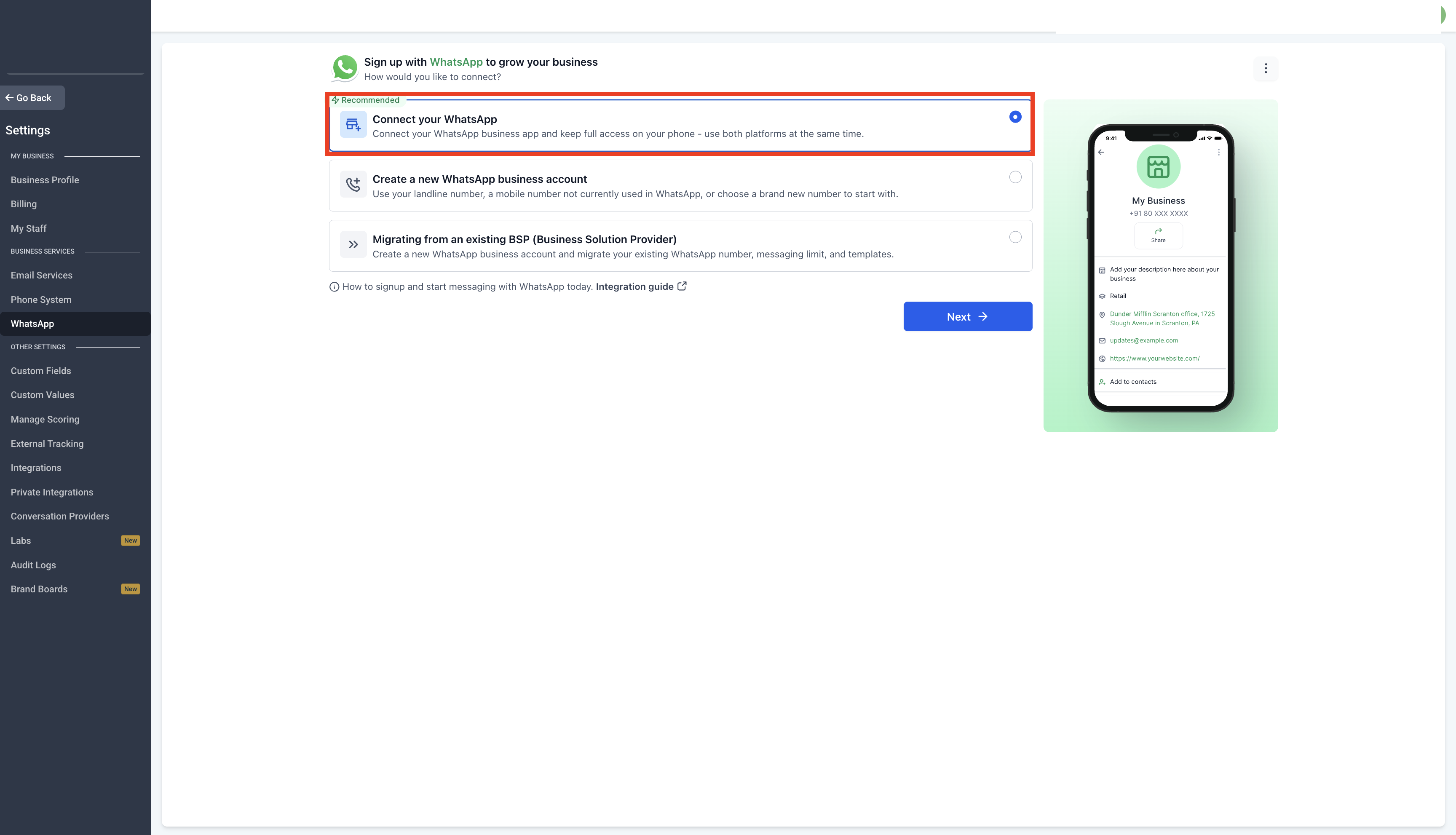
The WhatsApp feature enables you to attach a WhatsApp Business account to a HighLevel subaccount. You can either link an existing app (coexistence), create a brand new number, or move a number that is currently attached to another provider.
When you use the coexistence method, the original WhatsApp Business app stays active on the phone, while HighLevel handles automated messaging and templates. A single phone number can be linked this way, and template messages are sent only through the platform, not the app.
All configuration lives under Settings in the subaccount. Choose Settings > WhatsApp for existing or new connections, or follow the migration paths outlined for numbers that are already with another partner.
03How businesses use WhatsApp subaccounts
- Digital marketing agency. The agency connects each client’s existing WhatsApp Business app using the coexistence option. They scan the QR code to sync contacts and chat history, then manage templates and automation from HighLevel while the client continues to use their native app.
- Ecommerce startup. The startup creates a new WhatsApp Business number directly in HighLevel. After verifying the number with an OTP, they fill in the business profile, attach existing Meta assets, and start sending automated order confirmations from the platform.
- Software reseller. When a reseller needs to move a client’s number from a prior Business Solution Provider, they follow Path A or Path B depending on whether the client also uses the WhatsApp Business app. The process turns off two step verification, verifies ownership, and re establishes the approved templates in HighLevel.
04The numbers and rules that matter
- Maximum of one phone number under Coexistence.
- Import contacts and up to six months of chat history from the app.
05Before you start
- Administrator access to the Meta business portfolio that owns the WhatsApp Business Account.
- The ability to receive an SMS or voice call on the phone number for verification.
- Two step verification turned off for the number.
- Display name approved with no pending change request.
- Meta business portfolio verified and the WhatsApp Business Account in good standing.
- A list of approved templates that you rely on.
06How to set up and use WhatsApp subaccounts in HighLevel
Connect an existing WhatsApp Business app (coexistence)
- Open Settings > WhatsApp and click Connect your WhatsApp.
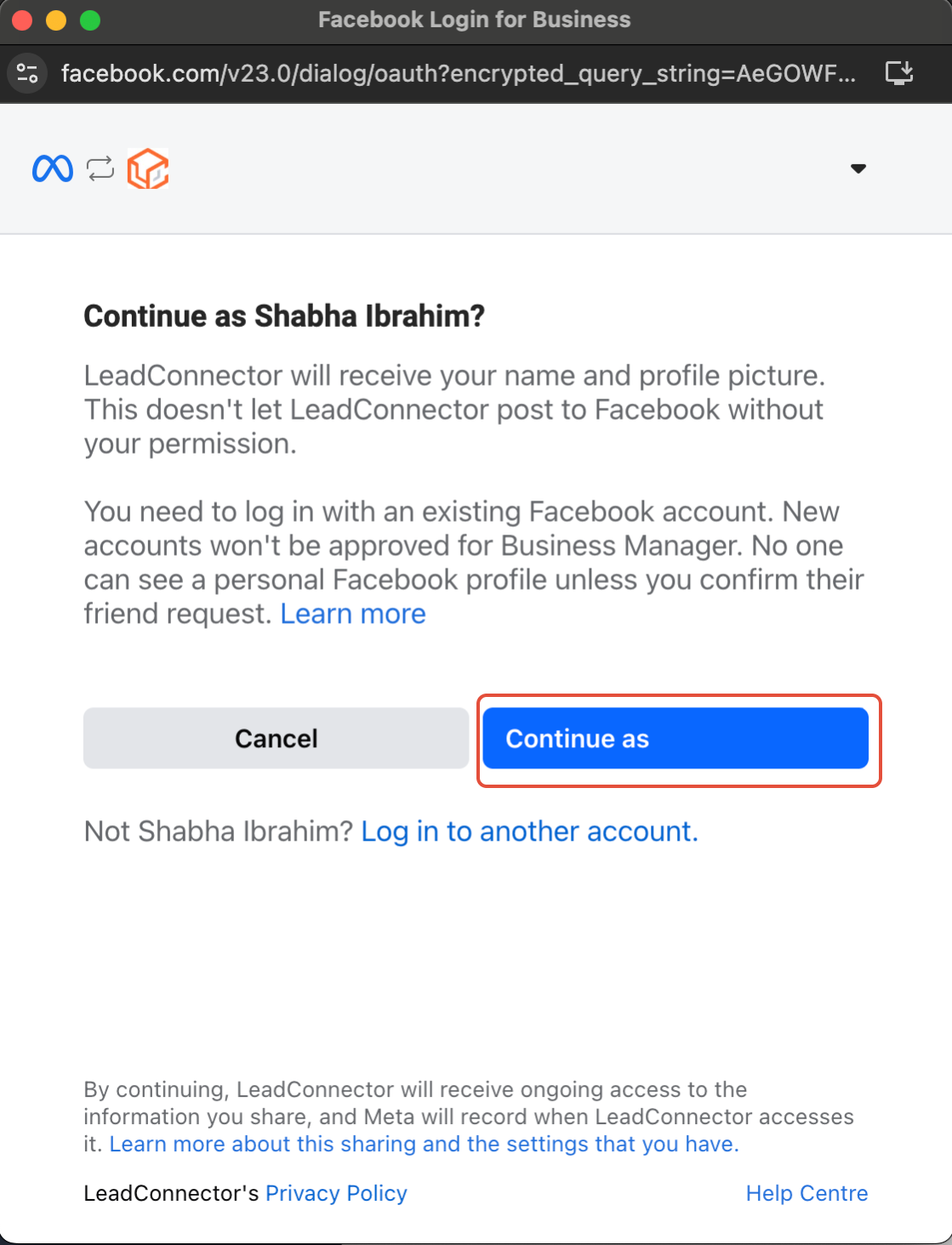
- Follow the on screen instructions to start registration.
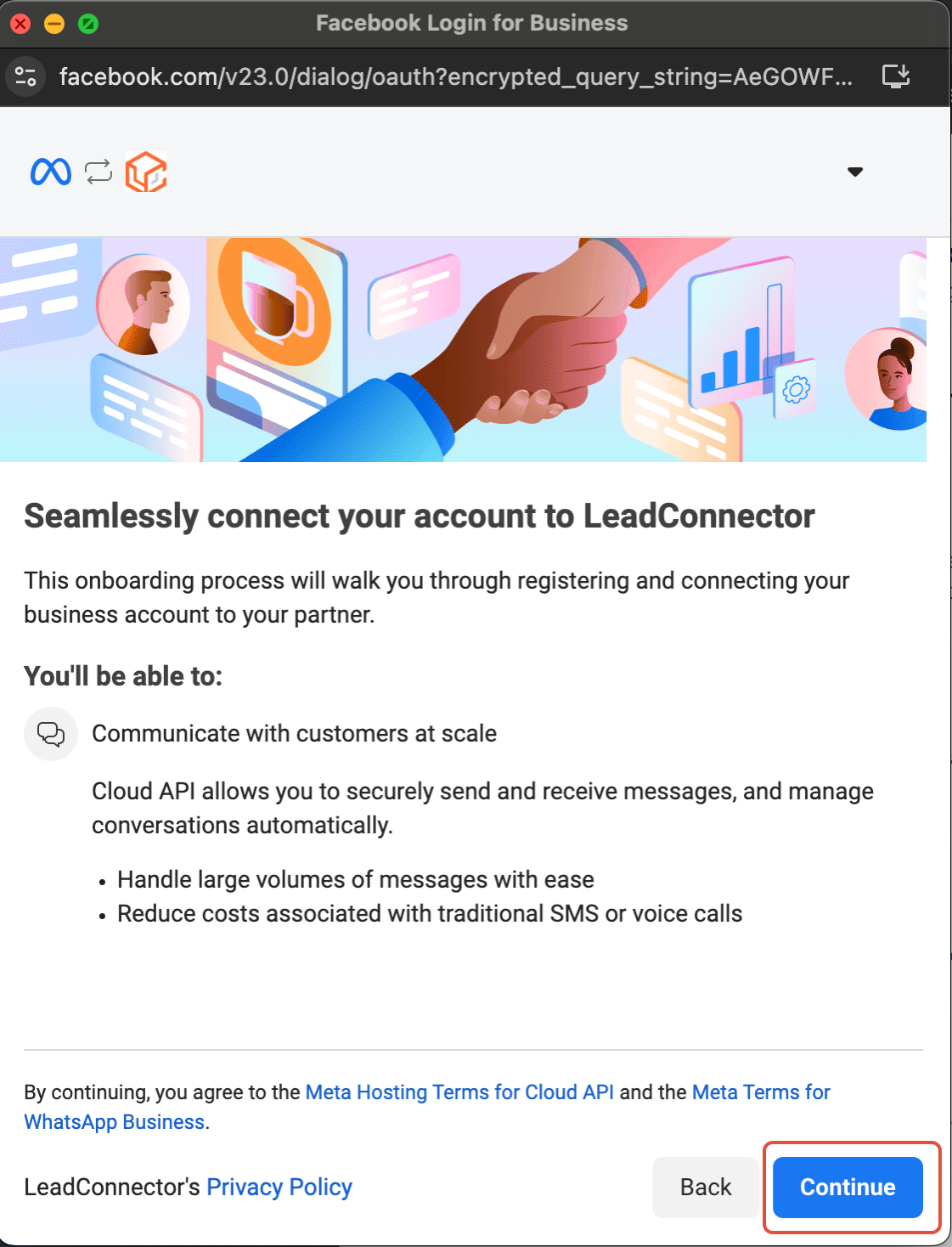
- Click Continue to move to the integration screen.
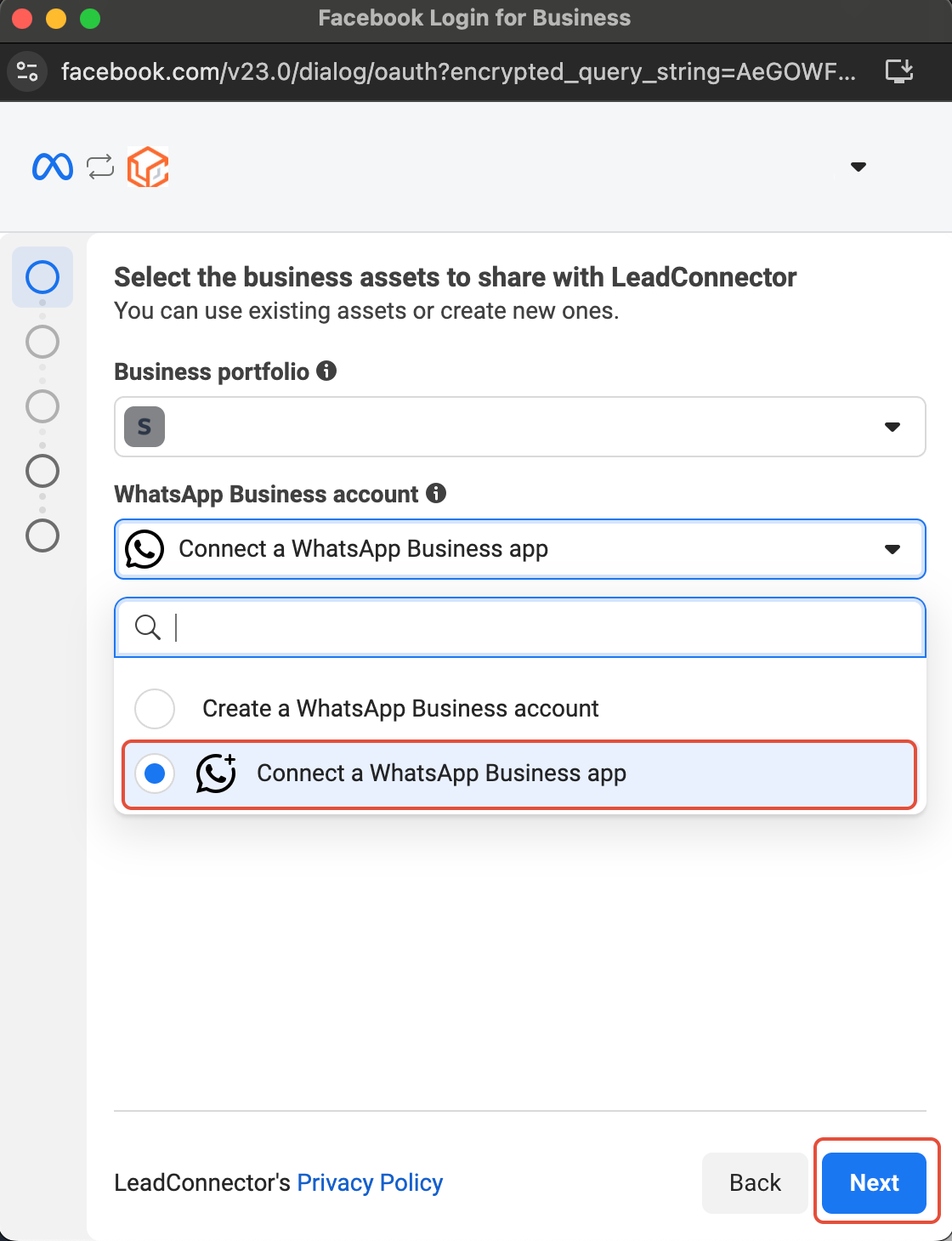
- Select Connect a WhatsApp Business App and tap Next.
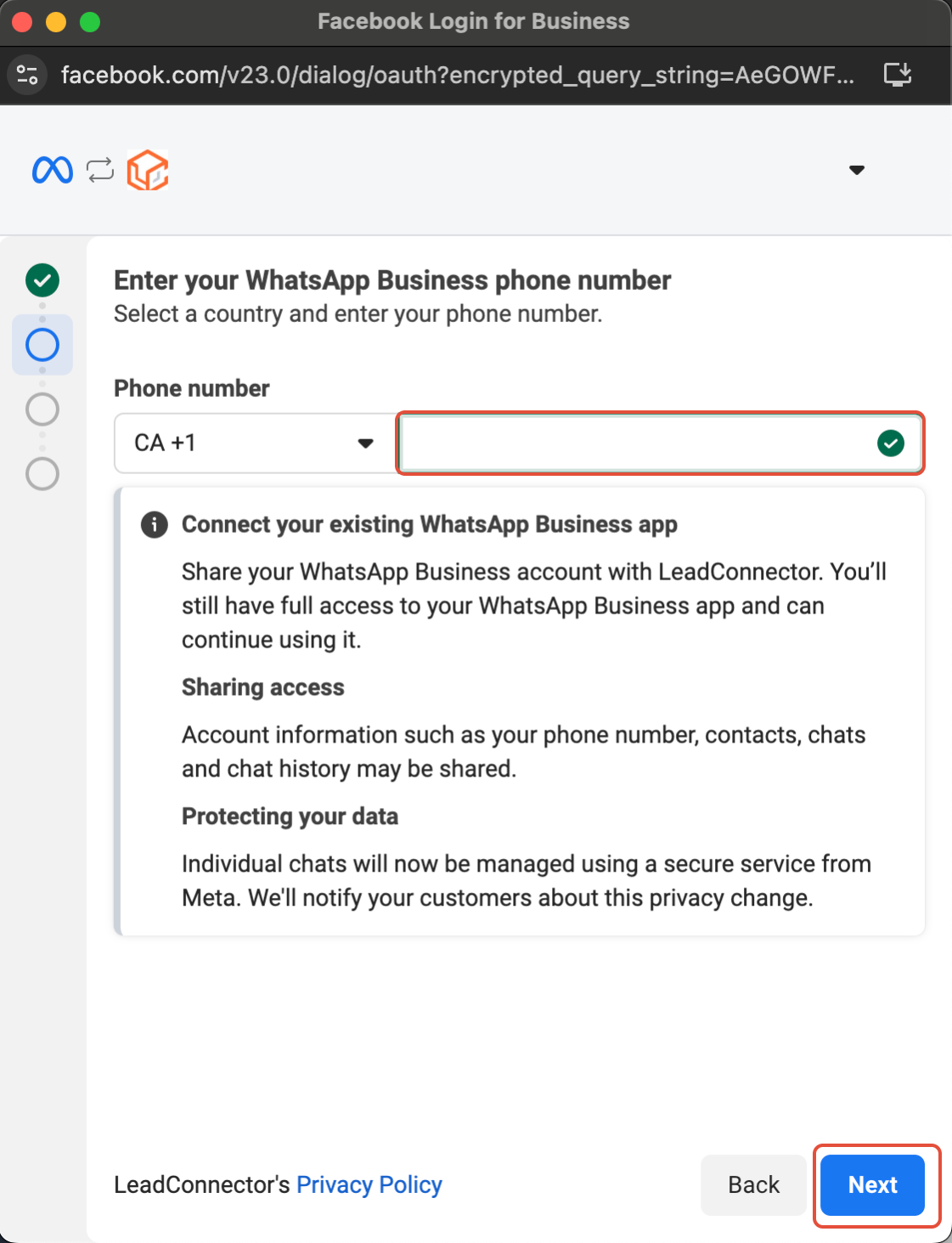
- Enter the WhatsApp Business phone number and tap Next.
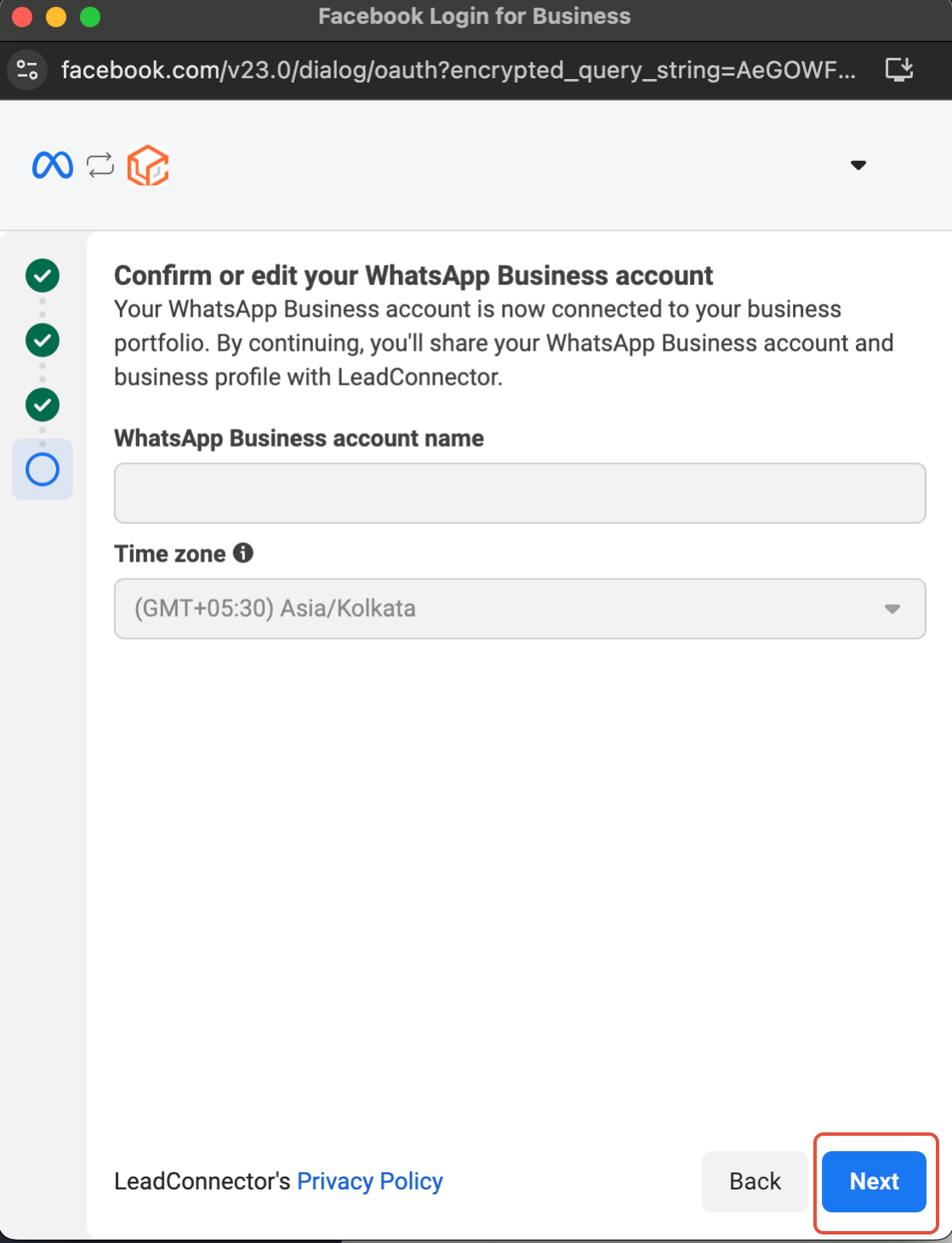
- Review the account details and adjust if needed.
- Update the app, import contacts and up to six months of chat history, then scan the QR code when it appears.
- Scan the QR code to finish linking the app with the Business Platform.
- Confirm that contacts and conversations are synced with LeadConnector.
- Check that the setup is complete.
- Review all entered information carefully.
- Click Confirm to finalize the connection.
- Press Finish to complete the integration.
Connect a new WhatsApp Business number
- Navigate to Settings > Communication > WhatsApp and click Create a new WhatsApp business account.
- Click Continue with Facebook and log in with the Facebook account linked to the business.
- Tap Continue to begin the integration process.
- Enter a new business phone number or choose one from the dropdown list.
- Select the verification method for the new number.
- Enter the one time password received by SMS or voice call and click Next.
- Provide the business name, country and optional website for the profile.
- Choose existing Meta business assets or create new ones, then finish the integration.
Migrate a WhatsApp number, Path A (partner only)
- Turn off two step verification for the number in WhatsApp Manager, or have the current partner disable it.
- In the subaccount, go to Settings > WhatsApp and start the connection, signing into Meta and selecting the appropriate portfolio and account.
- Enter the six digit verification code sent by Meta to confirm ownership.
- If prompted, set a new six digit PIN and store it securely.
- Confirm that the number shows as connected in HighLevel.
- Open Settings > WhatsApp > Templates and verify that approved templates are present; send a test message to an internal contact.
Migrate a WhatsApp number, Path B (coexistence)
- In the WhatsApp Business app, go to Settings > Account > Business Platform, select the connected partner and disconnect it.
- Wait a few minutes, then repeat the checks in both the app and Meta Business Settings to ensure the partner no longer appears.
- In the subaccount, open Settings > WhatsApp and connect the number using the Coexistence option for an existing app number.
07What it looks like in HighLevel
08Settings that matter
- Two step verification. Controls whether a PIN is required to verify ownership of the WhatsApp Business number; it must be disabled before migration.
- Display name. The public name shown to WhatsApp users; it must be approved with no pending changes before connecting or migrating.
- Coexistence. Allows an existing WhatsApp Business app to stay active while HighLevel handles automated messaging; only one phone number can use this mode.
09Things to know before you rely on it
- The coexistence feature is unavailable for phone numbers from Nigeria or South Africa.
- Only a single phone number can be linked under coexistence.
- Template messages cannot be sent through the WhatsApp Business app; they are sent only via the platform.
- Message history, media, contact list, two step verification PIN, and low quality or pending templates do not transfer during migration.
10If something goes wrong
- Business is already sharing this WhatsApp Business Account with a partner. Disconnect the existing partner in the WhatsApp Business app (Path B, step 1) or remove it in Meta Business Settings, then retry the connection.
- Migration will not start or complete. Two step verification is likely still enabled; turn it off in WhatsApp Manager or ask the previous partner to turn it off, then retry.
- The verification code does not arrive. Confirm the SIM can receive SMS and calls, then request the code via voice call instead of SMS.
- Setup is blocked by a display name issue. Resolve any pending display name change in WhatsApp Manager so the name is approved, then continue.
- Some templates are missing. Only approved, high quality templates are copied; recreate missing ones and submit them for Meta approval.
- Connected, but messages do not arrive in the platform. If another integration remains connected, check Conversation Routing in Meta Business Suite and set the platform as the primary responder.
11How it connects to the rest of HighLevel
- Learn how to use WhatsApp alongside HighLevel with coexistence WhatsApp coexistence guide
- Set up automated WhatsApp workflows in HighLevel WhatsApp workflow automation
- Understand WhatsApp pricing, billing and rebilling for agency subaccounts WhatsApp rebilling guide
Michael's take

WhatsApp subaccounts are useful, but only if you need multiple WhatsApp lines managed from HighLevel. Skip it if you run a single WhatsApp Business account and don’t need separate subaccount reporting.